Livestream plugin 1.1.0 / Using Livestream
Go live and watch
This page is for members: how to find livestreams, go live straight away or schedule a live, invite people to a private live, run the live room as a host, watch and join as a viewer, and what remains after a live ends. Members can also watch and go live in the mobile apps.
Find livestreams#
Last updated: 2026-11-19 · v1.1.0
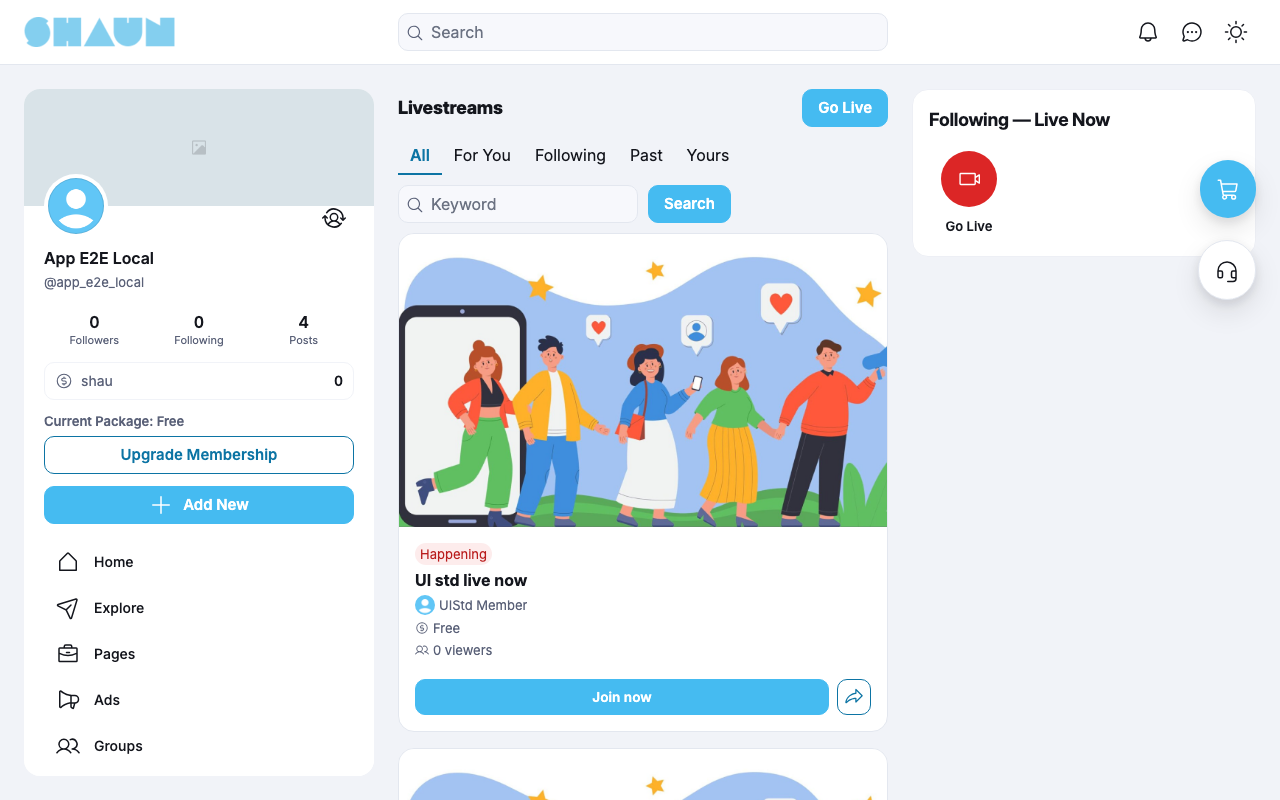
Click Livestream in the main menu. The page Livestreams has five tabs; guests see only All and Past:
| Tab | What it lists |
|---|---|
| All | lives that are on now, then scheduled ones, soonest first |
| For You | the same, limited to lives with hashtags you follow; if you follow no hashtag, it shows all of them |
| Following | lives on now and scheduled by people you follow |
| Past | lives that have ended, most recent first |
| Yours | the lives you created, and those you marked Interested or joined |
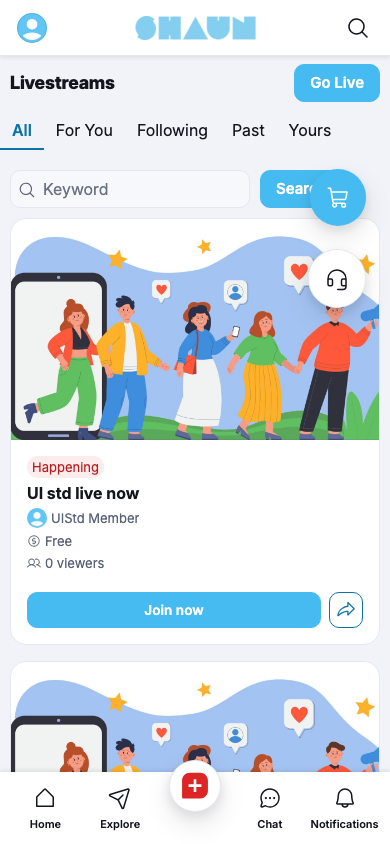
Type a word of the title in Keyword and click Search to narrow the tab. Each card shows the cover, the state (for example Happening), the title, the host, the price ("Free" or "Fee: [amount]") and the number of viewers, with Join now, Interested or View, and a share button.
The box Following — Live Now beside the list shows the people you follow who are live right now, with a red Go Live button first. You also find livestreams in:
- the Livestreams tab of a profile: the lives that member created or joined;
- search: the Livestreams tab of the search results and the suggestions under the search box, for lives that are on now or scheduled;
- Lists → Livestreams: your own lives and the ones you are interested in, with a status filter.
Private lives appear in none of these places, except for their host and the members they invited.
Go live#
Last updated: 2026-11-19 · v1.1.0
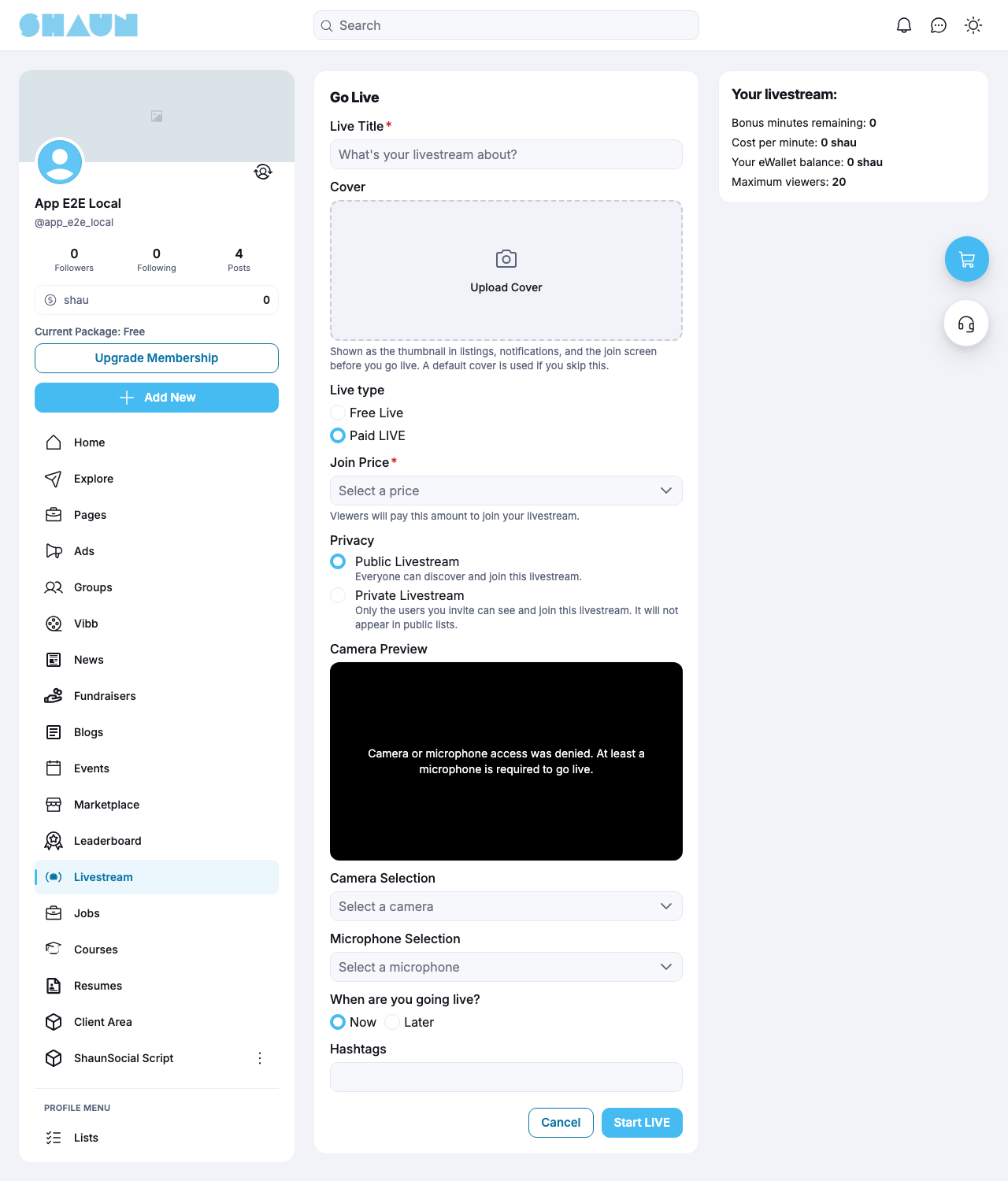
Click Go Live on the Livestreams page, in the Add New menu or in the Following — Live Now box. If your membership does not allow it you see a message instead (after installing: "You don't have go LIVE permission."); if the site has not connected its video service yet, "Live streaming has not been configured yet. Please contact the administrator." Your browser asks once for access to your camera and microphone: allow it.
- Fill in the form:
Field What to enter Live Title required, up to 255 characters Cover optional; click Upload Cover and crop the picture. "Shown as the thumbnail in listings, notifications, and the join screen before you go live. A default cover is used if you skip this." Live type Free Live, or Paid LIVE with a Join Price chosen from the site's prices ("Viewers will pay this amount to join your livestream."). If the site has no prices, you see "No pricing packages available yet" and can only go live for free Privacy Public Livestream: "Everyone can discover and join this livestream." Private Livestream: "Only the users you invite can see and join this livestream. It will not appear in public lists." For a private live, search and add people under Invite Users; you can also invite them later Camera Preview, Camera Selection, Microphone Selection check the picture and choose the camera and microphone. At least a microphone is needed; without a camera you broadcast sound only When are you going live? Now, or Later with a date and time in the future. The time is read in the time zone of your profile Hashtags optional; they put your live in the For You tab of members who follow them - Click Start LIVE (Now) or Schedule LIVE (Later).
What you should see: with Start LIVE, the live room with "You are live!"; with Schedule LIVE, "Your livestream has been scheduled." and the page of the scheduled live.
Beside the form, Your livestream: shows your free minutes left, the cost per minute, your eWallet balance and the maximum number of viewers; for a paid live, Estimated earnings: shows the join price for 5, 10 and 20 viewers before the site's share. If streaming costs you money and your balance cannot pay for the first minute, you see "Your wallet balance is not enough to start streaming. Please add funds." with an Add funds button (see The streaming cost for the host). You can be live in only one live at a time: "You are already live in another session. Please end it before starting a new livestream."
Your followers get a notification when you schedule a public live and when you go live; the people you invite to a private live get an invitation instead (see Notifications).
A scheduled livestream#
Last updated: 2026-11-19 · v1.1.0
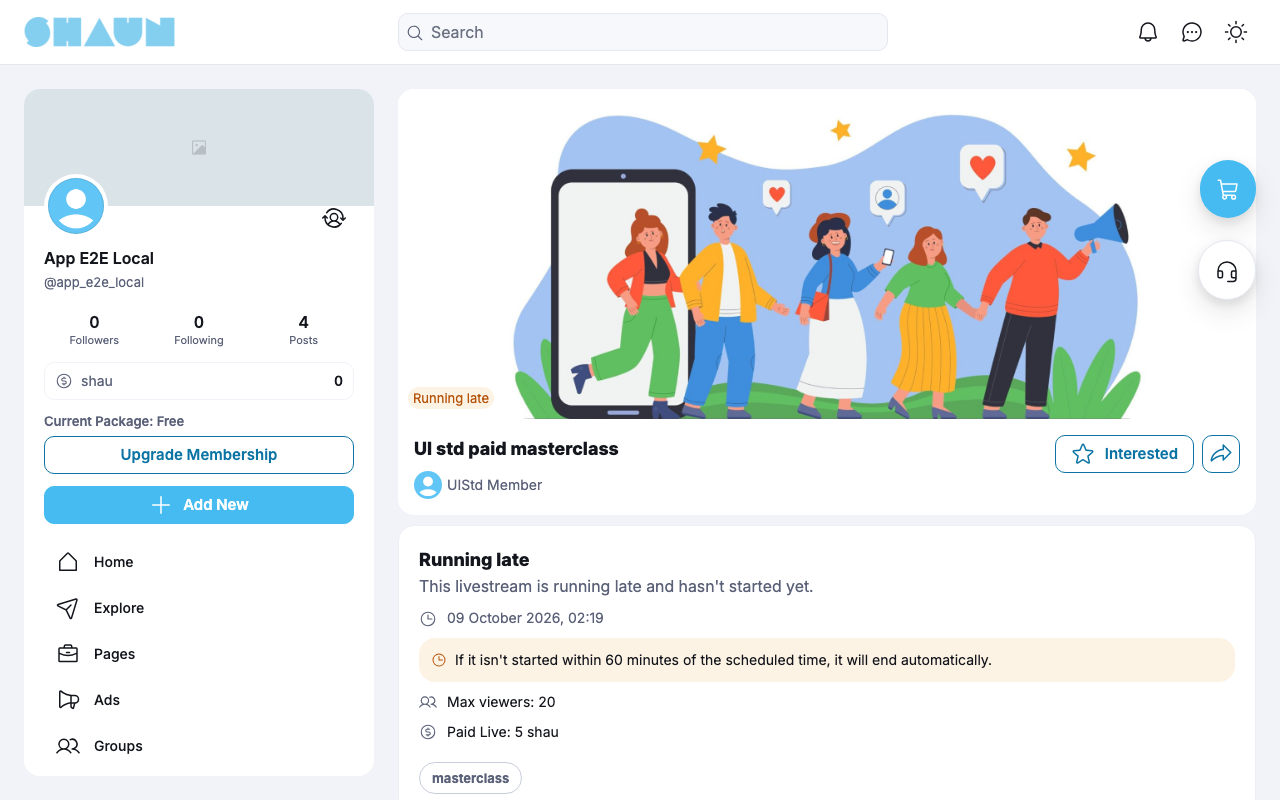
The page of a scheduled live shows "Starting Soon" with a countdown ("Starts in: …"), the start time, the maximum number of viewers, "Free to join" or "Paid Live: [price]" and the hashtags. Once the start time has passed without the host starting, it shows "Running late" and, if the site ends late lives automatically, "If it isn't started within [n] minutes of the scheduled time, it will end automatically."
For viewers: Interested#
Click Interested to be reminded: the button turns blue and the page says "You will be reminded before this livestream starts." You get a reminder shortly before the start, a notification when it goes live, and one if the host changes its details. Click it again to stop. Being interested costs nothing, also for a paid live: you pay only when you join the running live.
For the host: change, start or delete#
- Change it with the pencil buttons while the start time is still ahead: Edit Title, the cover, Edit Live type (free or paid and the price), Edit Schedule (the date, time and camera; "Interested viewers will be notified of the new schedule."), Edit Hashtags or Add Hashtags, and for a private live Invite. Interested members are told when something changed. Whether a live is public or private cannot be changed after creating it.
- Start it with Start LIVE at any time, also before the scheduled time: you are then asked "This livestream is scheduled for [time]. Do you want to start it now, earlier than scheduled?". After the scheduled time you can still start it until it is ended automatically.
- Delete it with the bin button and confirm "Do you want to delete this livestream?". A live cannot be deleted while it is on; end it first.
Private livestreams and invitations#
Last updated: 2026-11-19 · v1.1.0
- A private live is seen, joined and commented on only by its host and the members they invited. For everyone else its address shows the page as not found, and it is missing from lists and search. It has no share button.
- Invited members get "invited you to a private livestream." and are counted as interested, so they also get the reminder and the "is now live" notification. You cannot invite yourself.
- The host can change the invitations under Invite before the live and during it: "Newly added users will receive an invite notification. Removed users will be silently uninvited." Someone removed while watching can stay until they leave.
- A private live can also be paid: invited members then pay the join price like anyone else.
Hosting the live room#
Last updated: 2026-11-19 · v1.1.0
When you are live you see your camera picture with a LIVE label and the number of viewers. Your buttons:
| Button | What it does |
|---|---|
| Comments | opens or closes the comments beside the video (on a phone they run over the video) |
| Mute / Unmute | switches your microphone off and on |
| Camera On / Camera Off | switches your camera off and on |
| Flip | on a phone: changes between the front and back camera |
| Invite | private lives only: change who is invited |
| Info | Your livestream: free minutes left, cost per minute, your eWallet balance, "Streaming charge so far" and, for a paid live, "Earnings:" |
| End Live | ends the live after "Are you sure you want to end this livestream?" |
- If streaming costs you money, "Balance low — stream will end soon." warns you when your balance runs low, and the live ends by itself when your balance can no longer pay the next minute (see The streaming cost for the host).
- If you close the page or lose the connection without ending the live, it is ended about two minutes later.
- When the live ends, every viewer is taken out of the room and sees that it has ended.
Watch a livestream#
Last updated: 2026-11-19 · v1.1.0
- Open a live that is on and click Join (free live) or Pay & Join (paid live). Guests see Log in to join.
- For a paid live, confirm "Pay [price] to join this livestream?". The price is taken from your eWallet once; you can
leave and come back to the same live without paying again (see Paid lives).
What you should see: "Connecting to the livestream..." and then the host's video.
- "This livestream is at capacity. Please try again when a viewer leaves.": the live has reached the site's maximum number of viewers. You have not been charged.
- "Your wallet balance is not enough. Please add funds.": add funds first (see Add funds).
- You cannot join your own live as a viewer.
In the room you can:
- write Comments, which everyone in the room sees and which stay on the live's page afterwards;
- send hearts with the heart button; they float up for everyone;
- send the host a Gift, when the site allows it (see Gifts in the live room);
- Share a public live, or Report it to the site's moderators;
- Leave, after "Are you sure you want to leave this livestream?".
After a livestream ends#
Last updated: 2026-11-19 · v1.1.0
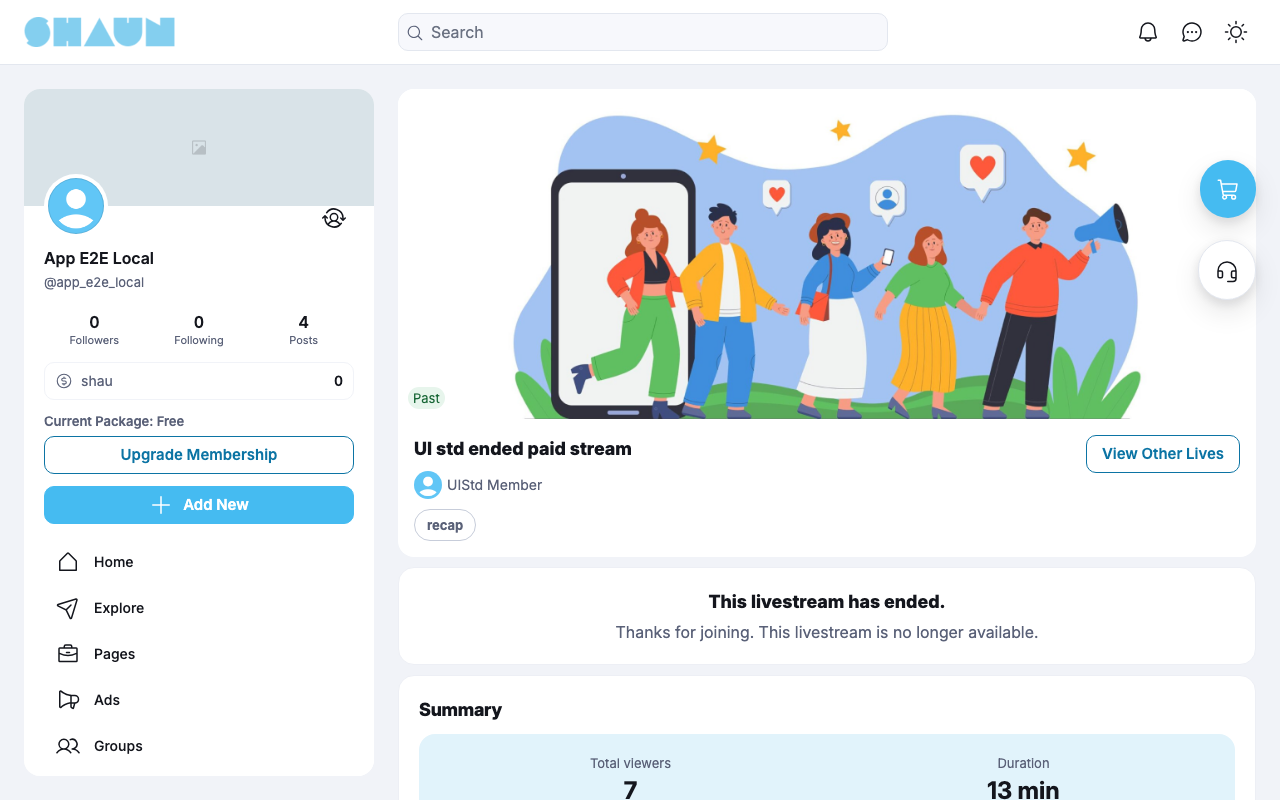
The live is not recorded: its page says "This livestream has ended." and "Thanks for joining. This livestream is no longer available.", with View Other Lives. The Summary shows Total viewers (the highest number watching at the same time) and the Duration, and the comments stay below it. The host also sees Total earnings and Platform fee for a paid live, and the Total charge for streaming. The host can still delete an ended live; the money already moved stays where it is.
Notifications#
Last updated: 2026-11-19 · v1.1.0
Each notification starts with the host's name and opens the live when clicked:
| Notification | Who gets it | When |
|---|---|---|
| "… created a new livestream." | the host's followers | a public live is scheduled for later |
| "… is now live! Watch now." | public live: the host's followers and the members interested in it; private live: the invited and interested members | the live starts |
| "… invited you to a private livestream." | each member the host invites | when invited |
| "… updated the details of a livestream you are interested in." | the members interested in it | the host changes the title, price, start time, cover or hashtags of a scheduled live |
| "… is going live soon. Join now!", or for a paid live "… is going live soon. This is a paid livestream — make sure you have enough funds to join." | the members interested in it | the number of minutes the site set before the start |
| "You are going live soon. Get ready!" | the host | at the same time |
Change log#
Last updated: 2026-11-19 · v1.1.0
| Date (GMT+7) | Section | What changed |
|---|---|---|
| 2026-11-19 | all | First version for Livestream 1.1.0, written from the 1.1.0 code. No live was started, joined or paid while writing: the live room, payments and messages were read from the code, not run. Screenshots from a demo site running Livestream 1.1.0. |
| 2026-11-19 | all | Pages reorganised: AdminCP content now has its own pages. |