ShaunSocial user guide 1.5.6 / Monetisation
eWallet
The eWallet is the balance of site tokens every member (and every business page) holds on your site. Members add funds to it through a payment gateway, pay for the site's paid features from it, send money to each other, receive tips, earnings and referral commissions in it, and ask you to pay their balance out to PayPal or a bank account. This page shows admins the settings, the deposit packages, the withdrawal requests and the tools to look at or change a member's balance, and shows members how to add funds, pay, send and withdraw.
Checked against the 1.5.6 code; the AdminCP screens and settings were compared with a demo site. Adding funds, sending, withdrawing and handling requests were read from the code, not run; screenshots follow.
How the eWallet works#
Last updated: 2026-11-17 · v1.5.6
Balances are kept in your site token (for example "shau"), whose value in real money is set by the exchange rate (see Currencies and the site token). Tokens come in and go out like this:
| Money in | Money out |
|---|---|
| adding funds through a payment gateway; funds sent by another member or by an admin; tips, paid-content earnings and referral commissions | paying for the site's paid features; sending funds to another member; a withdrawal request, which the admins pay out to PayPal or a bank account by hand |
- Only completed amounts count. A top-up that is still Pending or Processing shows in the member's list but is not in the balance until the gateway confirms it.
- Business pages have their own eWallet, used while switched to the page; paying for the page's own features takes the money from it. Only the owner can send its money or withdraw it (see Page admins and owner transfer).
- Who may send and withdraw is set per member role: Send funds and Transfer funds in the eWallet box of the role's permissions, both on for the Member role after installing (see The permissions of a member role). Adding funds and paying need no permission.
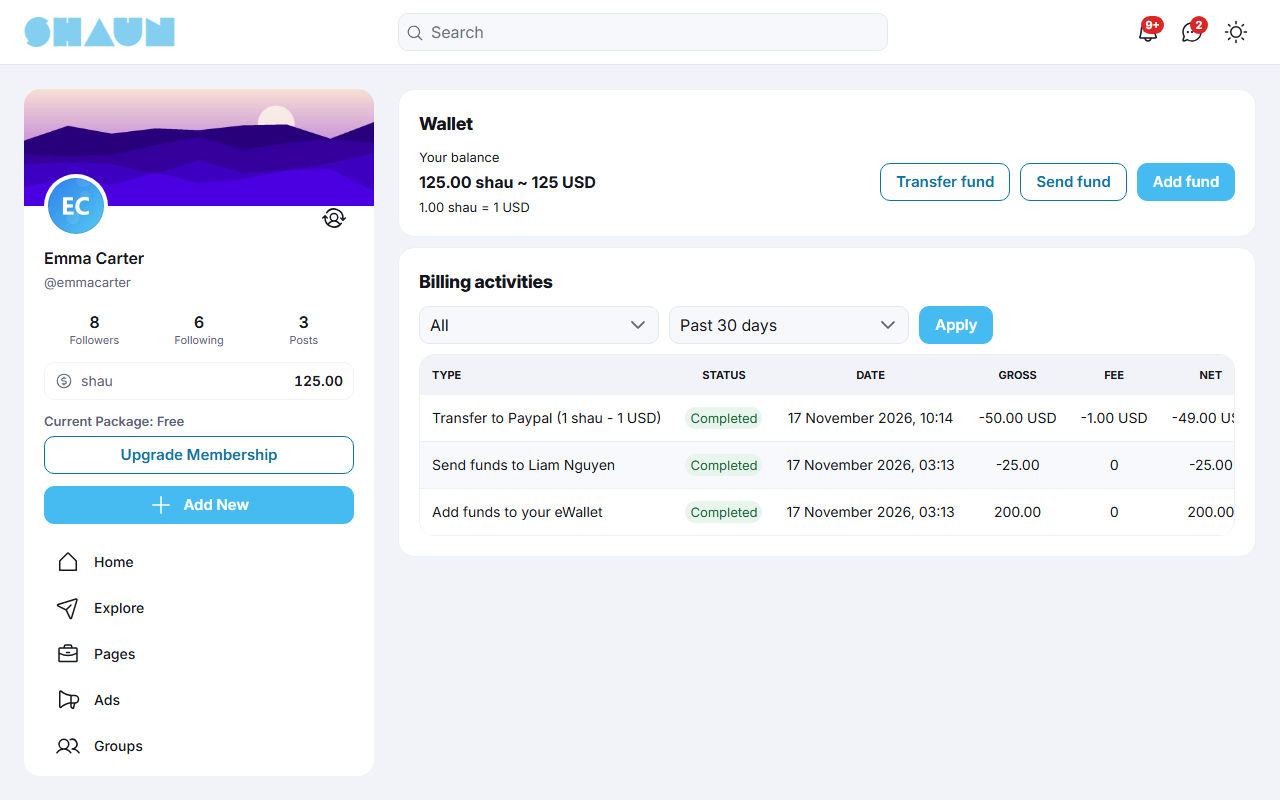
Members open their eWallet from the Wallet row with their balance on the profile card at the top of the
left menu, or at https://example.com/wallet.
The eWallet is on after installing (AdminCP → Site Settings → General Configuration → eWallet → Enable). Switched off, the Wallet row and page disappear, members can no longer add, send, withdraw or pay with the eWallet, and featured business pages can no longer be bought, even through PayPal or Stripe (they need the eWallet on). Balances are kept and are back when you switch it on again.
The AdminCP menu eWallet holds Wallets, Deposit Packages, Transfer Fund Requests, Transfer Mass Funds and System's billing activities (see System's billing activities). Moderators need the switch of the same name in their role for each (Wallets, Deposit packages, Transfer funds requests, Transfer Mass Funds, System's billing activities; see Moderator roles).
Member wallets and their transactions#
Last updated: 2026-11-17 · v1.5.6
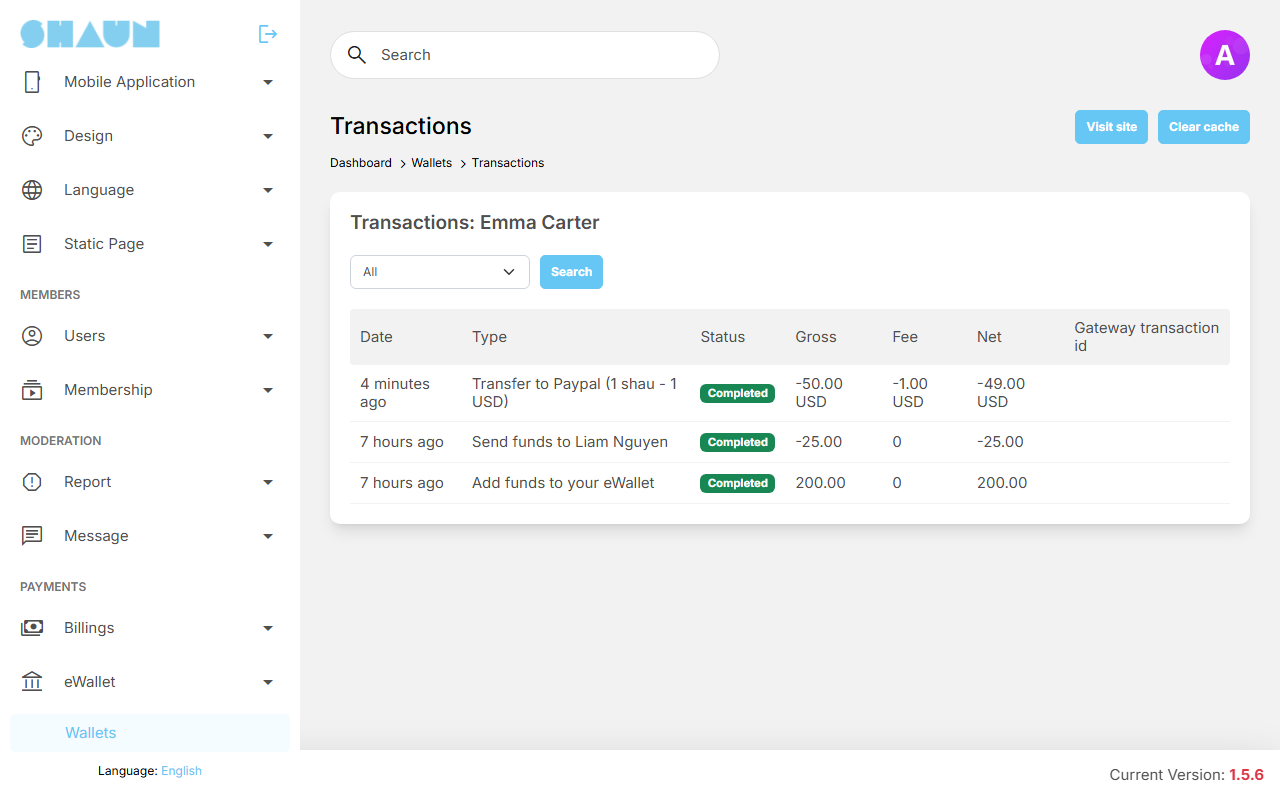
The list shows every account, members and business pages, newest first, with Name, Email and Current balance. Type part of a name or user name in Search to find one.
Click Transactions on a row to see that account's eWallet: every line with its Date, Type (for example "Add funds to your eWallet", "Send funds to [member]", "Transfer to Paypal (1 shau - 0.1 USD)"), Status, Gross, Fee, Net and, for a top-up, the Gateway transaction id, the reference to look the payment up at the provider. Filter by status:
| Status | Meaning |
|---|---|
| Pending | a top-up was started; the gateway has not confirmed it yet |
| Processing | the gateway took the payment but it has not cleared yet (some PayPal payments) |
| Completed | done; only these lines count in the balance |
| Failed | the gateway refused the payment, or it did not clear within 14 days. If the gateway confirms it later, it still changes to Completed |
| Cancelled | the member cancelled on the gateway's page, or the payment was not confirmed within 30 minutes. If the gateway confirms a payment later, it still changes to Completed |
To correct a balance, use Transfer Mass Funds; lines cannot be edited or deleted.
Wallet settings, withdrawals and fees#
Last updated: 2026-11-19 · v1.5.6
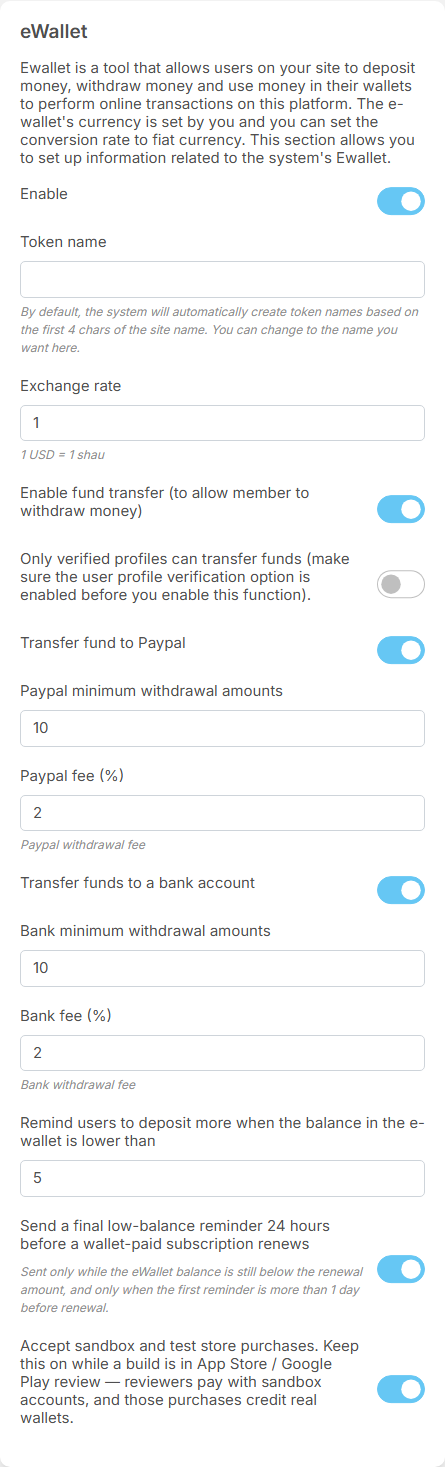
The settings save as soon as you change them (see Settings save themselves).
| Setting | After installing | What it does |
|---|---|---|
| Enable | on | the eWallet as a whole (see How the eWallet works) |
| Token name, Exchange rate | empty, 1 | see Name the token and set the exchange rate |
| Enable fund transfer (to allow member to withdraw money) | on | lets members ask for a withdrawal. It also needs at least one of the two methods below; with both off, Transfer fund disappears |
| Only verified profiles can transfer funds (make sure the user profile verification option is enabled before you enable this function). | off | on: only members with a verified profile can ask for a withdrawal; others who click Transfer fund are offered to verify their profile. Switch on profile verification first (see Profile verification) |
| Transfer fund to Paypal | on | offers withdrawal to a PayPal account |
| Paypal minimum withdrawal amounts | 10 | the smallest withdrawal to PayPal, in your default currency (10 USD, not 10 tokens) |
| Paypal fee (%) | 2 | the share of each PayPal withdrawal the site keeps |
| Transfer funds to a bank account | on | offers withdrawal to a bank account |
| Bank minimum withdrawal amounts | 10 | the smallest withdrawal to a bank, in your default currency |
| Bank fee (%) | 2 | the share of each bank withdrawal the site keeps |
| Remind users to deposit more when the balance in the e-wallet is lower than | 5 | an amount in tokens. When money leaving a member's eWallet takes their balance below it, they get "Your account balance is running low." and an e-mail; they are reminded again only after a top-up has brought their balance back up to the amount |
| Send a final low-balance reminder 24 hours before a wallet-paid subscription renews | on | a second request to add funds, a day before a renewal, while the balance is still too low to pay it (only when the first reminder came more than a day before) |
| Accept sandbox and test store purchases. Keep this on while a build is in App Store / Google Play review — reviewers pay with sandbox accounts, and those purchases credit real wallets. | on | concerns only credits bought inside the mobile apps: whether purchases made with test accounts add credits. See The In-App Purchase settings |
How a withdrawal is counted#
The member asks for an amount in tokens. The site converts it with the exchange rate, checks the minimum of the chosen method, and takes the fee from the converted amount; you pay the rest. With the exchange rate as installed (1, so "1 USD = 1 shau") and the PayPal fee at 2%:
| Asked | Gross | Fee | Net (what you send) |
|---|---|---|---|
| 50 shau | 50.00 USD | 1.00 USD | 49.00 USD |
The 50 shau leave the member's balance at once, when the request is sent. A request below the minimum (here 10 shau, worth 10 USD) is refused with "The amount must be minimum 10 USD.". The 1 USD fee stays with the site. With an exchange rate of 10 ("1 USD = 10 shau"), the same 50 USD withdrawal is a request for 500 shau, and the minimum is 100 shau.
The low-balance reminders are sent by the scheduled task (cron job), which checks every minute; the subscription reminders run every five minutes. See What stops when the cron job does not run.
The e-mails are the templates "Remind users to deposit more when the balance in the ewallet is lower" and "When the eWallet balance is too low to renew a subscription" (see The templates: payments and subscriptions).
Deposit packages#
Last updated: 2026-11-19 · v1.5.6
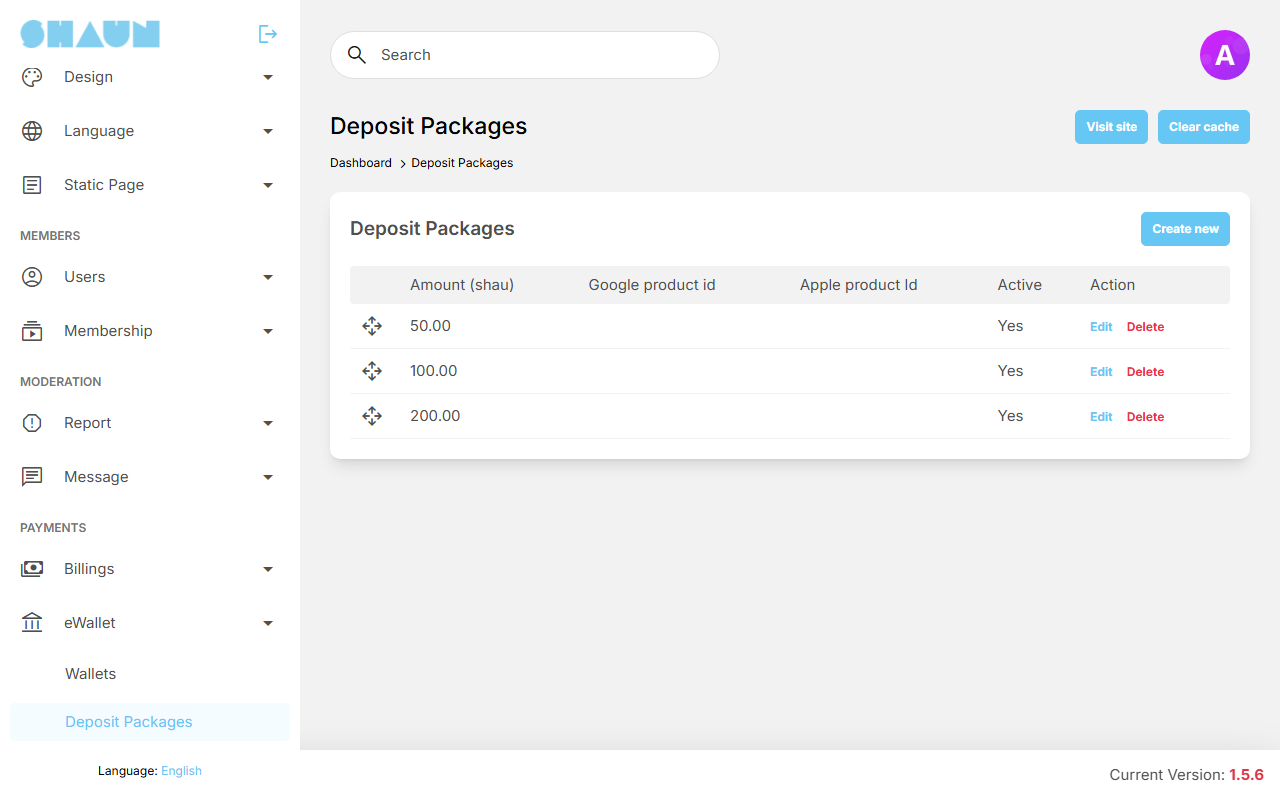
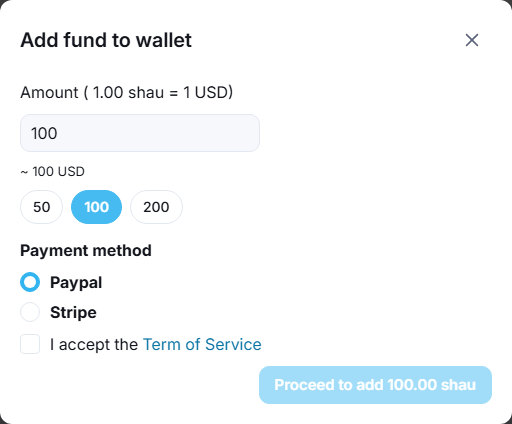
Deposit packages are ready-made amounts members can pick with one click in the Add fund to wallet dialog, for example 50, 100 and 500 shau. There are none after installing, and none are needed: members can always type an amount. A package costs the same as typing its amount: 100 shau at "1 USD = 10 shau" is 10.00 USD either way.
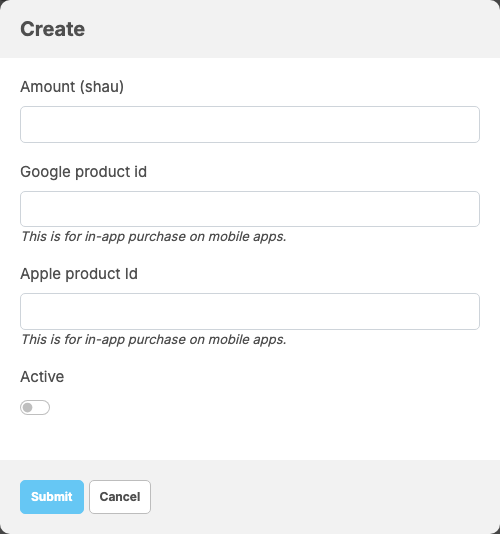
- Click Create new.
- Enter the Amount in tokens (at least 1, up to two decimals) and switch on Active. Leave Google product id and Apple product Id empty unless you sell the package inside the mobile apps: they are the IDs of its store products (see Buying credits in the apps).
- Click Submit.
What you should see: "Package has been created." and the package in the list.
Only active packages are offered. Drag the rows by their handle to set the order members see; Edit changes a package and Delete removes it after you confirm.
Transfer fund (withdrawal) requests#
Last updated: 2026-11-17 · v1.5.6
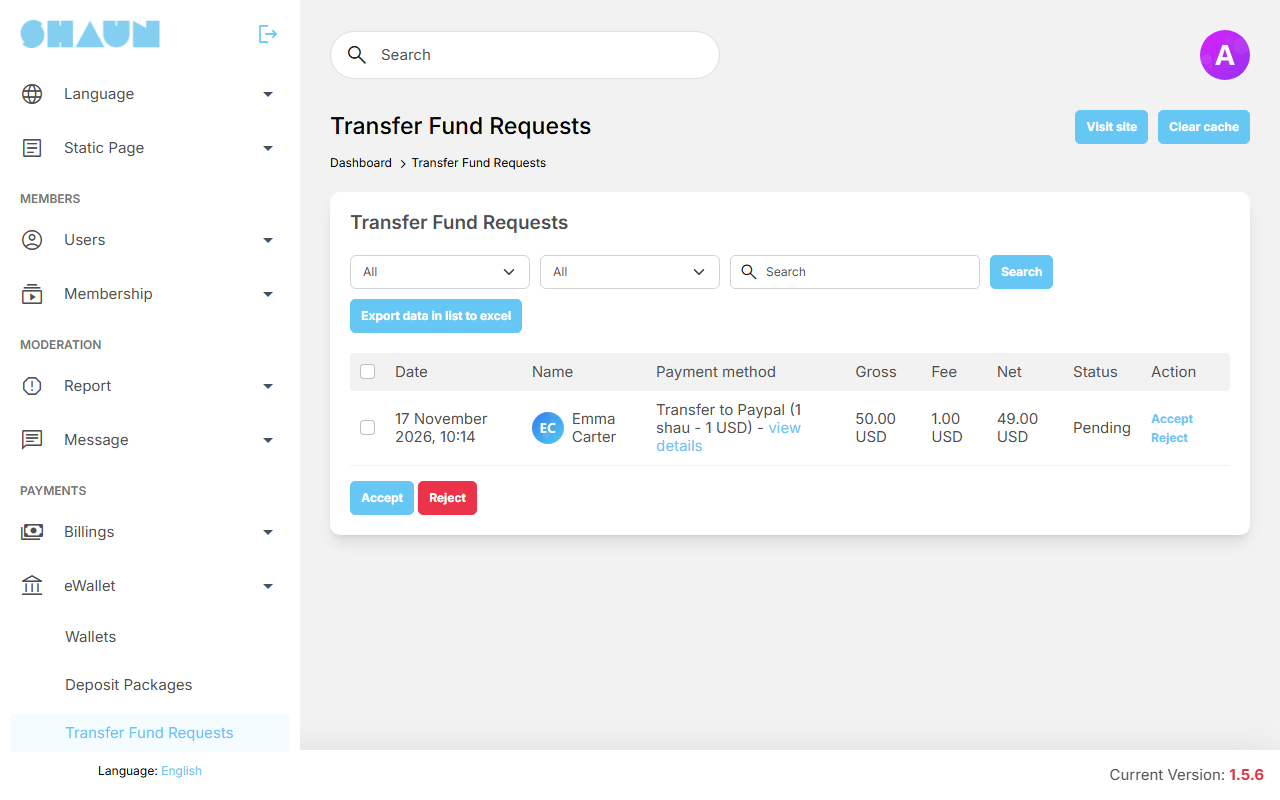
When a member asks for a withdrawal, the tokens leave their balance and the request waits here. The site does not send the money: you pay the member yourself through PayPal or your bank, then mark the request as sent. The first admin account (the one created when the site was installed) gets the notification "sent a payment request."; other admins check this screen.
The list shows Date, Name, Payment method with the exchange rate of the request, Gross, Fee, Net (in your default currency) and Status: Pending, Sent or Rejected. Filter by status, by method (Transfer to Paypal, Transfer to bank account) and by member name, then click Search.
- Click view details on a pending request.
What you should see: the Payment request with Request amount, Fee, Net amount, Currency, Method and Account detail (the PayPal e-mail address or the bank details the member entered).
- Send the Net amount to that account from your PayPal or bank account.
- Click Accept and confirm "Do you want to accept this request?".
What you should see: "This payment request has been successfully accepted." The status becomes Sent and the member gets "Your payment request has been accepted.".
Accept only records that you paid; it moves no money and cannot be undone. Check the account details before you send anything: the site cannot recover money sent to a wrong account.
- Reject (confirm "Do you want to reject this request?") gives the whole amount back to the member's eWallet, fee included, and tells them "Your payment request has been rejected.". Tell the member why by message or e-mail; the notification has no reason.
- Several at once: tick pending requests and use Accept or Reject under the list.
- Export data in list to excel downloads the requests matching the filters as a CSV file (open it in a spreadsheet) with Account detail, Payment method, Net, Currency and Status, for example to prepare a batch payout.
Sending mass funds#
Last updated: 2026-11-17 · v1.5.6
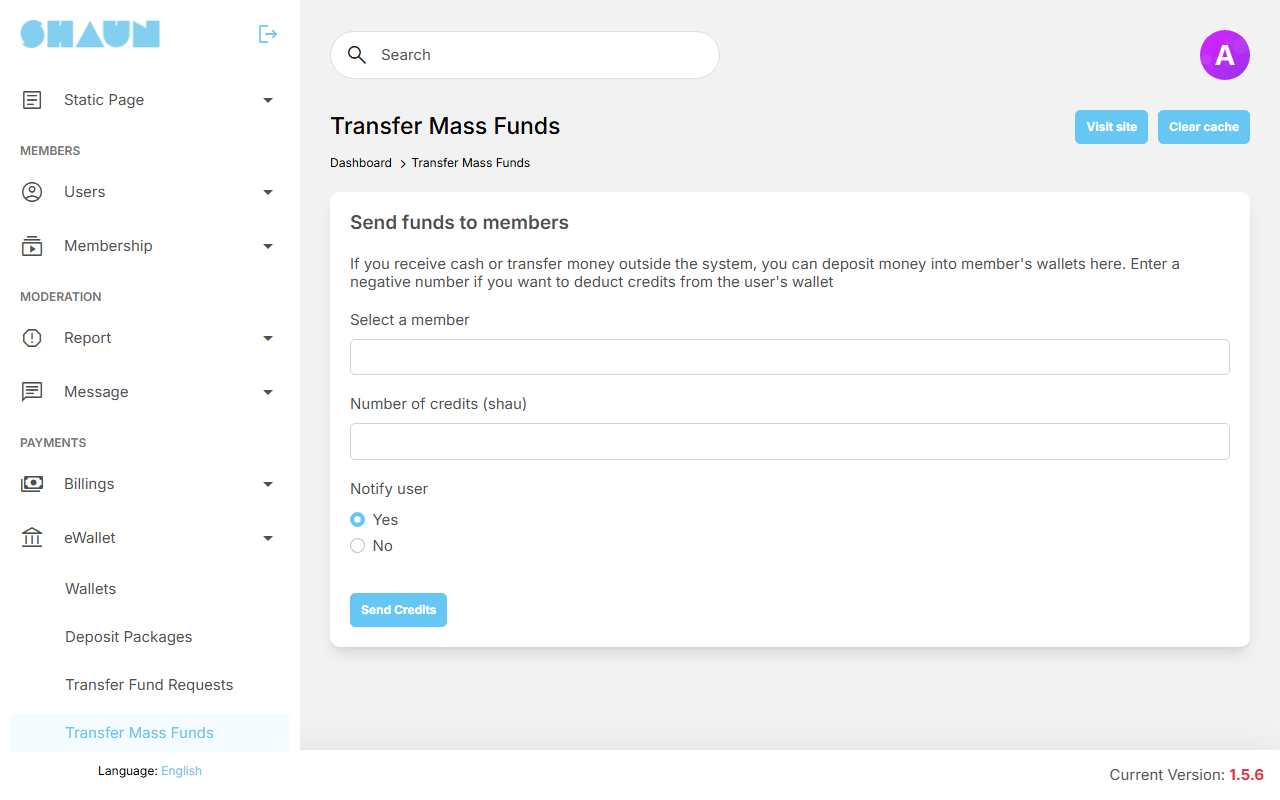
Use this screen to put tokens into a member's eWallet without a payment through the site, for example when a member paid you in cash or by bank transfer, as a prize, or to correct a mistake. You can also take tokens out, for example after you refunded a member's payment in your PayPal or Stripe account: a refund made there does not take the tokens back by itself.
- In Select a member, type part of the name and pick the member.
- Enter the Number of credits in tokens: a whole number up to 100000. A negative number (down to -100000) takes tokens out; you cannot take out more than the member has.
- Choose Notify user: Yes sends the member "added funds to your eWallet.", No sends nothing.
- Click Send Credits.
What you should see: "Successfully sent!". The member's eWallet shows the amount as a completed "Add funds to your eWallet", and System's billing activities shows it as a deposit.
Despite the screen's name, it sends to one member at a time; repeat it for each member.
Paying with the wallet#
Last updated: 2026-11-17 · v1.5.6
Everything you buy on the site is priced in tokens and can be paid from your eWallet:
| What you pay for | Where it is explained |
|---|---|
| featuring your business page or your marketplace listing (renews each period) | Feature your page, Feature your listing |
| a membership plan (renews each period) | the Membership page |
| unlocking a paid post, subscribing to a creator, tipping a creator | the Paid content page |
| an ad campaign or a boosted post | the Advertising page |
| sending money to another member, also in a chat | Send funds, Writing messages |
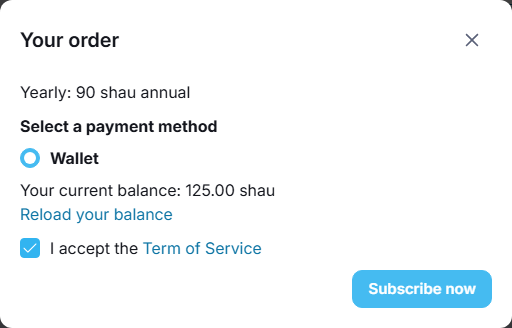
- Start the purchase and, under Select a payment method, choose Wallet. The dialog shows Your current balance and a Reload your balance link to add funds first.
- Tick "I accept the Term of Service" and click Subscribe now or Pay Now.
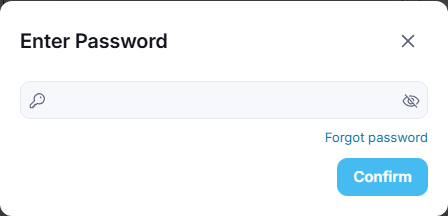
- Enter your password (see Password check on payments).
What you should see: a confirmation such as "Feature Successfully."; the payment appears in your eWallet's Billing activities.
- Not enough tokens: you see "You don't have enough balance" and nothing is charged. Add funds and try again.
- Renewals are taken from your eWallet automatically at the end of each period, without asking for the password. If the balance is too low at that moment, the subscription stops; you are told a few days before (see How a subscription renews).
- Business pages pay from the page's own eWallet while you are switched to the page.
Password check on payments#
Last updated: 2026-11-17 · v1.5.6
Every payment from your eWallet, and every transfer of funds to another member, asks for your account password first, so that nobody else can spend your balance from a device you left signed in. A withdrawal request does not ask for it.
- In the Enter Password dialog, type the password you sign in with.
- Click Confirm.
What you should see: the payment goes through. A wrong password shows "The password is incorrect." and nothing is charged.
- Paying as a business page: enter the password of your own account ("Use the password of the admin of the page").
- You signed up with a social network: use the password from the welcome e-mail you received, or click Forgot password in the dialog to set a new one (see Social login: what members see). You can then also sign in with your e-mail address and that password.
- Your account has no e-mail address (the social network did not share one): the dialog says "You need to add an email and set a password before you can do this." Click Add email and password, which opens Settings → Add email and password, then pay again.
Using your wallet: deposit, withdraw, transfer#
Last updated: 2026-11-17 · v1.5.6
Click the Wallet row on your profile card at the top of the left menu. The Wallet page shows Your balance in tokens with its value in money (for example "61.00 shau ~ 61 USD") and the rate, the buttons Transfer fund, Send fund and Add fund, and your Billing activities.
Add funds#
- Click Add fund.
What you should see: the dialog Add fund to wallet with the rate, for example "Amount ( 1.00 shau = 1 USD)".
- Type an amount in tokens (at least 1), or click one of the ready-made amounts under the field. The value in money is shown under it.
- Under Payment method, choose a gateway such as PayPal or Stripe, and tick "I accept the Term of Service".
- Click Proceed to add …. You are taken to the payment site; pay there.
What you should see: back on your Wallet page, the top-up listed as Pending, then Completed with the notification "Your account has been successfully credited.", and a higher balance.
- If the dialog says "Payment method is not available. Please contact admin for detail", the site takes no card payments yet; use Contact admin.
- A top-up you cancel on the payment site, or that is not confirmed within 30 minutes, shows as Cancelled. If you paid and it shows Cancelled, it is added when the payment provider confirms the payment; if it is not, contact the site admins with the transaction ID from your PayPal or Stripe receipt. One that shows Processing is being cleared by the gateway and is added when it clears; a Failed one was refused, so try another payment method.
Send funds to another member#
- Click Send fund.
- In Username, type part of the name and pick the person, enter the Amount (your available balance is shown under it) and tick "I accept the Term of Service".
- Click Send and enter your password.
What you should see: "Send fund successfully." The tokens move at once and the other person gets "sent you a payment.".
The button is shown when your role may send funds. You cannot send to yourself, or to someone who has blocked you or whom you have blocked ("You cannot send funds this user."). A transfer cannot be taken back; only the receiver can send the tokens back.
Withdraw: ask for a payout#
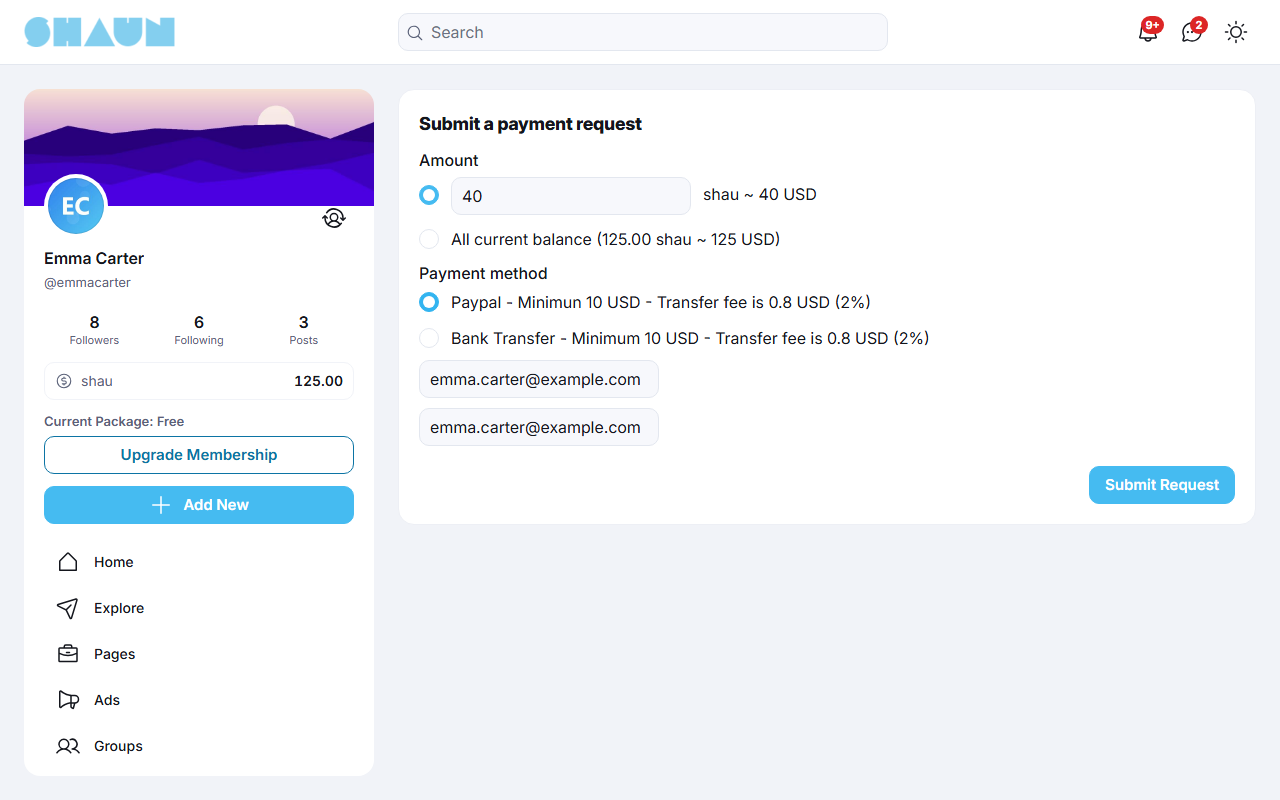
- Click Transfer fund.
What you should see: the page Submit a payment request. If your site pays out only to verified members and your profile is not verified, the Profile Verification dialog opens instead.
- Under Amount, type an amount in tokens or choose All current balance.
- Under Payment method, choose PayPal or bank transfer. Each shows its minimum (in money) and the fee for your amount, for example "Paypal - Minimun 10 USD - Transfer fee is 1 USD (2%)".
- For PayPal, enter your Paypal Email twice. For a bank transfer, write your bank details in Bank Detail: your address, the bank's address, the account holder's name, the account number (and IBAN if you have one) and the bank's SWIFT code.
- Click Submit Request.
What you should see: "Request submitted successfully". The amount leaves your balance at once.
The admins pay you the amount less the fee, by hand, and you get "Your payment request has been accepted." when they have. If they reject the request, the whole amount comes back to your eWallet. Your PayPal address and bank details are filled in for you next time. The button is shown while your site allows withdrawals; asking also needs the permission of your role.
Your billing activities#
The list under your balance shows every movement with its Type, Status, Date, Gross, Fee and Net, newest first; View more shows older ones. Filter by type (for example Add funds, Send and receive funds, Transfer funds, Send and receive funds with platform, Commission earned from referral) and by date (Past 30 days when the page opens, Past 60 days, Past 90 days or Custom with two dates). The statuses are explained in Member wallets. Money you receive from tips, paid content or referral commissions arrives here, with a notification.
Change log#
Last updated: 2026-11-19 · v1.5.6
| Date (GMT+7) | Section | What changed |
|---|---|---|
| 2026-11-17 | all | First version for 1.5.6, written from the 1.5.6 code as a guide for site admins and members. |
| 2026-11-17 | overview, member-wallets, mass-funds, using-the-wallet | Corrections after review: switching the eWallet off and featured pages; late confirmations after Cancelled or Failed; blocking works both ways; taking back tokens after a refund made at PayPal or Stripe. |
| 2026-11-17 | settings | The withdrawal example now uses the exchange rate as installed (1 USD = 1 token), with a note on a rate of 10. |
| 2026-11-19 | settings, deposit-packages | The full labels of two eWallet settings; the setting for test store purchases and the store product IDs of deposit packages now link to the mobile app settings. |
| 2026-11-19 | deposit-packages | Screenshot of the deposit package form with the store product IDs. |