ShaunSocial user guide 1.5.6 / Getting started
Server services
Besides PHP and a database, a ShaunSocial site uses a few services on or next to your server: a cron job (always needed), an e-mail account for sending, live updates, video processing, and optionally cloud file storage and a faster cache. This page explains what each one does for your site, what to ask your host for, and how to check that it works. Server commands are in boxes marked For your server administrator.
Cron job (required) and queue worker (optional)#
Last updated: 2026-11-17 · v1.5.6
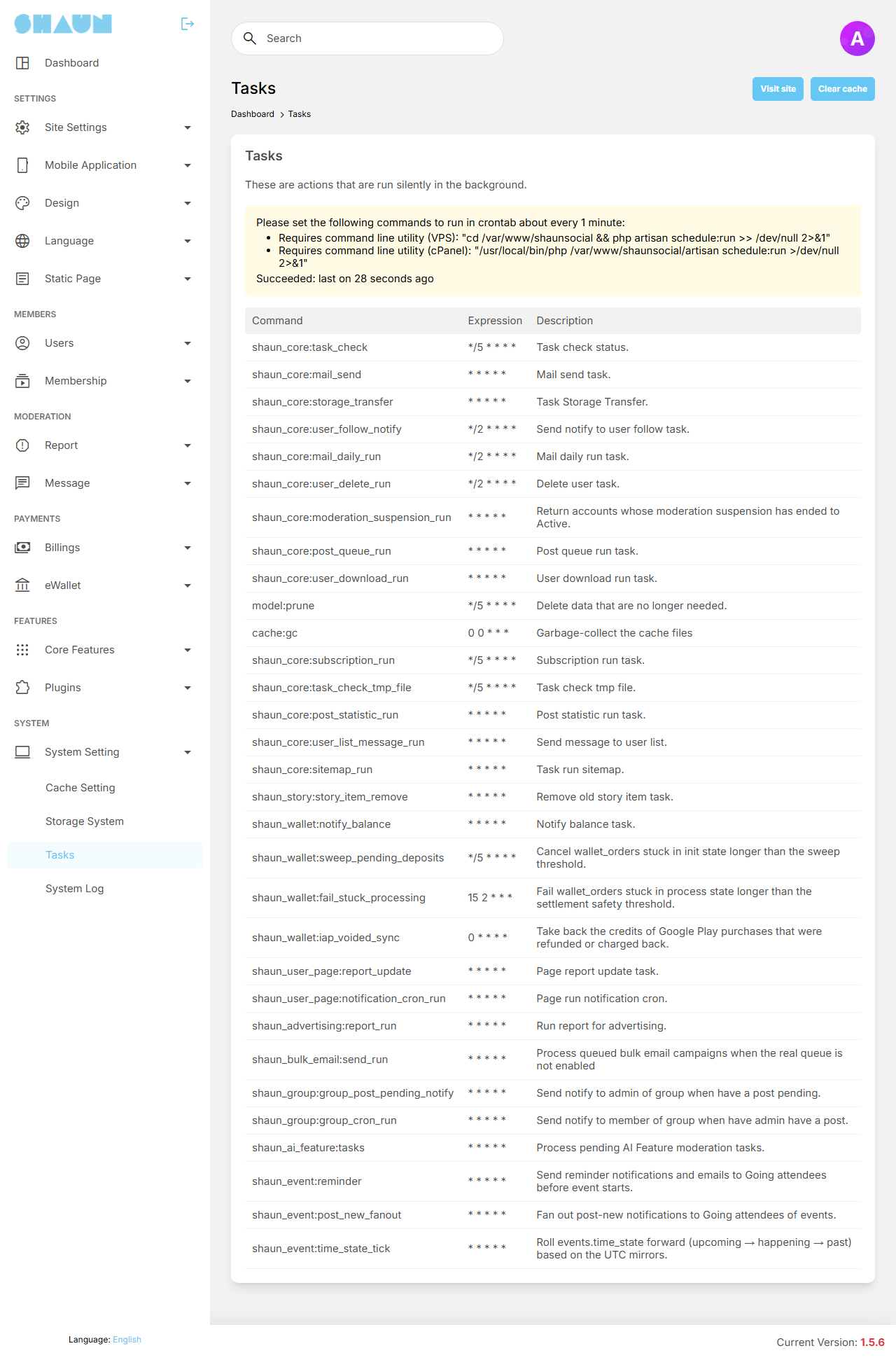
The cron job is a task your server runs every minute. Through it, ShaunSocial does its background work: 32 jobs in all. Setting it up is part of installing; the steps are in Set up the cron job.
What stops when the cron job does not run#
Nothing shows an error; these things simply stop happening:
- queued e-mails, daily e-mails and bulk e-mail campaigns are not sent
- view counts and post statistics stop updating; posts with long videos are not published
- membership subscriptions are not renewed or ended; new-follower and other summary notifications stop
- stories are not removed when they expire
- wallet reminders and checks, the ads daily report, and event reminders stop
- the sitemap is not rebuilt; files are not moved to cloud storage; old data is not cleaned up
- member account deletions and data downloads are not processed
Check that it runs#
- Open AdminCP → System Setting → Tasks.
What you should see: Succeeded: last on ... with a time within the last five minutes, and below it the list of all jobs with their timing and a description.
- If the time is older than five minutes (for example Succeeded: last on 2 days ago), the cron job ran once but has stopped. If it says No, cron job configuration is not correct., it has never run. In both cases copy the command from the box at the top of the page (it shows your site's real folder) and ask your host to check the cron job.
* * * * * cd /var/www/shaunsocial && php artisan schedule:run >> /dev/null 2>&1- Run it as the user PHP runs as (for example
crontab -u www-data -e), so files it writes stay writable for the website. - The command-line
phpmust be PHP 8.3 or newer, like the website. On cPanel the plainphpor/usr/local/bin/phpcan be another version than the site's; use the PHP 8.3 binary of your server instead (on cPanel with EasyApache usually/opt/cpanel/ea-php83/root/usr/bin/php). Check with<php binary> -v. - With several web servers, run the cron job on one of them only, or every job runs several times.
To test by hand (the job list prints what ran):
cd /var/www/shaunsocial
sudo -u www-data php artisan schedule:run
Queue worker (optional, for large sites)#
By default your site sends e-mails and notifications while it answers the member, and the cron job does the rest. A very busy site can move that work to a background "queue worker": a program that runs all the time on the server and works through a waiting list. It is off after installing, and most sites never need it. If your server administrator switches it on, the worker must keep running, or e-mails and notifications wait forever.
Switched on with SHAUN_QUEUE=true in .env. The worker command, the five queues it must
serve and a Supervisor example are in Background queue. The cron job is still needed
with the queue on. After every upgrade or code change, restart the worker so it loads the new code:
php artisan queue:restartLive updates: Reverb on your server or Pusher#
Last updated: 2026-11-19 · v1.5.6
Live updates make new chat messages, comments and notifications appear without reloading the page. Without them your site still works; members just see new things after a reload. New comments on a post appear live only when, in addition, Enable real-time comment is ticked in AdminCP → Site Settings → General Configuration → General Settings (it is off after installing). Live updates need a "websocket" service, a server that keeps a connection open to every member's browser. You have two choices:
Reverb, on your own server
Included with ShaunSocial, no monthly fee. Needs a server where a program may run all the time (a VPS or dedicated server); most shared hosting does not allow that.
Pusher, an online service
Nothing to run on your server. You create an account at pusher.com; larger sites pay a monthly fee.
The Broadcast settings#
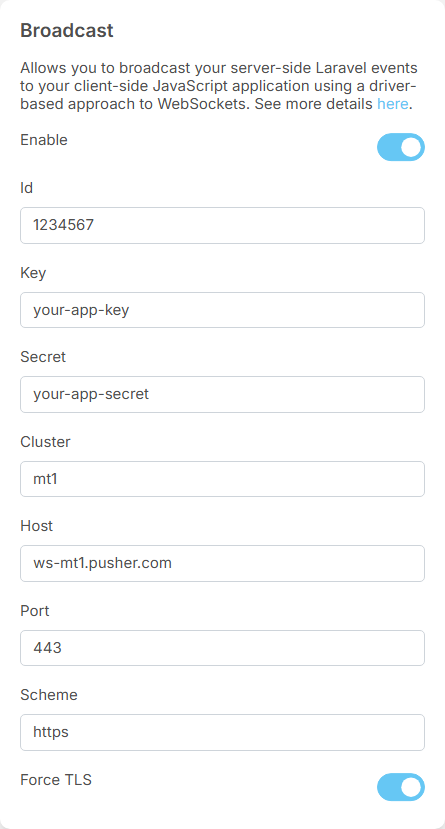
Both choices are set in the same place. The site and your members' browsers both use these values: the site sends each update to the address in Host, and browsers connect to the same address.
| Field | Pusher | Reverb |
|---|---|---|
| Enable | ticked | ticked |
| Id | app_id from your Pusher app | the Id your server administrator gives you |
| Key | key from your Pusher app | the Key your server administrator gives you |
| Secret | secret from your Pusher app | the Secret your server administrator gives you |
| Cluster | cluster from your Pusher app, for example mt1 | empty |
| Host | ws-<cluster>.pusher.com, for example ws-mt1.pusher.com | the public address of your Reverb service, for example ws.example.com |
| Port | 443 | 443 |
| Scheme | https | https |
| Force TLS | ticked | ticked |
After installing, Enable and Force TLS are off and every other field is empty. Fill in every field as shown, then save. Live updates are off while Enable is not ticked or Key is empty. The mobile apps read the same values for their live updates.
Use Pusher#
- Create an account at pusher.com and create a Channels app. Choose the cluster closest to most of your members.
- Open the app's App Keys. It shows app_id, key, secret and cluster.
- Enter them in the Broadcast settings, with the Host, Port, Scheme and Force TLS values from the table above, and save.
- Test as described in Check that live updates work.
Run Reverb on your server#
Your server administrator starts Reverb, keeps it running and makes it reachable at an address of its own over
HTTPS, for example ws.example.com. Then you enter that address, and the Id, Key and Secret your server
administrator gives you, in the Broadcast settings.
- Give Reverb its credentials: the three
PUSHER_APP_*lines in.env, each with its own random value, as in Live updates on the install page. TheREVERB_APP_*lines the web installer writes are not used. - Keep Reverb running with a process manager. It listens on
127.0.0.1:6060(REVERB_SERVER_HOST,REVERB_SERVER_PORTin.envchange this). /etc/supervisor/conf.d/shaunsocial-reverb.conf[program:shaunsocial-reverb] user=www-data directory=/var/www/shaunsocial command=php artisan reverb:start autostart=true autorestart=true stopsignal=TERM redirect_stderr=true stdout_logfile=/var/log/shaunsocial-reverb.logsupervisorctl reread supervisorctl update supervisorctl status shaunsocial-reverbshaunsocial-reverb RUNNING pid 12345, uptime 0:00:05 - Point a host name (here
ws.example.com) at the server, give it an HTTPS certificate and pass its traffic to Reverb, websocket upgrade included. Nginx: /etc/nginx/sites-available/shaunsocial-ws.conf
Apache (mod_proxy, mod_proxy_http, mod_proxy_wstunnel, mod_rewrite), inside the HTTPS virtual host of ws.example.comserver { listen 443 ssl; server_name ws.example.com; ssl_certificate /etc/letsencrypt/live/ws.example.com/fullchain.pem; ssl_certificate_key /etc/letsencrypt/live/ws.example.com/privkey.pem; location / { proxy_http_version 1.1; proxy_set_header Host $http_host; proxy_set_header X-Forwarded-For $proxy_add_x_forwarded_for; proxy_set_header Upgrade $http_upgrade; proxy_set_header Connection "Upgrade"; proxy_read_timeout 120s; proxy_pass http://127.0.0.1:6060; } }ProxyPreserveHost On RewriteEngine On RewriteCond %{HTTP:Upgrade} websocket [NC] RewriteCond %{HTTP:Connection} upgrade [NC] RewriteRule ^/?(.*) "ws://127.0.0.1:6060/$1" [P,L] ProxyPass / http://127.0.0.1:6060/ ProxyPassReverse / http://127.0.0.1:6060/ - The server itself must also reach
https://ws.example.com: the site sends every update there, through the same proxy. - After an upgrade or a change to
.env, restart Reverb:php artisan reverb:restart
Reverb is already included in the package: do not install it again with composer as some older
guides describe, and start it only with php artisan reverb:start.
Check that live updates work#
- Sign in as two different members, in two different browsers (or one normal and one private window).
- Send a chat message from one to the other.
What you should see: the message appears in the other browser within a second or two, without reloading.
- Reverb:
supervisorctl status shaunsocial-reverbmust sayRUNNING; read its log file. - The Id, Key and Secret in the AdminCP must equal the three
PUSHER_APP_*values in.env; restart Reverb after changing.env. - Failed sends from the site appear in
storage/logs/shaun-error-YYYY-MM.log. - In the browser's developer tools (Network, filter WS), the connection to the Host must answer
101 Switching Protocols.
An outgoing e-mail account (SMTP)#
Last updated: 2026-11-17 · v1.5.6
Your site sends e-mails for sign-up confirmation, password resets, sign-in codes, notifications and your bulk e-mails. It can send them through the server's own mail program, but they then often land in spam or are not delivered at all. An SMTP account (the sending account of an e-mail provider, or a sending service) is usually more reliable.
What to get from your e-mail provider#
- the SMTP host name, port and encryption (usually port 587 with TLS, or 465 with SSL)
- a user name and password for sending
- a sender address on your own domain, for example
noreply@example.com, that the account may send from - the DNS records your provider asks you to add for your domain (often called SPF and DKIM), so receiving servers trust your e-mails
Enter it in the AdminCP#
| Field | After installing | What to enter |
|---|---|---|
| From name | empty (your Site title is used) | the sender name members see |
| From address | empty (your Site email is used) | the sender address your provider allows |
| Mail engine | Mail (the server's mail program) | SMTP |
| Hostname | empty | your provider's SMTP host |
| Port | 25 | usually 587 or 465 |
| Username, Password | empty | your SMTP login |
| Encryption | None | TLS for port 587, SSL for port 465 |
| Email queue | No, always send emails immediately | Yes sends e-mails in batches each minute through the cron job, which is gentler on your mail account |
| Mail count | 25 | how many queued e-mails go out each minute |
| Enable email Log | No | Yes keeps a record of every e-mail sent (useful while testing) |
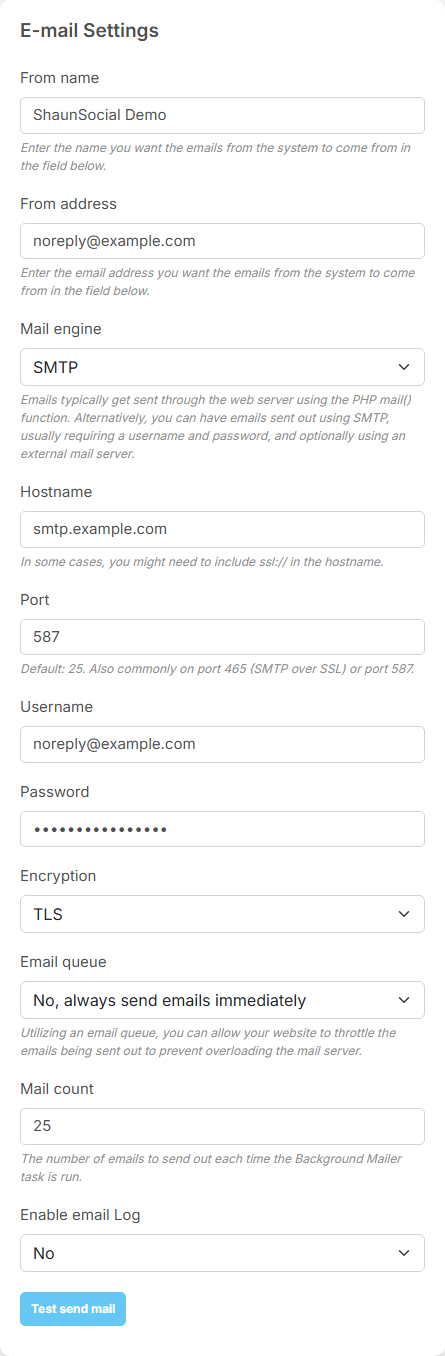
- Fill in the fields and save.
- Click Test send mail, enter your own address and click Submit.
What you should see: "Test email was sent successfully! Please check your inbox to make sure it is delivered.", and an e-mail with the subject Test Email in your inbox. If an error appears instead, it comes from your mail server: check the host, port, encryption and login.
The wording of each e-mail is edited in AdminCP → Site Settings → Mail Templates.
- With Mail engine set to Mail the site uses
/usr/sbin/sendmail -bs -i; another path can be set withMAIL_SENDMAIL_PATHin.env. - Many hosts block outgoing connections on port 25; use 587 or 465, or ask the host to open the port you need.
- Send errors, and with Enable email Log every sent e-mail, are written to
storage/logs/shaun-mail-YYYY-MM.log.
Video and photo processing (FFmpeg and Imagick)#
Last updated: 2026-11-19 · v1.5.6
FFmpeg: needed for videos#
FFmpeg is a free video program that your host installs on the server. ShaunSocial uses it to check, compress and convert uploaded videos to MP4 and to make their preview pictures. Without it, members cannot upload videos: not in posts, not in stories, not in Marketplace listings, and no Vibb short videos; each such upload is refused with "You can not upload video.". Voice messages in chat need it too.
- Ask your host to install FFmpeg and to tell you the full path of the
ffmpegprogram, for example/usr/bin/ffmpeg. - Open AdminCP → Site Settings → General Configuration → FFMPEG Configuration.
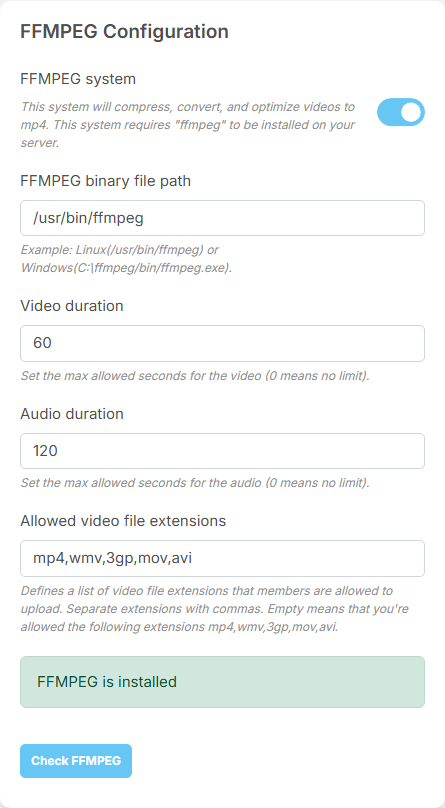
- Tick FFMPEG system and enter the path in FFMPEG binary file path. Save.
- Click Check FFMPEG.
What you should see: "FFMPEG is installed". If it says "FFMPEG is not installed or incorrect path.", check the path with your host.
- Check the two limits on the same screen: Video duration (the longest video in seconds, 60 after
installing; 0 means no limit) and Allowed video file extensions (
mp4,wmv,3gp,mov,avi). Each member role can also have its own maximum video length, in AdminCP → Users → Manage User Roles.
| Setting | After installing | What it does |
|---|---|---|
| FFMPEG system | off | switches video and voice processing on. Off: video uploads and voice messages are refused |
| FFMPEG binary file path | empty | the full path of the ffmpeg program on your server |
| Video duration | 60 | the longest video a member may upload, in seconds; 0 means no limit. Each role can have a lower limit of its own (see Every member permission) |
| Audio duration | 120 | the longest voice message in chat, in seconds; 0 means no limit. Each role also has a limit of its own (see Voice messages) |
| Allowed video file extensions | mp4,wmv,3gp,mov,avi | the video file types members may upload, separated by commas. Use it to allow fewer types: a type outside these five is ignored, and an empty field allows all five |
Short videos (up to two minutes) are ready right away. Longer ones are converted in the background by the cron job, so the post appears a little later.
- Install FFmpeg from the distribution (
apt install ffmpegon Debian or Ubuntu) or as a static build.ffprobemust sit in the same folder asffmpeg, with the same name pattern: the site finds it by replacingffmpegwithffprobein the configured path. - PHP runs FFmpeg as a separate process, so
proc_openmust not be disabled inphp.ini. - Converting a video keeps the CPU busy.
SERVER_FFMPEG_THREADSin.env(for example2) sets how many threads FFmpeg may use, so video uploads do not slow down the rest of a small server. - Short videos are converted while the member uploads: keep the PHP and web server time limits high enough for the largest uploads you allow.
which ffmpeg ffprobe
ffmpeg -version
/usr/bin/ffmpeg
/usr/bin/ffprobe
ffmpeg version ...Imagick: iPhone photos and blurred previews#
Imagick is an optional PHP extension. With it:
- members can upload HEIC photos (the iPhone photo format); they are converted to JPEG. Without it a HEIC photo is refused with "The file name is in a format that we don't support."
- a paid post without its own preview picture gets a blurred copy of its photo as preview. Without Imagick, the default blurred picture set in the Paid Content settings is shown instead.
Install the PHP imagick extension for PHP 8.3 (on Debian or Ubuntu apt install php8.3-imagick),
with an ImageMagick build that reads HEIC, then restart PHP-FPM. php -m must list imagick.
Watermark on photos#
The site can write a text watermark (your domain and the member's user name, or your own text) into newly uploaded post photos. It needs nothing extra beyond the standard PHP image extension. Switch it on with Enable and choose Text, Position, Text color, Text font size (px) and Text style. It applies to photos uploaded from then on, not to older ones.
The watermark is drawn with the PHP gd extension using TrueType fonts, so gd must be built
with FreeType support (php -r 'print_r(gd_info());' shows FreeType Support => 1).
A cloud storage account (S3 and compatible)#
Last updated: 2026-11-17 · v1.5.6
Uploaded photos, videos and files are stored on your own server by default. When they fill your disk, or you want them served from fast cloud storage, you can store them with a cloud storage service instead. ShaunSocial supports Amazon S3, Wasabi, DigitalOcean (Spaces), Cloudflare R2 and Backblaze. This section covers what to prepare at the provider; you then choose the service in AdminCP → System Setting → Storage System, where existing files can also be moved over (see Storage System and moving files).
What to prepare at the provider#
- Create a bucket (a storage space) for your site, in the region closest to your members.
- Allow public reading of its files: your members' browsers load photos and videos straight from it.
- Create an access key and secret key that may write and delete files in that bucket.
- Note the values the AdminCP asks for:
Service Fields in the AdminCP Amazon S3 Access Key, Secret Key, Region, Bucket, CloudFront Domain (optional) Wasabi S3 Access Key, Secret Key, Region, Bucket, Endpoint Digitalocean, Cloudflare R2, Backblaze Access Key, Secret Key, Bucket, Endpoint, CDN (the public address of the files)
When you save the service, the site writes a small test file to the bucket and deletes it again. If that fails, the AdminCP shows an error, for example "Please double-check your S3 Credentials.", and nothing changes.
Moving existing files
to the cloud runs in the background through the cron job and can take hours on a large site. Keep your own backup of
the storage folder until AdminCP → System Setting → Storage System shows that no files are left to
transfer.
The site writes files with public visibility. On Amazon S3 the bucket must allow public objects (no "block all public
access", or serve the files through CloudFront and enter its domain). Configure CORS on the bucket for your site's
domain if browsers report blocked requests. Until a cloud service is the default, uploads live in
storage/app/public.
A Redis or Memcached server#
Last updated: 2026-11-17 · v1.5.6
ShaunSocial keeps frequently used data in a cache so pages load faster. After installing the cache is kept in files on your server, which is fine for most sites. A busy site can use a Redis or Memcached server instead, which is faster. Your host installs it; you then choose it in AdminCP → System Setting → Cache Setting (Caching Type), described in Cache Setting.
| Caching Type | What to get from your host |
|---|---|
| Redis | host, port (6379 if empty) and password, if the server has one |
| Memcached | host, port (11211 if empty), and a user name and password if the server needs them |
When you submit the form, the site first stores a test value on the cache server. If that fails, it shows the error (for example "Can't connect to server.") and keeps the current cache.
- Redis needs the PHP
redisextension; Memcached the PHPmemcachedextension. Without the extension the form answers with an error saying that the Redis (or Memcached) class was not found. - Keep the Redis or Memcached port reachable only from the web server (bind it to
127.0.0.1or a private network, or firewall it), and set a password on Redis. - The chosen cache is stored in the file
storage/cache; it survives upgrades.
Sizing and scaling#
Last updated: 2026-11-17 · v1.5.6
How many members a server can carry depends far more on how active they are, and how many videos they upload, than on the number of accounts. Start with a server that meets the requirements, watch it as your community grows, and add the steps below when the site gets slow. Each one takes load off the main server.
| When | What helps | Where |
|---|---|---|
| Pages get slower as traffic grows | a Redis or Memcached cache | A Redis or Memcached server |
| The disk fills up with uploads, or photos and videos load slowly | cloud storage, ideally with a CDN address for the files | A cloud storage account |
| The site's own styles and scripts load slowly far from the server | a CDN for static files, entered in Static File Base URL | AdminCP → Site Settings → Site Information |
| Posting, e-mails or notifications slow down the site | the background queue worker | Queue worker |
| Video uploads take long or slow down the site | more CPU, and a fitting FFmpeg thread setting | FFmpeg |
| Many members online at once | Reverb on a server of its own, or Pusher | Live updates |
- The database usually becomes the bottleneck first: give MySQL or MariaDB enough memory, and move it to its own server when the web server is busy.
- Several web servers behind a load balancer can share one database, one Redis and one cloud storage; run the cron job on one of them only, and keep the site folders identical (plugins included).
- Reverb can run on several servers when they share a Redis server (
REVERB_SCALING_ENABLED=trueand theREDIS_*lines in.env).
Change log#
Last updated: 2026-11-19 · v1.5.6
| Date (GMT+7) | Section | What changed |
|---|---|---|
| 2026-11-17 | all | First version for 1.5.6, written from the 1.5.6 code. The Pusher and Reverb values were read from the code, not tested against a live service. |
| 2026-11-17 | cron-queue, realtime, media-processing, cache | Corrections after review: a cron job that stopped after running once, the real-time comment switch, Marketplace videos need FFmpeg, owner-facing Broadcast values, the cache error wording. |
| 2026-11-17 | storage, cache | Links to the new System page. |
| 2026-11-19 | realtime, media-processing | The FFMPEG Configuration settings with their values after installing; the Broadcast settings after installing. |