ShaunSocial user guide 1.5.6 / Plugins system
Plugins
Plugins add extra features to your site. You upload each one as a zip file in the AdminCP, and the plugin manager installs it, upgrades it, switches it on and off, and removes it again. This page walks through each of those steps, what the list of installed plugins tells you, and what to do when a plugin causes trouble. What each plugin does is explained in that plugin's own documentation.
The plugin manager#
Last updated: 2026-11-17 · v1.5.6
All plugin work happens on one screen: open the Plugins group in the AdminCP menu and click Manage. The screen has two boxes: Upload Plugin at the top, to install or upgrade a plugin, and Installed Plugins below it, with the plugins on your site and their Enable, Disable and Uninstall links.
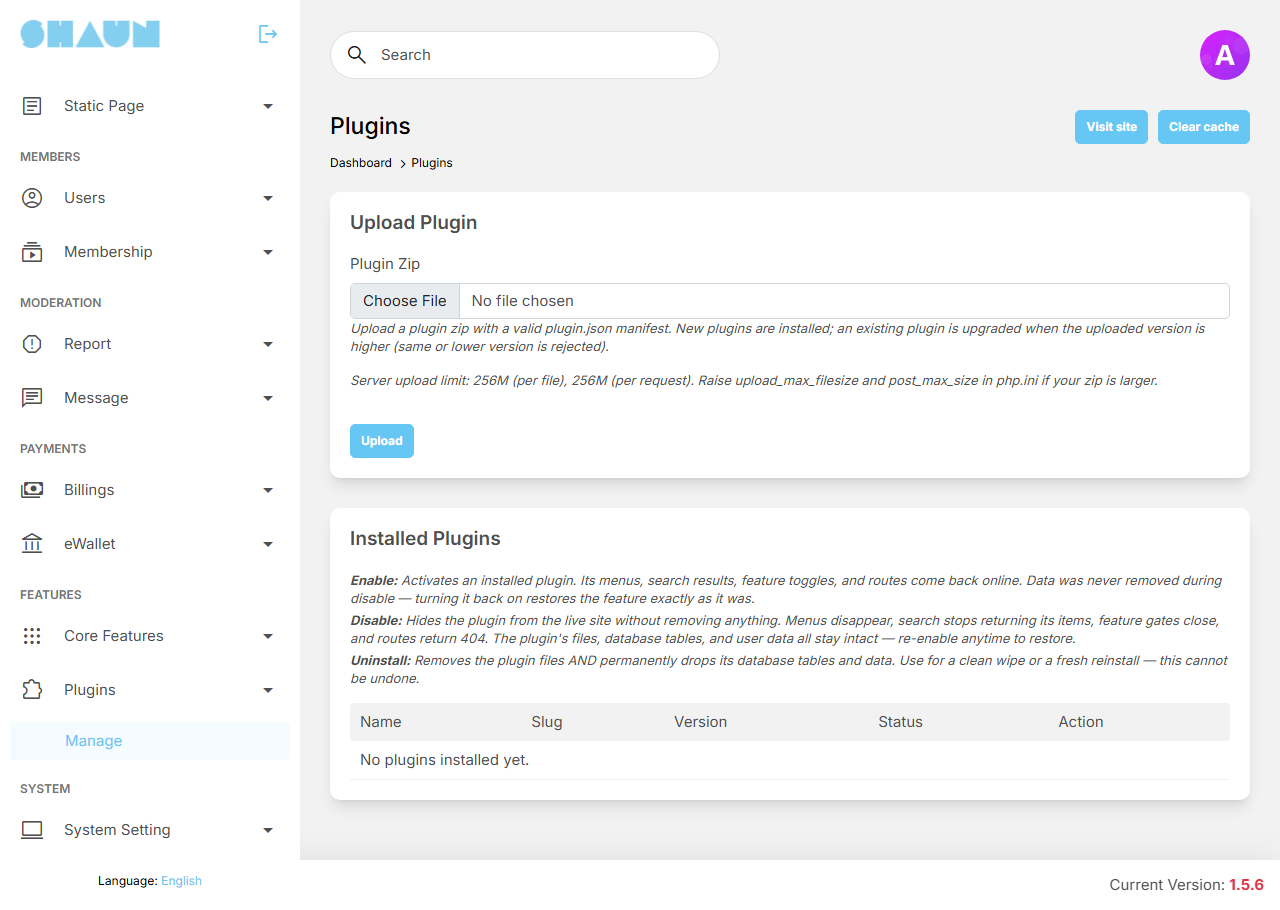
Only super admins can use this screen (see Root, super admin and moderator). Moderators cannot install, switch or remove plugins, whatever permissions their role has. Do not tick Manage Plugins for a moderator role: those moderators then see the Manage link but are refused when they open it. A plugin's own AdminCP screens can be given to moderators through role permissions, if the plugin offers them.
Before you install a plugin#
- Get the plugin made for your domain and your version. A licensed plugin works only on the address
it was downloaded for, see A plugin licence belongs to one domain. Use the
same form of your address (with or without
www) that your site really runs on. Also make sure the plugin version is made for ShaunSocial 1.5.6 (see Plugins and your ShaunSocial version). - Keep the zip file as you downloaded it. Do not unzip it; upload the zip itself.
- Back up first on a live site. Installing a plugin adds program files and changes your database. A backup of files and database (as described in the upgrade checklist) is the only way back if something goes wrong.
Install a plugin#
- Open AdminCP → Plugins → Manage.
- In Upload Plugin, click the Plugin Zip field and choose the plugin's zip file. Below the field the screen shows your server's upload limits ("Server upload limit: … (per file), … (per request)"); the zip must be smaller than both.
- Click Upload and wait. The button changes to Uploading... and the page shows a loading sign while
the plugin is unpacked and its database tables are created; this can take a minute. Do not reload or close the
tab.
What you should see: the green message "Plugin name is now at version version." at the top of the page, and the plugin in the Installed Plugins list with the status Enabled.
A new plugin is switched on straight away: your members can use it as soon as they reload the site. You do not need to clear the cache: the plugin manager clears it, and makes every visitor's browser load the new files, after each install, upgrade, enable, disable and uninstall. If a menu or page of the plugin still does not show, click Clear cache at the top of the AdminCP (see Clearing the cache) and reload the site.
If the upload is refused, the reason appears in red at the top of the Upload Plugin box; see When a plugin causes trouble.
Where the plugin appears after installing#
Every plugin is different. Depending on the plugin, installing it can add:
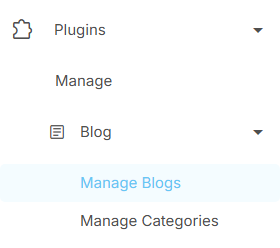
- its own menu in the AdminCP, as an item under Plugins, below Manage, with the plugin's screens in it;
- a section of settings in AdminCP → Site Settings → General Configuration;
- permissions for your member roles, in AdminCP → Users → Manage User Roles → Permissions (see Roles and permissions);
- pages and items on the site, such as a menu item, new pages for members, or blocks for the layout editor.
Go through the plugin's settings and permissions once after installing it, then look around the site as a member. The plugin's own documentation explains what each setting does.
The list of installed plugins#
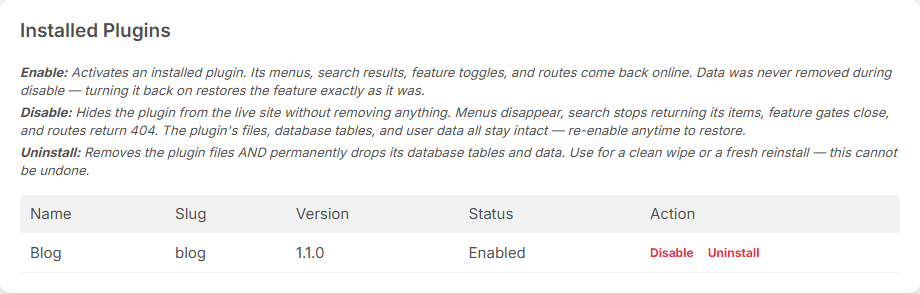
| Column | What it shows |
|---|---|
| Name | the plugin's name, with a note below it when something needs your attention (see the next table) |
| Slug | the plugin's short technical name; your server administrator needs it for the commands further down this page |
| Version | the version installed now |
| Status | Enabled (switched on) or Disabled (switched off) |
| Action | Disable for a plugin that is on; Enable for a plugin that is off; Enable blocked instead of Enable while the licence does not match your domain; and Uninstall for every plugin |
| Note under the name | What it means | What to do |
|---|---|---|
| "License of this plugin is not valid for this domain." (red) | the plugin was made for another address than the one the site was opened on; the site switched it off by itself | see A plugin licence belongs to one domain. Once the site runs on the right address, click Enable: the plugin does not switch itself back on |
| "Built for an older version of the site and may not display correctly. The plugin still runs — ask its author for an updated build." (orange) | the plugin was built for an older ShaunSocial; it still works, but some of its pages may look out of place | upload the plugin's version made for 1.5.6 when you have it (see Upgrade a plugin) |
Switch a plugin off and on again#
Switching a plugin off (Disable) hides it from your site without removing anything:
- its menus and pages disappear for members, and its addresses answer "not found";
- its items no longer show in search, and its posts are left out of the home feed;
- its AdminCP menu, its settings section and its role permissions are hidden;
- its files, its data and everything members created with it stay. Enable brings it all back as it was.
- To switch a plugin off, click Disable on its row, then Confirm in the box "Do you want to disable
this plugin?".
What you should see: "Plugin name has been disabled." and the status Disabled.
- To switch it on again, click Enable on its row. There is no question first.
What you should see: "Plugin name has been enabled." and the status Enabled.
Use Disable when you want to stop using a plugin for a while, or to check whether a plugin is the cause of a problem. Use Uninstall only when you want the plugin and its data gone for good.
Upgrade a plugin#
A new version of a plugin is uploaded in the same box as a new plugin. The plugin manager sees that the plugin is already installed and upgrades it.
- Download the new version for your domain from where you got the plugin.
- On a live site, back up files and database first.
- Open AdminCP → Plugins → Manage, choose the zip in Plugin Zip and click Upload.
What you should see: "Plugin name is now at version new version." and the new number in the Version column.
- The plugin's data, its settings and your translations of its phrases are kept; new phrases are added. The plugin keeps its status: a disabled plugin stays disabled after the upgrade.
- Only a higher version is accepted. Uploading the version that is already installed, or an older one, is refused (see When a plugin causes trouble). Going back to an older version is not possible.
- If the upgrade stops while the new files are being put in place, the old version is put back by itself and keeps working.
After upgrading ShaunSocial itself, check your plugins as described in Step 3: after the upgrade.
Uninstall a plugin#
There is no undo and no recycle bin. Everything members created with the plugin is deleted with it. If you might want the plugin back later, use Disable instead, or make a backup of files and database before you uninstall.
Uninstalling removes:
- the plugin's files from your site;
- the plugin's own database tables and everything in them;
- posts and notifications that belong to the plugin's content, with their comments;
- the plugin's settings, AdminCP menu, role permissions, menu items, layout blocks and phrases.
The rest of your site is not touched: members, their other posts and your other plugins stay.
- Click Uninstall on the plugin's row.
- Read the box "Uninstall will delete plugin files and configured plugin data. Continue?" and click
Confirm.
What you should see: "Plugin has been uninstalled and its data has been purged." The plugin is no longer in the list.
To start over with a clean copy of a plugin, uninstall it and upload the zip again: it is installed from scratch, with its default settings.
When a plugin causes trouble#
Last updated: 2026-11-17 · v1.5.6
Your site stops working after a plugin change#
- If the AdminCP still opens, go to AdminCP → Plugins → Manage and click Disable on the plugin you
installed or upgraded last. Its data stays.
What you should see: the site works again once the plugin is off.
- If the AdminCP does not open either, ask your server administrator to switch the plugin off from the command line (see the box below).
- Send the plugin's author what you saw, with the plugin's name and version and your ShaunSocial version (1.5.6). Switch the plugin back on only with a fixed version.
Messages when uploading#
The upload stops with a red message at the top of the Upload Plugin box. The plugin name in brackets is the plugin's slug.
| Message | What to do |
|---|---|
| "Upload (…) exceeds the server upload_max_filesize limit (…)" or "… post_max_size limit (…)" | The zip is bigger than your server accepts. Ask your server administrator to raise the limits (see the box below), or to install the plugin from the command line. |
| "The plugin zip was only partially uploaded. …" | Upload again. If it happens again, give the message to your server administrator. |
| "The plugin file must be a zip archive.", "Unable to open plugin archive." or "Plugin archive must contain exactly one plugin.json file." | The file is not a plugin zip, or it was damaged on the way. Download the plugin again and upload the zip as it is, without unzipping it. |
| "Plugin [slug] requires core version […], current core version is [1.5.6]." | This plugin version is not made for ShaunSocial 1.5.6. Get the version that is, from where you got the plugin. |
| "Plugin [slug] version […] is already installed. Uninstall it first to reinstall, or upload a higher version to upgrade." | This version is already on your site; there is nothing to do. To start over with a clean copy, uninstall the plugin first (its data is deleted). |
| "Plugin [slug] version […] is older than the installed version […]. Downgrade is not supported." | You picked an older zip. Upload the newest version instead. |
| "Plugin [slug] already exists." | Files of this plugin are on the server although the plugin is not in the list, for example because they were copied or restored there by hand. Ask your server administrator to remove the leftover folder (see the box below), then upload again. |
| "Plugin [slug] files were upgraded, but migration failed. Backup is stored at […]. …" | The new files are in place but the database step of the upgrade failed. Do not upload again. Click Disable on the plugin's row while you wait for its author, and send the whole message to the plugin's author and to your server administrator; the old files are kept in the folder the message names. |
| Any other message | Send it to the plugin's author with the plugin's name and version and your ShaunSocial version. |
An install or uninstall that stopped halfway#
If Disable, Enable or Uninstall fails, its message appears in the same place as the upload messages.
- The install stopped at the database step. The upload shows an error, but the plugin is in the list as Enabled, and uploading the same zip again is refused as "already installed". Click Uninstall on its row, then upload the zip again. If it fails the same way, send the message to the plugin's author.
- An uninstall could not remove the plugin's files. The message says the plugin "left its backend directory behind", and the plugin shows up in the list again as Disabled. Click Uninstall once more. If the message comes back, your server administrator removes the leftover folder (see the box below).
- An uninstall stopped with another message. The plugin stays in the list as Disabled. Send the message to the plugin's author before you try again.
Run the commands in the site folder, as the PHP user, the same way as the command-line upgrade on the
Upgrade page. <slug> is the value in the Slug column; it
is also the name of the plugin's folder in packages/shaunsocial/. These commands were read from the
code, not run.
Switch a plugin off (or on again) when the AdminCP cannot be opened:
cd /var/www/shaunsocial
sudo -u www-data php artisan shaun_plugins:disable <slug>
sudo -u www-data php artisan shaun_plugins:enable <slug>
Disabled plugin [<slug>].
Enabled plugin [<slug>].If shaun_plugins:disable itself stops with the same error the site shows, the plugin breaks every PHP
command too: restore the backup made before the plugin change, or contact the plugin's author.
Install or upgrade a plugin from a zip that is too big for the browser upload (the same checks as the AdminCP upload apply):
sudo -u www-data php artisan shaun_plugins:upload /path/to/plugin.zipPlugin [<slug>] is now at version [<version>].Uninstall a plugin. Like Uninstall in the AdminCP, this always deletes the plugin's data, with or without
the --purge option:
sudo -u www-data php artisan shaun_plugins:uninstall <slug>Plugin uninstalled successfully.- Upload limits. To allow bigger zips in the AdminCP, raise
upload_max_filesizeandpost_max_sizeinphp.ini, and the web server's request body limit (for nginxclient_max_body_size), then restart PHP and the web server. - Leftover folder. When "left its backend directory behind" comes back after a second
Uninstall, remove
packages/shaunsocial/<slug>; when "Plugin [slug] already exists." appears, remove it only if the plugin is not in the AdminCP list. Then upload again. - Old versions after an upgrade. Each upgrade keeps a copy of the plugin's previous files in
storage/app/backups/plugins/<slug>/. Delete old copies when the new version has run well for a while. - Logs. Errors of a plugin go to
storage/logs/shaun-error-YYYY-MM.log, like all other errors of the site. - Files changed by hand. After replacing a plugin's files by hand on the server, run
php artisan shaun_plugins:sync: it reads each plugin's details (name, version) again and rebuilds the plugin cache. Clear cache in the AdminCP andphp artisan shaun_plugins:cacheonly rebuild the cache from the details already recorded.
Where plugin documentation lives#
Last updated: 2026-11-19 · v1.5.6
This guide covers ShaunSocial itself and the plugin manager. It does not describe what a particular plugin does, because each plugin has its own versions and its own settings.
- A plugin's features and settings are explained in that plugin's own guide on this documentation
site. Each plugin guide has its own versions, numbered like the plugin; pick the one that matches the version in the
Version column of your plugin list. The plugin guides written so far:
- Viewed Me (version 1.1.0): see who visited your profile and which profiles you visited, and browse profiles privately.
- AI Assistant (version 1.1.0): let members draft posts, comments and replies with AI.
- Reaction (version 1.1.0): a choice of reactions instead of a plain Like.
- Tourguide (version 1.1.0): step-by-step guided tours of your pages.
- Gift (version 1.1.0): virtual gifts paid from the eWallet.
- News (version 1.1.0): headlines from other websites' news feeds, posted by a business page.
- Check-in (version 1.1.0): share a place with a map in a post.
- Friends (version 1.0.0): two-way friendships next to following.
- Activity (version 1.1.0): points, eWallet rewards, badges and a leaderboard.
- Calling (version 1.1.0): voice and video calls from a chat, free or paid per minute from the eWallet.
- Market Place Commerce (version 1.1.0): Buy Now, online payments and digital downloads for marketplace listings.
- Fundraising (version 1.1.0): fundraisers with a goal and donations through PayPal, Stripe or the eWallet.
- Blog (version 1.1.0): long articles with categories, approval and featured blogs.
- Livestream (version 1.1.0): live video now or on a schedule, free or with a join price paid from the eWallet.
- Resume (version 1.1.0): resumes with privacy levels, a talent directory and paid Featured placement.
- Job (version 1.1.0): a job board with applications, a hiring list and paid featured jobs.
- Elearning (version 1.1.0): courses with lessons and quizzes, free or paid from the eWallet.
- A plugin's settings in your AdminCP are in its own menu under Plugins, and sometimes in a section of AdminCP → Site Settings → General Configuration (see Where the plugin appears after installing).
- Features that come with ShaunSocial, such as Groups, Events, Business Pages, Marketplace, Paid Content and the AI features, are not plugins: they are described in this guide (see Core features and plugins).
Change log#
Last updated: 2026-11-19 · v1.5.6
| Date (GMT+7) | Section | What changed |
|---|---|---|
| 2026-11-17 | all | First version for 1.5.6, written from the 1.5.6 code. The upload, upgrade and uninstall steps and the commands were read from the code, not run; the demo site used for the screenshot has no plugins installed. |
| 2026-11-17 | manager, troubleshooting | Corrections after review: no Manage Plugins permission for moderator roles, an install or uninstall that stopped halfway, Disable after a failed upgrade, what the sync and cache commands do, the uninstall command always deletes data. |
| 2026-11-19 | plugin-docs | Links to the plugin guides on this site, starting with Viewed Me 1.1.0. |
| 2026-11-19 | plugin-docs | Link to the AI Assistant 1.1.0 guide. |
| 2026-11-19 | plugin-docs | Links to the Reaction, Tourguide and Gift 1.1.0 guides. |
| 2026-11-19 | plugin-docs | Links to the News, Check-in and Activity 1.1.0 and Friends 1.0.0 guides. |
| 2026-11-19 | plugin-docs | Links to the Calling, Market Place Commerce, Fundraising and Blog 1.1.0 guides. |
| 2026-11-19 | plugin-docs | Link to the Livestream 1.1.0 guide. |
| 2026-11-19 | plugin-docs | Link to the Resume 1.1.0 guide. |
| 2026-11-19 | plugin-docs | Link to the Job 1.1.0 guide. |
| 2026-11-19 | plugin-docs | Link to the Elearning 1.1.0 guide. |