ShaunSocial user guide 1.5.6 / Features
Groups
Groups are communities inside your site: members create a group around a topic, others join it, and the group has its own feed, members and rules. This page shows members how to find, join, create and run a group, and shows admins how to approve, disable and promote groups, how to manage the group categories and which settings control the feature.
Checked against the 1.5.6 code. The steps for creating and running a group were read from the code, not run; screenshots follow.
Finding, joining and using groups#
Last updated: 2026-11-17 · v1.5.6
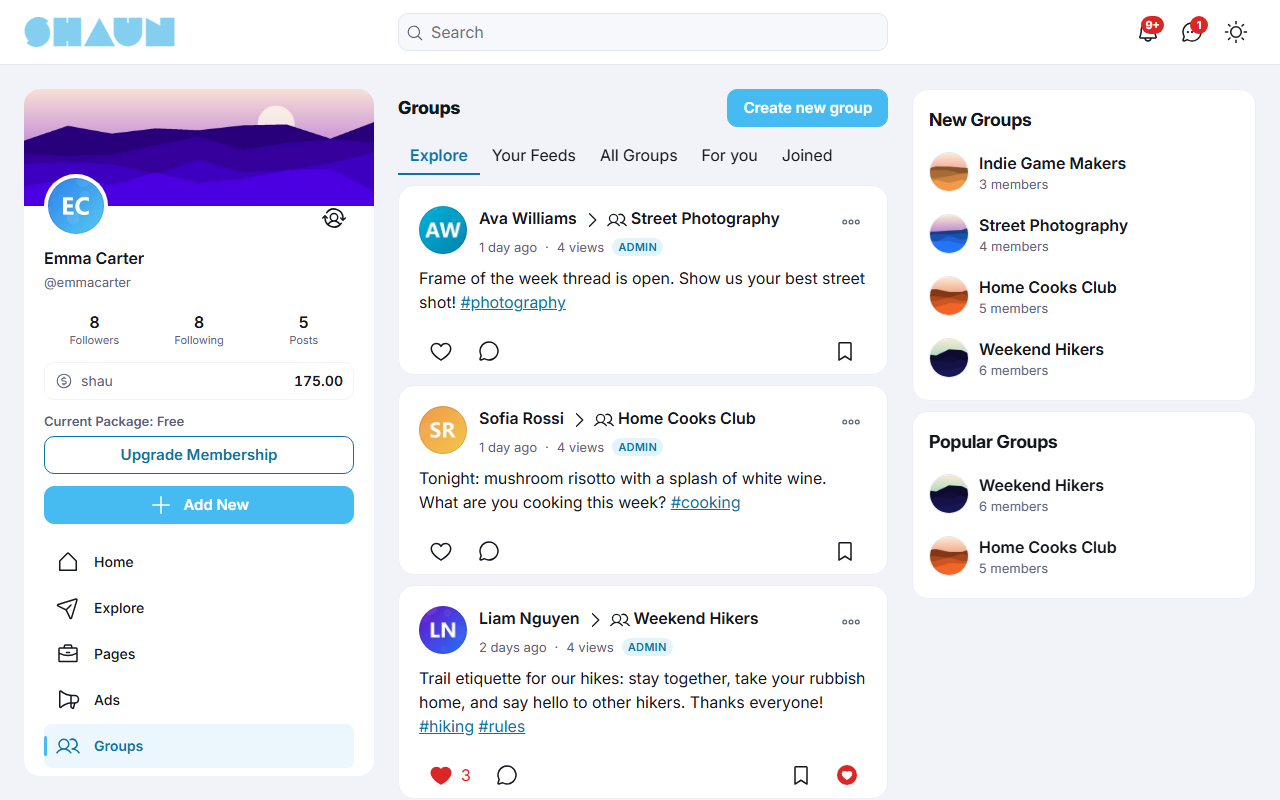
Click Groups in the main menu (https://example.com/groups). The page has up to five
tabs; visitors who are not signed in see Explore and All Groups only.
| Tab | What it shows |
|---|---|
| Explore | the latest posts from all public groups, so you can see what is happening and join a group you like |
| Your Feeds | the latest posts from the groups you belong to. Empty until you join one: "Start joining groups or create new group to see updates here." |
| All Groups | every active group, the newest first. Narrow it with Keyword (part of the group name) and Category, then click Search. When nothing matches, "No groups found" offers Clear filters |
| For you | groups that use hashtags you follow or have shown interest in (see Hashtags and people pages) |
| Joined | the groups you belong to |
Posts from the groups you belong to also appear in your home feed (see What the home feed shows). Groups are found by the site search too, on the Group tab of the results.
The group page#
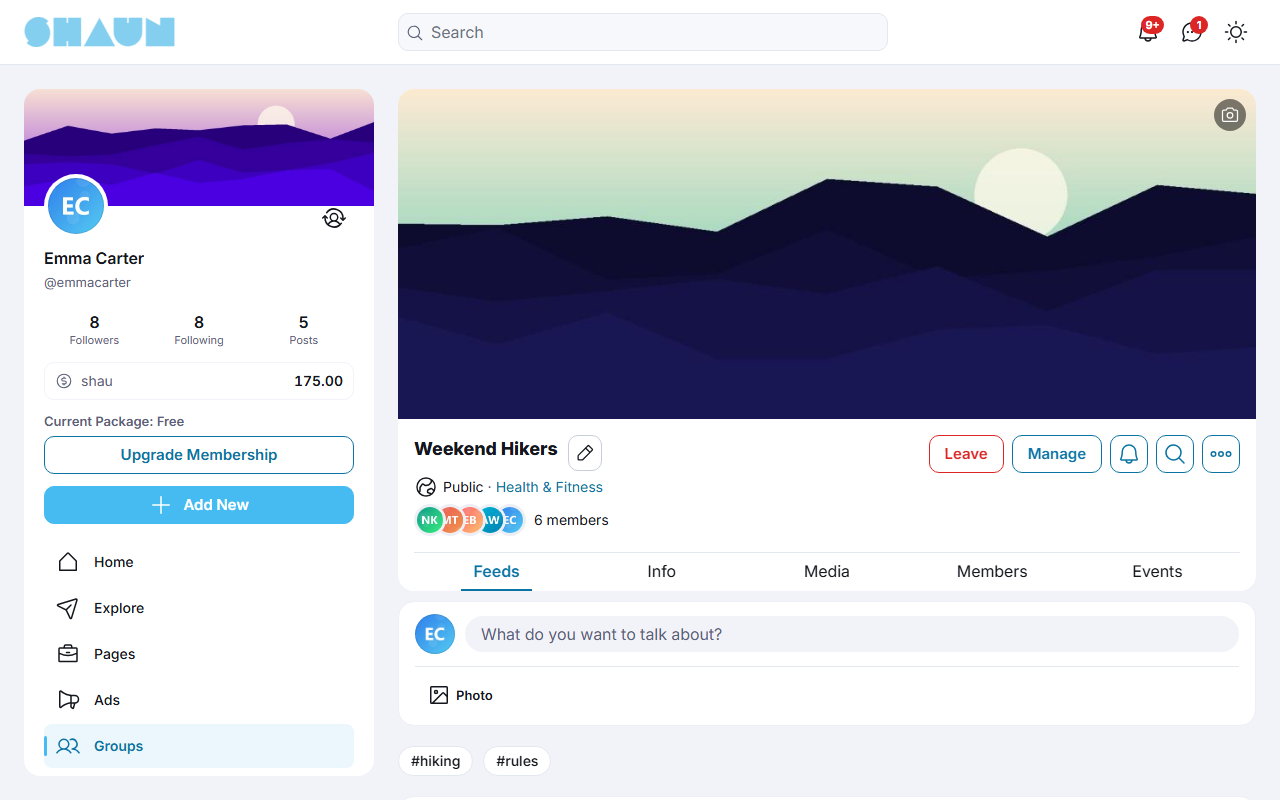
- At the top: the cover picture, the name, Public or Private, the categories (click one to see other groups in it) and the number of members.
- Buttons: Join, Leave or Cancel Request; Manage for the owner and moderators (with a number when join requests or posts are waiting); the bell for your notification settings (see Group notification settings); the magnifier to search the group (see Searching inside a group); and the three dots with Report and Share.
- Feeds is the group's own feed; it also shows the posts made in the group's own events. Info shows the description, categories, hashtags, privacy, the recent activity, the newest members and the group rules. Media collects the photos and videos posted in the group. Members lists the owner (under Admin), the moderators and the members, with a search box. Events lists the group's events while the Events feature is on (see the Events page).
- In a closed group, people who are not members see the top of the page and the Info tab only: no posts, media or member list. The site's super admins and moderators can see a closed group's content without joining.
Join or leave a group#
- Open the group and click Join.
- If the group has rules, the window Group rules opens. Read them and click Accept & Join.
What you should see: in a public group you are a member at once and the button changes to Leave. In a closed group the button changes to Cancel Request until the owner or a moderator answers; when they approve, you get the notification "Welcome to" followed by the group name.
- Leave asks "Do you want to leave this group?". To come back to a closed group you have to ask again.
- The owner cannot leave ("You can't leave this group."): transfer the group to someone else first (see Transfer the group).
- You cannot see or join a group whose owner or moderators banned you.
Post in a group#
The group's Feeds tab has the same post box as the home page (see Create a post). Who may post is set by the group: all members, or only the owner and moderators. Visitors are asked to sign in, and people who are not members are asked to join first.
- Post approval: when the group reviews posts, your post is not shown until the owner or a moderator accepts it. A bar "[number] pending posts" appears above the feed; Manage post lists your waiting posts, and Delete withdraws one. You get "approved your post in a group." or "rejected your post in a group."; a rejected post is deleted.
- Comments: only members can comment. Posts in groups have no Who can comment? choice and no Share button.
- Changing your post: you can edit and delete your own posts while the group does not review posts. In a group that reviews posts, ask the owner or a moderator; they can edit and delete every post in the group.
Your groups in Lists#
Lists → Groups (https://example.com/lists/groups) lists the groups you own or moderate,
with a Status filter: All (the default), Active, Pending (waiting for an admin), Hidden (hidden by its
owner) and Disable (switched off by an admin). A pending or disabled group cannot be opened or changed until an
admin approves or reactivates it; a hidden group shows "This group is hidden now": the owner also gets Open Now, moderators only the message
(see Hide a group).
Creating a group#
Last updated: 2026-11-17 · v1.5.6
- On the Groups page, click Create new group.
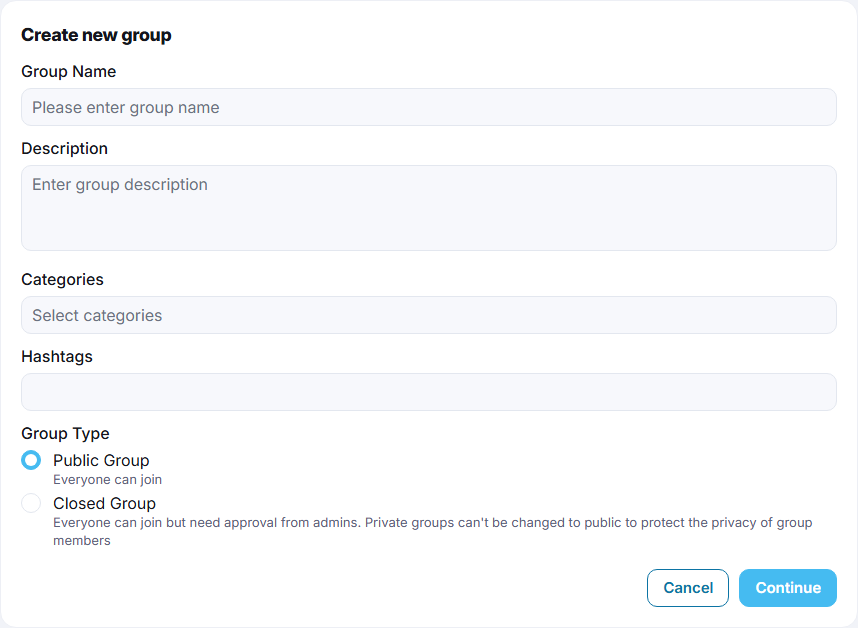
- Fill in the form (see the table below) and click Continue.
What you should see: "Your group has been created." and the new group page, with you as its owner and first member. If your site reviews new groups, you see "Your group is pending for approval." and Lists → Groups instead; you get the notification "Your group '…' is approved now" when an admin approves it.
- On the group page, upload a cover picture with the button on the cover. Until you do, the site's default cover is shown.
| Field | What to enter |
|---|---|
| Group Name | required, up to 255 characters |
| Description | what the group is about, up to 1024 characters |
| Categories | required: at least one category |
| Hashtags | members who follow these hashtags see the group in their For you tab |
| Group Type | Public Group ("Everyone can join") or Closed Group (people ask to join and the owner or a moderator approves them). See Public and closed groups |
Whether you may create groups and how many a day depends on your member role: you may see "You don't have group creation permission." or "To prevent spam, we only allow you to share a maximum of [x] groups per day." (see Group settings and role permissions).
Change the name, description, categories and hashtags#
The owner and the moderators change the name with the pencil next to it, and the description, categories and
hashtags with the pencils on the Info tab. In a group description, formatting signs such as ** are shown as
typed (formatting works in posts only, see Markdown formatting).
Group rules#
Rules are shown to everyone on the Info tab and to each person who joins, who must click Accept & Join.
- As the owner, open the Info tab and click Create New Rule under Group rules.
- Enter a Title (up to 255 characters) and a Description (up to 1024 characters), and click Save.
- Drag the rules to change their order; the pencil changes a rule and the bin deletes it.
Public and closed groups, hiding a group#
Last updated: 2026-11-17 · v1.5.6
A group is created as public or closed. On the group page a closed group is labelled Private.
| Public group | Closed group | |
|---|---|---|
| Who can join | anyone signed in, at once | anyone signed in, after the owner or a moderator approves the request |
| Who sees the posts, media and members | everyone, visitors included | members only. Others see the top of the page and the Info tab |
| Listed in All Groups and search | yes | yes |
| Posts shown on the Explore tab | yes | no |
| Can be changed | to closed, by the owner | no: a closed group stays closed, to protect its members' privacy |
Make a public group closed: as the owner, open the Info tab, click the pencil next to Group Privacy, choose the closed type and click Save. This cannot be undone. People who were already members stay members.
Hide a group#
The owner can hide a group for a while, for example during a reorganisation. A hidden group cannot be opened by anyone, its posts leave the home feeds, and it is not listed or found by search. Nothing is deleted.
- Click Manage on the group page, then the Settings tab, and click Hide Group.
- Confirm "Are you sure you want to hide this group? All members can't access this group until you re-open it" with
Ok and enter your password.
What you should see: "Hide Group Successfully."
- To open it again, go to Lists → Groups, click the group (status Hidden), click Open Now and enter your password. You see "Open Group Successfully."
Only the owner can hide and re-open a group. A group can also be switched off by an admin; it then shows "This group is disabled by admin" and only an admin can reactivate it (see Manage groups).
Running a group: owner, moderators and the Manage page#
Last updated: 2026-11-17 · v1.5.6
Every group has one owner (the member who created it, shown under Admin) and can have moderators. In posts, the owner and moderators carry the label Admin.
| Task | Owner | Moderator |
|---|---|---|
| Change the name, description, categories, hashtags and cover; pin posts; approve posts and join requests; remove and ban members; change the group settings | yes | yes |
| Post without approval | yes | yes |
| Add and remove moderators | yes | no (a moderator can only step down) |
| Transfer the group, make it closed, write the rules, hide, re-open or delete the group | yes | no |
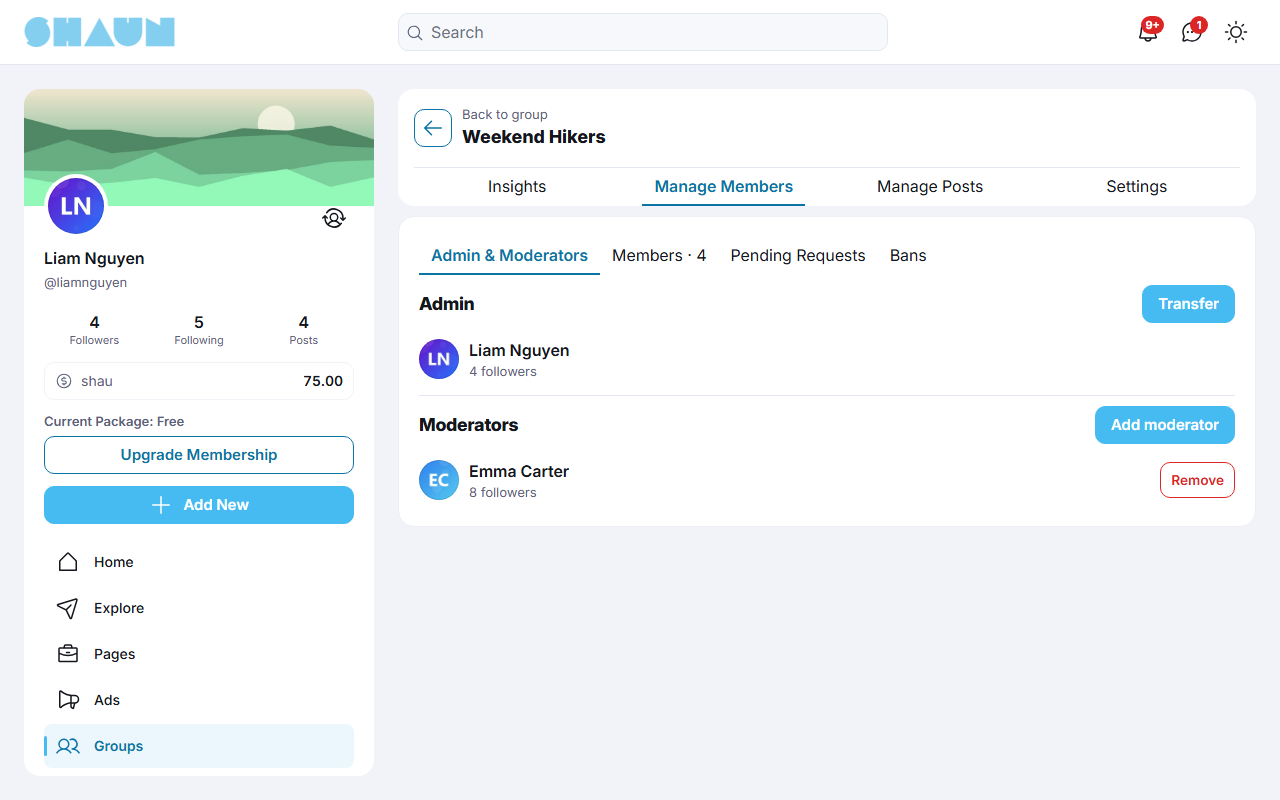
Owners and moderators click Manage on the group page. The number on the button counts the join requests and posts waiting. The Manage page has four tabs:
| Tab | What it holds |
|---|---|
| Insights | Engagement (likes and comments), New Members and Active members for the last 28 days, and charts of new members and posts for the last 7 days |
| Manage Members | Admin & Moderators, Members, Pending Requests and Bans (see below) |
| Manage Posts | the posts waiting for approval (see Approve posts) |
| Settings | Post Approval, Who can post, Web Address, and for the owner Hide Group and Delete Group (see Group settings) |
Add or remove a moderator#
- As the owner, open Manage → Manage Members → Admin & Moderators and click Add moderator.
- Under Username, type part of the person's name, choose them in the list and click Add.
- Enter your password in Enter Password.
What you should see: the person in the Moderators list. They get the notification "added you as moderator of a group.". Someone who was not a member yet becomes a member and moderator at once.
Remove next to a moderator makes them a normal member again; they get "removed you as moderator of a group.". A moderator can remove themselves the same way. Banned people cannot be made moderators.
Transfer the group#
- As the owner, open Manage → Manage Members → Admin & Moderators and click Transfer.
- In Transfer Admin Account, type part of the new owner's name under Username, choose them and click Transfer.
- Enter your password in Enter Password.
What you should see: the new owner under Admin. They get "transferred ownership of a group."; you stay in the group as a normal member.
The new owner does not have to be a member yet. You cannot transfer the group to yourself or to someone banned from it.
When the owner deletes their account, the groups they own are deleted with it, so transfer a group first if it should continue.
Members, join requests and bans#
- Members lists the members (people and business pages) with a search box. Remove takes someone out of the group; they can join again. Ban removes them and keeps them out.
- Pending Requests (closed groups) lists the people asking to join. Approve or Reject one request, or tick several and use Approve Selected or Reject Selected. Approved people get "Welcome to" followed by the group name.
- Bans: "People who are banned can't find the group in search, see any of the content within the group or receive new invitations to the group." Unban lets someone back; they have to join again. Moderators of the group and the site's own admins cannot be banned.
Approve posts#
Switch on Post Approval in the Settings tab to review each post before it appears. Posts by the owner and moderators are never held back.
- Open Manage → Manage Posts. Narrow the list by Keyword, Author, Start Date, End Date and content type, sort by Newest first or Oldest first, and click Search.
- Click Accept to publish a post, or Reject to delete it. The author is told either way.
An accepted post appears in the feed as a new post, and members get the notification for new posts then.
Group settings#
The owner and the moderators change these settings in Manage → Settings; only the owner sees Hide Group and Delete Group.
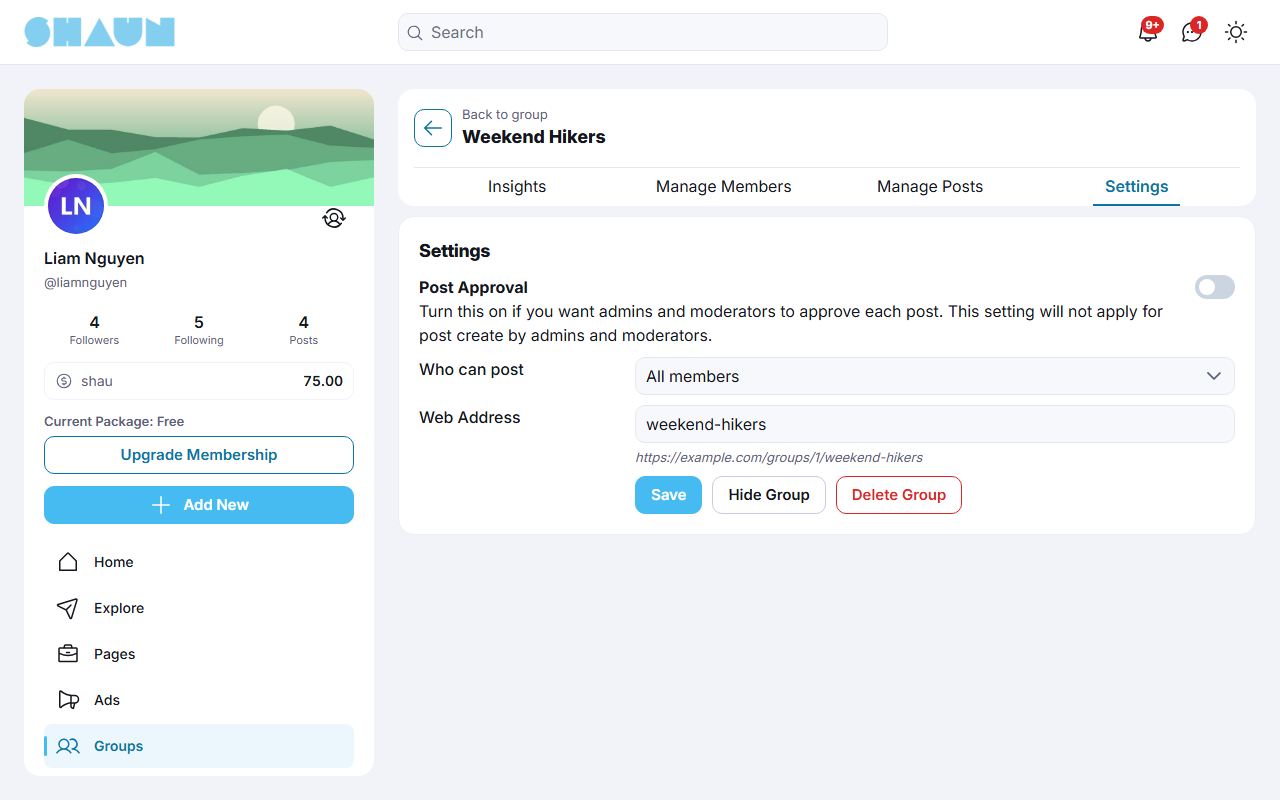
| Setting | What it does |
|---|---|
| Post Approval | on: posts by members wait in Manage Posts until accepted. Off (after creating): posts appear at once |
| Who can post | All members (after creating) or Admins and moderators |
| Web Address | the last part of the group's address, https://example.com/groups/<id>/<web-address>, up to 128 characters. Links that use the old address stop working |
Click Save after changing them. Delete Group (owner only) asks "Are you sure you want to delete this group?" and your password, then deletes the group with all its posts, members and rules. This cannot be undone.
Pinning posts in a group#
Last updated: 2026-11-17 · v1.5.6
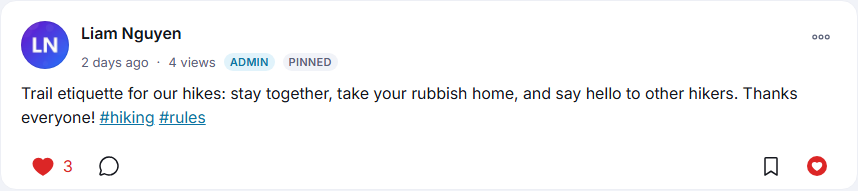
Use a pinned post for an announcement every member should see.
- As the owner or a moderator, open the three-dot menu of a post in the group and choose Pin Post.
What you should see: "Post is pinned." and the post at the top of the group's feed.
- To put it back in its place, choose Unpin Post in the same menu.
Several posts can be pinned; the most recently pinned comes first. Members get the notification "new pinned post in '…'." unless they switched it off (see Group notification settings). Pinning to the home page and to a profile is explained in Pinning posts.
Searching inside a group#
Last updated: 2026-11-17 · v1.5.6
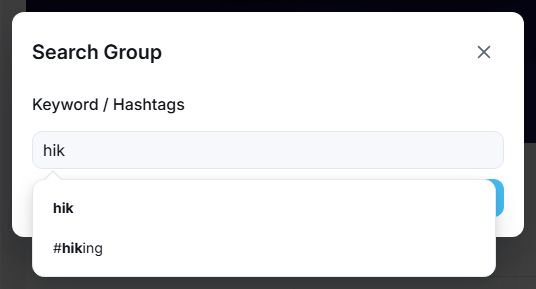
- On the group page, click the magnifier (Search Group).
- Under Keyword / Hashtags, type a word or a hashtag. Suggestions appear as you type; click one, or press
Enter.
What you should see: the group's feed narrowed to the posts that match, with your search shown above them.
- Click the back arrow next to your search to see the whole feed again.
Above the feed, the hashtags used most in the group's posts (up to five) are shown as buttons. Click one to see only the posts with that hashtag. Only people who may see the group's posts can search them.
Group notification settings#
Last updated: 2026-11-17 · v1.5.6
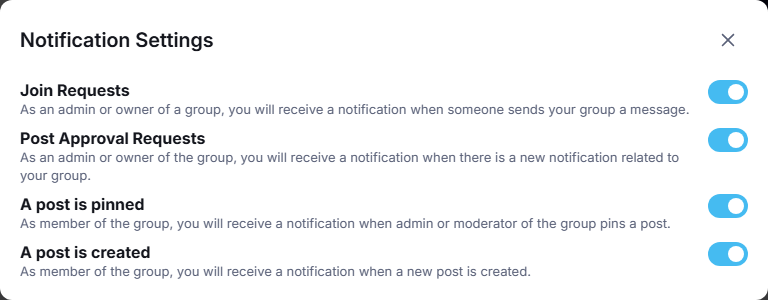
Each member chooses which group activity sends them a notification. Click the bell on the group page; the window Notification Settings opens. Each switch is saved as soon as you change it. All are on when you join.
| Switch | Who sees it | The notification |
|---|---|---|
| A post is created | every member | "create a new post in '…'." for each new post (also when a waiting post is accepted) |
| A post is pinned | every member | "new pinned post in '…'." |
| Join Requests | owner and moderators | "requested to join '…" when someone asks to join a closed group |
| Post Approval Requests | owner and moderators | "new post in '…' that needs your approval."; click it to open the waiting post |
The author of a post and the member who pinned it are not notified about their own action. In a busy group, switch off A post is created to receive fewer notifications.
These notifications are sent by the cron job, a few members at a time every minute, so in a large group they reach everyone over several minutes. Without a working cron job they are not sent at all (see What stops when the cron job does not run).
Groups admin, categories and settings#
Last updated: 2026-11-17 · v1.5.6
Group settings and role permissions#
The screen saves each setting as soon as you change it.
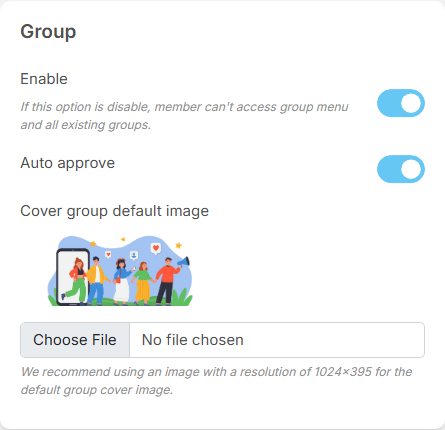
| Setting | After installing | What it does |
|---|---|---|
| Enable | on | off: the Groups menu entries disappear, group pages and feeds can no longer be opened, and group posts leave the home feed, bookmarks and the other lists. Nothing is deleted: switch it on again and everything comes back. The AdminCP Groups menu stays |
| Auto approve | on | on: new groups are active right away. Off: new groups wait for an admin (see below) |
| Cover group default image | a standard picture | the cover shown on groups whose owner uploaded none. A picture of 1024×395 pixels is recommended |
Who may create groups, and how many a day, is set per role in AdminCP → Users → Manage User Roles → Permissions → Group: Allow group creation (on after installing) and Maximum number of groups can create per day (0 is unlimited) (0). Super admins and moderators are not held to the daily limit; see Per-day limits. The refusal messages can be changed with the pencil under each permission.
Manage groups#
Super admins see this screen; moderators need the Manage Groups switch in their role (see Moderator roles). The list shows every group, newest first, with ID, Name (click it to open the group), Status, Popular and Created. Filter by status (Active, Hidden, Pending, Disable), by Popular / Not popular or by name, and click Search.
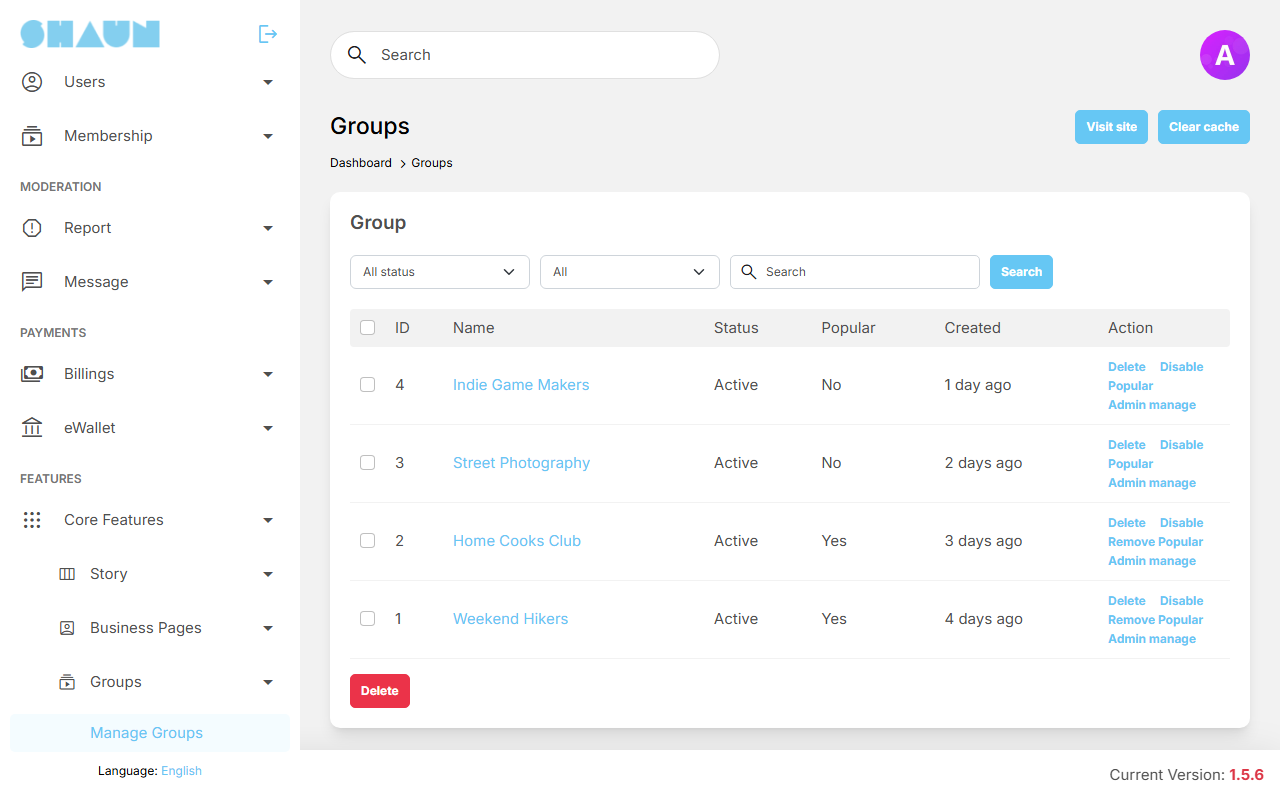
Each action asks for confirmation:
| Action | Shown on | What it does |
|---|---|---|
| Approve | pending groups | makes the group active. The owner gets "Your group '…' is approved now" |
| Disable | active groups | closes the group to everyone, its members and owner included, and takes its posts out of the home feeds. The owner gets "Your group '…' is disabled now" |
| Active | disabled groups | opens the group again. The owner gets "Your group '…' is active now" |
| Popular / Remove Popular | all groups | adds the group to, or removes it from, the Popular Groups block |
| Admin manage | all groups | lists the group's members with their role (Owner, Moderator) and e-mail. Login as user (for admins with the Manage Users permission) signs you in as that member, to fix the group on the owner's behalf |
| Delete | all groups | deletes the group with its posts, members, rules and requests. This cannot be undone. Tick several groups and click Delete under the list to delete them together |
- Groups waiting for approval: while Auto approve is off, every super admin and moderator gets the notification "created a new group and waiting for your approval" for each new group. It opens Manage Groups; filter by Pending.
- Hidden groups were hidden by their owner; only the owner can open them again (see Hide a group).
- Blocks: the Groups page and the group page are laid out in the Layout editor (pages Groups and Group Profile Page). New Groups shows the newest active groups. Popular Groups shows only the groups you marked Popular: up to the block's number of items, picked at random from the 50 popular groups with the most members.
- Members can report a group from its three-dot menu; reports are handled in the Moderation Center.
Group categories#
The categories members choose when they create a group, and filter by in All Groups. The site comes with 17: Sports, Technology, Art, Entertainment, Gaming, Politics, Business, Culture, Science, Food, Animals, Education, Fashion & Beauty, Health & Fitness, News, Cryptocurrency and Travel. Moderators need the Group Categories switch in their role.
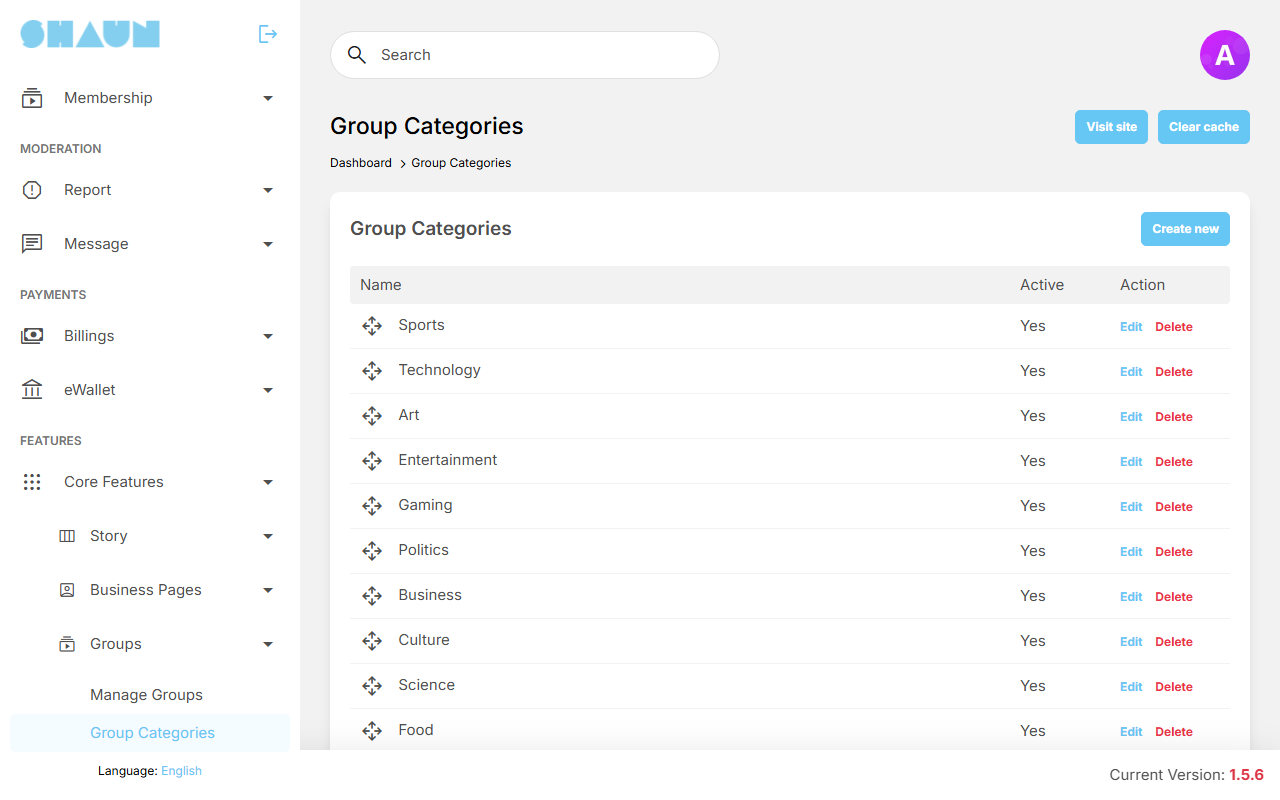
- Click Create new.
- Enter the Name. To make it a sub-category, choose a Parent; leave it empty for a main category. The Parent list is shown only when other main categories exist, and not for a category that has sub-categories of its own.
- Leave Active on and click Submit.
What you should see: "Group category has been created." and the category in the list.
- Rename a category: click Edit, then Translate under the name, and change the name there for each language (see Translate a name or text). The Name field itself cannot be changed after creating.
- Order: drag the rows to set the order members see.
- Active off hides the category from the choice.
- Delete removes the category and its sub-categories from the list and from the choice members see. Groups that used it keep their other categories.
Change log#
Last updated: 2026-11-17 · v1.5.6
| Date (GMT+7) | Section | What changed |
|---|---|---|
| 2026-11-17 | all | First version for 1.5.6, written from the 1.5.6 code for members and for site owners and their admins. |
| 2026-11-17 | browse, create, owner-moderators, pin-posts, admin | Corrections after review: the order of the steps for adding a moderator and transferring a group, moderators can change the group settings, event posts in the Feeds tab, staff access to closed groups, hidden groups for moderators, the Status and Clear filters details, the Parent list, how Popular Groups are picked. |
| 2026-11-17 | owner-moderators | Added: deleting the owner's account deletes the groups they own. |