ShaunSocial user guide 1.5.6 / AdminCP
Moderation
How your team keeps the community safe: reports from members (and from the AI checks) arrive in the Moderation Center as cases; moderators review them and warn, remove content or suspend accounts for a fixed time; suspended members can appeal. This page also covers the report log and report categories, hashtag approval, the content warning categories and the message logs.
Moderation Center (cases, actions, suspension)#
Last updated: 2026-11-17 · v1.5.6
All reports on the same post, comment, account or other item are grouped into one case. The Moderation Center is the queue of cases, highest priority first. Super admins see it; a moderator needs the permission Moderation Center: access the queue, assign, notes, warnings, dismiss (see Moderator roles). Members can report posts, comments and replies, accounts and business pages, conversations, stories, groups, events and Marketplace listings.
The queue#
Three tabs at the top: All open, My assigned (cases assigned to you) and Unassigned. Use the filters and click Search; Reset clears them.
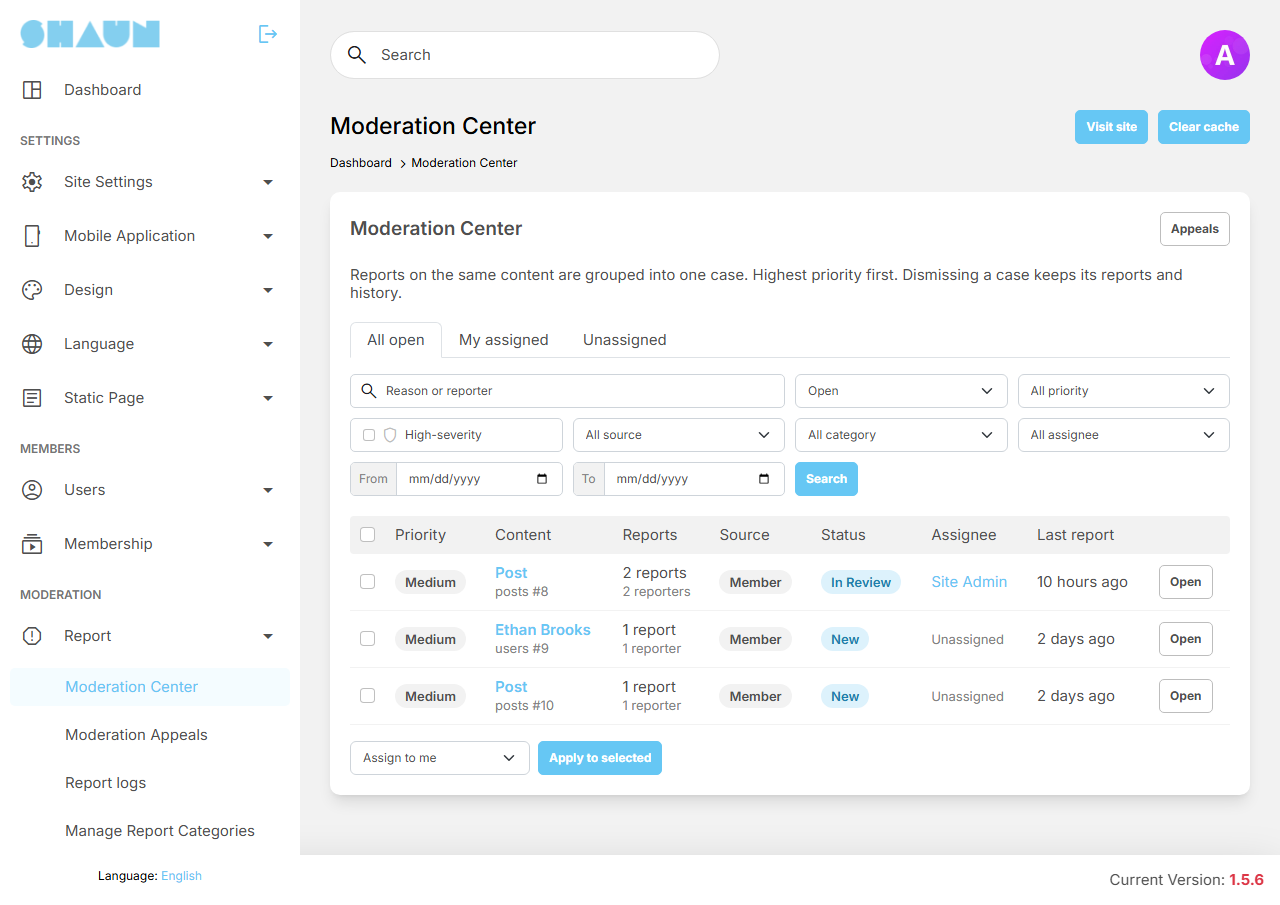
| Filter | What it does |
|---|---|
| Reason or reporter | cases with a report whose reason contains the text, or sent by a member with that name |
| Status | Open (the default: New, Assigned and In Review), All status, or one status |
| All priority | Low, Medium or High |
| High-severity | only high-severity cases (these are always Critical, so the priority filter is switched off) |
| All source | cases with reports from members, or from the AI checks |
| All category | cases with at least one report in that report category |
| All assignee | cases of one moderator, or Unassigned |
| From, To | cases whose last report falls between these dates |
The columns show the Priority, the reported Content (a link that opens it; high-severity content is shown as "Hidden (high-severity)"; "Deleted content" when it no longer exists) with its kind and number, the number of Reports and different reporters, the Source (Member, AI), the Status, the Assignee and the time of the Last report. Open opens the case.
To handle several cases at once, tick them, choose Assign to me, Dismiss or Close below the list and click Apply to selected.
Statuses and priority#
| Status | Meaning |
|---|---|
| New | nobody has taken the case yet |
| Assigned | a moderator has the case (set automatically when someone is assigned) |
| In Review | set by hand while you look into it |
| Actioned | an action was taken (set automatically; you cannot choose it) |
| Dismissed | the report needs no action. The reports and history are kept |
| Closed | finished without action, or closed automatically because the content was deleted |
A new report on content whose case is no longer open starts a new case. Priority (Low, Medium, High, Critical) is set automatically: a case starts at the Default priority of its report category (Medium unless you changed it, see Report categories) and goes up one level when as many different members as the setting Distinct reporters … says have reported it (3 after installing), two levels at twice that number. Volume alone stops at High. You can set the priority by hand on the case; it then stops changing by itself.
Critical is only for high-severity cases: reports in a category marked High-severity (critical), or cases a moderator escalates. They are meant for child safety, credible threats and self-harm. The content stays hidden in the queue, the case shows a reminder of your legal duties, every view of the content is recorded in the history, and the priority cannot be lowered.
Who is notified: super admins and active moderators with the Moderation Center permission get a notification on the site when a case becomes high-severity ("A high-severity report needs review.") or when a new case starts at High priority. A moderator gets "A report has been assigned to you." when someone else assigns them a case.
Working on a case#
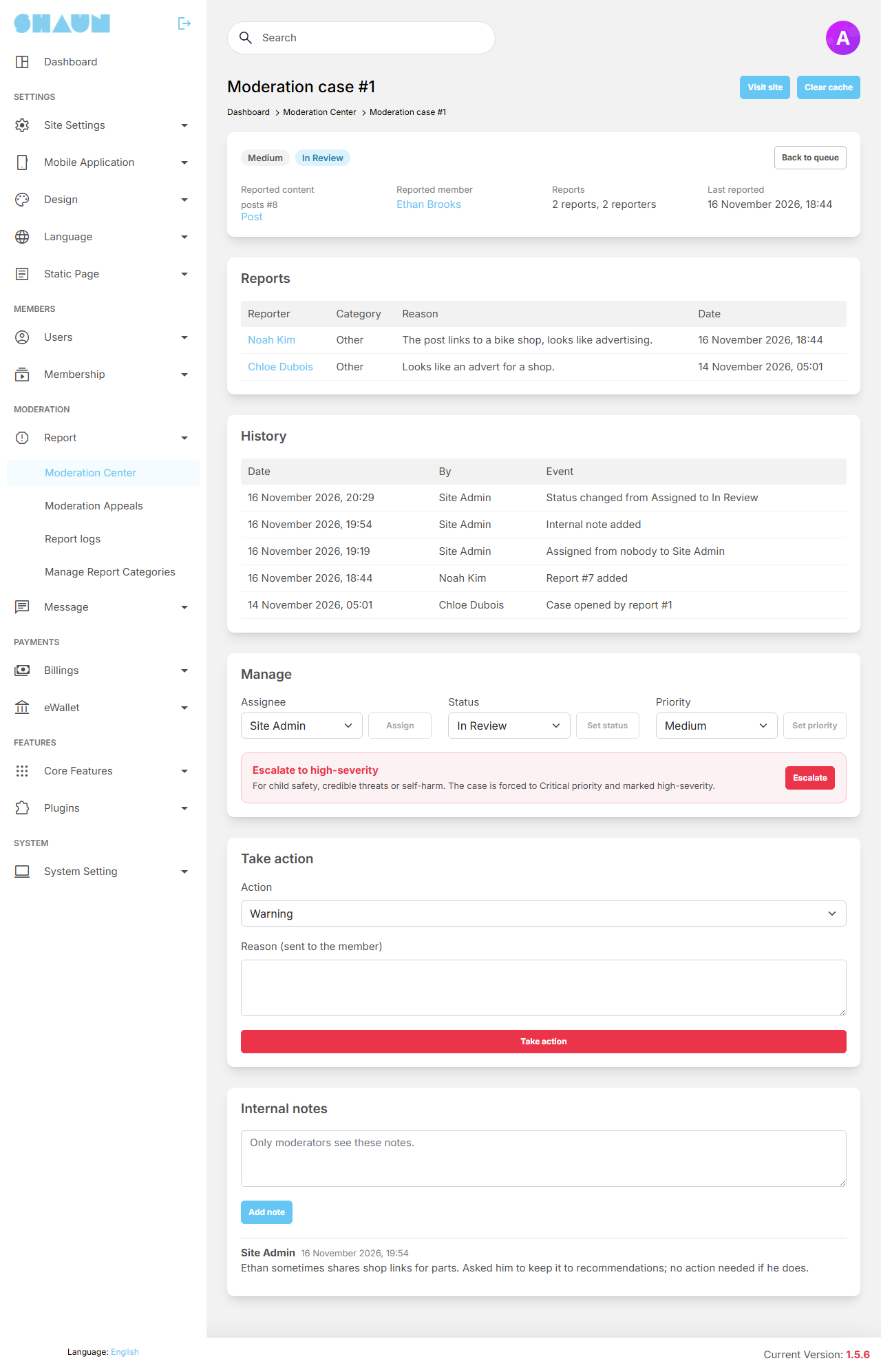
The case page shows the Reported content (a link to it, or Reveal content (logged) on a high-severity case), the Reported member (marked Inactive while their account is off), the number of reports and the date of the last one. Below are the Reports (reporter, category, reason, date), the Actions taken, any Preserved evidence and the History of everything done on the case, by whom and when.
The boxes on the right:
- Manage: choose an Assignee and click Assign, or click Assign to me; choose a Status and click Set status (Reopen appears on a finished case); choose a Priority and click Set priority. Escalate makes the case high-severity; it cannot be undone.
- Take action: described below.
- Internal notes: notes for your team (up to 5000 characters), shown with the author and time. Members never see them.
Taking action#
- In Take action, choose the Action: Warning, Content removal or Suspension. You see only the actions your role allows, and only those that fit the case.
- For a suspension, choose the Suspension duration (the choices come from the settings below).
- Write the Reason (sent to the member), up to 1000 characters, click Take action and confirm.
What you should see: "The action has been taken." The case becomes Actioned and the action is listed under Actions taken.
| Action | Permission needed | What happens |
|---|---|---|
| Warning | Moderation Center: access the queue … | nothing changes on the account. The member gets the notification "You have received a warning from the moderators: …" with your reason, and the e-mail "A moderation action was taken on your account" |
| Content removal | Moderation Center: remove reported content | the reported item is deleted, and the member gets the notification "Your content was removed by the moderators: …" and the e-mail. Not offered for accounts and conversations: act on the member instead. On a high-severity case a copy of the item's text and details (not its photos or videos) is kept under Preserved evidence; opening it is recorded |
| Suspension | Moderation Center: suspend accounts … | see the next section |
A warning or a suspension lands on the reported account itself, or on the author of the reported content. Admin accounts (super admins and moderators) cannot be warned or suspended here. Warnings and content removals are final; only suspensions can be appealed. The e-mail is the Moderation action template (see Mail templates).
Suspensions and their automatic end#
A suspension switches the account off for the chosen number of days:
- The member cannot sign in or use the site or the app; they see "Your account is pending approval.". Their posts and stories are hidden from everyone until the account is switched on again.
- They get the e-mail with your reason, how long the suspension lasts ("7 day(s), until …", a date and time in UTC) and a link to appeal it once (see Appeals). No site notification is sent, because they cannot open the site.
- When the time is up, the account is switched on again by itself, within about a minute, and the member gets the e-mail "Your account has been enabled". This needs the cron job (see Cron job); without it, suspensions never end on their own.
- To end a suspension early, click Reactivate now on it under Actions taken (needs the suspend permission). The member gets the e-mail "Your account has been enabled".
- A new suspension replaces one that is still running. An account that was already off (waiting for approval, or switched off after many reports) stays off when the suspension ends.
A suspension always ends, and the Active switch in Manage Users cannot keep the account off while the suspension runs: when the suspension ends, the account is switched on again. To ban a member permanently, first click Reactivate now, then switch the account off in AdminCP → Users → Manage Users (untick Active, see Create or edit an account), or delete the account. Reactivating sends the member the "Your account has been enabled" e-mail, and switching the account off then sends "Your account has been disabled".
Moderation settings#
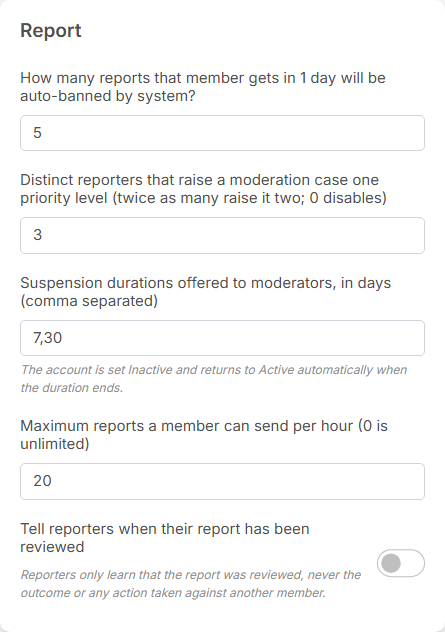
| Setting | After installing | What it does |
|---|---|---|
| How many reports that member gets in 1 day will be auto-banned by system? | 5 | switches an account off automatically; see Automatic ban after many reports |
| Distinct reporters that raise a moderation case one priority level (twice as many raise it two; 0 disables) | 3 | see Statuses and priority |
| Suspension durations offered to moderators, in days (comma separated) | 7,30 | the choices in Suspension duration, for example 1,7,30,90 |
| Maximum reports a member can send per hour (0 is unlimited) | 20 | stops members from flooding the queue. Above it they see "You have sent too many reports. Please try again later." |
| Tell reporters when their report has been reviewed | off | on: when a case is actioned or dismissed, its reporters get the notification "Thank you. The moderators have reviewed your report." They never learn the outcome. Closing a case sends nothing |
Appeals#
Last updated: 2026-11-17 · v1.5.6
A suspended member can ask the moderators to look again, once per suspension. Warnings and content removals cannot be appealed.
What members see#
- The member opens the link in the suspension e-mail. It works while they are suspended and signed out.
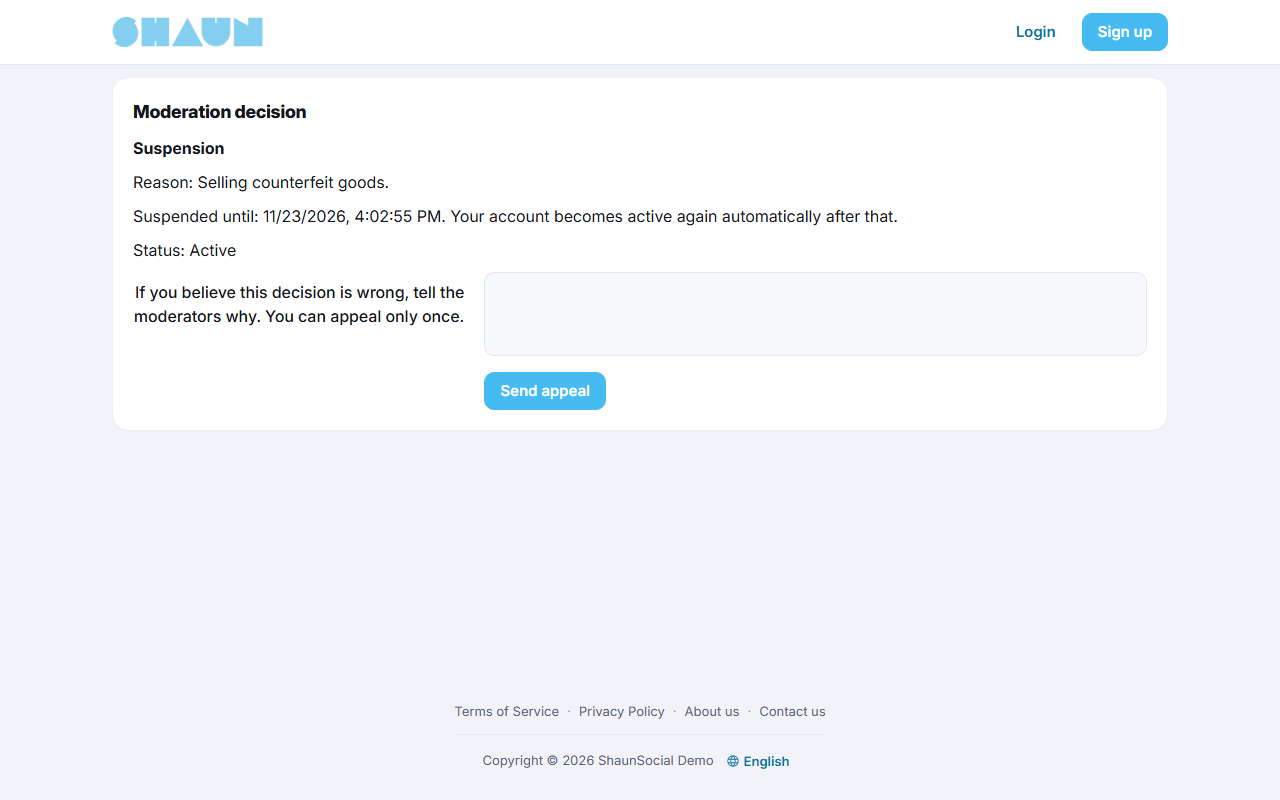
- The page Moderation decision shows the action, the reason, "Suspended until …" and the status.
- They write why the decision is wrong (up to 1000 characters) and click Send appeal.
What they should see: "Your appeal has been sent to the moderators." The page then shows their appeal and its status.
Staff with the appeal permission get the notification "A member has appealed a moderation action."
Review an appeal#
The menu entry needs both Moderation Center: access the queue … and Moderation Center: review appeals. The Appeals button in the Moderation Center opens the same screen. Tabs: Pending (the default), Upheld, Reversed and All.
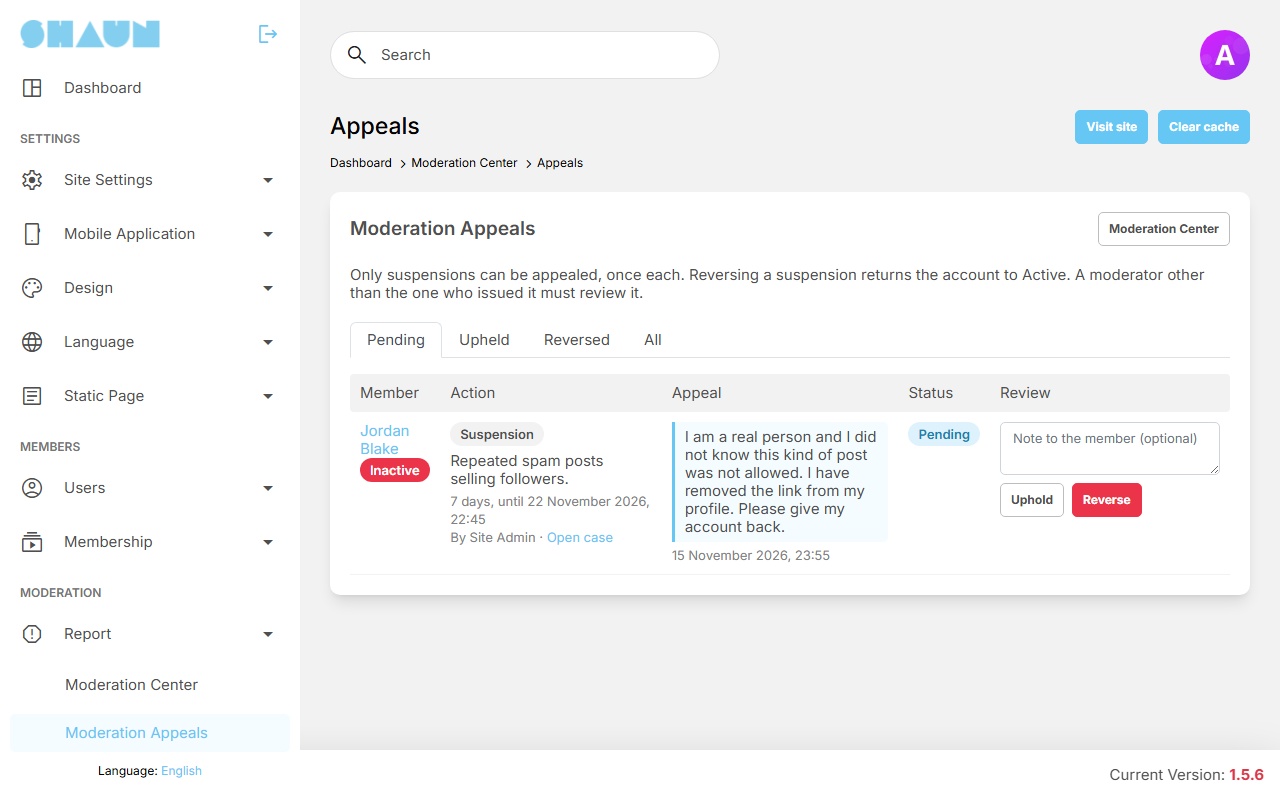
Each row shows the Member, the Action (its reason, length, who issued it and an Open case link), the member's Appeal text, the Status and the review controls.
- Read the appeal and, if needed, open the case.
- Optionally write a Note to the member (optional).
- Click Uphold to keep the suspension or Reverse to cancel it, and confirm.
What you should see: "The appeal has been reviewed." Reversing switches the account back on at once (unless it was off for another reason) and also sends the member the e-mail "Your account has been enabled".
The member gets the e-mail Moderation appeal result with the decision (Upheld or Reversed) and your note. The moderator who issued the suspension cannot review its appeal; the row says so. Super admins can review any appeal.
Report logs and report categories#
Last updated: 2026-11-17 · v1.5.6
How members report#
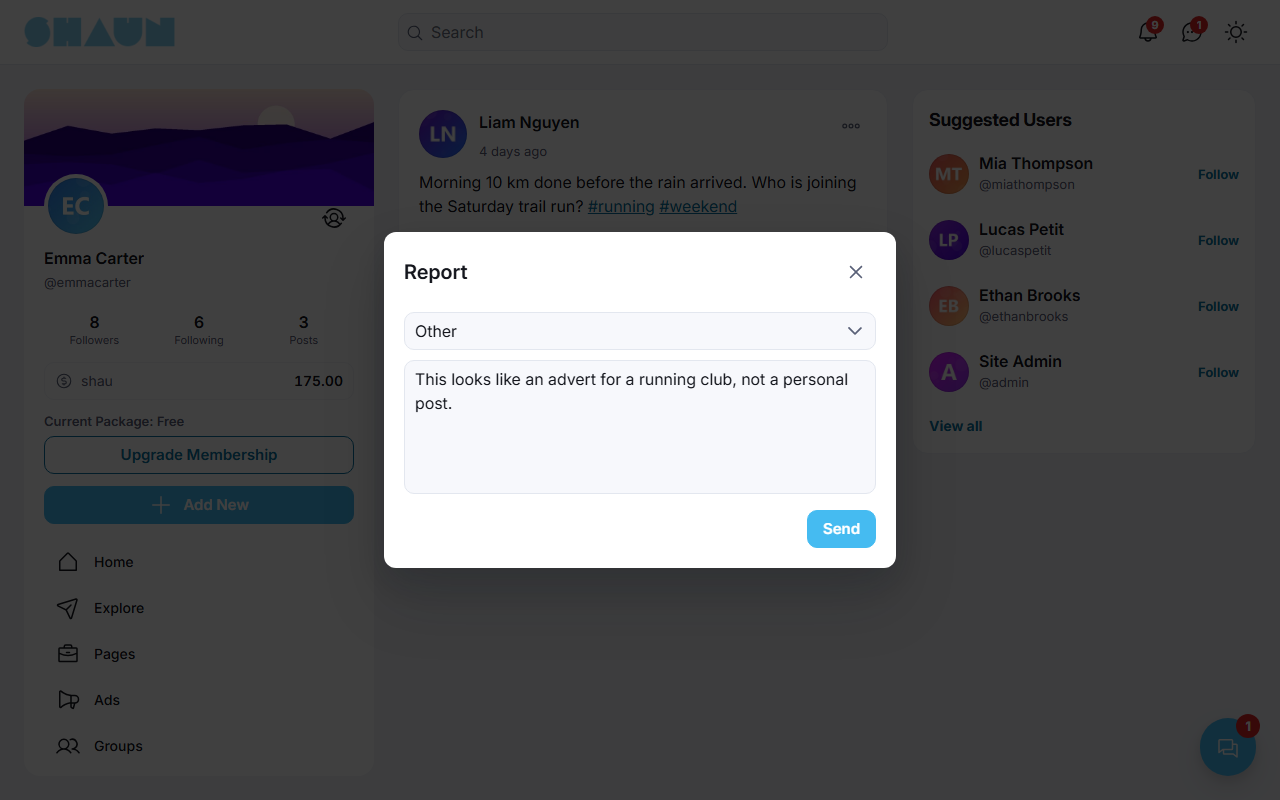
Members choose Report in the menu of a post, comment, profile or other item. In the window Report they pick a Category, can add a Reason, and click Send; the window then shows "Thanks for letting us know." A reason is optional, except with the category Other, where it is required. A member can report the same item only once ("You've already reported this item.") and only as many times per hour as the moderation settings allow.
Report logs#
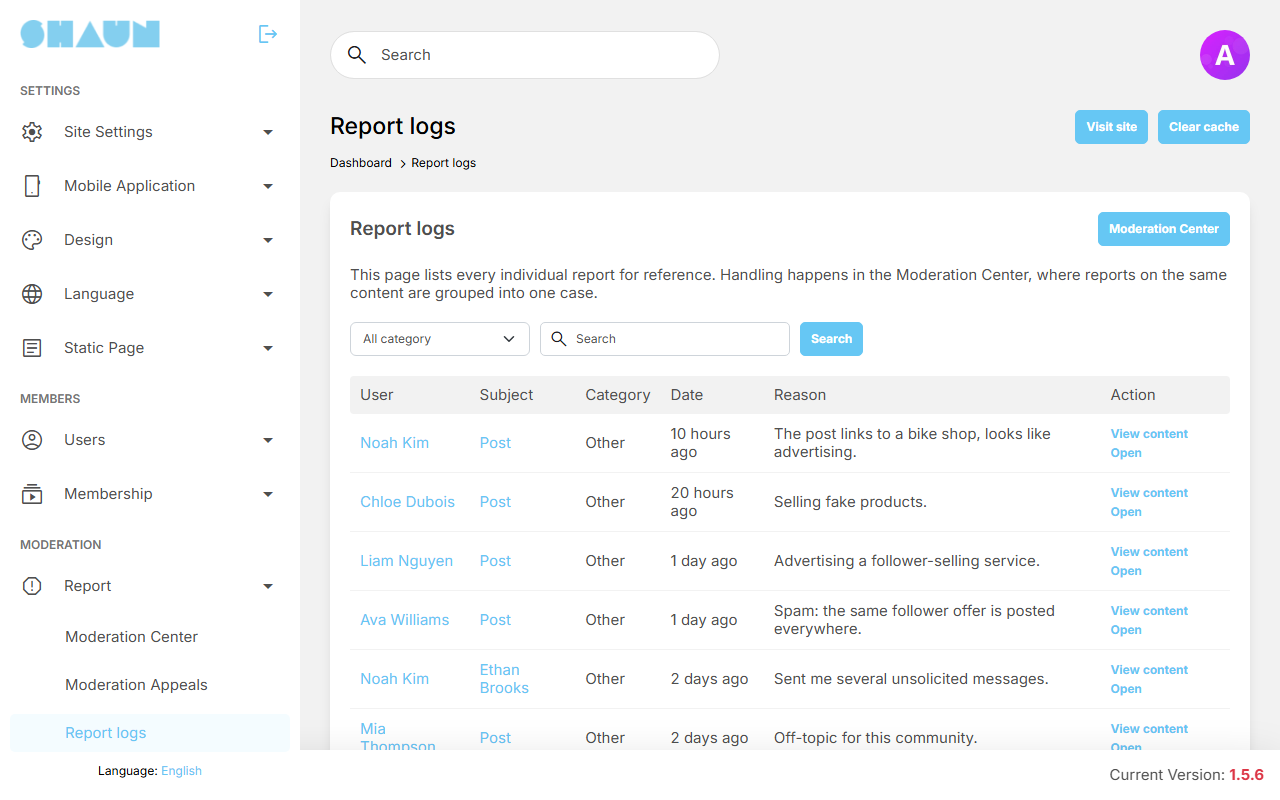
Needs the Reports permission. Every single report, newest first, for reference: the reporting User ("Ai" for reports from the AI checks), the Subject, the Category, the Date and the Reason. View content opens the reported item and Open (for admins with Moderation Center access) opens its case in the Moderation Center, where reports are handled. Reports on deleted content, or sent by deleted accounts, are not listed here; they stay in their case. Filter by category, or type part of a report's reason in Search. To find the reports a member sent, use Reason or reporter in the Moderation Center instead.
Report categories#
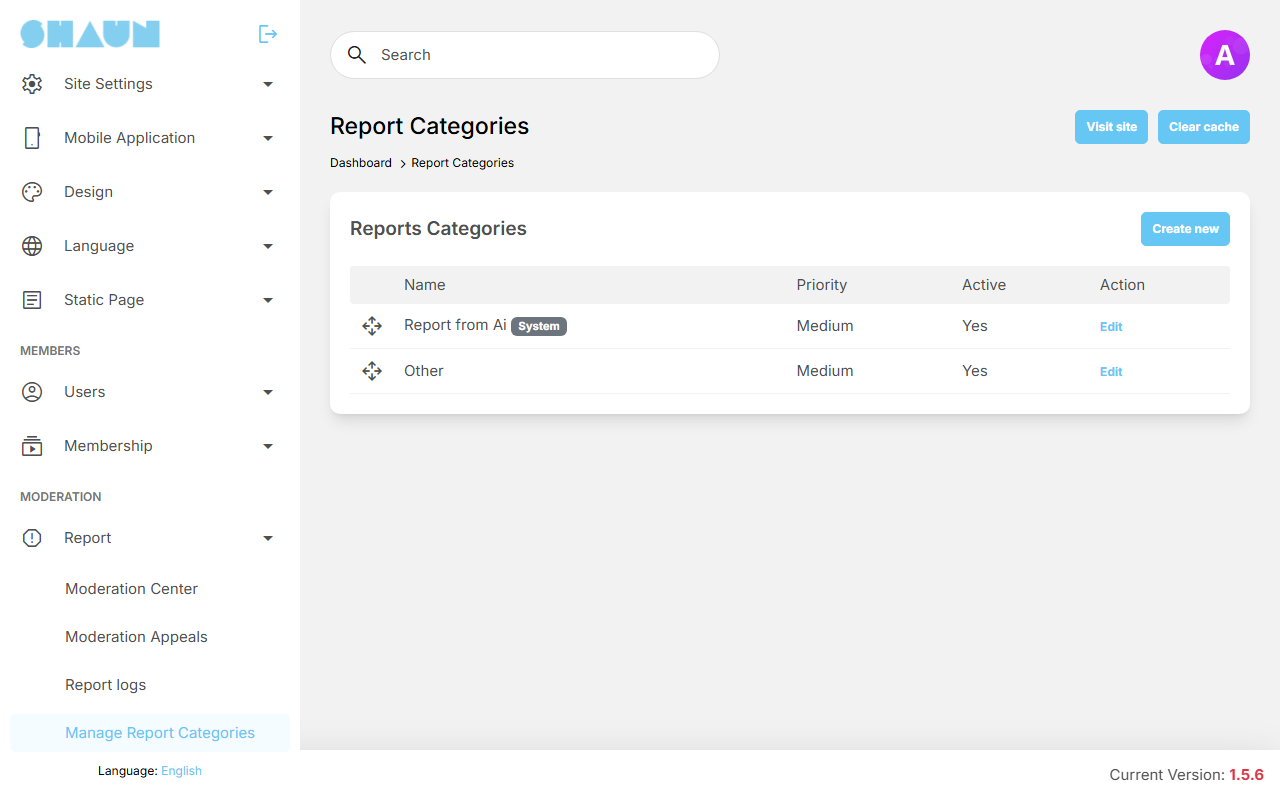
Needs the Report Categories permission. The categories members choose from when they report. Two come with the site and cannot be deleted or switched off: Other and Report from Ai (marked System; used by the AI checks and not offered to members).
- Click Create new.
- Enter the Name (for example "Spam" or "Harassment").
- Choose the Default priority (Low, Medium or High) of the cases this category opens.
- Switch on High-severity (critical) only for child safety, credible threats or self-harm: these reports always become Critical, high-severity cases.
- Leave Active on and click Submit.
What you should see: "Report category has been created."
Drag the rows to set the order members see. Edit changes the priority and switches; the name is then fixed, and Translate under it adds other languages. Delete removes a category you created. A category with Active off is no longer offered to members and also disappears from the category filter of the Moderation Center and the Report logs.
Automatic ban after many reports#
With How many reports that member gets in 1 day will be auto-banned by system? (5 after installing), an account is switched off as soon as it receives that many reports, counted over the last 24 hours and including reports on its content. Every report counts, not different reporters: two members who each report five posts of the same person reach 10. The member gets the e-mail "Your account is disabled because it has been reported too many times by members." with a link to your contact page. Reports from the AI checks do not count, and admin accounts are never switched off this way. Leave the field empty or set 0 to switch the automatic ban off.
While the account is off, its posts and stories are hidden from everyone. No admin is notified: check AdminCP → Users → Manage Users with the InActive filter now and then. The account stays off until you switch it on again there (see Create or edit an account). Check the case in the Moderation Center first: reports may come from a group of members acting together.
Hashtags#
Last updated: 2026-11-17 · v1.5.6
Every hashtag members have used, in alphabetical order. Needs the Hashtags permission. Filter by Active or InActive, or search a name.
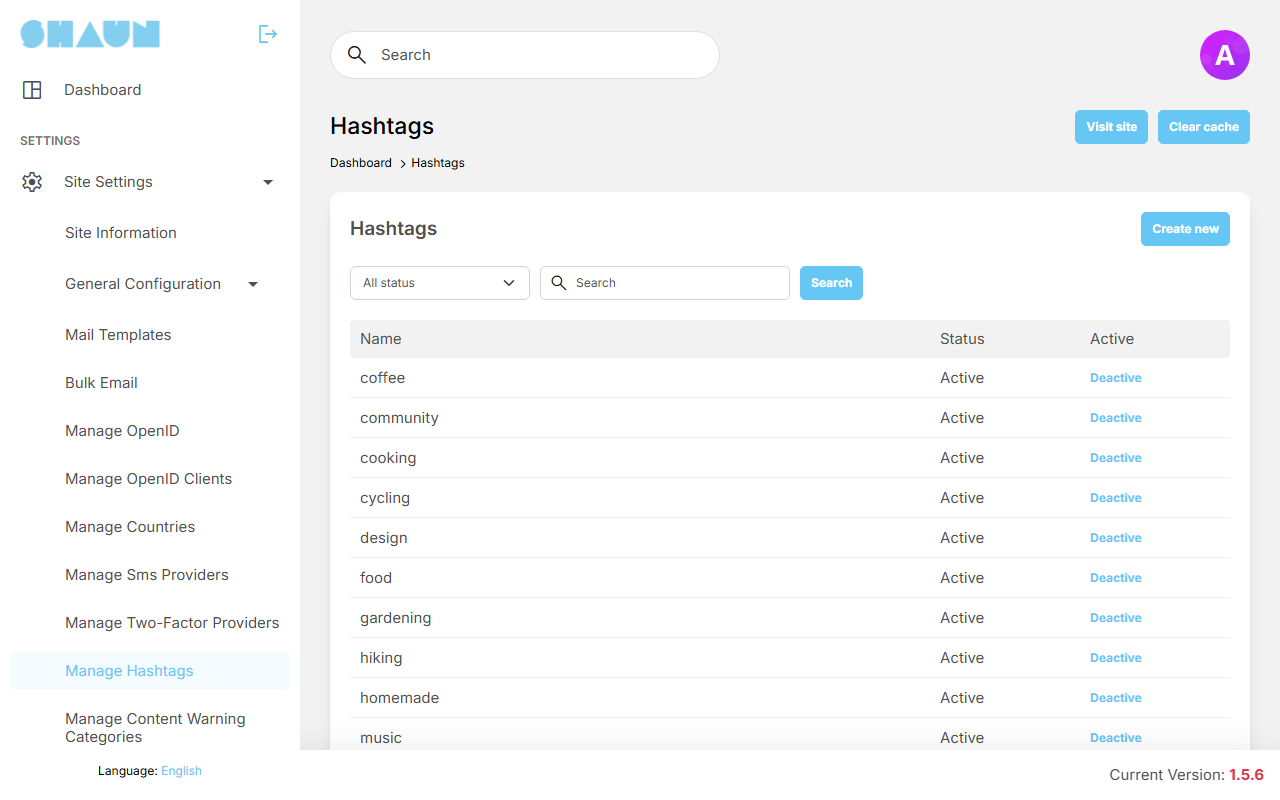
- The switch in the Active column (labelled Deactive or Active) hides or shows a hashtag at once. An inactive hashtag is left out of trending hashtags, hashtag suggestions and hashtag search; the word stays in the posts that use it.
- Create new adds a hashtag yourself: enter the Name (without
#), choose Active and click Submit.
New hashtags are active at once after installing. To approve each new hashtag first, untick Auto approve new hashtag (see The other General Settings): new hashtags then stay inactive until you switch them on here.
Content warning categories#
Last updated: 2026-11-17 · v1.5.6
Members can mark a post as sensitive, so others see a warning before the photos or videos. They pick the reason from these categories; how members mark a post is on the Feed and posts page (see Marking a post as sensitive). Needs the Content Warning Categories permission. The site comes with Sensitive, Violence, Nudity and Other.
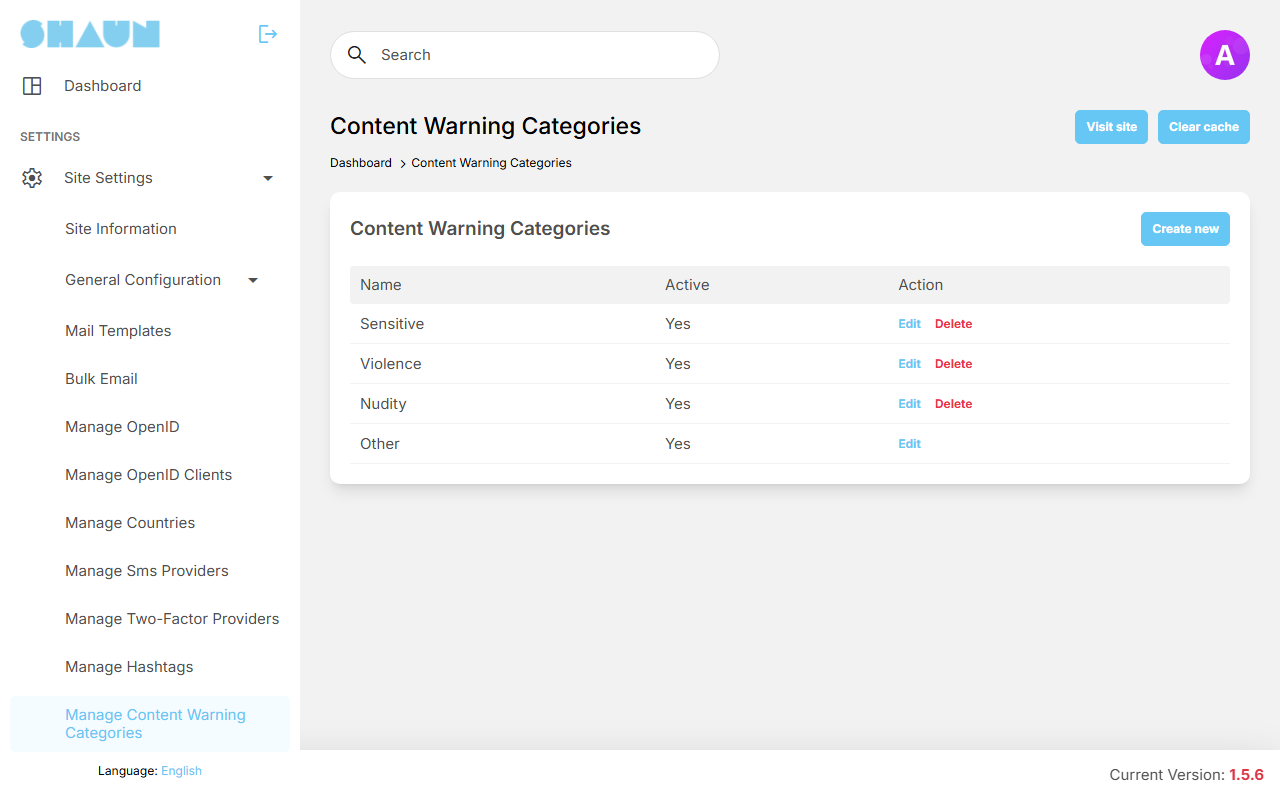
- Click Create new, enter the Name, leave Active on and click Submit.
What you should see: "Content warning category has been created."
- To show the name in other languages, click Edit and then Translate.
Drag the rows to set the order. Active off hides a category from members; Delete removes it. Other cannot be switched off or deleted.
Message logs#
Last updated: 2026-11-17 · v1.5.6
This screen lets admins read members' private chat messages, for example to investigate harassment. Needs the Manage Messages permission. It is available only while a server setting allows it; the installer allows it. If the menu Message is empty on your site, the setting is off.
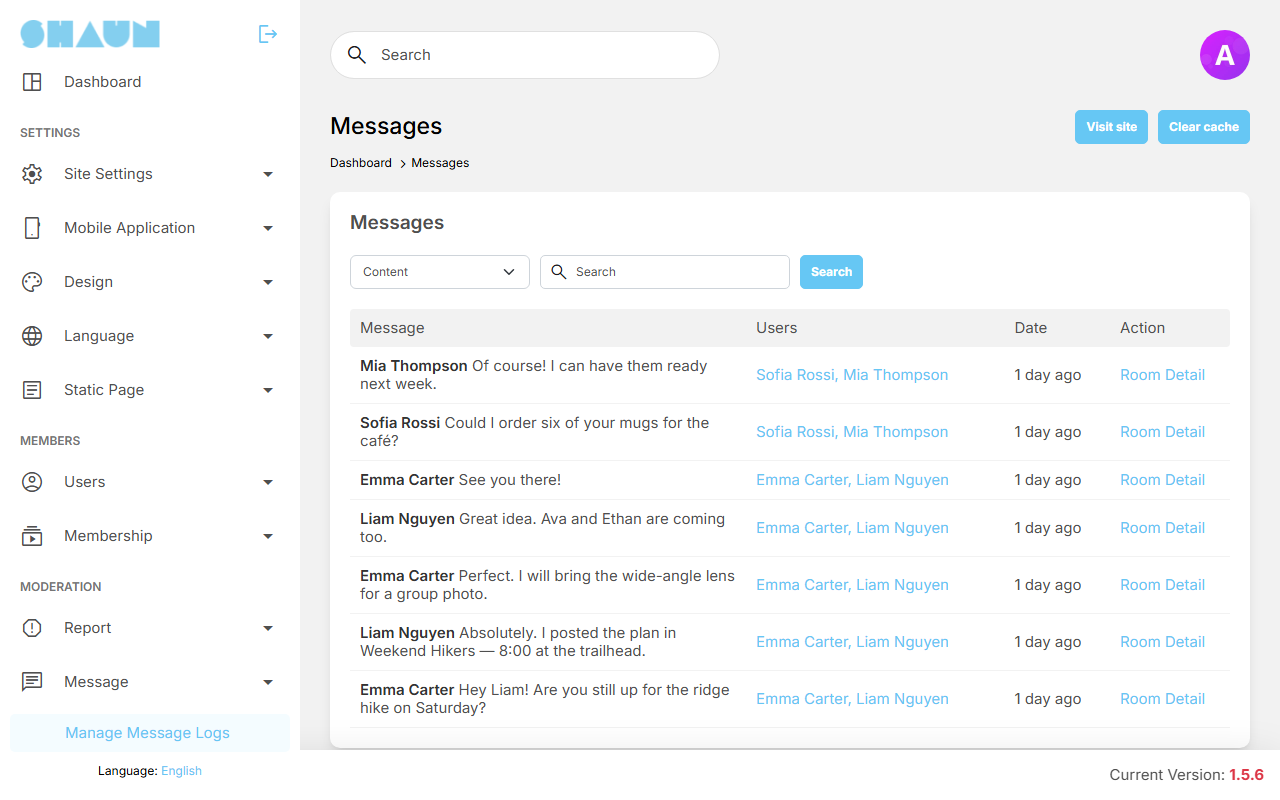
- The list shows the newest messages first: the sender and the Message, the conversation (under Users), the Date and a Room Detail link. Choose Content to search the message text, or User to find the conversations of a member by their name as shown on the site, and click Search.
- Room Detail shows the members of the conversation and all its messages, with its own search.
- Edited messages have a View edit history icon, showing each earlier version (Before, After, Edited by). Purge history deletes those earlier versions for good. Moderators need the Chat permissions Allow viewing chat message edit history and Allow purging chat message edit history.
A reported conversation can be opened from its case in the Moderation Center even while this screen is off, but only by admins whose role has the Manage Messages permission.
Reading private messages may be restricted by the law of your country and must be explained in your privacy policy. Give the Manage Messages permission only to the people who need it.
The screen is controlled by the line ADMIN_SHOW_MANAGE_MESSAGE=true in the site's .env file,
which the installer writes. Set it to false (or remove it) to take the screen away, and back to
true to bring it back.
Change log#
Last updated: 2026-11-17 · v1.5.6
| Date (GMT+7) | Section | What changed |
|---|---|---|
| 2026-11-17 | all | First version for 1.5.6, written from the 1.5.6 code as a guide for site owners and their admins. |
| 2026-11-17 | moderation-center, appeals, reports, message-logs | Corrections after review: switched-off accounts hide their posts and stories, the e-mails sent on reactivation and reversal, how to keep someone out for good, the UTC time in the suspension e-mail, how the automatic ban counts and how to find banned accounts, inactive report categories, the message log User search and who can open a reported conversation. |
| 2026-11-17 | reports | The report window is titled Report; "Thanks for letting us know." is the message shown after Send. |
| 2026-11-17 | content-warning-categories | Link to how members mark a post as sensitive, now that the Feed and posts page is published. |