ShaunSocial user guide 1.5.6 / Features
Stories
Stories are short posts (a photo, a few words on a background, or a short video, each with optional music) that disappear by themselves after a set time, 24 hours after installing. This page shows members how to create and watch stories, and shows admins the story settings, the backgrounds and the songs members can choose from.
Creating and viewing stories#
Last updated: 2026-11-17 · v1.5.6
Stories appear in the Stories row at the top of the home page (the row is a block of the home page layout, see Layout editor). The row is shown to signed-in members only.
Whose stories you see#
- The first circle, Create story, shows your own picture. When you have a story it comes right after it.
- Then come the stories of the members and pages you follow, the most recently updated first. A circle with a coloured ring holds something you have not seen yet; after you have watched it, the ring turns grey.
- Stories of members whose profile is set to be visible to Only me, and of members you have blocked or who blocked you, are not shown.
- On a profile, a coloured ring around the profile picture means the member has a story: click the picture to open it. Anyone who may see that profile can watch the story.
Create a story#
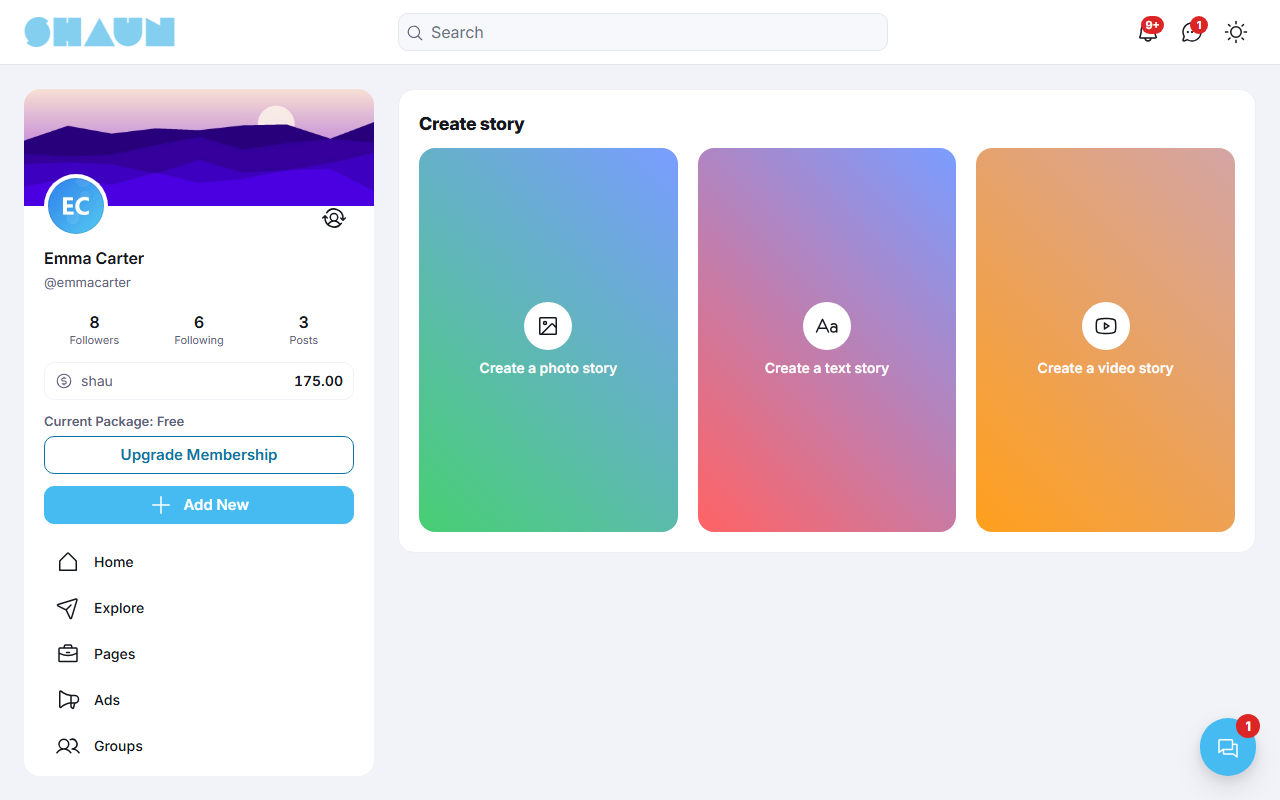
Click Create story in the row. The page Create story offers three kinds:
| Choice | What you do |
|---|---|
| Create a photo story | Pick a photo from your device. To write on it, click the text icon, type the text, choose a colour and click Add; on a computer you can drag the text and the photo into place. Click a text again to change or Remove it |
| Create a text story | Type up to 1,024 characters (you can mention members with @), choose the text colour, and click the background icon at the bottom to pick one of the backgrounds your site offers |
| Create a video story | Click Upload video and pick a video; a bar shows the upload. Shown only when your site can process videos (see FFmpeg: needed for videos) |
- Optional: click the music icon (Add Music) and pick a song from the list, or type part of its name in Search Song. The song's name appears on the story; click the small cross next to it to remove it. On a video story the song replaces the video's own sound.
- Click Post Story.
What you should see: "Your story has been posted." and the home page, with your story first in the row.
Each story you post is added to your stories, so the people watching see them one after the other. Followers who switched on notifications for you get "created a new story.".
Limits on stories#
- Whether you may post stories, how many a day and how long a story video may be depends on your member role. When you reach a limit, a message tells you so, for example "You only can share a story video of a max 30 second(s) long." (30 seconds for the Member role after installing; see Per-day limits).
- A story video can never be longer than two minutes, nor longer than the video length set for the whole site (see FFmpeg: needed for videos).
Watch a story#
Click a circle in the row. The story opens in a viewer with a bar at the top for each part of the story. A photo or text part stays on screen for a few seconds (8 after installing); a video part for the length of the video. Then the viewer moves on to the next part, and to the next member's story.
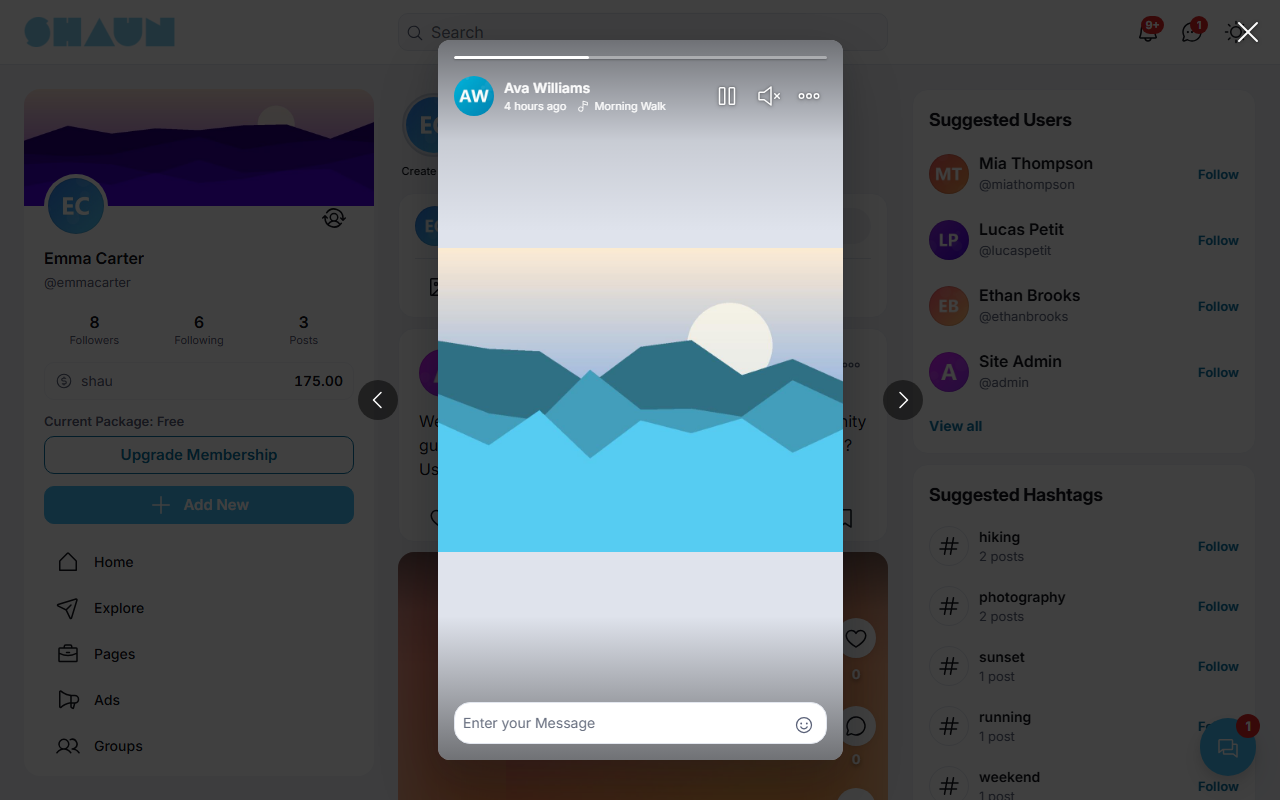
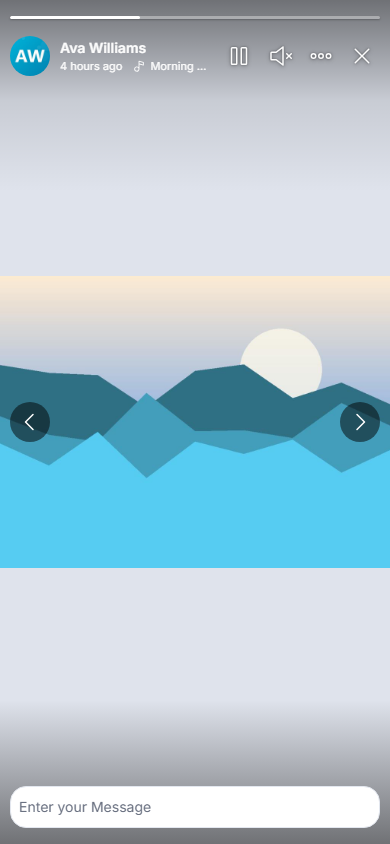
- Pause / Play stops and restarts the timer. Mute / Unmute switches the sound of the music and videos.
- The arrows at the sides (or the left and right arrow keys) go to the previous or next part, and on to the previous or next member's story.
- Reply: type in Enter your Message and press Enter. The reply arrives in the member's chat with a preview of the story, and you see "Your message has been sent.". The field is shown only when the member accepts messages from you, and needs the chat permission of your role.
- Options (the three dots): Report the story to the site's moderators, Share Story to send it to members (search for them, tick them, add a Message if you like and click Send; it arrives in their chat), or Delete Story on your own story. Like a reply, sharing needs the chat permission of your role, and you can share only with members who accept messages from you.
Your own stories#
- On your own story the viewer shows [number] viewers at the bottom; click it to see who watched this part.
- Delete Story in the options removes that part at once, after the question "Are you sure you want to delete this story?". Admins and moderators can delete any story the same way.
- Lists → Stories shows all your stories that have not expired yet.
- When a part expires, you get the notification "Your story got 12 views before it expired." (with the real number). Switch it off with When the story ends in your notification settings.
Story settings#
Last updated: 2026-11-17 · v1.5.6
Stories are always available; there is no switch to turn them off. To stop members from posting stories, switch off Allow story creation in their role (below). To take the Stories row off the home page, remove the Stories Block in the Layout editor.
The screen saves each setting as soon as you change it.
| Setting | After installing | What it does |
|---|---|---|
| Time to move on to the next story (seconds) | 8 | how long a photo or text part stays on screen before the viewer moves on. Video parts always play for their own length |
| Story item will automatically delete after (hours) | 24 | how long each part of a story stays visible. The smallest value used is 1 hour |
| Maximum number of members that can be selected each time a story is shared (please enter value from 1 to 20) | 10 | how many members a member can pick at once with Share Story. A value outside 1 to 20 counts as 10 |
Expired stories are removed by the cron job, which checks every minute. While the cron job does not run, stories stay visible after their time is up (see What stops when the cron job does not run). Video stories need FFmpeg (see FFmpeg: needed for videos).
Who may post stories#
| Permission | Member role after installing | What it does |
|---|---|---|
| Allow story creation | on | off: members of the role cannot post stories and see "You don't have story creation permission." |
| Maximum number of stories can create per day (0 is unlimited) | 0 | see Per-day limits |
| Max video size (duration - seconds) can upload | 30 | the longest story video, in seconds. 0 means no limit of its own; the site-wide video length and the two-minute maximum still apply. Super admins and moderators are not held to this number |
Moderators need the switches Story backgrounds and Story songs in their role to see the two screens below (see Moderator roles). Members can report stories; reports go to the Moderation Center (see Moderation Center).
Backgrounds#
Last updated: 2026-11-17 · v1.5.6
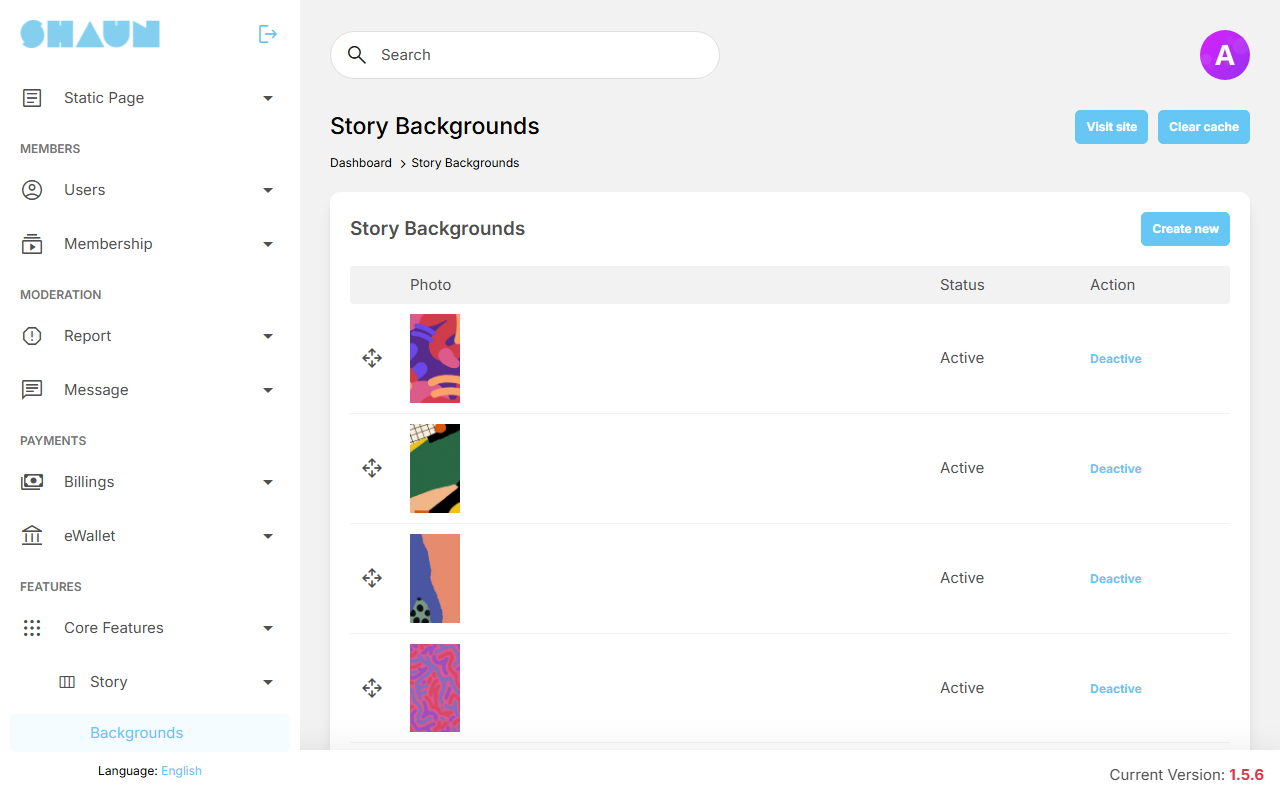
The backgrounds members can put behind a text story. The site comes with 29 backgrounds. Members see the active backgrounds in the order of this list; the first one is chosen when they start a text story.
Add a background#
- Click Create new.
- Choose the Photo. It must be an upright picture in the proportions 9:16, for example 1080×1920 pixels; another shape is refused with "The photo must aspect ratio 9:16.".
- Leave Active on and click Submit.
What you should see: "Background has been created." and the new background in the list.
Order, switch off, delete#
- Order: drag a row by its handle to move it. The order is saved at once.
- Deactive / Active hides a background from members or shows it again. The 29 backgrounds that come with the site can be switched off but not deleted.
- Delete (on backgrounds you added) removes the background after a confirmation.
A text story needs a background. With all backgrounds switched off, members cannot post text stories: they see "The background is not found. Please contact admin.".
Songs#
Last updated: 2026-11-17 · v1.5.6
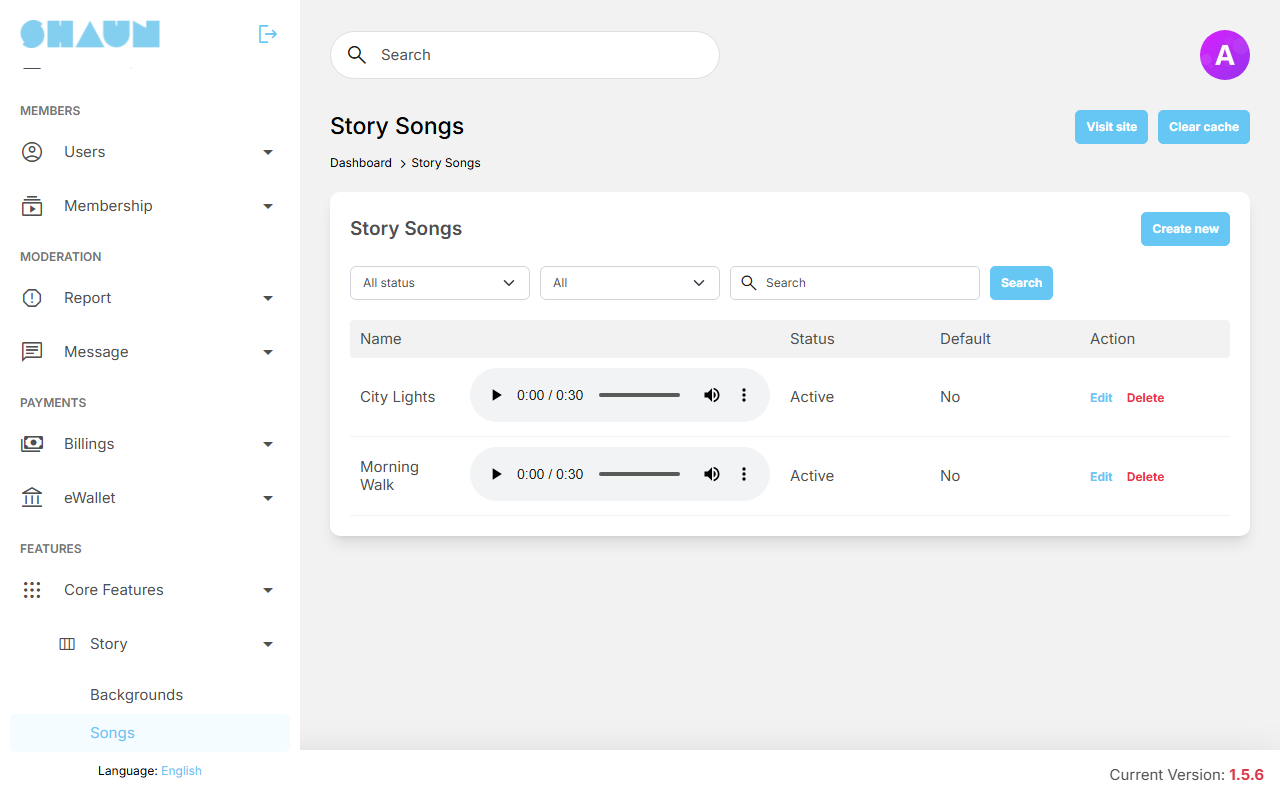
The music members can add to a story. The site comes with no songs; until you add some, members see "No songs yet" in the song list. These songs are for stories only: Vibb has its own list (see Vibb admin).
Add a song#
- Click Create new.
- Enter the Name members will see and search for (up to 255 characters).
- Choose the File, an MP3 file.
- Leave Active on. Switch Default on to show the song in the list members see before they search.
- Click Submit.
What you should see: "Song has been created." and the song in the list, with a player to listen to it.
How members find songs, and managing the list#
- When a member opens the song list, they see the songs that are both Active and Default, in alphabetical order, up to the number set in Item per page setting (10 after installing, see The other General Settings). Typing in Search Song finds any active song by its name.
- The filters above the list (status, default, name) and Search help you find a song.
- Edit changes the name and the switches; choose a new file only if you want to replace the music.
- Switching Active off hides the song from members. Delete removes it after a confirmation.
Only upload songs your site has the right to use. Members can publish them in their stories to everyone who follows them.
Change log#
Last updated: 2026-11-17 · v1.5.6
| Date (GMT+7) | Section | What changed |
|---|---|---|
| 2026-11-17 | all | First version for 1.5.6, written from the 1.5.6 code for members and for site owners and their admins. |
| 2026-11-17 | using-stories, settings, backgrounds, songs | Corrections after review: the message shown when no background is active, the viewer list is per part, what sharing needs, how many default songs members see, and that admins are not held to the video length. |