ShaunSocial user guide 1.5.6 / AdminCP
Members and roles
Everything about the people on your site from the AdminCP side: finding, editing, signing out and deleting member accounts; roles and their permissions, including moderator roles and the per-day limits that keep spam down; the genders and profile link icons members can use; the blue verification check; and protecting demo accounts from being changed.
Manage users#
Last updated: 2026-11-17 · v1.5.6
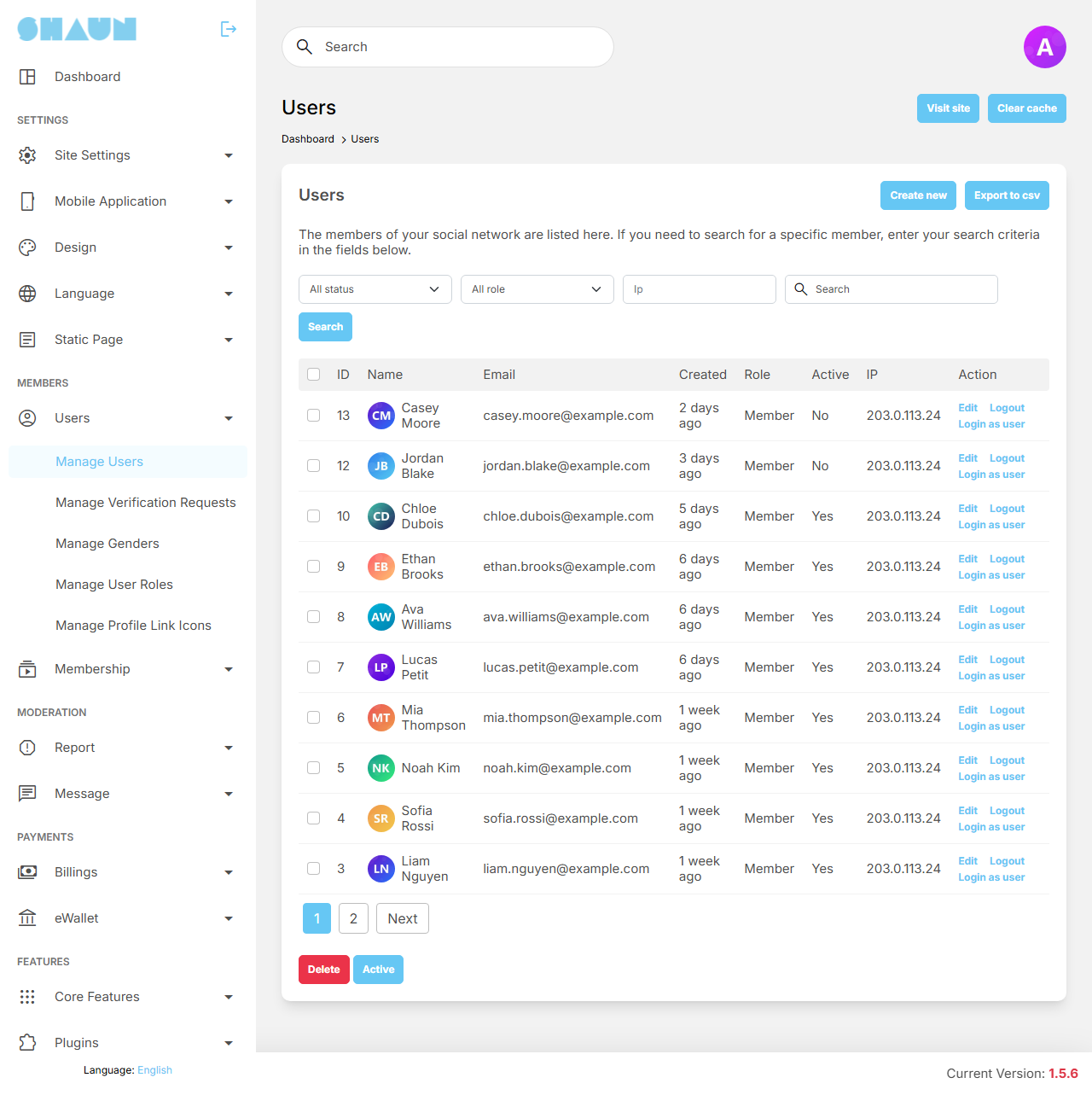
This screen lists every member account, newest first. Business pages are not listed here; they have their own screen under Core Features → Business Pages (see Manage pages). You need to be a super admin, or a moderator whose role has the Manage Users permission.
Finding members#
The bar above the list narrows it down. Choose the filters you want and click Search.
| Filter | What it does |
|---|---|
| All status / Active / InActive | only accounts that are switched on or off. Inactive accounts include members waiting for approval, members you switched off, members suspended from the Moderation Center and members banned automatically after many reports |
| All role | only accounts with that role |
| All / Verified / Unverified | only accounts with or without the blue verification check. Shown only while profile verification is switched on (see Profile verification) |
| Ip | accounts created from an IP address that contains what you type. Useful to find several spam accounts made from the same place |
| Search | part of the member's name or e-mail address (the user name is not searched) |
The list and its actions#
The columns show the ID, Name (click it to open the profile on your site), Email, Phone number (only while phone verification is switched on), Created, Role, Active (Yes or No) and IP (the address the account was created from). The links under Action appear only on accounts you are allowed to manage (see What each can do):
| Action | What it does |
|---|---|
| Edit | opens the account form, described below |
| Logout | after you confirm "Do you want to log out of all of this user's devices?", signs the member out of the website and the mobile app on every device and stops push notifications to those devices. The member can sign in again at once; use it, for example, after their password may have been stolen |
| Login as user | opens your site in the same browser tab, signed in as that member, so you can see exactly what they see. This replaces your own sign-in on the site (not in the AdminCP). Sign out on the site when you are done; your AdminCP stays open at its usual address |
| Verify / Unverify | gives or removes the blue verification check, after a confirmation. Shown while profile verification is on, to admins with the verification permission (see Profile verification) |
| Verify phone / Unverify phone | shown while phone verification is switched on (see Phone verification at sign-up), not on admin accounts. Verify phone lets the member in without confirming a phone number; a phone number they had not confirmed yet is removed. Unverify phone makes the member confirm a phone number again before they can use the site |
| Remove 2FA | shown when the member uses two-factor authentication, to admins who also have the Manage Two-Factor Providers permission; see When a member loses their phone |
Below the list are two buttons for the accounts you ticked in the first column:
- Delete deletes the ticked accounts after the warning "Are you sure you want to delete these users? All their content that they created will be deleted. ..." The account disappears at once; its posts, comments and other content are removed in the background over the next minutes by the cron job (see Cron job). This cannot be undone. The root account, accounts you may not manage and protected demo accounts have no tick box.
- Active switches the ticked accounts on, for example to approve several new members at once. It sends no e-mail; to send the "account enabled" e-mail, switch accounts on one by one in the edit form.
Export to csv at the top downloads users.csv with the Name and
Email of every account on the site, business pages included. It ignores the filters.
Create or edit an account#
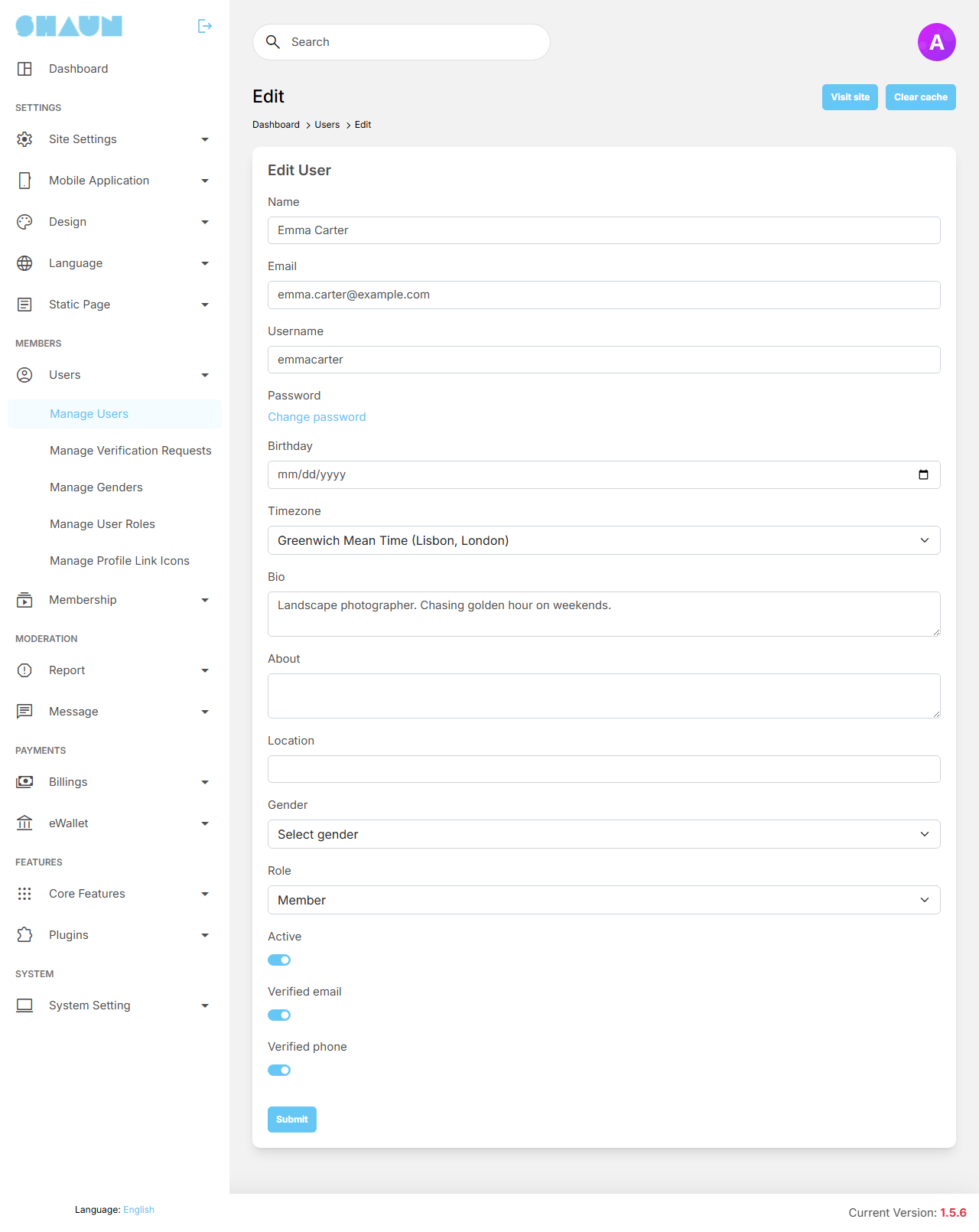
Click Create new at the top, or Edit on a row, fill in the form and click Submit.
On Create new the switches Active, Verified email and Verified phone all start off. Switch Active on, or the new member cannot sign in and sees "Your account is pending approval." until you do.
| Field | What it does |
|---|---|
| Name, Email, Username | required. The e-mail address and user name must not belong to another account. Name: up to 64 characters |
| Password | only when creating: the account's first password; it must follow your password rules (see Password rules). When editing, the field is a Change password link instead, described below |
| Birthday, Timezone, Bio, About, Location, Gender | the member's profile details, as they can also fill them in themselves. A new account starts in your site's default time zone |
| Role | what the account may do (see Roles and permissions). A new account starts with the default role. You see only the roles you may hand out: only the root account can give the Super admin role, and moderators can give member roles only. The root account has no Role field |
| Active | off: the member cannot sign in or use the site or app, and sees "Your account is pending approval." Switching it off sends the member the "Your account has been disabled" e-mail with a link to your contact page; switching it on sends "Your account has been enabled". While an account is off, its posts and stories are hidden from everyone; they come back when you switch it on. A suspension for a fixed time is given in the Moderation Center instead (see Suspensions and their automatic end) |
| Verified email | whether the member's e-mail address counts as confirmed. While e-mail verification is required, a member without it must confirm their address first |
| Verified phone | whether the member's phone number counts as confirmed, for sites that require phone verification |
A new account gets a welcome e-mail. With Verified email on, the e-mail contains the sign-in link and the password you entered; with it off, the e-mail contains a code the member must enter to confirm their address. The message "User has been created." confirms it.
Change password (when editing) opens a window with New password, Confirm password and Notify to user. With Notify to user on, the member gets the e-mail "Your password has been changed" containing the new password. The member stays signed in on their devices; click Logout on their row as well if you want them signed out.
Roles and permissions#
Last updated: 2026-11-19 · v1.5.6
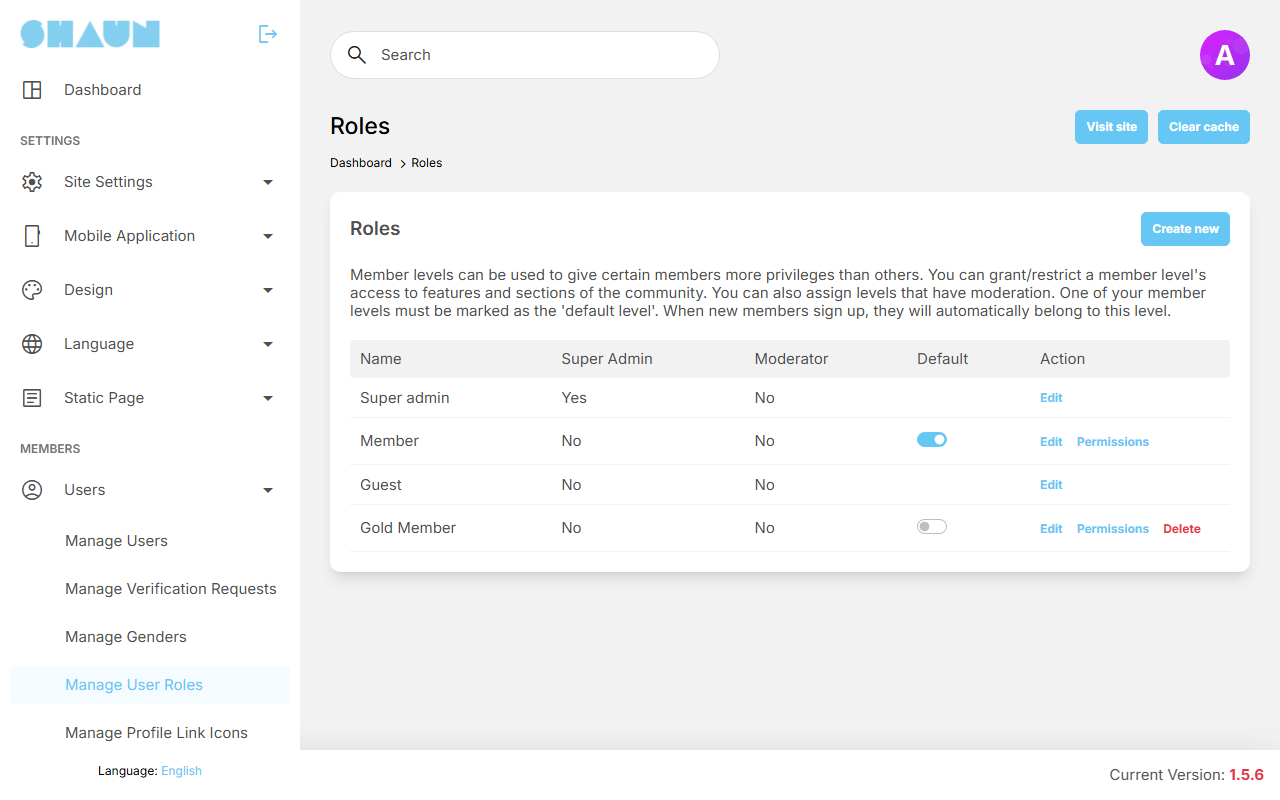
A role is a member level: every account has exactly one, and the role's permissions decide what the account may do. Only the root account and super admins see this screen.
The roles that come with the site#
| Role | Who has it | What you can change |
|---|---|---|
| Super admin | the root account and the admins you give it to | the name only: super admins can do everything |
| Member | every new account, until you choose another default role | name and permissions; it cannot be deleted |
| Guest | visitors who are not signed in | the name only |
The list shows each role's Name and whether it is a Super Admin or Moderator role. The Default switch (on member roles only) marks the role new members get when they sign up; switching it on for one role switches it off for the others. Changing the default does not move existing members.
Create a role#
- Click Create new.
- Enter a Name (for example "Gold Member"). Leave Moderator off for a member level; see Moderator roles for the other case.
- In Inherit, choose the role whose permissions the new role starts with, and click Submit.
What you should see: "Role has been created." and the new role in the list.
- Click Permissions on its row, adjust what the role may do (below) and click Submit.
- Give the role to members in Manage Users → Edit → Role, or make it the default.
Edit on a row changes the name (and the Moderator switch of roles you created). Delete appears only on roles you created that no account has; move their members to another role first.
Every member who has that role becomes a moderator at once and can sign in to the AdminCP, and the role's Permissions page then shows the AdminCP screens instead of the member permissions. To make a few people moderators, create a new role for them instead (see Moderator roles).
The permissions of a member role#
Click Permissions on a role. The page has one box per feature. The box of a plugin is hidden while the plugin is
switched off or removed; a core feature you switched off in its own settings still shows its box. A switch allows or refuses something; a number field sets a limit. Below most permissions
is the message a member sees when they are refused, with a pencil icon to change or translate it; [x] in
the message is replaced by your limit.
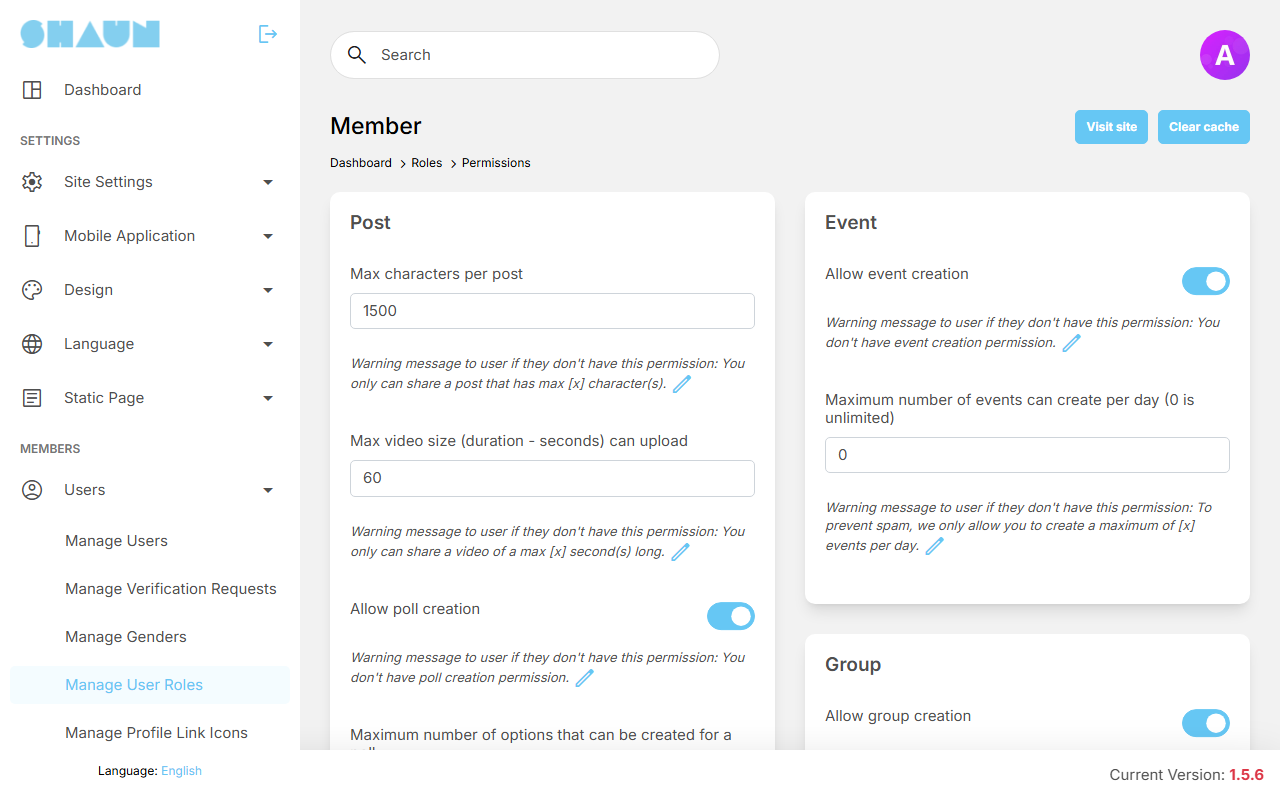
The two tables below list every permission of a member role, box by box. Member after installing is the value the Member role has on a new site. A number field left empty or set to 0 means no limit of its own. The last column is the message shown under the permission after installing.
Every member permission: posts, eWallet, ads, chat and chatbot#
| Box | Permission | Member after installing | What it allows or limits | Message under the permission |
|---|---|---|---|---|
| Post | Max characters per post | 1500 | the longest text of a post, also when a post is edited and for the text of a vibb or an ad. The site-wide limit Share a post - maximum characters can be posted (see Post settings) applies as well | "You only can share a post that has max [x] character(s)." |
| Post | Max video size (duration - seconds) can upload | 60 | the longest video, in seconds, in a post or a Marketplace listing. The site-wide Video duration (see FFmpeg) applies as well | "You only can share a video of a max [x] second(s) long." |
| Post | Allow poll creation | on | whether the role may add a poll to a post (see Polls) | "You don't have poll creation permission." |
| Post | Maximum number of options that can be created for a poll | 5 | the most answers one poll may have | "You only can share a poll that has max [x] option(s)." |
| Post | Maximum number of days allowed to be selected when creating a poll | 7 | the longest a poll may stay open | "You only can share a poll that has max [x] day(s) length" |
| Post | Maximum number of post (not include Vibb) can share per day (0 is unlimited) | 0 | posts per day (see Per-day limits) | "To prevent spam, we only allow you to share a maximum of [x] posts per day." |
| Post | Maximum number comments (include replies) can share per day (0 is unlimited) | 0 | comments and replies per day | "To prevent spam, we only allow you to share a maximum of [x] comments(repiles) per day." |
| eWallet | Transfer funds | on | whether the role may ask to withdraw money from its eWallet (see Using your wallet) | "You don't have funds transferring permission." |
| eWallet | Send funds | on | whether the role may send credits to another member, also from a chat | "You don't have funds sending permission." |
| Ads | Show ads | on | whether members of the role see the site's ad campaigns. Switch it off for a role that should see none, such as a paid membership (see Ad-free membership). It does not affect the ads inside the mobile apps (see Ads in the apps) | none |
| Chat | Allow sending messages | on | whether the role may use chat at all (see Chat settings) | "You don't have send message permission." |
| Chat | Max voice message length (duration - seconds) can record | 120 | the longest voice message (see Voice messages) | "The voice has stoped because you've reached the max voice message length ([x] seconds)." |
| Chat | Allow creating group chats | on | whether the role may start group chats (see Group chat) | "You don't have permission to create group chats." |
| Chat | Allow editing your own chat messages | on | whether the role may edit messages it sent (see Editing messages) | "You don't have permission to edit chat messages." |
| Chatbot | Maximum number of message can ask the chatbot per day (0 is unlimited) | 100 | chatbot questions per day (see AI chatbot) | "You can send up to [x] messages per day, please contact admin for more details." |
| Chatbot | Maximum number of characters that can be sent per message (0 is unlimited) | 200 | the longest question | "You are allowed to send up to [x] characters per message" |
| Chatbot | Allow sending messages | off | whether the role may use the AI chatbot. Switch it on for each role that should have it | "You don't have send message permission." |
Every member permission: events, groups, listings, pages, stories and more#
| Box | Permission | Member after installing | What it allows or limits | Message under the permission |
|---|---|---|---|---|
| Event | Allow event creation | on | whether the role may create events (see Creating and managing an event) | "You don't have event creation permission." |
| Event | Maximum number of events can create per day (0 is unlimited) | 0 | events per day; see the event notes in Per-day limits | "To prevent spam, we only allow you to create a maximum of [x] events per day." |
| Group | Allow group creation | on | whether the role may create groups (see Creating a group) | "You don't have group creation permission." |
| Group | Maximum number of groups can create per day (0 is unlimited) | 0 | groups per day | "To prevent spam, we only allow you to share a maximum of [x] groups per day." |
| Marketplace | Allow listing creation | on | whether the role may add, edit and feature listings (see Adding a listing) | "You don't have listing creation permission." |
| Marketplace | Maximum number of listings can create per day (0 is unlimited) | 0 | listings per day | "To prevent spam, we only allow you to share a maximum of [x] listings per day." |
| Paid content | Allow paid content creation | off | whether members of the role may become creators and sell posts and subscriptions (see Paid content settings) | "Your current membership does not have paid content creation permission. Please contact admin to upgrade." |
| Page | Allow page creation | on | whether the role may create business pages (see Creating a page) | "You don't have page creation permission." |
| Page | Maximum number of pages can create per day (0 is unlimited) | 0 | business pages per day | "To prevent spam, we only allow you to share a maximum of [x] pages per day." |
| Profile verification | Send verification request | on | whether the role sees Verify Profile and may ask for the blue check (see Profile verification) | "You don't have profile verification sending request permission." |
| Story | Allow story creation | on | whether the role may post stories (see Story settings) | "You don't have story creation permission." |
| Story | Maximum number of stories can create per day (0 is unlimited) | 0 | stories per day | "To prevent spam, we only allow you to share a maximum of [x] stories per day." |
| Story | Max video size (duration - seconds) can upload | 30 | the longest story video, in seconds | "You only can share a story video of a max [x] second(s) long." |
| Vibb | Allow vibb creation | on | whether the role may post vibbs (see Vibb admin) | "You don't have vibb creation permission." |
| Vibb | Max video size (duration - seconds) can upload | 60 | the longest vibb, in seconds | "You only can share a video of a max [x] second(s) long." |
| Vibb | Maximum number of vibbs can create per day (0 is unlimited) | 0 | vibbs per day | "To prevent spam, we only allow you to share a maximum of [x] vibbs per day." |
- Super admin has every permission, so its row has no Permissions link.
- Guest (visitors who are not signed in) has no Permissions link either: none of these permissions apply to visitors.
- A role you create starts with the values of the role you choose in Inherit.
- Moderators are not held to these permissions (see Moderator roles).
Changes apply to every member of the role as soon as you click Submit. Plugins you install can add boxes of their own.
Moderator roles#
Last updated: 2026-11-19 · v1.5.6
A moderator is an account whose role has the Moderator switch on. Moderators can sign in to the AdminCP and use the screens you allow. The step-by-step setup is in Make someone a moderator; this section explains what the switch changes.
- The permission page changes. For a moderator role, Permissions shows one switch per AdminCP screen instead of the member permissions, named after the screen (for example Site Information, Manage Users, Reports, Cache Setting). Most are in the box Manage Site; the three Marketplace screens are in the Marketplace box. Tick only what this team needs. The Moderation Center has four switches: access the queue, assign, notes, warnings, dismiss; remove reported content; suspend accounts; and review appeals. The Chat box has two moderator switches: viewing and purging the edit history of chat messages in the message logs.
- Member features need no permissions. A moderator can use every member feature of the site, is not held back by the per-day limits (except the event limit, see Per-day limits), and is not asked to confirm an e-mail address or phone number.
- Limits on what moderators manage. A moderator never sees Manage User Roles, can give accounts member roles only, and cannot edit, sign out or delete super admins or other moderators. No admin account (super admin or moderator) can be warned or suspended from the Moderation Center. Members cannot block a moderator.
Every moderator permission: site settings, design, members and system#
Each switch opens one AdminCP screen (its menu entry appears only when the switch is on). After installing there is no moderator role, so every switch starts off; a moderator role you create starts with the switches of the role in Inherit, which are all off when you inherit from Member. Screens under Core Features appear only while that feature is switched on in its settings. Manage User Roles has no switch: only super admins see it.
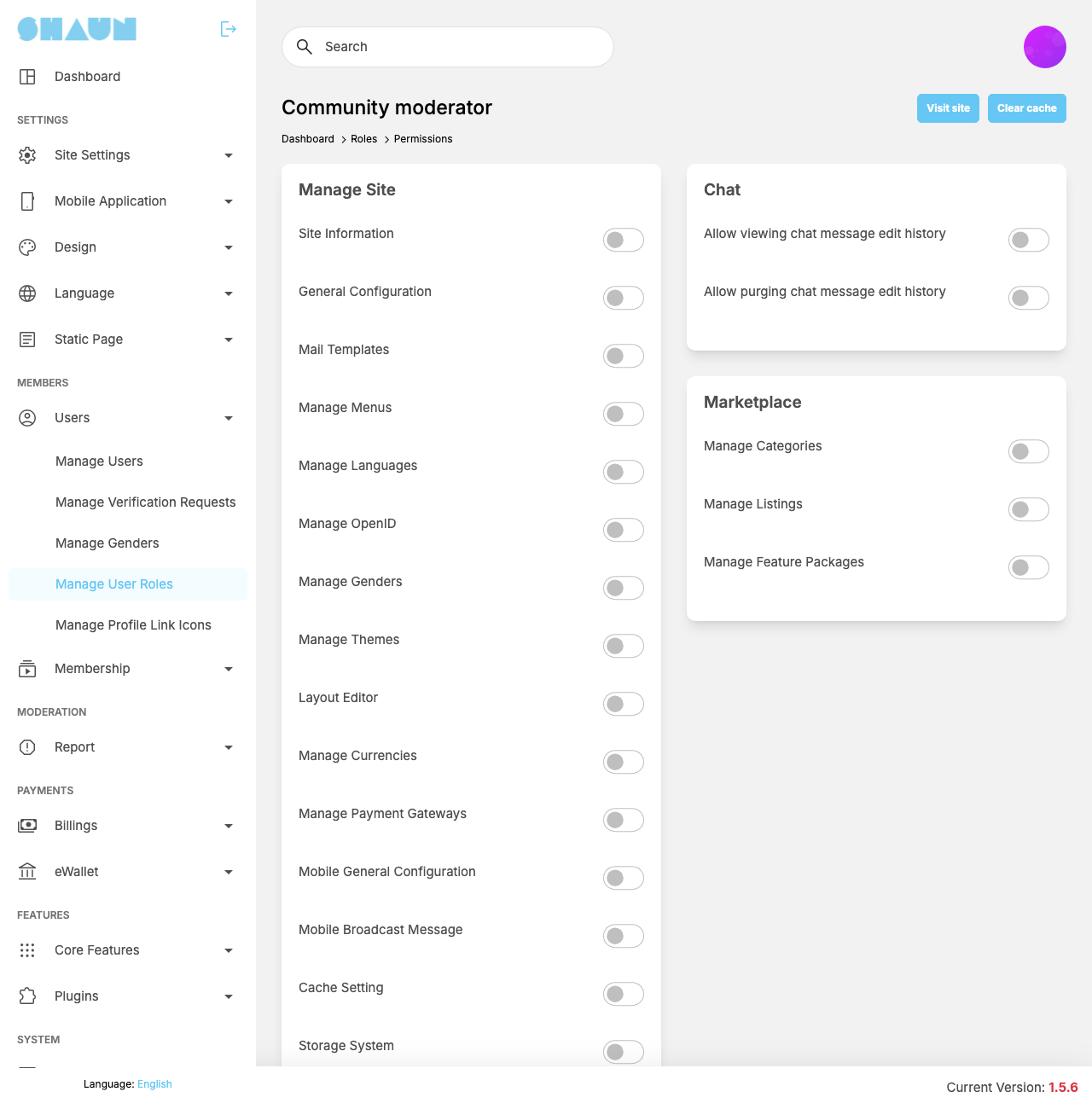
| Box | Permission | Opens | Explained in |
|---|---|---|---|
| Manage Site | Site Information | Site Settings → Site Information | Site information |
| Manage Site | General Configuration | Site Settings → General Configuration (every part, the feature settings included) | General Configuration |
| Manage Site | Mail Templates | Site Settings → Mail Templates | Mail templates |
| Manage Site | Manage Menus | Design → Manage Menus | Menus |
| Manage Site | Manage Languages | Language → Manage Languages, phrases included | Manage languages |
| Manage Site | Manage OpenID | Site Settings → Manage OpenID | Social login |
| Manage Site | Manage Genders | Users → Manage Genders | Genders |
| Manage Site | Manage Themes | Design → Manage Themes | Themes |
| Manage Site | Layout Editor | Design → Layout Editor | Layout editor |
| Manage Site | Manage Currencies | Billings → Manage Currencies | Currencies |
| Manage Site | Mobile General Configuration | Mobile Application → General Configuration | Mobile app settings |
| Manage Site | Mobile Broadcast Message | Mobile Application → Broadcast Message | Broadcast Message |
| Manage Site | Cache Setting | System Setting → Cache Setting | Cache Setting |
| Manage Site | Storage System | System Setting → Storage System | Storage System |
| Manage Site | Tasks | System Setting → Tasks | Tasks |
| Manage Site | System Log | System Setting → System Log | System log |
| Manage Site | Manage Static Pages | Static Page → Manage Static Pages | Static pages |
| Manage Site | Hashtags | Site Settings → Manage Hashtags | Hashtags |
| Manage Site | Manage Users | Users → Manage Users | Manage users |
| Manage Site | Reports | Report → Report logs | Report logs |
| Manage Site | Report Categories | Report → Manage Report Categories | Report categories |
| Manage Site | Content Warning Categories | Site Settings → Manage Content Warning Categories | Content warning categories |
| Manage Site | Manage Sms Providers | Site Settings → Manage Sms Providers | SMS providers |
| Manage Site | Manage Countries | Site Settings → Manage Countries | Countries |
| Manage Site | Manage Subscriptions | Billings → Subscriptions | All subscriptions |
| Manage Site | Manage Two-Factor Providers | Site Settings → Manage Two-Factor Providers, and Remove 2FA in Manage Users | Two-factor authentication |
| Manage Site | Manage Link Profile Icons | Users → Manage Profile Link Icons | Profile link icons |
| Manage Site | Manage Translation Providers | Language → Manage Translation Providers | Auto-translating member content |
| Manage Site | Manage OpenID Clients | Site Settings → Manage OpenID Clients | This site as an OpenID provider |
Every moderator permission: moderation, payments and features#
| Box | Permission | Opens | Explained in |
|---|---|---|---|
| Manage Site | Moderation Center: access the queue, assign, notes, warnings, dismiss | Report → Moderation Center | Moderation Center |
| Manage Site | Moderation Center: remove reported content | the content-removal action inside the Moderation Center | Moderation Center |
| Manage Site | Moderation Center: suspend accounts (set Inactive for a duration) and reactivate | the suspension action inside the Moderation Center | Suspensions |
| Manage Site | Moderation Center: review appeals | Report → Moderation Appeals (together with the first Moderation Center switch) | Appeals |
| Manage Site | Wallets | eWallet → Wallets | Member wallets |
| Manage Site | Deposit packages | eWallet → Deposit Packages | Deposit packages |
| Manage Site | Transfer funds requests | eWallet → Transfer Fund Requests | Transfer fund requests |
| Manage Site | Transfer Mass Funds | eWallet → Transfer Mass Funds | Sending mass funds |
| Manage Site | System's billing activities | eWallet → System's billing activities | Billing activities |
| Manage Site | Manage Advertisings | Core Features → Advertising → Manage Advertisings | Ads settings and Manage Advertisings |
| Manage Site | Manage AI Feature Tasks | Core Features → AI Features → Manage AI Feature Tasks | AI moderation and tasks |
| Manage Site | Manage AI Providers | Core Features → AI Features → Manage AI Providers | AI providers and keys |
| Manage Site | Manage Bulk Email | Site Settings → Bulk Email | Bulk e-mail campaigns |
| Manage Site | Manage Messages | Message → Manage Message Logs (shown only while the message logs are switched on for the server) | Message logs |
| Manage Site | Manage Events | Core Features → Events → Manage Events | Events admin |
| Manage Site | Event Categories | Core Features → Events → Event Categories | Events admin |
| Manage Site | Manage Payment Gateways | Billings → Manage Payment Gateways | Payment gateways |
| Manage Site | Manage Groups | Core Features → Groups → Manage Groups | Groups admin |
| Manage Site | Group Categories | Core Features → Groups → Group Categories | Groups admin |
| Manage Site | Paid content subscription packages | Core Features → Paid Content → Subscriptions Packages | Paid content settings |
| Manage Site | Paid content tips packages | Core Features → Paid Content → Tips Packages | Paid content settings |
| Manage Site | Manage Plugins | Plugins → Manage | Plugin manager |
| Manage Site | Story backgrounds | Core Features → Story → Backgrounds | Backgrounds |
| Manage Site | Story songs | Core Features → Story → Songs | Songs |
| Manage Site | Manage Pages | Core Features → Business Pages → Manage Pages | Pages admin |
| Manage Site | Page Categories | Core Features → Business Pages → Page Categories | Pages admin |
| Manage Site | Page Verification Requests | Core Features → Business Pages → Page Verification Requests | Page verification |
| Manage Site | Page Feature Packages | Core Features → Business Pages → Page Feature Packages | Featured pages |
| Manage Site | Manage Packages | Membership → Manage Packages | Packages and plans |
| Manage Site | Customize Pricing Plans | Membership → Customize Pricing Plans | Pricing table |
| Manage Site | Membership Requests | Membership → Membership Requests | Membership requests |
| Manage Site | User verify requests | Users → Manage Verification Requests, and Verify / Unverify in Manage Users | Profile verification |
| Manage Site | Vibb songs | Core Features → Vibb → Songs | Vibb admin |
| Chat | Allow viewing chat message edit history | the earlier versions of edited messages in Manage Message Logs | Message logs |
| Chat | Allow purging chat message edit history | deleting those earlier versions | Message logs |
| Marketplace | Manage Categories | Core Features → Marketplace → Manage Categories | Categories and attributes |
| Marketplace | Manage Listings | Core Features → Marketplace → Manage Listings | Listings admin |
| Marketplace | Manage Feature Packages | Core Features → Marketplace → Manage Feature Packages | Featured listings |
Plugins you install can add switches of their own to these boxes.
You can create several moderator roles, for example "Community moderator" with only the Moderation Center switches and "Support" with Manage Users. Each person then sees only the menu entries of their own role.
Per-day limits through role permissions#
Last updated: 2026-11-17 · v1.5.6
To slow down spam accounts, limit how much a role may create in a day. The limits are number fields in each role's permissions:
| Box | Permission |
|---|---|
| Post | Maximum number of post (not include Vibb) can share per day (0 is unlimited) |
| Post | Maximum number comments (include replies) can share per day (0 is unlimited) |
| Event, Group, Marketplace, Page, Story, Vibb | Maximum number of events / groups / listings / pages / stories / vibbs can create per day (0 is unlimited) |
| Chatbot | Maximum number of message can ask the chatbot per day (0 is unlimited) |
- After installing all of them are 0 (unlimited), except the chat bot: 100 messages a day.
- A number stops the member at that many in the last 24 hours (a rolling day, not a calendar day). Events are the exception: they are counted per calendar day in UTC, so the count starts again at midnight UTC, not at your local midnight.
- When the limit is reached, the member sees the message under the permission, for example "To prevent spam, we only allow you to share a maximum of 5 posts per day." Change the text with the pencil icon. For events the message is always "You have reached your daily event creation limit (5 per day)."
- Super admins are never limited. Moderators are not limited either, except by the event limit.
A moderator role keeps the event number of the role it copied with Inherit, and its Permissions page does not show that number. Create moderator roles from a role whose event limit is 0 (the Member role after installing). If a moderator role already has a limit: edit the role and switch Moderator off, set Maximum number of events can create per day to 0 in its Permissions and click Submit, then switch Moderator on again and tick its AdminCP screens again in Permissions.
Give new members a low limit through the default role (for example 5 posts and 30 comments a day), and move trusted members to a role without limits.
Genders#
Last updated: 2026-11-17 · v1.5.6
The genders members can choose on their profile. Male and Female come with the site. Each gender has its own default avatar: a member who has not uploaded a profile picture shows the avatar of their gender, or the site's default avatar when no gender is chosen.
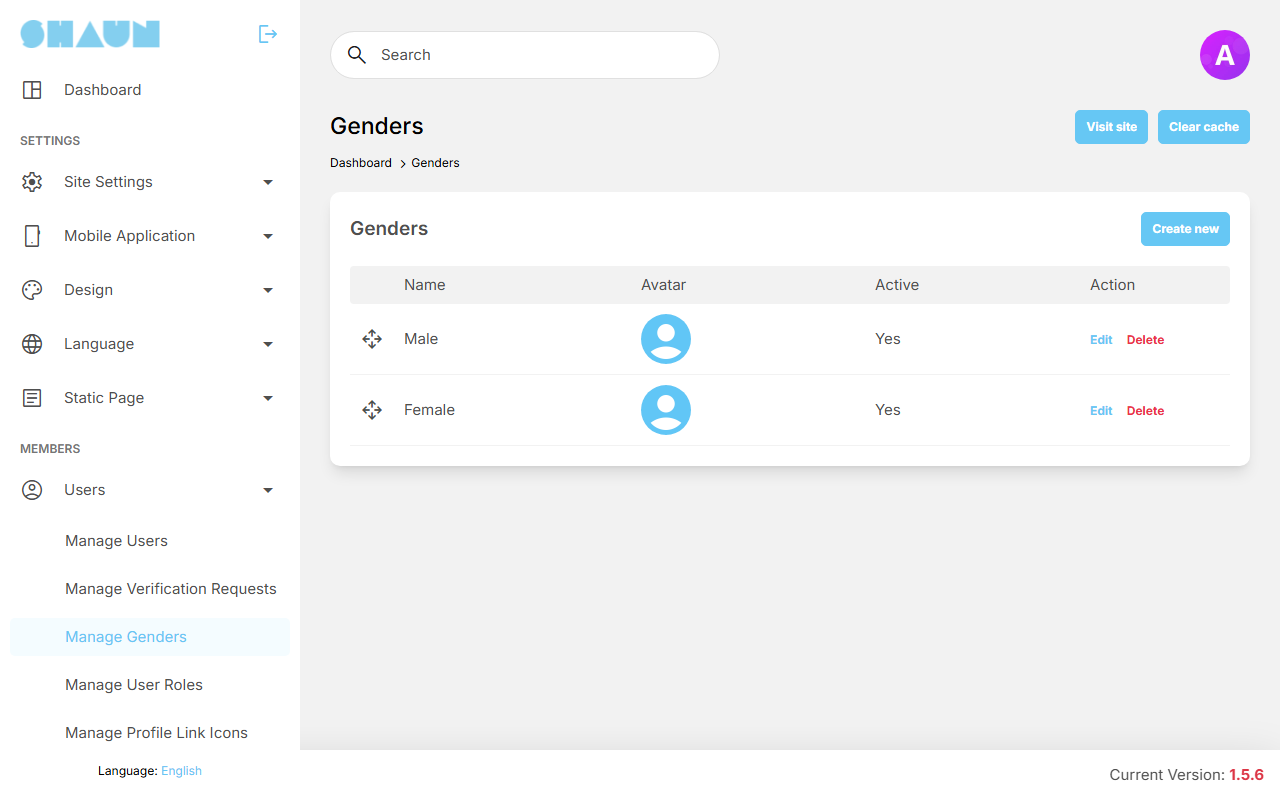
- Click Create new.
- Enter the Name, choose a Default avatar image (300×300 pixels recommended; required for a new
gender), leave Active on and click Submit.
What you should see: "Gender has been created." and the new gender in the list.
- To show the name in other languages, click Edit and then Translate under the name.
- Order: drag the rows to set the order members see.
- Active off hides the gender from the choice.
- Delete removes the gender; members who had chosen it show the site's default avatar.
Whether members must choose a gender is the Required gender setting in General Configuration (see What new members fill in). The site's default avatar is Avatar user default image in Site Information (see Site Images).
Profile link icons#
Last updated: 2026-11-17 · v1.5.6
Members can add links to their profile (their website, social accounts). Each link is shown with an icon picked by
its address. The site comes with icons for www.facebook.com, www.linkedin.com,
x.com, www.tiktok.com and www.youtube.com; any other link gets a general website
icon.
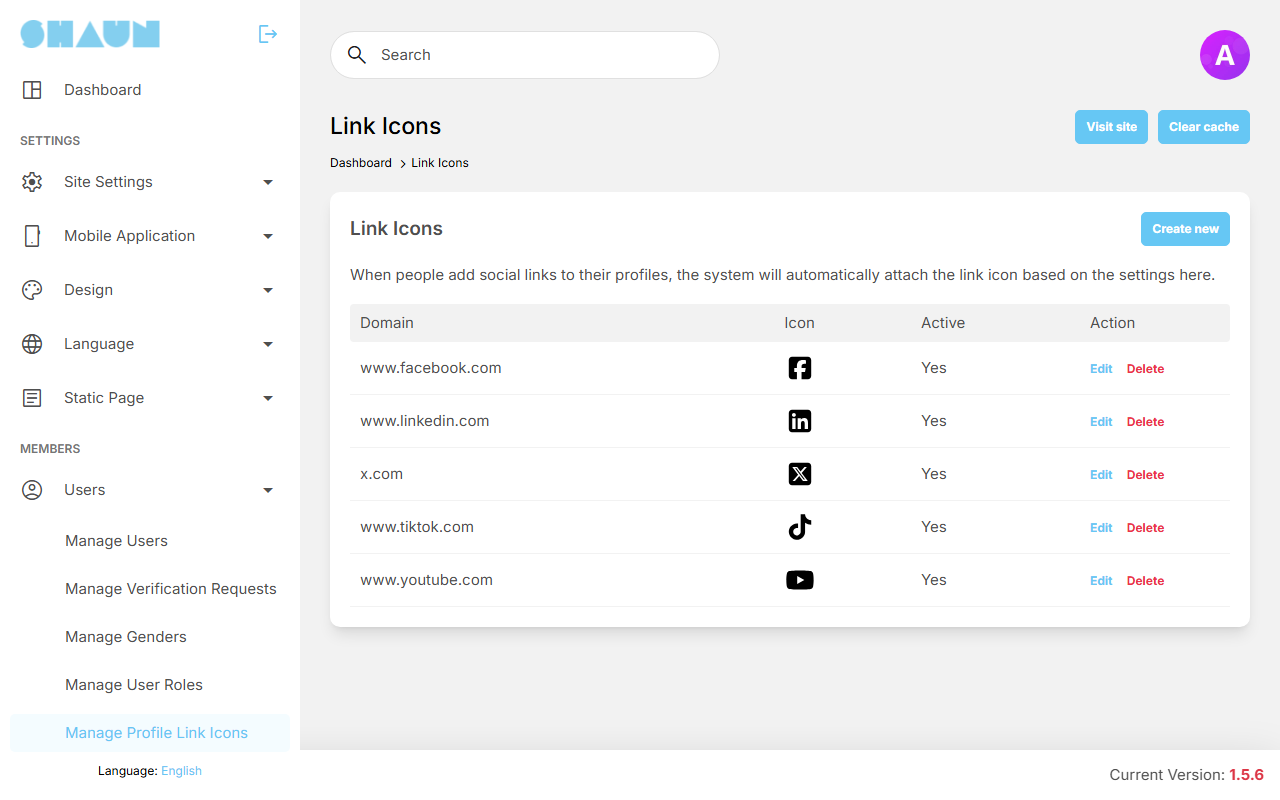
- Click Create new.
- Enter the Domain exactly as links to that site begin, without
https://(for examplewww.instagram.com). - Choose the Icon, an SVG file, leave Active on and click Submit.
What you should see: "Link icon has been successfully created." Profiles with links to that domain show the new icon.
A link gets the icon only when its address,
without https://, starts with the domain you entered. www.facebook.com does not match a link
to facebook.com/yourname. Add a second row for the address without www. when members use both.
Edit changes the domain or replaces the icon; Active off stops using the icon; Delete removes the row.
Profile verification (blue check): request and review#
Last updated: 2026-11-17 · v1.5.6
A verified account shows a badge next to its name, so members know the account is genuine. Members ask for it by sending identity documents; you review the request. Business pages use the same settings, but their requests are reviewed under Core Features → Business Pages → Page Verification Requests (see Page verification).
Switch it on#
| Setting | After installing | What it does |
|---|---|---|
| Enable | off | switches verification on for members and business pages |
| Supported file formats | pdf, jpeg, jpg, png, gif, webp | the kinds of document files members may upload |
| Verified badge | a blue check | the badge shown next to verified members; upload an SVG to replace it |
| Page verified badge | a badge for pages | the badge shown next to verified business pages |
| Users lost their verification status when | The display name changes | or The display name or profile picture changes: when a verified member changes it, the badge is removed and they have to ask again |
Each member role also needs the permission Send verification request (on for the Member role after installing), see The permissions of a member role.
What members see#
- On their own profile the member clicks Verify Profile.
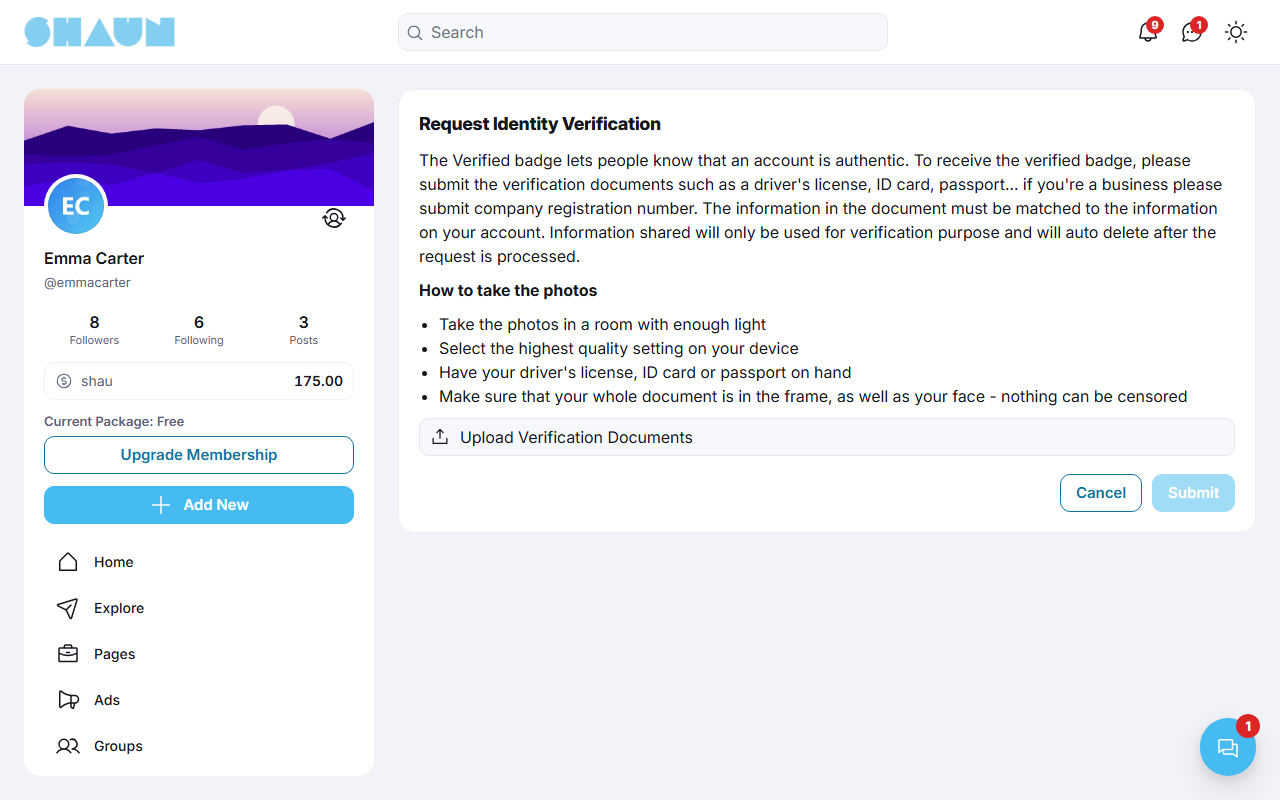
- The page Request Identity Verification explains what to send (a driver's license, ID card or passport; a company registration for a business) and how to take the photos.
- They click Upload Verification Documents, add one or more files and click Submit.
What they should see: "Your request has been submitted." The page then says "Your documents are being reviewed."
The root account gets a notification "submitted a verification request." for each new request.
Review a request#
The screen lists the waiting requests with Name, Email, Documents (click Document 1, Document 2 … to open the files), Date and the actions. Search finds a name or user name.
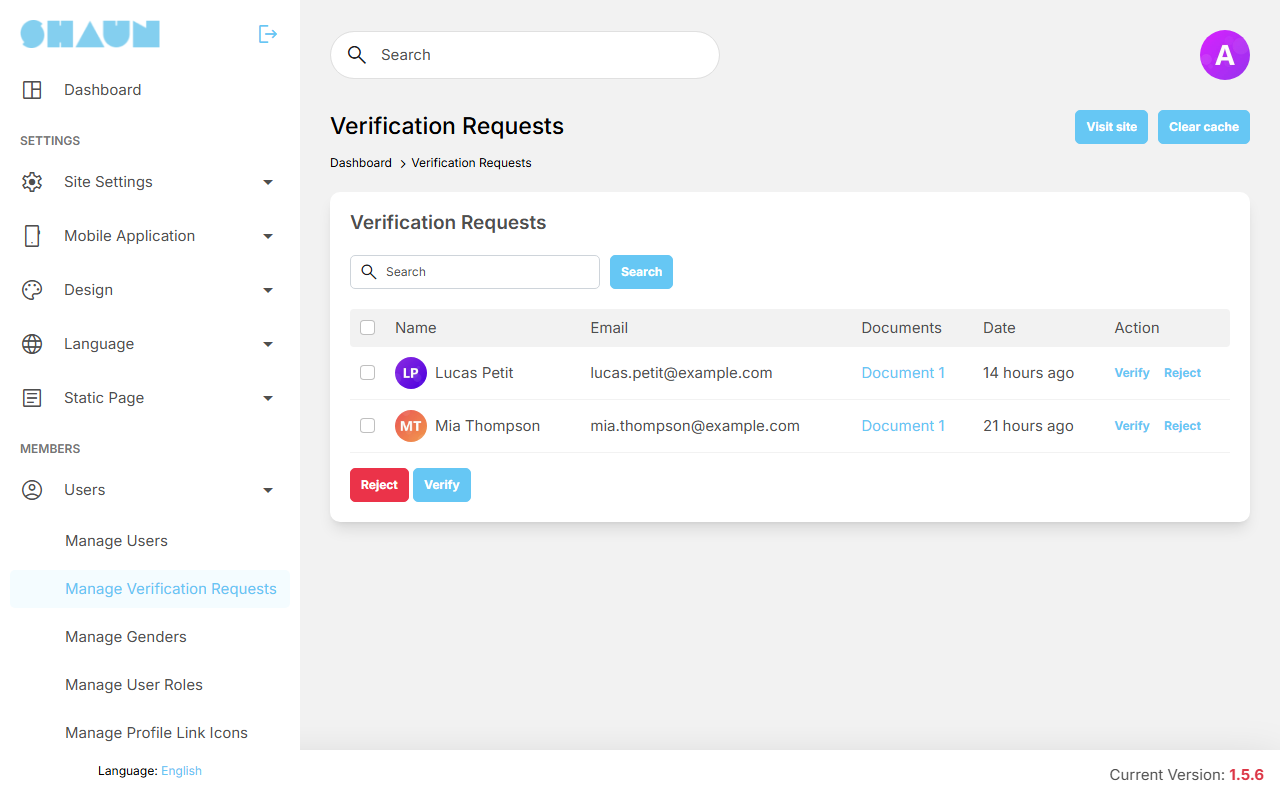
- Verify gives the badge. The member gets the notification "Your profile is verified."
- Reject asks for a reason ("Please enter reason to reject"). The member gets a notification and the e-mail "Verification request update" with your reason, and can ask again.
- Tick several rows and use the Verify or Reject button below the list to handle them at once; a rejection from there has no reason.
Either way the uploaded documents are deleted. To remove a badge later, use Unverify on the member's row in Manage Users; the member gets the notification "Your profile is unverified." The Verify link there gives a badge without a request.
Protecting demo accounts#
Last updated: 2026-11-17 · v1.5.6
If you publish a demo login so visitors can try your site, protect that account so nobody can take it over. Use the setting Lock delete and account setting change. (empty after installing).
- Click in the field and type part of the account's name.
- Pick the account from the suggestions. Add more accounts the same way. The setting saves itself.
A protected account:
- cannot change its password (also not through "forgot password"), e-mail address or user name, and cannot delete itself. Members see "This account is protected from modification." when they try;
- cannot set up two-factor authentication or a passkey, and signs in with the password alone;
- can still post, comment and use the site normally;
- in the AdminCP: its e-mail address and user name cannot be changed, Change password is refused, and it has no tick box in Manage Users, so it cannot be deleted from the list. Admins can still switch the account off, change its name, role and profile, and use Logout and Login as user on it, so check those after a demo session if needed.
Never protect a real admin account: a protected account cannot recover its password. To remove the protection, delete the account from the field again.
Change log#
Last updated: 2026-11-19 · v1.5.6
| Date (GMT+7) | Section | What changed |
|---|---|---|
| 2026-11-17 | all | First version for 1.5.6, written from the 1.5.6 code as a guide for site owners and their admins. |
| 2026-11-17 | manage-users, roles-permissions, moderators, daily-limits, account-lock | Corrections after review: new accounts start inactive, switched-off accounts hide their posts and stories, the export includes business pages, who may give which role and remove 2FA, which permission boxes are hidden, the event limit (UTC day, moderators), switching Moderator on for an existing role, and what admins can still change on a protected account. |
| 2026-11-17 | manage-users, verification | Links to the new Business pages page for the page screens and page verification. |
| 2026-11-19 | roles-permissions, moderators | Every member permission listed with its value after installing, what it allows or limits and its message; every moderator permission listed with the AdminCP screen it opens. |
| 2026-11-19 | moderators | Screenshot of the permissions page of a moderator role. |