ShaunSocial user guide 1.5.6 / AdminCP
Your site sends e-mails on its own (welcome messages, codes, notifications) and you can send your own e-mail campaigns to your members. This page explains how to change the wording of every automatic e-mail, in every language, and how to write, target and send a bulk e-mail campaign. How your site connects to an e-mail account is explained on Server services.
Mail templates#
Last updated: 2026-11-17 · v1.5.6
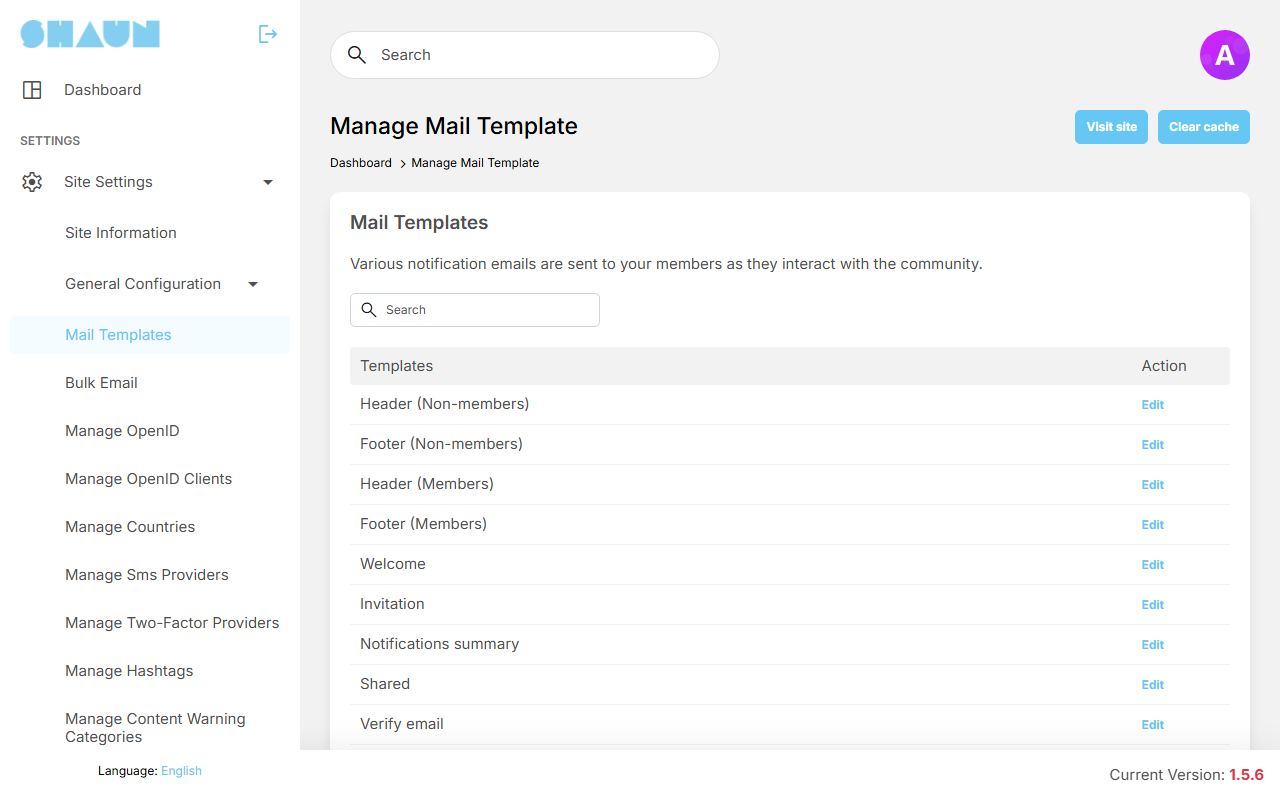
Every automatic e-mail your site sends has a template: a subject and a text you can rewrite. The list shows all templates by name, with a Search box above it; each row has an Edit link. Plugins you install can add templates of their own to this list.
E-mails go out from the moment your site is installed: after installing, the Mail engine in the e-mail settings is Mail (your server's own mail program), and that AdminCP setting is the one your site uses. To send through an e-mail account instead, see An outgoing e-mail account (SMTP). If you choose SMTP there but leave Hostname empty, no e-mail is sent at all.
How an e-mail is put together#
Each e-mail your site sends has the same frame:
- at the top, your Site logo (AdminCP → Site Settings → Site Information, see Site Images);
- in the middle, the text of the template. Most templates start with
[header]and end with[footer]: these are replaced by the text of the four special templates Header (Members), Footer (Members), Header (Non-members) and Footer (Non-members). Change the header or footer once and every e-mail changes with it; - at the bottom, a fixed line: "If you don't want to receive these emails in the future, please click here to unsubscribe".
The Members header and footer are used when the e-mail goes to someone with an account on your site; the Non-members ones when it goes to an address without an account (for example an invitation or a shared link sent to someone who has not joined). Contact-form messages go to your Site email: if that address belongs to an account on your site (after installing it is usually the admin's own address), they get the Members header and footer.
After installing, both headers say "Dear [recipient_name]," and both footers say "Best Regards, Social Network Administration". Edit Footer (Members) and Footer (Non-members) and sign with your own community's name.
Edit a template#
- Open AdminCP → Site Settings → Mail Templates and click Edit next to the template. Use Search to
find it by name.
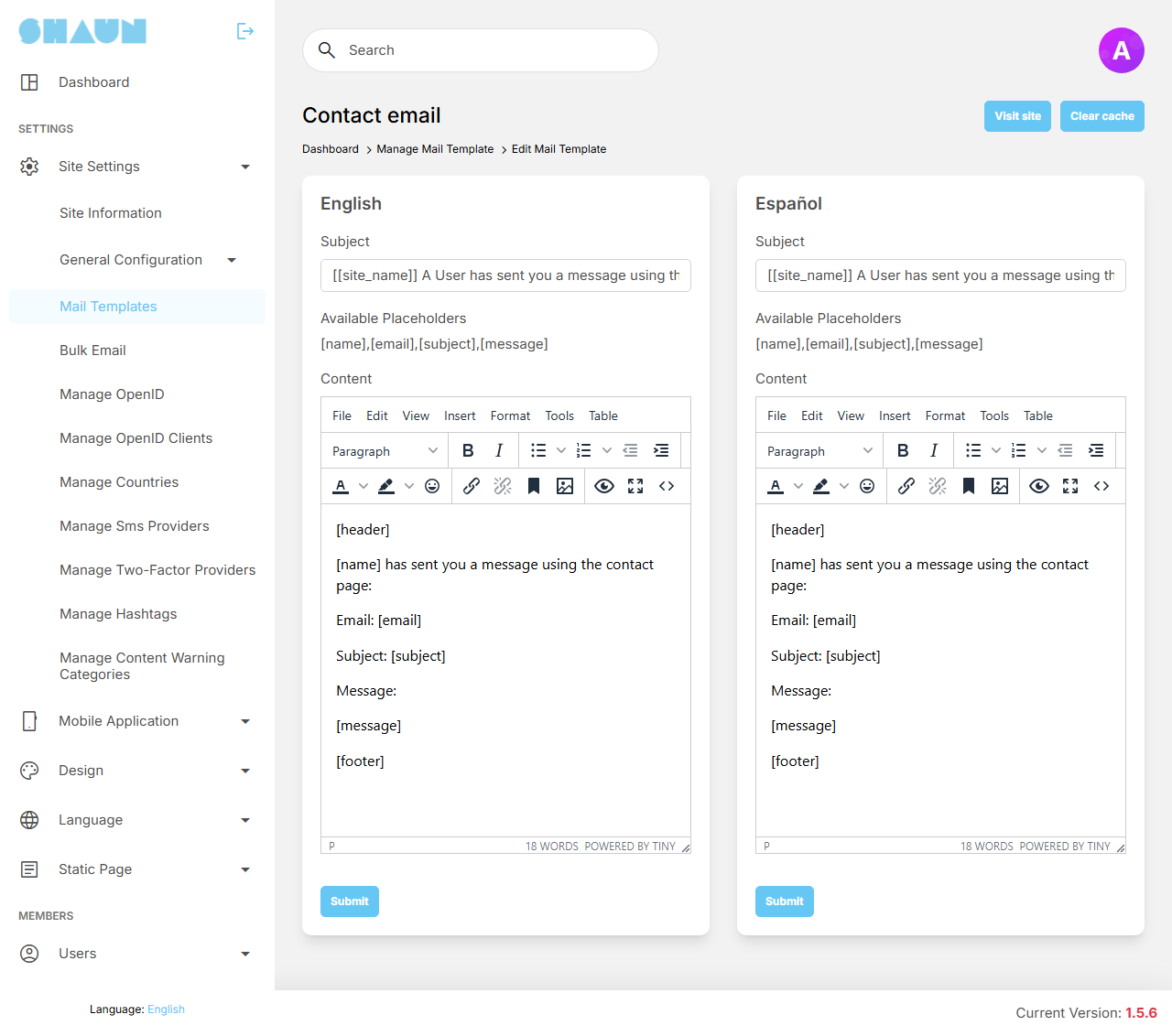
What you should see: one box per language of your site, each with Subject, Available Placeholders and Content.
- In the box of the language you want to change, edit Subject and Content. Content is a text editor with bold, links and other formatting.
- Use only the placeholders listed under Available Placeholders for that template, plus the general ones in the next section. Type them exactly, square brackets included.
- Click Submit under that language's box.
What you should see: "Mail template has been successfully saved." Each language box has its own Submit button and saves only that language.
Which language a member receives: the language they chose on your site; if they never chose one, or for an address without an account, your default language (see Manage languages). A language added later starts with a copy of the English texts, so translate the templates after adding a language.
The editor turns a web address you type into a link. For a link with your own words, select the text and use the
link button. Keep placeholders that stand for an address inside a link, as the original texts do (for example
[link]).
Placeholders you can use in every template#
| Placeholder | Replaced by |
|---|---|
[site_name] | your Site title |
[recipient_name] | the member's name; "Sir/Madam" for an address without an account |
[recipient_email] | the address the e-mail goes to |
[header], [footer] | the text of the matching header and footer template (not inside the header and footer templates themselves) |
The Invitation and Shared texts also use [sender_title], the name of the member who
sent them; keep it if you rewrite those texts.
The templates: accounts and sign-in#
| Template | Sent when | Its own placeholders |
|---|---|---|
| Welcome | someone signs up and no e-mail confirmation is needed | [login_link] |
| Welcome with verification code | someone signs up while Require email validation is on (see Who can sign up) | [code] |
| Welcome with password | you create an account in AdminCP → Users → Manage Users with Verified email ticked (without it, the new member gets Welcome with verification code instead) | [login_link], [password] |
| Verify email | a member confirms or changes their e-mail address | [code] |
| Forgot password | someone asks to reset their password | [code] |
| Two-factor verify email | a member signs in with two-factor authentication by e-mail (see Two-factor authentication) | [code] |
| Admin changes password | an admin changes a member's password in the AdminCP with Notify to user ticked | [password] |
| Active user | an admin switches an account to active, or a moderation restriction on the account ends | [link] |
| Inactive user | an admin switches an account to inactive | [link] (your contact page) |
| Auto Inactive by system email | an account is switched off automatically because members reported it too many times in one day | [link] (your contact page) |
| Moderation action | moderators take an action on a member's account | [action], [reason], [duration], [next_step], [link] |
| Moderation appeal result | a member's appeal against a moderation action has been decided | [action], [result], [note] |
| When admin reject verify | an admin rejects a verification request (the verified badge) of a member or a business page | [reason], [link] |
The templates: members and activity#
| Template | Sent when | Its own placeholders |
|---|---|---|
| Header (Non-members), Footer (Non-members), Header (Members), Footer (Members) | never on their own: they are inserted where another template says [header] and [footer] | none |
| Invitation | a member invites people by e-mail from the Invite page | [message], [ref_link] |
| Shared | a member shares something with e-mail addresses | [message], [link] |
| Contact email | a visitor sends the contact form; it goes to your Site email (see The contact form). Its subject line is always the subject the visitor typed; the template's Subject is not used | [name], [email], [subject], [message] |
| Notifications summary | a member has unread notifications and has not opened them for about a day; it lists up to ten of them. Only for members who keep Daily email notification on | [blade] (the list of notifications; keep it in the text) |
| Bulk Email | you send a bulk e-mail campaign (see Bulk e-mail campaigns). The campaign's own subject and text are used, with the members' header and footer around it; the text of this template is not used | [content] |
The templates: payments and subscriptions#
These are sent by the paid features. They stay in the list even when you do not use the feature.
| Template | Feature | Its own placeholders |
|---|---|---|
| Remind users to deposit more when the balance in the ewallet is lower | eWallet | [link] |
| When a store refund takes credits back from the eWallet | eWallet (purchases in the mobile apps) | [amount], [balance], [link] |
| When the eWallet balance is too low to renew a subscription | eWallet | [name], [date], [amount], [balance], [shortfall], [link] |
| When a user buys subscription successfully, When reminder subscription, When stop subscription | Membership: bought, about to renew, ended | [link]; the reminder also [date], [name], [amount]; the stop also [reason] |
| When a user is moved onto a free membership package | Membership | [link], [package_name] |
| When a free membership request is rejected | Membership | [link], [reason] |
| When a profile subscription is about to renew, When a profile subscription stops | Paid content (subscribing to a creator) | [name], [link]; the reminder also [date], [amount]; the stop also [reason] |
| When a featured listing subscription is about to renew, When a featured listing subscription stops | Marketplace | the same as the line above |
| When a featured page subscription is about to renew, When a featured page subscription stops | Business pages | the same as the line above |
When members turn e-mails off#
Members turn e-mails off in their Settings → Email Notifications (switch Email Notifications), or by clicking the unsubscribe link at the bottom of any e-mail. In the same place, Daily email notification turns off only the notifications summary.
An address that has turned e-mails off still receives: Welcome with verification code, Verify email, Forgot password, Admin changes password, Active user, Inactive user, Moderation action and Moderation appeal result. Every other template, bulk e-mail campaigns included, is not sent to it.
The same applies to the address in Site email (AdminCP → Site Settings → Site Information). If it has turned e-mails off, for example because someone once clicked the unsubscribe link in an e-mail sent to it, contact-form messages and bulk e-mail tests sent to it are not delivered, and no error is shown. If that address belongs to an account, sign in with it and keep Email Notifications on in Settings → Email Notifications, or use a Site email that has not turned e-mails off.
A member who turned e-mails off does not receive the Two-factor verify email code either. If such a member cannot sign in, remove their two-factor authentication as described in When a member loses their phone, or ask them to choose another two-factor method.
Bulk e-mail campaigns#
Last updated: 2026-11-17 · v1.5.6
A bulk e-mail campaign sends one message to many members at once: an announcement, a newsletter, an invitation to an event. You choose who receives it by member role, gender and country, and you can write it in each of your site's languages. Super admins can use it, and moderators whose role has the Manage Bulk Email permission.
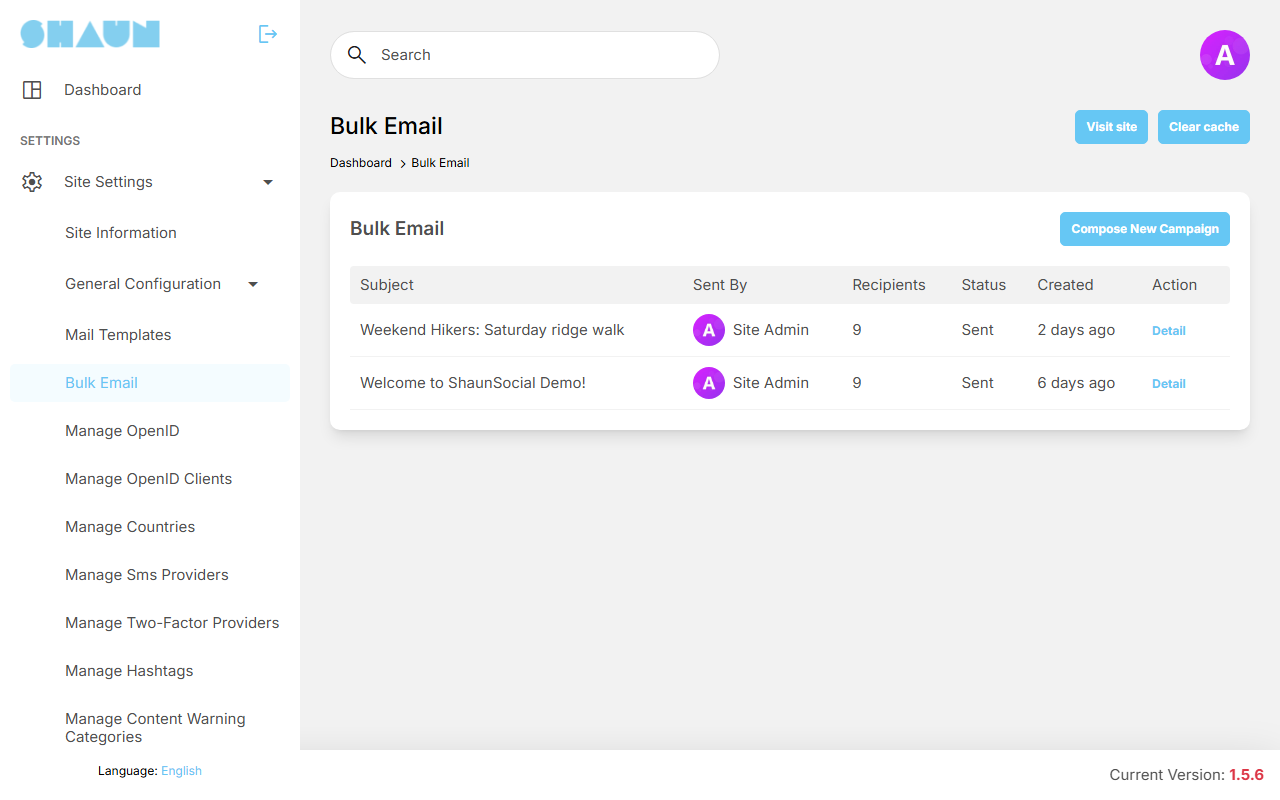
The screen lists your campaigns with Subject, Sent By, Recipients, Status, Created and a Detail link. Compose New Campaign starts a new one.
Write and send a campaign#
- Open AdminCP → Site Settings → Bulk Email and click Compose New Campaign.
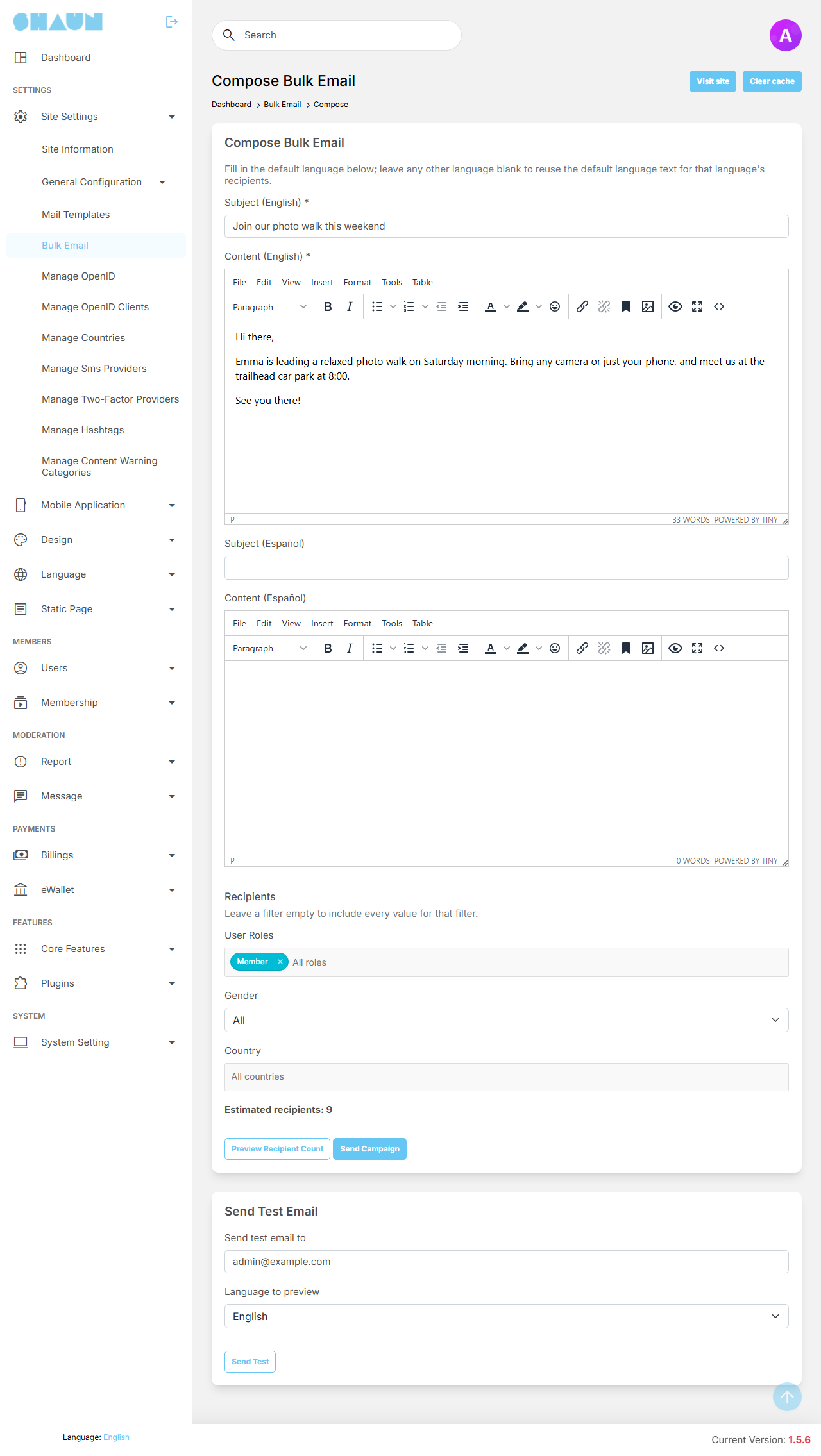
What you should see: Compose Bulk Email with a Subject and a Content field for each active language, the Recipients filters, and below the form a second box, Send Test Email.
- Fill in Subject and Content for your default language (marked
*; they are required). For other languages, fill them in or leave them blank: members using a language you left blank receive the default language text. In the subject and text you can use[recipient_name](the member's name) and[site_name]. - Choose the recipients. A filter you leave empty includes everyone for that filter.
Filter What it does User Roles only members with the roles you pick (you can pick several) Gender All, or one gender from AdminCP → Users → Manage Genders Country only members whose profile is set to one of the countries you pick - Click Preview Recipient Count.
What you should see: Estimated recipients followed by the number of members who match.
- Send yourself a test: in Send Test Email check the address in Send test email to (your own
address is filled in), choose the Language to preview and click Send Test.
What you should see: "Test email was sent successfully! Please check your inbox to make sure it is delivered." The test uses what is in the fields right now and goes out immediately; for a language left blank it shows the default language text. If the test never arrives although the message says it was sent, check that the address has not turned e-mails off (see When members turn e-mails off).
- When the test looks right, click Send Campaign and confirm "Are you sure you want to send this campaign?
This cannot be undone." with OK.
What you should see: the campaign list with "The bulk email campaign has been queued for sending." and your campaign at the top with the status Queued.
A campaign starts as soon as you click Send Campaign. It cannot be scheduled for later, edited or stopped, so send a test first.
Who receives a campaign#
- Every account with an e-mail address that matches the filters, in the language that member uses on your site.
- Accounts that are not active (waiting for approval or switched off) are included when they match. Business pages are never included.
- Members who turned e-mails off (see When members turn e-mails off) are skipped when the e-mail is sent, although they appear in the campaign's recipient list.
- The e-mail has your members' header and footer around your text, your logo at the top and the unsubscribe line at the bottom (see How an e-mail is put together).
How a campaign goes out#
Campaigns are sent in the background by the cron job, so they never slow down the AdminCP. Without a working cron job a campaign stays Queued forever (see Cron job).
| Status | Meaning |
|---|---|
| Queued | waiting; the cron job picks it up within about a minute |
| Sending | the list of recipients is being made and their e-mails are being lined up |
| Sent | every e-mail of the campaign is lined up for sending (see below) |
| Failed | something went wrong while the recipients were being lined up; the detail page shows how far it got |
The e-mails themselves then leave in batches: each minute the cron job sends as many as Mail count in AdminCP → Site Settings → General Configuration → E-mail Settings (25 after installing). This happens whatever the Email queue setting is. A campaign to 1,000 members therefore takes about 40 minutes to arrive in every inbox, even though its status already says Sent. Raise Mail count only as far as your e-mail account allows (many providers limit how many e-mails you may send per hour).
With the background queue on (SHAUN_QUEUE=true, see Queue worker),
campaigns and their e-mails are handled by the queue worker on the mail_many queue instead of the cron
job, and Mail count does not apply. The worker must serve that queue, or campaigns never leave.
Check a campaign#
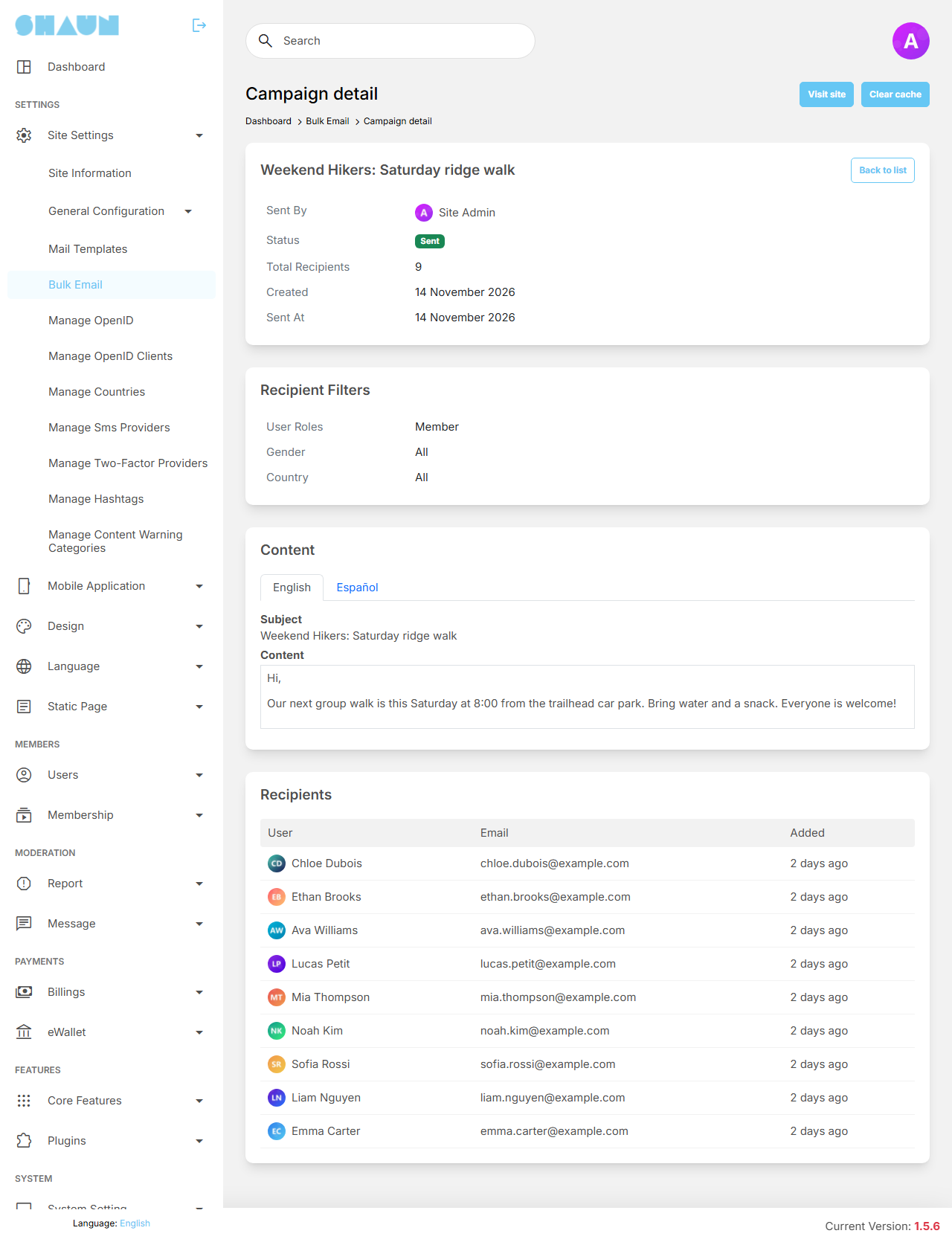
Click Detail next to a campaign. The page shows its Subject, Sent By, Status, Total Recipients, Created and Sent At, the Recipient Filters you chose (User Roles, Gender, Country), the Content, and the list of Recipients (member, e-mail address and when they were added). Until the cron job has picked up the campaign the list says "No recipients have been recorded for this campaign yet." Back to list returns to the campaign list.
Change log#
Last updated: 2026-11-17 · v1.5.6
| Date (GMT+7) | Section | What changed |
|---|---|---|
| 2026-11-17 | mail-templates, bulk-email | Corrections after review: the Site email and the Members header, links typed in the editor, where the Send Test Email box is, the confirmation of Send Campaign, a Site email that has turned e-mails off; the page title is now "E-mail". |
| 2026-11-17 | all | First version for 1.5.6, written from the 1.5.6 code. The list of templates and their placeholders was checked against a freshly installed demo site; the sending times of campaigns were read from the code, not measured. |