ShaunSocial user guide 1.5.6 / Getting started
Upgrade
This page takes a site that runs an earlier ShaunSocial version to 1.5.6. You back up, replace the files with the new package, and run the upgrade wizard in your browser; your members, posts, settings and uploads stay. Where a step needs a server command, it is in a box marked For your server administrator.
Before you start#
Last updated: 2026-11-17 · v1.5.6
Which versions can be upgraded#
The 1.5.6 upgrade wizard carries the database changes of every earlier version, from 1.0 onward, and applies the ones your site is missing in one run. Upgrading from 1.5.5 or another 1.5 version is the usual case. A site on an older version can be upgraded the same way, but more changes run at once: try it on a copy of the site first (see below).
Check your current version at the bottom of any AdminCP page, next to Current Version.
Checklist#
- Check PHP. 1.5.6 needs PHP 8.3 or newer. Earlier ShaunSocial versions also ran on PHP 8.1 or 8.2; if your site still does, have your host switch it to PHP 8.3 first (see Upgrading to 1.5.6).
- Download the 1.5.6 package (a zip file) from where you bought ShaunSocial, usually your ShaunSocial client area.
- Back up the files and the database. The upgrade changes your database and cannot be undone
in the AdminCP: the backup is the only way back. Most control panels have a Backup tool that saves both. Keep
the backup until the upgraded site has run well for a few days.
What you should see: a backup file of your site folder and one of your database, with today's date, saved somewhere other than the server itself.
- Write down your plugins. Open AdminCP → Plugins → Manage and note each plugin's name and version, so you can check them after the upgrade (see Plugins).
- Try it on a copy first (recommended). If your hosting lets you create a staging or test copy of the site, upgrade the copy first. When it works, upgrade the live site.
- Pick a quiet time and switch on maintenance mode (next step).
Switch on maintenance mode#
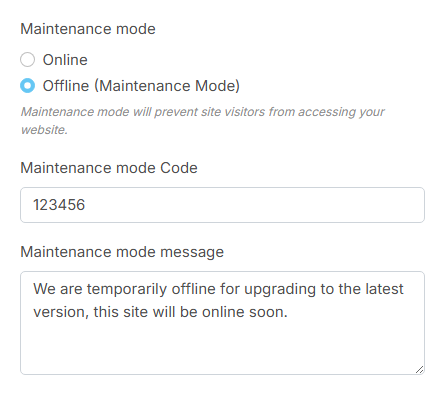
Maintenance mode shows visitors a message instead of your site while you work. You and your admins can still use the AdminCP.
- Open AdminCP → Site Settings → Site Information.
- Set Maintenance mode to Offline (Maintenance Mode).
- Check Maintenance mode message. Its text after installing reads "We are temporarily offline for upgrading to the latest version, this site will be online soon."
- Set Maintenance mode Code to a code of your own (it is
123456after installing). Anyone who enters this code on the maintenance screen can use the site, so you can check the front end yourself. Do not leave the field empty: with no code, nobody can get past the maintenance screen. - There is no Save button: each setting is saved as soon as you leave the field or pick a choice, and the field turns
light yellow.
What you should see: in a private browser window your site shows the maintenance message.
mysqldump --single-transaction -u shaunsocial -p shaunsocial > shaunsocial-before-1.5.6.sql
tar -czf shaunsocial-files-before-1.5.6.tar.gz -C /var/www shaunsocial
Use your own database name, user and site folder. The file backup must include the hidden .env file
and the whole storage/ folder (uploads, keys, logs). Copy both files off the server.
Upgrade your site#
Last updated: 2026-11-17 · v1.5.6
Step 1: replace the files#
- Upload the 1.5.6 zip into your site's folder (the folder that holds
.env, not thepublicfolder) and unzip it there, so the new files overwrite the old ones. In most control panels: File Manager → upload → right-click the zip → Extract, and agree to overwrite existing files. - Do not delete the old folder first, and do not delete
.envorstorage. The package contains no.envand none of your uploads (itsstoragefolder holds only empty folders), so unzipping over your site keeps your settings file, your uploads and your installed plugins. Without.envyour site would open the installer again, for anyone. - If you upload with an FTP program, make sure it also uploads hidden files (names that start with a dot, such as
public/.htaccess). - Check the version of the new files: open
public/version.txt.What you should see:
1.5.6.
Until you run the wizard, the site runs the new files on the old database. Go straight on to step 2.
Step 2: run the upgrade wizard#
- Open
https://example.com/<prefix>/upgrade, with your admin prefix (the start of your AdminCP address), for examplehttps://example.com/admin/upgrade. If you are not signed in to the AdminCP, its sign-in page opens first: sign in with your admin account, then open the upgrade address again if the wizard does not appear by itself.What you should see: a page titled Welcome to the ShaunSocial Upgrade with two reminders: back up all files and databases before proceeding, and do not close your browser during the upgrading process.
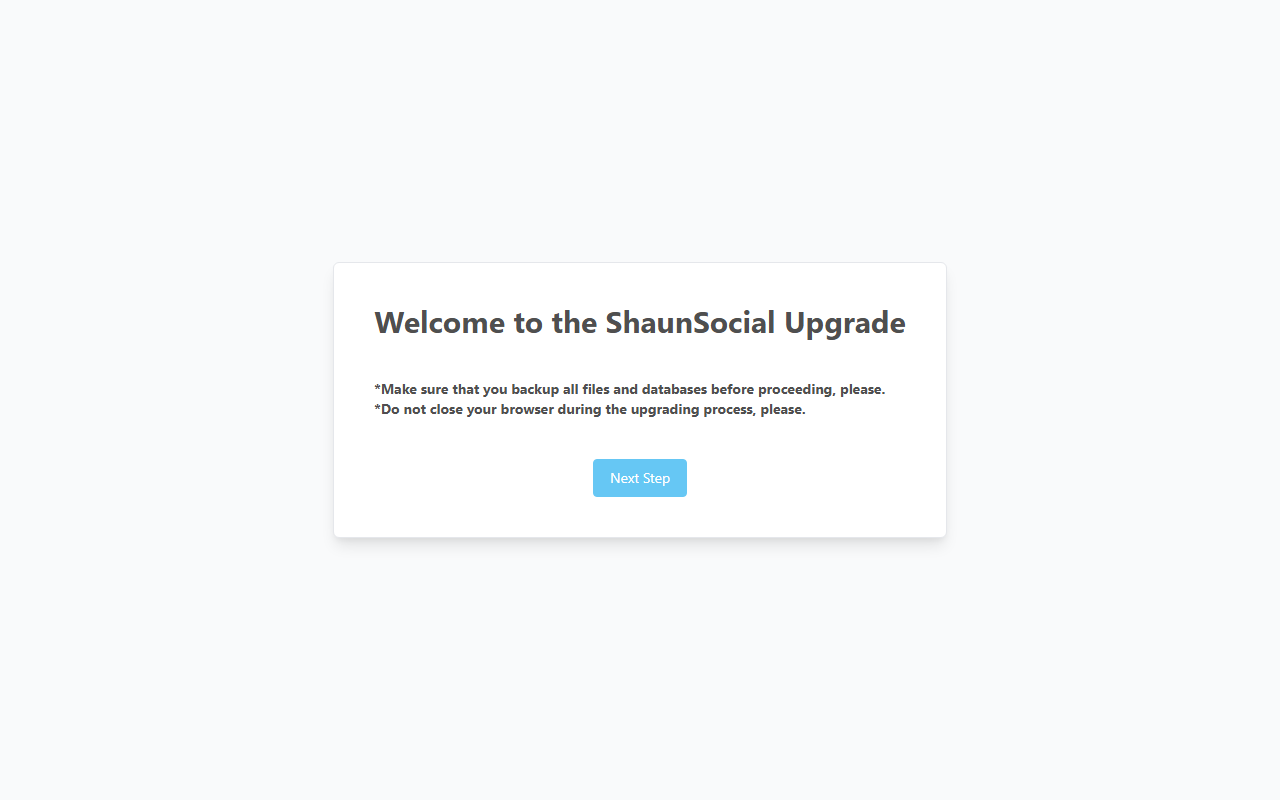
The first wizard screen, with the two reminders and the Next Step button. Screenshot taken 2026-11-17. - Click Next Step.
What you should see: "Current version your old version | Upgrade version available 1.5.6" and an Install Updates button.
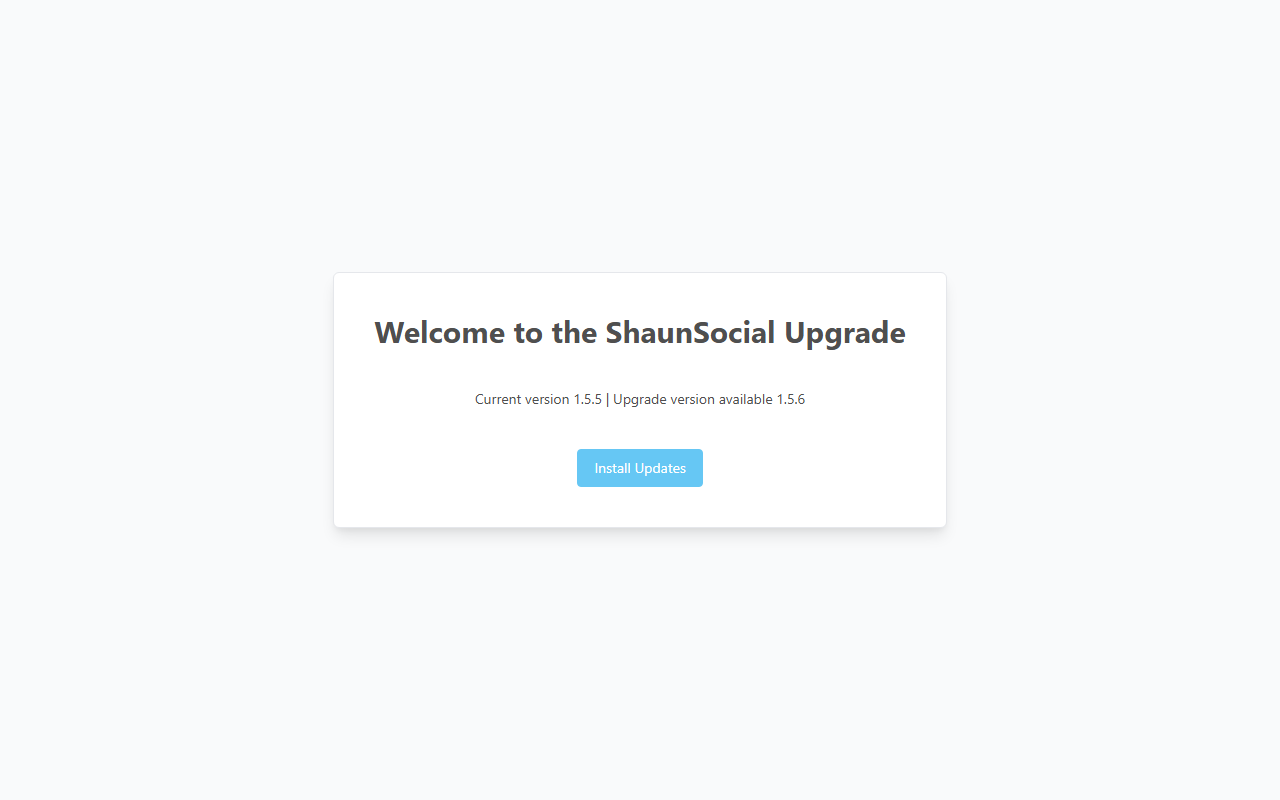
The second wizard screen, showing the current and the new version. Screenshot taken 2026-11-17. - Click Install Updates once, and wait. The page keeps loading while the wizard changes the database;
from an older version this can take several minutes. Do not click again, reload or close the tab.
What you should see: a green box with the message "Application has been successfully upgraded." and a Go to Home Page button (the browser tab reads Upgrade Finished).
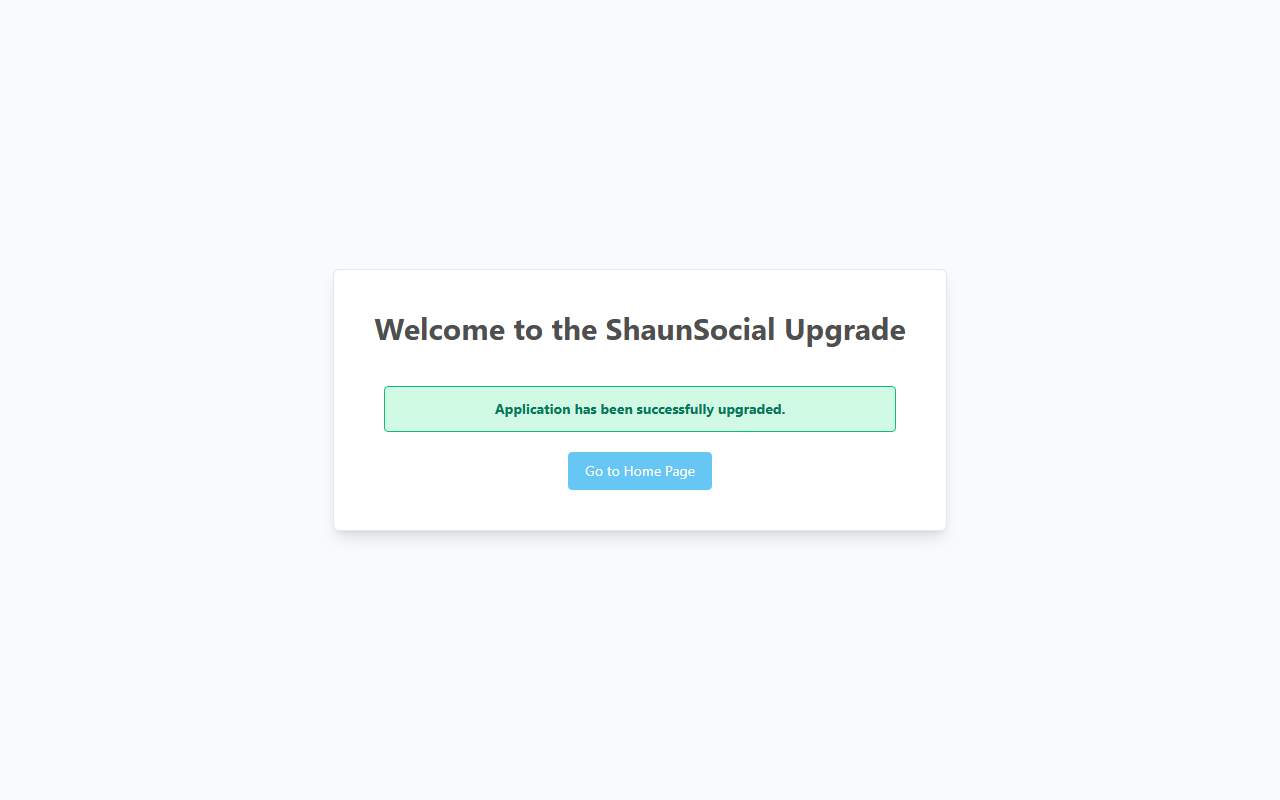
Upgrade Finished. Screenshot taken 2026-11-17. - Open the AdminCP and look at the bottom of the page.
What you should see: Current Version: 1.5.6.
Besides the database changes, the wizard adds the new phrases of 1.5.6 to each of your languages (your own translations are kept; new phrases appear in English until you translate them), rebuilds your themes' styles and clears the site's cache. You do not need to do these yourself.
If the screen shows an error message in red with a Click here to exit button instead (the browser tab reads Error! | Site Upgrade), see If something goes wrong. Nothing is marked as upgraded in that case, so you can run the wizard again once the cause is fixed.
The same upgrade without the browser, useful for a big database or a short web server time limit. In the site folder (after the backup), unzip the package over the site, give the files back to the PHP user, and run the upgrade as that user:
cd /var/www/shaunsocial
unzip -o shaun-core-1.5.6.zip
chown -R www-data:www-data /var/www/shaunsocial
sudo -u www-data php artisan migrate --force --path=/packages/shaunsocial/core/database/migrations
sudo -u www-data php artisan migrate --force --path=/packages/shaunsocial/wallet/database/migrations
sudo -u www-data php artisan migrate --force
sudo -u www-data php artisan shaun_core:update
The three migrate commands apply the database changes in the same order as the wizard and show any
error on screen. Run shaun_core:update only after all three migrate commands finished
cleanly; if one fails, fix the cause and run it again first. shaun_core:update (silent on success) records
the new version, adds the new phrases, rebuilds the themes and clears the cache.
INFO  Running migrations.
...
INFO  Nothing to migrate.
The last migrate may answer Nothing to migrate.: that is fine.
Step 3: after the upgrade#
- Check the cron job. Open AdminCP → System Setting → Tasks and wait five minutes.
What you should see: Succeeded: last on ... with a recent time. If not, see Cron job and queue worker.
- Check your plugins. Open AdminCP → Plugins → Manage and compare the list with the one you wrote
down. Look under each plugin's name for one of these notes:
- "Built for an older version of the site and may not display correctly. The plugin still runs — ask its author for an updated build.": upload the version made for 1.5.6 here when you have it.
- "License of this plugin is not valid for this domain.": the plugin is switched off. See A plugin licence belongs to one domain.
- A plugin whose status reads Disabled although you never switched it off: it was switched off because the site was opened under another address. Once the site runs under the address the plugin was made for, click Enable on its row; it does not come back by itself.
- Check your landing page. The upgrade sets AdminCP → Site Settings → General Configuration → Landing page settings to Designed landing page, the new built-in landing page. If you prefer your previous choice (Default landing page or Custom landing page), select it again and save.
- Check your colours. 1.5.6 comes with a new colour palette. In your themes, every colour that still had its old default value is changed to the new default; colours you picked yourself are kept. Your site will look different: review it in AdminCP → Design → Manage Themes and adjust what you want.
- Look around the site. Sign in as a member (enter your maintenance code when asked), open the news feed, a profile, chat, and post something with a photo.
- Clear your browser's cache if pages look broken or old: press Ctrl+F5 (Cmd+Shift+R on a Mac). If the AdminCP still shows old values, click Clear cache at the top of any AdminCP page.
- Switch maintenance mode off: AdminCP → Site Settings → Site Information → Maintenance mode → Online, and save.
- If you run the ShaunSocial mobile apps, publish the app version made for 1.5.6 together with this upgrade, and read If you also run the ShaunSocial mobile apps: with any reCAPTCHA option switched on, older app versions can no longer sign members in or up.
- Background queue. Only if
.envhasSHAUN_QUEUE=true: restart the worker so it runs the new code, and make sure its command serves all five queues, includingmail_many. A worker command written for an older version may lack it, and invitations, subscription e-mails and bulk e-mail campaigns then wait forever without an error. The full command is in Background queue.php artisan queue:restart - Live updates. If Reverb runs on the server, restart it so it uses the new code:
A process manager such as Supervisor starts it again by itself.php artisan reverb:restart - Configuration cache. Do not run
php artisan config:cacheorphp artisan optimize(the same warning as for installing: afterwards the AdminCP moves back to/admin, and the upgrade address with it). If one of them was ever run on this site, runphp artisan config:clearbefore opening the wizard. - File ownership. Files unzipped as another user (for example
root) must be given back to the PHP user, as in the command list above.
What is different when you upgrade to 1.5.6#
Last updated: 2026-11-17 · v1.5.6
| What | What to do |
|---|---|
| PHP 8.3 or newer is required, for the website and for the command line (the cron job runs PHP too) | Ask your host to switch your site to PHP 8.3 before you replace the files. On an older PHP the new files do not open at all, and neither does the wizard |
| 1.5.6 is built on a newer version of the framework it runs on (Laravel 13) | Nothing, unless someone changed ShaunSocial's own code for you: then that change must be checked against 1.5.6 (see Keeping your customisations) |
| A new colour palette: theme colours still at their old default values are changed, your own colours are kept | Review your themes in AdminCP → Design → Manage Themes (see step 3 above) |
| The new built-in landing page becomes your landing page | Switch back in Landing page settings if you prefer your previous choice (see step 3 above) |
| Plugins built for an older ShaunSocial show a warning | They keep working. Get updated versions from their authors (see step 3 above) |
| Mobile apps: older app versions are refused while a reCAPTCHA option is on | Publish the app version made for 1.5.6, and check the API Secret Key (see step 3 above) |
| Background queue: one worker must serve five queues | Only for sites with SHAUN_QUEUE=true (see the server box in step 3) |
The new features of 1.5.6 are listed in the release notes.
PHP 8.3+ for both PHP-FPM and the command line, with the extensions listed in the
install requirements. Composer and Node.js are not needed: the package carries its libraries and the built web app,
including a fresh bootstrap/cache/packages.php for the new libraries. On cPanel, the cron command must
also use PHP 8.3; the command line's php can be a different version than the website's (see
Cron job and queue worker).
php -vPHP 8.3.x (cli) ...Keeping your customisations#
Last updated: 2026-11-17 · v1.5.6
Everything you change in the AdminCP is stored in your database or in your storage folder, and the
upgrade keeps it. Files that come in the package are replaced by the new ones, so changes made directly in those
files are lost.
| Kept | Replaced by the package |
|---|---|
|
|
- Before you upgrade, copy any of the files in the right-hand column that you changed yourself, for example your
own favicon, a custom
robots.txt, extra rules in.htaccess(such as a redirect fromwww) or your own styles incustom.css. - After the upgrade, put your changes back into the new files. Do not copy whole old files over the new ones without comparing them: the new versions may contain changes of their own.
- For your logo, upload it in the AdminCP instead of replacing the file: AdminCP uploads survive every upgrade.
If a developer changed ShaunSocial's own code for you, those changes are overwritten. Ask them to apply their changes again on top of 1.5.6, and test on a copy of your site first. Features added as plugins are not affected.
If something goes wrong#
Last updated: 2026-11-17 · v1.5.6
| What you see | What to do |
|---|---|
| The upgrade address opens your home page instead of the wizard | The site already counts as upgraded to the version in public/version.txt. Check that file says 1.5.6; if it shows your old version, the new files were not uploaded (repeat step 1). If the AdminCP footer already says Current Version: 1.5.6, there is nothing left to do. |
| The upgrade address shows "Not found" | Use your own admin prefix in the address (the start of your AdminCP address). If even /admin/upgrade does not work, ask your server administrator (see below). |
| An error message in red and a Click here to exit button after Install Updates (tab title Error! | Site Upgrade) | Note the message, click Click here to exit, and send the message to your server administrator or to ShaunSocial support. Once the cause is fixed, open the upgrade address again and click Install Updates again; the wizard runs the changes that are still missing. |
| The page stops loading or shows a time-out during Install Updates | Open the upgrade address again. If the wizard still offers Install Updates, ask your server administrator to finish the upgrade from the command line (see the box in step 2). |
| The installer opens instead of your site | The .env file is missing. Restore it from your backup at once: until it is back, anyone could run the installer. |
| Every page shows an error after replacing the files | Usually PHP is older than 8.3, or files are missing. Check PHP first (What is different), then upload the package again. |
| Something is badly wrong and you need the old site back | Restore both backups, the files and the database, together. Restoring only one of them leaves the site broken. |
Look first at storage/logs/shaun-error-YYYY-MM.log, or the web server's error log when PHP does not
start.
| Symptom | Fix |
|---|---|
Every page answers 500 with The bootstrap/cache directory must be present and writable. | Give bootstrap/cache/ back to the PHP user (chown -R www-data:www-data bootstrap/cache). |
The upgrade address is only reachable at /admin/upgrade, or not at all | php artisan config:clear and php artisan route:clear, then try again. |
| The wizard stops on large sites | Raise PHP's max_execution_time and the web server's time-out for the run, or use the command-line upgrade in step 2. |
| A migration fails | The error names the table or column. Fix the cause and run the migrate commands again; restore the database backup if you cannot. |
Change log#
Last updated: 2026-11-17 · v1.5.6
| Date (GMT+7) | Section | What changed |
|---|---|---|
| 2026-11-17 | all | First version for 1.5.6, written from the 1.5.6 code. The wizard and command-line steps were read from the code, not run. |
| 2026-11-17 | before-you-start | The maintenance-mode settings save themselves; there is no Save button. |
| 2026-11-17 | steps, to-1-5-6, troubleshooting | Corrections after review: how the wizard's error screen looks, what the package's storage folder holds, the full plugin warning, plugins that stay disabled, the landing page and colour changes of the upgrade, the command-line note. |
| 2026-11-17 | before-you-start, steps, to-1-5-6 | Links to the new Plugins and Release notes pages. |