ShaunSocial user guide 1.5.6 / Features
Feed and posts
Posts are the heart of your community. This page explains, for members, how to share a post, a poll or files, format text, mark a photo as sensitive, choose who can comment and pin posts, and how to find content again through Explore, hashtags, bookmarks, lists, notifications and search. For admins it explains the settings that change what members see, with links to the screens documented elsewhere.
Checked against the 1.5.6 code and the screens of a demo site. The steps for posting, voting and changing posts were read from the code, not run; screenshots follow.
Home feed and posting#
Last updated: 2026-11-17 · v1.5.6
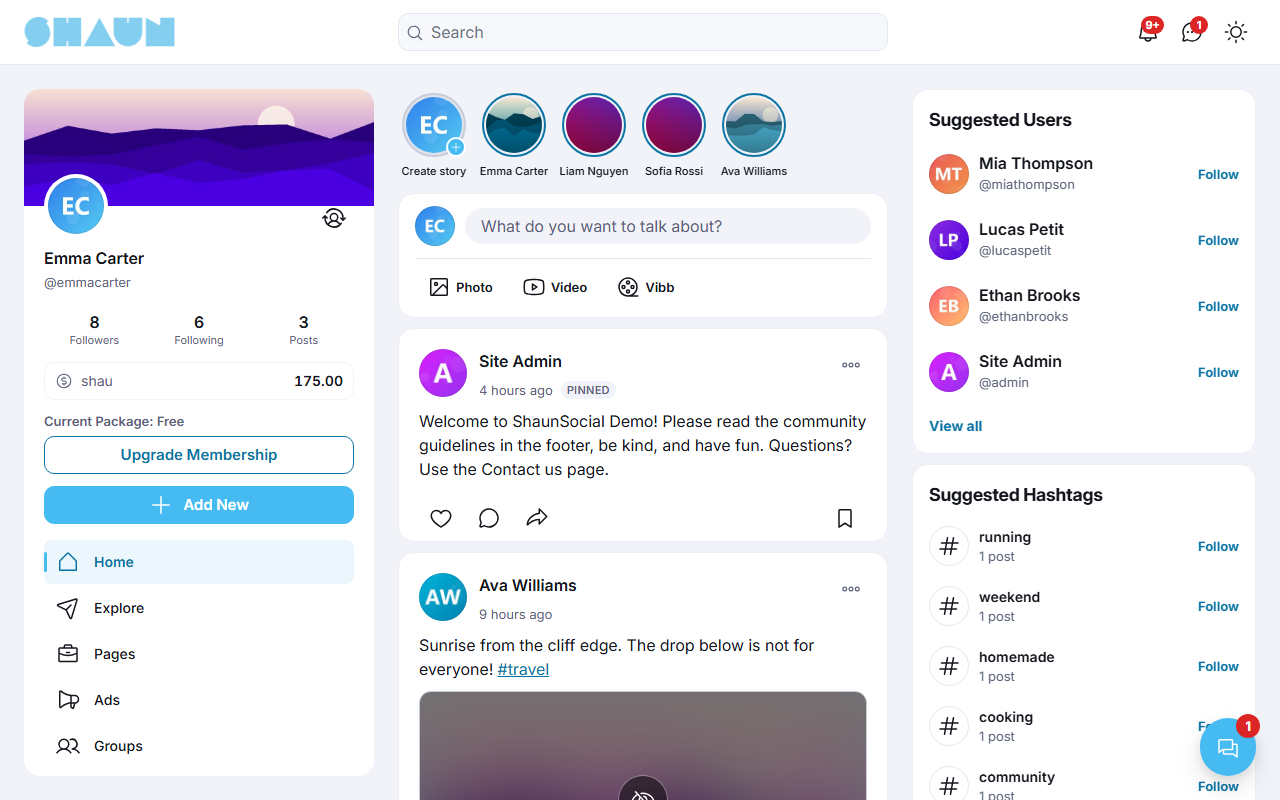
When a member signs in, the home page shows a box to write a post and, under it, the home feed: the posts of the community, newest first. Visitors who are not signed in see the landing page instead (see Landing page). The blocks around the feed, such as Suggested Users or Trending Hashtags, are arranged in AdminCP → Design → Layout Editor (see Layout editor).
What the home feed shows#
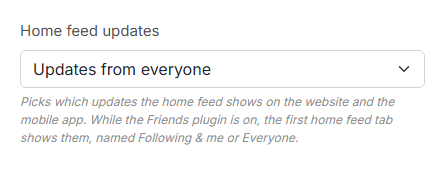
The setting Home feed updates decides which posts reach a member's home feed. It applies to the website and the mobile apps.
| Choice | A member's home feed shows |
|---|---|
| Updates from everyone (chosen after installing) | their own posts; the posts of every member whose privacy is Everyone; the posts of the people they follow (unless that person chose Only me); and the posts in their groups and events (see below) |
| Updates from following members and hashtags | their own posts; the posts of the people they follow (unless that person chose Only me); public posts that use a hashtag they follow; and the posts in their groups and events. Choose this for a quieter feed on a large site |
- Groups and events: posts in groups the member belongs to (not hidden groups) and in public events the member hosts, is going to or has posted in also appear. Event announcements made inside a group stay in the group.
- Privacy: who may see a member's posts is the member's own choice in Settings → Privacy, Who can see your posts and other account information: Everyone, My followers or Only me. A single post has no audience of its own.
- Super admins and moderators see every member's posts in their home feed, whatever the privacy, while the setting is Updates from everyone.
- Age: only posts from the last 120 days are loaded, to keep the feed fast; older posts stay on profiles. The number of days is Home feed only loads activities that have been created since (days) in the same part (see The other General Settings).
- New posts: while the home page is open, the site checks for new posts (as often as the Notification update frequency in Site Information, every 60 seconds after installing). When there are some, a Show new Posts button appears at the top of the feed.
- Pinned and sponsored posts: posts an admin pinned to the home page come first, marked Pinned (see Pinning posts). With the Advertising feature on, campaigns appear in the feed marked Sponsored.
- Empty feed: a new member who follows nobody sees "Nothing to see here yet" and "Start following people and tags to see updated posts". The sign-up step that suggests hashtags and people to follow helps here (see What new members fill in).
With the Friends plugin switched on, the home feed gets tabs; the first one shows the feed described above and is named Following & me or Everyone after this setting. Super admins and moderators always get the Everyone feed in that tab, named Everyone, whatever the setting.
Create a post#
- On the home page, click What do you want to talk about?, or one of the buttons under it: Photo,
Video or Vibb.
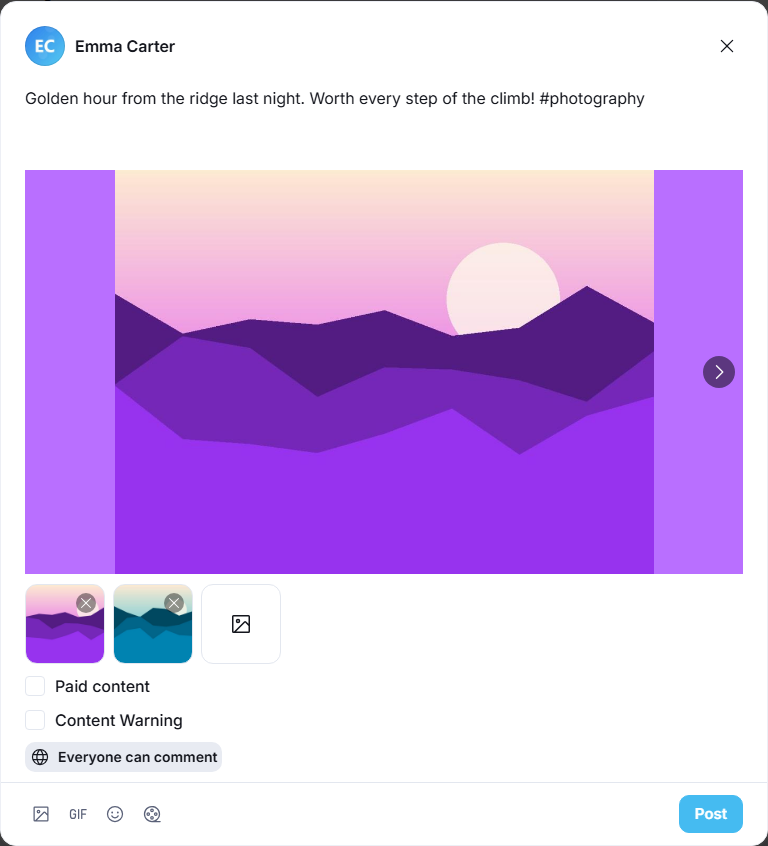
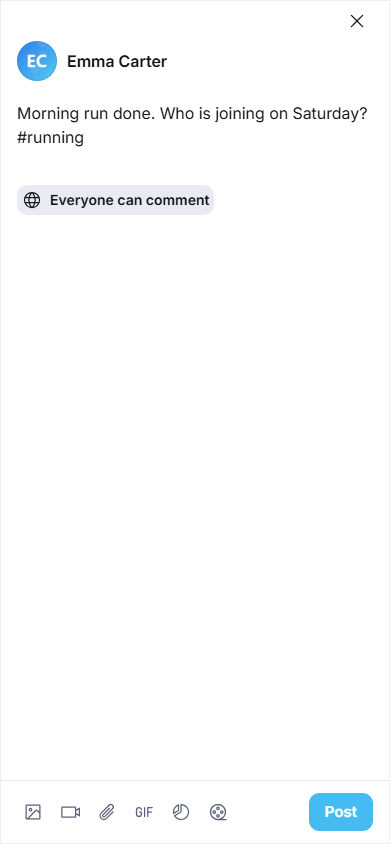
What you should see: the post box opens, with your name, a text area and a row of icons at the bottom.
- Type your text. Type
#followed by a word to add a hashtag, and@followed by a name to mention someone; the site suggests matching hashtags and people as you type. - Add something to the post if you like, with the icons at the bottom (see the table below).
- Under Who can comment?, keep Everyone or choose another option (see Who can comment).
- Click Post.
What you should see: "Your post has been shared." and your post at the top of your feed. A post with a video that still has to be converted shows "The video in your post is being processed. We will send you a notification when it is done."; you get a notification when the post is published.
| Icon | What it adds |
|---|---|
| Photo | photos, up to 10 per post after installing. Drag the small pictures to change their order. You can also paste a picture or drop image files on the box |
| Video | one video. Only shown when your site can process video (FFmpeg) |
| File | documents such as PDF or Word files (see Files and the Documents page) |
| GIF | an animated picture from GIPHY; it is added like a photo. It finds pictures only once the admins have entered a GIPHY key (see Post settings) |
| Emoji | an emoji at the cursor |
| Create poll | a poll (see Polls) |
| Create Vibb | opens the short-video editor instead (see the Vibb page) |
- One kind per post. A post holds photos, or one video, or files, or one link, or a poll. Once you add one kind, the icons for the others disappear; remove what you added to get them back.
- Watermark: if the admins switched on the photo watermark, the photos you add carry it; videos do not (see Photo watermark).
- Links: when you type or paste a web address, the site adds a preview card of that page. Click the cross on the card to remove it; the address stays in your text.
- Photos and videos also show a Content Warning tick box (see Marking a post as sensitive) and, for creators, the paid-content option (see the Paid content page).
- Closing the box with text in it asks "You haven't finished your post yet. Do you want to leave without finishing?". The text comes back the next time you open the box, until you reload the page.
- Posting in a group or an event uses the same box, opened from the group's or event's own feed; see the Groups and Events pages. To post as a business page you manage, switch to the page first; see Switch to your page and back.
Limits on posts#
Two kinds of settings limit what members can post. Where both set a limit, the lower one applies.
| Where | What it limits | After installing |
|---|---|---|
| AdminCP → Site Settings → General Configuration → Post (see Post settings) | characters per post, photos per post, files per post and file types, GIFs | 63206 characters, 10 photos, 10 files |
| AdminCP → Site Settings → General Configuration → FFMPEG Configuration (see FFmpeg and Imagick on the server) | Video duration: the longest video, for everyone, super admins included | 60 seconds |
| AdminCP → Users → Manage User Roles → Permissions, box Post (see The permissions of a member role) | Max characters per post, Max video size (duration - seconds) can upload, polls, posts and comments per day | for the Member role: 1500 characters, 60 seconds of video, no daily limit |
So after installing, members of the Member role can write up to 1500 characters per post. A longer post is refused with "You only can share a post that has max 1500 character(s)." To allow longer posts, raise Max characters per post in the role's permissions. The role limit counts the space the text takes, not the letters you see: an accented letter, a letter of a non-Latin script or an emoji counts as 2 to 4. If your members write in such languages, raise the limit. Super admins and moderators are not held to role permissions, but the site-wide limits above (such as Video duration) apply to them too. Videos also need FFmpeg on your server.
Like, comment and share#
Under each post is a row of buttons. They show a number, not a word: the number of likes, of comments, and so on.
- Like (the heart): click it to like the post, click again to unlike. The red heart at the right of the row opens the list of people who liked the post.
- Comment (the speech bubble): opens the comments. Write in Add comment and click Post. A comment can have an emoji, a GIF and photos (up to 10 after installing), and up to 8000 characters. Under a comment, Like likes it and Reply answers it; View replies shows the answers. The button is missing when you may not comment (see Who can comment).
- Share (the arrow): Copy link; Share to your profile (posts it again on your profile with your own message); Mail (sends it to up to 10 e-mail addresses with a message); Share to social networks (LinkedIn, Facebook, Twitter); and Send Message (to people or one of your lists). Posts in groups and events, and posts that are themselves shares, have no Share button.
- Bookmark (at the right): saves the post for later (see Bookmarks).
Above the buttons, next to the time of the post, [number] views opens the post's statistics: Impressions (how often it was seen) and Engagements (likes plus comments). Click the time of a post to open it on its own page. When the admins have set up automatic translation, See translation appears under text written by someone else (see What members see on the translation page).
Edit, delete or report a post#
Click the three dots at the top right of a post. The menu shows only what you may do with that post:
| Menu item | What it does |
|---|---|
| Edit Post | changes the text of your post. Photos, videos, files and poll options cannot be changed; delete the post and share a new one instead. An edited post shows (edited); click it, or View Edit History, to see the earlier versions |
| Delete Post | removes your post after you confirm |
| Report | reports someone else's post to the admins (see How members report) |
| Turn on Notifications, Stop Notifications | whether you are notified about new activity on this post |
| Change Who Can Comment, Turn off commenting | see Who can comment |
| Change Content Warning Setting | see Marking a post as sensitive |
| Pin to my profile, Pin to home page | see Pinning posts |
The comment menu works the same way: Edit Comment, Delete Comment, View Edit History and Report. Members can edit and delete their own comments only, also on their own posts.
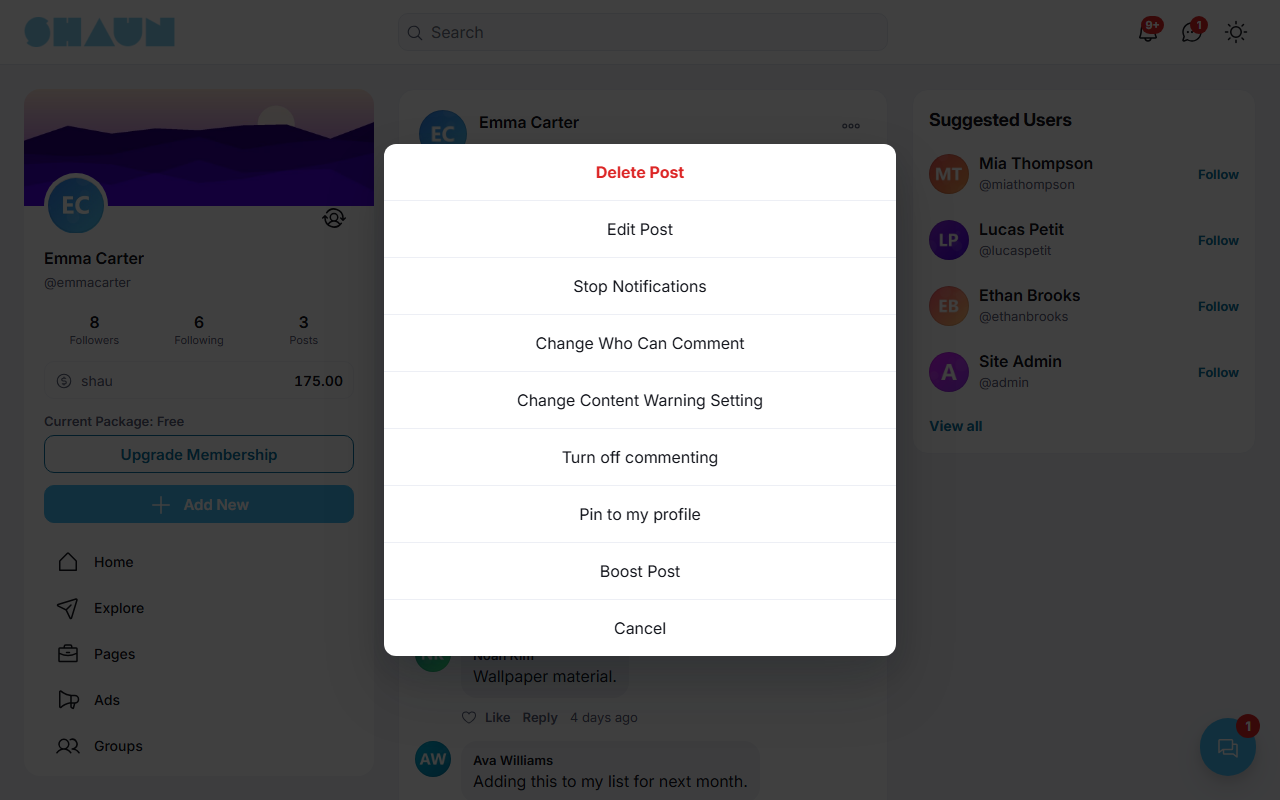
Super admins and moderators see more in these menus: they can edit and delete any post and any comment, turn off commenting on any post, and comment on any post whatever its settings. Use this to deal with a single post quickly; reports are handled in the Moderation Center (see the Moderation page).
Discovery and Explore#
Last updated: 2026-11-17 · v1.5.6
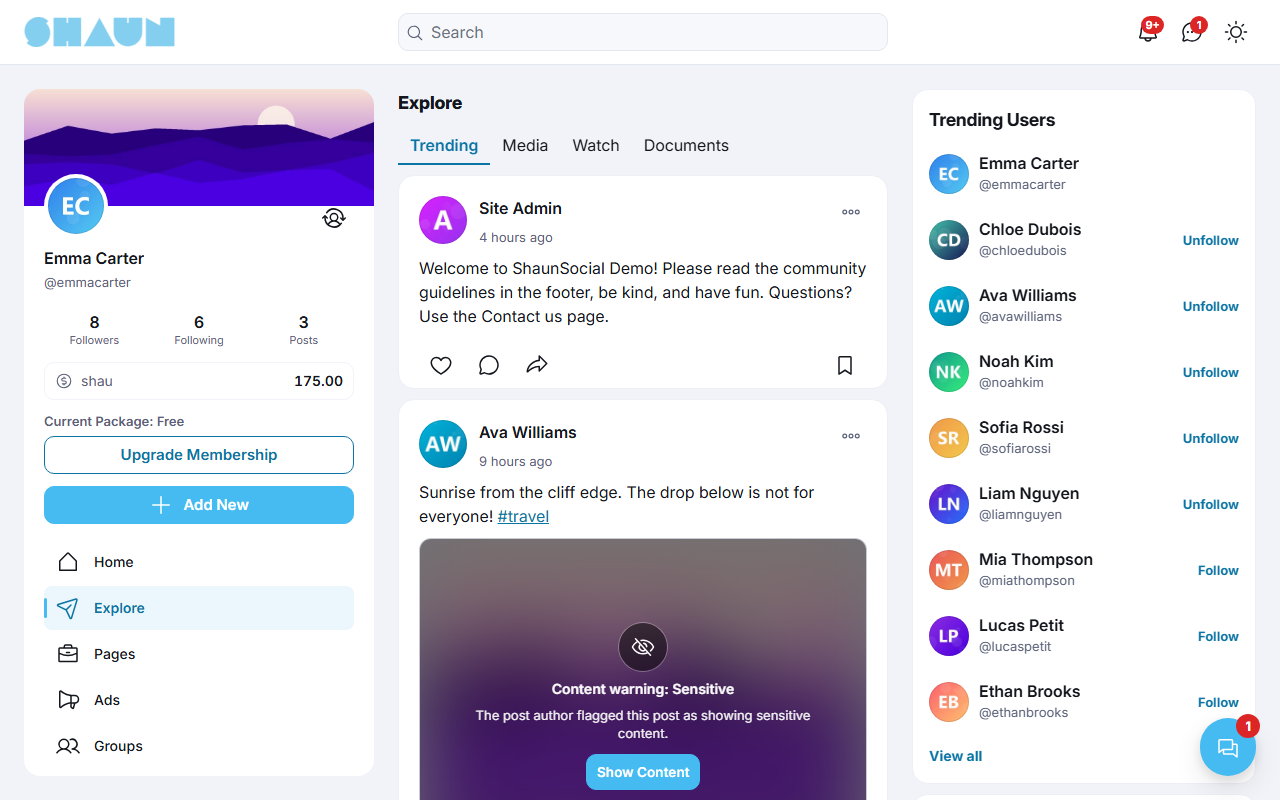
Explore in the main menu is where members find posts from outside their own circle. It has four tabs:
| Tab | What it shows |
|---|---|
| Trending | the most popular posts of the community |
| Media | photo and video posts, shown as pictures (see Watch and Media) |
| Watch | video posts (see Watch and Media) |
| Documents | posts with files (see Files and the Documents page) |
- How posts are ranked: every like and every comment counts as a point, and each day of age takes 10 points away. A post that collects likes and comments stays near the top for a few days, then makes room for newer ones.
- Which posts: posts on profiles from the last 120 days (the same limit as the home feed). Posts in groups and events are not included, and neither are the automatic "created a new listing" and "created a new event" posts or marketplace review posts. A member sees the posts of members whose privacy is Everyone, plus the posts of the people they follow and their own.
- Visitors: people who are not signed in can open Explore too, at
https://example.com/explore; they see the posts of members whose privacy is Everyone. With Force Login on, they are asked to sign in.
The separate Discovery, Watch, Media and Documents pages#
Each Explore tab also exists as a page of its own: Discovery (the same as Trending), Watch,
Media and Documents, at /discovery, /watch, /media and
/documents. Their menu items are in the Main Menu but switched off after installing, because Explore already
shows them. Switch one on if you want it as its own menu entry (see Menus). Each of
these pages can have its own blocks in the Layout Editor.
Watch and Media#
Last updated: 2026-11-17 · v1.5.6
- Watch (Explore → Watch) lists video posts as normal posts, ranked like Trending: the videos with the most likes and comments of the last days first.
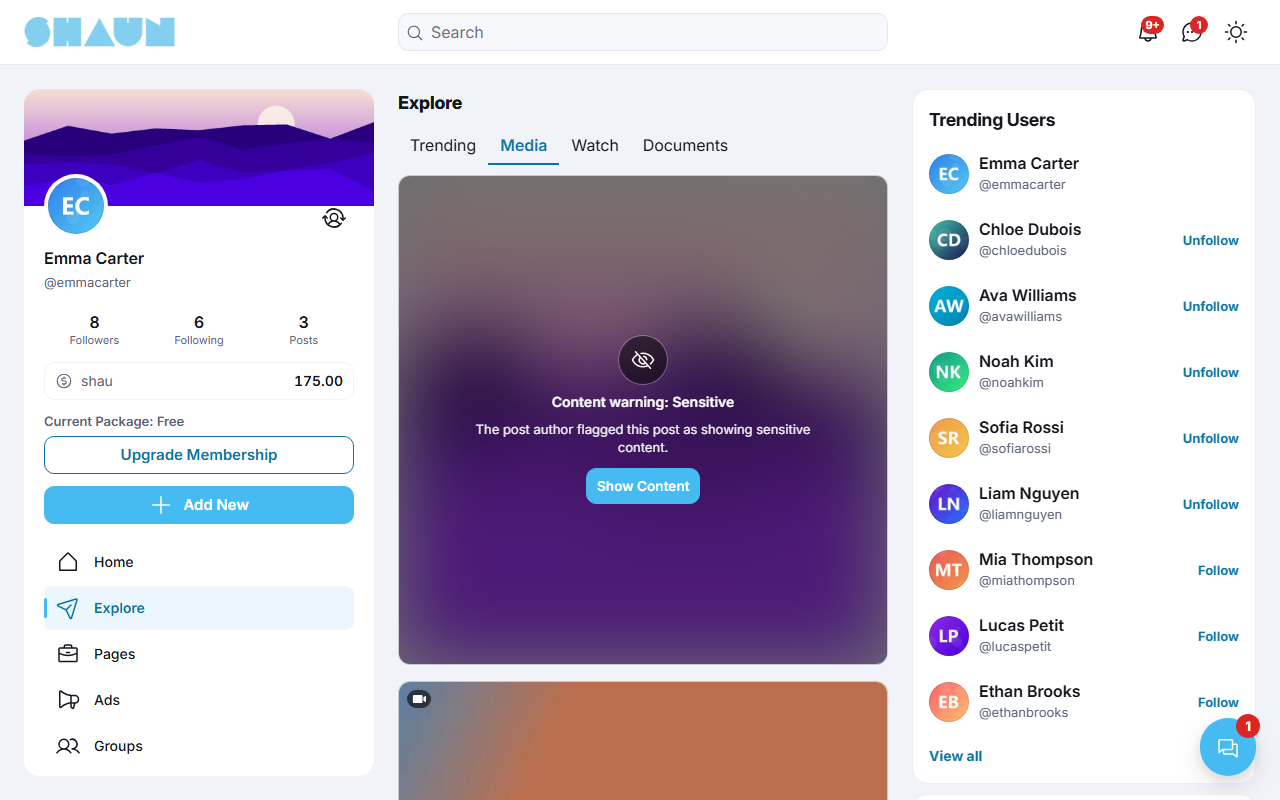
- Media (Explore → Media) shows photo and video posts as large square pictures without their text, ranked the same way. On a computer screen of usual width that is one picture per row in the centre column; where the column is wider, two or more sit side by side. A small camera icon marks a video; pointing at a picture shows its number of likes and comments. Click a picture to open the post.
Both follow the same rules as Trending: posts on profiles from the last 120 days, from members whose privacy allows you to see them. Videos only exist on your site if it can process them: the Video button appears in the post box only when FFmpeg is set up and switched on (see FFmpeg and Imagick on the server). Whether videos start playing by themselves is each member's choice in Settings → Display → Video autoplay; a video behind a content warning never starts by itself.
Polls#
Last updated: 2026-11-17 · v1.5.6
Share a poll#
- Open the post box and click the Create poll icon (a pie chart) at the bottom. It is there while the post
has no photo, video, file or link.
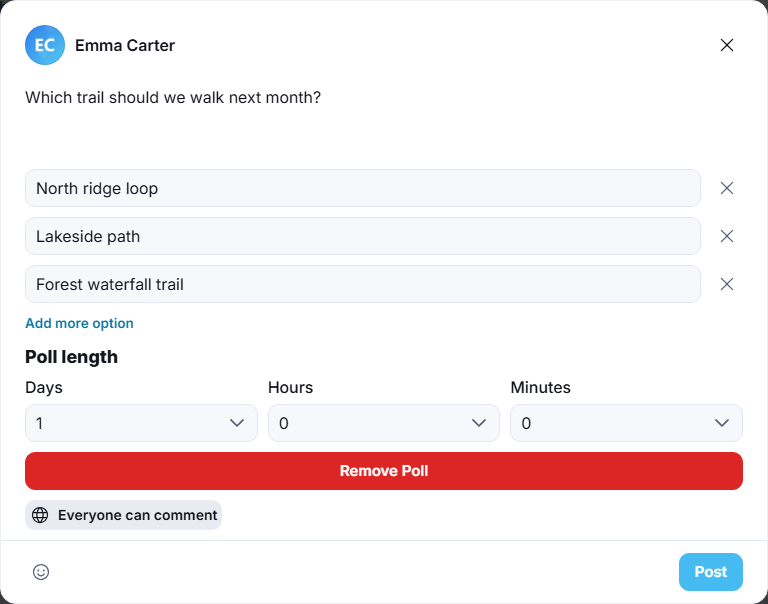
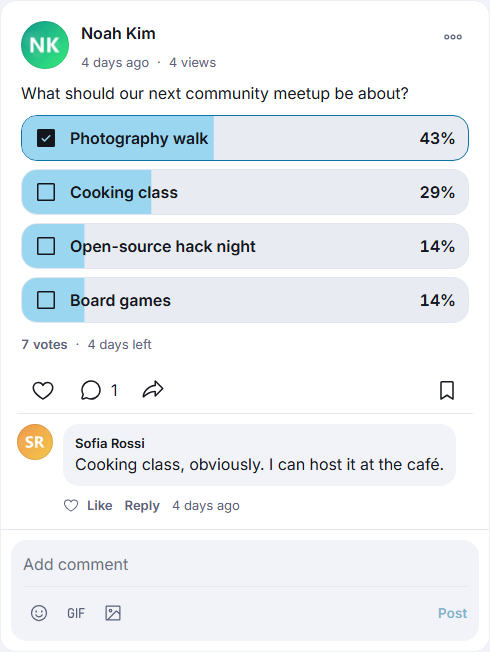
What you should see: two empty options, Option 1 and Option 2, and Poll length.
- Type your question in the text area; a poll needs one.
- Fill in the options. Add more option adds another; the cross next to an option removes it. An option can be up to 255 characters.
- Under Poll length, choose how long the poll stays open with Days, Hours and Minutes (1 day is chosen). When you pick the highest number of days, hours and minutes are set to 0.
- Click Post.
Remove Poll turns the post back into a normal post. The options and length cannot be changed after posting; only the question text can be edited.
Vote and see the results#
- Click an option to vote. Each member has one vote: clicking another option moves your vote, clicking your own option again takes it back.
- The results (a percentage per option) appear once you have voted, or for everyone when the poll has closed. Click a percentage to see who chose that option.
- Under the options you see the number of votes and the time left, for example "2 days left"; a closed poll shows Final results and accepts no more votes.
- A poll with more than five options shows the first five and See All.
Who can create polls#
| Permission | Member role after installing | What a member sees when refused |
|---|---|---|
| Allow poll creation | on | "You don't have poll creation permission." |
| Maximum number of options that can be created for a poll | 5 | "You only can share a poll that has max 5 option(s)." |
| Maximum number of days allowed to be selected when creating a poll | 7 | the Days list stops at this number |
Change the messages with the pencil icon under each permission (see The permissions of a member role).
Files and the Documents page#
Last updated: 2026-11-17 · v1.5.6
Attach files to a post#
- Open the post box and click the File icon (a sheet of paper). It is there while the post has only text or files.
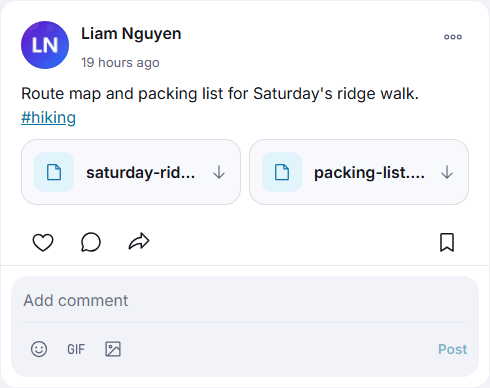
- Choose one or more files. Each file appears as a box with its name; the cross removes it.
- Write a few words about the files if you like, and click Post.
In the feed each file shows as a box with its name; click it to download the file. After installing a post can carry
up to 10 files of these types: txt, doc, docx, csv,
xls, xlsx, ppt, pptx, pdf, ai and
psd. A file post cannot also have photos, a video or a poll.
The Documents page#
Explore → Documents lists the posts with files, ranked like Trending (see
Discovery and Explore), with the same privacy rules. It is also a page of its own at
/documents, whose menu item is off after installing.
Settings for files#
Switch file posts on or off, and set the allowed types and the number of files per post, here (see Post settings). The size of each file is limited by Max upload size per file (Mb) in General Settings. While Allow to attach files to the post is off, the File icon disappears; posts that already have files keep them.
Markdown formatting#
Last updated: 2026-11-17 · v1.5.6
Posts, comments, replies and vibb captions understand Markdown: a few simple signs in your text become bold words, lists, links and so on when the post is shown. You type the signs in the normal text area; there is no toolbar. Line breaks you type are kept as they are.
| You type | Readers see |
|---|---|
**bold** | bold |
*italic* | italic |
~~crossed out~~ | |
# Heading at the start of a line (with a space after #) | a heading. #word without a space stays a hashtag |
- item or 1. item at the start of lines | a bulleted or numbered list |
> text at the start of a line | a quotation |
[our website](https://example.com) | a link named "our website"; it opens in a new tab |
`code`, or lines between ``` and ``` | code in a fixed-width font |
a table made of | and - | a table |
$a^2 + b^2$, or a formula between $$ and $$ | a mathematical formula |
lines between ```mermaid and ``` | a diagram drawn from the description |
- HTML code typed into a post is shown as text, not run.
- A long post is cut after about 200 characters, with See more to read the rest.
- Markdown works in posts, comments, replies and vibb captions only. Group and page descriptions, profile texts and the other text fields show the signs as they are typed.
Marking a post as sensitive#
Last updated: 2026-11-17 · v1.5.6
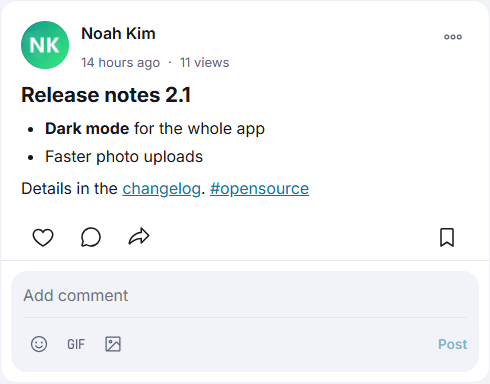
A content warning hides the photos or video of a post behind a blur until the reader chooses to see them. Use it for pictures some people may not want to see, such as violence or nudity. It is available for photo and video posts.
- In the post box, add your photos or video.
What you should see: a Content Warning tick box under the pictures.
- Tick Content Warning. The box "Put a content warning on this post" opens with the categories.
- Tick one or more categories, for example Violence. At least one is needed; otherwise the post is refused with "User must select at least 1 category."
- Click Post.
What other members see: the pictures are blurred, with "Content warning:" followed by the categories you ticked, "The post author flagged this post as showing sensitive content." and a Show Content button. After showing the content, the eye icon at the top right hides it again. The text of the post is never hidden.
Change it later: open the three-dot menu of your post and choose Change Content Warning Setting, tick or untick categories and click Save. To remove the warning, untick Content Warning itself and click Save; with Content Warning still ticked, at least one category is needed ("User must select at least 1 category.").
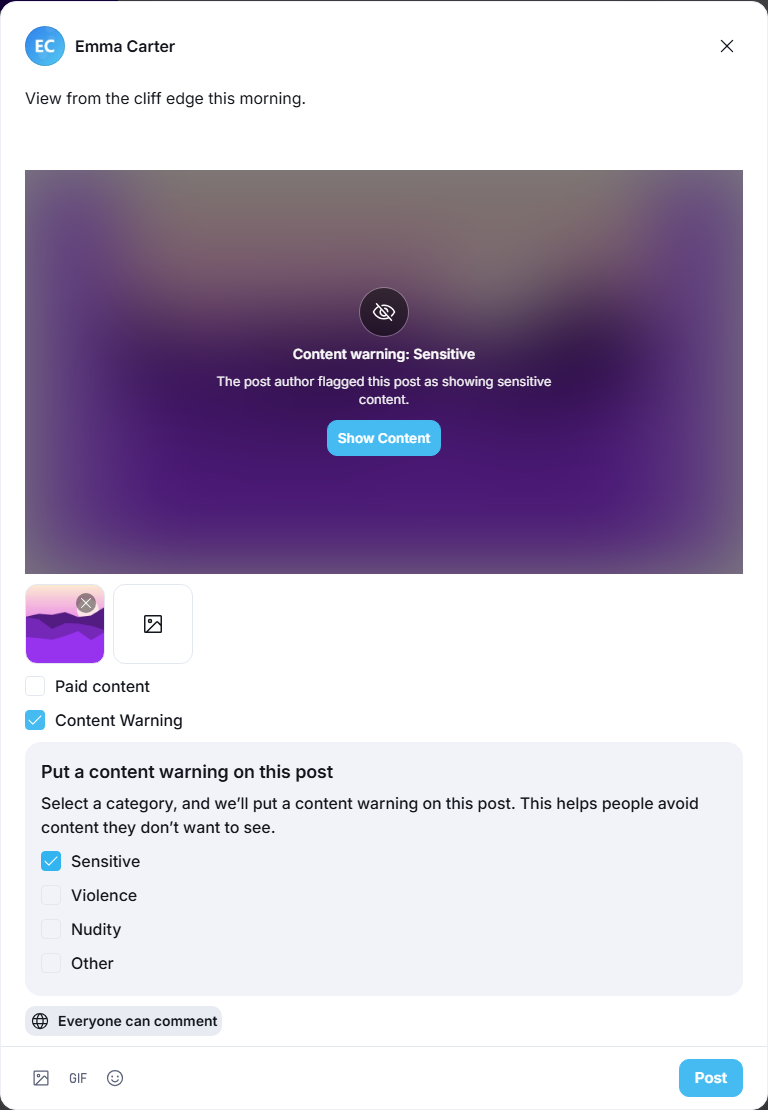
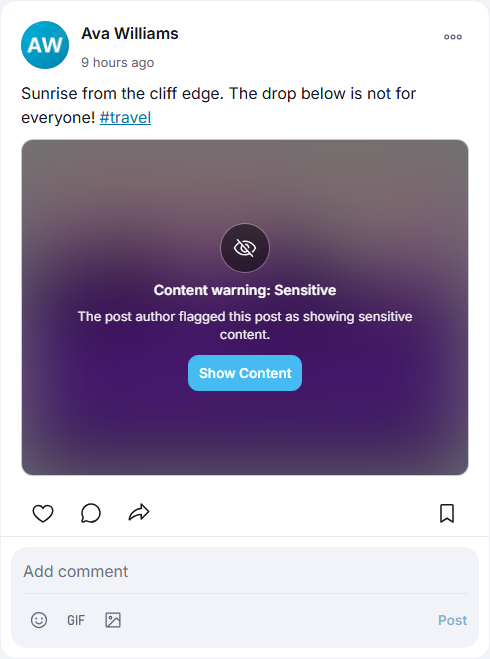
The categories (after installing: Sensitive, Violence, Nudity and Other) are managed by the admins in AdminCP → Site Settings → Manage Content Warning Categories (see Content warning categories).
Pinning posts#
Last updated: 2026-11-17 · v1.5.6
A pinned post stays at the top of a list, above newer posts, marked Pinned.
Pin a post to your profile#
Open the three-dot menu of one of your posts and choose Pin to my profile. The post moves to the top of your profile; "Post is pinned to profile." confirms it. Unpin from my profile puts it back in its place. You can pin several posts; the most recently pinned comes first. Posts you shared in a group or an event cannot be pinned to your profile.
Pin a post to everyone's home page#
Super admins and moderators see Pin to home page in the three-dot menu of any post that is not in a group or an event. The post then appears first in every member's home feed, above the newest posts, as long as the member may see it (the author's privacy still applies). Use it for announcements. Unpin from home page removes it. A pinned post stays at the top even when it is older than the home feed's day limit; unpin it when it is no longer news.
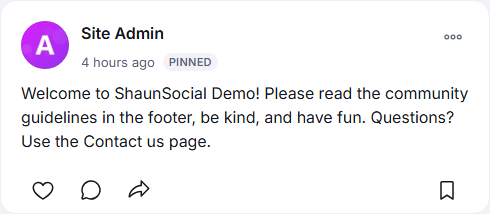
Inside a group or an event, its admins see Pin Post instead, which pins the post at the top of that group's or event's feed; see the Groups and Events pages.
Hashtags and people pages#
Last updated: 2026-11-17 · v1.5.6
Follow a hashtag#
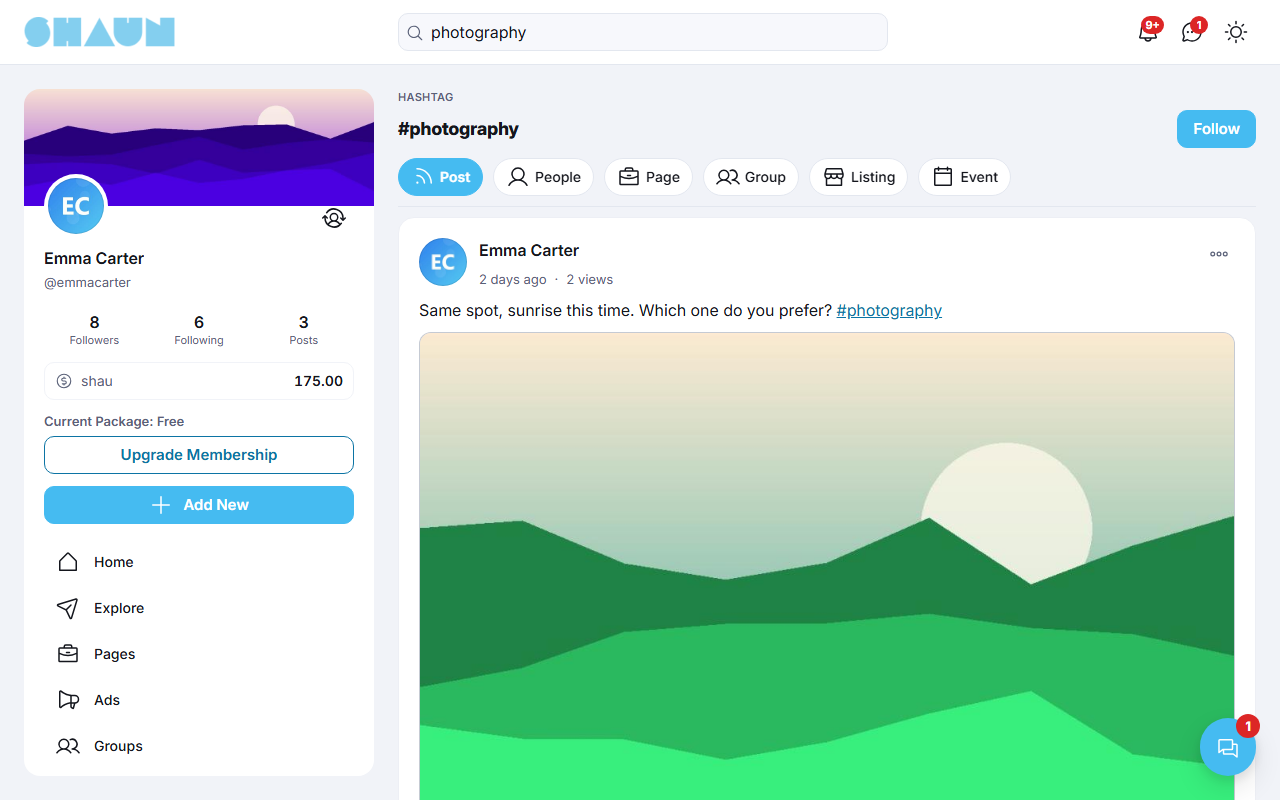
A word starting with # in a post becomes a link. Click it to open the hashtag's page: the hashtag as the
title, a Follow button, and the tabs Post, People, Page and so on with everything
that uses it. Following a hashtag:
- puts public posts with that hashtag in your home feed when the site shows Updates from following members and hashtags (see What the home feed shows);
- helps the site suggest people to you (see below);
- adds it to Lists → Tags, where you can unfollow it again.
The tags and people pages#
The blocks Suggested Hashtags, Trending Hashtags, Suggested Users and Trending Users (shown where the admins placed them, usually beside the feed) each end with View all, which opens a full page with a search box:
| Page | What it lists |
|---|---|
| Tags for you | hashtags from posts you have opened, that you do not follow yet |
| Trending Tags | the hashtags used most in recent posts |
| Users for you | people who post with hashtags you follow and whom you do not follow yet; when there are not enough of them, the most-followed members |
| Popular Users | the members with the most followers |
Each row has a Follow button. These pages are for signed-in members.
Settings for hashtags#
- Hashtag trending setting (days) (60 after installing) and Hashtag suggestion setting (days) (60) in AdminCP → Site Settings → General Configuration → General Settings set how many recent days count (see The other General Settings).
- New hashtags are active at once. To approve each one first, untick Auto approve new hashtag and switch hashtags on in AdminCP → Site Settings → Manage Hashtags (see Hashtags). An inactive hashtag is left out of trending, suggestions and hashtag search.
- The blocks are placed, titled and removed in AdminCP → Design → Layout Editor (see Layout editor).
Bookmarks#
Last updated: 2026-11-17 · v1.5.6
A bookmark saves a post so you can find it again later. Only you see your bookmarks; the author is not told.
- Under a post, click the bookmark icon at the right of the button row.
What you should see: the icon fills in.
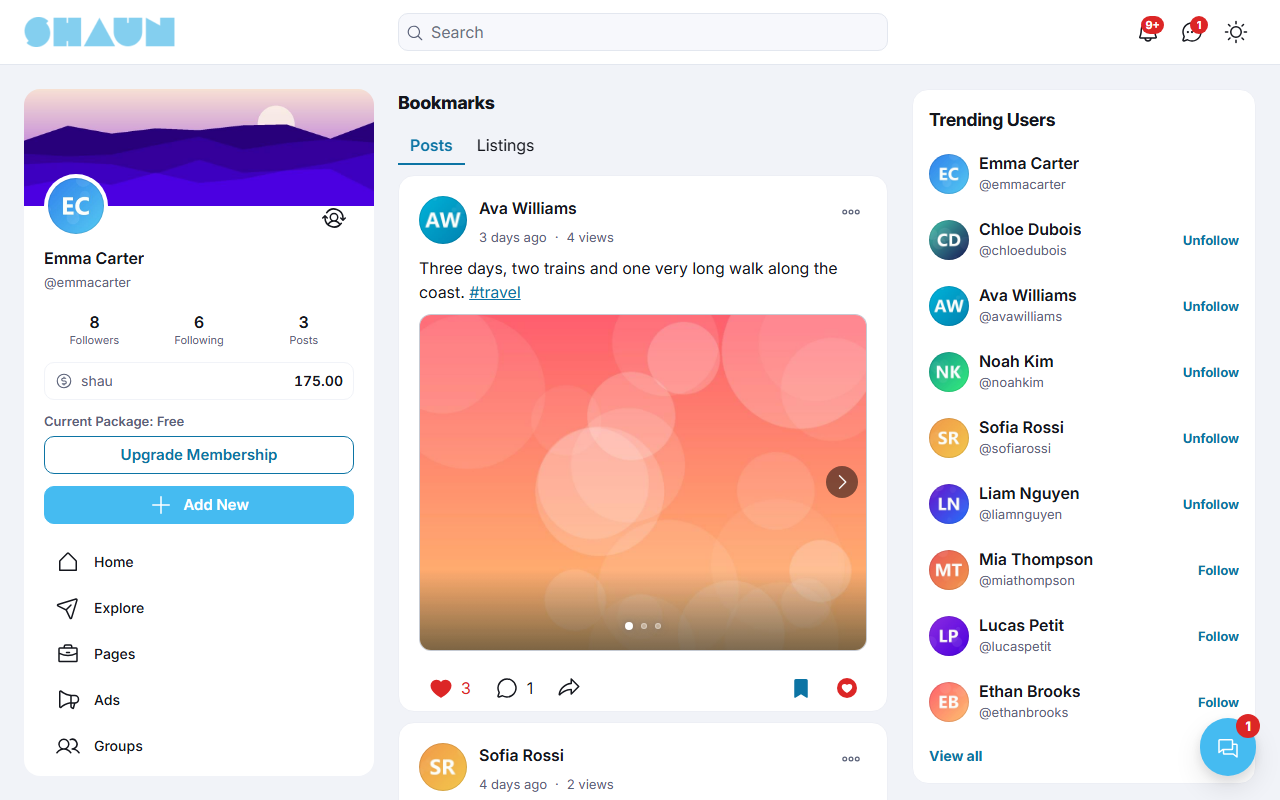
- To see your saved posts, open Bookmarks under Profile Menu in the left menu
(
https://example.com/bookmarks). - To remove a bookmark, click the filled icon again.
The Bookmarks page has a Posts tab and, with the Marketplace on, a Listings tab for saved listings. Other features and plugins can add tabs of their own.
Lists#
Last updated: 2026-11-17 · v1.5.6
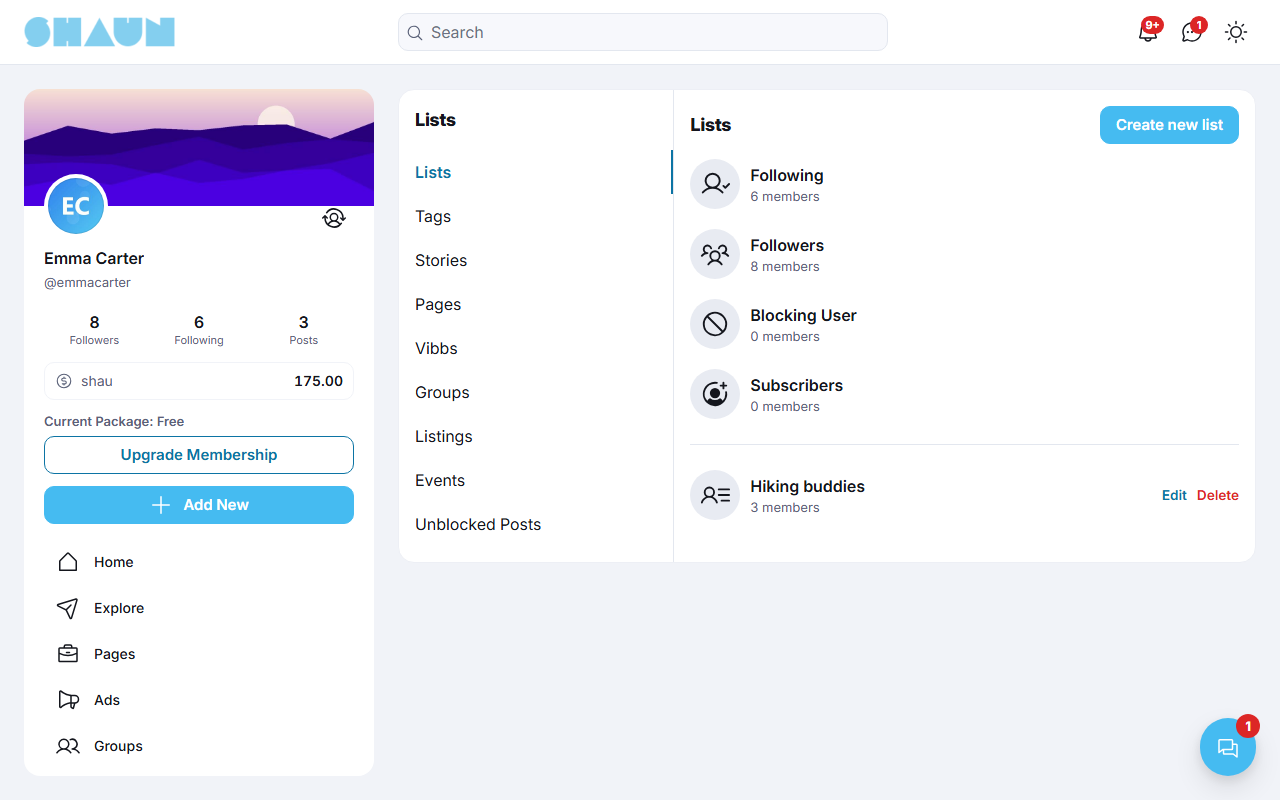
Lists under Profile Menu (https://example.com/lists) gathers the people and things you
are connected to. Its menu:
| Menu entry | What it shows |
|---|---|
| Lists | Following, Followers, Blocking User (people and pages you blocked, with Unblock) and Subscribers (people subscribed to you as a creator), each with its number; below them, your own lists |
| Tags | the hashtags you follow |
| Stories | your stories |
| Pages, Vibbs, Groups, Listings, Events | your business pages, vibbs, groups, listings and events, each shown only while that feature is on |
| Unblocked Posts | paid posts you have unlocked, while Paid content is on |
Make your own list of people#
- Open Lists and click Create new list, enter a List Name and click Save.
- Click the list, then Add Member; in the Add Members window, search for people and add them.
- Use the list when you send a post with Share → Send Message, or when you create a group chat: the list is offered there, with a Manage Lists link back to this page.
Edit renames a list; Delete removes it. With the Friends plugin switched on, Lists also shows Friends.
Inviting friends#
Last updated: 2026-11-17 · v1.5.6
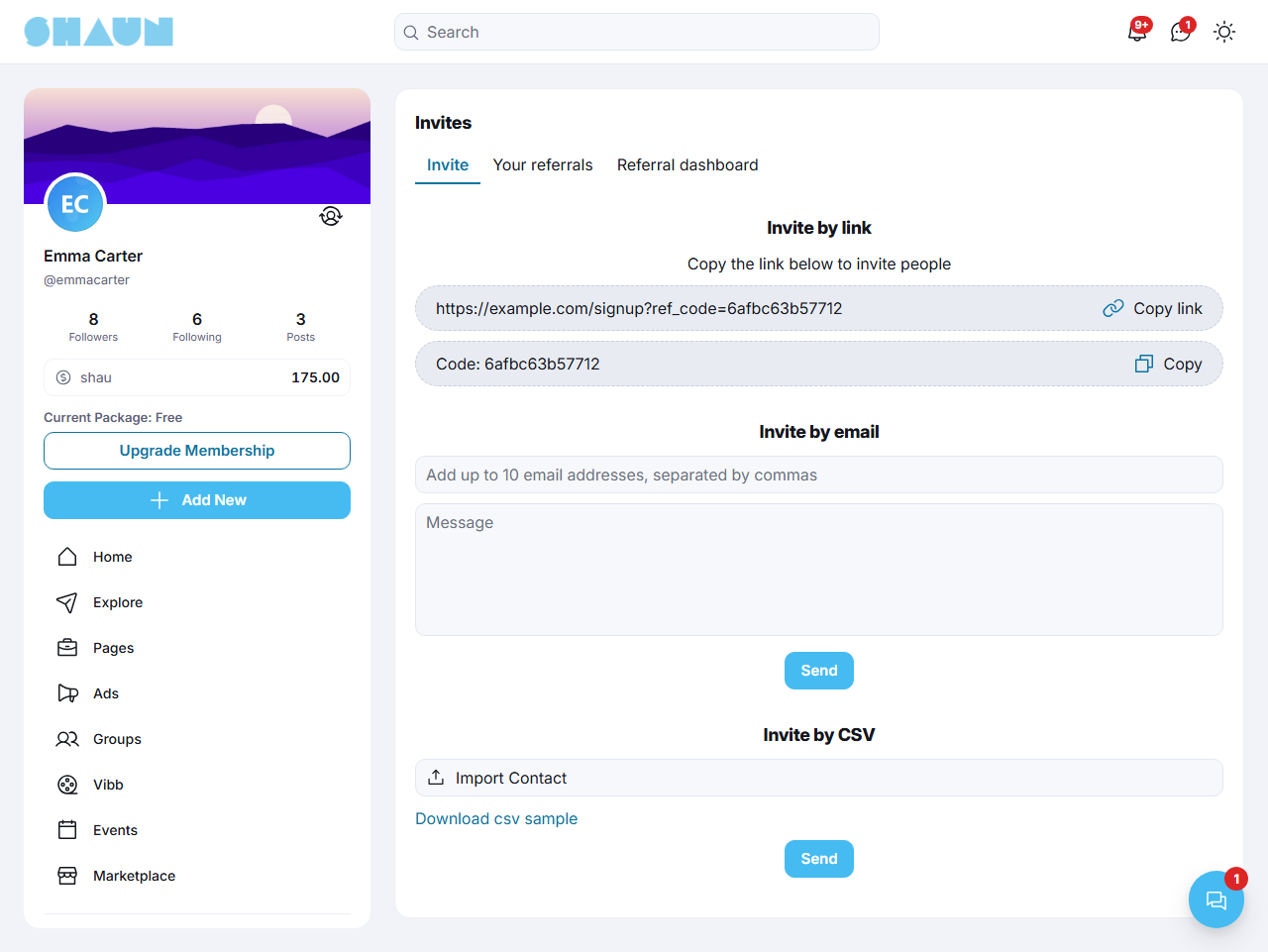
Members invite people from Invite under Profile Menu (https://example.com/invites). The
page has the tabs Invite, Your referrals and, with the eWallet on, Referral dashboard.
Invite people#
- Invite by link: your personal sign-up link, with Copy link, and your Code with Copy. Send them however you like. Someone who signs up through your link or with your code is counted as your referral, follows you automatically, and you get a notification.
- Invite by email: type addresses separated by commas (up to 10 at a time after installing), add a message if you like, and click Send. You see "Your invitation has been sent."
- Invite by CSV: Download csv sample shows the format, one e-mail address per line. Choose your file with Import Contact and click Send.
On an invitation-only site, the link fills in the invitation code on the sign-up form for the person you invite (see Who can sign up).
Your referrals and the referral dashboard#
- Your referrals shows two counters at the top, Sent (invitations sent by e-mail) and Joined (people who signed up with your link or code), and two lists: Invited email list (each address with Email, Last Updated and Status) and Your referrals (the people who joined). Search them by keyword.
- Referral dashboard shows the number of commission Transactions and your total Earning, and your commissions of the last 30 days. Commissions come from features that pay a share to the member who brought a buyer: paid content, membership plans with a referral commission, and featured listings and featured business pages (see the Paid content, Membership, Marketplace and Business pages pages). View all opens them in your eWallet.
Settings for invitations#
- Friend invitation by email setting (10) and Number of invitations that can be sent per day (10) in AdminCP → Site Settings → General Configuration → General Settings limit the e-mails (see The other General Settings). The daily limit covers the CSV import too; above it the member sees "Number of invitations that can be sent per day is 10."
- To stop robots, tick Enable captcha in invite email under Spam & Banning Tools (see Captcha).
- The text of the e-mail is the Invitation template (see The templates: members and activity). Your site must be able to send e-mail (see An outgoing mail account).
- The Invite item of the Profile menu can be switched off in AdminCP → Design → Manage Menus (see Menus).
Notifications and search#
Last updated: 2026-11-17 · v1.5.6
Notifications#
The bell at the top of the page shows how many notifications you have not read, for example when someone likes or comments on your post, mentions you, follows you or replies to your comment. Click it to see the latest ones; click a notification to open what it is about.
- View all notifications opens the Notifications page (
https://example.com/notifications). Mark all as read clears the count. - To stop the notifications about one post, choose Stop Notifications in its three-dot menu.
- Choose which kinds of notifications you get in Settings → Notifications (see the Member account and settings page).
Settings for notifications#
How often an open page checks for new notifications, and how long notifications are kept (120 days after installing), are set in Site Information and General Settings (see Website Settings and The other General Settings). Notifications outside the browser need the Progressive web app set up.
Search#
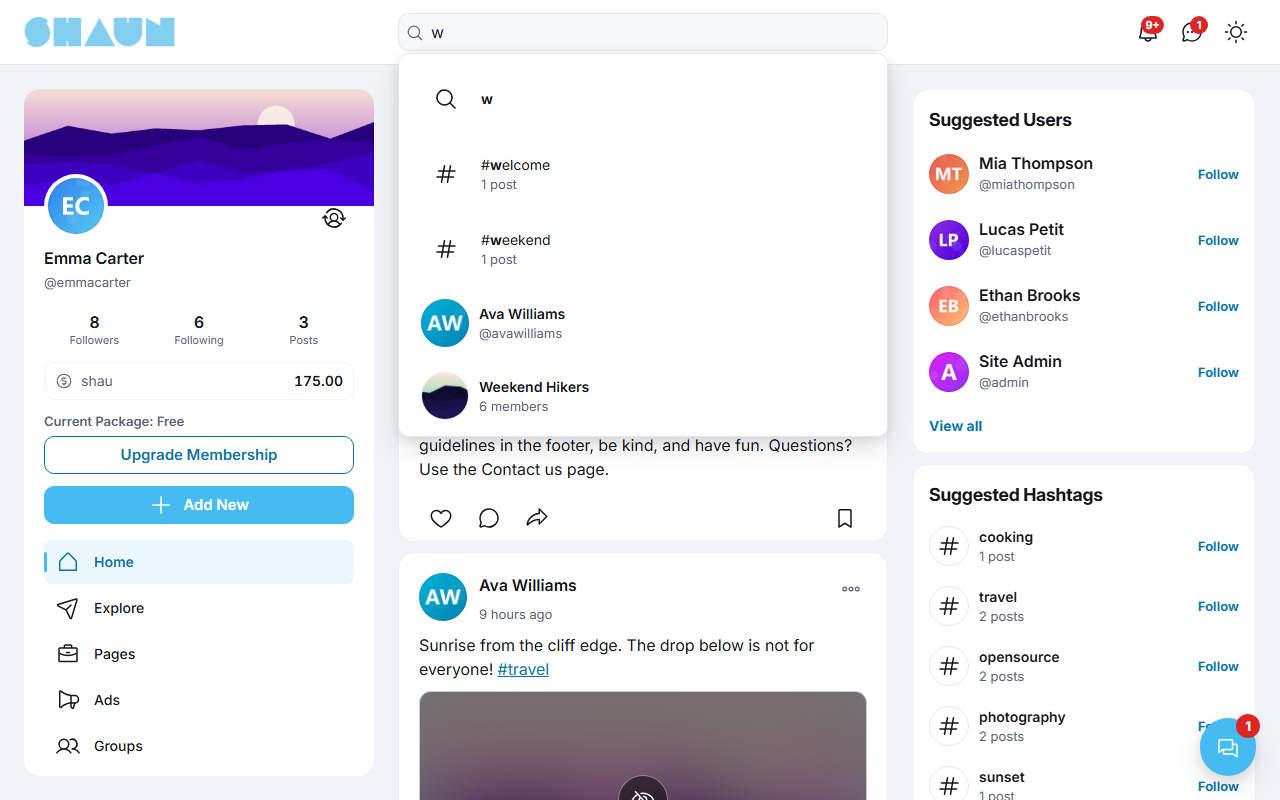
- Click Search at the top of the page. Before you type, your recent searches are listed; the cross next to one removes it.
- Type a word or a name.
What you should see: suggestions as you type: the words themselves, hashtags (with their number of posts), people, business pages, groups, listings and events.
- Click a suggestion, or press Enter to search for the words.
What you should see: the results page with the tabs Post, People, Page and, when those features are on, Group, Listing and Event.
Search shows only what you are allowed to see. Visitors who are not signed in can search too, unless Force Login is on.
Change log#
Last updated: 2026-11-17 · v1.5.6
| Date (GMT+7) | Section | What changed |
|---|---|---|
| 2026-11-17 | all | First version for 1.5.6, written from the 1.5.6 code as a guide for members and site admins. |
| 2026-11-17 | home-feed, discovery-explore, files-documents, markdown, sensitive-content, comment-privacy, lists, invites, notifications-search | Corrections after review: Engagements, removing a content warning, the character counter, the site-wide video duration and how the role limit counts characters, the Friends tab for admins, Your referrals, commission sources, Add Member, vibb captions, review posts in Trending, the GIPHY key; admin parts marked. |
| 2026-11-17 | discovery-explore, watch-media | The Media tab described as large pictures, one per row at the usual width, instead of a grid. |
| 2026-11-17 | home-feed | Link to the new Business pages page for posting as a page. |
Who can comment#
Last updated: 2026-11-17 · v1.5.6
Each post has its own rule for who may comment on it. Choose it under Who can comment? in the post box, before clicking Post. People you mention in the post can always comment, whatever you choose, and so can you.
@in the postSuper admins and moderators can comment on any post and can turn commenting off on any post from the same menu. How many comments a member may write per day is set in the role's permissions (see Per-day limits through role permissions); comment length and photos per comment are in The other General Settings. To make new comments appear without reloading, switch on real-time comments.