ShaunSocial user guide 1.5.6 / Monetisation
Billing
The money settings every paid feature relies on: the real currency your site charges in, the site token (the credits members hold in their eWallet) and its exchange rate, the list of all subscriptions with the actions admins can take on them, the record of the money moving between your site and its members, and the Terms of Service members accept before they pay. Set the currency and the token first, then the payment gateways and the eWallet.
Checked against the 1.5.6 code; the AdminCP screens were compared with a demo site. Cancelling and resuming subscriptions were read from the code, not run; screenshots follow.
Currencies and the site token#
Last updated: 2026-11-17 · v1.5.6
Your site works with two kinds of money:
- The default currency is a real currency (US dollar, euro …). It is what members are charged when they pay through a payment gateway, and what they receive when you pay out a withdrawal. Marketplace prices are also shown in it.
- The site token is the credit members hold in their eWallet. Every price inside the site (feature packages, membership plans, ads, event entry fees) is set in tokens. The exchange rate decides how many tokens one unit of the default currency buys.
Moderators need the Manage Currencies switch in their role (see Moderator roles).
Choose the default currency#
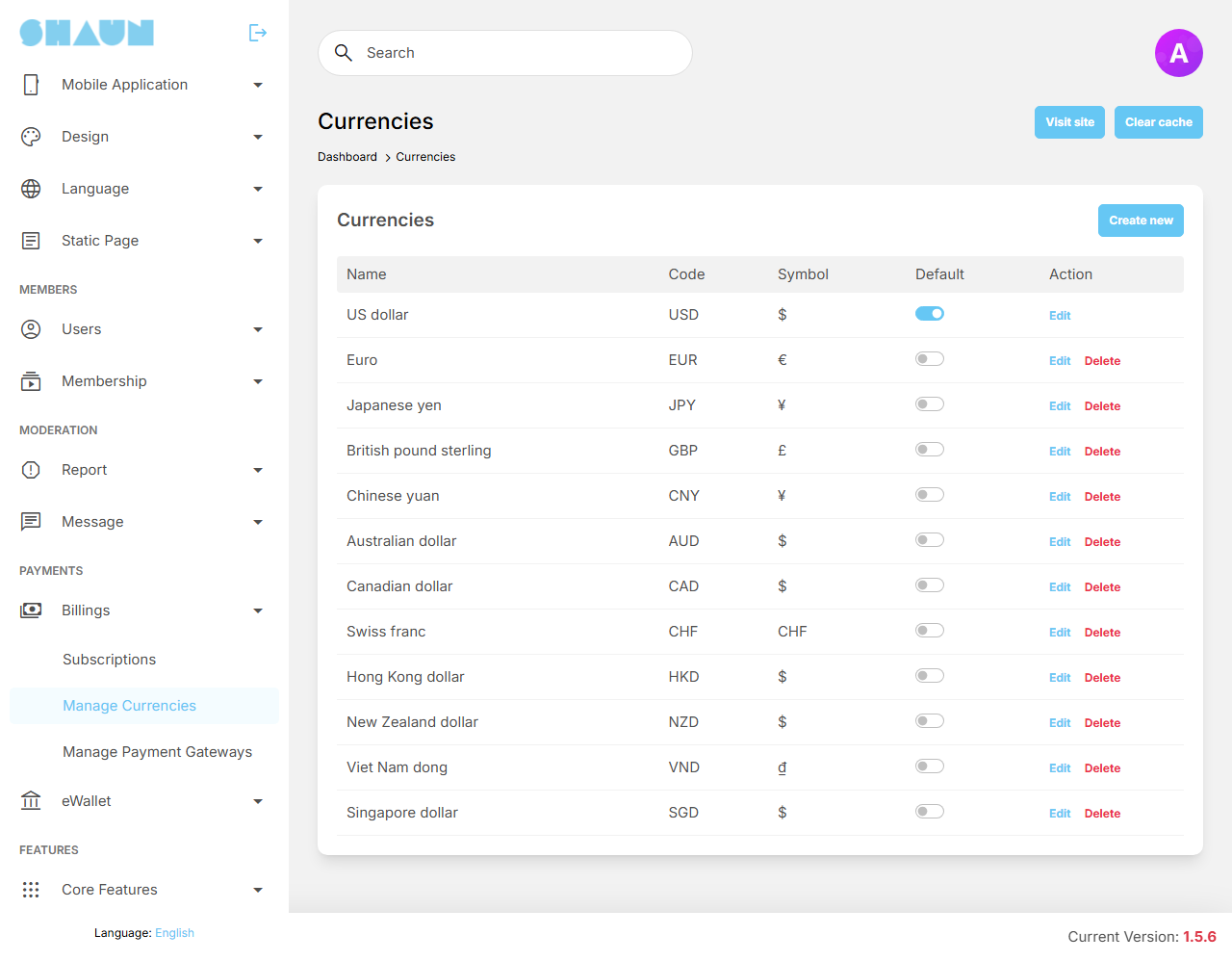
The site comes with 12 currencies: US dollar (the default), euro, Japanese yen, British pound sterling, Chinese yuan, Australian, Canadian, Hong Kong, New Zealand and Singapore dollars, Swiss franc and Viet Nam dong.
- Open AdminCP → Billings → Manage Currencies.
- Switch on Default next to the currency you want.
What you should see: that switch is on and every other one is off. The change is saved at once; there is no Save button.
Only one currency is the default at a time, and the current default cannot be switched off directly: switch on another one instead. Its Delete link is hidden.
Members only see a payment gateway that accepts your default currency. PayPal and Stripe accept most major currencies, but not all the same ones (see Available gateways). If no active gateway accepts your currency, members who try to add funds see "Payment method is not available. Please contact admin for detail".
To add a currency that is not in the list, click Create new and fill in Name, Code (the
three-letter code, for example NGN, which gateways use to recognise it) and Symbol (up to 16
characters), then click Submit. Edit changes the three fields; Delete removes a currency that
is not the default, after you confirm.
Name the token and set the exchange rate#
The settings save as soon as you change them (see Settings save themselves).
| Setting | After installing | What it does |
|---|---|---|
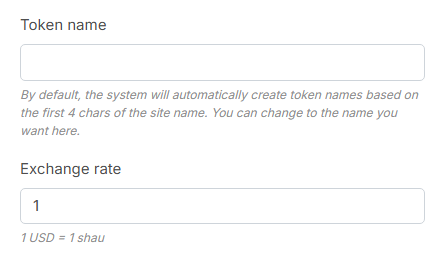
| Token name | empty | the name of the credits, shown next to every amount in the site. Empty uses the first four letters of your site name in lower case (a site called ShaunSocial shows "shau") |
| Exchange rate | 1 | how many tokens one unit of the default currency is worth. The line under the field shows the result, for example "1 USD = 10 shau". Empty or 0 counts as 1 |
An example with US dollar and an exchange rate of 10:
- a member who adds 100 shau to their eWallet pays 10.00 USD through the gateway (amounts are rounded to the cent);
- a featured page package priced at 50 shau costs the member the same as 5 USD;
- a member who asks to withdraw 500 shau is due 50.00 USD, less the withdrawal fee (see the eWallet settings).
Changing the currency, the token name or the rate later applies everywhere at once, but nothing is converted. Balances keep their number of tokens and prices keep their number of tokens, so their value in real money changes. If you change the rate, review your package and plan prices, and the prices of the matching plans at PayPal and Stripe (see Recurring plans).
All subscriptions#
Last updated: 2026-11-17 · v1.5.6
A subscription is anything a member pays for again every period: a membership plan, a featured business page, a featured marketplace listing, or a subscription to a creator's profile (paid content). This screen lists them all; moderators need the Manage Subscriptions switch in their role.
How a subscription renews#
- Paid from the eWallet: when the period ends, the scheduled task takes the price from the member's eWallet (from the page's eWallet for a featured page) and starts the next period. If the balance is too low, the subscription stops at once and the member is told.
- Paid through PayPal or Stripe: the payment provider charges the member and tells your site. The site waits a little longer than the period for that message (12 hours for PayPal, 24 hours for Stripe); if it has not arrived, the subscription stops. When the payment arrives later, the subscription starts again.
- A charge after a subscription ended for good: if PayPal or Stripe still charges a member whose subscription stopped for good (for example because they moved to another plan), the site refuses the payment, stops the billing at the provider and notifies the first admin account (the one created when the site was installed). Refund that payment in your PayPal or Stripe account.
- Reminders: a few days before each renewal the member gets a notification and an e-mail: 5 days before for memberships, featured pages and featured listings, 1 day before for creator subscriptions, after installing (each feature has its own setting). For a subscription paid from the eWallet whose balance is too low, that reminder is replaced by a request to add funds, and a final one can follow 24 hours before the renewal (see eWallet settings).
Renewals, reminders and stops are done by the scheduled task (cron job), every five minutes. Without it, subscriptions are never renewed or ended. See What stops when the cron job does not run.
Find a subscription#
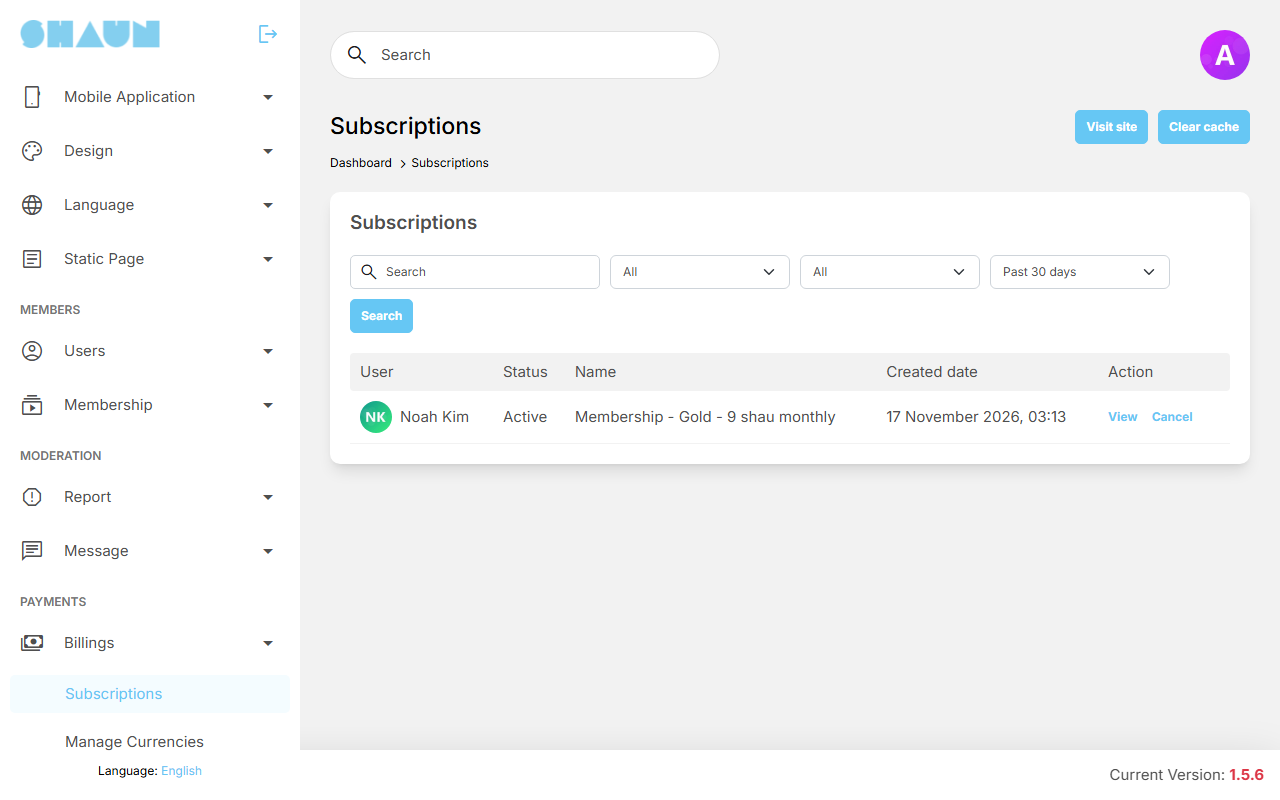
The list shows User, Status, Name (the feature, package and price, for example "Membership - Gold - 9 shau monthly"), Created date and the actions. Filter it with:
- Search: the member's name or user name;
- Status: Init (started through PayPal or Stripe but not paid, or not yet confirmed), Active, Cancelled (runs until its renewal date, then stops) or Stopped (ended);
- Type: Membership, Page feature, Profile subscription or Listing feature;
- Date: when the subscription was created, Past 30 days, Past 60 days, Past 90 days or Custom with a From date and a To date.
The list opens on Past 30 days, counted from the day each subscription was created. To find a member who subscribed earlier, choose Custom and leave both dates empty, then click Search.
View opens the details: the member, the created date, the status and, while it is active, the trial days, Subscription renewal date, You will be charged and Payment method (Wallet, Paypal or Stripe); a cancelled subscription shows Subscription will stop at. Under it, every payment is listed with its date, status, transaction ID and amount.
Cancel or resume a subscription for a member#
- Cancel (on the row or on the details) stops future renewals after you confirm. The member keeps what they paid for until the renewal date, then the subscription stops. Nothing is refunded. For PayPal and Stripe the site also stops the billing at the provider; if the provider refuses, you see "The payment gateway could not cancel this subscription. Please try again later." and nothing changes.
- Resume undoes a cancellation before the renewal date, and renewals go on as before. If PayPal or Stripe refuses, you see "The payment gateway could not resume this subscription. Please try again later."
A member can cancel and resume their own subscriptions, but not one you cancelled: only an admin can resume that. Use this when you change the price of a package and want a member to move to the new price: cancel their subscription, and once it has stopped they subscribe again. Changing a package only affects new subscribers.
Your subscriptions#
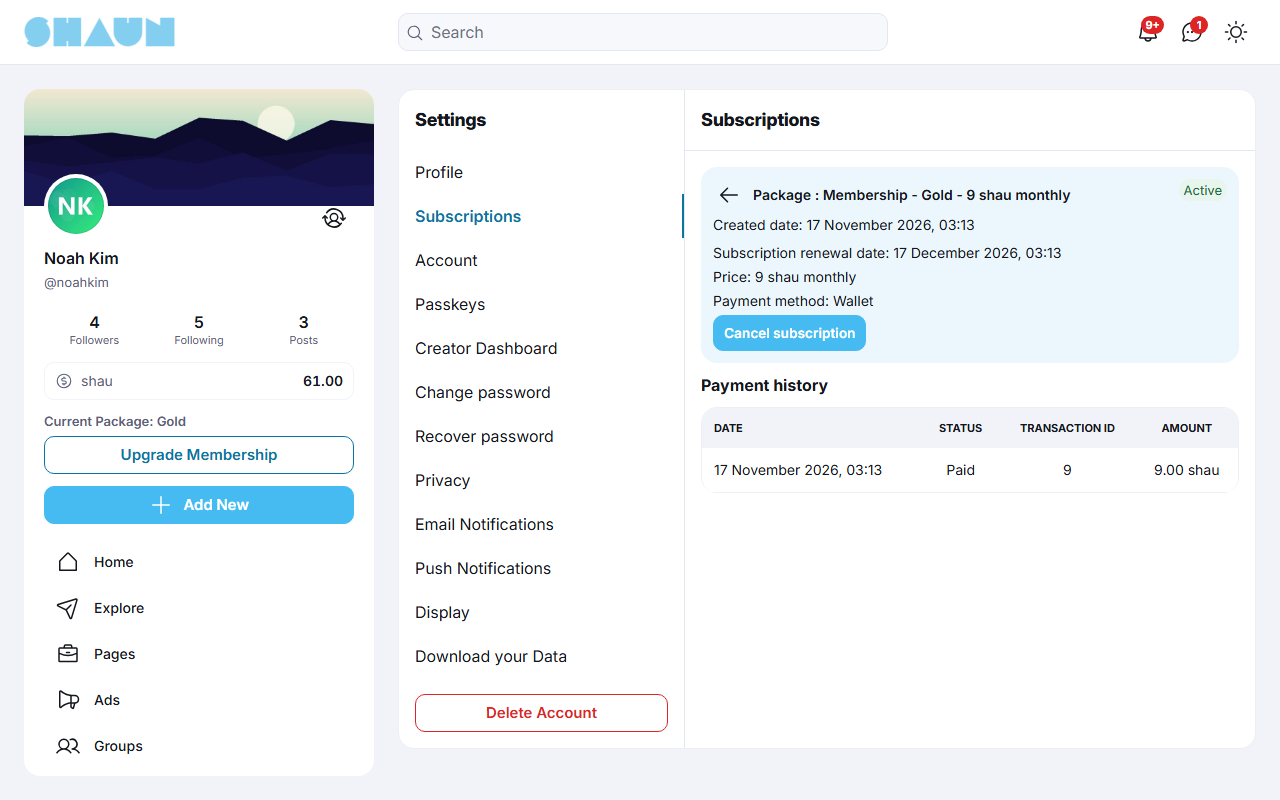
Members find their own subscriptions in Settings → Subscriptions. Filter by Type and by Status (All, Active, Cancel, Stop) and click View to open one. The details show the renewal date, the price, the payment method and the Payment history.
- Click Cancel subscription.
What you should see: "Cancel Subscription?" with the date the subscription ends. Access continues until then, and the remaining period is not refunded.
- Click Cancel Subscription to confirm, or Keep Subscription.
Until the end date you can click Resume subscription to keep it. A business page's subscriptions are under the page's own Settings → Subscriptions, while you are switched to the page.
System's billing activities and wallet transactions#
Last updated: 2026-11-17 · v1.5.6
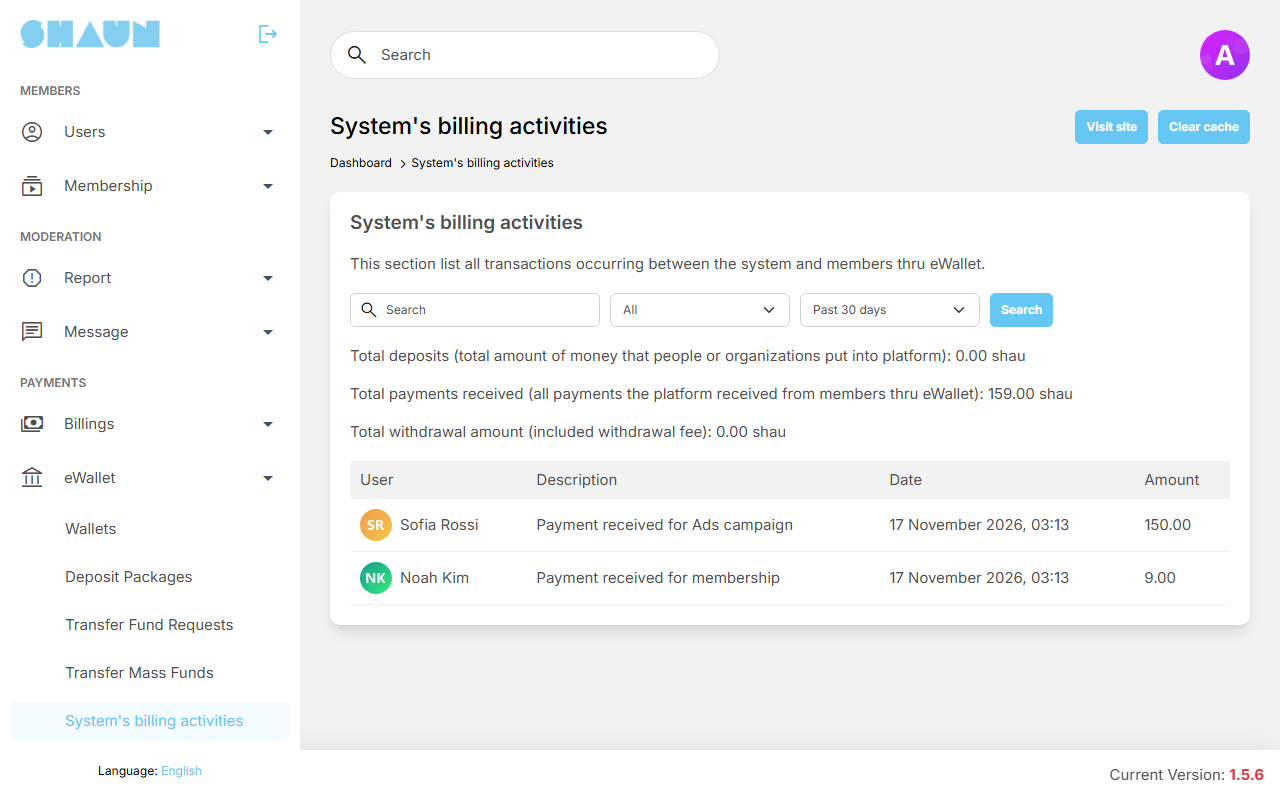
Your site has an account of its own in the eWallet. Every time tokens move between a member and the site, the site's side of it is listed here, newest first, with the User, a Description, the Date and the Amount. Moderators need the System's billing activities switch in their role.
| What happened | Description | Amount |
|---|---|---|
| a member added funds through a gateway, or you sent them funds with Transfer Mass Funds | Deposit funds from [member] | negative: tokens the site put into a member's eWallet (positive when you took funds back with a negative amount) |
| a member paid the site from their eWallet (membership, featured page or listing, ads, paid content fees …) | Payment received for … (the feature) | positive |
| a member asked for a withdrawal | Cast out funds to [member] | positive: the tokens leave the member's eWallet. A rejected request adds the same line with a negative amount, because the tokens go back |
| the site paid a referral commission | Receive referral commission from … | negative |
Filter by member (Search), by type (Deposit, Payment, Withdraw) and by date (Past 30 days when the screen opens, Past 60 days, Past 90 days or Custom). Above the list, three totals add up the lines that match the filters, in tokens: Total deposits (shown as a negative number, by the rule above), Total payments received and Total withdrawal amount (included withdrawal fee).
The money itself is not here: card and PayPal payments are in your accounts at the payment providers, and you pay out withdrawals yourself (see Transfer fund requests). The eWallet of one member is in AdminCP → eWallet → Wallets → Transactions (see Member wallets).
Terms of Service at paid checkout#
Last updated: 2026-11-17 · v1.5.6
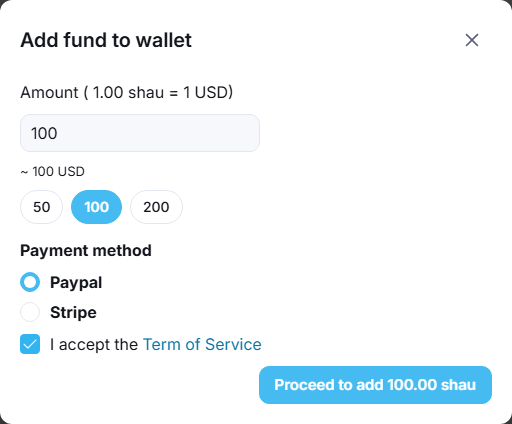
Before a member pays, they tick "I accept the Term of Service"; the button that pays stays greyed out until they do. The box is shown when a member adds funds, sends funds (also in chat), chooses how to pay for a membership, a feature package, a creator subscription or a paid post, and creates or boosts an ad.
The setting Terms of Service in the paid checkout URL (empty after installing) decides where the "Term of Service" link goes:
- Empty: the site's own Terms of Service page. Write your terms there (see Static pages).
- A web address: that page instead, for example terms kept on your company site. Enter the full
address, starting with
https://.
The link opens in a new tab, so the member does not lose what they filled in. See also the other settings of this part in Other general settings.
Change log#
Last updated: 2026-11-17 · v1.5.6
| Date (GMT+7) | Section | What changed |
|---|---|---|
| 2026-11-17 | all | First version for 1.5.6, written from the 1.5.6 code as a guide for site admins and members. |
| 2026-11-17 | currencies, subscriptions | Corrections after review: only PayPal and Stripe are covered; the message an admin sees when PayPal or Stripe refuses a cancel or resume; a charge after a subscription ended for good. |