ShaunSocial user guide 1.5.6 / Monetisation
Payment gateways
A payment gateway is the payment provider (PayPal or Stripe) that takes your members' card or account payments and sends the money to your account with the provider. Members use a gateway to add funds to their eWallet, to pay for a paid post, and to pay for a subscription that renews by itself. This page shows admins how to connect PayPal and Stripe with the keys from the provider's dashboard, how to test before taking real money, and how to link membership plans and feature packages to PayPal and Stripe plans.
Checked against the 1.5.6 code; the gateway list was compared with a demo site that has no gateway keys. Connecting the gateways and paying through them were read from the code, not run. The steps on the providers' side are given in general terms: their dashboards change, so follow the provider's own help for the exact clicks. Screenshots follow.
Available gateways#
Last updated: 2026-11-17 · v1.5.6
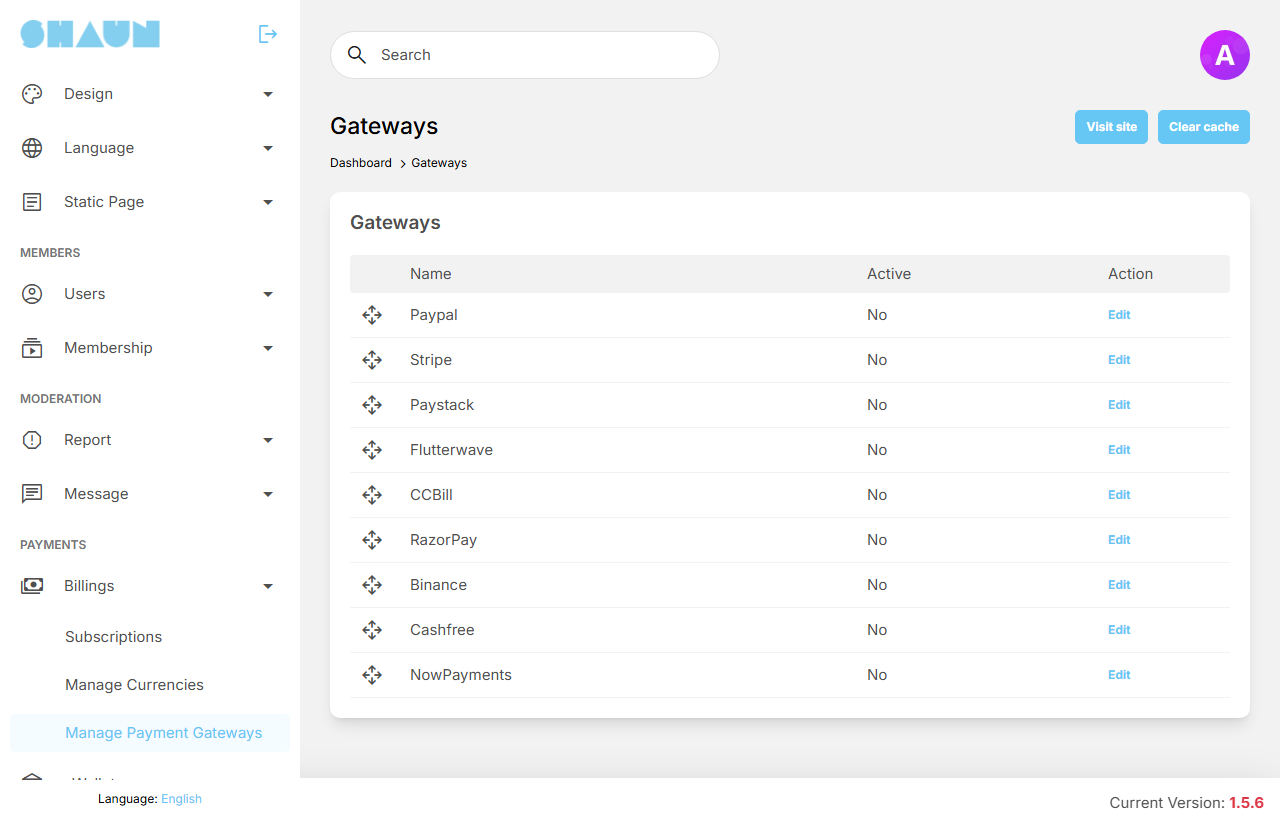
The screen lists the gateways with their Name and whether they are Active. All of them are off after installing. AdminCP lists more gateways than PayPal and Stripe; this guide covers PayPal and Stripe only, so leave the others switched off. Moderators need the Manage Payment Gateways switch in their role (see Moderator roles).
| Gateway | Currencies it accepts | Largest top-up in one payment | Test mode | Renewing subscriptions |
|---|---|---|---|---|
| Paypal | AUD, BRL, CAD, CHF, CNY, CZK, DKK, EUR, GBP, HKD, HUF, ILS, JPY, MXN, MYR, NOK, NZD, PHP, PLN, SEK, SGD, THB, TWD, USD | 5,000 | the Sandbox switch | yes |
| Stripe | AUD, BRL, CAD, CHF, CZK, DKK, EUR, GBP, HKD, HUF, ILS, INR, JPY, MXN, MYR, NOK, NZD, PHP, PLN, RUB, SEK, SGD, THB, TRY, TWD, USD | 5,000 | test keys | yes |
If your site's default currency is the Japanese yen, take payments through PayPal and leave Stripe switched off.
The largest top-up is counted in your default currency: a member who tries to add more in one payment sees "The amount cannot be greater than 5,000.00 USD." and can add the rest in a second payment. The eWallet itself is not in this list: members always see it as the payment method Wallet while the eWallet is on (see the eWallet page).
Which gateways members see#
A member is offered a gateway when it is Active and accepts your default currency (see Currencies and the site token). A site in US dollars or euros can use both; a site in Indian rupees, Turkish lira or Russian roubles only Stripe; a site in Chinese yuan only PayPal. Members see the gateways in the order of this list: drag the rows by their handle to change it. They see the gateway's Name, which you can change, for example to "PayPal" or "Credit card".
Connect a gateway#
- Create an account with the provider and find your keys in its dashboard (see the gateway's own part below).
- In AdminCP → Billings → Manage Payment Gateways, click Edit next to the gateway.
- Copy the Webhook URL shown in the dialog (it cannot be edited) and add it in the provider's dashboard. A webhook is the message the provider sends to your site when a payment succeeds or fails. Without it, a PayPal payment is never collected at all, and a Stripe payment is taken from the member but never reaches their eWallet.
- Paste the keys, switch on Active and click Submit.
What you should see: "Gateway has been successfully updated." and Yes in the Active column. Submit first checks the keys with the provider; if they are wrong you see the provider's error and nothing is saved. This check runs even when you leave Active off.
- Add funds to a test member's eWallet through the gateway while it is in test mode (see
Add funds).
What you should see: after the payment, the transaction in the member's eWallet changes from Pending to Completed and the balance goes up.
What happens when a member pays#
The member chooses the gateway and is sent to the provider's payment page. After paying they come back to their eWallet. A top-up shows as Pending until the provider's webhook confirms it. If the member cancels on the provider's page, it shows as Cancelled; a top-up not confirmed within 30 minutes is marked Cancelled. If the provider confirms the payment later, the top-up changes to Completed and the tokens are added (see Add funds).
When you refund a member's payment in your PayPal or Stripe account, the site is not told: the tokens stay in the member's eWallet. Take them out yourself with a negative amount in Transfer Mass Funds, before the member spends them.
Providers must be able to
reach the webhook addresses (https://example.com/gateway/<gateway>/ipn) from the internet over
HTTPS: a site behind a password prompt, a firewall rule or on a local address never receives them. Each gateway writes a
monthly log, storage/logs/gateway/<gateway>-YYYY-MM.log, which shows every webhook that arrived and why
one was refused. Unfinished top-ups are cancelled by the scheduled task (cron job) every five minutes; see
What stops when the cron job does not run.
PayPal#
Last updated: 2026-11-17 · v1.5.6
You need a PayPal business account. The keys come from an app you create in the PayPal developer dashboard; PayPal gives a sandbox app (for tests, with play money) and a live app (real money) separate keys.
| Field | What to enter |
|---|---|
| Name | the name members see; "Paypal" after installing |
| Paypal client id | the app's Client ID (required) |
| Paypal secret | the app's Secret (required) |
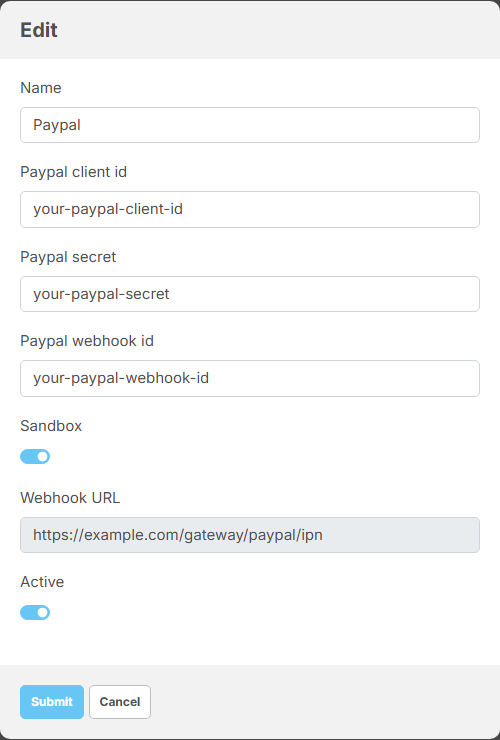
| Paypal webhook id | the ID PayPal gives the webhook you add (required). Your site uses it to check that a webhook really comes from PayPal |
| Sandbox | on: the keys are sandbox keys and payments are tests. Off: live keys and real money |
| Webhook URL | shown by your site, https://example.com/gateway/paypal/ipn: add it in PayPal |
| Active | offers PayPal to members |
- Sign in to the PayPal developer dashboard, choose Sandbox, open Apps & Credentials and create an app. Copy its Client ID and Secret.
- In the app, add a webhook: paste the Webhook URL from your site and choose all events (or at least the checkout order, payment capture, payment sale and billing subscription events). Copy the Webhook ID PayPal shows.
- In AdminCP, edit Paypal, paste the three values, switch on Sandbox and Active, and click Submit.
- Add funds with a PayPal sandbox buyer account and check that the payment reaches the eWallet.
- To take real money, repeat steps 1 to 3 with Live chosen in PayPal: a live app, a live webhook, the live Client ID, Secret and Webhook ID, and Sandbox off.
Some PayPal payments, such as payments from a bank account (eCheck), take a few days to clear. They show as Processing and the member gets "Your deposit is processing. It will be credited once the payment clears."; the balance goes up when PayPal confirms the payment. A payment still not cleared after 14 days is marked Failed and the member is told to try another payment method; if PayPal confirms it after that, it is still added to the eWallet.
Stripe#
Last updated: 2026-11-17 · v1.5.6
You need a Stripe account; Stripe asks for your business details before it lets you take live payments, but test mode works at once. There is no sandbox switch: test keys mean test payments, live keys mean real money. Members pay by card on Stripe's payment page.
| Field | What to enter |
|---|---|
| Name | the name members see; "Stripe" after installing |
| Api secret key | the secret key (it starts with sk_test_ or sk_live_); required |
| Api publishable key | the publishable key (pk_test_ or pk_live_); required |
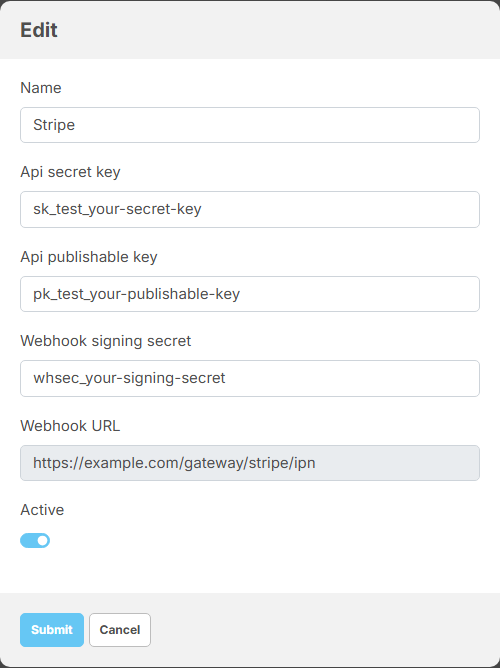
| Webhook signing secret | the signing secret of the webhook you add (it starts with whsec_); required. Your site uses it to check that a webhook really comes from Stripe |
| Webhook URL | shown by your site, https://example.com/gateway/stripe/ipn: add it in Stripe |
| Active | offers Stripe to members |
- In the Stripe dashboard, switch to test mode and open Developers → API keys. Copy the publishable key and the secret key.
- Under Developers → Webhooks, add an endpoint with the Webhook URL from your site and choose
these events (or all events):
charge.succeeded,charge.pending,charge.failed,payment_intent.canceled,checkout.session.expired,invoice.payment_succeeded,invoice.payment_failed,customer.subscription.created,customer.subscription.deleted. Copy the endpoint's signing secret. - In AdminCP, edit Stripe, paste the three values, switch on Active and click Submit.
- Add funds with one of Stripe's test cards and check that the payment reaches the eWallet.
- To take real money, switch the Stripe dashboard to live mode, copy the live keys, add the same webhook again in live mode (it gets its own signing secret), and replace the three values in AdminCP.
Recurring plans on PayPal / Stripe#
Last updated: 2026-11-17 · v1.5.6
Membership plans, featured page packages, featured listing packages and creator subscription packages (paid content) renew every period. Members can pay for them from their eWallet, or, when you allow it, through PayPal or Stripe, which then charge them again each period by themselves. For that, each plan or package needs a matching plan at PayPal and at Stripe.
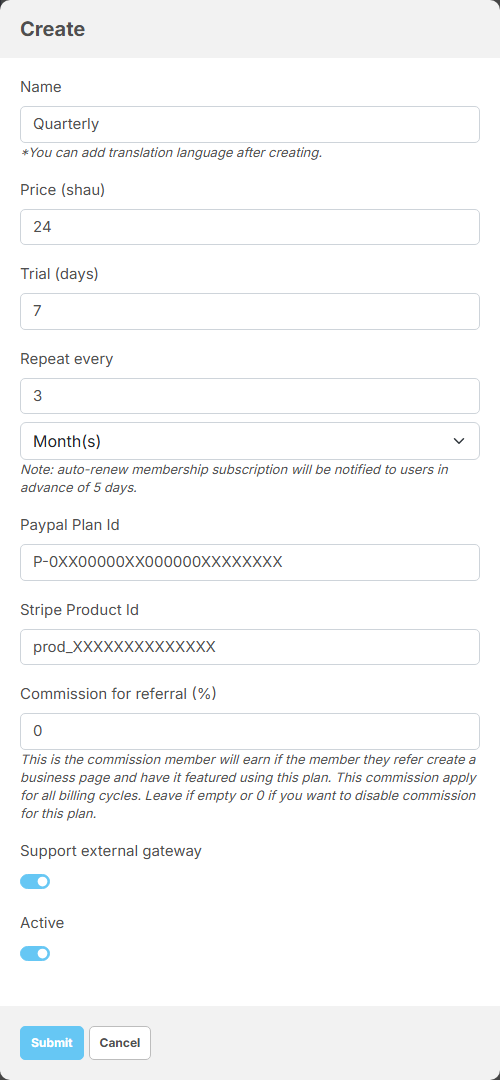
The fields are on the plan or package form of each feature: AdminCP → Membership → Manage Packages → Plans, AdminCP → Core Features → Business Pages → Page Feature Packages (see Set up feature packages), AdminCP → Core Features → Marketplace → Manage Feature Packages (see Featured listings), and AdminCP → Core Features → Paid Content → Subscriptions Packages.
| Field | What to enter |
|---|---|
| Paypal Plan Id | the ID of the PayPal subscription plan (it starts with P-) |
| Stripe Product Id | the ID of the recurring price of the Stripe product (it starts with price_). Despite the field's name, enter the price ID, not the product ID (prod_) |
| Support external gateway | on: PayPal and Stripe are offered next to the eWallet, when they are active and accept your currency. Off: members are offered the eWallet only |
- At PayPal, create a product and a subscription plan for it; at Stripe, create a product with a recurring price. Give each the same billing period as your plan or package, and the price converted into your default currency with your exchange rate: a plan of 90 shau a month at "1 USD = 10 shau" is 9.00 USD a month.
- Copy the PayPal plan ID and the Stripe price ID into the plan or package form, switch on Support external
gateway and click Submit.
What you should see: members who subscribe see Paypal and Stripe next to Wallet under "Select a payment method", and the button Subscribe now.
Your site only tells PayPal or Stripe which plan to use. The amount, the currency and the period come from the plan at the provider. Keep them the same as on your site, and change both sides together. A free trial is sent to Stripe from your plan's trial days; at PayPal, set the trial in the PayPal plan itself.
Switching off Support external gateway hides PayPal and Stripe from members, but does not stop a payment through them. For a plan or package that must be paid from the eWallet only, also leave Paypal Plan Id and Stripe Product Id empty.
Stripe's payment page shows a box for a promotion code. A member who uses one pays less, but your site still records the full price of the plan, and pays creators' earnings and referral commissions on that full price.
- Missing ID: if a member chooses PayPal or Stripe for a plan without the matching ID, they see "The paypal plan id is required." or "The stripe product id is required." and can pay from their eWallet instead.
- Cancelling: when a member or an admin cancels, your site stops the billing at the provider: PayPal pauses the subscription and ends it at the renewal date, Stripe ends it at the end of the period. Resuming before that date restarts the billing (see Cancel or resume a subscription).
- Referral commissions on membership plans, featured page packages and featured listing packages are paid on PayPal and Stripe payments too, at every renewal: the site pays them in tokens into the referrer's eWallet. A creator subscription (paid content) earns a commission only on its first payment from the eWallet, so one paid through PayPal or Stripe earns none (see Referral commission).
- A charge after the subscription stopped: if PayPal or Stripe still charges a member after their subscription stopped for good (for example after they moved to another plan), the site refuses it, stops the billing at the provider and notifies the first admin account. Refund that payment in your PayPal or Stripe account.
- Paid posts: unlocking a paid post is a single payment, through PayPal, Stripe or the eWallet, with no plan needed.
Change log#
Last updated: 2026-11-17 · v1.5.6
| Date (GMT+7) | Section | What changed |
|---|---|---|
| 2026-11-17 | all | First version for 1.5.6, written from the 1.5.6 code as a guide for site admins. |
| 2026-11-17 | overview, paypal, recurring-plans | Corrections after review: the guide covers PayPal and Stripe only and the other gateways stay off; Japanese yen and Stripe; what happens without a webhook; the top-up limit message; late confirmations after Cancelled or Failed; refunds made at the provider; plans paid from the eWallet only; Stripe promotion codes; referral commissions on renewals; charges after a subscription stopped. |
| 2026-11-17 | recurring-plans | Referral commissions at every renewal apply to membership plans and featured packages; creator subscriptions earn one only on their first eWallet payment. |