ShaunSocial user guide 1.5.6 / Features
Vibb (short videos)
Vibbs are short videos, with optional music, that members watch one after the other in a full-screen player, much like reels. This page shows members how to browse and create vibbs and how a vibb differs from an ordinary post, and shows admins how to switch Vibb on or off, decide who may post vibbs and manage the songs.
Browsing vibbs#
Last updated: 2026-11-17 · v1.5.6
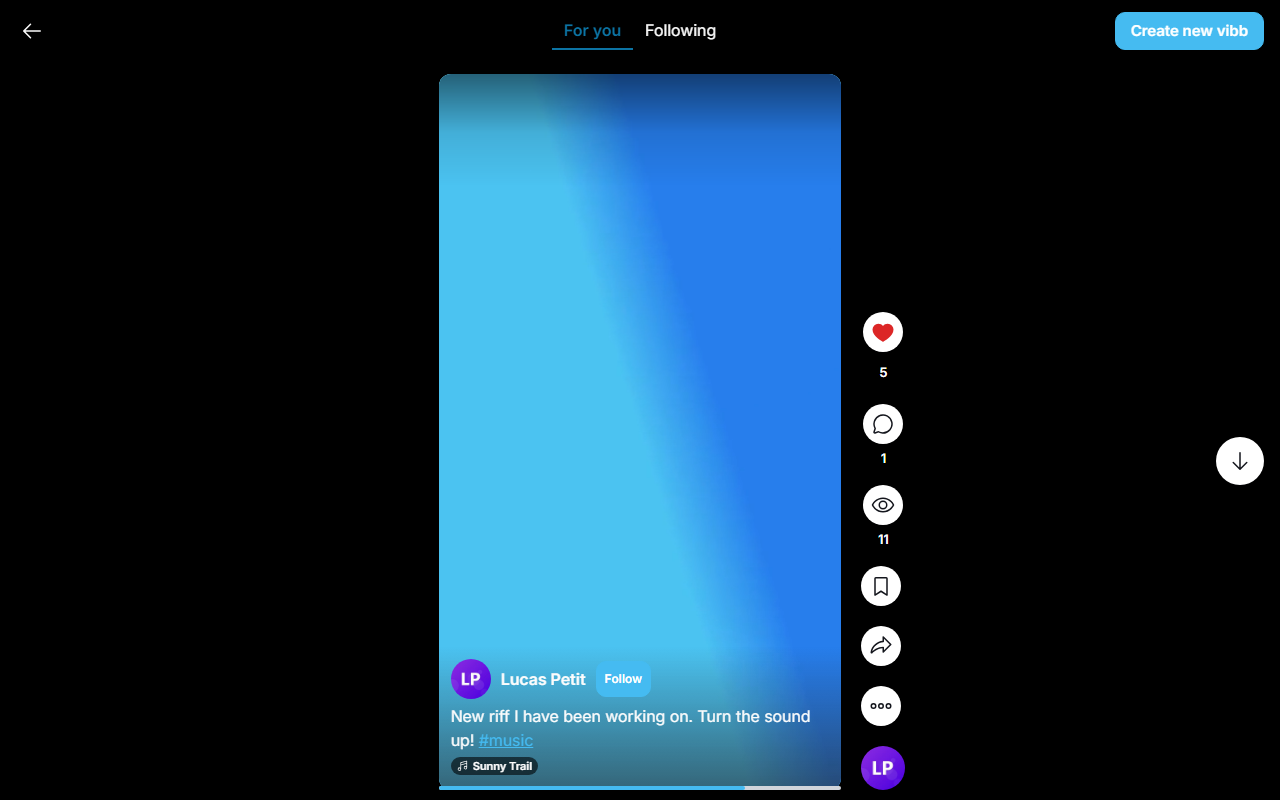
Click Vibb in the main menu. The address of the page is /clips on your site, for
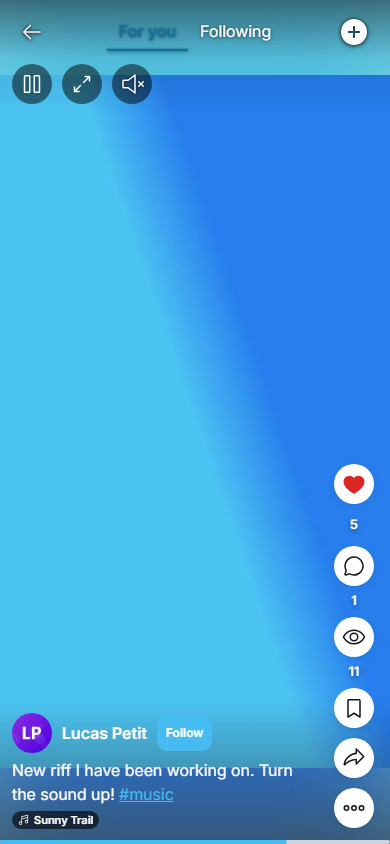
example https://example.com/clips. The player fills the screen; scroll (or swipe on a phone) to move to
the next vibb. The arrow at the top left takes you back.
For you and Following#
| Tab | What it shows |
|---|---|
| For you | popular vibbs from the whole site: vibbs with more likes and comments come first, and newer vibbs get a head start over older ones. Visitors who are not signed in can watch this tab too |
| Following | your own vibbs, the vibbs of the members you follow and vibbs with hashtags you follow, newest first. Until you follow someone it shows only your own vibbs, or "Follow people to see their vibbs here" when you have none |
Either tab respects each member's privacy: a vibb is visible to the same people who may see that member's posts.
What you can do on a vibb#
At the bottom of the video are the member's name, with a Follow button when you do not follow them yet, the description and the song. The buttons on the right of the player:
- Like (with the number of likes; click the number to see who reacted).
- Comment opens the comments next to the video.
- View shows the number of views; click it for the vibb's statistics.
- Bookmark saves the vibb to your bookmarks.
- Share opens the share options for the vibb.
- Options (the three dots) holds the same choices as for a post: report, edit the description of your own vibb, change who can comment, turn notifications on or off and so on.
Vibbs on profiles and in your lists#
- A profile has a Vibbs tab with all the vibbs of that member, newest first.
- Lists → Vibbs shows your own vibbs.
- Vibbs also appear in the home feed and on profiles like posts; see Vibb vs regular post.
Creating a vibb#
Last updated: 2026-11-17 · v1.5.6
Open the page Create New Vibb in one of these ways: Create new vibb at the top of the Vibb page, the Vibb button in the post box on the home page, or Add New → Vibb in the side menu (the + menu at the bottom on a phone). These buttons are shown only when your site can process videos (see FFmpeg: needed for videos).
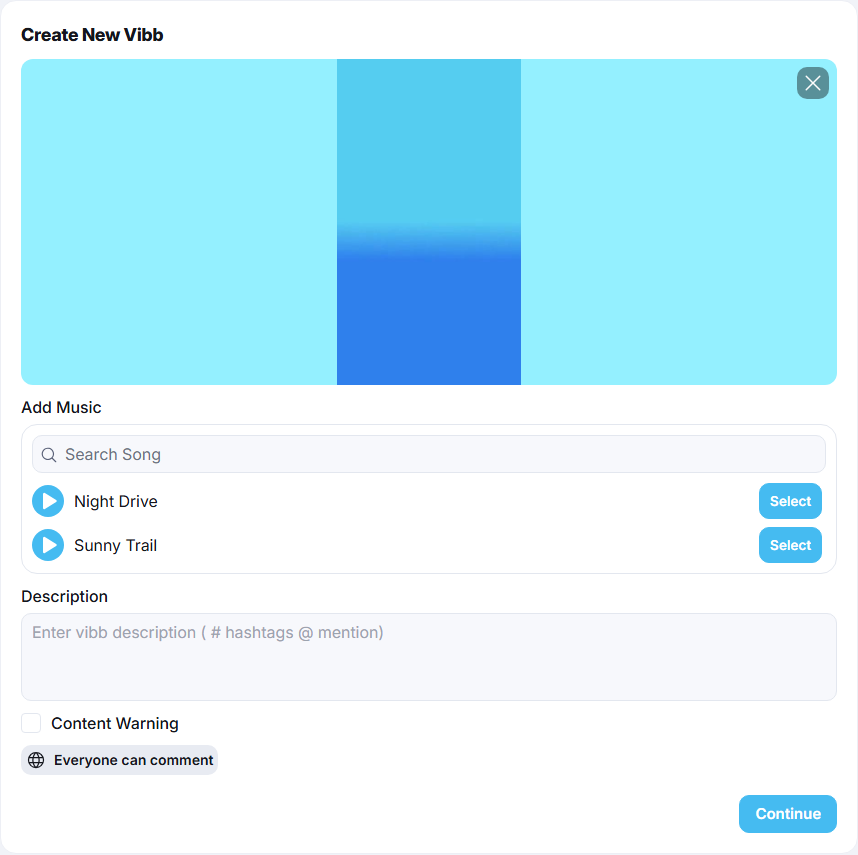
- Drag a video onto the upload area, or click Upload video and pick one. A bar shows the upload; when it is done you see a preview picture. The cross on the preview removes the video so you can pick another.
- Optional, under Add Music: pick a song from the list (the most used songs come first) or search for one by name. The song replaces the video's own sound and repeats if it is shorter than the video.
- Write a Description. You can mention members with
@and add hashtags with#. - Optional: add a content warning, so viewers see a warning and choose to show the video.
- Under Who can comment? choose Everyone, Accounts you follow, Verified accounts (shown while profile verification is on) or Only accounts you mention. Anyone you mention can always comment.
- Click Continue.
What you should see: "Your vibb has been created." and the Vibb player showing your new vibb.
Who can see the vibb follows your profile privacy; there is no separate privacy choice per vibb. Members you mentioned get a notification, and so do followers who switched on notifications for you.
Limits on vibbs#
- Whether you may post vibbs, how many a day and how long a vibb may be depends on your member role. When you reach a limit, a message tells you so, for example "You only can share a video of a max 60 second(s) long." (60 seconds after installing; see Per-day limits).
- A vibb can never be longer than two minutes, nor longer than the video length set for the whole site (60 seconds after installing, see FFmpeg: needed for videos).
- The description follows the same character limit as a post.
Vibb vs regular post#
Last updated: 2026-11-17 · v1.5.6
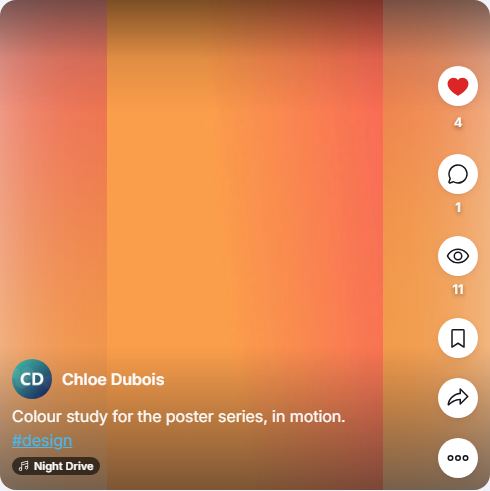
A vibb is a kind of post, so it shows up in the home feed and on the member's profile timeline as well as on the Vibb page. It looks and behaves differently:
| Regular post | Vibb | |
|---|---|---|
| Content | text, photos, videos, a poll, a file | one video, with optional music from the site's Vibb songs |
| In the feed | shown with its like, comment and share buttons below it | shown as a video card that plays on its own. On a computer, click the vibb to open it in the full-screen player; on a phone the buttons sit on the video |
| Comments | written right in the feed | written in the player: open the vibb, then click Comment |
| Editing | the text can be edited | only the description can be edited (Edit Post in the options); the video and the song cannot be changed |
| Per-day limit | counts towards the role's post limit | has its own per-day limit and does not count as a post |
| Shared by someone else | shown inside their post | shown as a small upright video with the label Vibb; clicking it opens the player |
To delete a vibb, use Delete Post in its options.
Vibb admin: songs, enable, role limits#
Last updated: 2026-11-17 · v1.5.6
Vibb is switched on after installing. Members can post vibbs only once FFmpeg is set up on your server (see FFmpeg: needed for videos).
Switch Vibb on or off#
The setting Enable (on after installing) saves as soon as you click it. When you switch it off:
- the Vibb entries disappear from the main menu, the Add New menu and the post box, and members can no longer create vibbs;
- the Vibb page, the Vibbs tab on profiles and Lists → Vibbs are no longer available;
- vibbs that were already posted stay in the home feed and on profile timelines, and can still be opened and watched there.
Switching it on again brings the menu entries back.
Who may post vibbs#
| Permission | After installing | What it does |
|---|---|---|
| Allow vibb creation | on | off: members of the role cannot post vibbs and see "You don't have vibb creation permission." |
| Max video size (duration - seconds) can upload | 60 | the longest vibb, in seconds. 0 means no limit of its own; the site-wide video length and the two-minute maximum still apply |
| Maximum number of vibbs can create per day (0 is unlimited) | 0 | see Per-day limits |
The values above are given to every member role that exists when Vibb is installed; roles you create later copy the role you choose in Inherit.
Songs#
The music members can add to a vibb. The site comes with no songs. This list is separate from the story songs (see Story songs). Moderators need the Vibb songs switch in their role to see this screen (see Moderator roles).
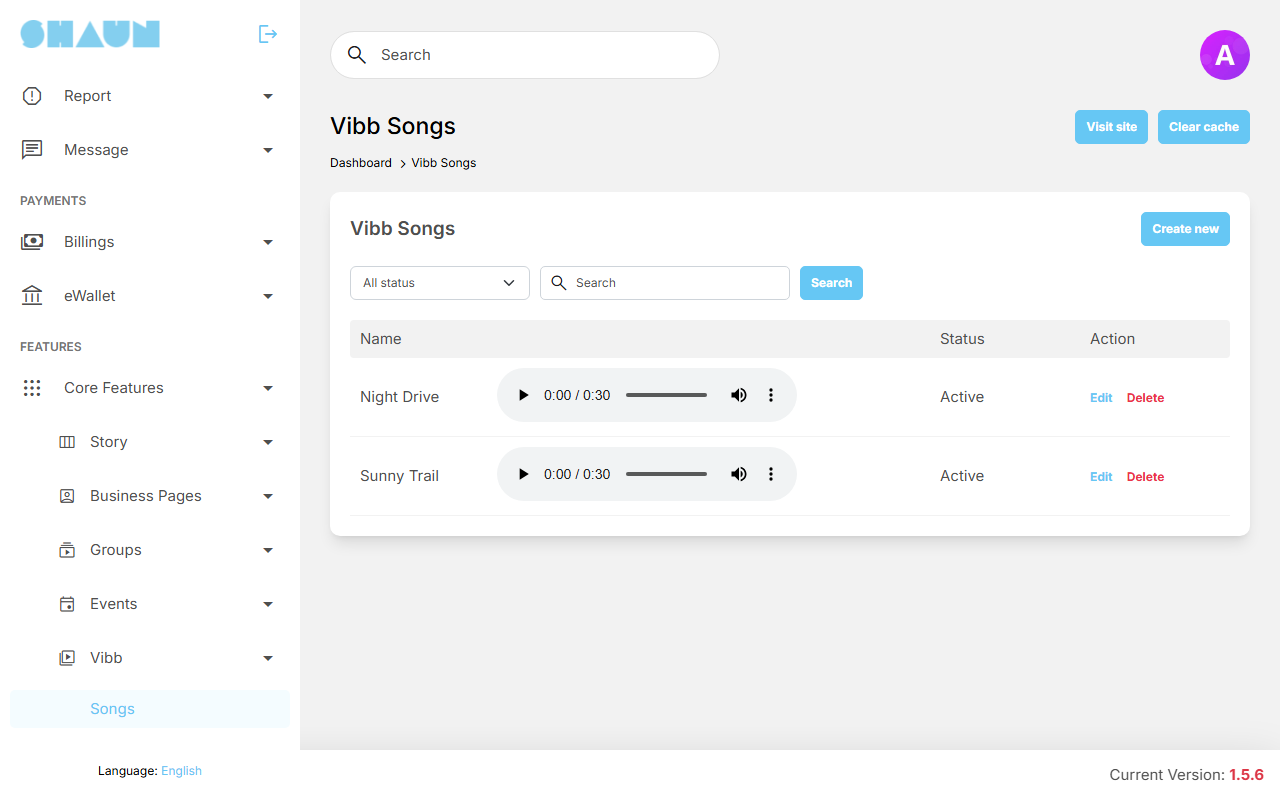
- Click Create new.
- Enter the Name (up to 255 characters) and choose the File, an MP3 file.
- Leave Active on and click Submit.
What you should see: "Song has been created." and the song in the list.
- Members see the active songs in Add Music, the most used first; they can also search by name.
- Edit changes the name or the Active switch; choose a new file only to replace the music. Active off hides the song from members.
- Delete removes the song after a confirmation. Vibbs that already use it keep their sound, because the music is mixed into the video when the vibb is posted.
- Use the status filter and Search above the list to find a song.
Change log#
Last updated: 2026-11-17 · v1.5.6
| Date (GMT+7) | Section | What changed |
|---|---|---|
| 2026-11-17 | all | First version for 1.5.6, written from the 1.5.6 code for members and for site owners and their admins. |
| 2026-11-17 | browse | Correction after review: the Following tab also shows your own vibbs before you follow anyone. |