ShaunSocial user guide 1.5.6 / Features
Chat
Chat lets members write to each other in private conversations and in group chats: text, photos, files, GIFs, voice messages, replies and reactions, with requests for new conversations, editing of sent messages and a chat box that stays open while members browse. This page shows admins the chat settings and permissions, and shows members how to start conversations, handle requests, run a group chat, edit messages and send voice messages.
Checked against the 1.5.6 code; the AdminCP settings and the chat page were compared with a demo site. The member steps (requests, groups, editing, voice messages) were read from the code, not run; screenshots follow.
Chat settings#
Last updated: 2026-11-17 · v1.5.6
Chat is always available; there is no switch to turn it off for the whole site. To keep a member role out of chat, switch off Allow sending messages in its permissions (below). The screen saves each setting as soon as you change it.
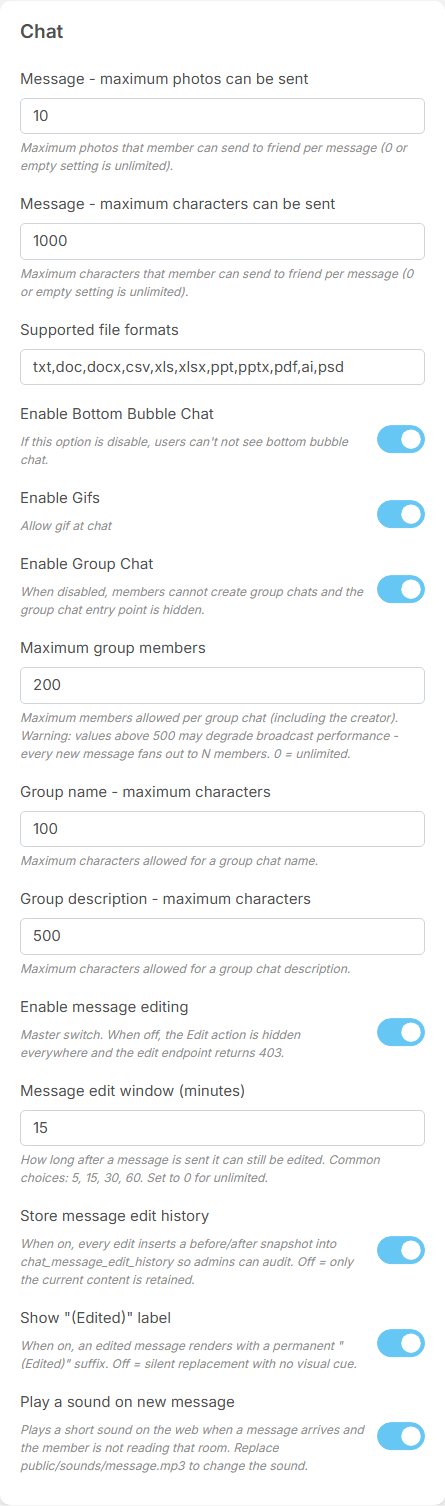
| Setting | After installing | What it does |
|---|---|---|
| Message - maximum photos can be sent | 10 | how many photos one message may carry. 0 or empty means no limit. Above the limit members see "You can only send 10 photos at a time." (with your number) |
| Message - maximum characters can be sent | 1000 | the longest text of one message, also when a message is edited. 0 or empty means no limit for new messages; an edited message can still be at most 1,000 characters |
| Supported file formats | txt, doc, docx, csv, xls, xlsx, ppt, pptx, pdf, ai, psd | the file types members may attach, as extensions separated by commas. The largest file is the site's upload size (see The other General Settings) |
| Enable Bottom Bubble Chat | on | on computers, a round chat button at the bottom right of every page that opens a docked chat box (see The chat box on computers). Off: no button, and every chat opens on the Chat page |
| Enable Gifs | on | offers Choose a GIF when writing a message. The GIFs come from GIPHY and need the GIPHY key entered in the post settings (see Post settings); without a key the picker finds nothing |
| Enable Group Chat | on | off: the New group button is hidden and no new group can be created; groups that already exist keep working. The group options in members' notification settings are hidden too |
| Maximum group members | 200 | the most members one group may have, the creator included. 0 means no limit. Every message is delivered to every member, so keep it at 500 or less |
| Group name - maximum characters | 100 | the longest group name |
| Group description - maximum characters | 500 | the longest group description |
| Enable message editing | on | off: members cannot edit sent messages, and the edit button is hidden everywhere (see Editing messages) |
| Message edit window (minutes) | 15 | how long after sending a message can still be edited. 0 means no time limit |
| Store message edit history | on | keeps each earlier version of an edited message, so admins can read it in the message logs. Off: only the current text is kept |
| Show "(Edited)" label | on | shows (edited) under a message that was changed. Off: an edit replaces the text without any sign |
| Play a sound on new message | on | plays a short sound in the browser when a message arrives in a conversation the member is not reading. Muted conversations stay silent, and the browser plays at most one sound every three seconds, however many conversations receive messages |
New messages appear without reloading only when live updates run (see Live updates: Reverb on your server or Pusher); without them members see new messages when they reload the page. Voice messages need FFmpeg (see FFmpeg: needed for videos).
The new-message sound is the file public/sounds/message.mp3. To use another sound, replace that file
with a short MP3 of the same name. An upgrade puts the original file back, so keep a copy of yours.
Who may use chat#
| Permission | Member role after installing | What it does |
|---|---|---|
| Allow sending messages | on | off: members of the role cannot open chat at all and see "You don't have send message permission." |
| Max voice message length (duration - seconds) can record | 120 | the longest voice message, in seconds (see Voice messages) |
| Allow creating group chats | on | off: members of the role cannot create groups, but can still take part in groups others add them to |
| Allow editing your own chat messages | on | off: members of the role cannot edit their messages |
Moderator roles have two more switches in the Chat group of permissions, for viewing and purging the edit history of messages, and the Manage Messages permission opens the message logs. Reading members' messages is explained in Message logs; moderator roles in Moderator roles.
Conversations and message requests#
Last updated: 2026-11-17 · v1.5.6
Open chat with the Chat icon in the header (on a phone, Chat in the bar at the bottom). The number on the icon counts the conversations with unread messages. The Chat page lists your conversations, the most recent first.
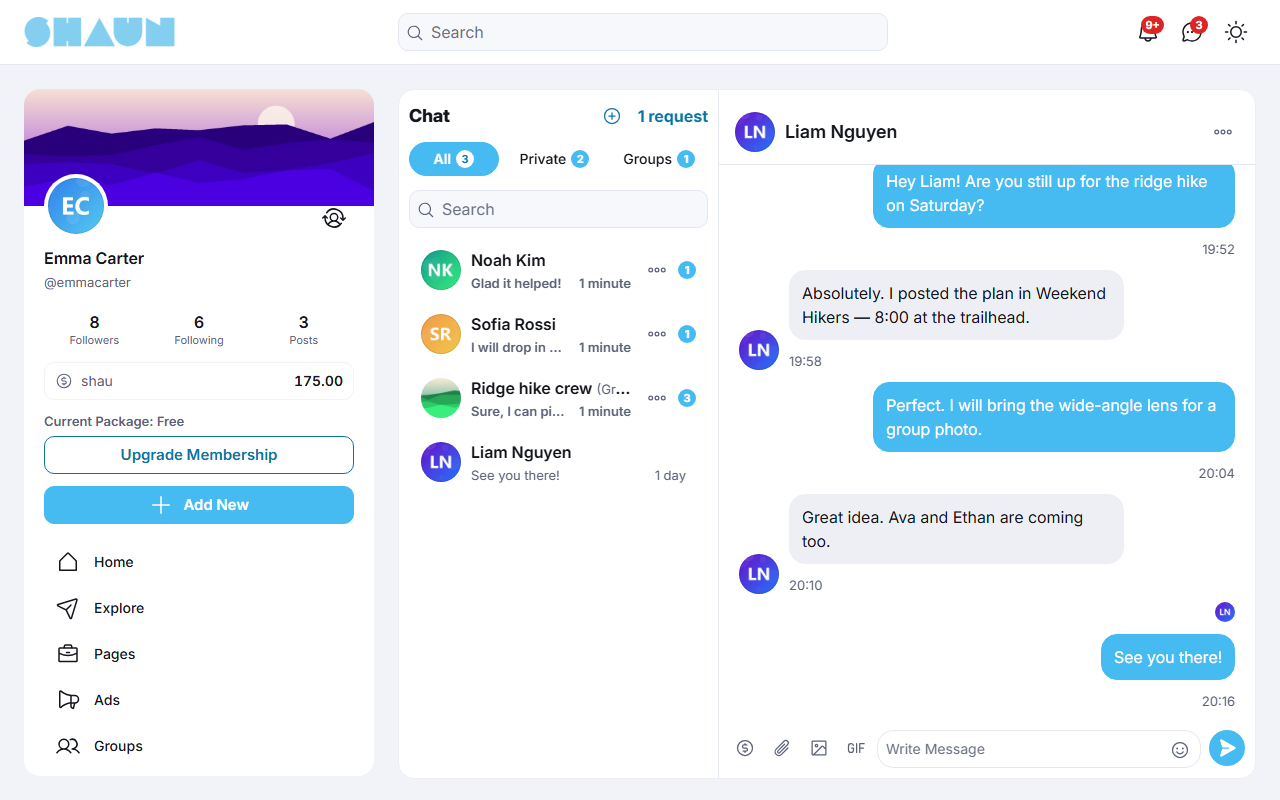
- Tabs: All, Private (conversations with one member) and Groups, each with the number of conversations that have unread messages.
- Search finds a conversation by the name of the member or the group.
- The three dots on a conversation offer Mark as Read or Mark as Unread. A bell with a line through it means you stopped notifications for that conversation.
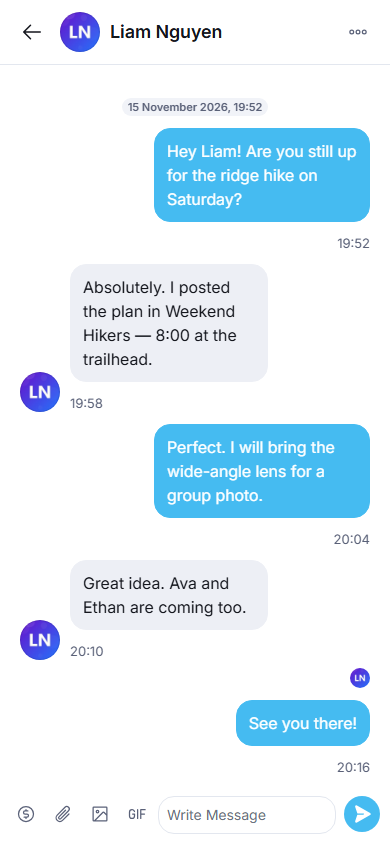
- On a phone, the list fills the screen; tap a conversation to open it full screen and the back arrow to return.
Start a conversation#
- Open the member's profile and click Message.
What you should see: the conversation with that member opens, on the Chat page or in the chat box (see The chat box on computers).
- Type in Write Message and press Enter, or click the send button.
- The Message button is there only when the member accepts messages from you. Each member decides in Settings → Privacy → Who can send you a message: Everyone (after signing up), My followers (only members who follow them) or No One. Once you have a conversation with someone, the button stays. The site's admins and moderators can write to any member.
- You can also send a post to members with Share → Send Message, or reply to a story; both arrive in chat. Writing to a business page works the same way (see Chatting with a page).
Message requests#
A new private conversation starts as a request: the first message does not land in the other member's list but in their Requests.
- The member gets the notification "[name] wants to chat." and sees [number] request next to the Chat title.
- They open Requests and the conversation. Under the messages are three buttons: Accept, Block and Delete.
- Accept moves the conversation to their list, and both of you can write freely.
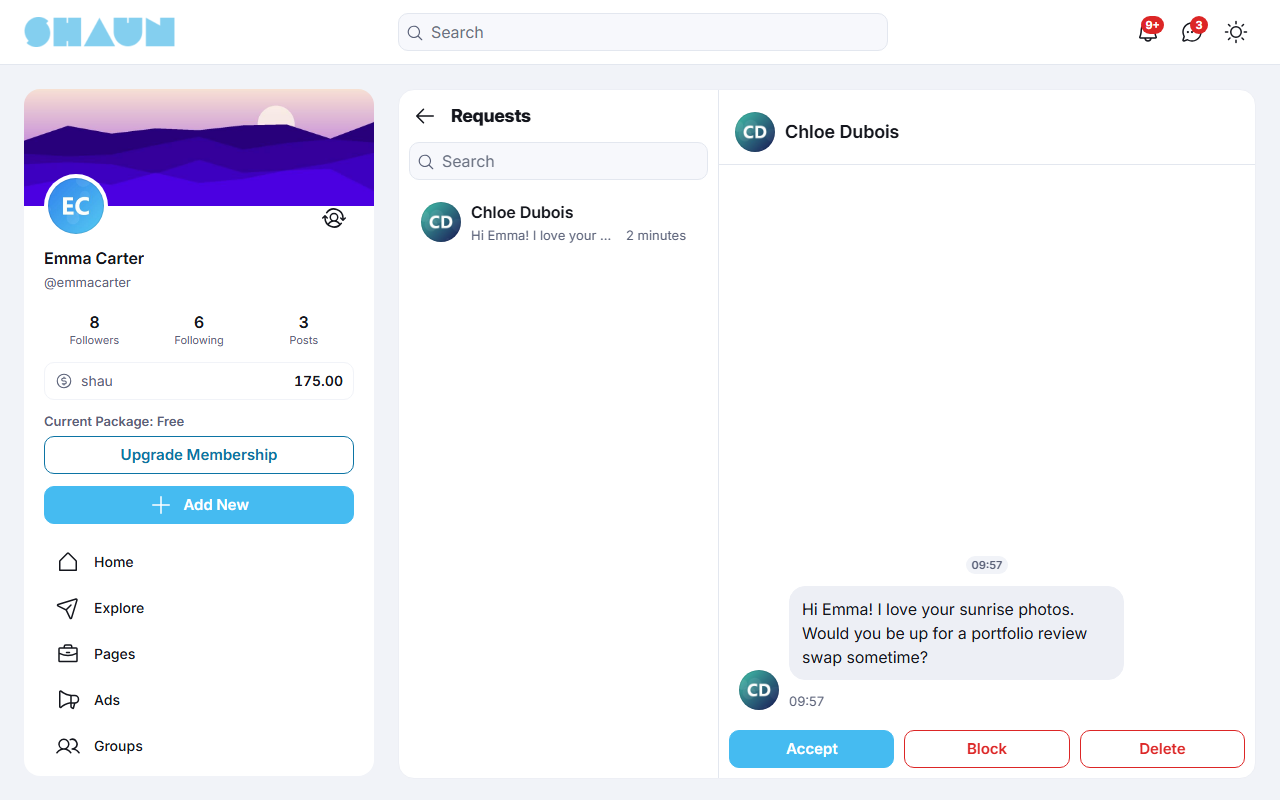
- Until the request is accepted, the sender sees Wait for request to be accepted above the message field. They can keep writing; everything they send waits in the same request.
- Clicking Message on the sender's profile also accepts the request.
- Delete removes the request and its messages from your side. If the sender writes again, the conversation comes back as a new request. Block also blocks the member.
- Switch the notification off with New chat request under Related to message in Settings → Notifications (see the Member account and settings page).
What you can send#
The buttons next to the message field, and the plus button (More) beside them, add more than text:
| Icon | What it does |
|---|---|
| Attach Photos | adds photos to the message (10 at most after installing). You can also drag photos onto the conversation or paste them into the field. Photos and files cannot go in the same message |
| Attach Files | adds files of the types your site allows, such as PDF or Word documents |
| Choose a GIF | searches GIFs and sends the one you click. Shown while the site allows GIFs in chat |
| Send a voice | records a voice message (see Voice messages) |
| Send Fund | sends money from your wallet, in private conversations only. Shown when the site's eWallet is on and your role may send funds (see the eWallet page) |
| Emoji | the smiley in the field adds an emoji |
A message may hold up to 1,000 characters after installing. A link in a message shows a preview.
Reply, react, copy, unsend#
Point at a message to show its buttons:
- Reply quotes the message above your answer (Replying to; the cross cancels). Click a quote to jump to the original message.
- Reaction adds a reaction to the message.
- Copy copies the text.
- Edit, on your own text messages, changes the text (see Editing messages).
- Unsend, on your own messages, removes the message for everyone after the question "Do you want to unsend this message?". The others see Message has been unsent in its place. There is no time limit.
In a private conversation, the other member's small picture under a message shows how far they have read, and Typing ... shows that they are writing. When the site translates member content, See translation appears under messages in other languages (see Auto-translating member content).
Mute, delete, block, report#
The three dots at the top of a private conversation offer:
| Option | What it does |
|---|---|
| Report | reports the conversation to the site's moderators; choose a reason and send. Reports arrive in the Moderation Center (see Moderation Center) |
| Delete Messages | after "Are you sure you want to delete all messages?", removes all messages of the conversation from your side. The other member keeps them |
| Delete Room | removes the conversation and its messages from your list. When the other member writes again, the conversation comes back with the new message |
| Block | blocks the member: the conversation disappears and neither of you can write to the other |
| Stop Notifications / Turn on Notifications | mutes the conversation: no push notification, no sound, and it no longer counts in the number on the Chat icon |
How you hear about new messages#
- The number on the Chat icon and the conversation's unread count.
- A short sound in the browser, when the site has it switched on and you are not reading that conversation.
- A push notification "[Message] ..." on the devices where you allowed notifications, while you are not reading that conversation. In the browser this needs the site's progressive web app (see Progressive web app).
- Bell notifications only for requests, group invitations, ownership transfers, admin role changes and mentions in groups; messages themselves do not create bell notifications.
The chat box on computers#
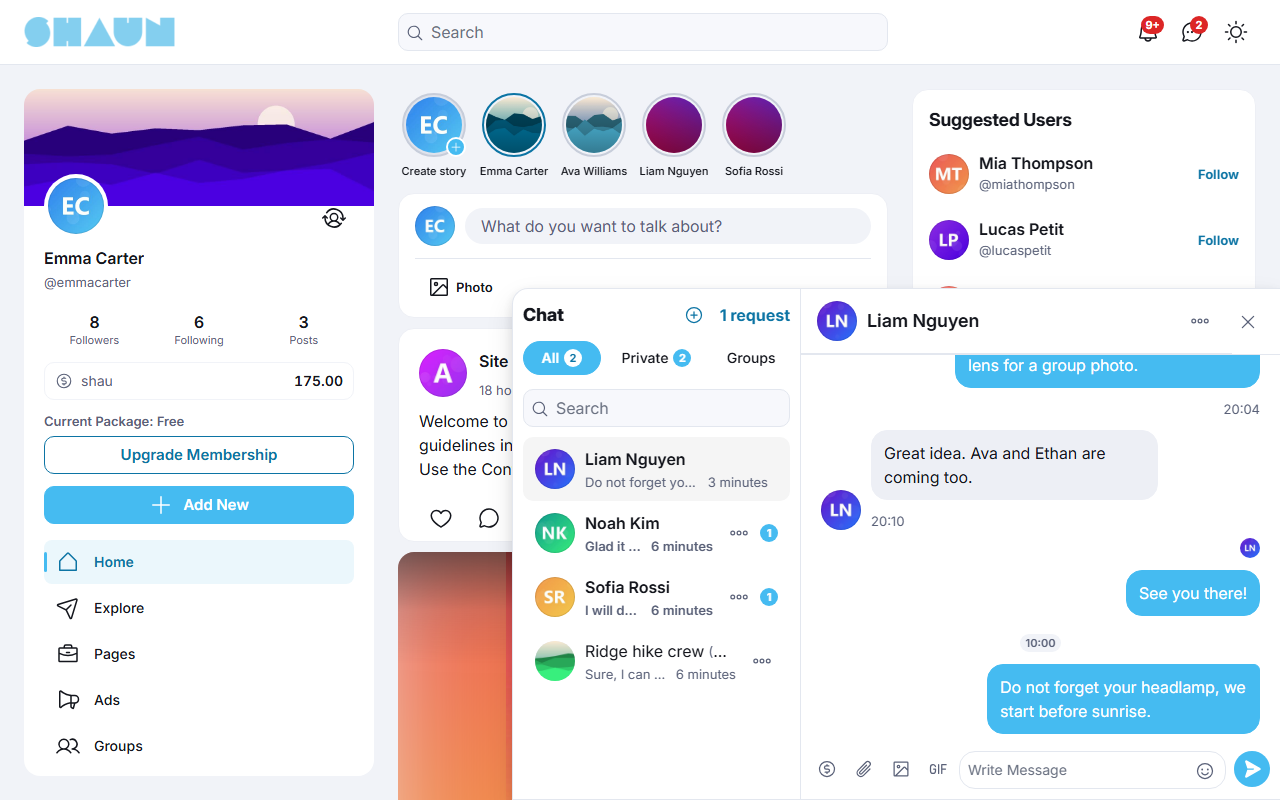
On a window at least 1,024 pixels wide, a round chat button sits at the bottom right of every page except the Chat and Chatbot pages. Click it to open a chat box with your conversations on the left and the open conversation on the right; the cross closes it. While it is available, Message buttons and chat notifications open the conversation in this box, so you can keep browsing. The Chat icon in the header still opens the full Chat page. The site's admins can switch the box off (see Chat settings).
Group chat#
Last updated: 2026-11-17 · v1.5.6
A group chat is one conversation with three or more members. It has a name, an optional description and photo, an owner, and admins the owner chooses.
Create a group#
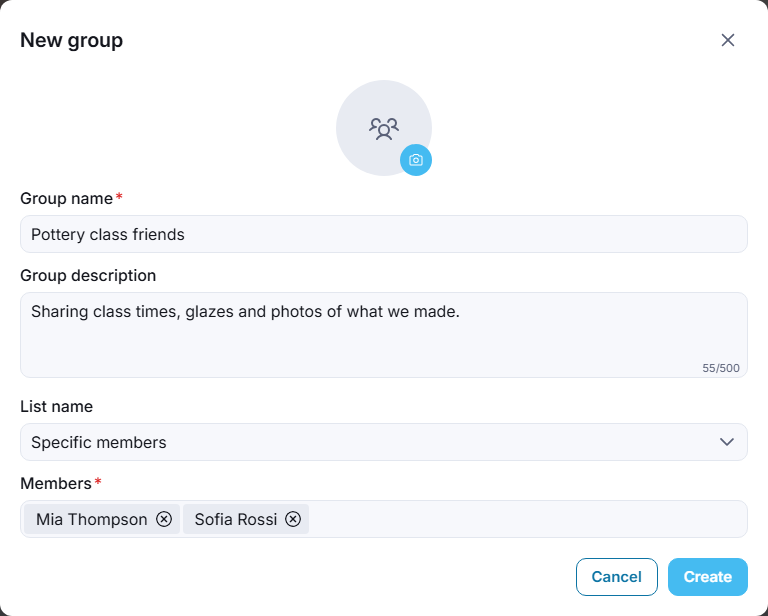
- On the Chat page (or in the chat box), click New group, the round plus next to the title.
What you should see: the New group window.
- Optional: click Change photo to give the group a picture.
- Enter the Group name (up to 100 characters after installing) and, if you like, a Group description (up to 500).
- Choose who joins, in List name:
- Specific members: type names in Members and pick them.
- One of your lists: everyone on that list joins; Manage Lists opens your lists (see Lists).
- Custom List: pick members and enter a Custom List Name; the members are also saved as a new list, so you can choose them again next time.
- Click Create.
What you should see: "Group created." and the new group, starting with the line "[you] created the group with [names]".
- A group needs at least two members besides you ("At least two members are required to create a group."), and can have up to 200 members, you included, after installing.
- Members are added straight away, without a request, whatever their message privacy. Members who blocked you, or whom you blocked, cannot be added ("You cannot add this user.").
- The New group button appears only while the site allows group chats and your role may create them.
Group info and who can do what#
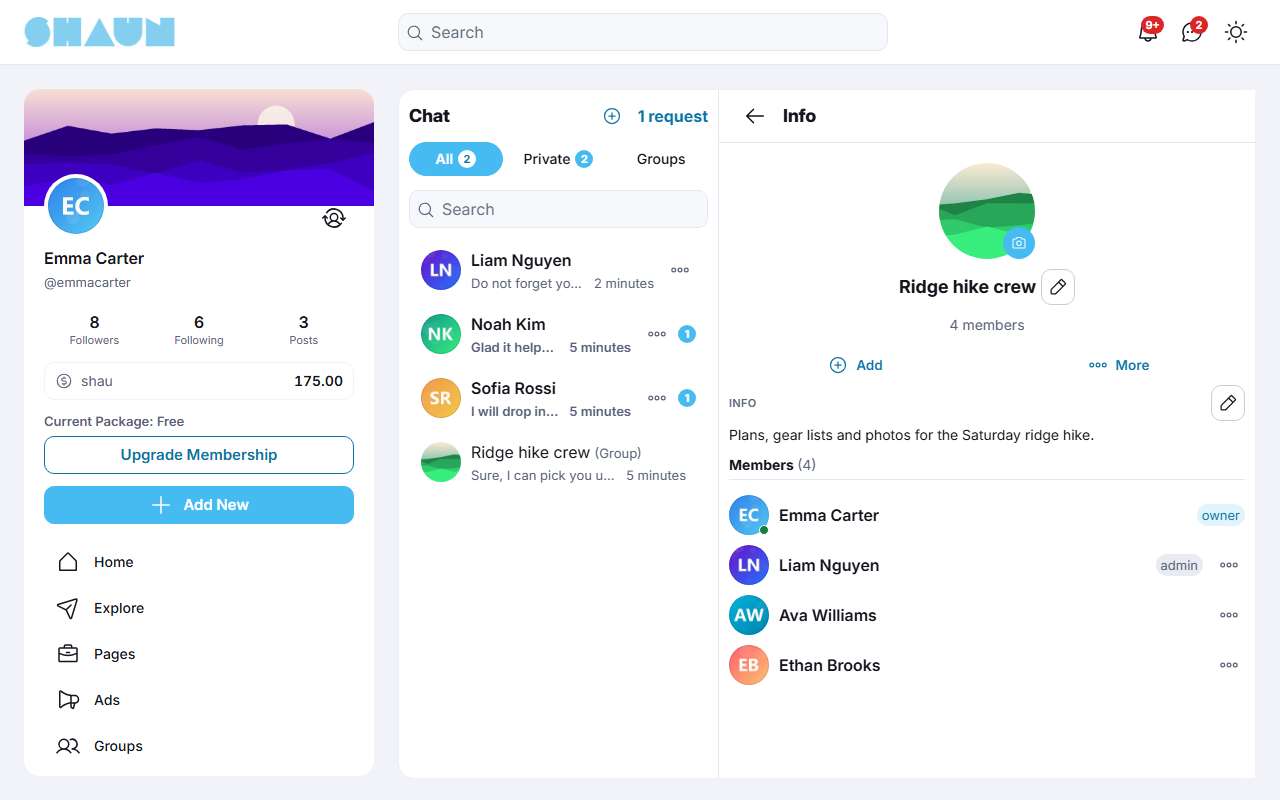
Click the group's name at the top of the conversation (or the three dots → Info) to open the group info: the photo, name and description, and the members with their role (owner, admin).
| Action | Who | How |
|---|---|---|
| Change the name, description or photo | owner, admins | Edit group name, Edit description, Change photo in the group info |
| Add members | owner, admins | Add in the group info, then pick members in the Add member window; each new member gets "[name] invited you to join [group]." |
| Make or remove an admin | owner | the member's options → Make group admin / Remove group admin; the member is notified |
| Remove a member | owner | the member's options → Remove from group |
| Hand the group over | owner | the member's options → Transfer Ownership. The new owner is notified; you stay in the group as an admin |
| Leave | everyone but the owner | three dots → Leave Room. The owner must transfer the group first ("Please transfer group ownership before leaving.") |
| Delete the group | owner, when alone in it | three dots → Delete Group, after "Delete "[name]" permanently? All messages will be removed." |
Joining, leaving, removals, new names and photos and owner changes appear as short lines in the conversation. A removed member can no longer open the group; an owner or admin can add them again. When the owner's account is deleted, the longest-serving admin becomes the owner, or else the longest-serving member.
Writing in a group#
- Type
@and a name to mention a member of the group; they get "[name] mentioned you in a chat.". - Under your own messages, a tick shows that nobody has read the message yet, a ticked circle that some members have, and a filled circle that everyone has. Click it to see who read it (Seen by).
- The three dots offer Info, Report, Delete Messages (from your side only), Leave Room or Delete Group, and Stop Notifications.
- Group invitations, ownership transfers and admin role changes each have a switch under Related to message in Settings → Notifications.
Editing messages and edit history#
Last updated: 2026-11-17 · v1.5.6
You can correct a message after sending it, for a short time.
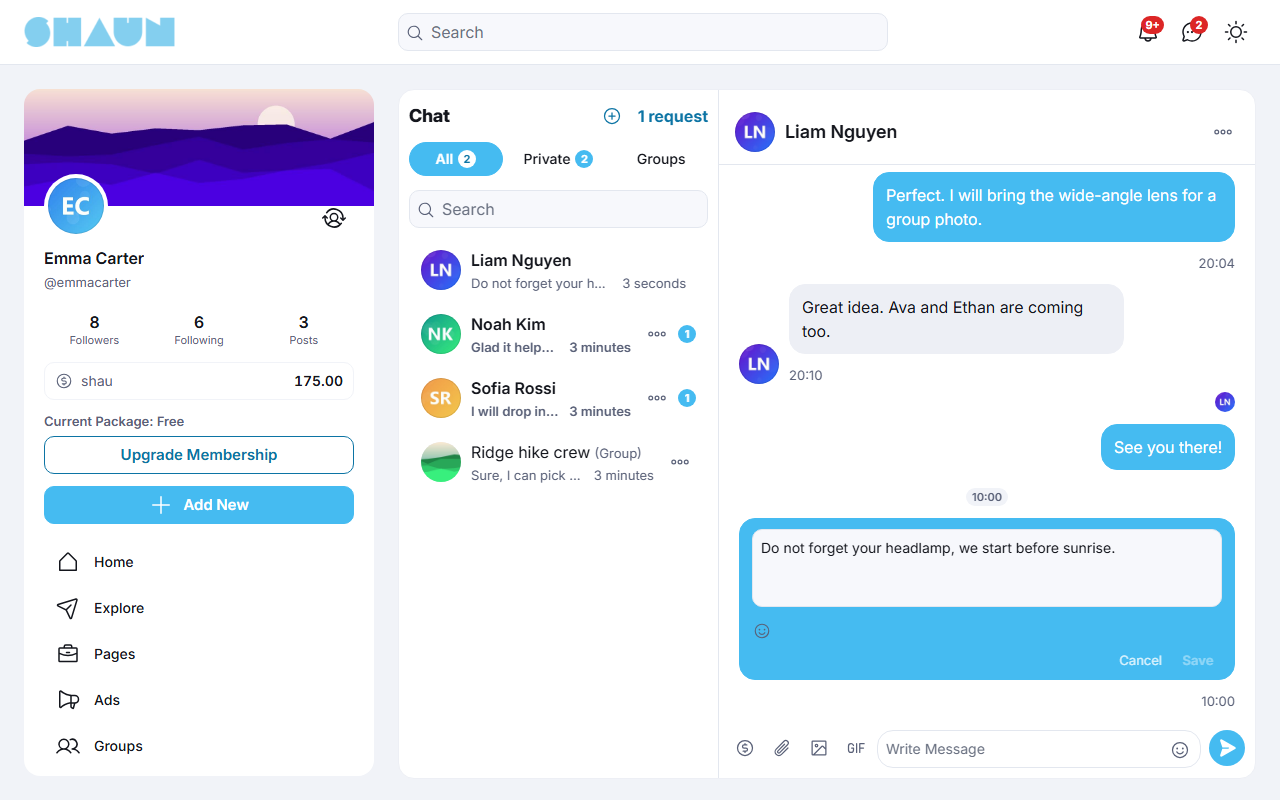
- Point at your message and click Edit (the pencil).
- Change the text in Edit message.
- Press Enter or click Save; Esc or Cancel leaves the message as it was.
What you should see: the new text, with (edited) under it.
- Only your own text messages can be edited, including messages with a link and replies to stories. Photos, files, GIFs and voice messages cannot.
- The time counts from sending: 15 minutes after installing. After that the pencil disappears, and a late save shows "Edit window has expired.". You can edit as often as you like within the time.
- The others see the new text at once. An edit does not move the conversation up, notify anyone or count as unread; in a group, members you newly mention in the edit are notified.
- Members cannot see earlier versions. When the site keeps the edit history, its admins can read every earlier version in the message logs (see Message logs).
Whether members may edit, for how long, whether the history is kept and whether (edited) is shown are set by the site's admins (see Chat settings and Who may use chat).
Voice messages#
Last updated: 2026-11-17 · v1.5.6
Instead of typing, you can record a short message with your microphone.
- In the conversation, click Send a voice (the microphone). The first time, your browser asks whether the
site may use the microphone: allow it.
What you should see: a recording bar with a running time instead of the message field.
- Speak, then click the pause button to stop recording.
- Click play to listen to your recording, or the cross (Cancel recording) to throw it away.
- Click the send button.
What you should see: the voice message in the conversation, with a play button and its length.
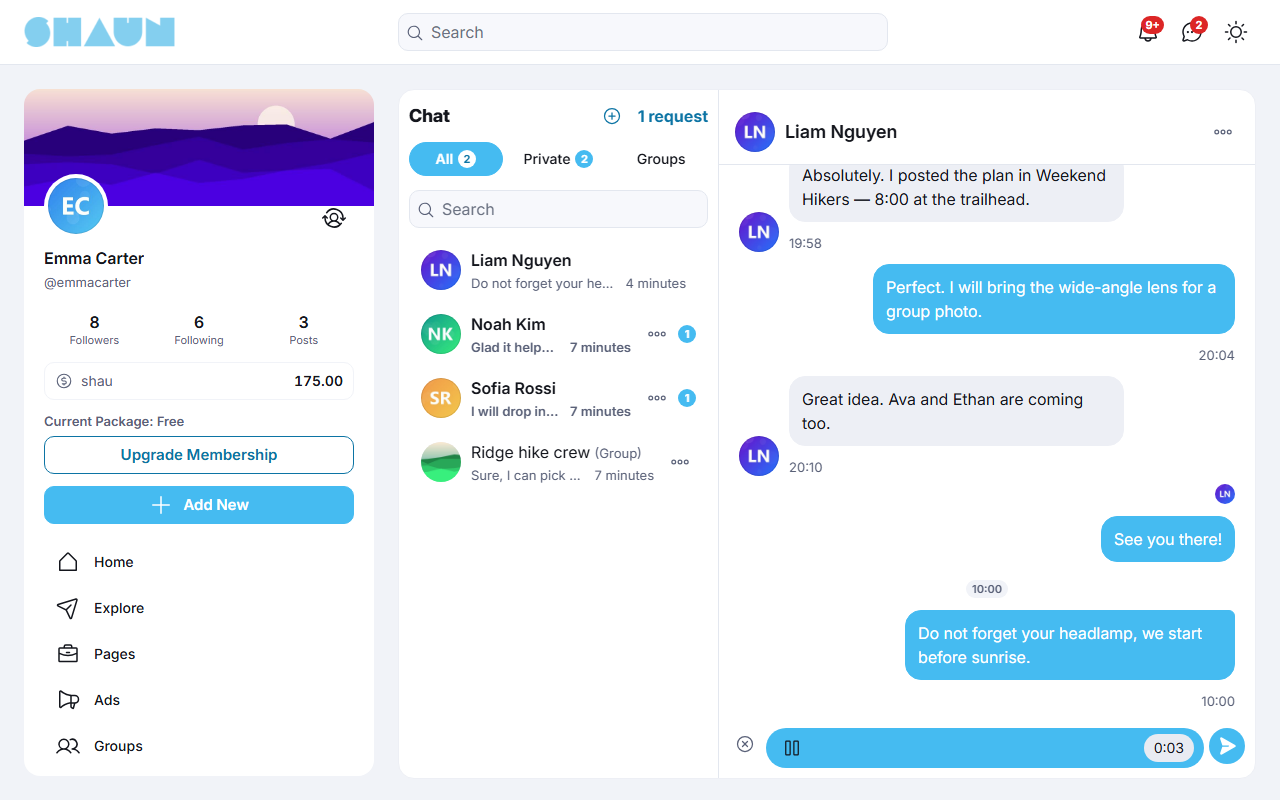
- A voice message may be 120 seconds long for the Member role after installing. A longer recording is refused when you send it, with a message that gives the maximum in seconds. The site-wide Audio duration (120 seconds after installing) applies too.
- The microphone is not offered while photos or files are attached to the message you are writing.
- "No microphone connection. Please check your microphone settings." means the browser has no microphone or was not allowed to use it: allow the microphone for the site in your browser and try again.
For admins: the microphone appears only when FFmpeg is set up and switched on (see FFmpeg: needed for videos; Audio duration is in the same FFMPEG Configuration settings). The length per role is the Chat permission Max voice message length (see Who may use chat).
Change log#
Last updated: 2026-11-17 · v1.5.6
| Date (GMT+7) | Section | What changed |
|---|---|---|
| 2026-11-17 | all | First version for 1.5.6, written from the 1.5.6 code for members and for site owners and their admins. |
| 2026-11-17 | settings, rooms-requests | Corrections after review: the sender of a request can keep writing, the character limit of edited messages, the sound limit across conversations, the name of the Chat permission group. |
| 2026-11-17 | group-chat | The button that adds members in the group info is Add; it opens the Add member window. |