ShaunSocial user guide 1.5.6 / Monetisation
Membership
Membership lets members move to a higher member role, with more permissions, by subscribing to a package: a paid package renews by itself every period, a free package costs nothing and can need your approval. This page shows admins how to create packages and their plans, handle membership requests and build the Compare plans page, and shows members how to subscribe, switch, cancel and resume.
Checked against the 1.5.6 code. The AdminCP screens and the member steps (subscribing, trials, free packages, requests, cancelling) were read from the code, not run; screenshots follow.
How membership works#
Last updated: 2026-11-17 · v1.5.6
What a member may do on your site (post videos, create groups, see no ads …) is set by their member role (see Roles and permissions). Membership sells or gives those roles:
- A package names the role a member gets (for example a Gold package that gives the role Gold member) and the role they fall back to when a paid membership ends.
- A paid package has one or more plans: a price in your eWallet credits and a period, for example 10 credits monthly or 100 credits yearly, optionally with free trial days. The membership renews by itself at the end of every period until it is cancelled or cannot be paid.
- A free package has no plans. Members choose it and get its role at once, or, when you ask for it, only after an admin approves their request.
A member has one membership at a time: choosing another package ends the current one. Members compare the packages
and subscribe on the Compare plans page (https://example.com/membership). They reach it from the
Upgrade Membership button under Current Package on their profile card in the left menu, and from the
Upgrade Now button shown when they try something their role does not allow. Site admins and moderators do not see
the profile-card button, and they cannot subscribe to a package: trying shows "You cannot use this function.".
| Money | How it works |
|---|---|
| Paying from the eWallet | the plan price is taken from the member's eWallet balance when they subscribe (after the trial, if the plan has one) and again at the start of every period. The member enters their password to confirm |
| Paying with PayPal or Stripe | offered only for plans set up for it (see Plans of a paid package); the member is sent to the payment site and the gateway charges each period. The membership starts when the gateway confirms the payment |
| Switching package | the current membership stops when the new one starts; the unused time is not refunded and not carried over |
| Cancelling | nothing more is charged; the membership and its role stay until the end of the period already paid, then the member falls back to the package's Downgrade user role |
| Referral commission | when a plan has one, the member who invited the subscriber earns that share of every payment, renewals included, paid by the site |
A package can also give a badge: a small coloured label next to the member's name wherever it is shown (see Packages and plans).
Renewals, renewal reminders and the end of cancelled memberships are handled by the scheduled task (cron job). Without it, memberships are neither renewed nor ended. See What stops when the cron job does not run.
Packages and plans#
Last updated: 2026-11-17 · v1.5.6
The Membership menu has three screens: Manage Packages, Customize Pricing Plans (see Pricing table) and Membership Requests (see Membership requests). Super admins see all three; a moderator role needs the switch of the same name for each (see Moderator roles).
A package only hands out a role. Create the member roles you want to sell and set their permissions before you create the packages (see Create a role). Only member roles can be chosen, not admin or moderator roles.
Create a package#
- Click Create new.
- Fill in the fields (see the table) and click Submit.
What you should see: "Package has been created." and the package in the list.
- For a paid package, click Plans on its row and create at least one plan (below).
- Open Customize Pricing Plans, tick the package and click Save. A new package is not shown to members until you do.
| Field | What it does |
|---|---|
| Name | the package name members see, up to 255 characters |
| Description | shown in the package box on the Compare plans page, up to 255 characters. After creating, it is changed through Translate, once per language |
| Role | the role the member gets while the membership lasts. The default role for new members is preselected |
| Downgrade user role | the role a paid member gets when the membership stops (cancelled and ended, not renewed, or replaced). If that role no longer exists, the default role is used. It has no effect on a free package |
| Show badge | off after creating. On: members of this package show a badge next to their name. Set Badge Name (empty: the package name), Badge Background Color, Badge Border Color and Badge Text Color |
| Free package | off: a paid package that needs plans. On: no plans and no payment; members are moved onto it when they choose it. Decide this when you create the package |
| Require admin approval | shown for a free package only. On: a member's choice becomes a request that waits under Membership Requests |
| Active | on after creating. Off: the package is not offered |
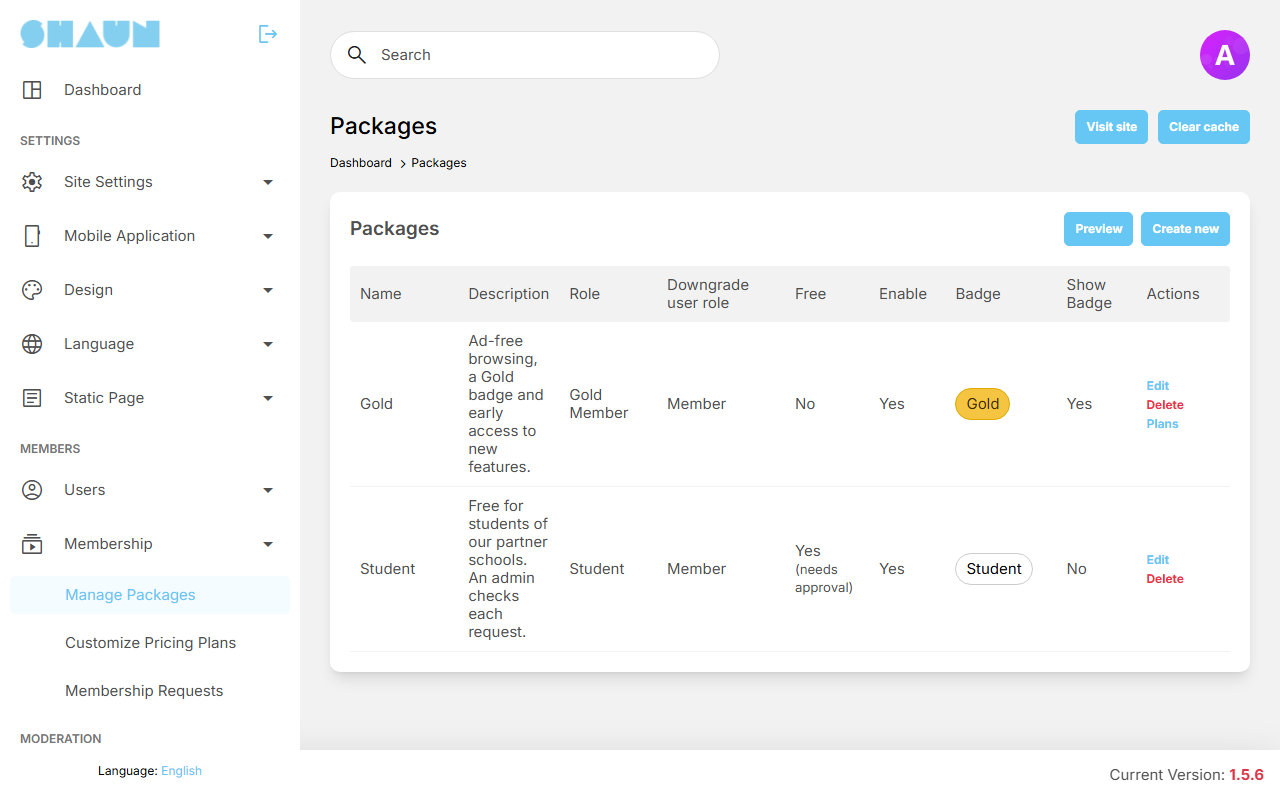
The list shows each package with Role, Downgrade user role, Free ("Yes (needs approval)" for a free package that needs approval), Enable, a preview of the badge and Show Badge. Preview at the top opens the Compare plans page as members see it.
- Edit changes a package. A new Role applies to members who subscribe from then on; paid members keep the role they subscribed with. Members already on a free package stay on their current role, so they no longer count as members of that free package.
- Delete removes the package and its plans from the offer, after you confirm. Members who already subscribed keep their membership and it keeps renewing; to end one, cancel the member's subscription (see the Billing page).
Plans of a paid package#
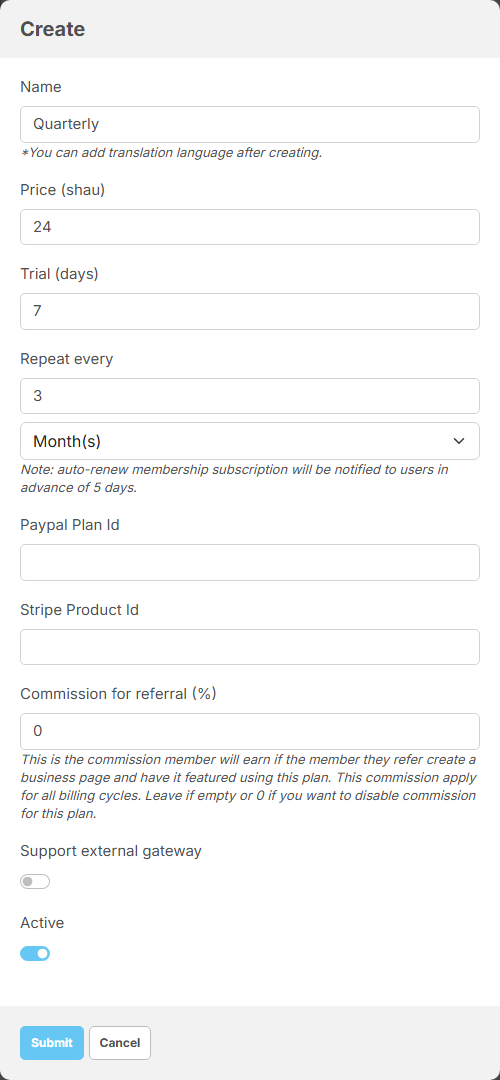
Click Plans on a paid package's row. The list shows each plan with Name, Price (for example "10 Credits monthly"), Commission for referral (%), Trial day(s) and Enable. Drag the rows to set the order of the plans in the package's plan list. Click Create new plan, fill in the fields and click Submit; "Plan has been created." confirms it.
| Field | What it does |
|---|---|
| Name | the plan name in the package's plan list, for example "Monthly". After creating, it is changed through Translate |
| Price | the amount charged each period, in your eWallet credits |
| Trial (days) | free days before the first charge; empty or 0 for none. A member gets one trial only, on any plan of any package: after that, plans are offered without it |
| Repeat every | the period: a number and Day(s), Week(s), Month(s) or Year(s). 1 month shows as "monthly", 3 months "quarterly", 6 months "biannual", 1 year "annual" |
| Paypal Plan Id, Stripe Product Id | needed only when members may pay by PayPal or Stripe; see Recurring plans on PayPal / Stripe. For a plan paid from the eWallet only, leave both empty |
| Commission for referral (%) | 0 to 100. The share of each payment of this plan earned by the member who invited the subscriber to your site, every billing period (see Your referrals and the referral dashboard). Empty or 0: no commission |
| Support external gateway | off: members are offered only their eWallet; also leave both IDs above empty so the plan cannot be paid through PayPal or Stripe. On: PayPal and Stripe are offered too |
| Active | on after creating. Off: the plan is not offered |
Changing a plan's price or period affects only new subscribers: members who already subscribed keep paying the price and period they subscribed at. A new Commission for referral (%) applies at once, to the renewals of existing subscribers too. A free package has no Plans action.
Membership settings#
The settings save as soon as you change them (see Settings save themselves).
| Setting | After installing | What it does |
|---|---|---|
| Enable | on | off: members can no longer open the packages or subscribe, the profile-card button and badges disappear. Current memberships keep their role and keep renewing |
| Auto-renew membership subscription will be notified to users in advance (days) | 5 | how many days before a renewal the member gets the notification and the e-mail "Your upcoming subscription renewal" |
The membership e-mails (subscribed, about to renew, stopped, moved onto a free package, request rejected) can be reworded in the mail templates (see The templates: payments and subscriptions). Your site can also send a final low-balance reminder 24 hours before an eWallet renewal (an eWallet setting, see the eWallet page).
Membership requests (admin approval)#
Last updated: 2026-11-17 · v1.5.6
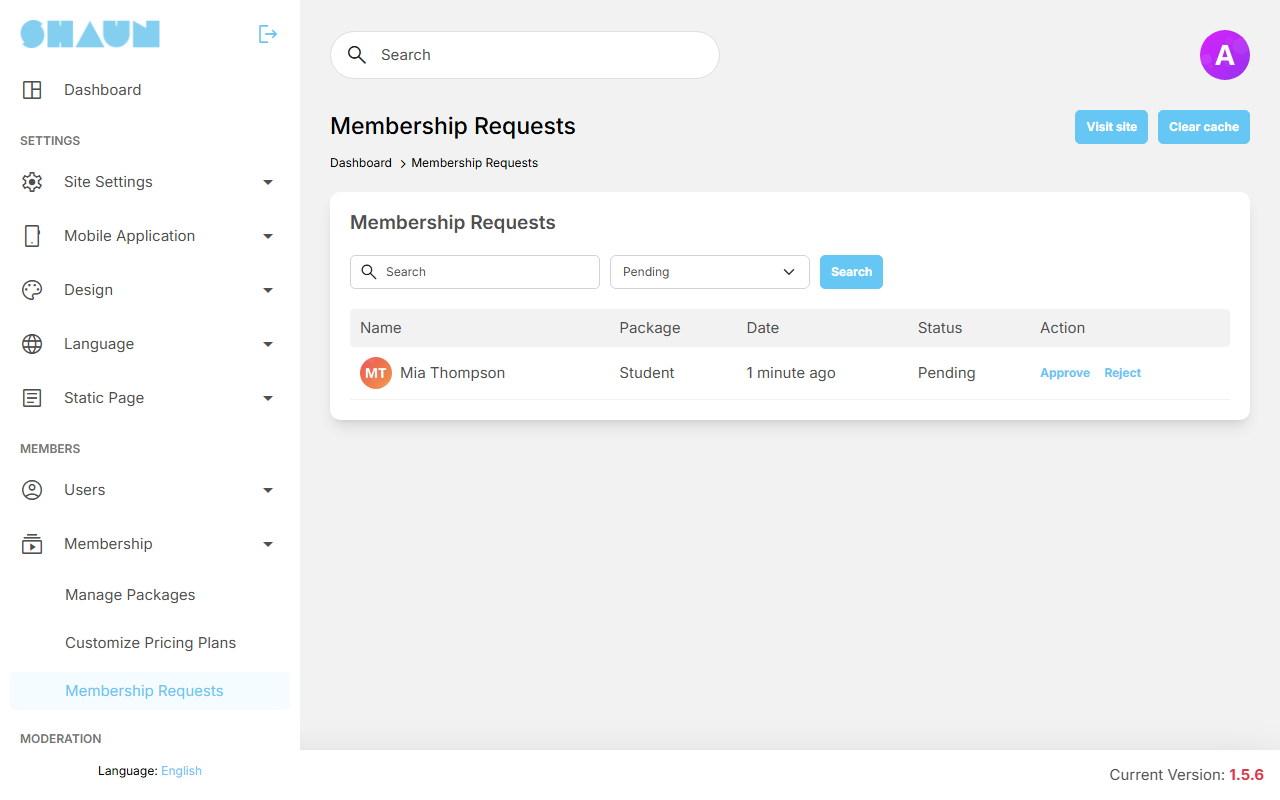
When a free package has Require admin approval on, a member who chooses it sends a request instead of getting the package. The screen lists the requests, newest first, with Name, Package, Date, Status and Action. It opens on the Pending ones; choose another status (Approved, Rejected, Cancelled) or type a name or user name and click Search. A decided request shows who handled it.
- To accept, click Approve and confirm.
What you should see: "This request has been successfully approved." The member gets the package's role at once, the notification "your membership has been updated." and the e-mail "Your membership on [site] has been updated".
- To refuse, click Reject, enter a reason if you like (up to 255 characters) and click Submit.
What you should see: "This request has been successfully rejected." The member gets the notification "your membership request was rejected." and an e-mail with your reason, and can ask again.
When the member still has an active paid membership, the confirmation says so: approving stops it at once (and cancels it at PayPal or Stripe), and the time left is not refunded. The member was warned when asking; you still decide.
- Cancelled requests were withdrawn automatically because the member moved onto another package in the meantime (another free package, or a paid one once it was paid).
- If the package was deleted, switched off or turned into a paid package since the member asked, Approve shows "This package is no longer available."; reject the request instead.
- A member whose account was deleted shows as Deleted user; the row stays for your records.
Pricing table#
Last updated: 2026-11-17 · v1.5.6
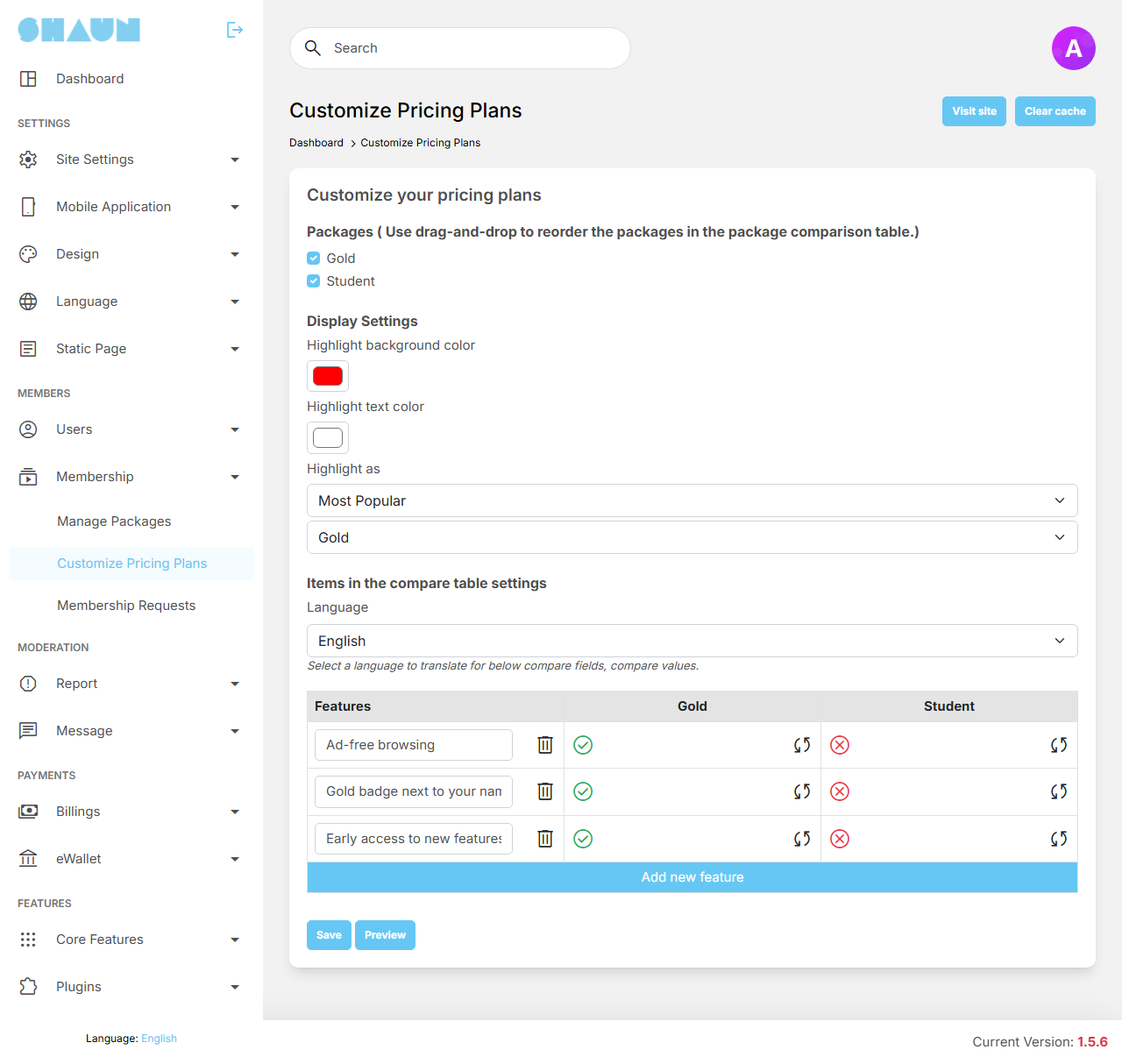
This screen decides which packages members see on the Compare plans page, in what order, which one is highlighted, and the feature comparison table under the packages. Dragging the packages saves their order at once; everything else is saved when you click Save, and "Pricing plans have been updated." confirms it. Preview shows the result as members see it.
| Part | What you set |
|---|---|
| Packages | tick the packages to show; drag them to set their order, which is also the order of the comparison columns. Members see a ticked package only while it is active and, for a paid package, has at least one active plan |
| Highlight as | the label on the highlighted package: Most Popular, Best Deal or Recommended, and, in the second list, which package carries it |
| Highlight background color, Highlight text color | the colours of that label (red and white until you change them) |
| Items in the compare table settings | one row per feature. Click Add new feature, type the feature name, then for each package either a short text (for example "10 GB") or a yes / no mark; the arrows icon switches between text and yes / no, and clicking the mark switches yes and no. The bin icon removes a row |
| Language | choose a language to translate the existing feature names and texts into, change them and click Save |
The comparison table is shown only when it has at least one row.
Subscribing as a member#
Last updated: 2026-11-17 · v1.5.6
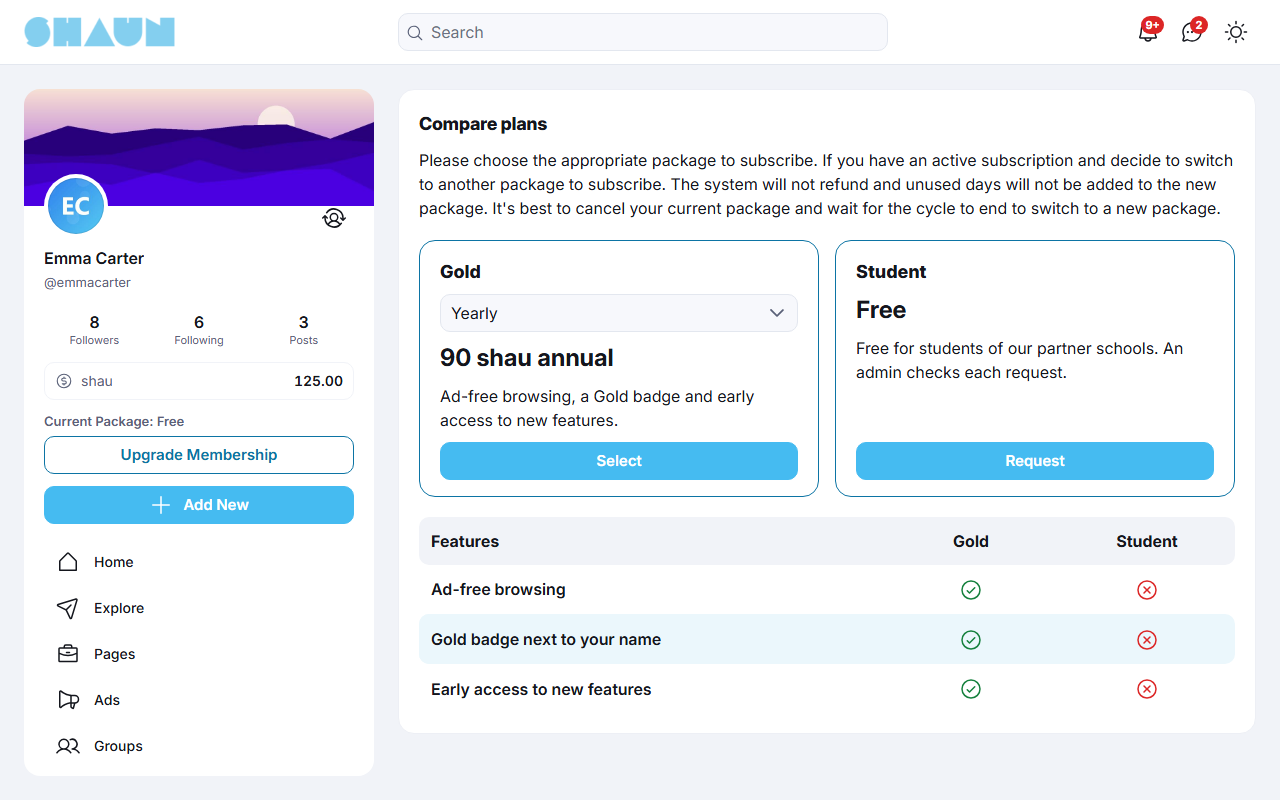
Click Upgrade Membership on your profile card in the left menu. The Compare plans page shows one box per package with its name, price and description, and the comparison table of features under them. A paid package has a list of plans (for example monthly and yearly); the price under it follows the plan you pick, with the trial first when there is one ("7 days trial then …"). The box of your current paid package is highlighted while the plan you are on is the one picked in its list; a free package you are on shows a greyed-out Current plan button.
Subscribe to a paid package#
- In the package's box, pick a plan and click Select (Start Trial when the plan has a trial you have
not used yet). If you already have a membership, confirm that it stops when the new one starts.
What you should see: the window Your order with the plan, the payment methods, your eWallet balance and Reload your balance.
- Choose a payment method, tick the terms when your site shows them, and click Subscribe now.
- For the eWallet, enter your password in Enter Password and confirm. For PayPal or Stripe, complete the
payment on that site.
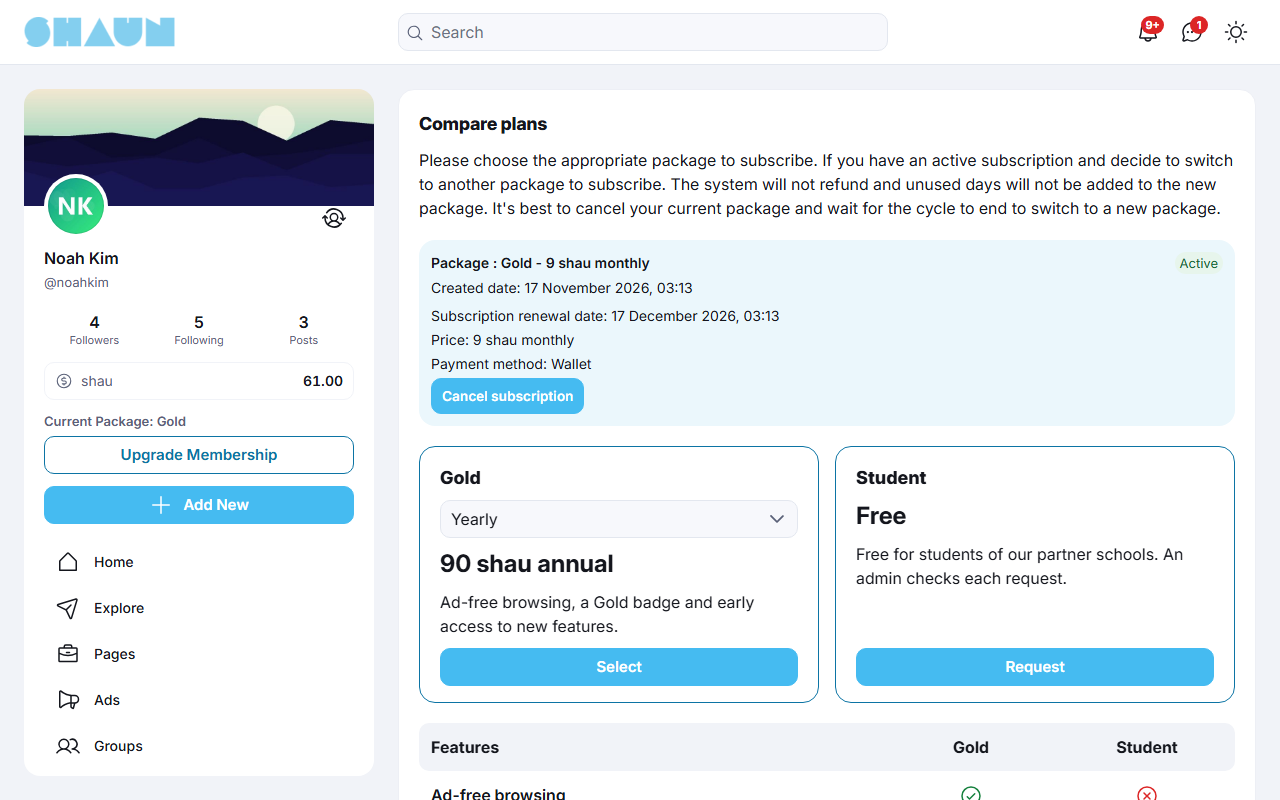
What you should see: "Select package successfully." (eWallet), your package at the top of the page with its renewal date, price and payment method, and the notification "your membership subscription is active." with an e-mail. Your new permissions apply at once.
- eWallet: you need at least the plan price in your balance, or you see "You don't have enough balance.". With a trial, nothing is taken now: the price is taken when the trial ends.
- PayPal or Stripe are listed only for plans that allow them. With these, your previous membership stays until the payment is confirmed.
- Trial: you get one trial on the site, whichever plan you use it on. With PayPal, the trial is the one set in the PayPal plan (see Recurring plans on PayPal / Stripe).
- Switching to another plan or package stops the current one when the new one starts. The time left is not refunded or added to the new plan; to avoid losing it, cancel the current plan and switch after it ends.
Choose a free package#
A free package's box shows Free. Click Select and confirm "Do you want to switch to this membership?": "Your membership has been updated." and the package's role is yours at once. If the box shows Request, an admin has to approve: confirm, and the box shows Waiting for approval until they decide. You are told by notification and e-mail either way. Choosing a free package also stops a paid membership you have (at once, or when the request is approved), without refund.
Renewal, cancelling and resuming#
At the end of every period the plan price is taken from your eWallet again, or charged through PayPal or Stripe if you paid that way. A few days before (5 after installing) you get a notification and the e-mail "Your upcoming subscription renewal"; if you pay from the eWallet and your balance is already too low then, you get a low-balance notice instead, asking you to add funds. If your eWallet balance is too low at renewal time, or the PayPal or Stripe payment does not arrive in time, the membership stops, you go back to the package's lower role, and you are told why ("…because your eWallet balance was not enough to renew it.").
- To cancel, open the Compare plans page and click Cancel subscription at the top (or Cancel in your
package's box), then Cancel Subscription.
What you should see: the status Cancelled and "Subscription will stop at" with the date. Nothing more is charged; you keep the package until that date, and the rest of the period is not refunded.
- Changed your mind before that date? Click Resume subscription (or Resume) and confirm; the membership renews again as before.
Your memberships are also listed in Settings → Subscriptions, with the other paid subscriptions you have (see Settings). A subscription cancelled by a site admin cannot be resumed by you.
Change log#
Last updated: 2026-11-17 · v1.5.6
| Date (GMT+7) | Section | What changed |
|---|---|---|
| 2026-11-17 | all | First version for 1.5.6, written from the 1.5.6 code as a guide for members and site admins. |
| 2026-11-17 | overview, packages, pricing-table, subscribe | Corrections after review: admins and moderators cannot subscribe, eWallet-only plans need empty PayPal and Stripe IDs, the referral commission applies to renewals of existing subscribers, dragging packages saves at once, which box is highlighted, the PayPal trial, the low-balance notice before a renewal. |