ShaunSocial user guide 1.5.6 / Features
Marketplace
The Marketplace lets members and business pages offer things for sale, rent or hire as listings: products, services, rentals, jobs or links to products on other sites. This page shows admins how to set up the categories (needed before anyone can list), the featured listing packages and the settings, and shows members how to add and manage a listing, browse and filter listings, find listings nearby, feature a listing and contact a seller.
Checked against the 1.5.6 code and the categories of a demo site. The steps for adding, featuring and contacting were read from the code, not run; screenshots follow.
Categories and attributes#
Last updated: 2026-11-17 · v1.5.6
Moderators need the Manage Categories switch in their role (see Moderator roles).
Categories have up to three levels, for example Cars & Vehicles → Cars → SUV. A listing is always put in a sub-category (the second or third level), never directly in a top-level category. The second level decides which fields the listing form asks for: condition, price, discount, free delivery, available units. A third-level category uses the fields of the second-level category above it.
The site comes with 12 top-level categories and no sub-categories: Cars & Vehicles, Computers & Accessories, Devices, Contracts, Electronics & Appliances, Fashions, Foods, Furniture, Houses & Lands, Jobs, Pet Services and Phone & Tablets. Until you create at least one sub-category, members find nothing to choose in the listing form's Category field and cannot add a listing. Create the sub-categories your community needs (below), or import them from a CSV file.
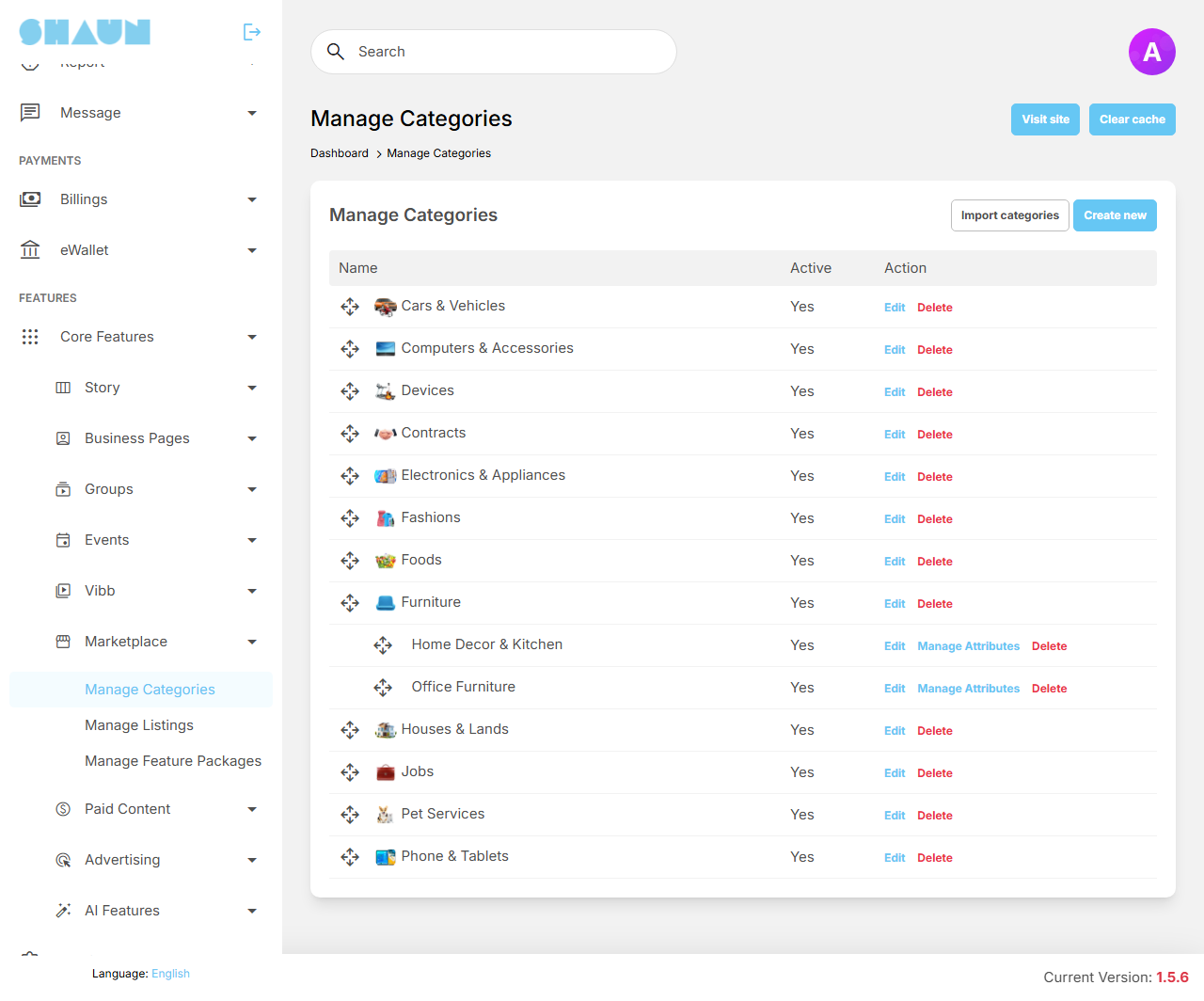
Create a category#
- Click Create new.
- Enter the Name and, if you like, upload an Icon; the icon is shown in the Categories block of the Marketplace page and in the category choice.
- Choose the level:
- a top-level category: leave Parent empty;
- a sub-category: choose a top-level category as Parent. If that category already has sub-categories, a second list appears; leave it empty;
- a third-level category: choose the top-level category as Parent, then the sub-category in the second list.
What you should see: for a sub-category, the field options below the parent lists (see the table).
- Tick the fields listings in this sub-category need, leave Active on and click Submit.
What you should see: "Marketplace category has been created." and the category in the tree.
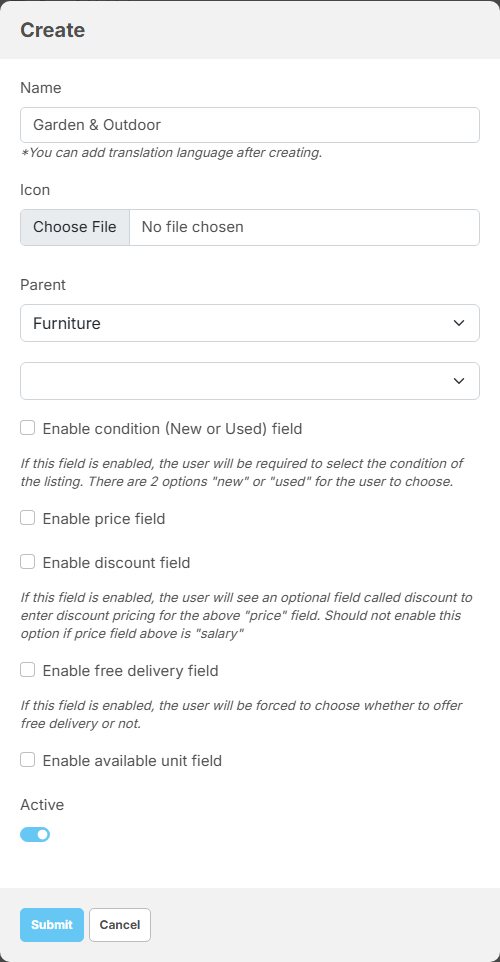
| Option (sub-categories only) | What members see in the listing form |
|---|---|
| Enable condition (New or Used) field | Conditions, required: New or Used |
| Enable price field | a required price, labelled after your choice: Fixed price gives Price, Monthly price gives Monthly price (rentals), Salary gives Salary (jobs). Without it the listing has no price |
| Enable discount field | an optional Discount, as an amount or a percentage of the price. Not useful with Salary |
| Enable free delivery field | a Free Delivery tick box |
| Enable available unit field | Available unit - Leave it empty if unlimited |
- Rename a category: click Edit, then Translate under the name, and change the name there for each language (see Translate a name or text). The Name field cannot be changed after creating. The other fields can.
- Order: drag the rows to set the order members see.
- Active off hides the category from members.
- Delete removes the category with its sub-categories and the category's own attributes. It is refused while a listing uses the category or one of its sub-categories: "Cannot delete this category. It has been associated with listings."
Import categories from a CSV file#
- Click Import categories and then Download sample csv to see the format.
- Prepare your file: one category per line, with the columns
level,name,is_active,price_type,enable_condition,enable_discount,enable_free_deliveryandenable_available_unit(see the example below). - Under Import under, keep — Top level — or choose an existing category to add the new ones below it. The level in the file counts from there: level 1 is a direct child of what you chose.
- Choose the file under File CSV and click Import.
What you should see: "Categories imported successfully. Created: [number], skipped: [number]." A category whose name already exists at the same place is skipped, not duplicated.
level,name,is_active,price_type,enable_condition,enable_discount,enable_free_delivery,enable_available_unit
1,Vehicles,1,,,,,
2,Cars,1,fixed_price,1,1,1,0
3,SUV,1,,,,,
2,Motorcycles,1,fixed_price,1,0,1,0- A row belongs to the nearest row above it with a lower level.
price_typeisfixed_price,monthly_price,salaryor empty (no price); the other options are1(on) or0(off). They are used only for rows that become second-level categories in the tree: with — Top level — those are the level-2 rows, under a top-level category they are the level-1 rows.- The whole file is checked first. If one line is wrong, nothing is imported and the window lists the lines to fix, for example "Line 4: missing a parent row at level 1.".
Attributes and their values#
Attributes are the details a buyer filters by, such as Brand or Engine type, each with a list of values (Petrol, Diesel, Electric). They belong to a second- or third-level category; a third-level category offers its own attributes and those of the category above it.
- Click Manage Attributes next to a sub-category, then Create new.
- Enter the Name, upload an Icon if you like, and choose Single choice or Multiple choice. To copy the values of an attribute you already made for another category, choose it under Import values from existing attributes. Click Submit.
- Click Manage Values next to the attribute and Create new for each value. Tick Add to other attribute to add the same value to other attributes at once.
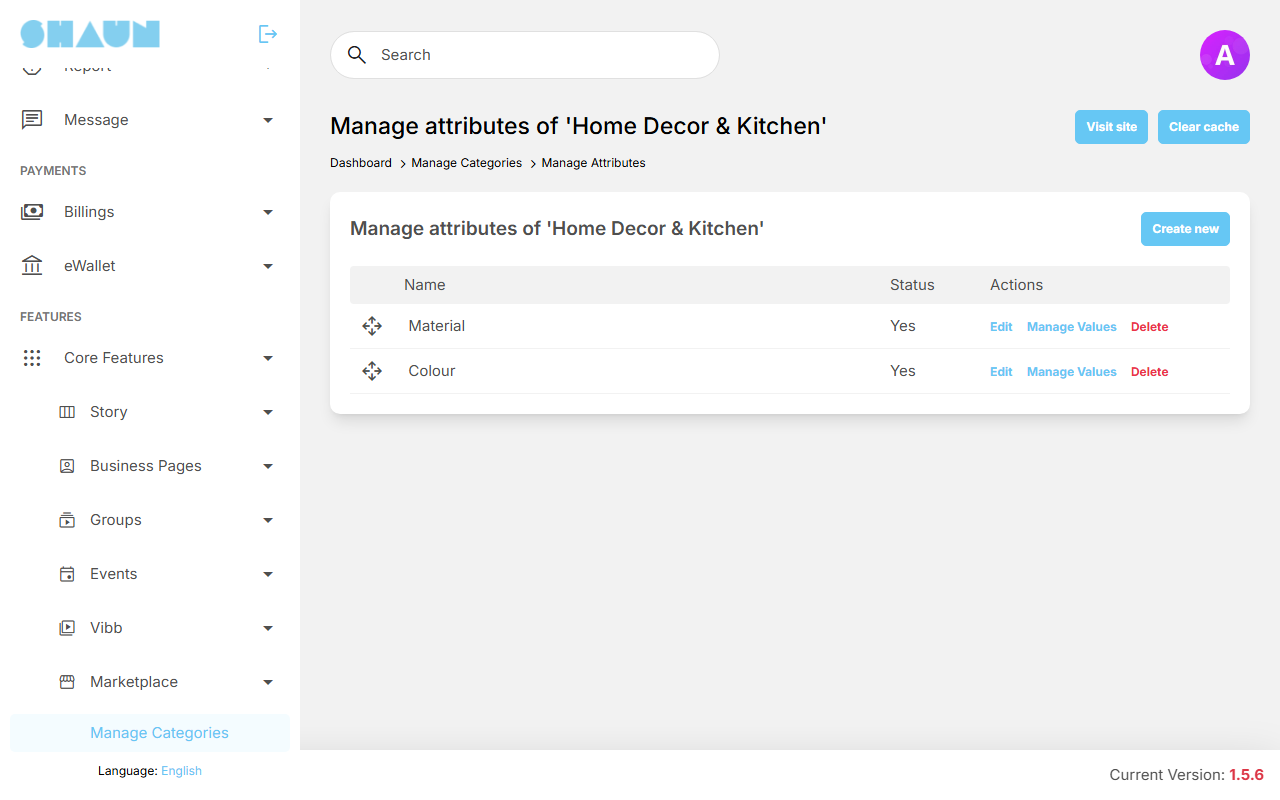
On the values screen, tick several values to delete or activate them together. An attribute or a value that a listing uses cannot be deleted; switch it off with Active instead. Attribute names and values are renamed with Translate, like categories.
Adding a listing#
Last updated: 2026-11-17 · v1.5.6
Click Marketplace in the main menu, then Add new in the Categories block. The form is also
at https://example.com/marketplaces/listings/create.
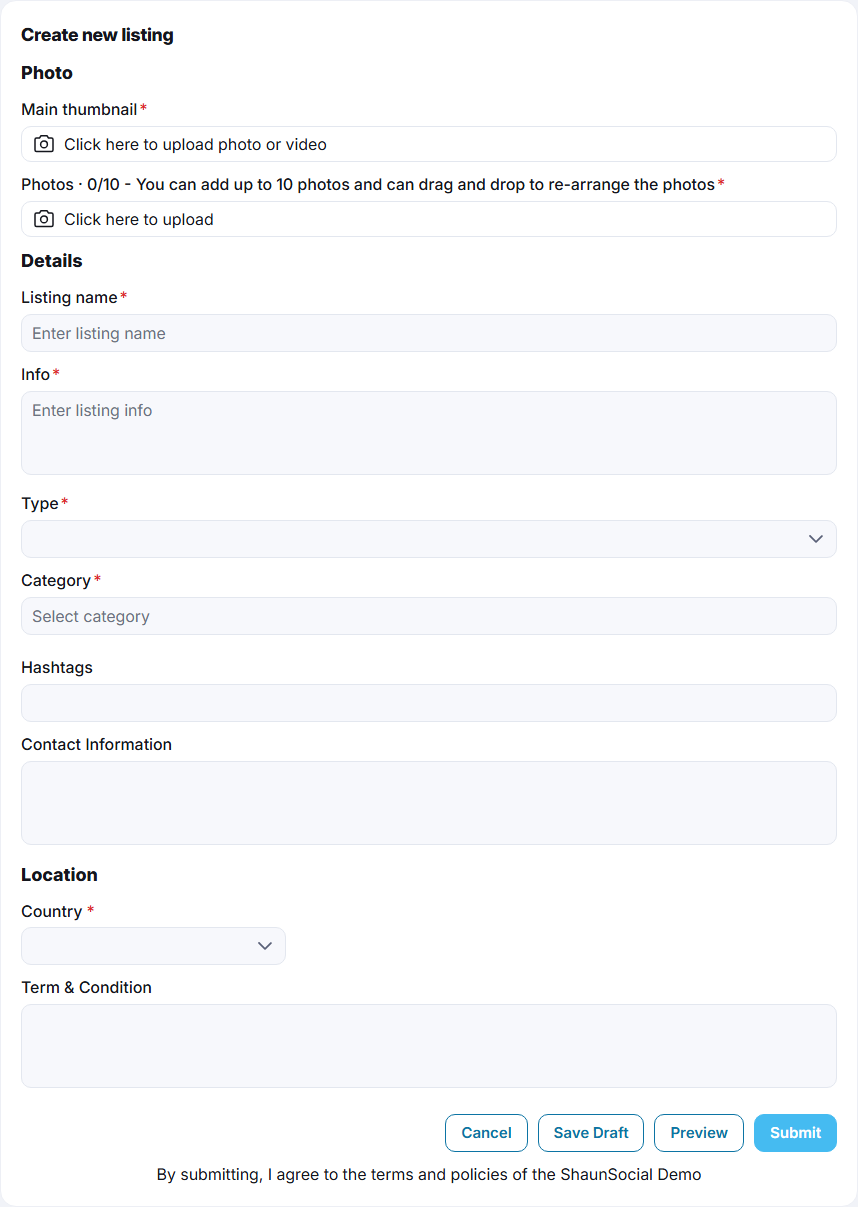
| Field | What to enter |
|---|---|
| Main thumbnail | required: the photo, or an MP4 video, shown first. A video is accepted only when your site can process videos (see FFmpeg and Imagick on the server) |
| Photos | required: at least one photo, up to 10 after installing |
| Listing name | required, up to 255 characters |
| Info | required: the description, up to 1000 characters after installing |
| Type | Regular: you sell or offer it yourself and buyers chat with you. Affiliate: you point to a product on another website; enter its address (starting with http:// or https://) and buyers get a Link to buy button instead of Chat |
| Category | required: click it and choose a sub-category. If the sub-category has its own sub-categories, a second list appears; choosing one there is optional, the listing can stay in the sub-category |
| Select listing attributes | the details of the item, such as brand or size, when the category has attributes. You can also add or change them later with Add Attributes or Edit attributes on the listing's Info tab |
| Conditions, Price (or Monthly price, Salary), Available unit, Discount, Free Delivery | shown when the category asks for them. Prices are in your site's currency. A percentage discount must be below 100, an amount below the price |
| Hashtags | words that help people find the listing |
| Contact Information | how to reach you, up to 1000 characters |
| Location | Country is required; State and City help buyers nearby find you |
| Term & Condition | your conditions of sale, up to 1000 characters |
- Fill in the form.
- Click Submit to publish, Save Draft to keep it for later, or Preview to save a draft and
see the listing page as buyers will.
What you should see: after Submit, "Your listing has been created successfully." and the listing page. If your site reviews new listings, you see "Your listing is pending for approval." instead, and you get the notification "Your listing '…' is approved" when an admin approves it. After Save Draft, "Your draft listing has been saved successfully.".
- Save Draft and Preview are offered only while your site publishes new listings without review.
- When the site is set up so, a post "created a new listing" appears on your profile and in your followers' home feeds once the listing is published. It is hidden again while the listing is a draft or switched off. Listing posts and review posts are never shown on Explore (see Discovery and Explore).
- Whether you may add listings and how many a day depends on your member role: you may see "You don't have listing creation permission." or "To prevent spam, we only allow you to share a maximum of [x] listings per day.". When you post as a business page, the site must allow pages to create listings.
Change, unpublish or delete your listing#
Your listings are in Lists → Listings (https://example.com/lists/listings), with a
Status filter: Active, Pending (waiting for an admin), Draft and Disable
(switched off by an admin). On a listing page, the three dots hold:
| Menu item | What it does |
|---|---|
| Edit | opens the form; click Update to save, or Publish for a draft |
| Set as draft | takes the listing out of view: "This listing has been marked as draft and is no longer visible to buyers." Use it when the item is sold or no longer offered. The listing's feed post and its review posts are hidden too |
| Publish listing | puts a draft back on view. A listing an admin approved once is published at once; a listing never approved goes to the admins again if your site reviews listings |
| Delete listing | deletes the listing with its photos, reviews and feed posts, after you confirm |
| Share | shares the listing like a post |
Changing an active listing does not send it for review again.
Browsing listings, nearby listings and reviews#
Last updated: 2026-11-17 · v1.5.6
Click Marketplace in the main menu (https://example.com/marketplaces). Visitors who are
not signed in can browse too, unless Force Login is on. After installing
the page shows four blocks; a block with nothing to show is hidden.
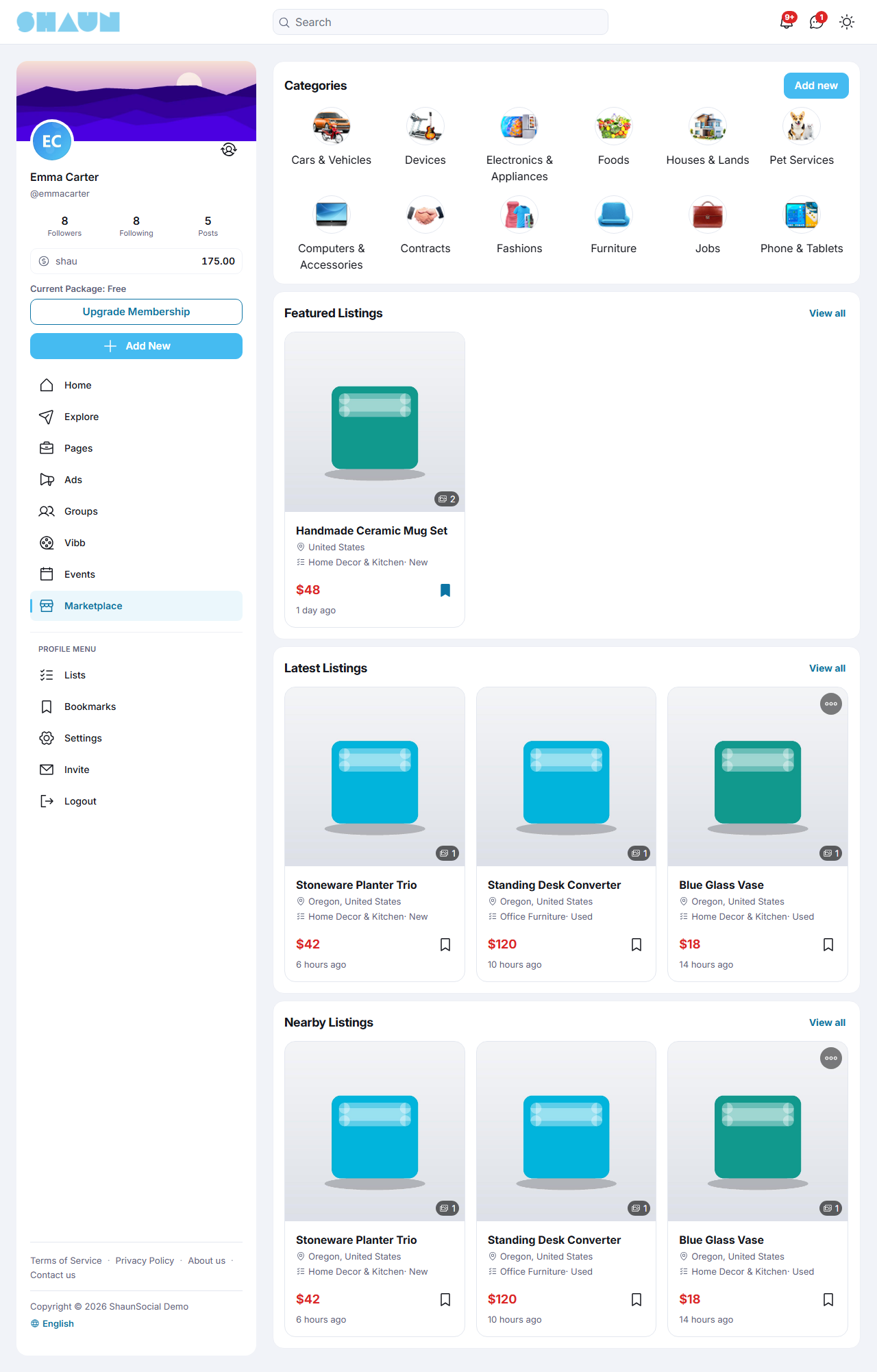
| Block | What it shows |
|---|---|
| Categories | the top-level categories with their icons, and the Add new button for adding a listing |
| Featured Listings | listings their sellers featured (see Featured listings), in random order |
| Latest Listings | the newest listings |
| Nearby Listings | the newest listings near you (see below) |
Each listing card shows the photo, the name, the price (with the old price crossed out and the discount on the photo when there is one), the place and the category. Listings also appear in the site search on the Listing tab, on members' profiles on the Listings tab, and can be saved with the bookmark button (see Bookmarks).
Nearby listings#
The Nearby Listings block shows the newest listings in the country of the location in your profile, and in the same state when your profile has one. You set that location in Settings → Profile → Location. Visitors and members without a country in their profile do not see the block. View all opens all listings near your location.
Admins can also put the Nearby Listings block on other pages, such as the home page, in the Layout editor.
Find listings with categories and filters#
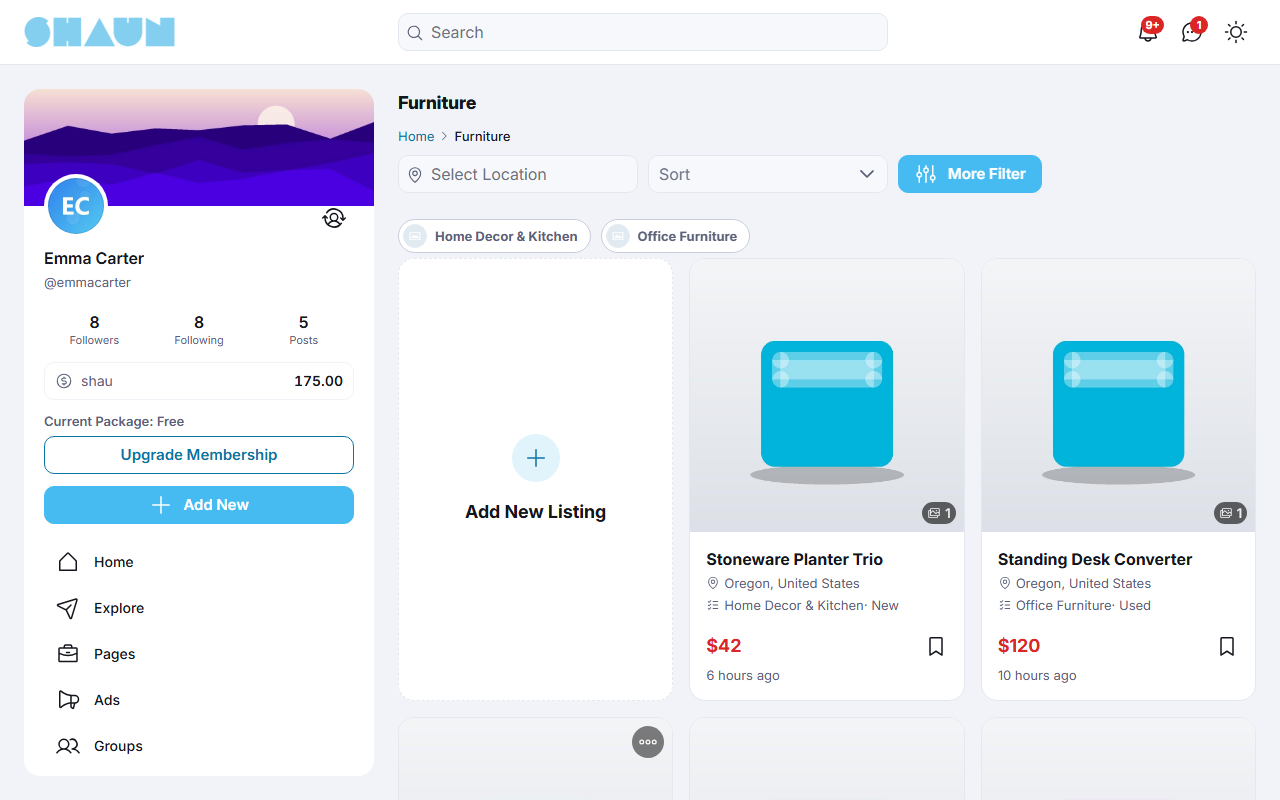
- Click a category in the Categories block, or View all on a block.
What you should see: the Listings page, with the path of the category at the top and its sub-categories to click through.
- Narrow the list with the filters: Location, Sort (rating or price, highest or lowest first) and, when the category uses them, Condition and Delivery.
- Click More Filter for a price range, a review range and the category's attributes, then Apply Filter. Clear empties the window.
The filters in use are shown under the bar; click the cross on one to remove it.
The listing page#
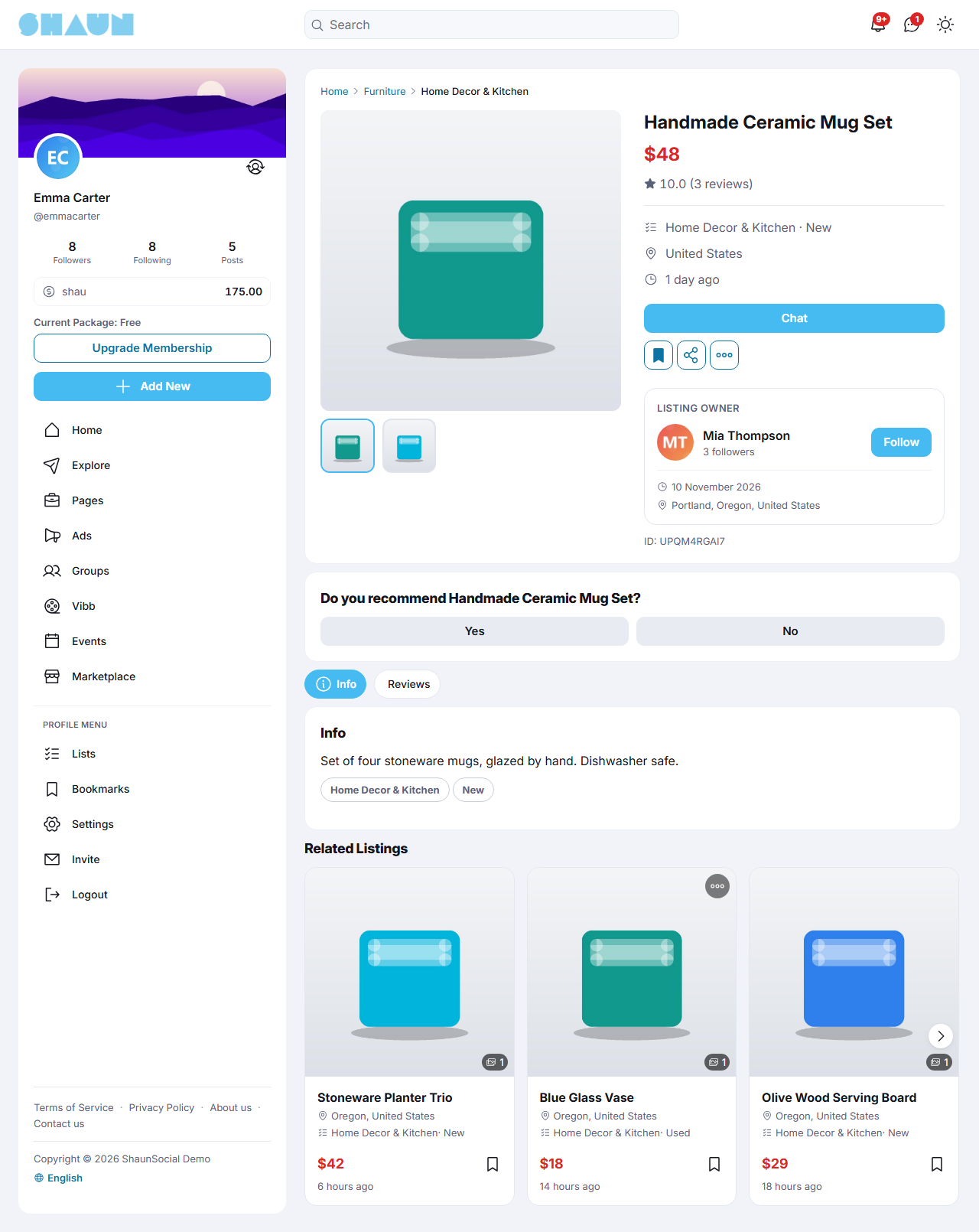
- At the top: the photos and video (click one to enlarge it), the name, the price, the rating with the number of reviews, the place and, if the seller entered it, the number of available units.
- Chat sends the seller a message about this listing (see Chat with the seller); an affiliate listing has Link to buy instead, which opens the product on the other website.
- The bookmark, share and three-dot buttons; the three dots hold Report (see How members report) and, for the seller, the menu described in Change, unpublish or delete your listing.
- Listing owner shows the seller (a member or a business page) with their followers.
- The Info tab shows the description, the attributes, the hashtags, the contact information, the terms and free delivery; the Reviews tab shows the reviews. Related Listings shows other listings of the same category.
Recommend a listing (reviews)#
- On a listing page, answer Do you recommend [listing name]? with Yes or No.
- Write a few words in the window that opens and click Send.
What you should see: "Your review have been sent." The review is published as a post and appears on the listing's Reviews tab; the seller gets "wrote a review for your listing.".
Each member can review a listing once, and not their own. The rating is shown out of 10: each Yes counts 10 and each No counts 0, averaged over all reviews, for example "Rating · 7.5 (4 reviews)". Deleting the review post removes the review and updates the rating.
Featured listings#
Last updated: 2026-11-17 · v1.5.6
A featured listing appears in the Featured Listings block of the Marketplace page and under the Featured filter. Sellers feature a listing by subscribing to a feature package the admins created; the subscription is paid from the seller's eWallet (or, when the package allows it, through PayPal or Stripe) and renews by itself until it is cancelled.
Feature your listing#
- On your own active listing, click Feature Now.
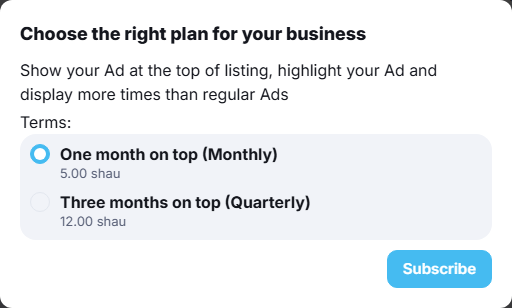
What you should see: "Choose the right plan for your business" with the packages, each with its period and price. If there is none: "Feature option is currently unavailable."
- Choose a package and click Subscribe, then choose how to pay. Paying from the eWallet needs enough balance; otherwise you see "You don't have enough balance.". If you choose PayPal or Stripe (offered only for packages that allow it), you are sent to that payment site to complete the payment instead of the next step.
- For the eWallet, enter your password.
What you should see: "Feature Successfully." and the notification "Your listing '…' is featured now.".
- Renewal: at the end of each period the package price is taken from your eWallet again, or charged through PayPal or Stripe if you paid that way. A few days before (5 after installing) you get a notification and an e-mail that the subscription renews soon.
- When it stops: if your balance is too low at renewal time, or a PayPal or Stripe renewal payment does not arrive in time, the subscription stops, the listing is no longer featured, and you are told by notification and e-mail.
- Cancel: in Settings → Subscriptions, keep the type filter on All type to find the listing's subscription, open it and cancel it. Deleting the listing also ends the subscription at the next renewal.
Feature packages#
Moderators need the Manage Feature Packages switch in their role (see Moderator roles). Until you create an active package, sellers cannot feature listings.
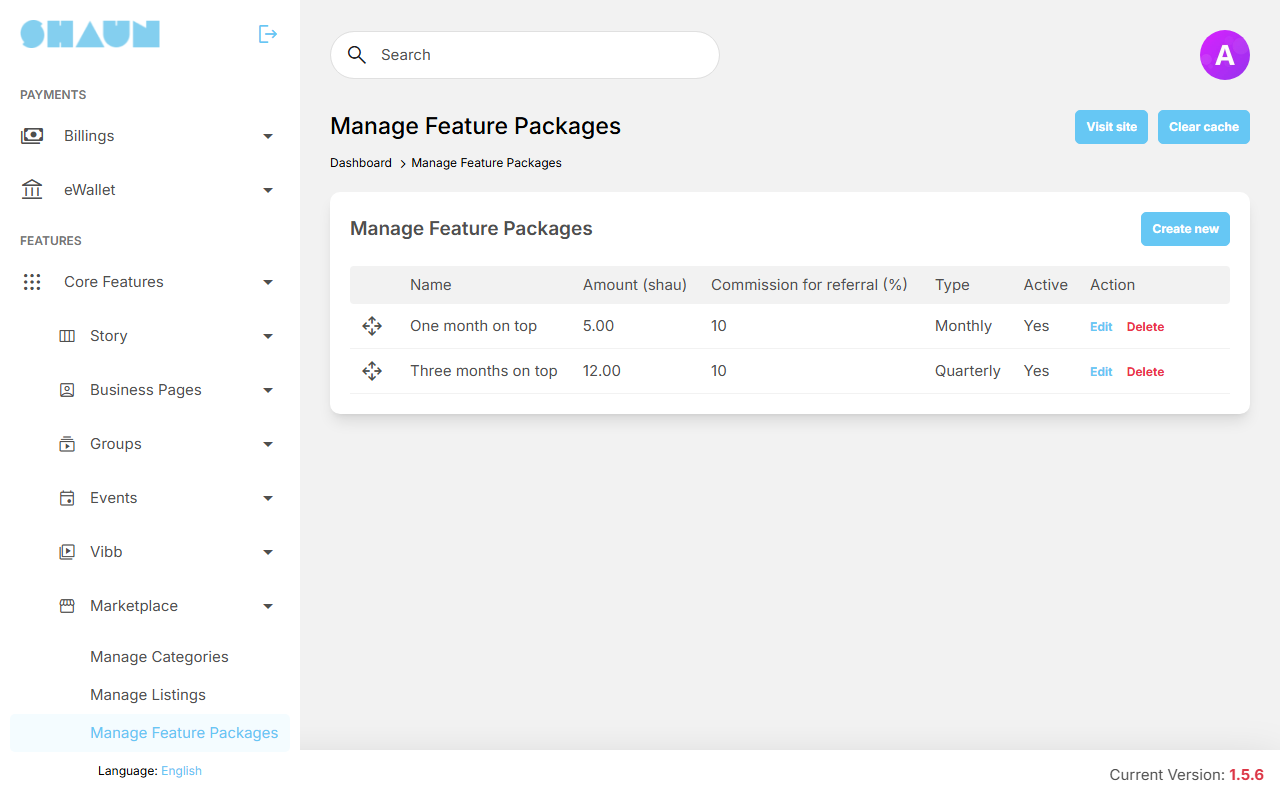
- Click Create new.
- Fill in the fields (see the table) and click Submit.
What you should see: "Package has been created." and the package in the list.
| Field | What to enter |
|---|---|
| Name | the package name sellers see |
| Amount | the price per period, in your site's eWallet credits |
| Type | the period: Monthly, Quarterly, Biannual or Annual |
| Commission for referral (%) | the share of each payment given to the member who invited the seller to your site, for every billing period. Leave it empty or 0 for none (see Your referrals and the referral dashboard) |
| Support external gateway, Paypal Plan Id, Stripe Product Id | also lets sellers pay with PayPal or Stripe instead of the eWallet. Setting up the gateways and their plans is explained in Recurring plans |
| Active | off: the package is not offered |
Drag the rows to set the order sellers see; Edit and Delete change or remove a package. The wallet itself is explained on the eWallet page. The two e-mails (renewal soon, stopped) are the templates When a featured listing subscription is about to renew and When a featured listing subscription stops (see The templates: payments and subscriptions); the number of days before renewal is a Marketplace setting (see Marketplace settings).
Chat with the seller#
Last updated: 2026-11-17 · v1.5.6
When you contact a seller from a listing, the listing travels with your message, so the seller knows at once what you are asking about.
- Sign in, open the listing and click Chat.
- Type your message in the Message window and click Send.
What you should see: the chat with the seller opens, with a card of the listing (photo, name, date, place, category, condition, free delivery and price) above your message. Click the card to open the listing.
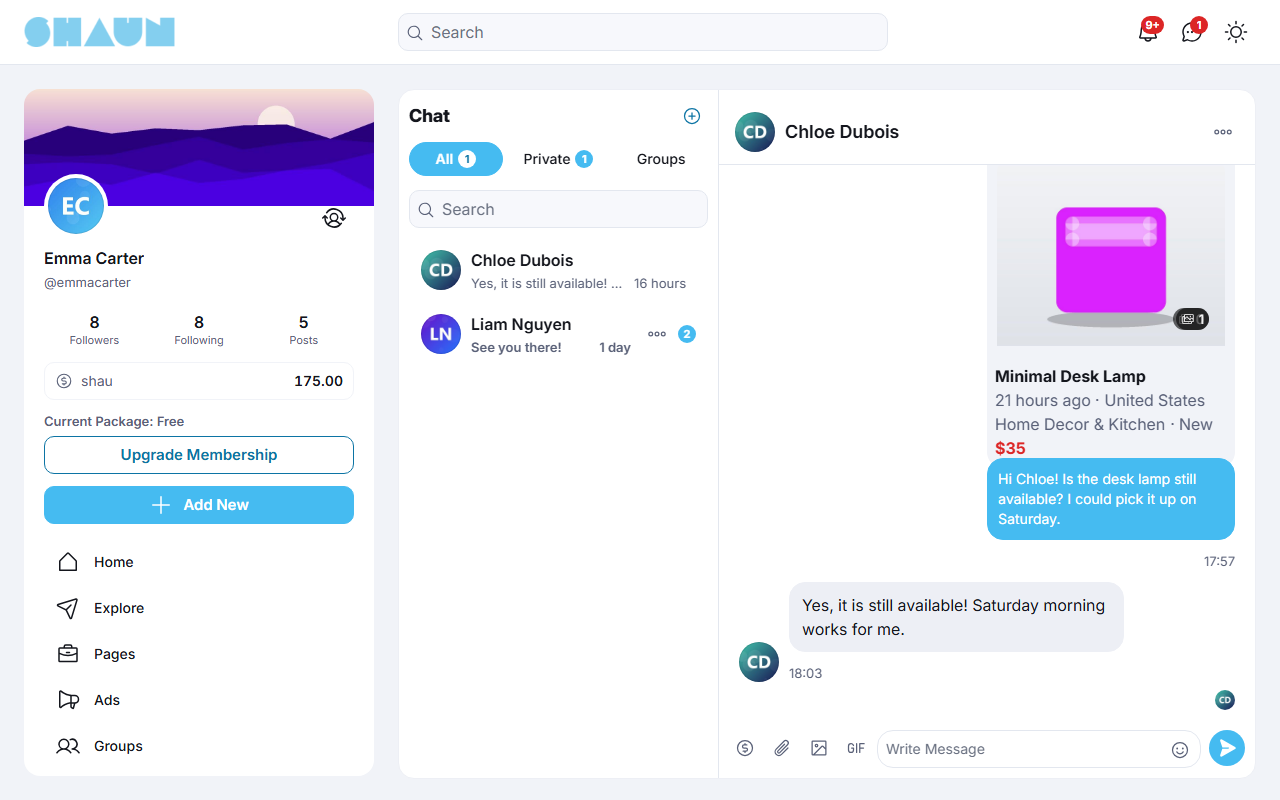
- Chat is shown on regular listings of other members; affiliate listings have Link to buy instead. Visitors who are not signed in and click Chat are sent to the sign-in page.
- You need permission to send messages in your member role, and the seller's message settings apply: you may see "You cannot send messages to this user." (or "…to this page." for a business page). A conversation you already have with the seller is always open.
- The card is shown while the listing is active; a listing set as draft or deleted no longer shows it.
Chat itself is explained on the Chat page.
Listings admin and settings#
Last updated: 2026-11-19 · v1.5.6
Marketplace settings#
The screen saves each setting as soon as you change it.
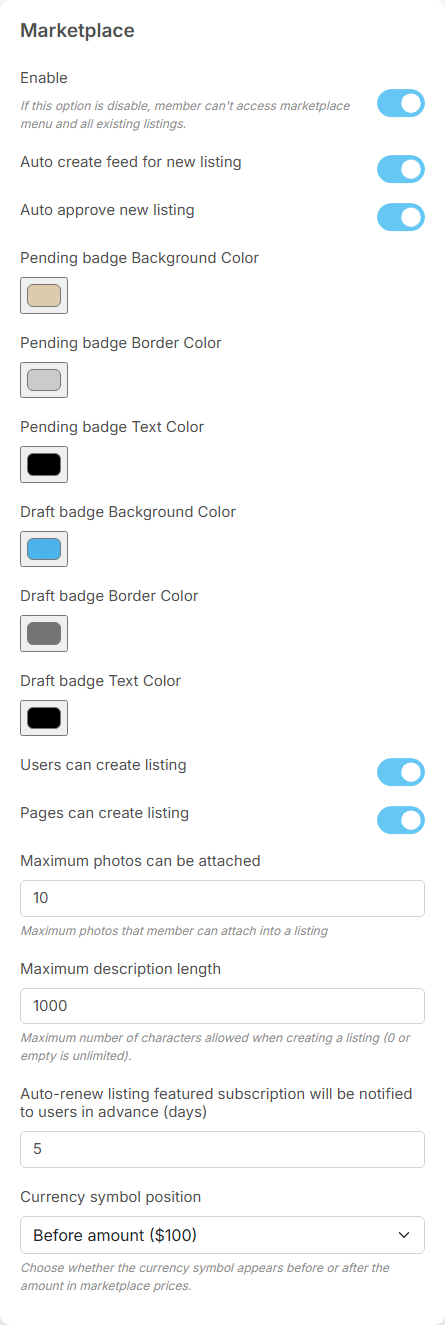
| Setting | After installing | What it does |
|---|---|---|
| Enable | on | off: the Marketplace menu entries disappear, the marketplace pages can no longer be opened and the listing posts leave the feeds. Nothing is deleted: switch it on again and everything comes back. The AdminCP Marketplace menu stays |
| Auto create feed for new listing | on | adds a post "created a new listing" to the seller's profile and followers' feeds for each new listing, shown while the listing is active |
| Auto approve new listing | on | on: new listings are published at once, and sellers can also save drafts and preview. Off: new listings wait for an admin (see below) |
| Pending badge Background Color, Pending badge Border Color, Pending badge Text Color | #DDCBAD, #CBCBCB, #000000 | the colours of the Pending label sellers see on their own listings |
| Draft badge Background Color, Draft badge Border Color, Draft badge Text Color | #4CB3EB, #737474, #000000 | the colours of the Draft label |
| Users can create listing | on | off: members cannot add listings from their own account |
| Pages can create listing | on | off: business pages cannot add listings |
| Maximum photos can be attached | 10 | photos per listing; 0 means no limit |
| Maximum description length | 1000 | characters in a listing's Info. Enter a number above 0; for long descriptions enter a large one, such as 10000. 0 or an empty box does not remove the limit |
| Auto-renew listing featured subscription will be notified to users in advance (days) | 5 | how many days before a featured listing renews the seller is reminded |
| Currency symbol position | Before amount ($100) | where the currency symbol stands in marketplace prices |
Who may add listings, and how many a day, is also set per role in AdminCP → Users → Manage User Roles → Permissions → Marketplace: Allow listing creation (on after installing) and Maximum number of listings can create per day (0 is unlimited) (0). Super admins and moderators are not held to the daily limit; see Per-day limits. Listing prices are in your site's default currency.
Manage listings#
Moderators need the Manage Listings switch in their role. The list shows every listing, newest first, with ID, Name, Created, Agent (the seller), Status, Location and Featured. Filter by status (Active, Disable, Pending, Draft) or search by name or listing ID, and click Search.
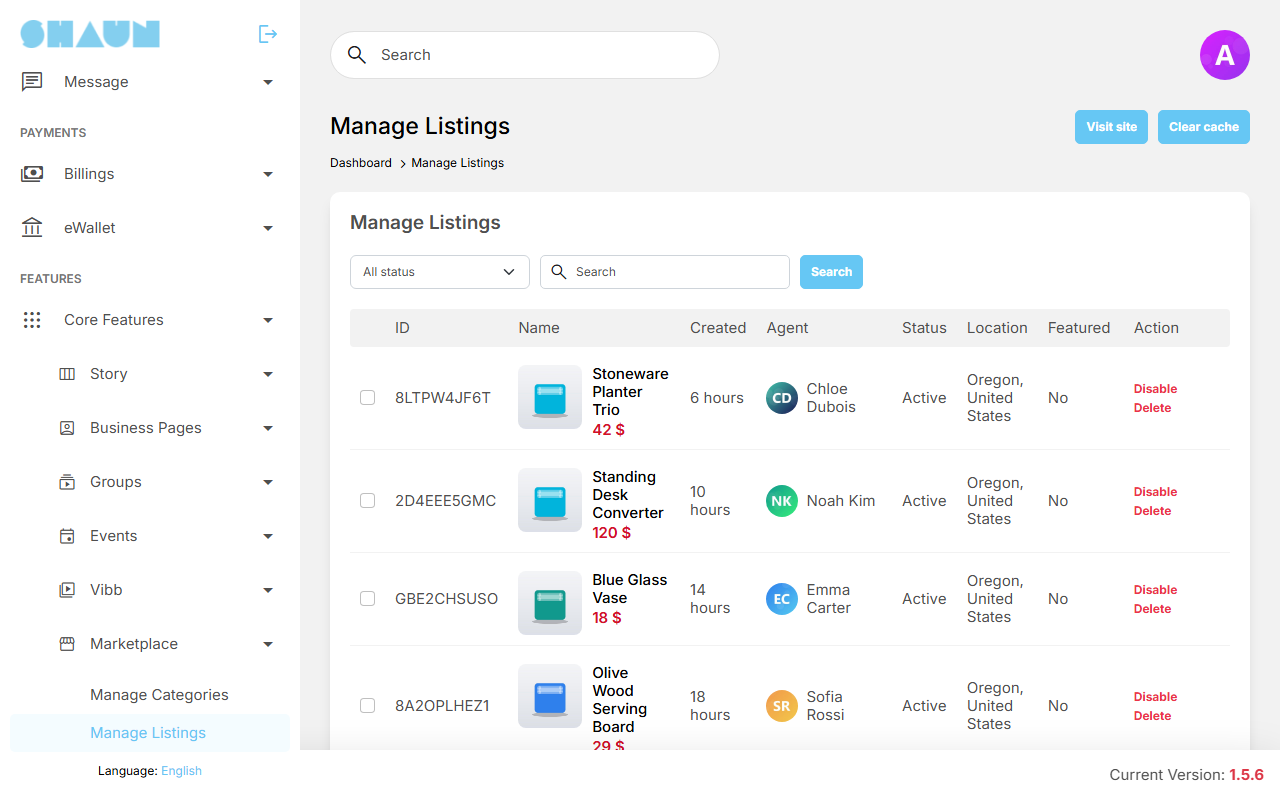
| Action | Shown on | What it does |
|---|---|---|
| Approve | pending listings | publishes the listing. The seller gets "Your listing '…' is approved" |
| Disable | active listings | hides the listing from everyone but its seller, who sees "This listing is disabled by admin". The seller gets "Your listing '…' is disabled" |
| Active | disabled listings | publishes the listing again. The seller gets "Your listing '…' is activated" |
| Delete | all listings | deletes the listing with its photos, reviews and feed posts. This cannot be undone. Tick several listings and use the delete button under the list to delete them together |
- Listings waiting for approval: whenever listings are waiting (for example while Auto approve new listing is off), every super admin and moderator gets one notification a day, at midnight, such as "you have 3 listings pending approval". It is sent by the cron job (see What stops when the cron job does not run). Filter the list by Pending to see them.
- Featured shows whether a seller's feature subscription is running; listings are featured through the packages (see Featured listings).
- Blocks: the pages are laid out in the Layout editor (pages Marketplace Page, Listings Page and Listing Detail), with the blocks Categories, Featured Listings, Latest Listings and Nearby Listings.
- Members can report a listing from its three-dot menu; reports are handled in the Moderation Center.
Change log#
Last updated: 2026-11-19 · v1.5.6
| Date (GMT+7) | Section | What changed |
|---|---|---|
| 2026-11-17 | all | First version for 1.5.6, written from the 1.5.6 code for members and for site owners and their admins. |
| 2026-11-17 | categories, create-listing, featured, chat, admin | Corrections after review: the description length limit, the second Parent list, optional third level, what Delete removes, the CSV options, PayPal and Stripe payments and renewals, the daily pending notice, finding the subscription, the Manage Categories switch, the photo limit, attributes from the Info tab, visitors and Chat, listing posts and Explore, Set as draft and reviews. |
| 2026-11-17 | featured, chat | Links to the Payment gateways, eWallet and Chat pages, which are now written. |
| 2026-11-19 | admin | The full labels of the badge colour settings. |