ShaunSocial user guide 1.5.6 / Features
Events
Members can create events, online or at an address, public, private or inside a group, and others answer with Going or Interested. This page shows members how to find, create and run events, and shows admins how to approve, feature and remove events, how to manage the event categories and which settings control the feature.
Events list and detail#
Last updated: 2026-11-17 · v1.5.6
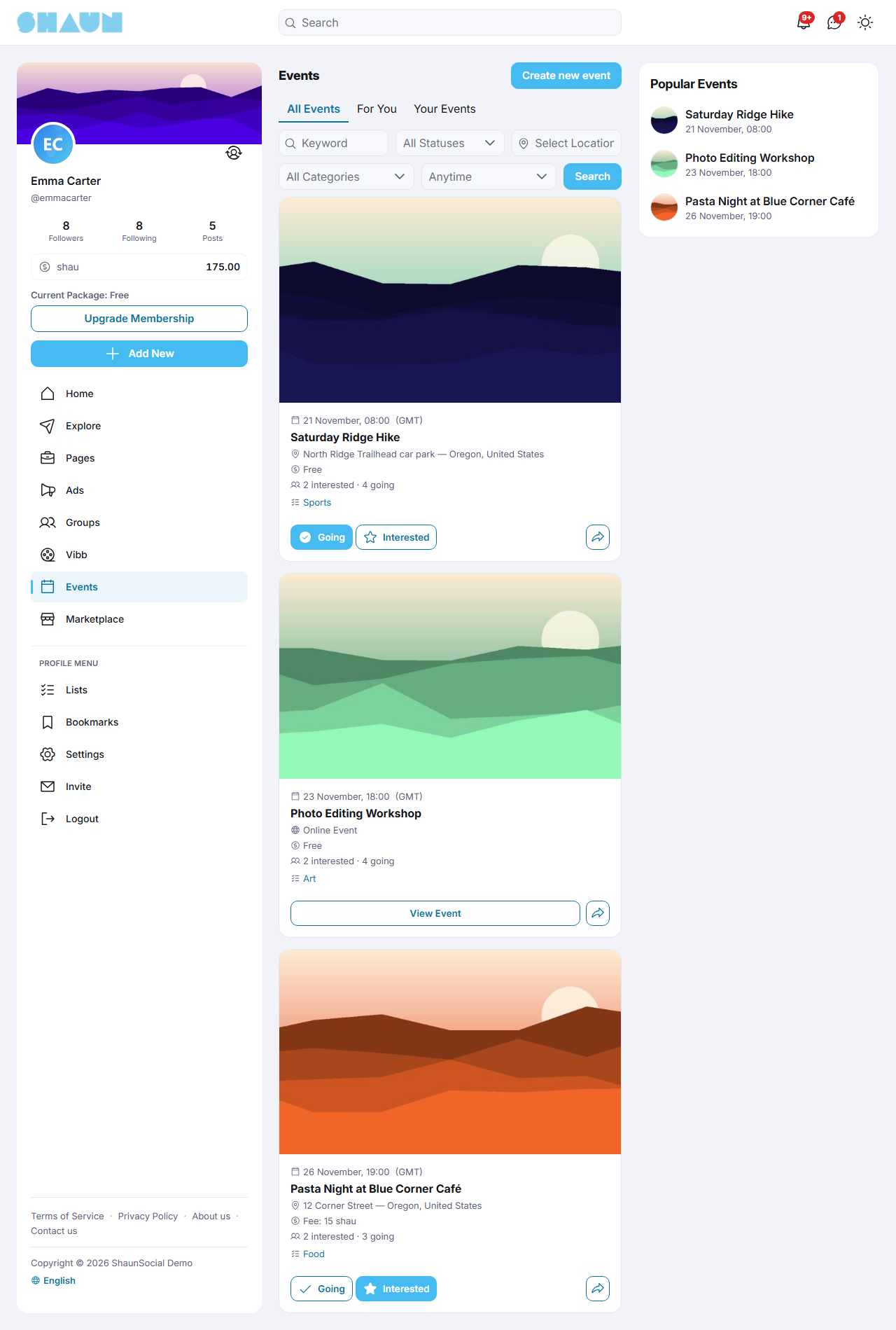
Click Events in the main menu. The page has up to three tabs; visitors who are not signed in see All Events only.
| Tab | What it shows |
|---|---|
| All Events | events that have not ended yet, the soonest first. Private events are never listed, and events in a group are listed only for members of that group |
| For You | events with a hashtag you follow. Empty until you follow hashtags: "Follow hashtags to see relevant events here." |
| Your Events | the events you answered: Going, Interested and Past (ended events you had answered) |
On All Events you can narrow the list by Keyword (part of the event name), Category, Status (Happening Now or Upcoming), Date (Today, Tomorrow, This Week, Next Week, This Month) and location (country, state, city). Clear filters removes them all.
An event card#
Each card shows the cover picture, the name, the categories (click one to list its events), the date, Online Event or the place, Free or Fee with the amount (in your site's token), and how many people are going and interested.
- Going and Interested answer the invitation; click the same button again to take your answer back. You cannot answer an event that has ended, and you cannot answer an event whose host removed you ("You have been removed from this event.").
- Share shares the event; an ended event cannot be shared.
- View Event takes the place of Going and Interested on events you host or co-host and on events that have ended; it opens the event page.
The event page#
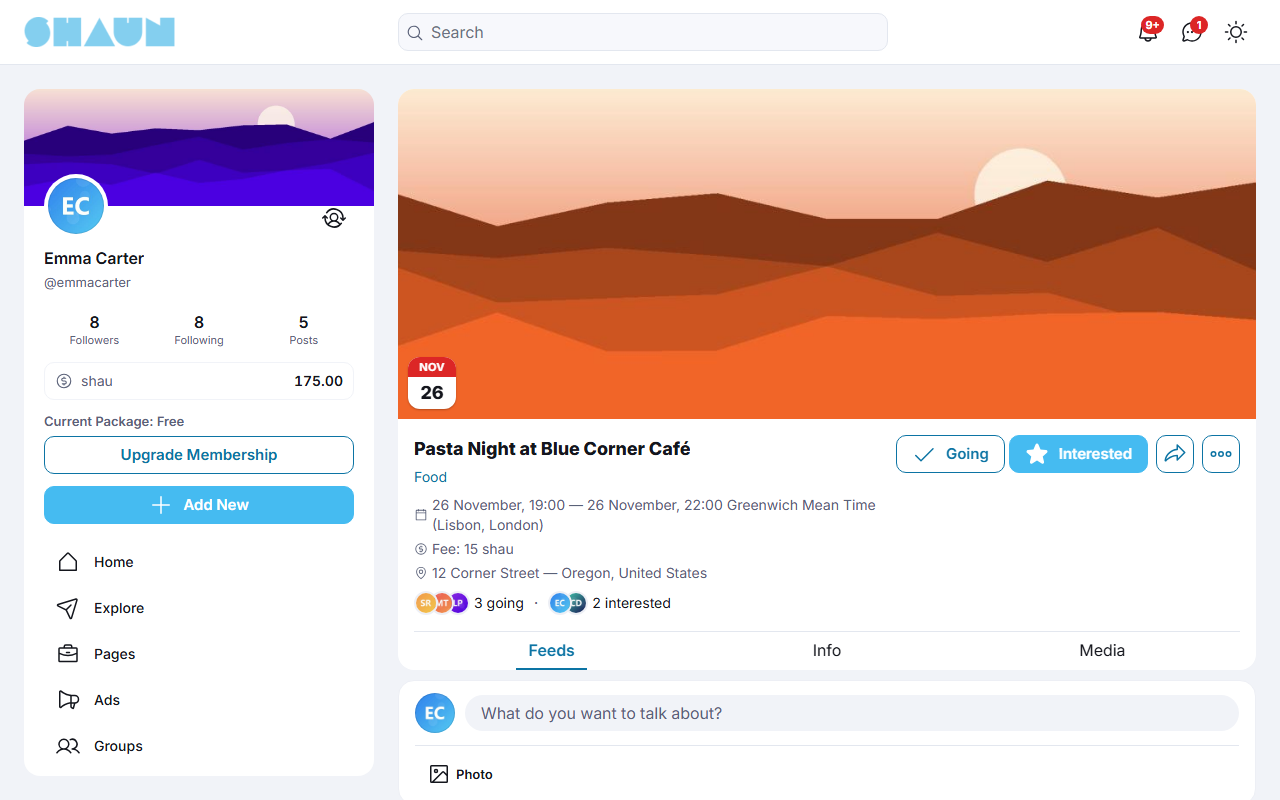
- At the top: the cover, the name, a badge Happening or Past when it applies, the start and end time with the event's time zone, the fee, and the address or the meeting link of an online event. Everyone who can open the event sees the meeting link.
- [number] going and [number] interested open the list of attendees, unless the host hid it.
- Info shows the event type, the description, the categories and the hashtags. Click a hashtag to see other events with it.
- Feeds is the event's own feed: members post and comment there as in the home feed. Who may post is chosen by the host (see Event settings). Hosts can pin a post to the top. Members who answered Going get a notification "posted in your event." for each new post and "pinned a post in your event." when a post is pinned; these are sent by the cron job a minute or so later.
- Media collects the photos and videos posted in the event feed.
- The options menu holds Report, to report the event to the site's moderators.
An event moves from upcoming to happening at its start time and to past at its end time, by itself. Past events leave the lists; you still find the ones you answered under Your Events → Past.
Who can see an event#
| Event type | Who can see it and answer |
|---|---|
| Public Event | everyone, including visitors who are not signed in (they must sign in to answer) |
| Private Event | only people with the event's link, the people who answered it and the hosts. It is not listed anywhere and not found by search |
| Event in Group | members of that group only. Members who leave the group also lose their answers to its events |
Events on profiles and in your lists#
- A profile has an Events tab with the events that member is Hosting, Going to or Interested in (upcoming and happening ones, without private events).
- Lists → Events lists the events you created, with a Status filter: Active, Pending (waiting for an admin) and Disable (switched off by an admin).
- A group has an Events tab with the group's events (see the Groups page, coming soon).
- Public events also appear in the site search.
Creating and managing an event#
Last updated: 2026-11-17 · v1.5.6
Click Create new event on the Events page, or Add New → Event in the side menu. To create an event inside a group, owners and admins of the group use Create Event on the group's Events tab; the group is then filled in for them.
Create an event#
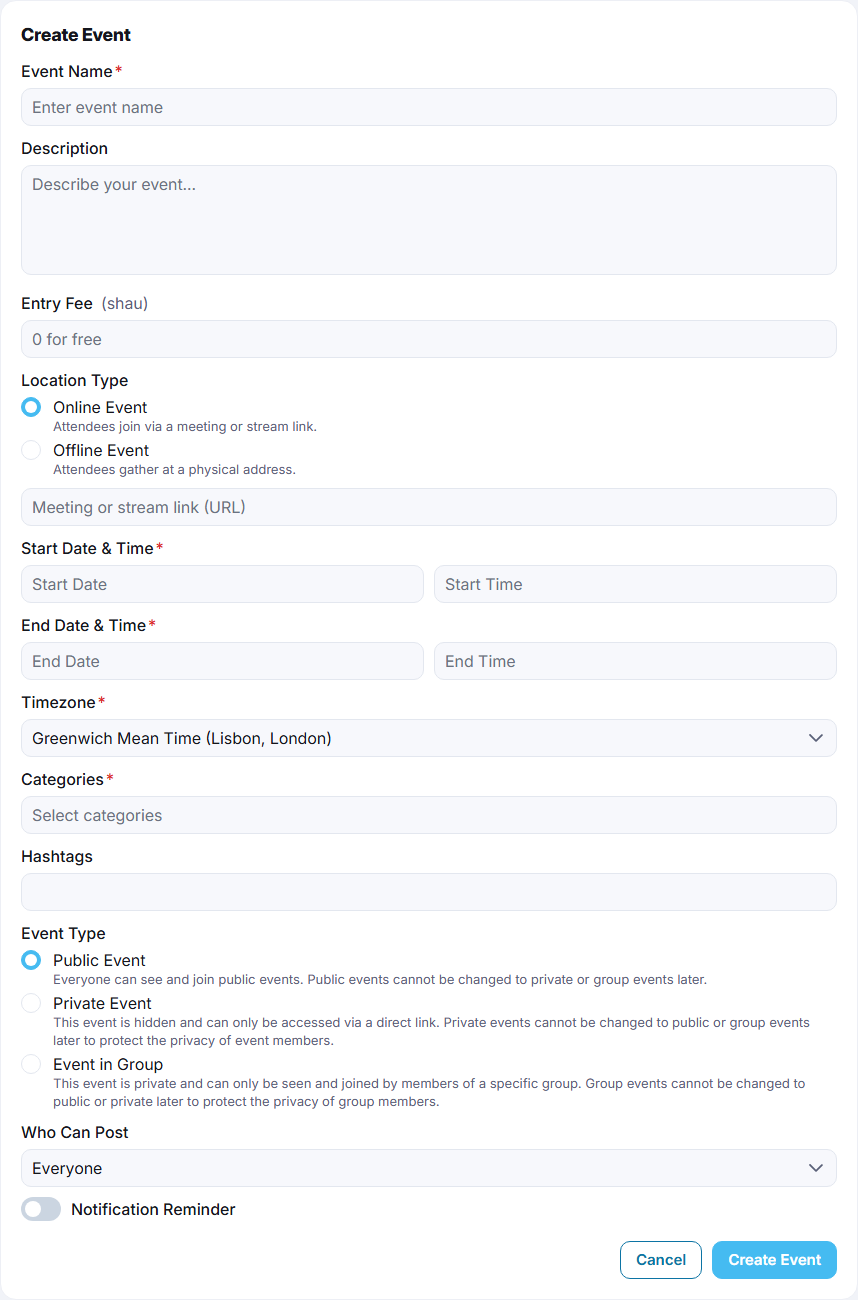
| Field | What to enter |
|---|---|
| Event Name | required, up to 255 characters |
| Description | what the event is about |
| Entry Fee | the price, in your site's token; leave it empty or 0 for a free event. The fee is only shown on the event: nothing is charged through the site |
| Location Type | Online Event (the default) with the Meeting or stream link (URL), or Offline Event with the country, state, city, postcode and address |
| Start Date & Time, End Date & Time | required. The end must be after the start ("The end date must be after the start date.") |
| Timezone | required; starts with your own time zone. The times above are read in this time zone |
| Categories | required: at least one category |
| Hashtags | members who follow these hashtags see the event in their For You tab |
| Event Type | Public Event, Private Event or Event in Group (then search for the group; you must be its owner or an admin). See Who can see an event. The type cannot be changed later |
| Who Can Post | who may post in the event feed: Everyone (the default), Going Attendees or Host Only |
| Notification Reminder | switch it on and enter Minutes before event to send reminder (for example 60) to remind everyone who is going |
- Fill in the form and click Create Event.
What you should see: "Event created successfully." and the new event page. You are on it as the host and counted as going.
- If your site reviews new events, the page says "This event is pending for approval." The event is visible only to you until an admin approves it; you then get the notification "Your event '…' has been approved.".
- Upload a cover picture on the event page; until you do, the site's default cover is shown.
When a public event or an event in a group becomes active, a post "created a new event" is added to your profile (or to the group's feed). Private events get no such post.
Whether you may create events and how many a day depends on your member role: you may see "You don't have event creation permission." or "You have reached your daily event creation limit (5 per day)." (see Per-day limits).
The reminder#
At the time you chose, everyone who answered Going (you included) gets the notification "'…' is coming up! Get ready." and an e-mail titled "…! It's Coming Up! Get Ready." with the date, time, time zone and the address or meeting link. The reminder is sent once and is set when you create the event.
Change an event#
The host and the co-hosts change the event on its page, with the pencil buttons: Edit Name, Edit Schedule, Edit Entry Fee, Edit Location, and on the Info tab the description, categories and hashtags. The cover has its own upload button.
- Once the event has started, the schedule, fee and location can no longer be changed.
- An event waiting for approval, or switched off by an admin, cannot be changed.
Manage: co-hosts, attendees and settings#
Click Manage on the event page (shown to the host and co-hosts).
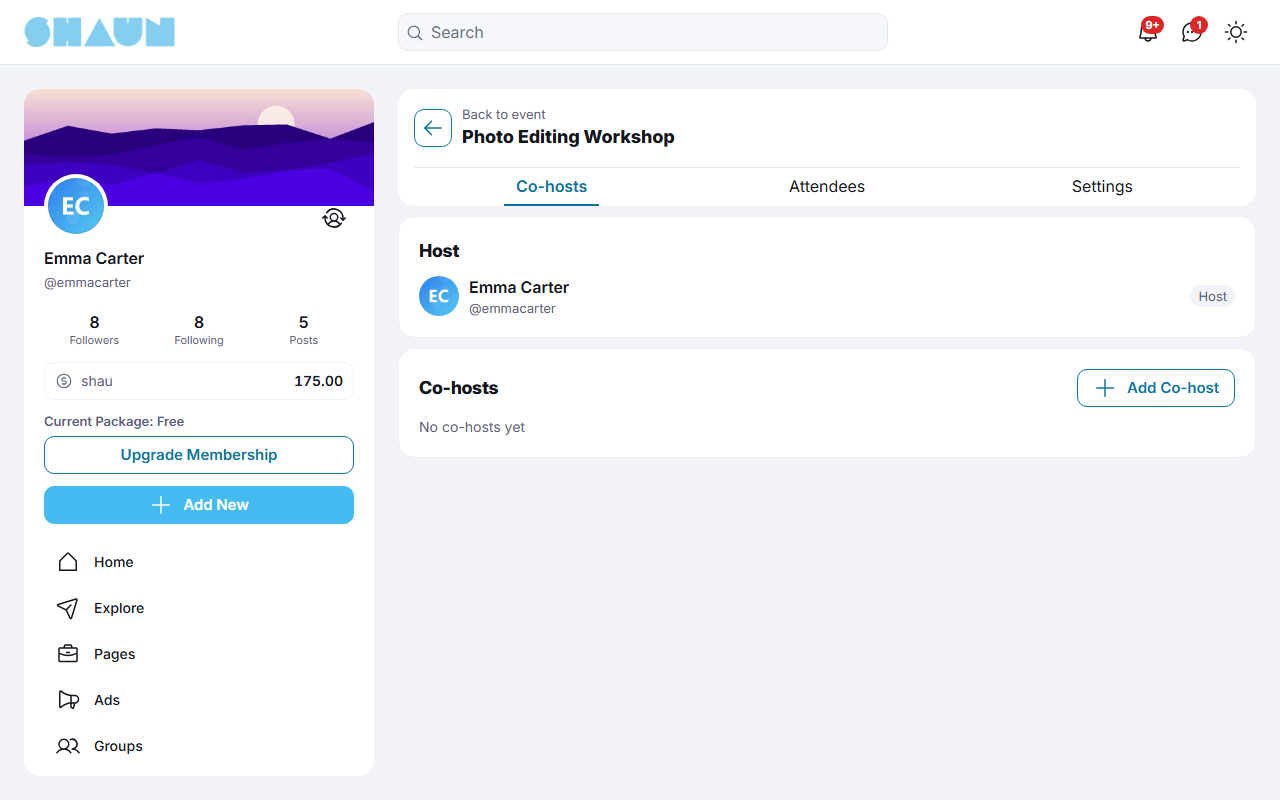
- Co-hosts: the host clicks Add Co-host and searches by name or user ID. A co-host can change the event, post and pin in its feed and remove attendees; only the host can add co-hosts and delete the event. The member gets the notification "added you as co-host of event '…'." The host can remove a co-host again; a co-host can step down with Leave as Co-host on the event page. In a group event, co-hosts must be group members.
- Attendees: the Going and Interested lists. Remove takes a member off the event for good: they cannot answer it again and cannot post in it. Remove the co-host role first to remove a co-host.
Event settings#
| Setting | What it does |
|---|---|
| Who Can Post | Everyone: anyone signed in who can see the event (in a private event, someone who opened it through its link can post once they answer Going or Interested); Going Attendees: only members who clicked Going; Host Only: only the host and co-hosts. The host and co-hosts can always post |
| Show guest list | on: others can open the list of people going and interested. Off: only the hosts see it |
| Delete Event | shown to the host only. After the question "Do you want to permanently delete this event? This action cannot be undone." the event, its feed and its answers are deleted |
Events admin, categories and settings#
Last updated: 2026-11-17 · v1.5.6
The menu entry Events under Core Features is shown only while Events is switched on in its settings (below). To review or remove events after switching the feature off, switch it on again first.
Event settings#
The screen saves each setting as soon as you change it.
| Setting | After installing | What it does |
|---|---|---|
| Enable | on | off: the Events menu entries, the create buttons and the Events tabs on profiles, groups and in Lists disappear, event pages can no longer be opened, posts about events leave the home feed, and the AdminCP Events menu and the Events figures on the Dashboard are hidden. Nothing is deleted: switch it on again and everything comes back |
| Auto approve | off | off: new events wait for an admin to approve them (see below). On: new events are active right away |
| Cover event default image | a standard picture | the cover shown on events whose host uploaded none. A picture of 1024×385 pixels is recommended |
Who may create events, and how many a day, is set per role in AdminCP → Users → Manage User Roles → Permissions → Event: Allow event creation (on after installing) and Maximum number of events can create per day (0 is unlimited) (0). The event limit counts per calendar day in UTC and also applies to moderators; see Per-day limits.
The reminder e-mail hosts can switch on (see The reminder) is not one of the Mail templates, so its wording cannot be changed there. It is sent by the cron job, like the "posted in your event." notifications and the event times that change from upcoming to happening to past (see What stops when the cron job does not run). An event that is approved after its reminder time sends its reminder right away, so approve waiting events in good time.
Manage events#
Super admins see this screen; moderators need the Manage Events switch in their role (see Moderator roles). The list shows every event, newest first, including private and group events, with ID, Name (click it to open the event), Status, Featured and Created. Filter by status (Pending, Active, Disable), Featured / Not Featured, time (Upcoming, Happening, Past) or name, and click Search.
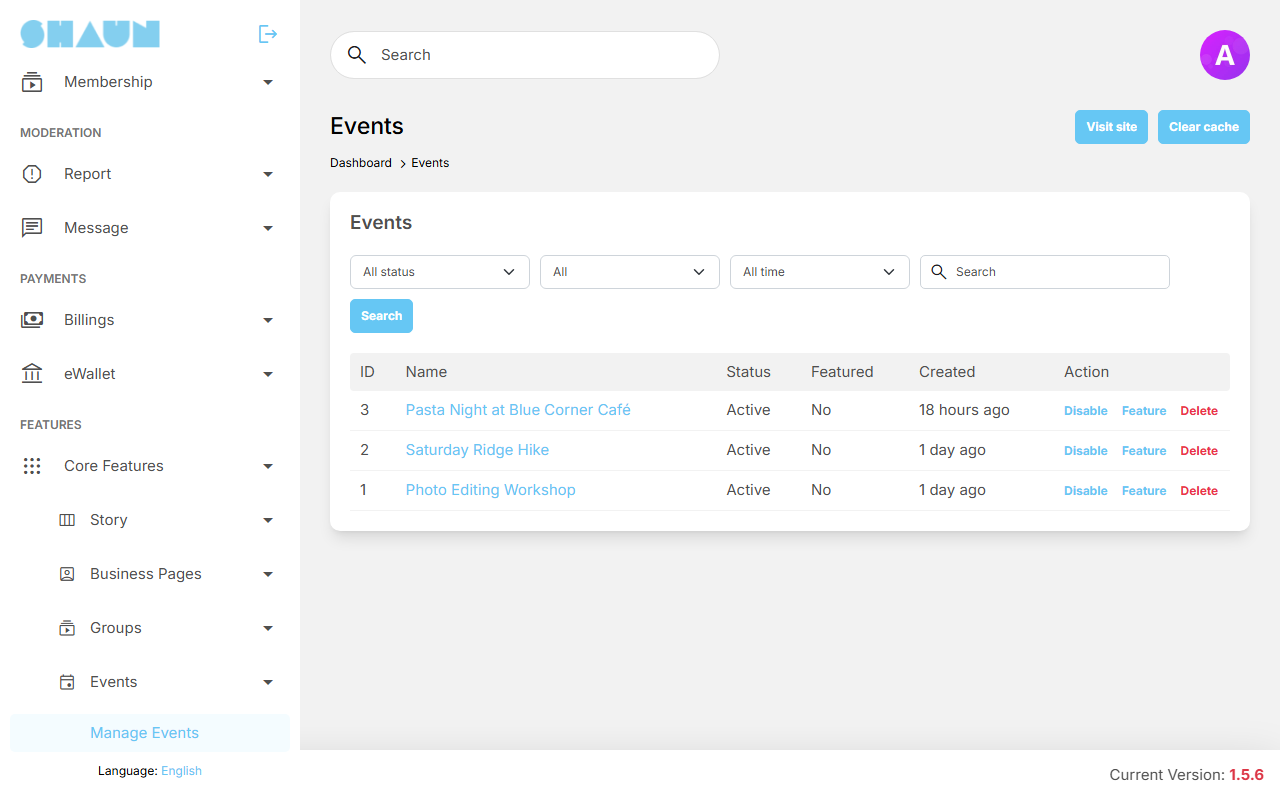
Each action asks for confirmation. The host gets a notification for every action except Delete:
| Action | Shown on | What it does |
|---|---|---|
| Approve | pending events | makes the event active and visible; adds the "created a new event" post for public and group events. The host gets "Your event '…' has been approved." |
| Disable | active events | hides the event from everyone but its hosts, who see "This event has been disabled by admin." and cannot change it. The host gets "Your event has been disabled by admin." |
| Activate | disabled events | makes the event active again. The host gets "Your event '…' has been reactivated." |
| Feature / Unfeature | active events | adds the event to, or removes it from, the Featured Events block. The host is told either way |
| Delete | all events | deletes the event with its feed, its answers and its "created a new event" post. This cannot be undone |
New events waiting for approval: while Auto approve is off, every super admin and every moderator gets the notification "created a new event and waiting for your approval" for each new event. Clicking it opens Manage Events; filter by Pending to see all events waiting.
The Events page and the event page are laid out in the Layout editor (pages Events and Event Detail Page). The blocks Featured Events (the events you featured) and Popular Events (the most going and interested) show upcoming and happening public events only.
Event categories#
The categories members choose when they create an event, and filter by on the Events page. The site comes with 17: Sports, Technology, Art, Entertainment, Gaming, Politics, Business, Culture, Science, Food, Animals, Education, Fashion & Beauty, Health & Fitness, News, Cryptocurrency and Travel. Moderators need the Event Categories switch in their role.
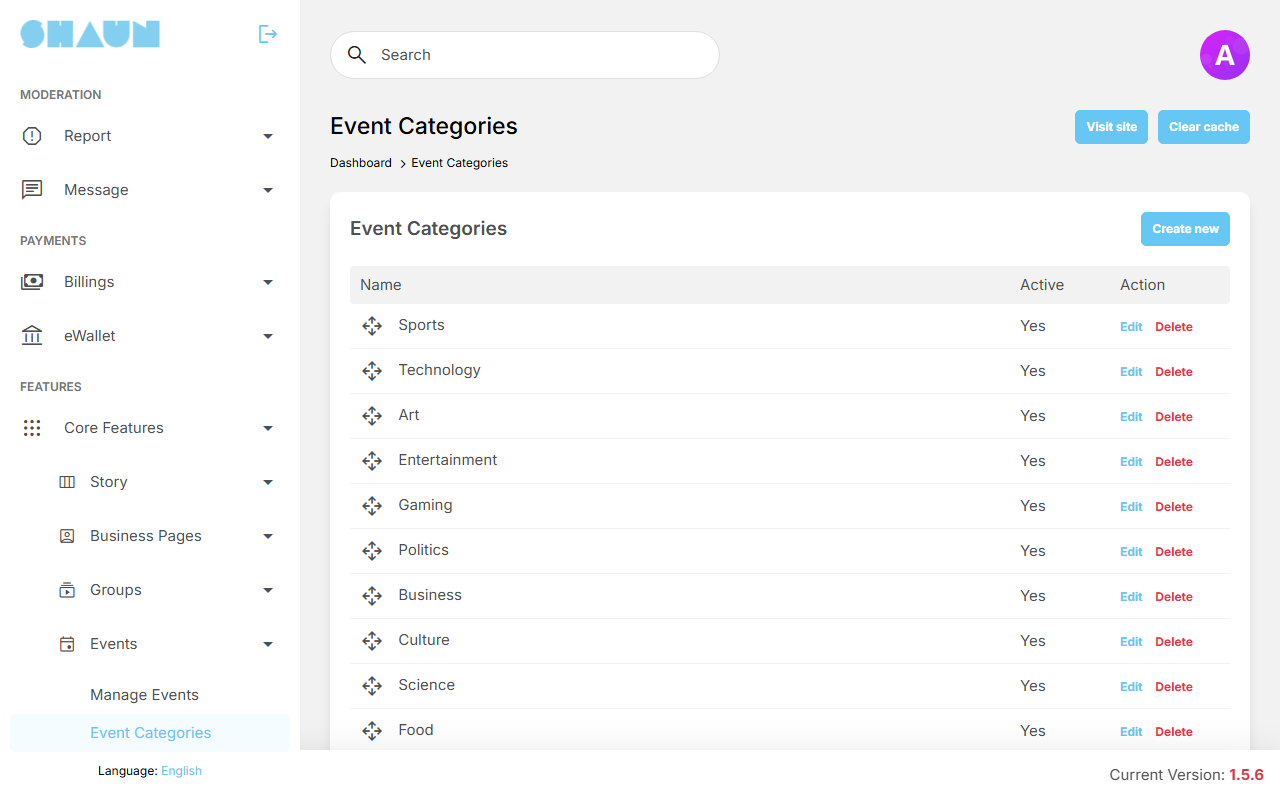
- Click Create new.
- Enter the Name. Choose a Parent to make it a sub-category, or leave None.
- Leave Active on and click Save.
What you should see: "Event category has been created." and the category in the list.
- Rename a category: click Edit, then Translate under the name, and change it for each language.
- Order: drag the rows to set the order members see.
- Active off hides the category from the choice.
- Delete removes the category and its sub-categories from the list and from the choice members see.
Change log#
Last updated: 2026-11-17 · v1.5.6
| Date (GMT+7) | Section | What changed |
|---|---|---|
| 2026-11-17 | all | First version for 1.5.6, written from the 1.5.6 code for members and for site owners and their admins. |
| 2026-11-17 | browse, create-manage, admin | Corrections after review: when View Event replaces the answer buttons, categories on the card, the event-feed notifications come from the cron job, who can post in a private event, deleting an event sends no notification, the reminder of a late-approved event, and renaming a category. |