ShaunSocial user guide 1.5.6 / Features
AI features
AI Features connect your site to an AI service of your choice (OpenAI GPT, Claude AI, Google Gemini, xAI Grok or Perplexity AI) for two jobs: an AI chatbot your members can talk to, and automatic checks of new posts, comments and replies for inappropriate text and photos. Nothing works until you add a key from one of these services and switch each job on with a key picked for it. This page shows admins how to add the keys, set up the chatbot and the checks, and follow the checks in the AI Feature Tasks list, and shows what members see.
Checked against the 1.5.6 code; the AdminCP screens were compared with a demo site that has no AI key. Nothing on this page was tried against a real AI service: the chatbot answers and the checks were read from the code, not run; screenshots follow.
AI providers and keys#
Last updated: 2026-11-17 · v1.5.6
The site can talk to five AI services. Each one needs an account with that service and an API key from it (a secret code that identifies your account). The service charges your account for every request your site makes: check its prices before you switch anything on.
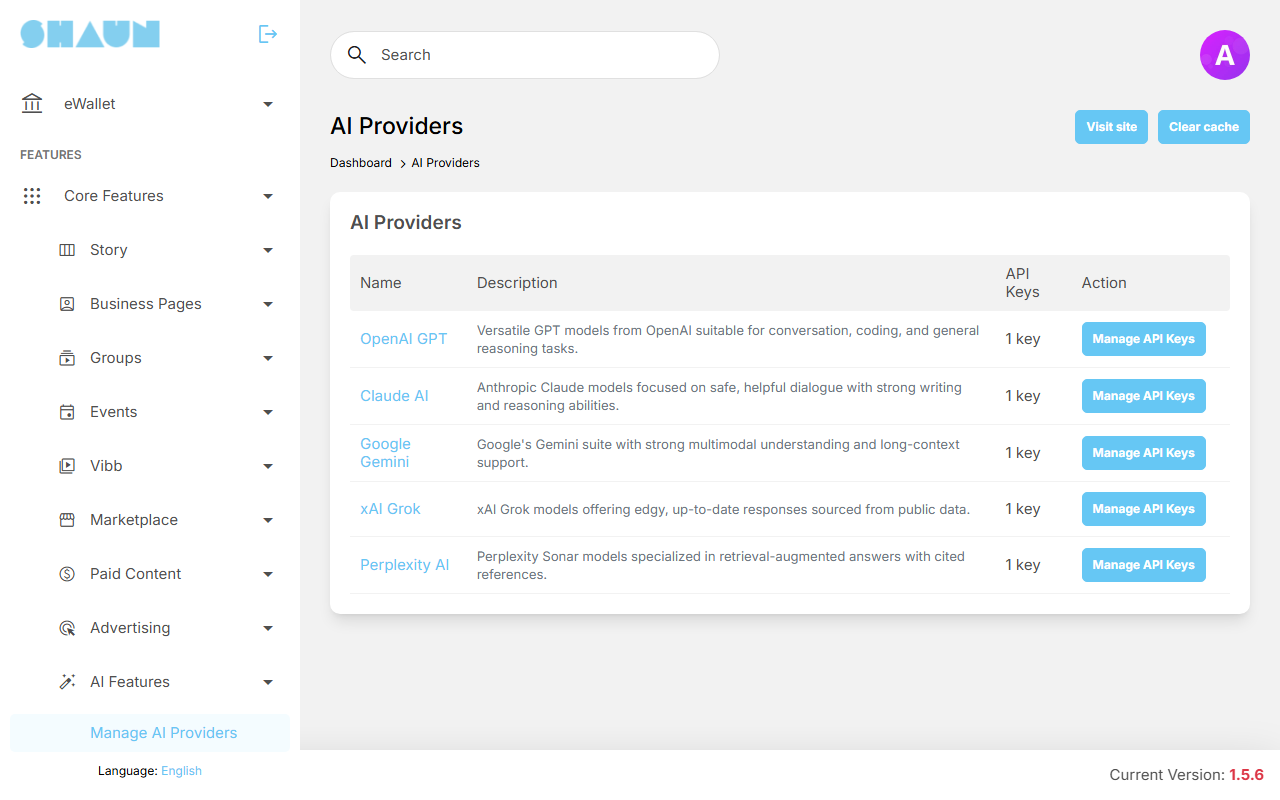
| Provider | Chatbot and text checks | Photo checks |
|---|---|---|
| OpenAI GPT | yes | yes |
| Claude AI | yes | yes |
| Google Gemini | yes | yes |
| xAI Grok | yes | no |
| Perplexity AI | yes | no |
Each provider comes with one key named Default Key, switched on but with an empty API key: it does nothing until you fill it in. The empty Default Keys are still offered in every platform list of the AI Features settings, and picking one makes every request fail: always pick a key you filled in. You can keep several keys per provider, for example one for the chatbot and one for the checks, and give each a name you recognise.
Add or fill in a key#
- Click the provider's name or Manage API Keys.
What you should see: Manage API Keys with the provider's keys.
- Click Edit on Default Key, or Add API Key for a new one.
- Fill in the fields (all except Description are required):
Field Pre-filled What to enter Name Default Key a name you recognise in the lists, for example "Chatbot" Description empty optional note; after saving it can be translated with Translate API Key empty the key from the provider's website, for example sk-...for OpenAIModel a model name the exact name of the model to use, as written in the provider's documentation. The pre-filled name may no longer be offered by the provider: replace it with a current one Temperature 0.7 how free the answers are: 0 is focused, 2 is creative (1 for Claude AI). Keep it low for checks Max Tokens (Max Output Tokens for Gemini) 1000 the longest answer the service may give. A token is a piece of a word System Prompt You are a helpful AI assistant. instructions the service receives before every message: the chatbot's personality and rules. For the checks, the site adds its own instructions after yours Active on off: the key is not used and is not offered in the AI Features settings - Click Submit.
What you should see: "API Key has been successfully saved." A missing field is named instead, for example "The API key is required.".
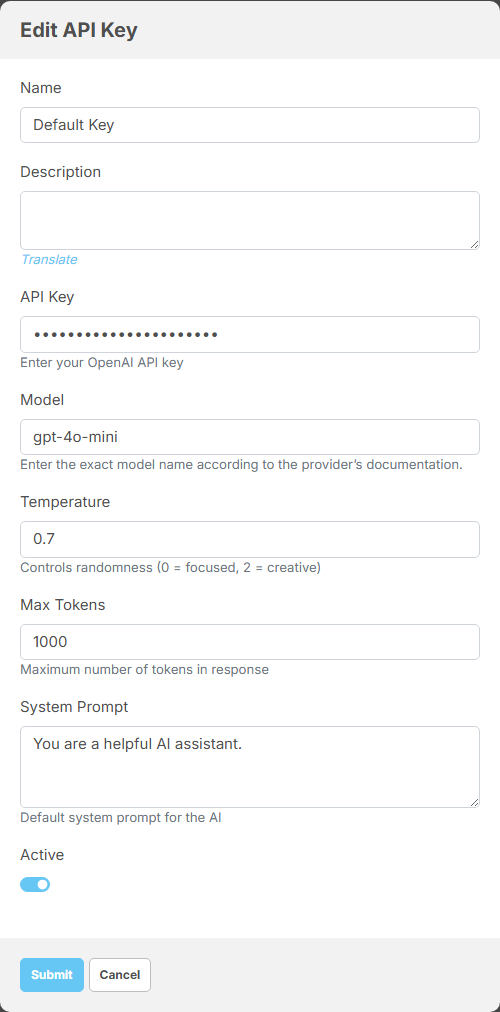
Saving does not test the key. Whether it works shows the first time it is used, in the Health column. Then pick the key in the AI Features settings (see AI chatbot and AI moderation).
For checking text, an
OpenAI key whose Model is one of OpenAI's moderation models (their name contains "moderation", for example
omni-moderation-latest) uses OpenAI's moderation service instead of a chat model. The same key can do the
photo checks too. Keep it as a separate key and do not pick it for the chatbot, which needs a chat model.
Health, errors and deleting a key#
The key list shows, for each key, Active, Health (Healthy or Error with the number of consecutive failures), the Last error with its time, and Edit and Delete.
- After three failed requests in a row (a wrong or expired key, no credit left, an unknown model), the key is marked Error and rests for 15 minutes. Then the site tries it again; one successful request makes it Healthy.
- While a key rests, the chatbot answers "Chatbot provider is not configured." and the checks waiting for that key end as failed.
- To repair it, correct the key (or the model) and click Submit with Active on: the error is cleared at once, and the failed checks that used the key go back into the queue.
- Delete asks for confirmation. A key that is picked in the AI Features settings cannot be deleted: "This AI provider key is currently in use and cannot be deleted.". Pick another key there first.
- In the AI Features settings, a picked key that can no longer be used is marked (Inactive) with "This api key is invalid or can't be used. Please check and reconfigure.".
Each failed request to an AI
provider is noted in the daily file ai_provider-YYYY-MM-DD.log, and the provider's own error message (a
wrong key, no credit, an unknown model) in the site's error log shaun-error-YYYY-MM.log (see
The log files). Look in the error log for the reason: the AI log and the key's
Last error often show only the general sentence "Chat bot is currently unavailable. Please contact admin for
more details.", also for failed checks.
Treat API keys like passwords: anyone with the key can spend your credit. When AI Features are on, members' chatbot messages and the text and photos of their new posts, comments and replies are sent to the provider you picked. Say so in your privacy policy.
Moderators need the Manage AI Providers permission for this screen and Manage AI Feature Tasks for the task list (see Moderator roles).
AI chatbot#
Last updated: 2026-11-17 · v1.5.6
The chatbot is a page where signed-in members ask questions and get answers from the AI service you choose. It is separate from member chat: chatbot conversations do not appear in the Chat page or in the message logs.
Set up the chatbot#
- Fill in a key for one of the providers (see Add or fill in a key).
- In Select AI Platform do you want to use for AI Chat Bot, pick the key. The list shows the active keys, grouped by provider.
- Tick ChatBot.
What you should see: the Chatbot item appears in the site's main menu and in the mobile app menu. Unticking ChatBot hides both again (the items themselves are in Menus).
- Give your members the right to use it: in AdminCP → Users → Manage User Roles → Permissions → Chatbot, tick Allow sending messages for each role that may use the chatbot. It is off for every role after installing; without it members see "You don't have send message permission.".
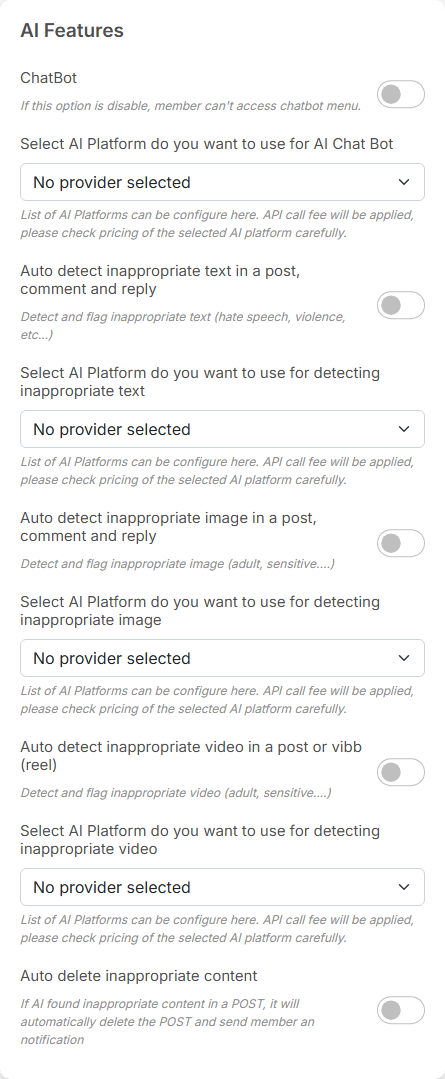
| Setting | After installing | What it does |
|---|---|---|
| ChatBot | off | on: the Chatbot page and its menu items are available to members. Off: the menu items are hidden and the page does not answer |
| Select AI Platform do you want to use for AI Chat Bot | No provider selected | the key the chatbot uses. Without a usable key members get "Chatbot provider is not configured." |
The screen saves each setting as soon as you change it.
Limits per member role, in the same Chatbot box of the role's permissions (see Per-day limits):
| Permission | After installing | What members see at the limit |
|---|---|---|
| Allow sending messages | off | "You don't have send message permission." |
| Maximum number of message can ask the chatbot per day (0 is unlimited) | 100 | "You can send up to 100 messages per day, please contact admin for more details." |
| Maximum number of characters that can be sent per message (0 is unlimited) | 200 | "You are allowed to send up to 200 characters per message". Accented letters, letters of other alphabets and emoji can count as two to four characters each; raise the number for a site that writes in such a language. A message can never be longer than 4,000 characters |
Write the chatbot's personality and rules (the topics it should keep to, the language it answers in) in the key's System Prompt. Every answer is a paid request to your provider; the daily limit keeps the cost under control.
Talk to the chatbot#
- Click Chatbot in the menu.
What you should see: the page AI Chatbot with your earlier questions and answers.
- Type your question in Ask anything and press Enter (Shift+Enter starts a new line), or click the send
button.
What you should see: after a moment, the answer under your question.
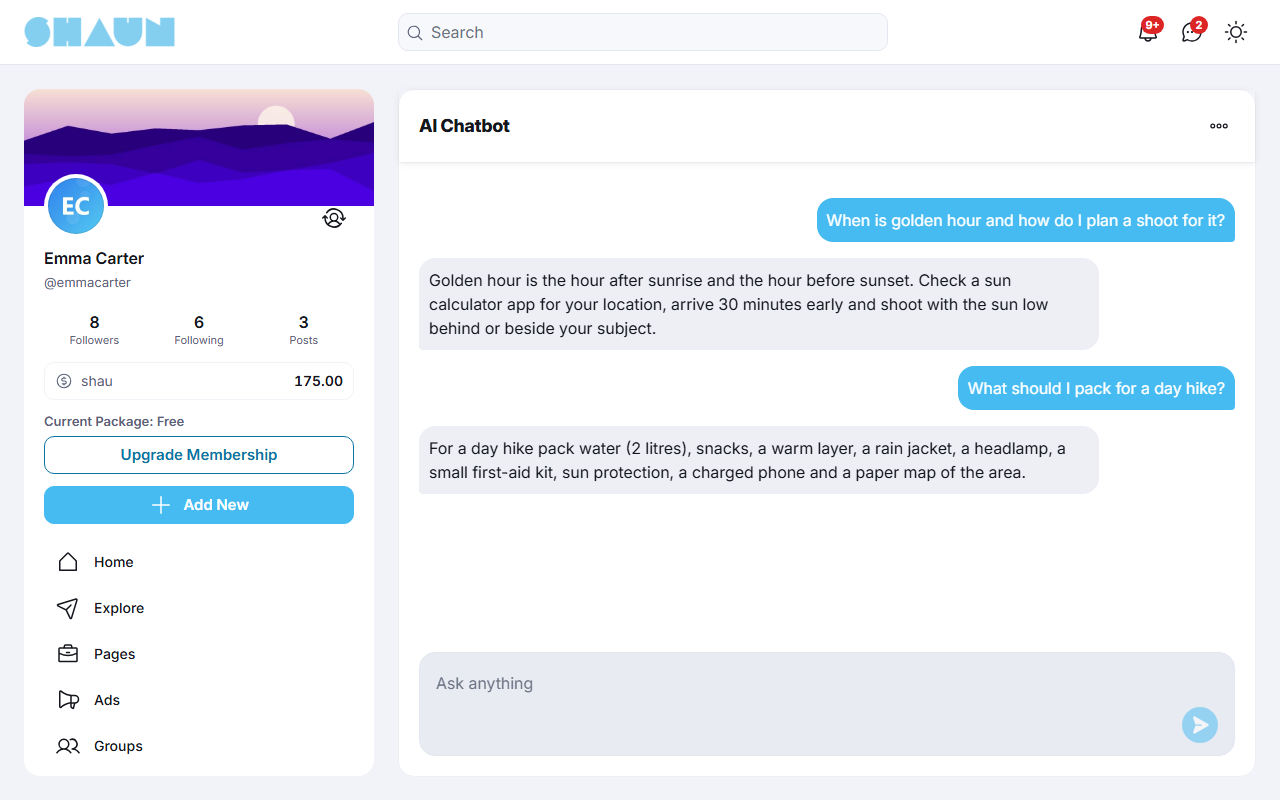
- The chatbot remembers your last ten questions and answers, so you can ask follow-up questions.
- Options (the three dots) → Clear history deletes your whole chatbot history after "Do you want to clear all chat history?". The chatbot then starts fresh.
- "Chat bot is currently unavailable. Please contact admin for more details." means the AI service did not answer; try again later or tell the site's admins.
AI moderation, tasks and the compliance page#
Last updated: 2026-11-17 · v1.5.6
When the checks are on, every new post, comment and reply is sent to the AI service: its text, and each photo attached to it, separately. When the service finds something inappropriate, the item is reported to your moderators and, if you choose, deleted at once.
What is checked, and when#
- Posts (also in groups and on business pages), comments and replies, from the moment you switch a check on. Content that existed before is not checked, and edits are not checked again.
- Text and photos only. Chat messages, stories and profiles are not checked.
- Videos are not checked in 1.5.6: leave the video switch off and rely on member reports.
- Checks run in the background, not while the member posts: the post appears at once and is checked within a few minutes. The site handles up to five checks a minute; a check that fails is tried again after one and after five minutes before it is marked failed.
The checks are done by the cron job, every minute. While the cron job does not run, nothing is checked and the list of waiting checks keeps growing (see Cron job (required) and queue worker (optional)).
Switch the checks on#
- Fill in a key for a provider that can do the checks you want: any of the five for text, OpenAI GPT, Claude AI or Google Gemini for photos (see AI providers and keys).
- Pick the key in the platform list under the check, then tick the check. Pick the key first: a check switched on without a usable key turns every new post into a failed task. Pick a key you filled in, not an empty Default Key.
- Decide whether flagged content is deleted automatically (Auto delete inappropriate content).
| Setting | After installing | What it does |
|---|---|---|
| Auto detect inappropriate text in a post, comment and reply | off | checks the text of new posts, comments and replies |
| Select AI Platform do you want to use for detecting inappropriate text | No provider selected | the key used for text checks |
| Auto detect inappropriate image in a post, comment and reply | off | checks each photo attached to a new post, comment or reply |
| Select AI Platform do you want to use for detecting inappropriate image | No provider selected | the key used for photo checks. The list also offers Grok and Perplexity keys: pick an OpenAI GPT, Claude AI or Google Gemini key, the others fail every photo check |
| Auto detect inappropriate video in a post or vibb (reel) | off | videos are not checked in 1.5.6: leave it off and rely on member reports |
| Select AI Platform do you want to use for detecting inappropriate video | No provider selected | not used in 1.5.6 |
| Auto delete inappropriate content | off | on: flagged posts, comments and replies are deleted at once and the author is told. Off: flagged content stays visible until a moderator acts |
What happens to flagged content#
- A report is filed in the category Report from Ai, with the reason "Flagged by automated moderation:" followed by the service's explanation. It arrives in the Moderation Center as a case from the source AI (see Moderation Center).
- Every super admin and every member of a moderator role gets the notification "You got a report from AI Moderator.", which opens the report logs.
- With Auto delete inappropriate content on, the post, comment or reply is deleted, and its author gets "Your post was removed because it violates our community standards." (or "Your comment ..." / "Your comment reply ..."). Without it, your moderators decide in the Moderation Center as for any report.
Reports from the AI checks do not count towards the automatic suspension after repeated member reports (see Automatic ban after many reports).
An automatic deletion cannot be undone from the AdminCP. Start with Auto delete inappropriate content off, look at what the service flags for a while in the Moderation Center, and switch deletion on only when you trust its judgement.
The AI Feature Tasks list#
Every check is one task. The list shows the newest first, 25 per page.
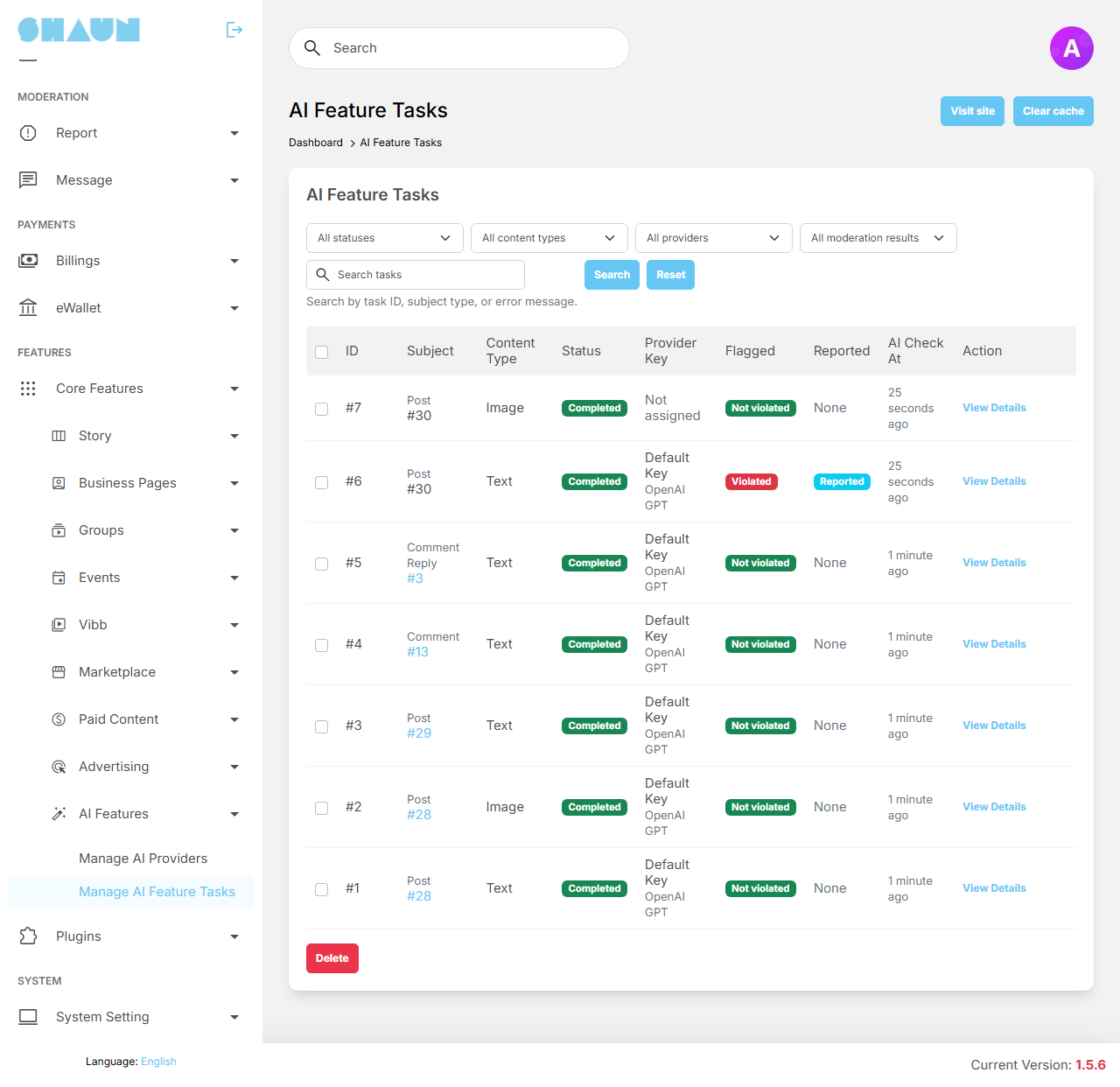
- Filters: status, content type (Text, Image, Video), provider key and moderation result (Flagged, Not flagged), and Search tasks by task ID, by the number of the post, comment or reply, by subject type (post, comment, comment reply) or by error message. Reset clears them. The provider-key filter lists keys by name, so give your keys different names.
- Columns: ID, Subject, Content Type, Status (with the error of a failed task), Provider Key, Flagged (Violated, Not violated or Unknown), Reported, AI Check At and View Details.
- Tick tasks and click Delete to remove them from the list. Deleting a task does not delete the content or its report, but it does delete the copies kept of removed photos, and the author's compliance page no longer opens. Keep the tasks of removed content while members may still ask about them.
| Status | Meaning |
|---|---|
| Pending | waiting for the cron job, or waiting to be tried again |
| Processing | being checked right now |
| Completed | the service answered; Flagged shows its verdict |
| Failed | no answer after three tries, or no usable key ("AI provider is not configured for this content type."). The error says why |
A task in detail#
View Details shows the Status, Content Type, Attempts, the planned action (Flag content or Delete content) and the Action Taken; the Moderation Result with its Reasons, the model and the tokens used; the subject with the times it was queued and processed; the provider key; the data sent and received (Show JSON); and the checked photo, or a copy of the photos of deleted content.
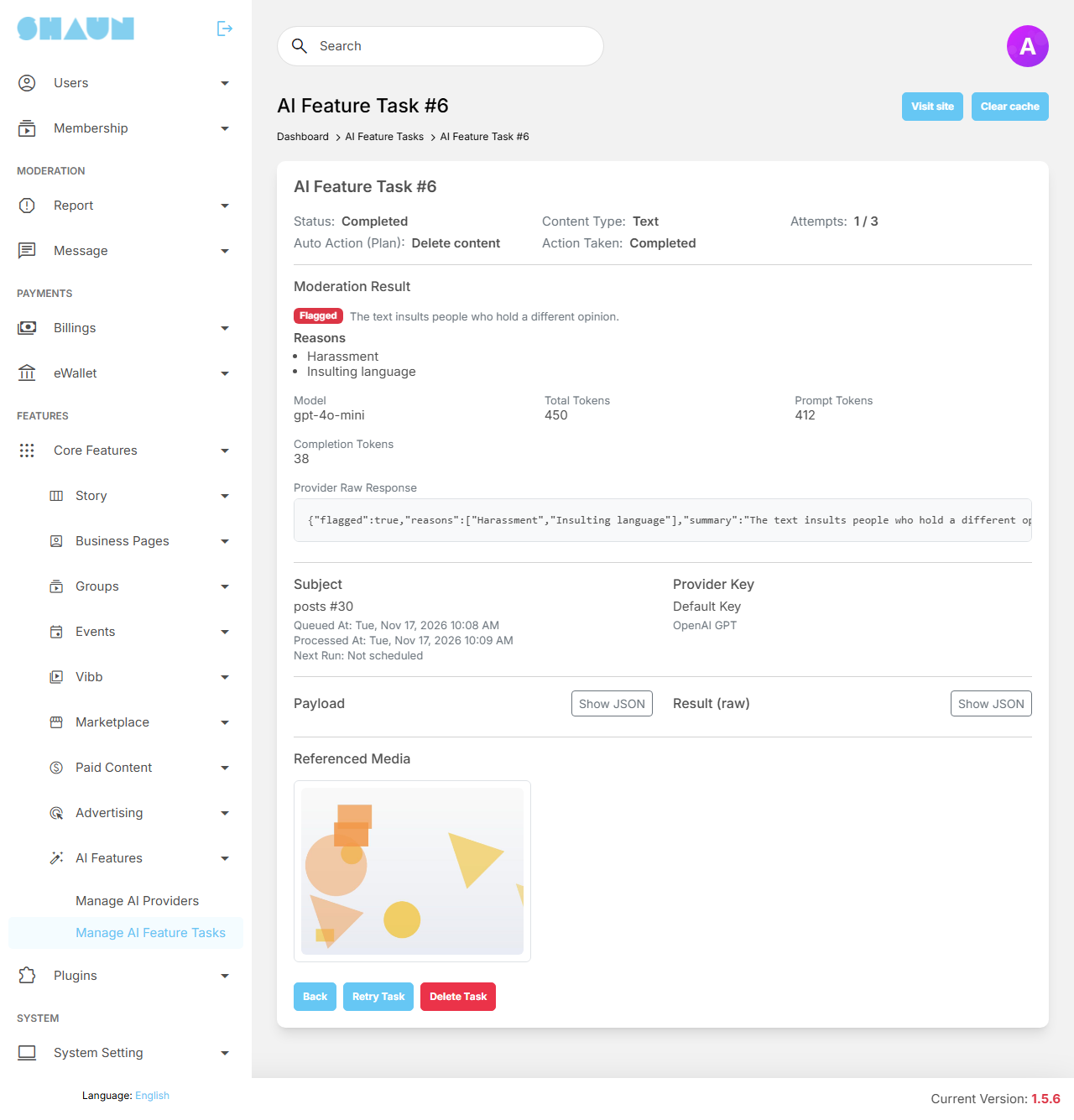
- Retry Task puts the task back in the queue ("Task has been queued for processing again."), for example after you repaired a key.
- Delete Task removes the task after a confirmation, with the same effect as above.
The compliance page members see#
A member whose content was deleted by the AI checks gets a notification such as "Your post was removed because it violates our community standards.". Clicking it opens the compliance page: the same sentence as its title, the member's name with the time of the report, the text of the removed content and its photos, and a Contact Us button that opens the site's contact form (see Site information and the contact form). Only the author can open the page.
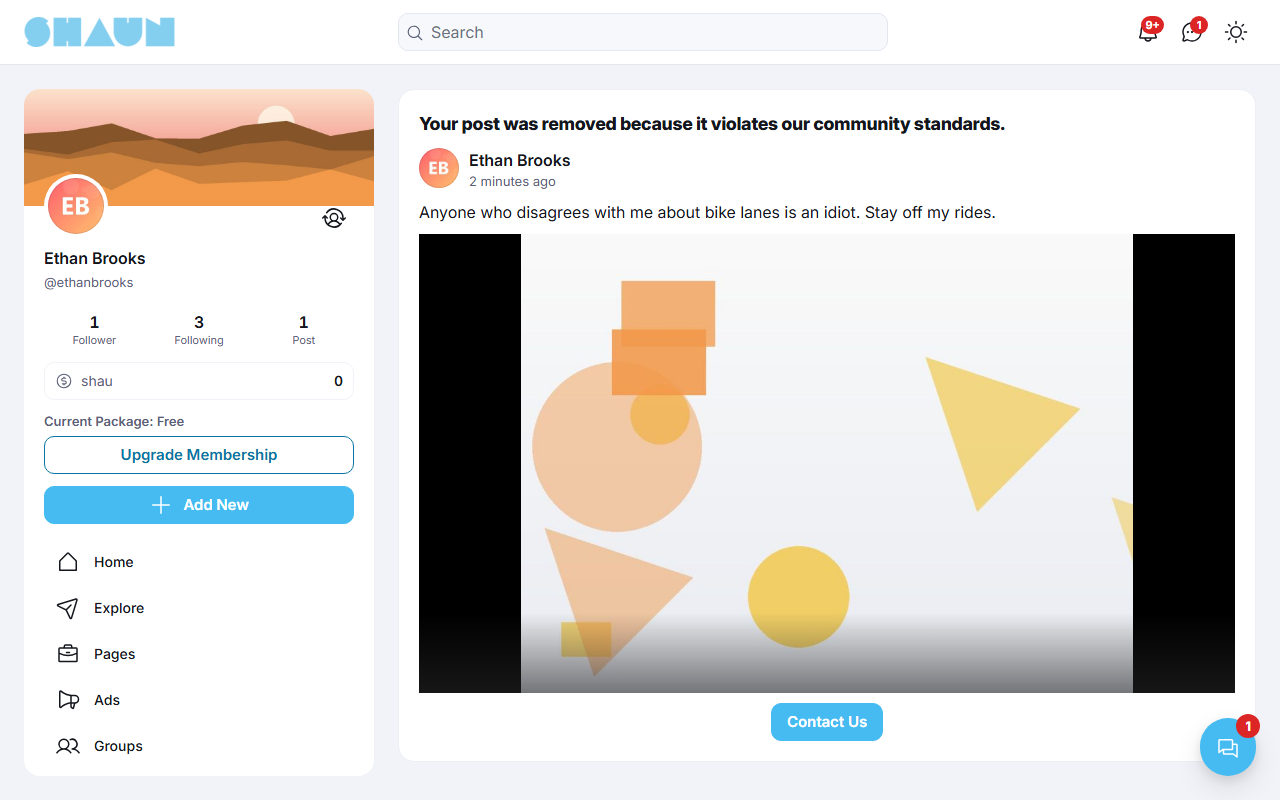
When a member writes in because a removal was a mistake, find the task with Search tasks and read what the service said in Reasons. The number at the end of the address of the member's compliance page is the task ID.
Change log#
Last updated: 2026-11-17 · v1.5.6
| Date (GMT+7) | Section | What changed |
|---|---|---|
| 2026-11-17 | all | First version for 1.5.6, written from the 1.5.6 code for site owners and their admins and for members. |
| 2026-11-17 | providers, chatbot, moderation | Corrections after review: where the provider's real error is logged, the empty Default Keys in the platform lists, which keys can check photos, how characters are counted, what deleting a task removes, searching tasks by content number, plainer wording for videos. |