ShaunSocial user guide 1.5.6 / AdminCP
Site settings
Most of your site's behaviour is set on two AdminCP screens: Site Information (name, address, logos, contact e-mail) and General Configuration (sign-up, posts, spam protection, sitemap, watermark and much more). This page explains both, field by field, and says where the parts documented on other pages are. Settings on these screens save themselves as you go (see Settings save themselves).
Site information and the contact form#
Last updated: 2026-11-19 · v1.5.6
The screen has three parts: Website Settings, Site Images and Android & IOS Apps.
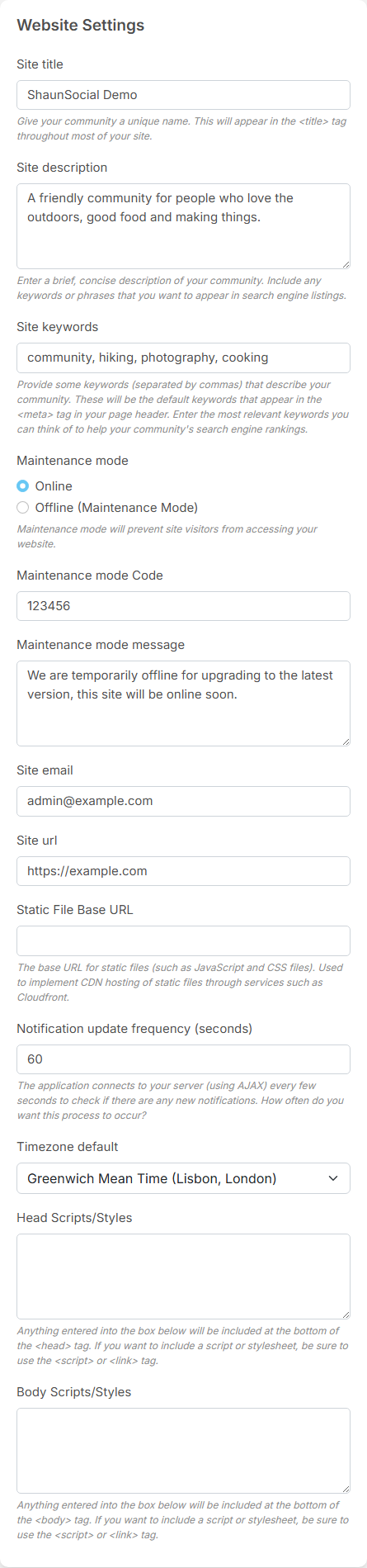
Website Settings#
| Field | After installing | What it does |
|---|---|---|
| Site title | the name entered in the installer | the name of your community, shown in the browser tab, as the sender name of your e-mails (unless E-mail Settings has another) and as the name of the installable web app. It cannot be left empty |
| Site description | empty | a short description for search engines and for the preview shown when someone shares a link to your site |
| Site keywords | empty | keywords, separated by commas, for search engines |
| Maintenance mode, Maintenance mode Code, Maintenance mode message | Online; code 123456; a standard message ("We are temporarily offline for upgrading to the latest version, this site will be online soon.") | take the site offline for visitors while you work on it; see Switch on maintenance mode |
| Site email | the address entered in the installer | your site's e-mail address: messages from the contact form go here, and it is the sender address of your e-mails until you set another one in E-mail Settings |
| Site url | the address of the installation | your site's address, saved by the installer. Change it only when you move the site to another domain (see the warning below) |
| Static File Base URL | empty | only for sites that serve their style and script files from a CDN: the site's built style and script files and its built-in images are then loaded from that address. Files members upload are not affected; they are still served from your Site url. Leave it empty otherwise |
| Notification update frequency (seconds) | 60 | how often an open page asks your server for new notifications. A smaller number shows notifications sooner but puts more load on your server |
| Timezone default | the one chosen in the installer (Europe/London unless it was changed there) | the time zone new accounts start with. Members can change their own in their settings; existing accounts keep theirs |
| Head Scripts/Styles, Body Scripts/Styles | empty | code added to every page of your site, for example a statistics or chat-widget snippet from another service. Paste it as the service gives it, with its <script> tags. Wrong code here can break your site's pages; remove it to undo |
The site builds all its links from this address, and saving it also updates the site's settings file on the server. A typing mistake makes images, links and sign-in fail until it is corrected. Members' passkeys are tied to the domain: after a move to a new domain they must add their passkeys again (see Passkey login).
Site Images#
Click the file field next to an image to upload a new one; the page reloads with the new image. Delete removes your image; where the site has a built-in image (logos, default cover and avatar), that one is shown again.
| Field | After installing | Where it shows |
|---|---|---|
| Site logo | a built-in logo | the header on computers, at up to 200 x 40 pixels. Upload a 400 x 80 pixel image with a transparent background |
| Header logo on mobile | a built-in logo | the header on phones, at up to 150 x 30 pixels. Upload 300 x 60 pixels |
| Site logo darkmode, Header logo on mobile Dark mode | built-in logos for dark mode | the same two places for members who use dark mode |
| Og image | none | the picture shown when a link to your site is shared on social networks and chat apps (200 x 200 pixels recommended) |
| Cover user default image | a built-in picture | the cover picture of members who have not uploaded one (1024 x 395 pixels recommended) |
| Avatar user default image | a built-in picture | the profile picture of members who have not uploaded one (300 x 300 pixels recommended). A gender can have its own default picture in AdminCP → Users → Manage Genders, and that one wins |
Android & IOS Apps#
If you publish ShaunSocial mobile apps in the app stores, enter their store links here. Visitors who open your website on a phone then see a bar at the bottom, "Check out our mobile apps!", with Get The App (it opens the store for their phone) and No Thanks. The designed landing page also shows the app links.
| Field | After installing | What it does |
|---|---|---|
| Enable Android app link | off | offers your Android app to visitors on Android phones |
| Android app link | empty | the address of your app's page in Google Play, for example https://play.google.com/store/apps/details?id=com.example.community |
| Enable IOS app link | off | offers your iOS app to visitors on iPhones and iPads |
| IOS app link | empty | the address of your app's page in the App Store |
| Logo | a built-in picture | the picture in the bar |
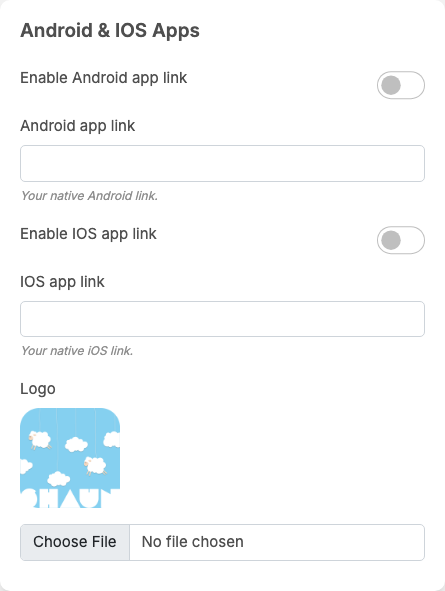
The settings the apps themselves need are on a separate screen; see Mobile app settings.
The contact form#
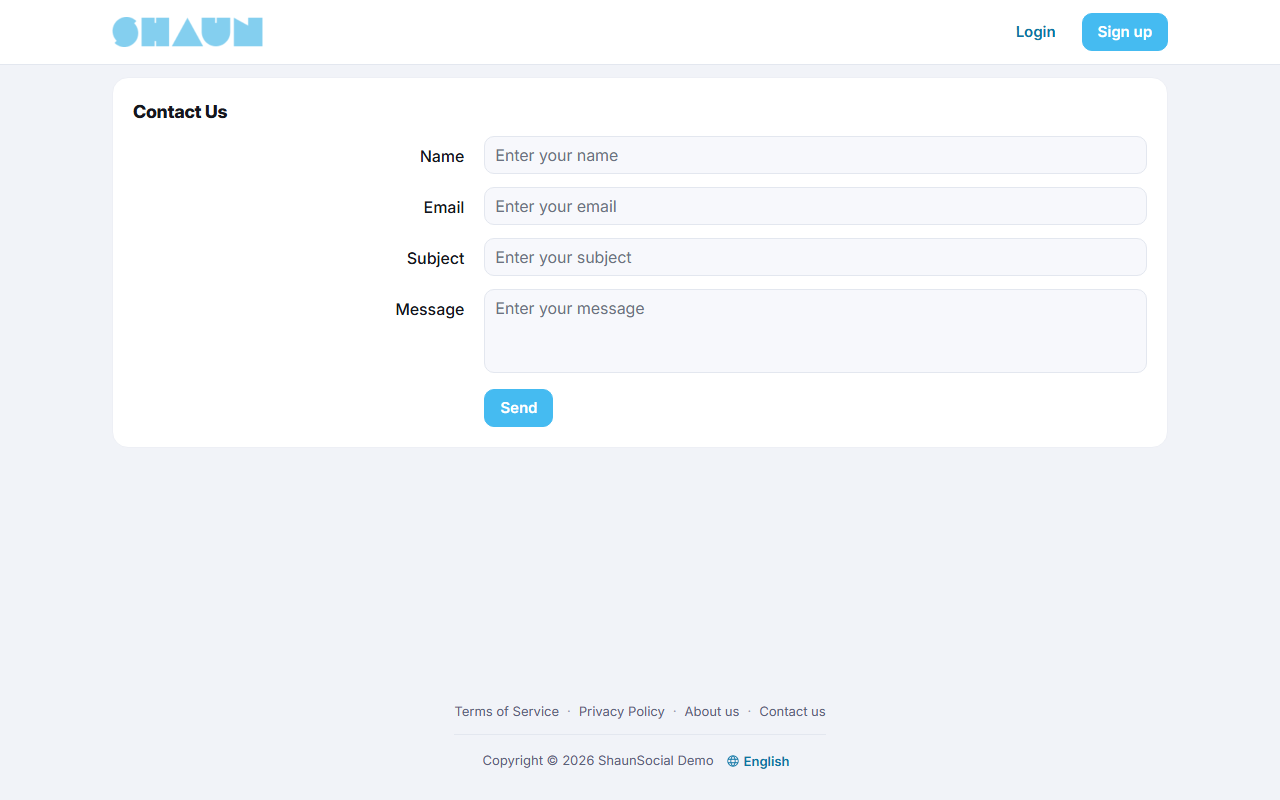
Your site has a contact page at https://example.com/contact, linked as Contact us in the footer
menu after installing. Visitors fill in Name, Email, Subject and Message (up to 1028
characters) and click Send; they see "Thank you! Your message has been sent".
- Each message is e-mailed to the Site email above. If that field is empty, messages go nowhere: keep it filled with an address you read.
- Reply by e-mail to the address the visitor entered; the message is not stored in the AdminCP.
- The text of the e-mail is the template Contact email in AdminCP → Site Settings → Mail Templates.
- To stop spam robots, tick Enable captcha in contact form (see Spam and banning tools, captcha).
- Your site must be able to send e-mail: see An outgoing mail account.
Saving Site url rewrites APP_URL in .env, so the site folder must stay writable by
PHP. Static File Base URL makes the site load its built files and built-in images from that address, so the
CDN must serve the contents of the public folder at that URL. Uploads keep their address under
Site url/storage.
General Configuration: where each part is documented#
Last updated: 2026-11-19 · v1.5.6
General Configuration is one long screen made of parts. Click the arrow next to General Configuration in the AdminCP menu to see the list of parts and jump straight to one. The table lists them in the order they appear and says where each is explained.
| Part | What it holds | Explained in |
|---|---|---|
| General Settings | upload size, feed and notification limits, Force Login, cookie notice, 18+ popup, real-time comments and more | Real-time comments, 18+ popup, cookies, account deletion; Force Login in Force Login; Lock delete and account setting change in Protecting demo accounts; Terms of Service in the paid checkout URL in Terms of Service at paid checkout |
| Login & Registration | who may sign up and what they must fill in, sign-in security | Login and registration and Login, security and identity |
| Post | files and GIFs in posts, photo and text limits | Post settings |
| User Configuration | User account deletion | Account deletion |
| Spam & Banning Tools | banned addresses and names, captcha | Spam and banning tools, captcha |
| Landing page settings | what visitors who are not signed in see on your home page | Landing page below; designing it in Landing page types |
| FFMPEG Configuration | video conversion, video and audio length, allowed video types | FFmpeg and Imagick on the server |
| Sitemap settings | the sitemap for search engines | SEO and sitemap |
| E-mail Settings | how your site sends e-mail | An outgoing mail account |
| Auto translate settings | automatic translation of posts, comments and messages | Auto-translating member content |
| Broadcast | live updates (Pusher or the included live-update service) | Live updates |
| Watermark | text stamped on photos in posts | Photo watermark |
| Report | automatic banning after reports, Moderation Center options | Moderation settings |
| Progressive Web App | installing your site as an app, browser notifications | Progressive web app |
| eWallet, Ads campaign, AI Features, Chat, Event, Group, Marketplace, Paid content, Story, Page, Subscription, User Verification, Vibb | the settings of each feature | the feature's own page: eWallet, Advertising, AI features, Chat, Events, Groups, Marketplace, Paid content, Stories, Business pages, Membership, Profile verification and Vibb |
Plugins you install can add parts of their own at the end of the list; a plugin's part is hidden while the plugin is switched off. The settings of the mobile apps are on a separate screen, AdminCP → Mobile Application → General Configuration (see Mobile app settings). Every setting of all three screens, with its value after installing, is listed in All settings and permissions.

Landing page#
The landing page is what people who are not signed in see when they open your home page. Choose one of three:
| Choice | What visitors see |
|---|---|
| Default landing page | a banner and the sign-in form |
| Custom landing page | trending posts from your community and the blocks you add yourself. Choose this if visitors may read public posts before signing up |
| Designed landing page (chosen after installing) | a ready-made page that comes with the theme: a welcome banner, sign-up and sign-in buttons, feature highlights, recent public posts and your mobile app links. It needs no setup |
The Default and Custom pages are arranged in AdminCP → Design → Layout Editor; the layout editor has no effect on the Designed page. Changing this setting does not affect members who are signed in: they always see their home feed.
Login and registration, Force Login#
Last updated: 2026-11-17 · v1.5.6
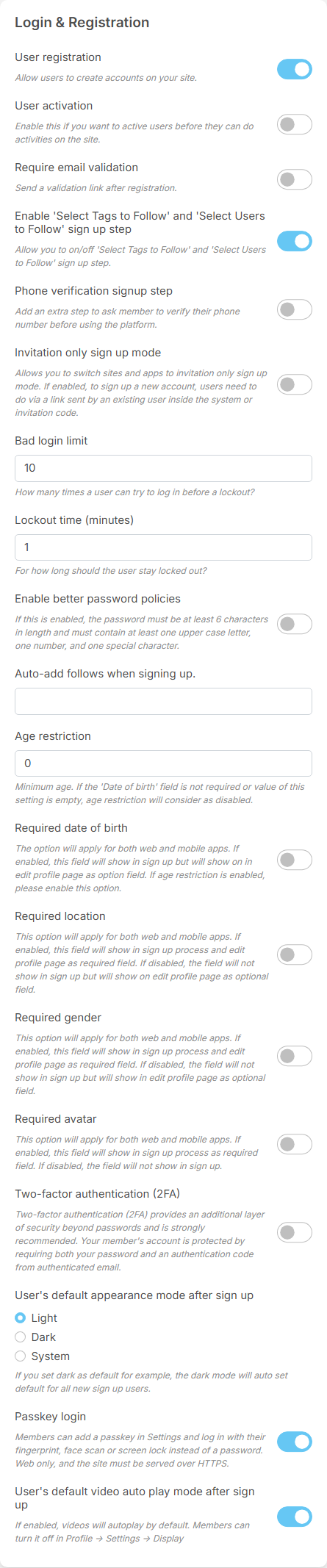
These settings decide who can create an account and what new members must do. Most of them apply to accounts created after the change; existing members are not asked again. The sign-in security settings on the same screen are explained on Login, security and identity.
Who can sign up#
| Setting | After installing | What it does |
|---|---|---|
| User registration | on | lets visitors create accounts. Off: the sign-up page and the "Sign up" link disappear, and a social login (Facebook, Google and so on) can no longer create a new account; it shows "You cannot sign up this site." Existing members can still sign in |
| User activation | off | new accounts must be approved by an admin. Until you switch the account to Active in AdminCP → Users → Manage Users, the member sees "Your account is pending approval." when signing in |
| Require email validation | off | new members get a code by e-mail and must enter it before they can use the site |
| Invitation only sign up mode | off | the sign-up form asks for an Invitation Code. The invitation link an existing member sends from the Invite page fills it in; without a valid code the form answers "Invalid invitation code." |
| Phone verification signup step | off | new members must confirm a phone number by SMS; see Phone verification at sign-up |
What new members fill in#
| Setting | After installing | What it does |
|---|---|---|
| Required date of birth | off | on: the sign-up form asks for the date of birth. Off: the field is only optional, in Edit profile |
| Age restriction | 0 (no limit) | the minimum age, counted from the year of birth. Works only with Required date of birth on; younger people see "You must be 18 years of age or older." (with your number) |
| Required location | off | on: country (and state and city where you have them) is required at sign-up and in Edit profile. The lists come from Countries, states and cities |
| Required gender | off | on: gender is required at sign-up and in Edit profile. The choices are managed in AdminCP → Users → Manage Genders |
| Required avatar | off | on: a profile picture is required at sign-up |
| Enable 'Select Tags to Follow' and 'Select Users to Follow' sign up step | on | after signing up, new members are invited to pick hashtags and people to follow before they see their feed |
| Auto-add follows when signing up. | empty | type names to pick accounts (for example your official account) that every new member follows automatically |
| User's default appearance mode after sign up | Light | Light, Dark or System (follows the device) for new accounts; members can change it themselves |
| User's default video auto play mode after sign up | on | whether videos play by themselves for new accounts; members can change it in Settings → Display |
The other settings on this screen (Bad login limit, Lockout time (minutes), Enable better password policies, Two-factor authentication (2FA) and Passkey login) are explained on Login, security and identity.
Force Login#
Off after installing. Tick it to make your site private: visitors who are not signed in can no longer see posts, profiles, groups or anything else members share; they are asked to sign in. The sign-in and sign-up pages and your static pages (such as Terms of Service) stay open. Search engines cannot see your content either, so it will not appear in search results; untick Enable under Sitemap settings too (see The sitemap).
Spam and banning tools, captcha#
Last updated: 2026-11-19 · v1.5.6
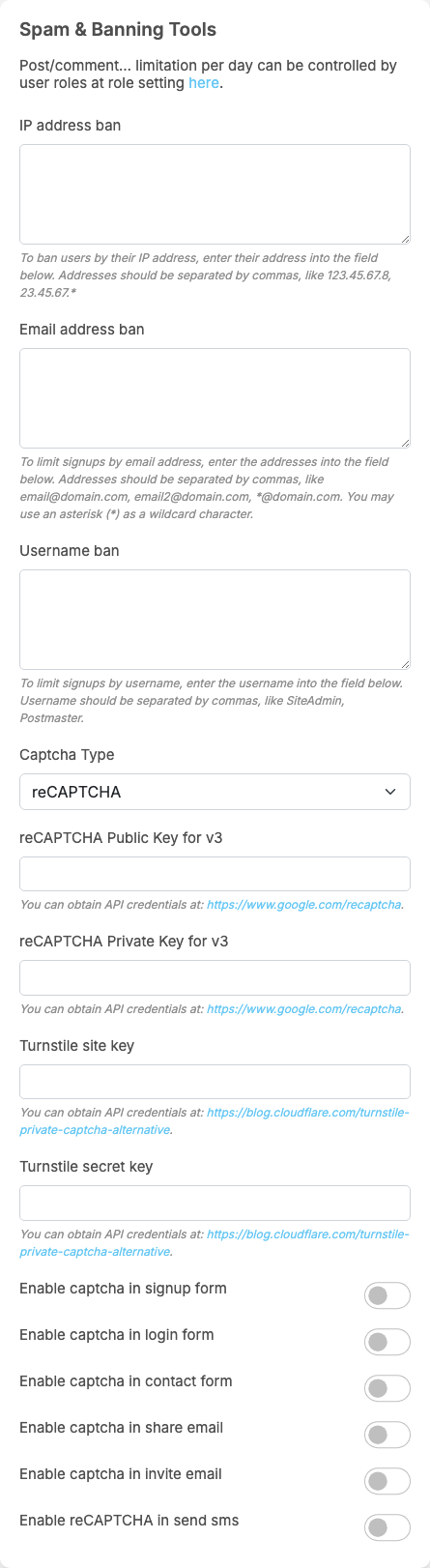
How many posts and comments a member may share per day is not set here but in each role's permissions (AdminCP → Users → Manage User Roles), as the note at the top of this part says.
Banning addresses and names#
| Field | What it blocks |
|---|---|
| IP address ban | visitors from these internet addresses cannot open your site at all, members with existing accounts included; they see "You are not allowed to access this site." Separate addresses with commas; * stands for any number in that place, for example 123.45.67.8, 23.45.67.*. The AdminCP itself is never blocked, so you cannot lock yourself out |
| Email address ban | these e-mail addresses cannot sign up, sign in with a social login for the first time, or be set as a member's new e-mail. * matches anything, so *@example.com bans a whole domain (useful against throw-away e-mail services) |
| Username ban | these user names cannot be chosen at sign-up or in account settings, for example SiteAdmin, Postmaster. The name must match exactly |
The e-mail and user-name bans do not affect accounts that already exist. To stop an existing member, deactivate the account in AdminCP → Users → Manage Users. Automatic banning after many reports is set under Report (see Automatic ban after many reports).
The IP ban checks IPv4 addresses, and it checks the address that connects to the web server. Behind Cloudflare or another proxy that is the proxy's address, so an IP ban of a visitor has no effect there; block such visitors in the proxy instead.
Captcha#
A captcha checks that a form is sent by a person, not a robot. ShaunSocial supports Google reCAPTCHA (version 3) and Cloudflare Turnstile. All captcha switches are off after installing.
| Setting | After installing | What it does |
|---|---|---|
| Captcha Type | reCAPTCHA | the service: reCAPTCHA or Cloudflare Turnstile |
| reCAPTCHA Public Key for v3, reCAPTCHA Private Key for v3 | empty | the two keys of a reCAPTCHA version 3 key pair for your domain, from Google |
| Turnstile site key, Turnstile secret key | empty | the two keys of a Turnstile widget for your domain, from Cloudflare |
| Enable captcha in signup form | off | checks the sign-up form |
| Enable captcha in login form | off | checks the sign-in form |
| Enable captcha in contact form | off | checks the contact form (see The contact form) |
| Enable captcha in share email | off | checks the form that shares a post by e-mail |
| Enable captcha in invite email | off | checks the form that invites friends by e-mail |
| Enable reCAPTCHA in send sms | off | checks the form that sends a code by SMS |
- Choose the service in Captcha Type: reCAPTCHA or Cloudflare Turnstile.
- Create the keys for your domain on the service's website (the links are under the fields) and enter them: reCAPTCHA Public Key for v3 and reCAPTCHA Private Key for v3, or Turnstile site key and Turnstile secret key.
- Tick the forms to protect: Enable captcha in signup form, Enable captcha in login form, Enable captcha in contact form, Enable captcha in share email, Enable captcha in invite email and Enable reCAPTCHA in send sms (the form that sends a code by SMS).
- Open your site in a private window and try the protected forms.
What you should see: the forms work and show the chosen service's check. If a form refuses every attempt, check the keys and that they were created for your domain.
Tick a form only after its keys are in place, or nobody can send that form. If you also run the ShaunSocial mobile apps, read If you also run the ShaunSocial mobile apps before switching any captcha on.
Post settings (files, GIFs, limits)#
Last updated: 2026-11-17 · v1.5.6
| Setting | After installing | What it does |
|---|---|---|
| Allow to attach files to the post | on | members can attach documents to posts |
| Supported file formats | txt,doc,docx,csv,xls,xlsx,ppt,pptx,pdf,ai,psd | the file types allowed, separated by commas |
| Post - maximum files can be attached | 10 | how many files one post may carry |
| Enable Gifs | on | shows a GIF picker in posts, comments and replies |
| GIPHY API Key | empty | the GIFs come from GIPHY and need a free key from GIPHY's developer dashboard (link under the field). While it is empty the GIF picker still appears when Enable Gifs is on, but it finds no GIFs: enter a key, or untick Enable Gifs. The GIF picker in chat uses the same key. GIPHY's free key allows 100 searches per hour; apply for a production key on the same dashboard when your site grows |
| Share a post - maximum photos can be attached | 10 | photos per post; 0 or empty means no limit |
| Share a post - maximum characters can be posted | 63206 | text length of a post; 0 or empty means no limit |
The size limit of each uploaded file and the limits for comments are under General Settings (see The other General Settings). Video settings are under FFMPEG Configuration (see FFmpeg and Imagick on the server). Chat has its own GIF switch in its part of General Configuration, and uses the GIPHY key above. Limits per role, such as posts per day or poll options, are set in each role's permissions.
SEO and sitemap#
Last updated: 2026-11-17 · v1.5.6
The sitemap#
A sitemap is a list of your site's public pages that helps search engines such as Google find them. ShaunSocial builds it by itself. It is on after installing (Enable ticked) and rebuilt Daily; Schedule updates also offers Weekly and Monthly.
- Make sure the cron job runs (see Set up the cron job): it builds the sitemap.
- Open the Sitemap settings part.
What you should see: "This is URL of your site map" followed by
https://example.com/sitemap.xml. Until the first sitemap is built it says the cron job has not been configured yet. - Submit that address in your search engine's webmaster tools (for example Google Search Console).
The sitemap lists only what visitors who are not signed in may see: your static pages, public posts, and public business pages and groups. Member profiles are not listed. The sitemap keeps listing this content when Force Login is on, so untick the sitemap's Enable while Force Login is on.
What search engines read#
- Site title, Site description and Site keywords in AdminCP → Site Settings → Site Information are used on every page that has no text of its own.
- Og image (Site Information → Site Images) is the picture shown when a link to your site is shared.
- Each page's own title, description and keywords can be set in AdminCP → Design → Layout Editor: edit a page and fill in Meta keywords and Meta description.
- The site's
robots.txtfile allows search engines everywhere.
Photo watermark#
Last updated: 2026-11-17 · v1.5.6
The watermark writes a line of text into the photos members add to their posts, so a copied photo still shows where it came from. It is off after installing.
| Setting | After installing | What it does |
|---|---|---|
| Enable | off | switches the watermark on for photos added from now on |
| Text | empty | your own text. Empty: your domain and the member's user name, for example example.com/@anna |
| Position | Center | one of nine places, from Top Left to Bottom Right |
| Text color | #ffffff (white) | the colour of the text |
| Text font size (px) | 24 | the size of the text |
| Text style | Regular | Regular, Medium, Semibold or Bold |
- The watermark becomes part of the photo when it is uploaded. Photos uploaded before you switched it on stay as they are, and switching it off later does not remove it from photos that already have it.
- It applies to photos in posts only: not to videos, profile pictures, comments, chat or stories.
- Upload a test photo in a post to check the position and size before you leave it on.
The watermark needs the server's standard image support with TrueType fonts; see Watermark on photos.
Progressive web app#
Last updated: 2026-11-19 · v1.5.6
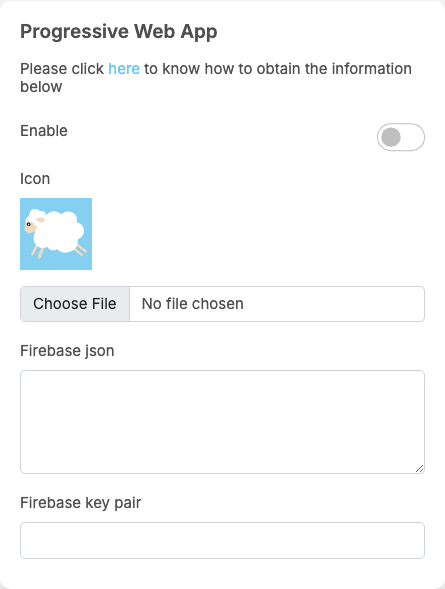
A progressive web app lets members install your website on their phone or computer like an app, with its own icon, and receive notifications from the browser even when your site is not open. It is off after installing.
| Setting | After installing | What it does |
|---|---|---|
| Enable | off | lets browsers offer to install your site as an app. The app is named after your Site title |
| Icon | a built-in picture | the small picture shown with browser notifications |
| Firebase json | empty | the web app settings of your Firebase project (needed for notifications) |
| Firebase key pair | empty | the web push key of your Firebase project (needed for notifications) |
Set up browser notifications#
Browser notifications are sent through Google Firebase, which is free for this use.
- Sign in to the Firebase console with a Google account and create a project (or use the one your mobile apps use).
- In the project, add a Web app. Firebase shows its settings as
firebaseConfig: copy the part from{to}, braces included, and paste it into Firebase json. - In Firebase open Project settings → Cloud Messaging, click Generate key pair under Web configuration, and paste the key into Firebase key pair.
- In Project settings → Service accounts click Generate new private key. A file downloads: give it to your server administrator (see the box below). Keep it private.
- Tick Enable, then open your site in a browser that supports notifications.
What you should see: signed-in members are offered "Turn on notifications" once in each browser, and Settings has a PWA Settings tab with Allow notifications.
If a member's browser blocks notifications, the PWA Settings tab tells them to change it in the browser's preferences. Members choose there whether they want notifications in that browser.
- Save the service-account key from step 4 as
firebase.jsonin the site folder (next to.env), readable by PHP and not insidepublic. The ShaunSocial mobile apps' push notifications use the same file, so if it already exists for the apps, keep it. - Browsers allow installation and notifications only over HTTPS.
- The home-screen icon of the installed app comes from the six files in
public/images/manifest/(72x72.pngto512x512.png). Replace them with your own icon at the same sizes to rebrand it.
Countries, states and cities#
Last updated: 2026-11-17 · v1.5.6
These lists feed every place where members pick a location, such as the location field at sign-up and in Edit profile. After installing there are 244 countries, all active, the 51 states of the United States, and no cities. Add states and cities for the countries your members live in.
- Countries list: Create new adds a country (ISO code, Name, Order, Active). Drag a row by its handle to change the order. Tick rows and use Active, Deactive or Delete to change many at once. An inactive country is no longer offered to members.
- Translate: after creating a country, state or city, its edit form has a Translate link to enter its name in your other languages.
- States: click Manage States on a country's row. Create State adds one by hand (Name, Order, Active).
- Cities: on the states list click Manage Cities on a state's row; Create City works the same way.
Import many states or cities at once#
- Open the country's states list (or the state's cities list) and click Import States (or Import City).
- Click Download sample csv to see the format: a plain CSV file with one name per line.
- Prepare your file the same way, choose it in File CSV and click Import.
What you should see: the new names in the list, active.
Real-time comments, 18+ popup, cookies, account deletion#
Last updated: 2026-11-17 · v1.5.6
Enable real-time comment#
Off after installing. When on, new comments from other members appear under a post while it is open, without reloading, on the website and the mobile website. It needs live updates to be set up first (see Live updates); without them the switch has no effect.
Enable 18+ warning popup#
Off after installing. For sites with adult content. When on, visitors who are not signed in see a warning that the
site contains age-restricted material, with I am 18 or older - enter and I am under 18 - exit. The
browser remembers the answer. URL for "I am under 18 - exit" button is where the exit button sends people; enter
a full address starting with https://. This applies to the website, not the mobile apps.
Enable cookies and Link cookies#
Shows visitors a notice, "Cookies on" followed by your site title, with Read more and Accept.
Enable cookies is ticked after installing, but the notice only appears once Link cookies holds the
address of your cookie or privacy page (for example https://example.com/sp/privacy-policy); Read
more opens it.
User account deletion#
On after installing: members see a Delete Account button in Settings and can close their account themselves, and owners of business pages see Delete Page in the page's Settings. Untick it to remove both buttons; members then have to ask you, and you delete accounts in AdminCP → Users → Manage Users. Demo accounts protected under Lock delete and account setting change. can never delete themselves (see Protecting demo accounts).
The other General Settings#
| Setting | After installing | What it does |
|---|---|---|
| Max upload size per file (Mb) | empty | the largest file a member may upload. Empty: your server's limit, shown in the help text. Raising it above the server's limit has no effect; ask your host to raise that too |
| Hashtag trending setting (days) | 60 | trending hashtags are counted over this many recent days |
| Auto approve new hashtag | on | off: a new hashtag stays hidden until you approve it in AdminCP → Site Settings → Manage Hashtags |
| Home feed only loads activities that have been created since (days) | 120 | older activity drops out of the home feed to keep it fast; the posts stay on profiles |
| User notifications settings (days) | 120 | notifications older than this are removed |
| Friend invitation by email setting (please enter 1-> 100) | 10 | addresses a member can enter at once on the Invite page |
| Number of invitations that can be sent per day (please enter 1-> 1000) | 10 | invitation e-mails per member per day |
| Share to friends by email setting (please enter 1-> 100) | 10 | addresses a member can enter when sharing a post by e-mail |
| Write a comment/reply - maximum characters can be written. | 8000 | 0 or empty means no limit |
| Write a comment/reply - maximum photos can be attached. | 10 | 0 or empty means no limit |
| Hashtag suggestion setting (days) | 60 | suggested hashtags are picked from this many recent days |
| New follower notifications setting (followers) | 1000 | members stop getting "new follower" notifications once they have this many followers; 0 or empty means always |
| Item per page setting | 10 | how many items a list loads at a time; must be 1 or more |
| API Secret Key | random | used by the mobile apps; see If you also run the ShaunSocial mobile apps |
| Home feed updates | Updates from everyone | or Updates from following members and hashtags: what the home feed shows on the website and in the app |
| Lock delete and account setting change. | empty | protects demo accounts; see Protecting demo accounts |
| Terms of Service in the paid checkout URL | empty | the terms members accept before paying; see the Billing page |
Force Login, also in this part, is explained in Force Login.
Change log#
Last updated: 2026-11-19 · v1.5.6
| Date (GMT+7) | Section | What changed |
|---|---|---|
| 2026-11-17 | all | First version for 1.5.6, written from the 1.5.6 code as a guide for site owners and their admins. |
| 2026-11-17 | site-information, login-registration, spam, post-settings, sitemap-seo, watermark, realtime-comments-and-misc | Corrections after review: what Static File Base URL moves to the CDN, the timezone default, the IP ban and existing members, the GIF picker without a GIPHY key, the sitemap with Force Login on, the watermark heading and server note, Delete Page for page owners. |
| 2026-11-17 | general-configuration, spam, realtime-comments-and-misc | Links to the new Members and roles and Moderation pages. |
| 2026-11-19 | site-information, general-configuration, spam, pwa | The value after installing for every setting of Site Information, the Android & IOS Apps fields, the captcha settings and the progressive web app; links to the mobile app settings, the settings reference and the feature pages. |
| 2026-11-19 | site-information, spam, pwa | Screenshots of the Android & IOS Apps, Spam & Banning Tools and Progressive Web App parts. |