ShaunSocial user guide 1.5.6 / Features
Member account and settings
Everything a member does with their own account: creating it, confirming the e-mail address, signing in and out, getting back in after a forgotten password, the profile page that others see, following and blocking people, and every tab of Settings, from the profile details to downloading your data and deleting the account. Short notes for admins point to the AdminCP settings that change what members see.
Checked against the 1.5.6 code. The Settings tabs, the sign-in, sign-up and forgot-password pages and the profile pages were compared with a demo site. Creating an account, the confirmation codes, resetting a password, the data download and deleting an account were read from the code, not run; screenshots follow.
Signing up and logging in#
Last updated: 2026-11-17 · v1.5.6
Create an account#
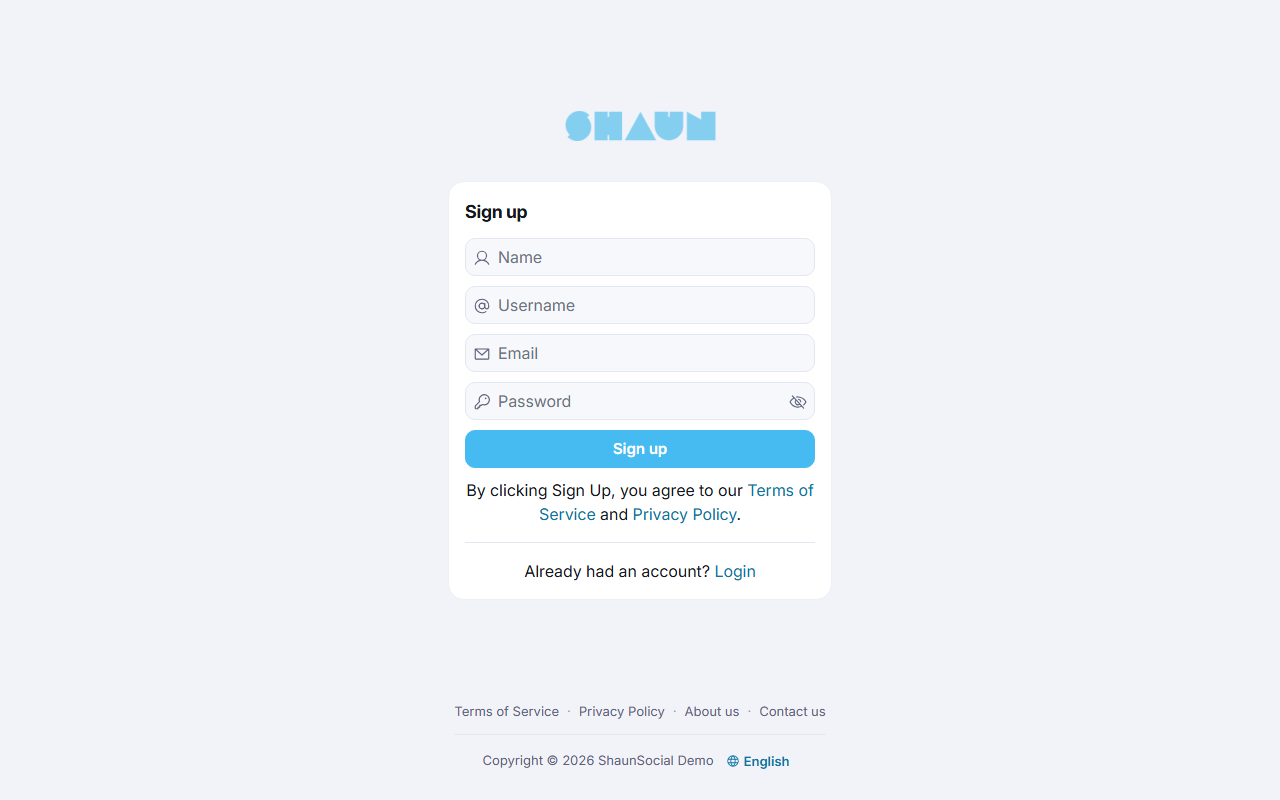
- Open your site and click Sign up (on the sign-in page: "Don't have an account? Sign up"). The
address is
https://example.com/signup. - Fill in Name, Username, Email and Password. Depending on the site, the form also asks for a Profile photo, a Phone Number, your Gender, Birthday, location or an Invitation Code, and may show a captcha check.
- Click Sign up. By doing so you accept the site's Terms of Service and Privacy Policy, linked under the
button.
What you should see: you are signed in. If the site asks for confirmations, their screens come first (see the next steps); otherwise the welcome steps or the home page open.
- Username: 5 to 30 characters: letters, numbers, full stops (
.) and underscores (_). It becomes your profile address,https://example.com/@yourname. A name that is taken gives "The username already exists." - Name: up to 64 characters. Password: at least 6 characters; some sites ask for more (see Password rules).
- An e-mail address that already has an account gives "The email already exists."; sign in or reset the password instead.
- An invitation link from a friend fills in the Invitation Code by itself (see Inviting friends).
- Under the form, the logos after "Or Sign up using" create the account with an existing Google, Facebook or other account (see Social login: what members see).
- "Your account is pending approval." means an admin must approve new accounts first; you can sign in once they have.
For admins: who may sign up and which fields the form asks for are set in General Configuration (see Who can sign up and What new members fill in). The captcha is explained in Captcha.
Confirm your e-mail address and phone number#
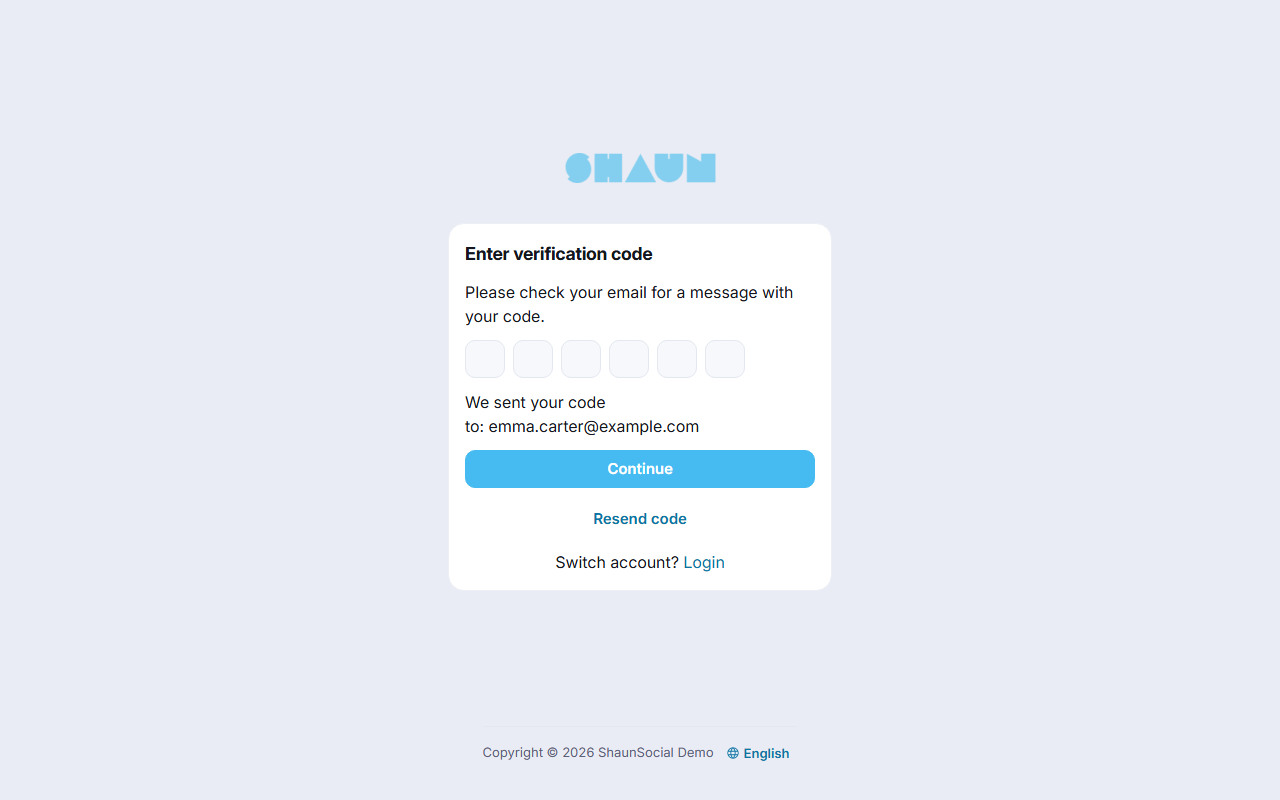
When the site requires it, a new account first confirms its e-mail address. Until then the site shows only this screen.
- Open the welcome e-mail from the site and copy the 6-digit code.
- On the screen Enter verification code, type the code and click Continue.
What you should see: the welcome steps or the home page.
- A code works for 6 minutes. Resend code sends a new one ("A verification code has been sent to your email account.").
- "We sent your code to:" shows the address in use. If it is wrong, or you want another account, click Login after "Switch account?": it signs you out.
- Sites that also confirm phone numbers then ask for the code sent by text message (see Phone verification: what members see).
Choose tags and people to follow#
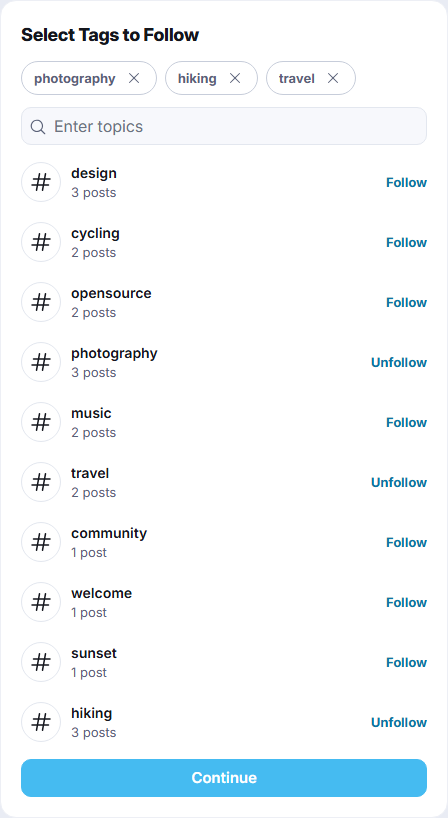
On many sites, a new account is greeted by two short steps that fill its home feed:
- Select Tags to Follow: click the hashtags you are interested in, or type in Enter topics to find others. The tags you picked are shown above the field; click one there to drop it. Click Continue.
- Select Users to Follow: click Follow next to people, or search with Enter name. Click
Continue.
What you should see: your home feed.
The steps are shown once. You can follow tags and people at any time later (see Follow a hashtag and Follow and unfollow).
For admins: the steps are the setting Enable 'Select Tags to Follow' and 'Select Users to Follow' sign up step (see What new members fill in). Switching it off skips the steps at once for every member who has not finished them yet.
Log in and out#
- Click Login, or open
https://example.com/login. - Enter your e-mail address or username (on sites with phone verification also your phone number) and your
password, and click Login.
What you should see: the home page, or the page you were trying to open.
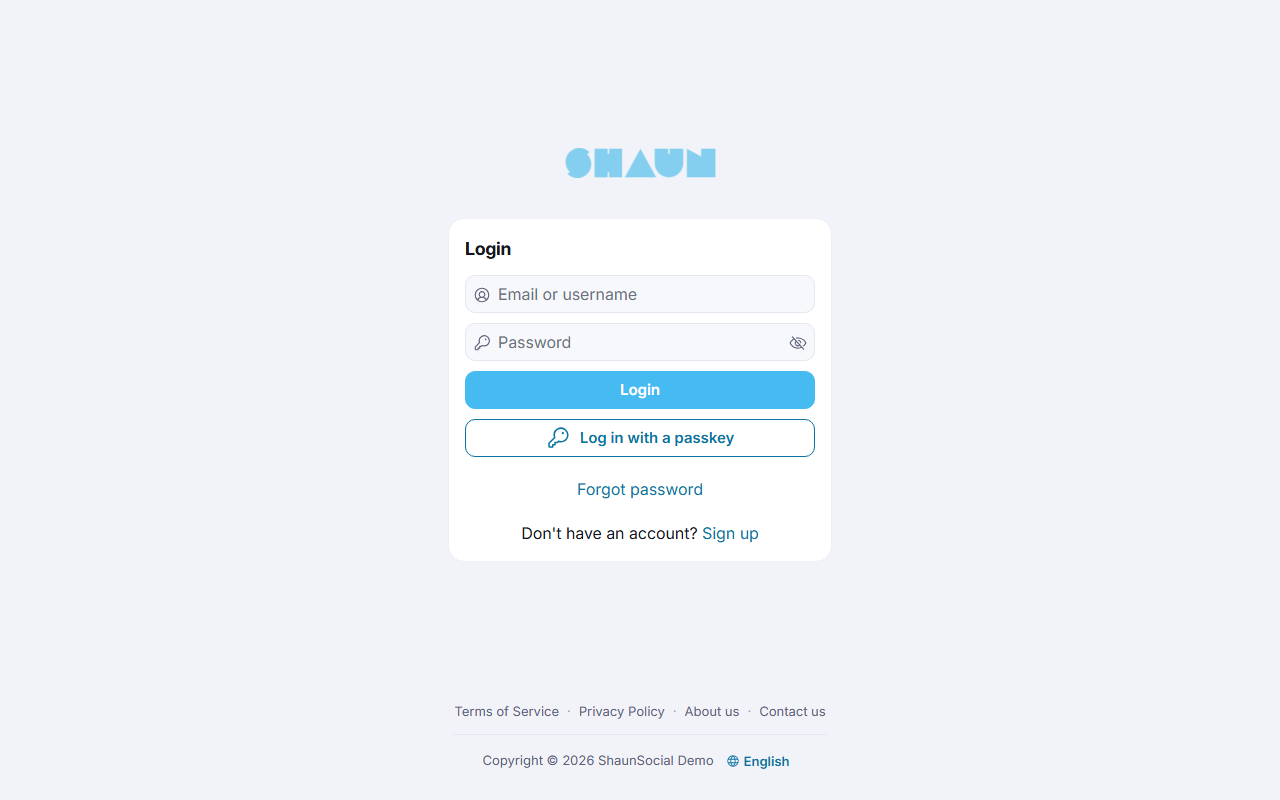
- "Your email, username or password was incorrect." means one of them does not match; check the spelling or use Forgot password. After many wrong tries the site waits a while before accepting new ones (see Login lockout).
- Log in with a passkey signs you in with your fingerprint, face or screen lock, once you have added a passkey in Settings (see Passkey login).
- The logos after "Or Sign in using" sign you in with an account you linked, such as Google or Facebook.
- Log out: click Logout in the Profile Menu of the left menu. To sign out on your other devices too, see Change password.
For admins: a site with Force Login on asks visitors to sign in before they see anything (see Force Login). The items of the Profile Menu can be changed (see Menus).
Two-factor code at login#
If you switched on two-factor authentication in Settings, the screen Two-Factor Authentication follows the password.
- Mail or SMS: the code is sent by itself; the screen says where it went. Resend code sends a new one.
- Authentication app: open the app and enter the code it shows for your site.
- Enter the code and click Continue.
- "Can't get confirmation code? Contact Support" (with an authentication app: "Can't access your authentication app? Contact Support") opens the site's contact form. If you lost the phone or the app, the site's admins can remove two-factor authentication from your account (see When a member loses their phone).
Setting it up is explained in Two-factor authentication: what members see.
Forgot your password#
- On the sign-in page click Forgot password.
- Enter the e-mail address of your account and click Continue.
What you should see: Enter security code, with the address the code was sent to.
- Type the 6-digit code from the e-mail and click Continue. The code works for 6 minutes; Resend code sends a new one.
- On Change Password, enter the new password twice and click Save.
What you should see: "Your password has been changed." and the sign-in page. You are signed out on every device; sign in with the new password.
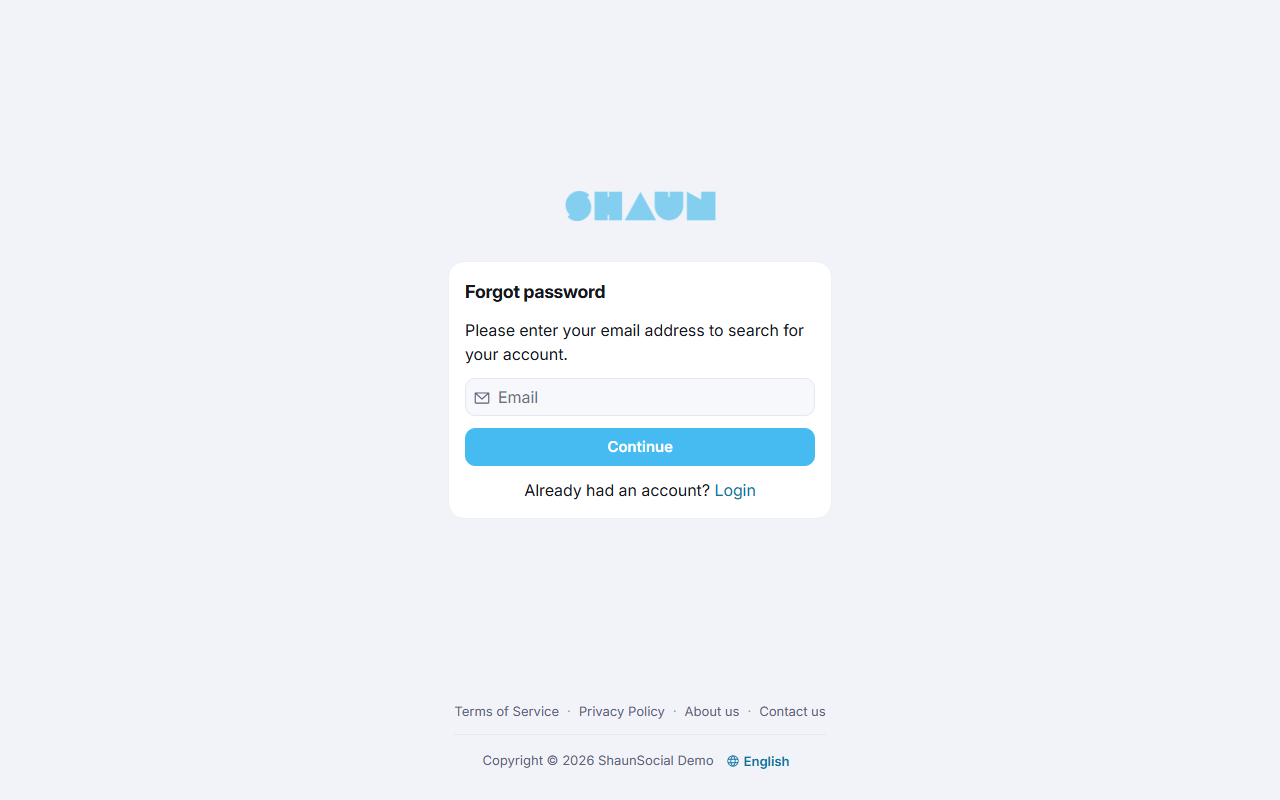
- "The email does not exist." means no account uses that address. If you signed up with a social login, use the logos under "Or reset via" instead (see Adding e-mail and password to a social-login account).
- Demo accounts protected by the site cannot change their password (see Protecting demo accounts).
Settings tabs#
Last updated: 2026-11-17 · v1.5.6
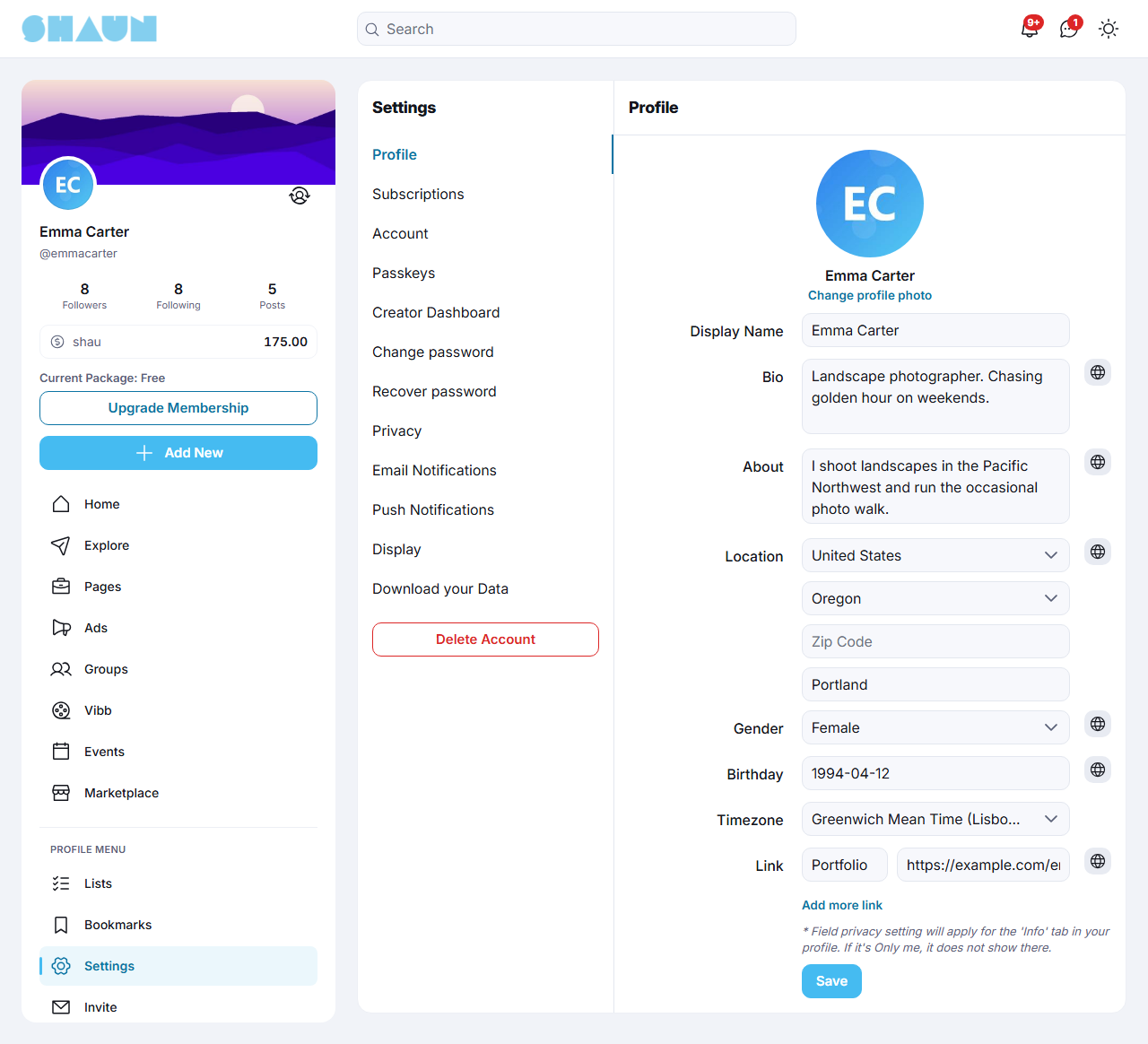
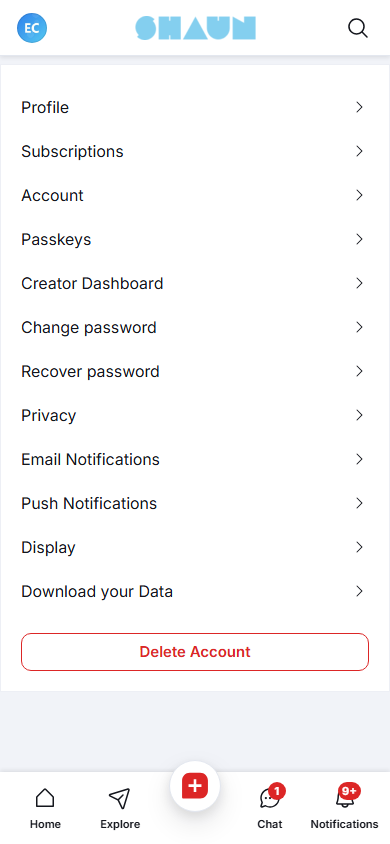
Open Settings in the Profile Menu of the left menu (https://example.com/settings). On a
computer the tabs are listed on the left and the open tab on the right. On a phone the list fills the screen; tap a tab
to open it and the back arrow to return.
| Tab | What it is for |
|---|---|
| Profile | your picture, name, bio and the details on your profile (see Edit profile) |
| Subscriptions | the paid subscriptions you have, such as a membership package; part of the paid features of the site |
| Account | e-mail address, username and phone number (below) |
| Two-factor authentication | a code at sign-in on top of the password, when the site offers it (see Two-factor authentication: what members see) |
| Passkeys | signing in with a fingerprint, face or screen lock, when the site offers it (see Passkey login) |
| Creator Dashboard | for creators who sell posts or subscriptions, while the site's Paid content feature is on |
| Change password | a new password (below) |
| Add email and password | instead of Account, Passkeys and Change password, for accounts created with a social login that has no e-mail address (see Adding e-mail and password to a social-login account) |
| Recover password | a new password when you forgot the old one (below) |
| Privacy | who can see your posts, write to you and mention you (below) |
| Email Notifications | which e-mails the site sends you (below) |
| Push Notifications | which notifications you get at all (below) |
| Display | light or dark mode and video autoplay (below) |
| Download your Data | a copy of your data (see Download your data) |
| PWA Settings | browser notifications, shown when the site has them set up and your browser supports them |
Under the list, Delete Account closes your account (see Delete your account). Features and plugins your site has on can add more tabs. While you act as a business page, Settings shows the page's own settings instead (see Page settings).
Account: e-mail, username and phone#
- Change Email or Username and click Save.
- In Enter Password, type your current password and click Confirm.
What you should see: "Your changes have been saved." A new username also changes your profile address.
- An address or username another member uses is refused ("The email has already been taken.", "The username has already been taken.").
- On sites with phone verification, Change next to Phone Number opens Update Phone Number: enter the new number and the code sent to it.
- "This account is protected from modification." means the site protects this account, usually a public demo login (see Protecting demo accounts).
Change password, and sign out on other devices#
- Open Change password, enter Old Password, New Password and Confirm Password, and
click Save.
What you should see: "Your password has been changed." and the question "Do you want to log out of other devices?".
- Click Ok to sign out on every other phone, tablet or browser where you are signed in, or Cancel to stay signed in there.
There is no list of signed-in devices; this question is the way to sign out everywhere else.
Forgot the old password while signed in? Open Recover password.
- Send code to my email sends a code to your address; enter it and a new password as in Forgot your password. Afterwards you are signed out on every device, this one included: sign in again with the new password.
- Or click one of your social logins and sign in there to set a new password. Then the question "Do you want to log out of other devices?" follows, as above.
Privacy#
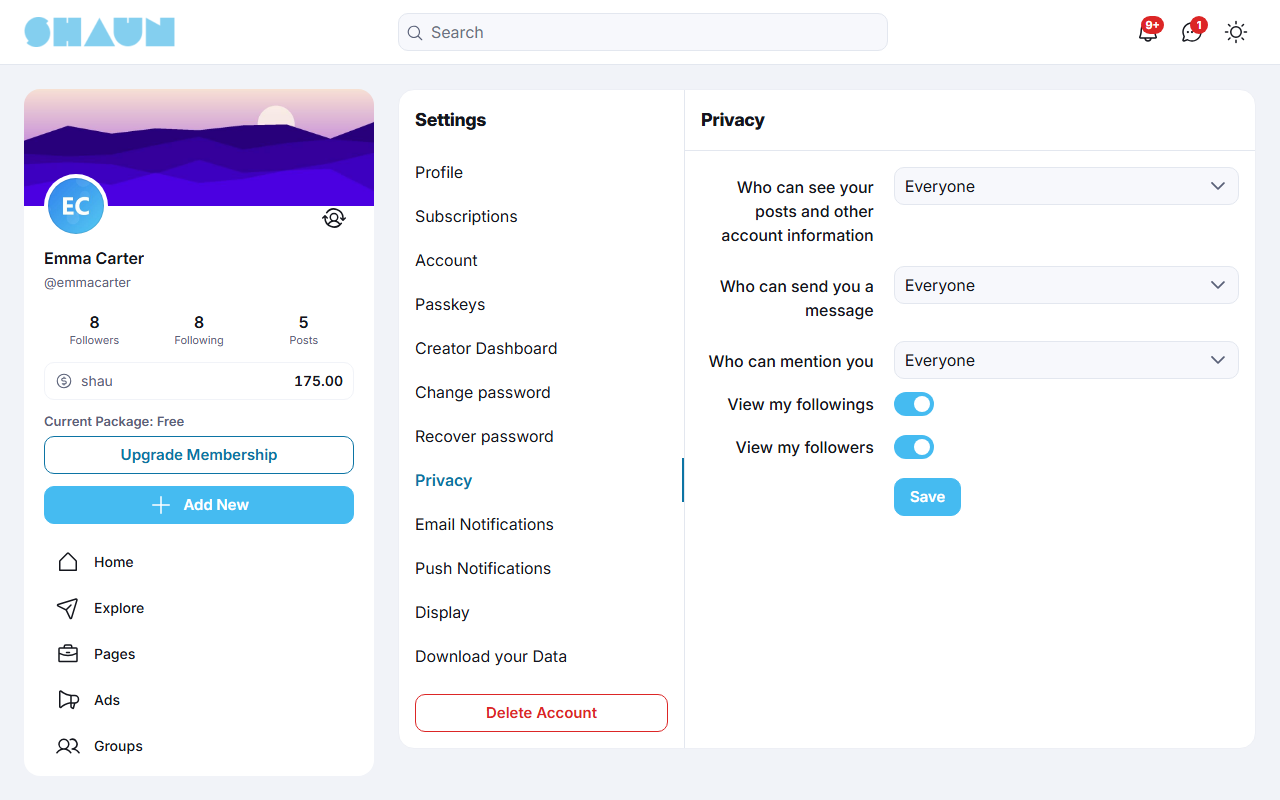
Choose the settings and click Save.
| Setting | Choices (after sign-up) | What it does |
|---|---|---|
| Who can see your posts and other account information | Everyone, My followers, Only me (Everyone) | My followers: people who do not follow you see your name, picture and cover with "This Account is Private" and "Follow to see their posts."; your posts and profile tabs are hidden from them everywhere. Only me: nobody else sees them, and your followers are no longer told about your new posts. The site's admins and moderators still see everything |
| Who can send you a message | Everyone, My followers, No One (Everyone) | who sees the Message button on your profile (see Start a conversation) |
| Who can mention you | Everyone, My followers, No One (Everyone) | who can tag you with @ in posts and comments |
| View my followings | on | off: others no longer see how many people you follow, or the list |
| View my followers | on | off: others no longer see your followers or their number |
Plugins your site has on, such as Friends, can add choices and rows here. Which profile details others see is set field by field in Edit profile.
Email Notifications and unsubscribing#
| Switch | After sign-up | What it does |
|---|---|---|
| Email Notifications | on | off: the site stops sending you e-mail, except the messages you need for your account: confirmation codes for your e-mail address, codes to reset a forgotten password, notices that your account was approved or disabled or that an admin changed your password, and moderation notices with their appeal results |
| Daily email notification | on | shown while Email Notifications is on. When a notification is still unread a day after it arrived, one e-mail lists your unread notifications (up to 10). Opening your notifications on the site cancels it |
Click Save after changing them. Every e-mail from the site ends with a link to unsubscribe; clicking it shows "Unsubscribe successful." and switches Email Notifications off for that address. Switch it on again here to get e-mails back.
If your two-factor method is Mail, keep Email Notifications on: while it is off, the sign-in code does not reach you either, and neither does the code that sets up the Mail method. Remember that the unsubscribe link in any e-mail from the site switches it off too. Or choose the authentication app or SMS as your method.
Push Notifications#
This tab (titled Notifications) decides which notifications you get, both in the Notifications list on the site and as push notifications on your devices.
- All notification enabled off: you get no notifications at all.
- With it on, untick single kinds in each group: Related to your posts and posts you’re interacted with (New Comment, New Reply, New Like, New Mention, New Share), Related to system notifications (Notify when your invited users join), Related to your followers (New follower), Related to message (New chat request and the group chat notices), Related to story (When the story ends) and, with Paid content on, Related to paid content.
- Click Save.
How notifications look and where they appear is explained in Notifications. To stop the notices about one person's new posts, see Follow and unfollow.
Display and PWA Settings#
- Appearance: Light, Dark or System (follows your device). The Appearance button in the header does the same (see Default light / dark mode: what members see).
- Video autoplay: off stops videos from playing by themselves while you scroll.
- Both are saved as soon as you change them.
- PWA Settings → Allow notifications: lets the browser show the site's notifications while the site is not open. Your browser asks for permission the first time (see Set up browser notifications).
Edit profile#
Last updated: 2026-11-17 · v1.5.6
Click Edit Profile on your profile, or open Settings → Profile.
- Change the fields you want (table below).
- Next to most fields, the small privacy button chooses who sees that detail on your profile: Everyone, My followers or Only me.
- Click Save.
What you should see: "Your changes have been saved."
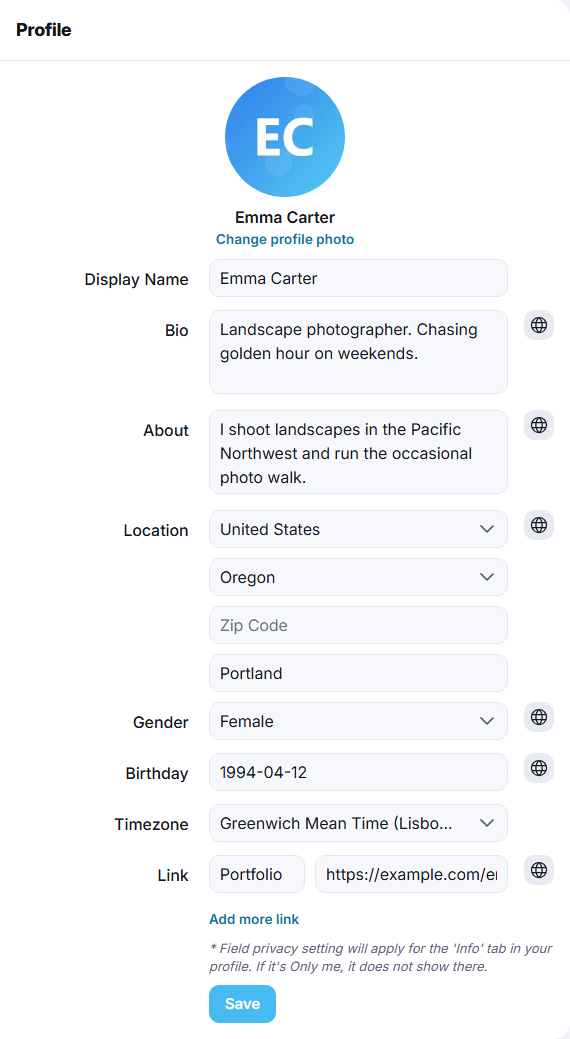
| Field | What to enter |
|---|---|
| Change profile photo | pick an image and crop it in Crop Avatar; it is saved right away |
| Display Name | the name shown everywhere, up to 64 characters (required) |
| Bio | a short line shown under your name, up to 180 characters |
| About | a longer text for the Info tab, up to 3,500 characters |
| Location | country, and state and city where the site has them |
| Gender | one of the choices the site offers |
| Birthday | a date before today; your profile shows only the day and month |
| Timezone | the time zone used for the times and dates you see |
| Link | a Title and a URL (a full address starting with https:// or http://). Add more link adds a row; the cross removes one. Known sites such as Facebook, LinkedIn, X, TikTok and YouTube show their icon on your profile when the address is written the way the site lists it, for example https://www.facebook.com/yourname with www. |
- The privacy choices apply to the Info tab of your profile (and the bio under your name). A detail set to Only me is not shown there. All details start as Everyone.
- Your cover picture is changed on your profile itself: click the button on the cover, pick an image and crop it in Crop Cover. The button on your picture changes the profile photo the same way.
- If your profile is verified, changing the name asks "You will lose your profile verification badge if you change your name. Do you want to continue?". Ok saves and removes the badge; you can ask for it again.
- A required field left empty is refused, for example "The birthday is required." Which fields are required is the site's choice.
For admins: required profile fields are set in What new members fill in, the gender choices in Genders and the link icons in Profile link icons.
Member profiles: follow, block, tabs#
Last updated: 2026-11-17 · v1.5.6
Every member has a profile at https://example.com/@username. Click a name or picture anywhere to open
it; your own is under your name at the top of the left menu.
What a profile shows#
- At the top: the cover, the picture, the name with the verification badge if it has one,
@username, the numbers of posts, following and followers, and the bio. Click following or followers to see the people. A coloured ring around the picture means the member has a story: click it to watch (see Watching stories). - The tabs: Feeds (the member's posts, pinned ones first), Info (name, username, the date they joined, and the birthday, gender, location, about text and links they chose to show), Media (photos and videos from their posts), and, while those features are on, Vibbs, Listings, Events and Paid Media.
- On your own profile: Edit Profile, Verify Profile while the site offers verification (see Profile verification: what members see) and the buttons that change the cover and the picture.
- On someone else's: Message (when they accept messages from you), Follow or Unfollow, and the three dots (Options).
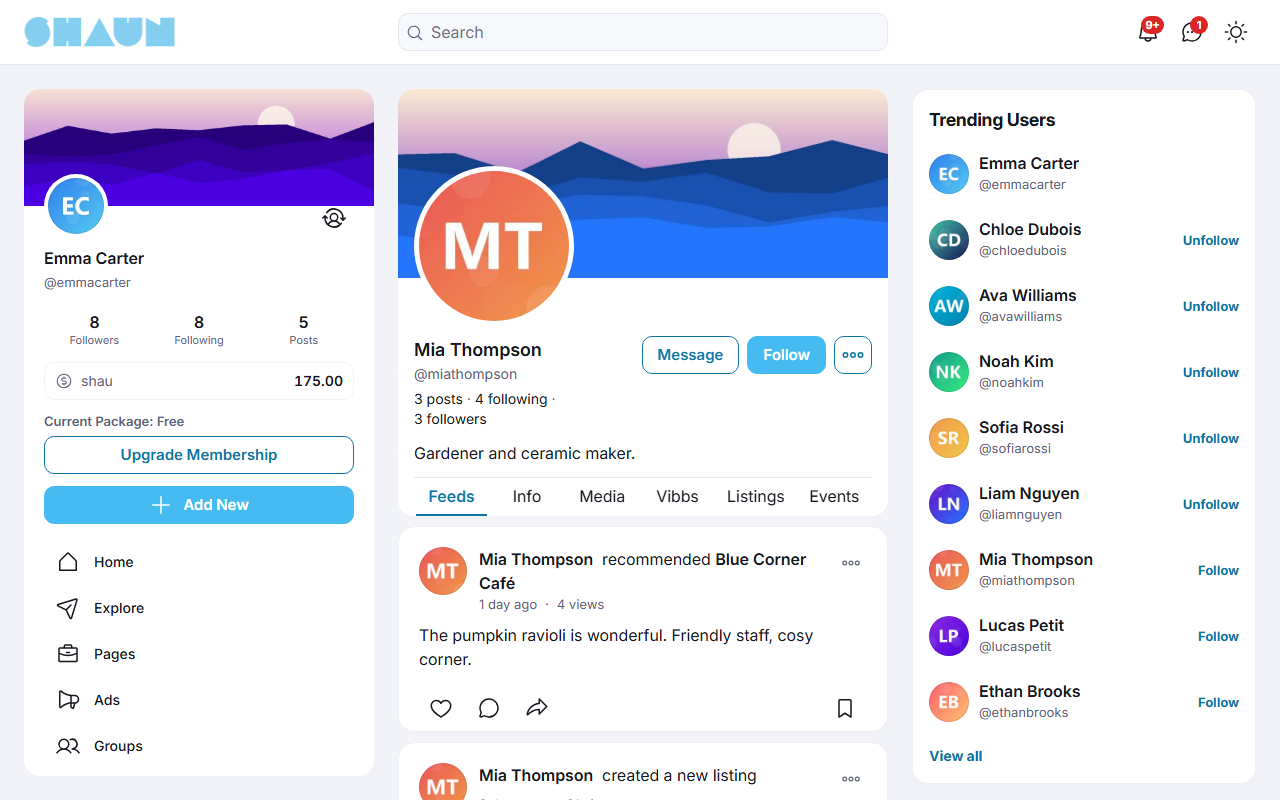
A private profile shows only the top part with "This Account is Private" (see Privacy). To pin one of your posts to the top of your profile, see Pin a post to your profile.
Follow and unfollow#
- Click Follow. There is no request to approve: you follow at once, the member gets the notification "New follower" (if they have it on), and their posts appear in your home feed. Members with very many followers (more than 1,000 after installing; admins change the number) no longer get "New follower" notices.
- If the profile is visible to followers only, reload the page after following to see the posts and, when they accept messages from followers, the Message button. The options menu also shows the right notification choice after a reload.
- Following someone also tells you about their new posts. To stop that without unfollowing, open the three dots on their profile and click Stop Notifications; Turn on Notifications brings it back.
- Click Unfollow to stop following. Everyone you follow and everyone who follows you is listed in Lists.
The options menu: report, block and more#
The three dots on another member's profile offer:
| Option | What it does |
|---|---|
| Report | reports the member to the site's moderators; choose a reason and send (see How members report) |
| Block | blocks the member (below). Not offered on the profiles of the site's admins and moderators |
| Stop Notifications / Turn on Notifications | while you follow the member: stops or restarts the notifications about their new posts |
| Subscribe, Subscribed, Tip | for creators, while the site's paid features are on: subscribe to their paid content, open your subscription, or send them a tip |
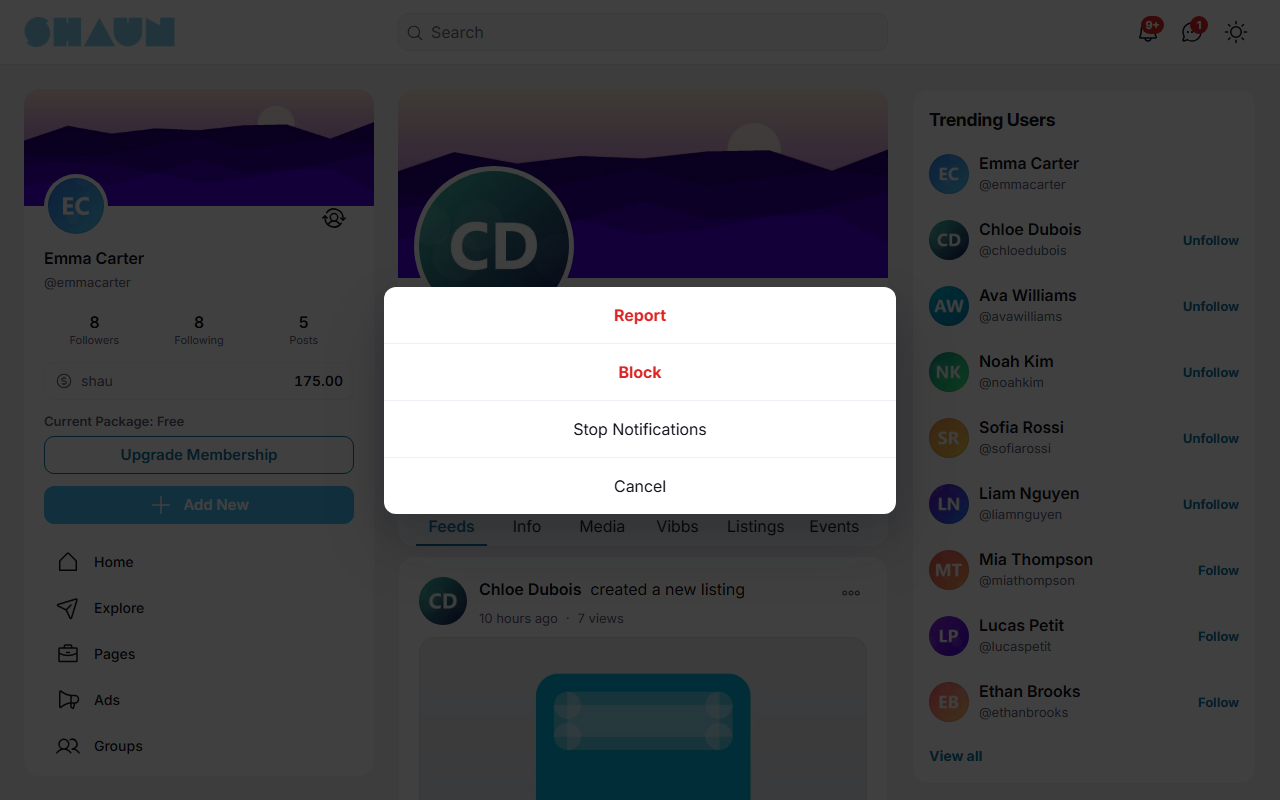
Block and unblock#
- On the member's profile, open the three dots and click Block.
- Confirm "Are you sure you want to block this user?" with Ok.
What you should see: the home page.
- You stop following each other, a waiting chat request between you is cancelled, and neither of you can see the other's profile or posts, or write to the other.
- The member is not told.
- To unblock, open Lists → Blocking User and click Unblock. Follows that were removed do not come back; follow again if you want.
- Business pages are blocked and unblocked the same way.
Adding e-mail and password to a social-login account#
Last updated: 2026-11-17 · v1.5.6
An account created by clicking a Google, Facebook or other logo can also sign in with an e-mail address and a password. A password is also needed to download your data or delete the account. What you do depends on whether the provider shared your e-mail address.
The provider shared your e-mail address#
The site sent you a welcome e-mail with a password made for you. Sign in with your e-mail address and that password, then change it in Settings → Change password. If you no longer have the e-mail, set a new password with your social login:
- On the sign-in page click Forgot password, or, while signed in, open Settings → Recover password.
- Click the logo of the provider you signed up with (under "Or reset via" on the sign-in page) and sign in there.
What you should see: the Change Password form back on your site.
- Enter the new password twice and click Save.
What you should see: "Your password has been changed."
This does not sign you out anywhere else. To do that, change the password once more in Settings → Change password and answer Ok to "Do you want to log out of other devices?".
"No account is linked to this login. Please sign up first." means this provider account was never used on the site; try the provider you signed up with.
The provider did not share an e-mail address#
Some providers, such as X, keep the address private. Settings then shows Add email and password instead of Account and Change password.
- Open Settings → Add email and password.
- Enter your Email, a Password and Confirm Password, and click Save.
What you should see: Enter verification code, with the address the code was sent to.
- Type the code from the e-mail and click Verify.
What you should see: the Account tab. From now on you can sign in with this address and password, and Settings shows Account and Change password.
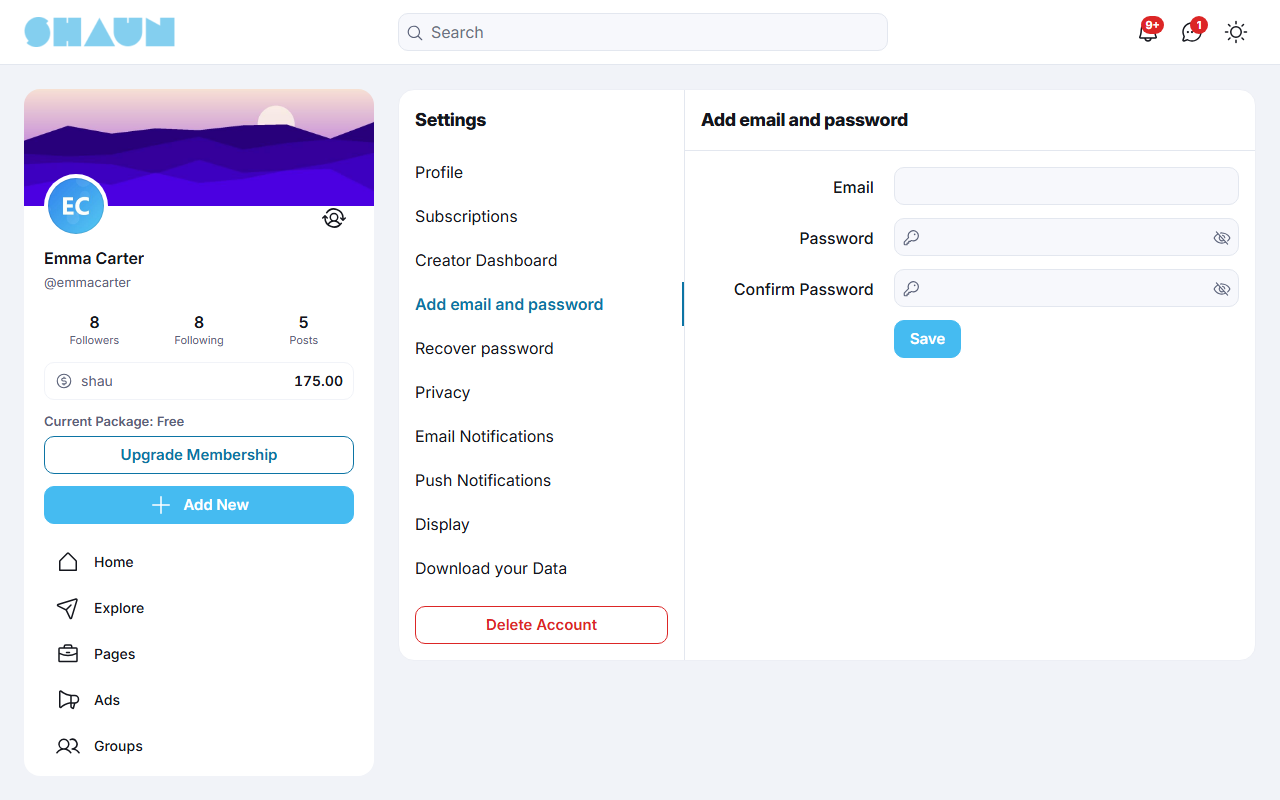
Until you do this, actions that ask for your password show "You need to add an email and set a password before you can do this." with a button that opens this tab. You can keep signing in with the social login either way.
Privacy, data download and account deletion#
Last updated: 2026-11-17 · v1.5.6
Download your data#
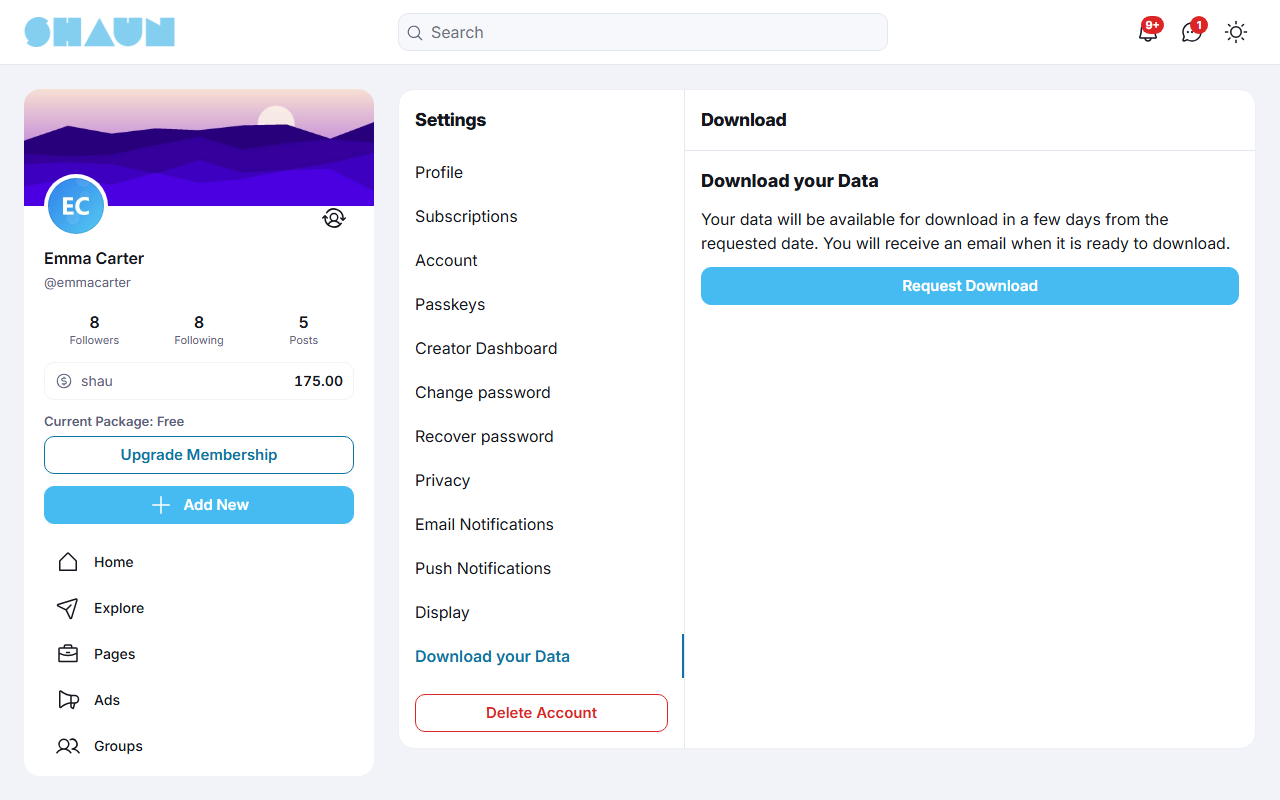
- Open Settings → Download your Data and click Request Download.
- In Enter Password, type your password and click Confirm.
What you should see: "The file is being processed. We will send you a notification when it is done." The tab then says "Your data is being processed. Please wait until it is completed."
- Wait for the notification "Your data is ready for download." It can take from minutes to a few days, depending on how much you posted. Click it, or open the tab again.
- Click Download your data. The line under it says when the file was made.
What you should see: a ZIP file. Unpack it and open
index.htmlin your browser.
- The copy holds your profile details and picture, your posts, the people you follow and who follow you, your chat conversations with their messages, and the business pages you run.
- You can request a new copy once the previous one is ready; it replaces the old file.
- With All notification enabled switched off in Push Notifications, no notice arrives: open the tab again from time to time.
The copies are built by the cron job, a little every minute (see Cron job and queue
worker). They are built only while APP_DEBUG=false in .env, as on every live site, and the
server needs the PHP zip extension. Without it, Request Download does nothing: the password dialog
closes without a message.
Delete your account#
- Open Settings and click Delete Account under the list of tabs.
- In Enter Password, type your password and click Confirm.
What you should see: you are signed out and taken to the home page.
The account is removed at once: nobody can sign in to it or open its profile any more, and the username and e-mail address become free. Your posts, comments and other content are removed in the background, which takes from minutes to hours depending on how much you posted. Download your data first if you want to keep a copy.
Deleting the account also removes what you own:
- the business pages you own (pages where you are only an admin or moderator stay; see Deleting the owner's account deletes their pages), and the groups you own (see Transfer the group). Transfer them first if they should continue;
- your marketplace listings, at once; your running ads stop; a group chat you created passes to another member or closes;
- any money left in your eWallet: spend or withdraw your balance first.
- The button is missing when the site lets only its admins delete accounts, for demo accounts the site protects, and for the site's main admin account. Ask the site's admins in those cases.
- Accounts created with a social login need a password first (see Adding e-mail and password to a social-login account).
For admins: the button is the setting User account deletion (see User account deletion). Protected accounts are explained in Protecting demo accounts.
Change log#
Last updated: 2026-11-17 · v1.5.6
| Date (GMT+7) | Section | What changed |
|---|---|---|
| 2026-11-17 | all | First version for 1.5.6, written from the 1.5.6 code for members, with notes for site owners and their admins. |
| 2026-11-17 | sign-up-login, settings, profile, member-profile, add-email-password, privacy-data | Corrections after review: what deleting an account also removes (owned pages, groups, listings, ads, group chats, the eWallet balance) and how long the cleanup takes; signing in again after recovering a password by e-mail; the data download without the zip extension or with notifications off; the Daily email switch, the Mail two-factor warning, profile link icons, reloading after following, the follower limit for "New follower" notices, the authentication-app help link, the first-login setting and the tabs hidden for accounts without an e-mail address. |