ShaunSocial user guide 1.5.6 / Features
Business pages
A business page is a profile of its own for a business, a brand, a creator or a cause: it has its own name and web address, its own posts and followers, reviews and an Info tab with opening hours and contact details. Members create pages, run them alone or with moderators, and act as the page by switching to it. This page shows members how to find, create and run a page (admins, notifications, messages, reviews, search, verification, featuring and insights), and shows admins the settings, the page categories, the feature packages and the Manage Pages screen.
Checked against the 1.5.6 code; the AdminCP screens were compared with a demo site. The member steps (creating, switching, adding moderators, transferring, reviewing, featuring) were read from the code, not run; screenshots follow.
Pages directory#
Last updated: 2026-11-17 · v1.5.6
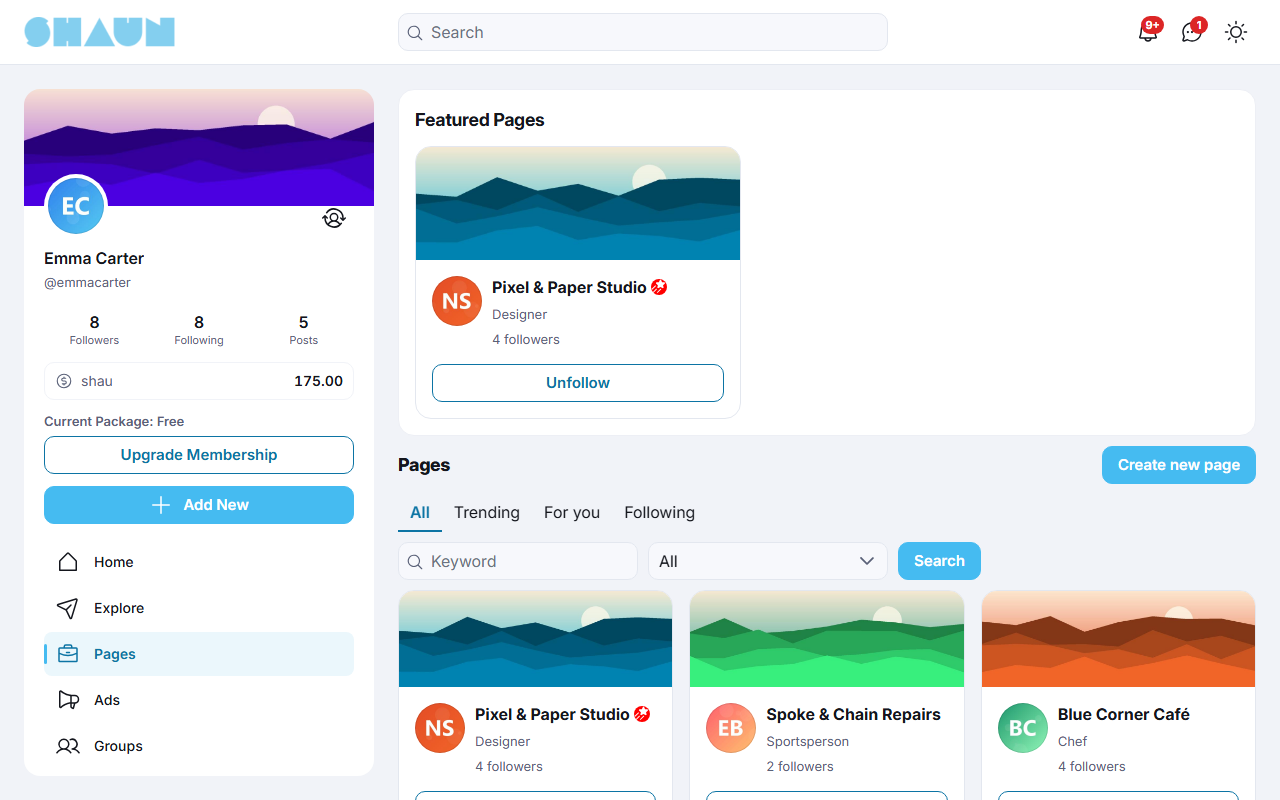
Click Pages in the main menu (the address is https://example.com/pages). Visitors who
are not signed in are sent to the home page to sign in first; a page's own profile can be opened by anyone allowed to
see it. At the top, the Featured Pages block shows the pages that are featured at the moment (see
Featured pages); under it are four tabs.
| Tab | What it shows |
|---|---|
| All | every active page, featured pages first, then the newest. Type a word in Keyword to search page names, choose a Category, and click Search; Clear filters removes both |
| Trending | pages ranked by followers and age: every follower counts as a point and every day since the page was created takes 10 points away, so young pages that gain followers quickly rise to the top |
| For you | pages whose hashtags match hashtags you are interested in: the ones you follow and the hashtags of posts you opened |
| Following | the pages you follow |
Each page card shows the page's picture, name, categories and number of followers, with a Follow button. Click a category on a page's profile to open the All tab filtered by it. A featured page shows the featured badge next to its name, and a verified page the page verified badge.
- The pages you run are listed in Lists → Pages (see Lists).
- Search: the site search has a tab for business pages (see Search).
- Following a page works like following a member: its posts reach your home feed (see Home feed and posting).
Creating a page#
Last updated: 2026-11-17 · v1.5.6
- Click Create new page at the top of the Pages page, or Add New → Page in the left
menu.
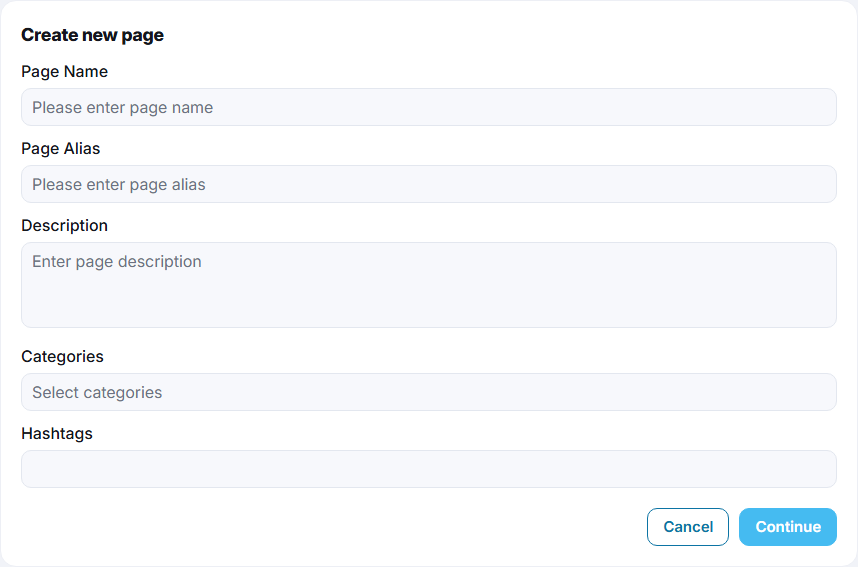
What you should see: the form Create new page.
- Fill in the form:
- Page Name: up to 64 characters.
- Page Alias: the page's user name, used in its address
https://example.com/@alias. 5 to 30 letters, numbers, periods or underscores, not yet used by a member or another page. - Description: optional, up to 255 characters.
- Categories: pick at least one.
- Hashtags: optional; they decide for whom the page appears in the For you tab.
- Click Continue.
What you should see: "Your page has been created." and the profile of the new page.
- Who may create pages is set per member role: Allow page creation (on for every role after installing) and a daily maximum (none after installing). A member without the permission sees "You don't have page creation permission."; see The permissions of a member role and Per-day limits.
- You become the owner. A page is not a second account to sign in to: you reach it from your own account by switching to it (below). It never has an e-mail address or password of its own.
- A page uses the permissions of a member role, the default role for new members when the page was created, for example the longest post it may write. Admins can change it (see Pages admin).
Switch to your page and back#
To post, reply to messages or change anything as the page, you switch to it. Everything you then do (posting, commenting, liking, following, sending messages) is done in the page's name.
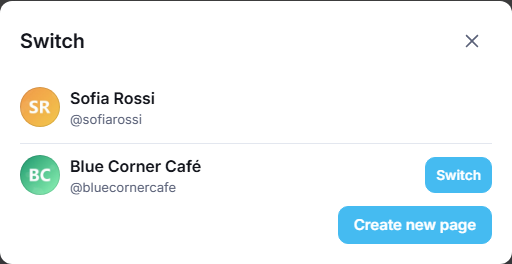
- Click the switch icon (Switch page) on your profile card at the top of the left menu.
What you should see: the dialog Switch, with your own account at the top and the pages you own or moderate under it.
- Click Switch next to the page.
What you should see: the site reloads and shows the page's name and picture in the left menu.
The Switch button on the profile of a page you run does the same. To go back, open the Switch dialog again and click Switch next to your own account (or next to another page you run).
Pages are created from your own account: while you are switched to a page, Create new page and Add New → Page are not shown. Switch back first.
The page profile and its Info tab#
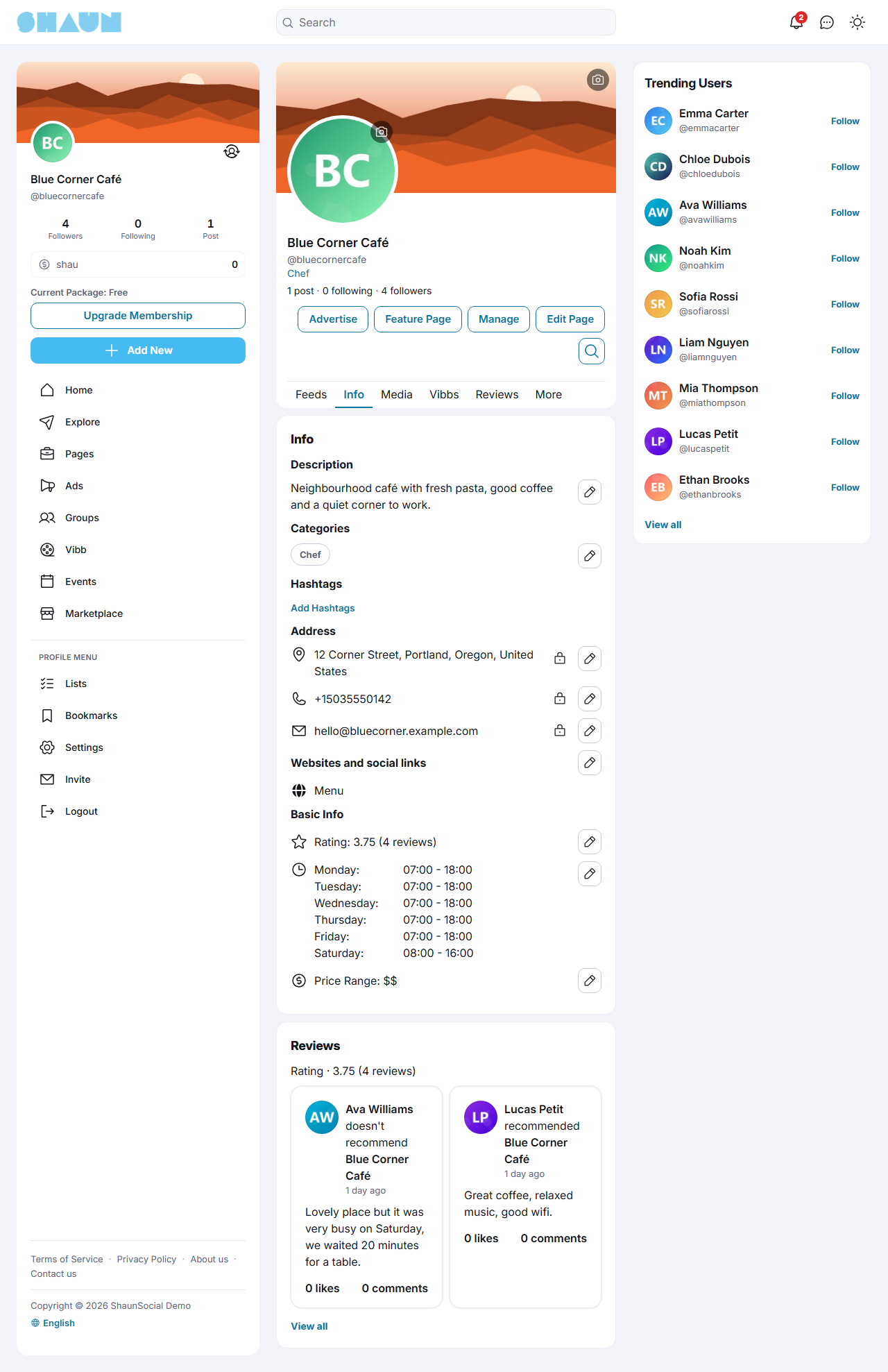
While you are switched to the page, its profile shows Manage (insights, admins and notification settings, see Page insights), Edit Page, and, when your site has them on, Verify Page, Feature Page (owner only) and Advertise. Upload the cover and the picture with the buttons on them. The profile tabs are Feeds, Info, Media, Reviews and the tabs of the features your site has on.
Open the Info tab and click Add … or the pencil next to each part:
| Part | What you set |
|---|---|
| Description, Categories, Hashtags | the same as on the create form |
| Address | a location, a phone number (up to 15 characters) and an e-mail address |
| Websites and social links | links, each with an optional title; known networks show their icon |
| Rating | whether people may review the page (see Reviews) |
| Open Hours | No Hours Available, Always open, Permanently closed, or Open during selected hours with an opening and a closing time per day. The closing time must be later than the opening time on the same day |
| Price Range | $ (Cheap), $$ (Moderate), $$$ (Expensive), $$$$ (Splurge) or Not applicable |
The location, phone number and e-mail start hidden from everyone but the page (Only Me). Click the audience icon next to each one and choose Public (everyone) or Follower (your followers), or visitors will not see them.
Page settings#
Edit Page opens the page's settings. General Settings changes the Page Name and the Page Alias; changing the name of a verified page removes its badge, and the site asks first. Privacy decides who may see the page's posts (a page set to My followers or Only me shows "This Page is Private"), who may send it messages and who may mention it. There are also Push Notifications, Display, Subscriptions and Download your Data, as for members; account items such as password and e-mail do not exist for a page. Deleting a page is described in Delete a page.
Page admins and owner transfer#
Last updated: 2026-11-17 · v1.5.6
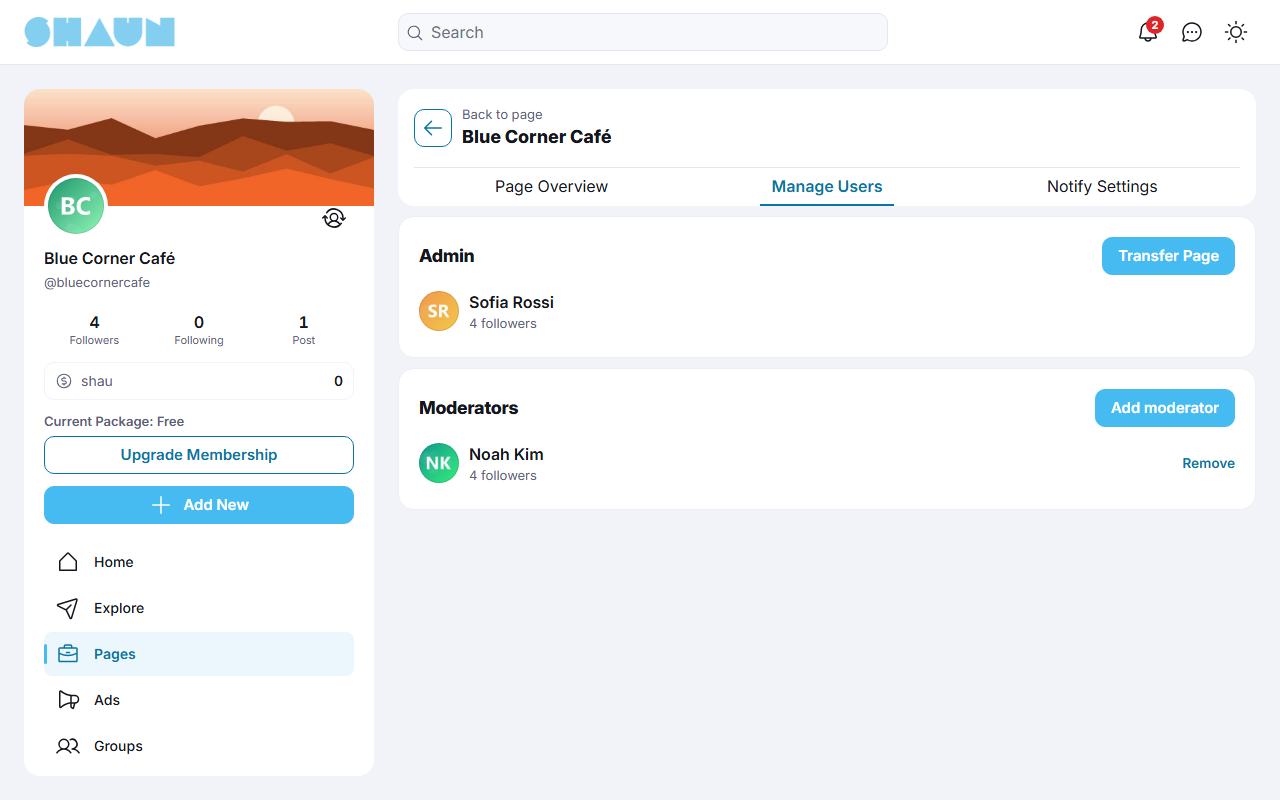
A page has one owner and any number of moderators. Switch to the page, click Manage and open the Manage Users tab: Admin shows the owner, Moderators the others.
| Who | What they can do |
|---|---|
| Owner | everything: post as the page, edit its profile and Info, see insights, answer messages, and also add and remove moderators, transfer the page, feature it, delete it, and send or withdraw the money in the page's eWallet |
| Moderator | everything the page can do except adding moderators, transferring, featuring and deleting the page and sending or withdrawing its eWallet money. A moderator can remove only themselves |
Adding a moderator, transferring and deleting a page ask for your own password. A member who signed up with a social network and never set one sees "You need to add an email and set a password before you can do this."; they switch back to their own account and use Settings → Add email and password first.
Add or remove a moderator#
- As the owner, click Add moderator, type part of the member's name in Username and pick them.
- Click Add and enter your password.
What you should see: "Add Moderator Successfully." The member is a moderator at once and gets the notification "added you as moderator of a page."; the page appears in their Switch dialog.
Only members can be moderators, not other pages. To remove a moderator, click Remove next to them and confirm "Do you want to remove this user?". A moderator who removes themselves leaves the page and is switched back to their own account.
Transfer the page to a new owner#
- As the owner, click Transfer Page, type part of the new owner's name in Username and pick them.
- Click Transfer and enter your password.
What you should see: "Transfer Admin Successfully." and the home page, back in your own account. The new owner gets the notification "transferred ownership of a page.".
After a transfer you are no longer the owner or a moderator, and the page disappears from your Switch dialog. If you want to keep helping, ask the new owner to add you as a moderator.
When a member's account is deleted, by the member or by an admin, every page they own is deleted with it, including its posts and followers. Pages where they are only a moderator stay. Before closing an account, or before an admin deletes one, transfer each page the member owns to someone who will keep it.
Delete a page#
- As the owner, switch to the page, click Edit Page, then Delete Page under the settings list (on a narrow screen the button reads Delete Account).
- Enter your password and confirm.
What you should see: you are back in your own account on the home page.
The page and what it posted are deleted; this cannot be undone. The button exists only while your site allows members to delete their accounts (see User account deletion); otherwise ask the site admins.
Page notification settings#
Last updated: 2026-11-17 · v1.5.6
The page has notifications of its own (new followers, likes, comments, reviews …), which you read while switched to it. So that you do not miss them, the owner and every moderator also get a notification in their own account:
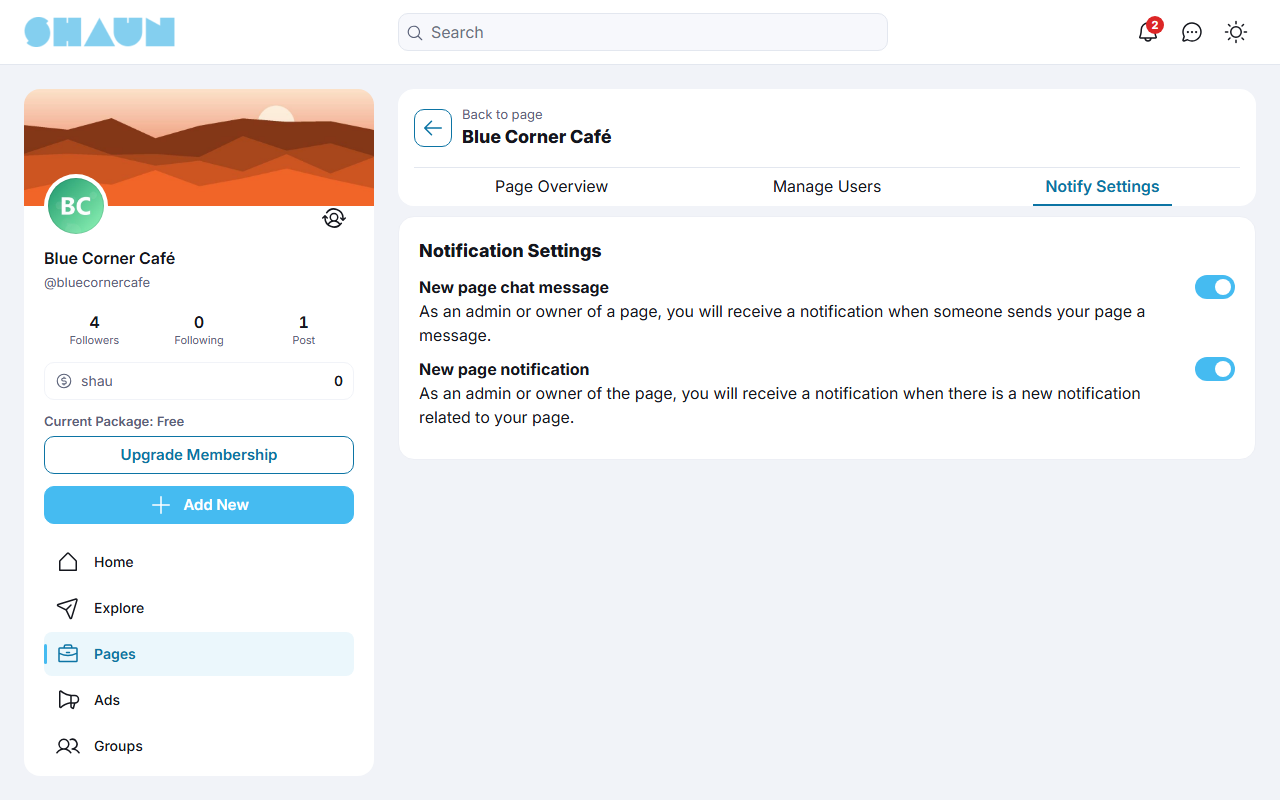
| Setting | After installing | You are told |
|---|---|---|
| New page chat message | on | "[page] got a new message." when someone writes to the page while nobody is using it as the page |
| New page notification | on | "[page] got a new notification." whenever the page gets a notification |
Click the notification to open the page, then switch to it to see the details. Each owner or moderator chooses for themselves: switch to the page, click Manage, open the Notify Settings tab and use the two switches; they save at once.
These notifications are sent by the scheduled task (cron job), which runs every minute; without it, page admins are never told. The same task renews featured-page subscriptions and sends their reminders, and keeps the audience charts of the insights up to date. See What stops when the cron job does not run.
Chatting with a page#
Last updated: 2026-11-17 · v1.5.6
To write to a page, open its profile and click Message. The button is there when the page accepts messages from you: the page's own Settings → Privacy → Who can send you a message decides (Everyone, My followers or No One). Otherwise trying shows "You cannot send messages to this page.".
For the page, a first message from someone arrives as a request:
- The owner and the moderators get "[page] got a new message." (see Page notification settings).
- One of them switches to the page and opens Chat → Requests.
- They open the conversation and reply; from then on it is a normal conversation of the page, which every owner and moderator sees while switched to the page.
How chat works in general (requests, groups, settings) is explained on the Chat page.
Reviews#
Last updated: 2026-11-17 · v1.5.6
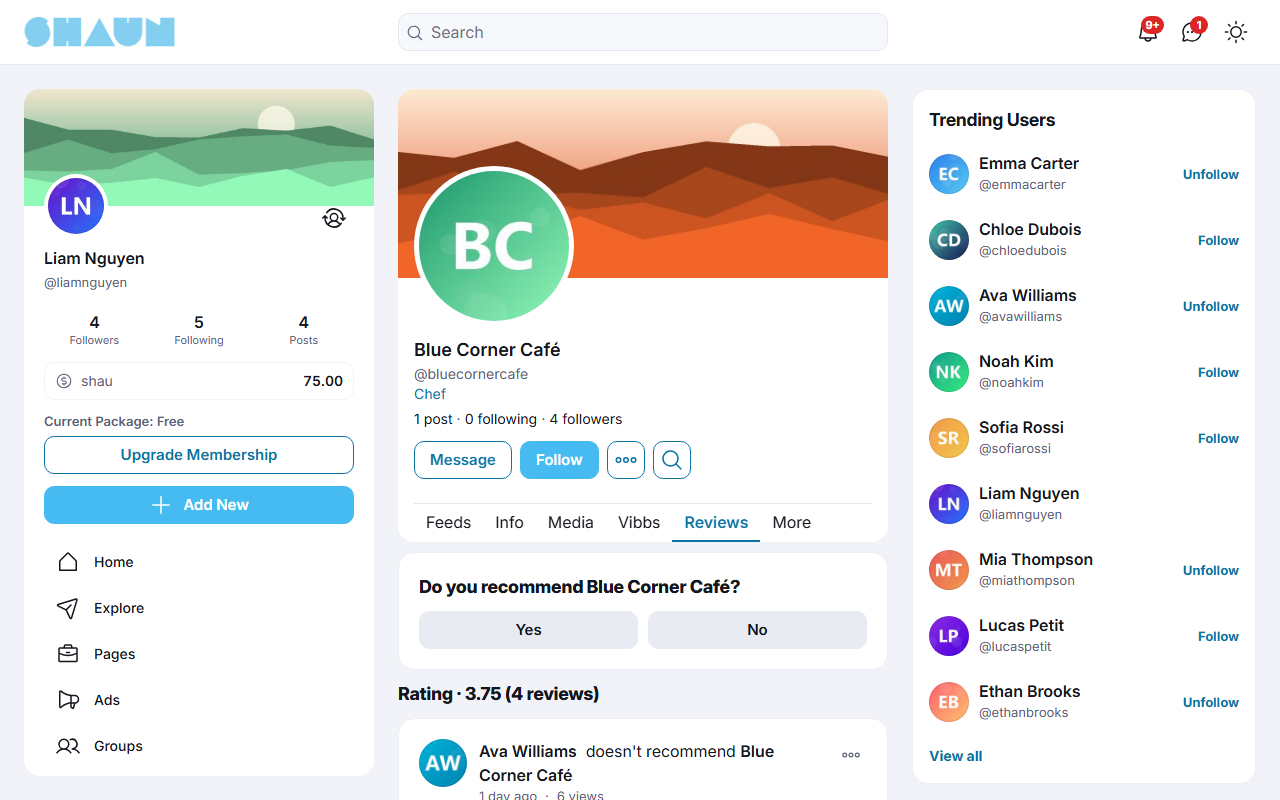
Members say whether they recommend a page. Each review is a yes or a no with an optional text, and together they make the page's rating out of 5: every Yes counts 5 and every No 0, averaged. A page with three recommendations and one "no" shows Rating · 3.75 (4 reviews).
Write a review#
- Open the page's Reviews tab. Under Do you recommend [page]? click Yes or No.
- In the dialog (Recommend [page] or How can [page] improve?), write what you want to say; you can
mention people with
@. - Click Send.
What you should see: "Your review have been sent." Your review is shared as a post ("[you] recommended [page]" or "doesn't recommend") that appears in the Reviews tab and in your followers' feeds.
You can review a page once. The owner and moderators of a page cannot review it, and nobody can review a page whose reviews are off. The page gets the notification "wrote a recommendation.". A review can be up to the post length set by your admins.
Reviews on your page#
Reviews are on for a new page. To change that, switch to the page, open Info and click the pencil next to Rating: Allow others to view and leave reviews on your Page?. Off hides the rating, the Reviews tab and the existing reviews from others and stops new reviews; on shows them again. The page cannot delete a review: only the member who wrote it (by deleting the review post) and the site admins can. The rating is recalculated when a review is deleted.
Searching posts in a page#
Last updated: 2026-11-17 · v1.5.6
Anyone who may see a page can search its posts, visitors included.
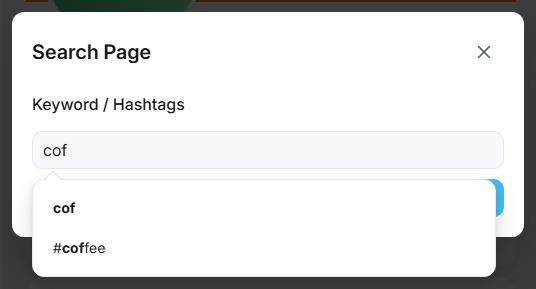
- On the page's profile, click the magnifier at the right of the buttons.
What you should see: the dialog Search Page with the field Keyword / Hashtags.
- Type a word. Under the field the site offers your text as typed and matching hashtags.
- Click Search (or your text) to find posts containing the words, or a hashtag to find the page's posts with
that hashtag.
What you should see: the page's Feeds tab now lists only the matching posts, newest first.
The search covers the posts on the page's own timeline, including posts it shared there; posts the page made inside groups or events are not included.
Page verification#
Last updated: 2026-11-17 · v1.5.6
A verified page shows the page verified badge next to its name. Verification uses the same settings as for members, including the Page verified badge picture: see Switch it on.
Ask for the badge#
Switch to the page and click Verify Page on its profile. The request works as for a member profile: upload documents (for a business, a company registration) and click Submit; see What members see. The button is shown while verification is on and the page is not verified. Sending the request also needs Send verification request in the page's role; without it, clicking the button shows a permission message. A verified page loses its badge when its name changes (and, depending on the setting, its picture), and has to ask again.
Review a page request#
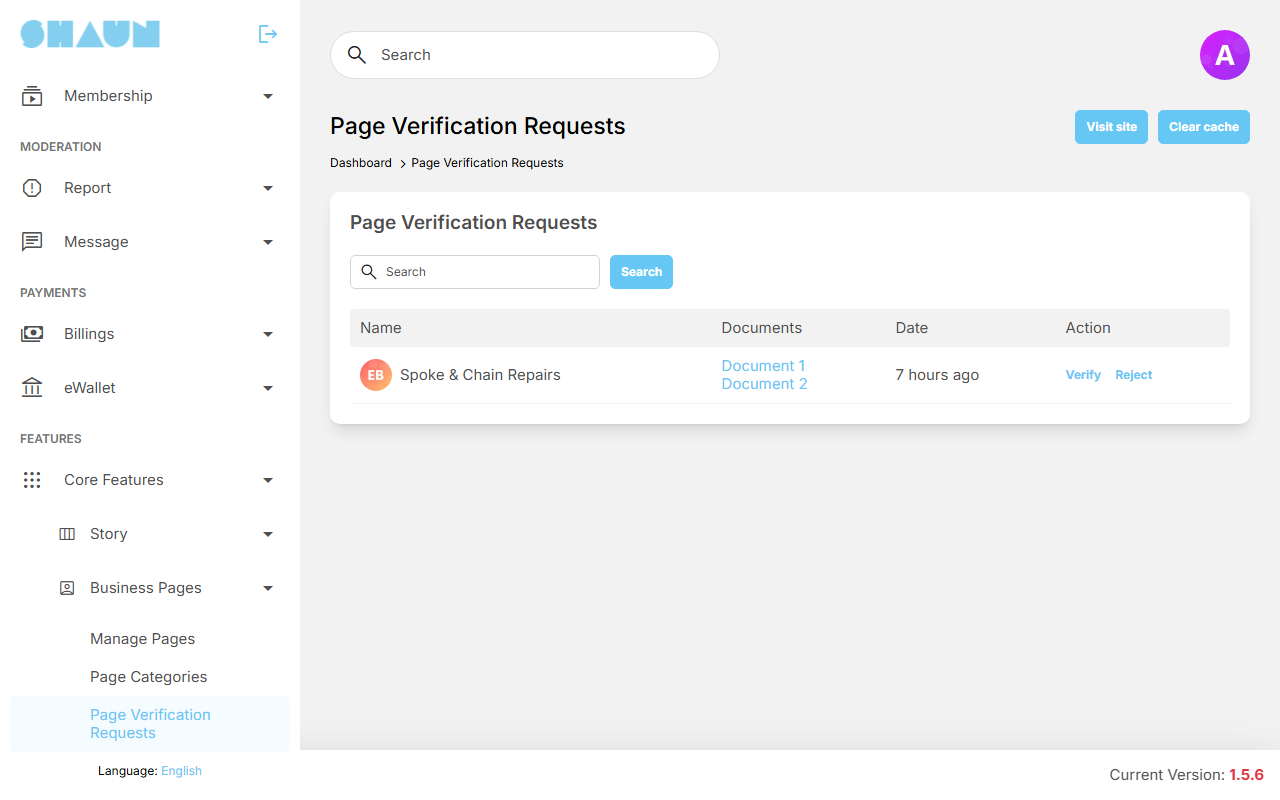
Super admins see this screen; moderators need the Page Verification Requests switch in their role (see Moderator roles). It lists the waiting requests with Name, Documents (click Document 1, Document 2 … to open the files), Date and the actions; Search finds a name or alias.
- Verify gives the badge; the page gets a notification.
- Reject asks for a reason ("Please enter reason to reject"). The page gets a notification, and its owner the e-mail "Verification request update" with your reason. The page can ask again.
Either way the uploaded documents are deleted. Super admins also find Verify and Unverify on each row of Manage Pages (see Manage pages), to give or remove a badge without a request.
Featured pages and feature packages#
Last updated: 2026-11-17 · v1.5.6
A featured page is promoted: it appears in the Featured Pages block at the top of the Pages page, comes first in the All tab and shows the featured badge next to its name. The block shows the featured pages that were shown least so far first, so each one gets its turn. Page owners pay for this with a subscription; you can also feature a page yourself for free.
Set up feature packages#
- In AdminCP → Site Settings → General Configuration → Page, switch on Enable featured page (off after installing). The site's eWallet must be on too, because the subscription is paid from the page's eWallet.
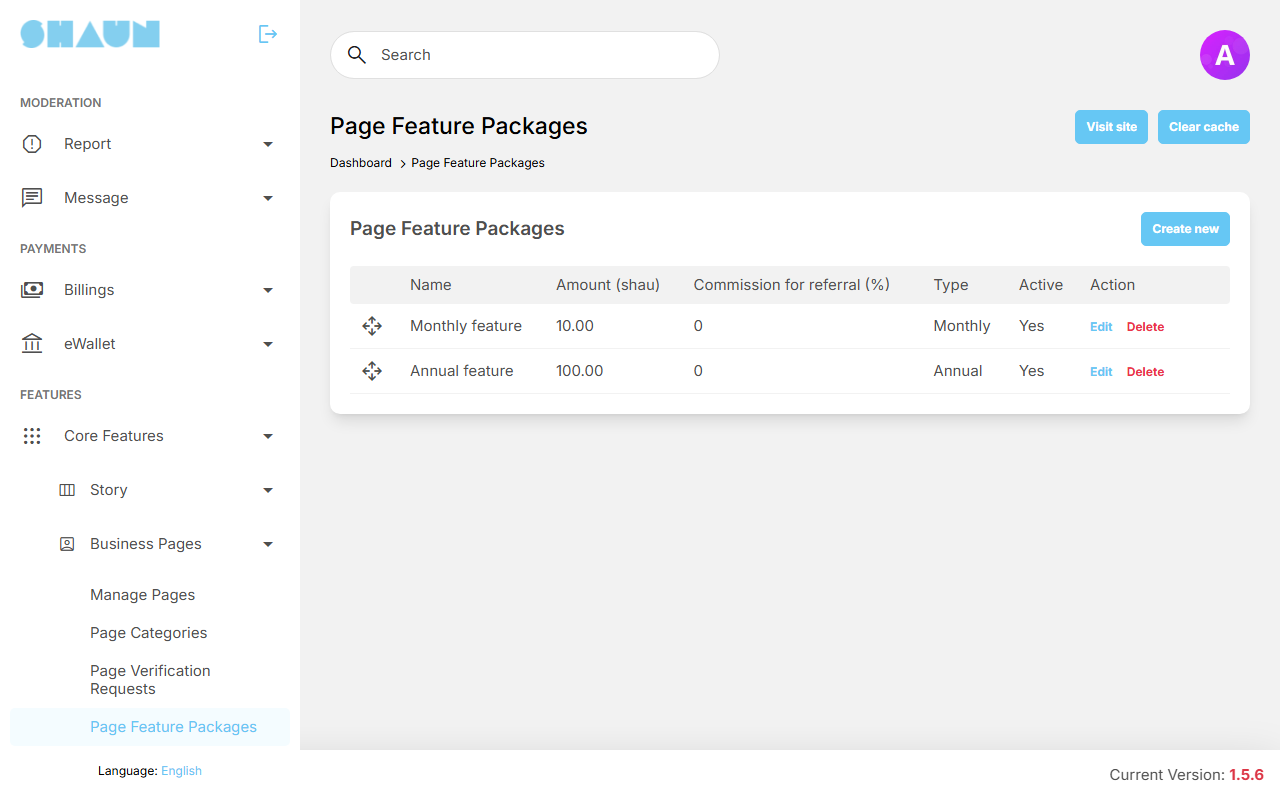
- Open Page Feature Packages and click Create new.
- Fill in the package and click Submit; it saves when it is valid.
| Field | What it does |
|---|---|
| Name | the package name in your list |
| Amount | the price per period, in your eWallet currency (credits) |
| Type | the period: Monthly, Quarterly, Biannual or Annual. Members see the package as amount, currency and period, for example "10 Credits Monthly" |
| Paypal Plan Id, Stripe Product Id | needed only when members may pay by card or PayPal (see the Payment gateways page) |
| Commission for referral (%) | the share of each payment earned by the member who invited the page's owner, every billing period. Empty or 0: no commission |
| Support external gateway | off: the page can pay only from its eWallet. On: card and PayPal are offered too. Decide this when you create the package |
| Active | only active packages are offered to pages |
Drag the rows to change the order in which pages see the packages; Edit and Delete are on each row. The e-mails "When a featured page subscription is about to renew" and "When a featured page subscription stops" go to the page owner and can be reworded in the mail templates (see The templates: payments and subscriptions).
Feature your page#
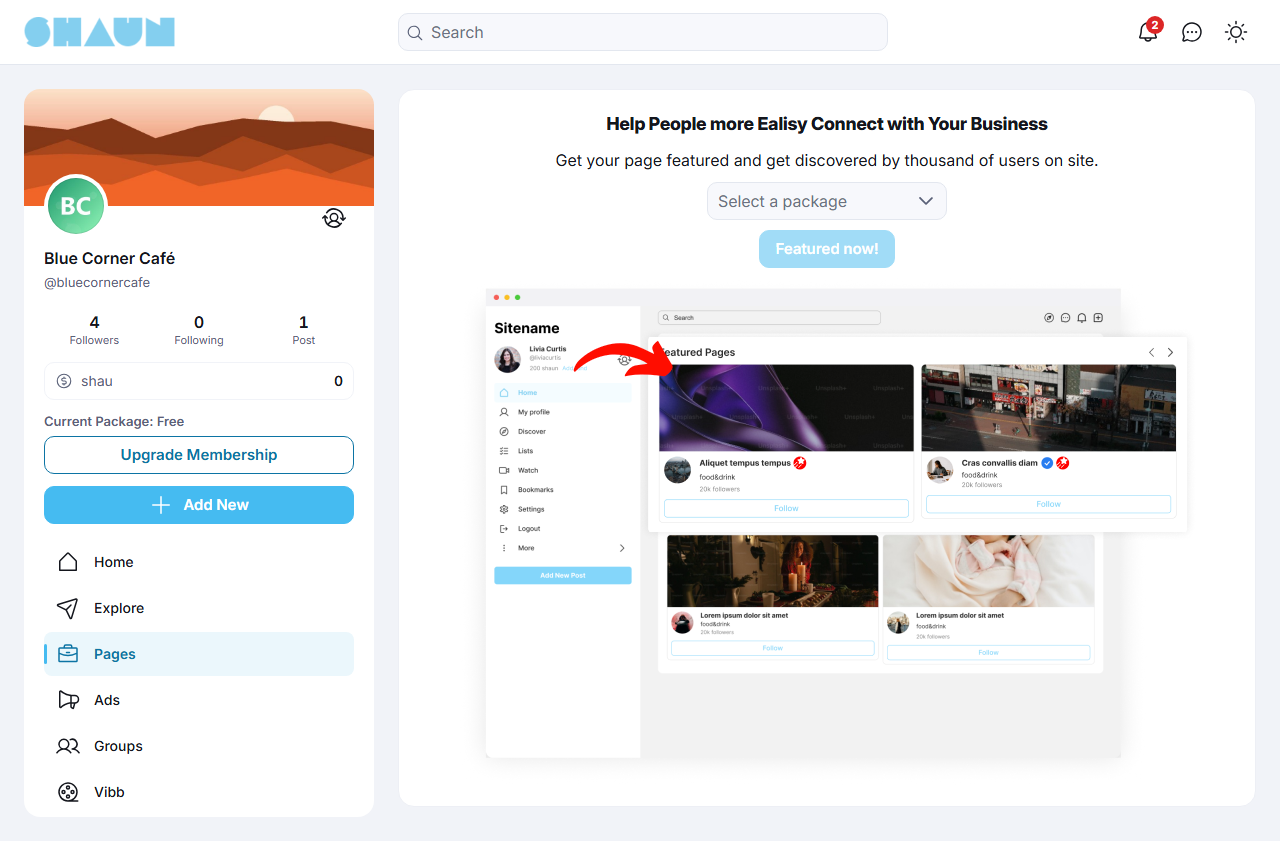
- As the owner, switch to the page and click Feature Page on its profile.
- Choose a package in Select a package and click Featured now!.
What you should see: the dialog Featured page with the package and the page's current eWallet balance.
- Click Featured now!. In Your order, choose how to pay (and tick the terms when your site shows
them). Paying from the eWallet asks for your password; card or PayPal takes you to the payment site.
What you should see: "Feature Successfully." and the page's profile. The page gets the notification "is featured now.".
The page pays from its own eWallet, so add funds to the page's eWallet (while switched to it) first; with too little balance the site shows "You don't have enough balance". The subscription renews by itself each period. A few days before (5 after installing, the setting Auto-renew page featured subscription will be notified to users in advance (days)) the page is reminded and the owner gets an e-mail; your site can also send a final low-balance reminder 24 hours before (an eWallet setting, see the eWallet page). If the renewal cannot be paid, the feature stops and the page and its owner are told. The page's subscription is under its Settings → Subscriptions. eWallet and payments are explained on the eWallet and Billing pages.
Feature a page yourself#
In Manage Pages, Featured on a page's row makes it featured for free, with no end date, after you confirm; Un-Featured takes it out of the block. Both links are shown while Enable featured page is on.
For a page that pays, Un-Featured only hides it until its next renewal, when it becomes featured again and is charged as usual. To stop a paid feature, cancel the page's subscription instead (see the Billing page).
Page insights (reports)#
Last updated: 2026-11-17 · v1.5.6
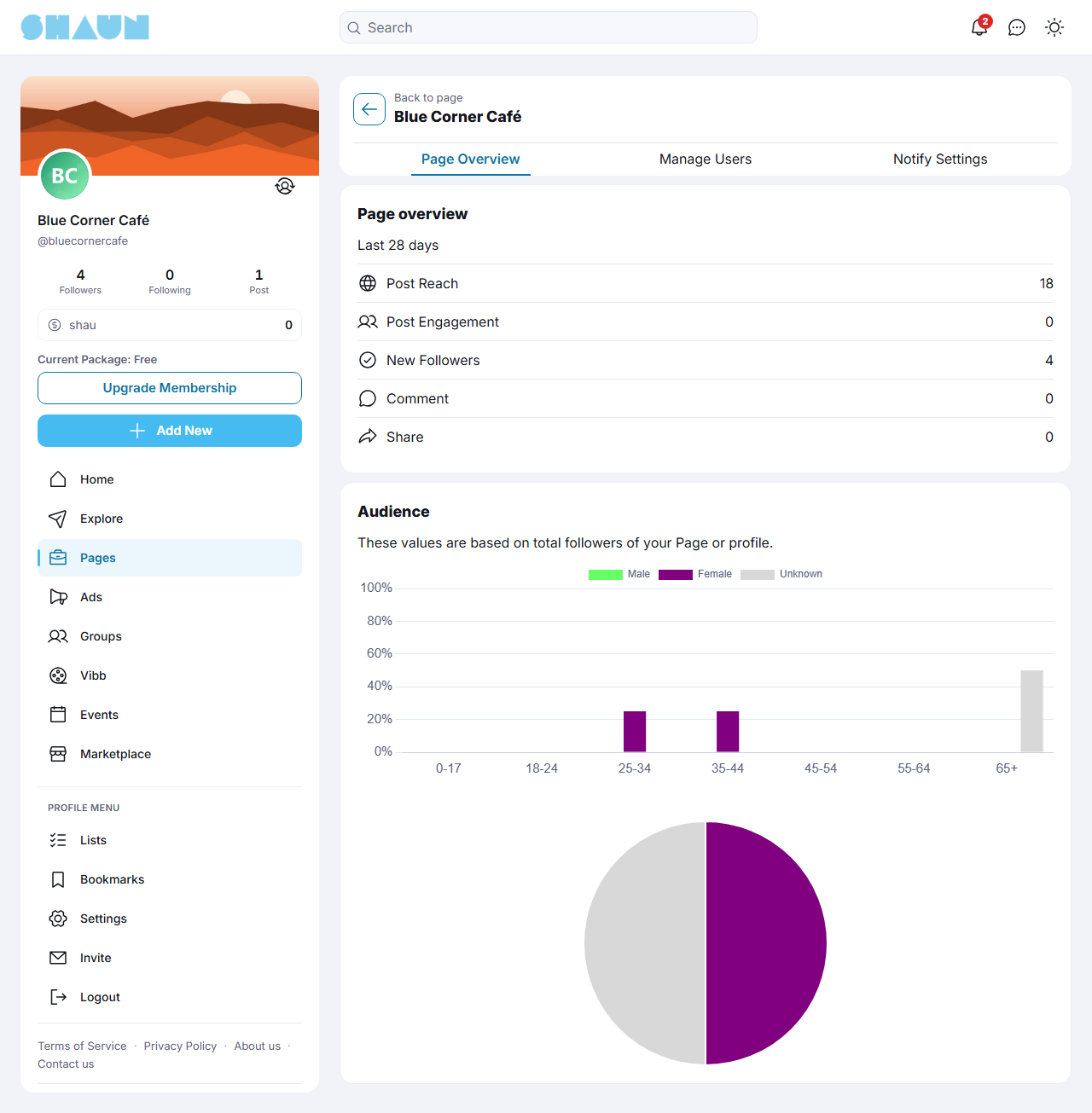
Switch to the page and click Manage. The first tab, Page Overview, shows how the page is doing; the owner and every moderator can see it. Back to page returns to the profile.
| Figure | What it counts, over the last 28 days |
|---|---|
| Post Reach | how often the page's posts were shown to people other than the page. The same person seeing the same post counts again only after an hour |
| Post Engagement | likes, comments and shares of the page's posts together |
| New Followers | people who started following the page (and still follow it) |
| Comment | comments on the page's posts |
| Share | shares of the page's posts |
Under Audience, two charts describe all the page's followers: a bar chart by age group (0-17, 18-24, 25-34, 35-44, 45-54, 55-64, 65+) split by gender, and a pie chart by gender. Followers who did not give a gender count as Unknown. The figures can be up to five minutes old; when followers change their birthday or gender, the charts follow within a few minutes.
Pages admin and categories#
Last updated: 2026-11-19 · v1.5.6
The Business Pages menu has four screens: Manage Pages, Page Categories, Page Verification Requests (see Page verification) and Page Feature Packages (see Featured pages). Super admins see all four; a moderator role needs the switch of the same name for each (see Moderator roles). Members report pages like other content (see How members report).
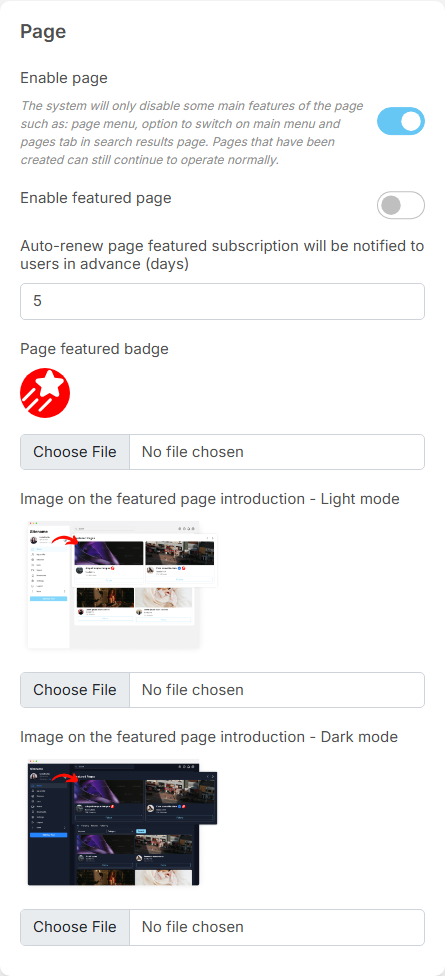
Page settings#
The settings save as soon as you change them (see Settings save themselves).
| Setting | After installing | What it does |
|---|---|---|
| Enable page | on | off: the Pages menu entries are switched off, the Pages page and the create form can no longer be opened, Add New → Page, the switch icon, the Pages tab in Lists and the pages tab of the search results disappear. Existing pages keep working: their profiles, posts and followers stay, and their owners can still reach them through the Switch button on the page's profile. Switching it on again brings everything back |
| Enable featured page | off | on: owners can buy a feature package and you can feature pages yourself (see Featured pages) |
| Auto-renew page featured subscription will be notified to users in advance (days) | 5 | how many days before a renewal the page and its owner are reminded |
| Page featured badge | a standard badge | the badge next to the name of featured pages; upload an SVG to replace it |
| Image on the featured page introduction - Light mode, Image on the featured page introduction - Dark mode | standard pictures | the picture on the Feature Page screen owners see, in each colour mode |
Who may create pages, and how many a day, is set per role in AdminCP → Users → Manage User Roles → Permissions → Page: Allow page creation (on) and Maximum number of pages can create per day (0 is unlimited) (0); see Per-day limits.
Manage pages#
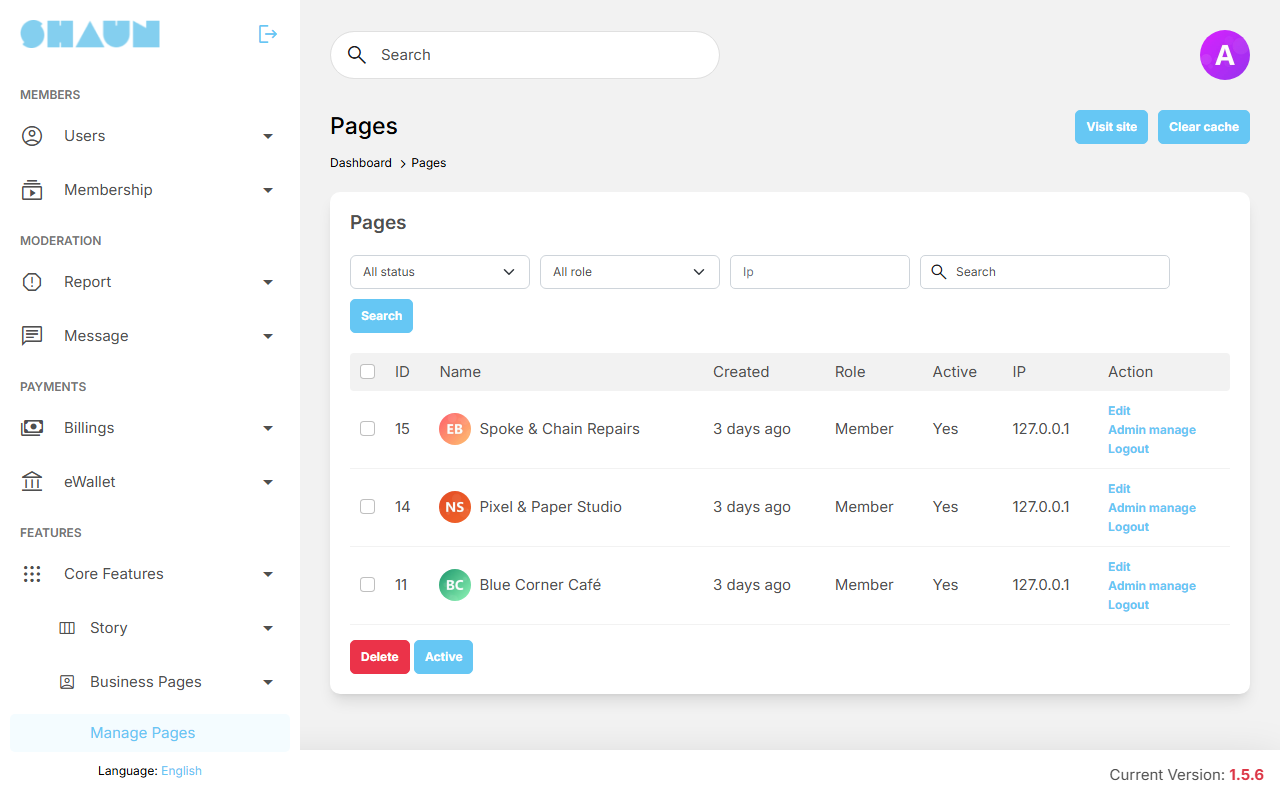
The list shows every page, newest first, with ID, Name, Created, Role, Active and IP (the address of the member who created it). Filter by status (Active, InActive), role, verification (while verification is on), Featured / Not featured (while featured pages are on), IP or name and alias, and click Search. Business pages are not in Manage Users.
| Action | What it does |
|---|---|
| Edit | change the Page name, the Page alias, the Role whose permissions the page uses, and Active. A page that is not active disappears from the directory and nobody can switch to it ("The page is pending approval.") |
| Admin manage | the page's owner and moderators with their e-mail and role (Owner, Moderator), and Login as user to sign in as one of them (needs the Manage Users permission) |
| Logout | signs out everyone who is currently using the page, after you confirm |
| Verify, Unverify | give or remove the badge (super admins, while verification is on) |
| Featured, Un-Featured | see Feature a page yourself |
Tick pages and use Delete or Active under the list to handle several at once. Deleting a page deletes everything it posted and cannot be undone; delete only spam pages.
Page categories#
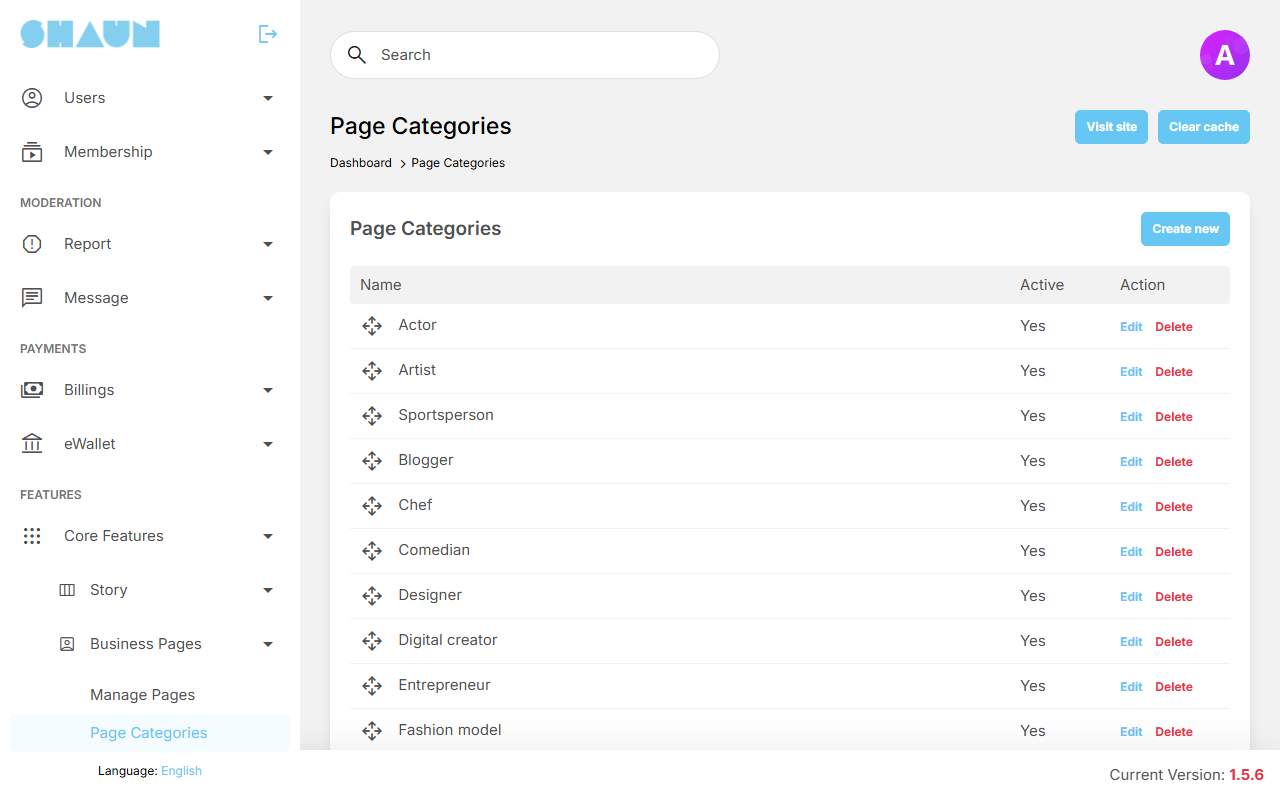
Members pick one or more categories for their page, and the Pages directory filters by them. Your site starts with 17 categories for creators: Actor, Artist, Sportsperson, Blogger, Chef, Comedian, Designer, Digital creator, Entrepreneur, Fashion model, Gamer, Journalist, Musician, Photographer, Public figure, Writer and Software.
If your members run shops, restaurants or local services, add categories for them (and switch off the ones you do not need) before members start creating pages.
- Create new: enter the Name, optionally a Parent to make it a sub-category, tick Active and click Submit. Categories have two levels: a category that has sub-categories cannot get a parent.
- Edit: change the parent and Active. The name is changed through Translate, once per language.
- Order: drag a row by its handle; the directory uses the same order.
- Active off hides the category from members' choices and from page profiles; it comes back when you switch it on.
- Delete removes the category and its sub-categories, after you confirm. Pages keep their other categories.
Change log#
Last updated: 2026-11-19 · v1.5.6
| Date (GMT+7) | Section | What changed |
|---|---|---|
| 2026-11-17 | all | First version for 1.5.6, written from the 1.5.6 code as a guide for members and site admins. |
| 2026-11-17 | browse, create, admins-owner, notifications, search, verification, featured, reports | Corrections after review: the For you tab, switching back, creating pages only from your own account, what page search covers, when Verify Page is shown, deleting an owner's account deletes their pages, eWallet money is the owner's, the scheduled task for renewals and insights, the final low-balance reminder, categories on page cards. |
| 2026-11-19 | admin | The full label of the dark-mode featured page image. |