ShaunSocial user guide 1.5.6 / Monetisation
Advertising
With Advertising, members and business pages pay to show a post to more people: they create an ad campaign or boost a post they already wrote, choose who should see it and set a daily budget, and the ad appears as a sponsored post in other members' feeds. This page shows admins the settings, prices and the Manage Advertisings screen, and how to sell an ad-free membership; it shows members how to create a campaign, boost a post and read the results.
Checked against the 1.5.6 code. The AdminCP screens and the member steps (creating, boosting, pausing and completing a campaign) were read from the code, not run; screenshots follow.
What ads are#
Last updated: 2026-11-17 · v1.5.6
An ad is a post marked Sponsored that your site places between the other posts of the home feed, the
Discovery and Watch pages and the post search results, after every few posts (every 3 after installing). Members manage
their campaigns on the Ads page (https://example.com/advertisings, the Ads entry of the main
menu).
- Who sees an ad: signed-in members who match its targeting (gender, age, hashtags, location) and whose role has Show ads on. Visitors who are not signed in see only ads without any targeting. Nobody sees their own ads in the feed. Ads that were shown least so far come first, so each one gets its turn.
- What counts: every time the ad is placed in someone's feed counts as a view; a click is counted when someone opens the sponsored post, once per member for the whole campaign (for visitors who are not signed in, once per internet connection).
| Money | How it works |
|---|---|
| At launch | the whole budget is paid at once from the eWallet: daily budget × number of days, plus VAT when your site charges it. The member enters their password |
| Each day | the campaign uses its budget at the price per view and per click your site set when it was created. When it reaches the daily budget, it is not shown again that day |
| At the end | what was not used (the budget minus what was spent) goes back to the eWallet. The VAT is not refunded |
Ads are paid from the eWallet only (see the eWallet page).
Daily spending, the daily reports, ending campaigns and refunds are handled by the scheduled task (cron job), which runs every minute. Without it, campaigns keep showing past their budget and are never closed or refunded. See What stops when the cron job does not run.
Ads settings and Manage Advertisings#
Last updated: 2026-11-19 · v1.5.6
Ads settings#
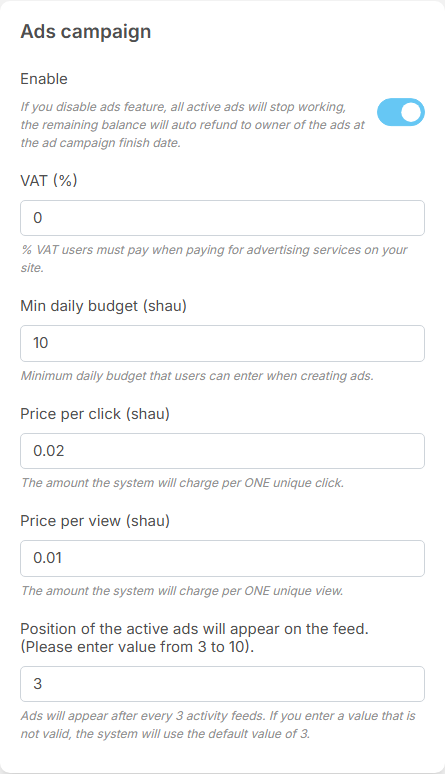
The settings save as soon as you change them (see Settings save themselves).
| Setting | After installing | What it does |
|---|---|---|
| Enable | on | off: the Ads menu entries are switched off, members cannot create or manage campaigns, and no ads are shown. Running campaigns are not paid back at once: each one closes on its end date and its unused budget is refunded then |
| VAT (%) | 0 | added on top of the budget when a member pays for a campaign |
| Min daily budget | 10 | the lowest daily budget a member can enter, in your eWallet credits |
| Price per click | 0.02 | what one click costs the advertiser |
| Price per view | 0.01 | what one view costs the advertiser |
| Position of the active ads will appear on the feed. (Please enter value from 3 to 10). | 3 | an ad appears after every this many posts. The last number of the label is your Item per page setting (10 after installing, see The other General Settings). Enter a value from 3 to that number; anything else counts as 3 |
The VAT and the two prices are fixed for a campaign when it is created: changing them affects new campaigns only.
Manage Advertisings#
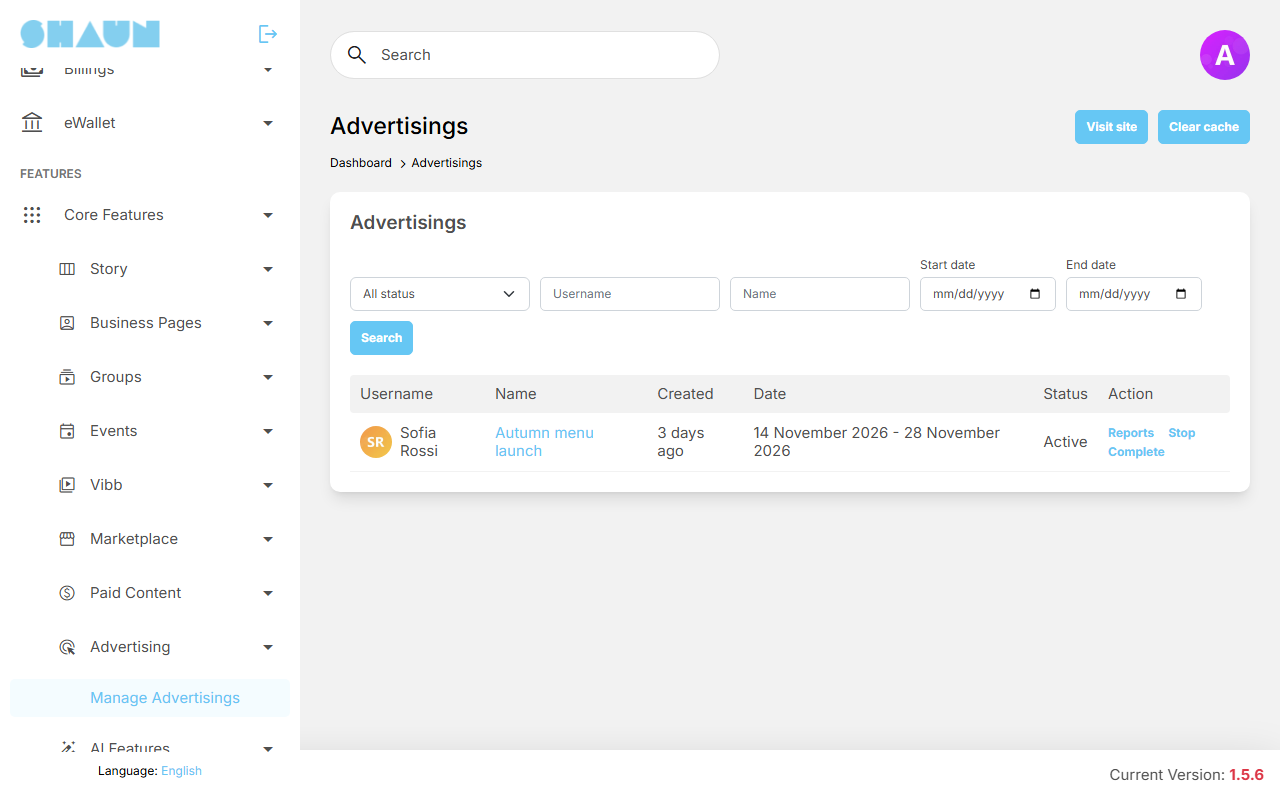
Super admins see this screen; a moderator role needs Manage Advertisings (see Moderator roles). It lists every campaign, newest first, with Username, Name, Created, Date (start and end) and Status (Active, Stopped, Completed). Filter by status, user name, campaign name, start date and end date, and click Search.
| Action | What it does |
|---|---|
| Reports | the campaign's days with Views, Clicks and Total spent for each finished day |
| Stop | pauses an active campaign, after you confirm. The advertiser gets the notification "stopped your ads." and can switch it back on, so use Complete to end a campaign for good. For a boosted post, use Complete (or ask the advertiser to pause it themselves): after Stop here, the post stays hidden from the feeds as an ordinary post until the campaign is completed |
| Enable | starts a stopped campaign again |
| Complete | ends the campaign now and refunds the unused budget to the advertiser's eWallet; the advertiser gets "completed your ads." |
Members report a sponsored post like any other post (see How members report); deleting the post also ends its campaign and refunds the unused budget.
Creating a campaign#
Last updated: 2026-11-17 · v1.5.6
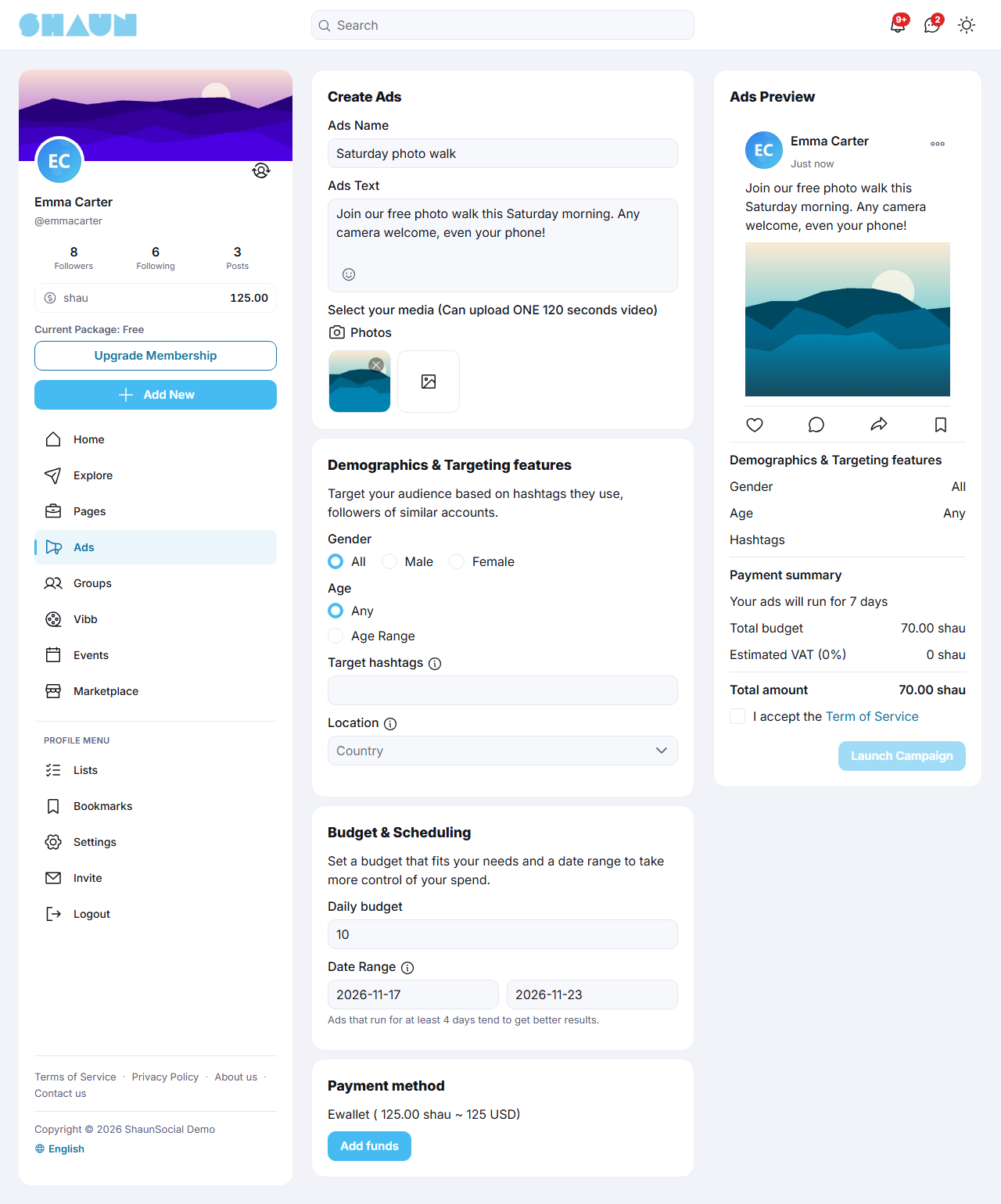
Click Ads in the main menu, then Create new advertising. A business page creates ads while you are switched to it, paid from the page's eWallet.
- The ad: enter the Ads Name (for your own list, up to 255 characters) and the Ads Text, and add photos, one video or attachments if you like. An ad without media needs a text.
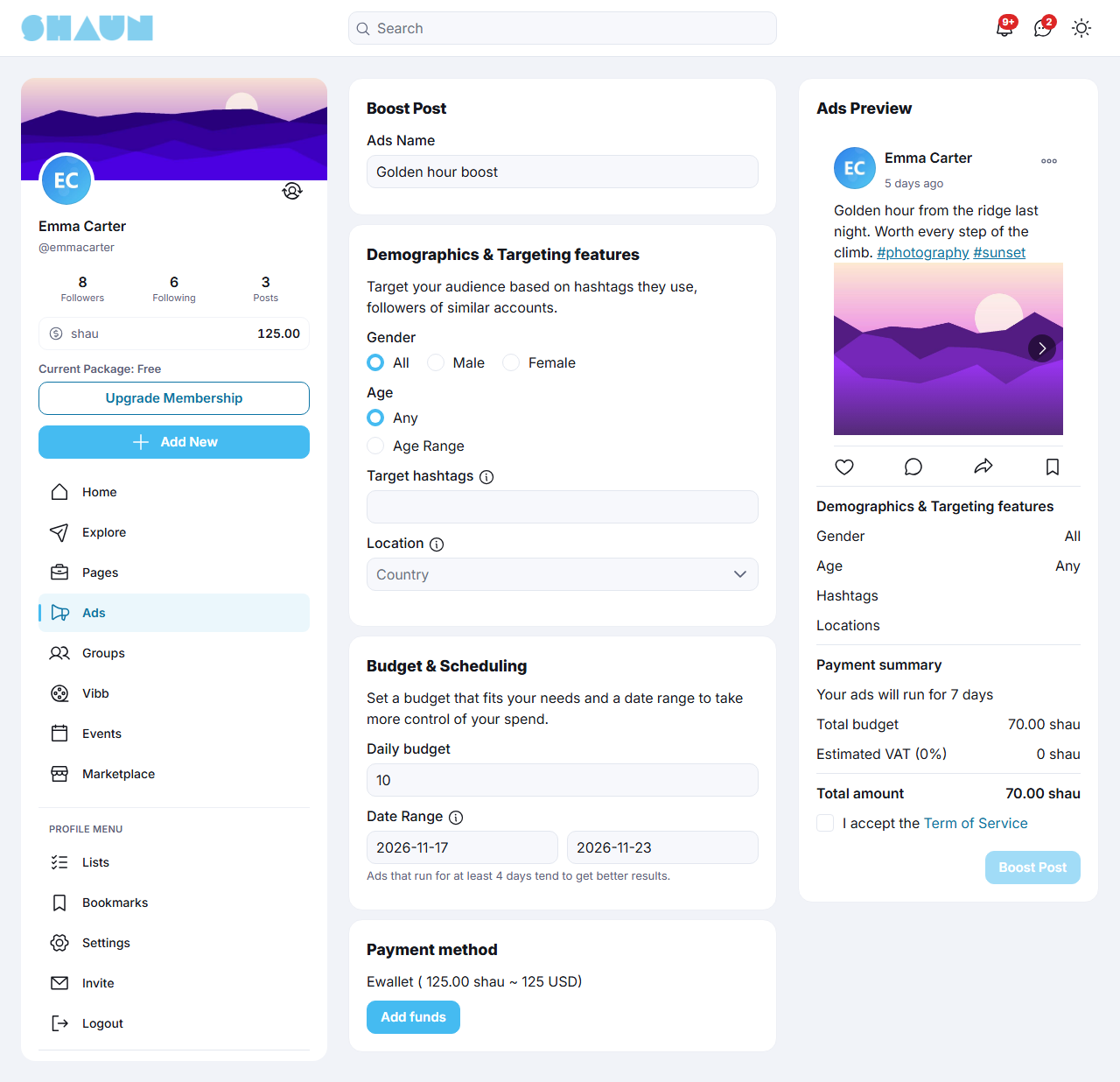
- Demographics & Targeting features: leave everything open to reach everyone, or narrow it:
- Gender: All or one gender.
- Age: Any, or Age Range with From and To (To must be higher).
- Target hashtags: members interested in these hashtags (the ones they follow and the posts they opened).
- Location: one or more countries. With a single country you can narrow it to a state, city or ZIP code; with more than one country you cannot.
- Budget & Scheduling: the Daily budget (at least your site's minimum) and the Date Range (Start Date and End Date, today or later). The Payment summary shows the number of days, the Total budget, the Estimated VAT and the Total amount.
- Payment method: Ewallet, with your balance; Add funds opens your eWallet. Tick the
terms when your site shows them and click Launch Campaign, then enter your password.
What you should see: "Thank you, your payment has been processed and your ad is scheduled to run now. You can manage all your ads in the ads section." With too little balance you see "You don't have enough balance.".
Follow and manage your campaigns#
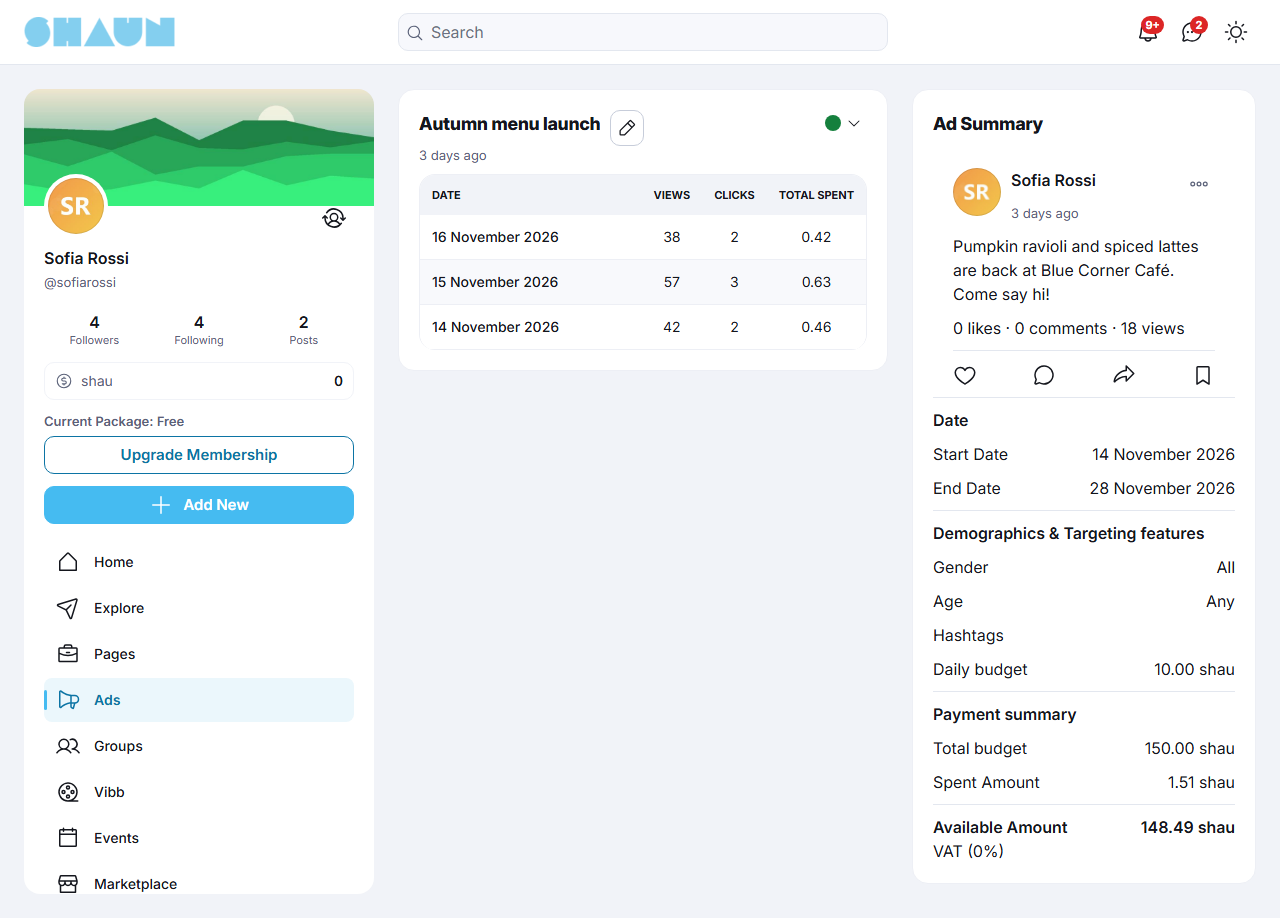
The Ads page lists your campaigns with Views, Clicks and Total spent; filter by Status (All, Active, Stop, Done). Click a campaign to see its Ad Summary (the sponsored post, the dates and the targeting) and one line per day with Views, Clicks and Total spent.
- Status: the coloured dot on each campaign opens Active (start again), Pause (stop showing it for now) and Complete (end it now and get the unused budget back). Paused days are not spent, and their budget comes back at the end.
- Edit (the pencil) changes the name, the text and media and the targeting of a campaign that is not completed. The dates and the budget cannot be changed: complete the campaign and create a new one.
- Notifications: "Your ad campaign is active now." when it starts, "Yesterday your ads led to … view(s) and … click(s)." every day it runs, and "Your ads is completed." when it ends and the unused budget is back in your eWallet.
Boosting a post#
Last updated: 2026-11-17 · v1.5.6
Boosting turns a post you already published into an ad, with its likes and comments.
- Open the post's … menu and choose Boost Post. For a post of a business page you run, the site
switches you to the page first.
What you should see: the Boost Post page.
- Enter the Ads Name, set the targeting and the budget and dates as for a new campaign (see
Creating a campaign), tick the terms when shown, click Boost Post and enter
your password.
What you should see: the same "Thank you, your payment has been processed …" message as for a new campaign.
- Text, photo, link, video and file posts on your own timeline can be boosted; shared posts and posts in groups, events and similar places cannot, and a post can run one campaign at a time.
- While the campaign runs, the post is shown as a sponsored post instead of as an ordinary post; it is back to normal when you pause or complete the campaign. If a site admin stopped the campaign, the post comes back when the campaign is completed: choose Complete on the Ads page.
- The campaign is listed and managed on the Ads page like any other.
Ad-free membership#
Last updated: 2026-11-19 · v1.5.6
The role permission Show ads decides whether a member sees ads; it is on for every role after installing. Combine it with a membership package to sell an ad-free experience:
- Create a member role for the paying members, for example Premium, with the permissions of your normal member role (see Create a role).
- In AdminCP → Users → Manage User Roles → Permissions of that role, under Ads, switch Show ads off (see The permissions of a member role).
- Create a membership package that gives this role, with a plan and its price, and show it on the pricing table (see
Create a package).
What you should see: members who subscribe stop seeing ads at once; when their membership ends they fall back to the package's downgrade role and see ads again.
Show ads concerns the ad campaigns described on this page. The Google AdMob ads inside the mobile apps are switched separately and are shown to every app user (see Ads in the apps).
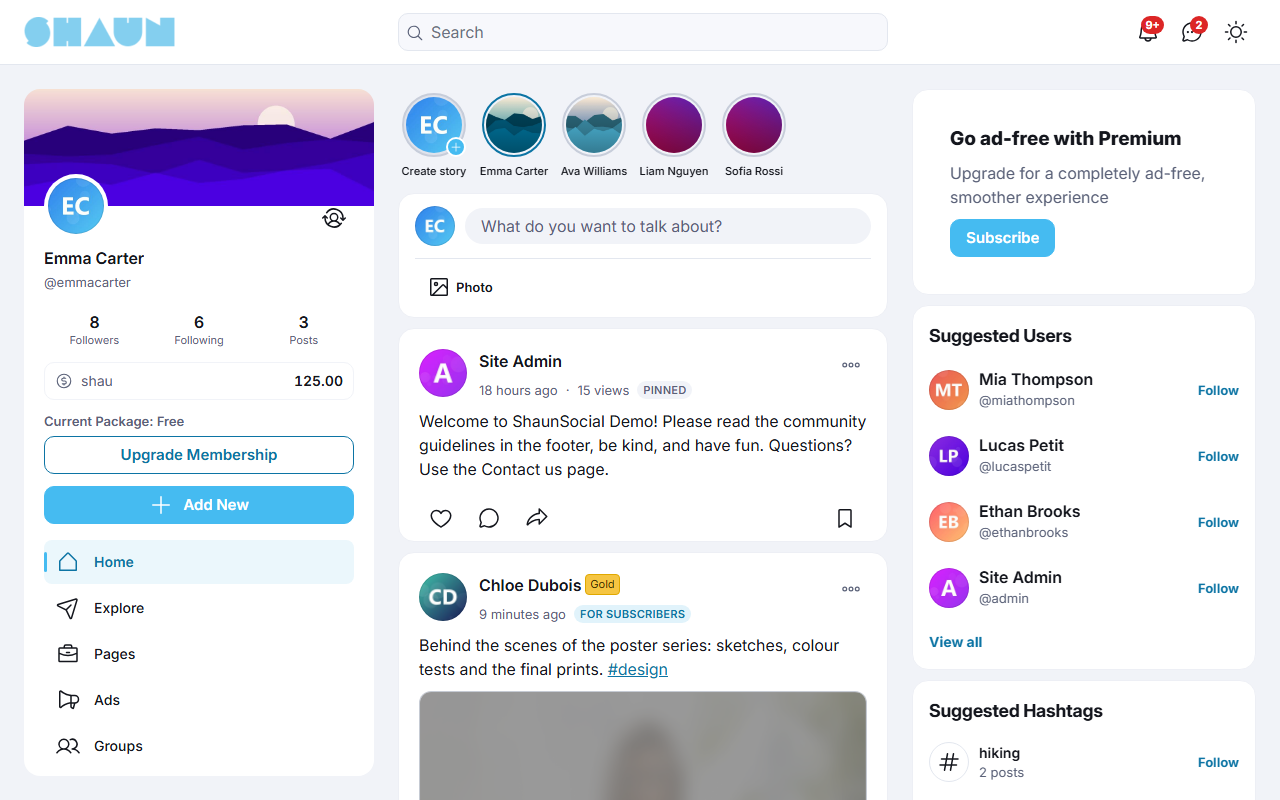
The "Go ad-free with Premium" block#
The ShaunSocial download contains a ready-made invitation block, the file ad-free.html at the top level of
the package. It shows the title "Go ad-free with Premium", the line "Upgrade for a completely ad-free, smoother
experience" and a Subscribe button.
- Open
ad-free.htmlin a text editor and copy its content. Replacehref="#"with the address of your Compare plans page,href="/membership", so the button leads there. - In AdminCP → Design → Layout Editor, add an Html Block to the page and column where you want it (for example
the right column of the home page), paste the content and save (see Add, change
and remove blocks).
What you should see: the block on that page, with the Subscribe button opening the Compare plans page.
Change log#
Last updated: 2026-11-19 · v1.5.6
| Date (GMT+7) | Section | What changed |
|---|---|---|
| 2026-11-17 | all | First version for 1.5.6, written from the 1.5.6 code as a guide for members and site admins. |
| 2026-11-17 | overview, admin, create-campaign, boost-post, ad-free-membership | Corrections after review: how visitors' clicks are counted, state, city and ZIP only with a single country, what an AdminCP Stop does to a boosted post, the menu path of the ad-free section. |
| 2026-11-19 | admin, ad-free-membership | The full label of the ad position setting and where its last number comes from; the ads in the mobile apps are not affected by Show ads. |