ShaunSocial user guide 1.5.6 / AdminCP
System
The four screens under System Setting in the AdminCP: where the site keeps its cache, where uploaded files are stored (and how to move them to cloud storage), the background tasks with a check that your cron job runs, and the log files that help you or your server administrator find the cause of a problem. What your hosting must provide for these is on Server services.
Cache Setting#
Last updated: 2026-11-17 · v1.5.6
The cache is where the site keeps ready-made copies of settings, menus, translations and lists so pages load faster. This screen chooses where those copies live. Super admins see it; a moderator needs the Cache Setting permission (which also lets them use the Clear cache button, see Clearing the cache).
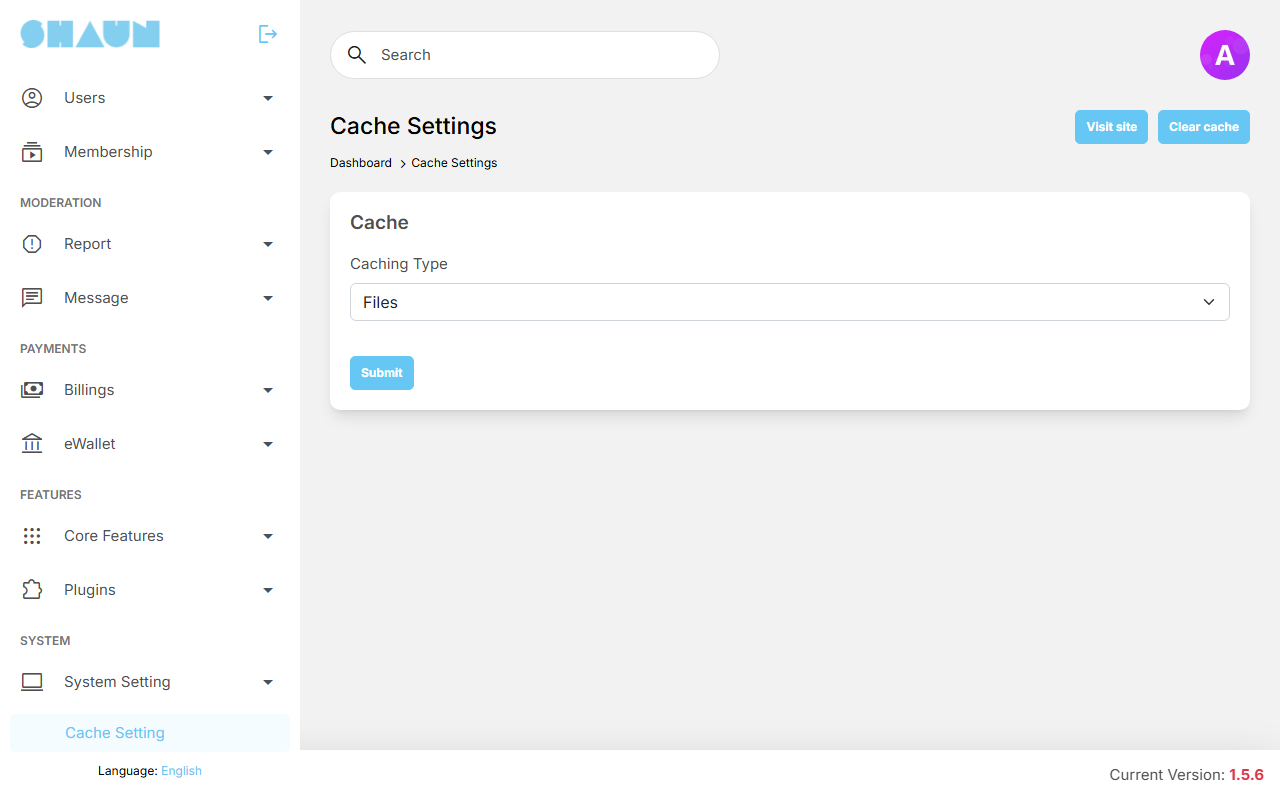
| Caching Type | Fields | When to use it |
|---|---|---|
| Files (chosen after installing) | none | the copies are files on your server. Fine for most sites |
| Memcached | Host (required), Port, Username, Password | a busy site whose host runs a Memcached server |
| Redis | Host (required), Port, Password | a busy site whose host runs a Redis server |
- Ask your host for the details of the Redis or Memcached server (see A Redis or Memcached server).
- Choose the Caching Type, fill in the fields and click Submit.
What you should see: "Cache has been successfully updated." If the site cannot store a test value on the server, it shows the reason (for example "Can't connect to server.") and keeps the current cache.
- Click Clear cache at the top of the page and check that your site works.
Anyone who can open this screen can read the cache server's password. Give the Cache Setting permission only to trusted people, and do not share screenshots of it.
To go back to file caching, choose Files and click Submit.
Storage System and moving files#
Last updated: 2026-11-17 · v1.5.6
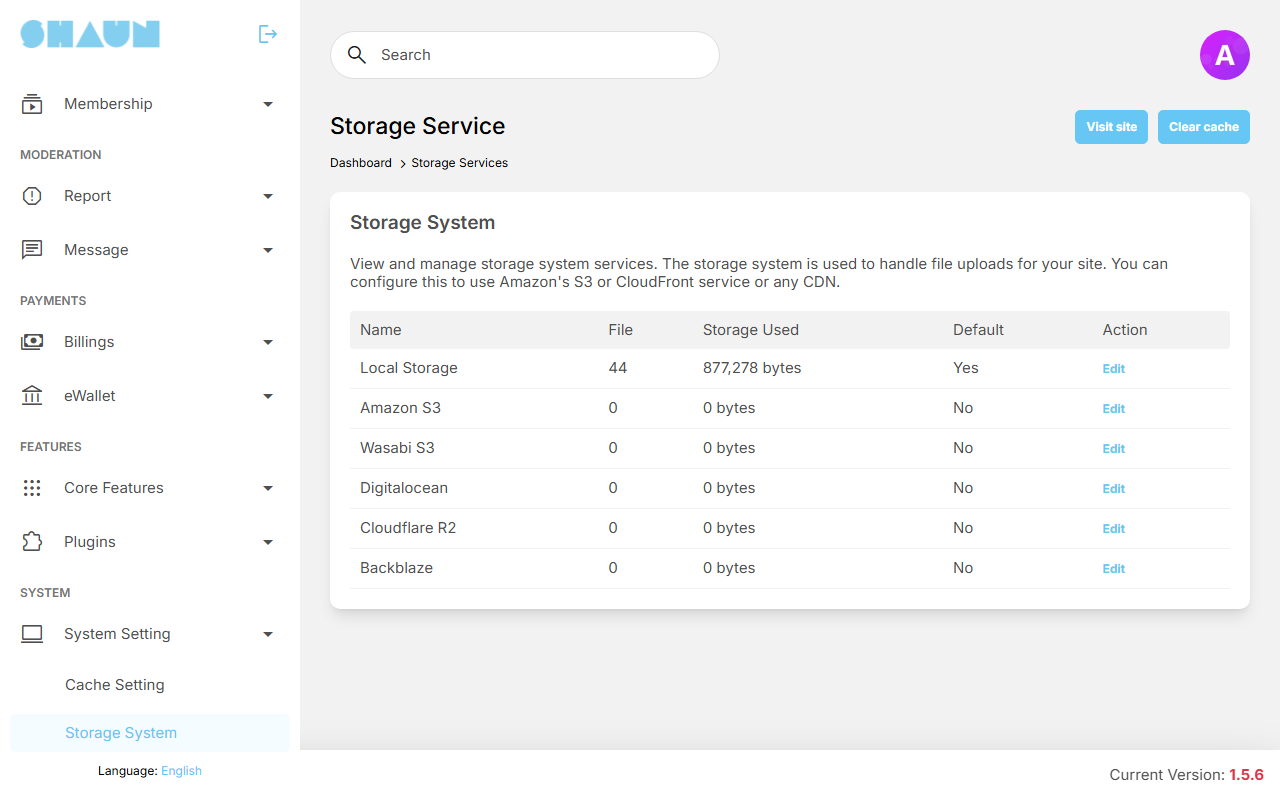
Where the photos, videos and files members upload are stored. Needs the Storage System permission for moderators. The list shows six services: Local Storage (your own server, the default after installing), Amazon S3, Wasabi S3, Digitalocean, Cloudflare R2 and Backblaze. For each: the number of files (File), the Storage Used and whether it is the Default.
The fields of each service#
Click Edit on a service. The fields of each cloud service, and what to prepare at the provider, are in What to prepare at the provider. Local Storage has one optional field, CDN Mapping: the address of a CDN that serves the uploaded files kept on your server, if you use one; links to those files then start with that address. Leave it empty otherwise.
Every service also has the switch Default. Click Save Changes; for a cloud service the site first writes and deletes a small test file. If that fails, the form comes back with the error (for example "Please double-check your S3 Credentials.") and nothing is saved.
Store new uploads in the cloud#
- Click Edit on the cloud service, fill in its fields, switch on Default and click Save
Changes.
What you should see: "Your changes have been saved." and Yes in the service's Default column.
- Upload a photo on your site and check that it shows.
From then on new uploads go to that service. Files uploaded earlier stay on your server and keep working. Only one service is the default; to change it, switch on Default on another service (it cannot be switched off on the current one).
Move existing files to the cloud#
- Make a backup of the
storagefolder (ask your server administrator). - Make the cloud service the default (above). Its row then shows Transfer.
- Click Transfer and confirm "This will start the process of transferring stored files from local to this
storage service."
What you should see: "A job has been created to transfer files." and, at the top of the screen, "Files are currently being transferred. … files on the process." with the number still to move.
- Wait. The cron job moves 10 files a minute, so a large site can take hours or days. Each moved file is deleted from your server. When nothing is left, the message disappears and Local Storage shows 0 files.
Stop transfer on the service's row pauses the move; files already moved stay in the cloud, and Transfer continues later. Files are only moved from your server to the cloud, never back.
Without the cron job nothing is moved (see Tasks). Keep your backup until Local Storage shows 0 files and your site's photos and videos all load.
Tasks: the scheduled jobs and cron status#
Last updated: 2026-11-17 · v1.5.6
Many things on your site happen in the background: sending e-mails, ending suspensions, moving files, deleting old data, building the sitemap, renewing subscriptions and more. They are run by the cron job, a schedule on your server that starts the site's tasks every minute. Setting it up is explained in Set up the cron job; what stops without it is in What stops when the cron job does not run. This screen shows whether it runs. Needs the Tasks permission for moderators.
Check that the cron job runs#
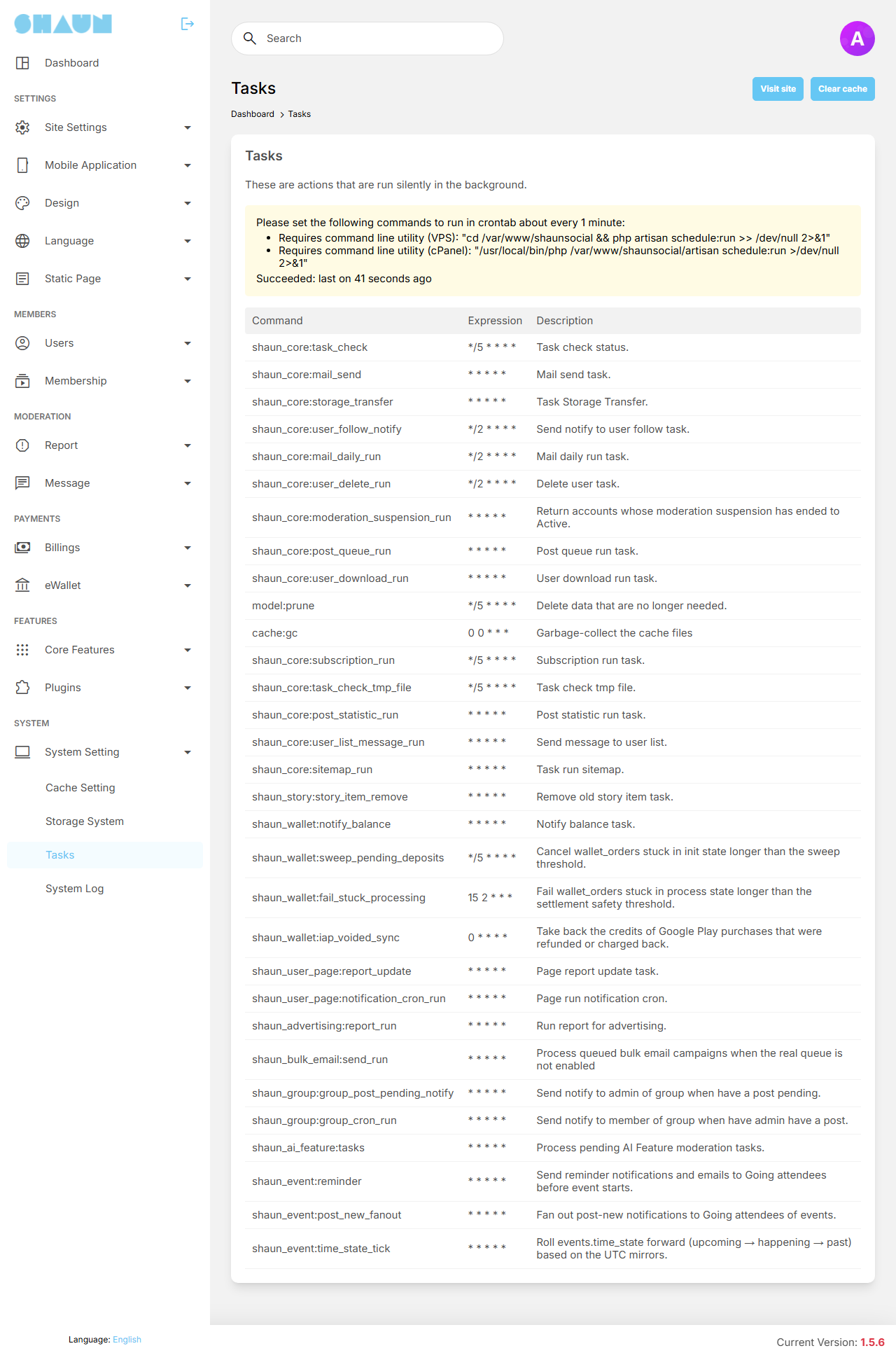
The box at the top shows the two command lines for the cron job (for a VPS and for cPanel), already filled in with your site's folder, and the line Succeeded:
| What it says | What it means |
|---|---|
| Succeeded: No, cron job configuration is not correct. | the cron job has never run on this site. Set it up (or ask your server administrator) and look again after five minutes |
| Succeeded: last on 3 minutes ago | the last time the check ran. It runs every five minutes, so a time of up to five minutes ago means the cron job works |
Once the cron job has run, the line always starts with "last on", even if the cron job stopped later. A time like "2 hours ago" or "3 days ago" means it no longer runs: e-mails, suspensions and file moves are waiting.
The list of tasks#
Each row is one background task: Command (its technical name), Expression (how often it runs) and Description (what it does, for example "Mail send task." or "Return accounts whose moderation suspension has ended to Active."). The list is for information; you cannot change it here. Plugins can add tasks of their own.
| Expression | Runs |
|---|---|
* * * * * | every minute |
*/2 * * * *, */5 * * * * | every 2 or every 5 minutes |
0 * * * * | every hour, on the hour |
0 0 * * * | every day at midnight UTC |
15 2 * * * | every day at 02:15 UTC |
System log#
Last updated: 2026-11-17 · v1.5.6
When something goes wrong (an e-mail does not arrive, a page shows an error), the log files usually say why. Needs the System Log permission for moderators.
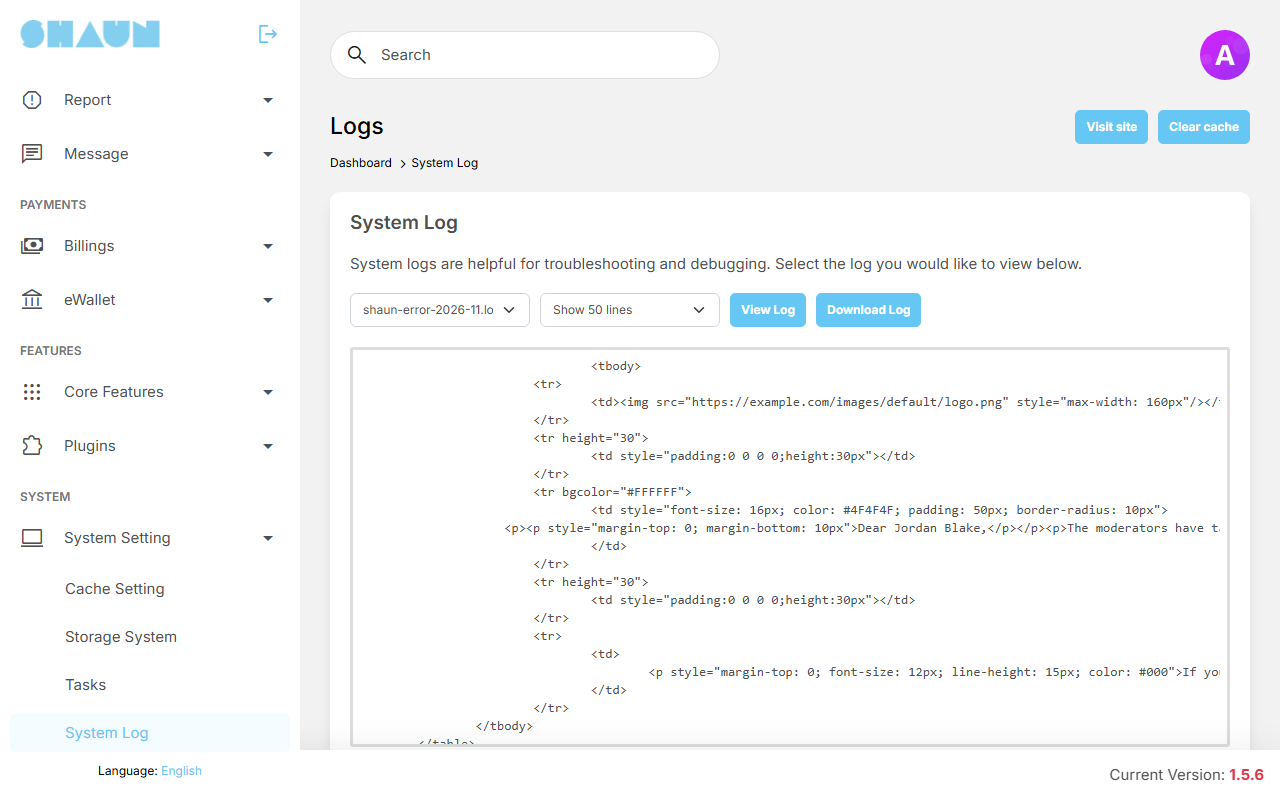
- Choose a log file in the first list.
- Choose how many lines to show: Show 50 lines (the default) up to Show 100000 lines. The newest lines are at the bottom.
- Click View Log to read it on the screen, or Download Log to save the whole file.
If the screen stays empty for a small file, use Download Log and open the file on your computer.
The log files#
Most files start a new one each month, with the year and month in the name (2026-11). A file appears
only once something has been written to it.
| File | What it contains |
|---|---|
shaun-error-YYYY-MM.log | errors of the site. The first place to look when something fails |
shaun-mail-YYYY-MM.log | e-mails that could not be sent, with the reason. With Enable email Log set to Yes in E-mail Settings (see An outgoing e-mail account) it also lists every e-mail sent, with the address, the kind of e-mail and the details filled into it (codes and passwords included) |
shaun-subscription-YYYY-MM.log | the renewal and reminder work of paid subscriptions |
shaun-sms-YYYY-MM.log | text messages: problems sending through Twilio, and every reply from Clickatell, successful sends included (see SMS providers) |
ai_provider-YYYY-MM-DD.log | one file per day: failed requests to your AI providers, for example a wrong or exhausted key. Files older than 30 days are deleted automatically |
shaun-internal-YYYY-MM.log | requests from other services connected to your site with its internal key. Most sites never have this file |
shaun-sql-YYYY-MM.log | every database query, only while your server administrator has switched this on for troubleshooting. It grows very fast |
shaun-mobile-YYYY-MM.log | reserved; the 1.5.6 core features do not write to it |
Logs can contain members' e-mail addresses and other personal data. With Enable email Log set to Yes, the mail log also stores the details of each e-mail, including passwords admins send to members and verification codes: switch the e-mail log on only while troubleshooting, and switch it off again afterwards. Keep downloaded logs private and send them only to people who help you fix the site, such as your server administrator or ShaunSocial support.
- The files are in
storage/logs. The monthly files are never removed automatically; delete old ones when they take too much space. - The database query log is switched on with
SQL_LOG_ENABLE=truein.env. Remove the line when you are done. - The installer sets
LOG_CHANNEL=shaunin.env, which writes errors to the monthlyshaun-errorfile. With another value, errors go to a file whose name starts withlaravelinstead.
Change log#
Last updated: 2026-11-17 · v1.5.6
| Date (GMT+7) | Section | What changed |
|---|---|---|
| 2026-11-17 | all | First version for 1.5.6, written from the 1.5.6 code as a guide for site owners and their admins. |
| 2026-11-17 | cache, storage, tasks, logs | Corrections after review: keeping the Cache Setting screen private, the cloud storage fields now linked instead of repeated, task times are UTC, what the SMS log holds, and what the e-mail log stores. |