Reaction plugin 1.1.0 / AdminCP
Manage reactions
Admin
This page is for admins: how to manage the list of reactions.
Manage the list of reactions#
Last updated: 2026-11-19 · v1.1.0
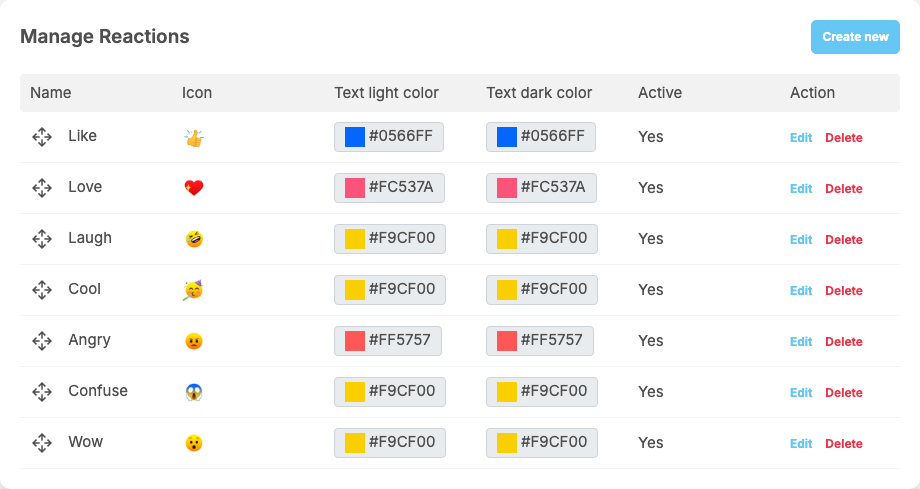
The list shows each reaction's Name, Icon, Text light color, Text dark color, whether it is Active, and Edit and Delete.
| Reaction | Colour of its name |
|---|---|
| Like (the default reaction) | #0566FF |
| Love | #FC537A |
| Laugh, Cool, Confuse, Wow | #F9CF00 |
| Angry | #FF5757 |
Add or change a reaction#
- Click Create new, or Edit on a reaction.
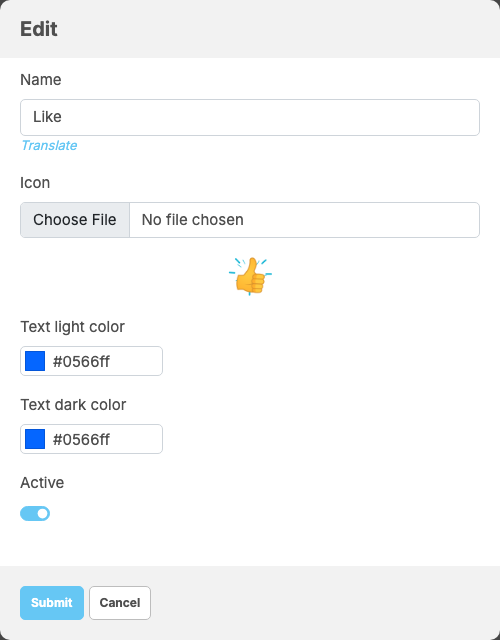
- Fill in the window:
Field What to enter Name the name members see, up to 255 characters. When you edit a reaction the name cannot be changed in the box: click Translate below it to change it, also for other languages. A new reaction gets its translations after it is created Icon the picture of the reaction; required for a new reaction. When editing, leave it empty to keep the current icon. Animated GIF pictures work, like the icons that come with the plugin Text light color the colour of the reaction's name next to the button in light mode, for example #0566FF Text dark color the same in dark mode Active off: members can no longer choose this reaction. Reactions already given with it keep showing - Click Submit.
What you should see: "The reaction has been created." or "The reaction has been successfully updated." A missing field is named instead, for example "The name is required." or "The icon is required".
Order and delete#
- Order: drag a row by its four-arrow handle. Members see the reactions in the same order. The picker
shows the first six active reactions and a
+button (More reactions) that shows the rest. - The default reaction is the one a plain click on the Like button gives. It is Like; the edit window has no switch to choose another one.
- Delete asks for confirmation. It is refused for the default reaction ("Please setting default reaction before delete this reaction.") and for a reaction members have already used ("Cannot delete this reaction. It has already been used."). To stop offering a used reaction, switch off Active instead.
Change log#
Last updated: 2026-11-19 · v1.1.0
| Date (GMT+7) | Section | What changed |
|---|---|---|
| 2026-11-19 | manage-reactions | New page. Its sections were moved here unchanged, with links to other pages updated: "Manage the list of reactions" (from the former page "Set up and use Reaction"). |
| 2026-11-19 | manage-reactions | First version for Reaction 1.1.0, written from the 1.1.0 code. The admin steps were read from the code, not run. Screenshots from a demo site running Reaction 1.1.0. |
| 2026-11-19 | all | Pages reorganised: AdminCP content now has its own pages. |