Resume plugin 1.1.0 / Using Resume
Build, share and feature a resume
This page is for members: how to create a resume and fill it in, publish it, choose who can see it, share and print it, pay to feature it, see who viewed it, let AI help with the writing, and find other members' resumes in the directory.
My Resumes#
Last updated: 2026-11-19 · v1.1.0
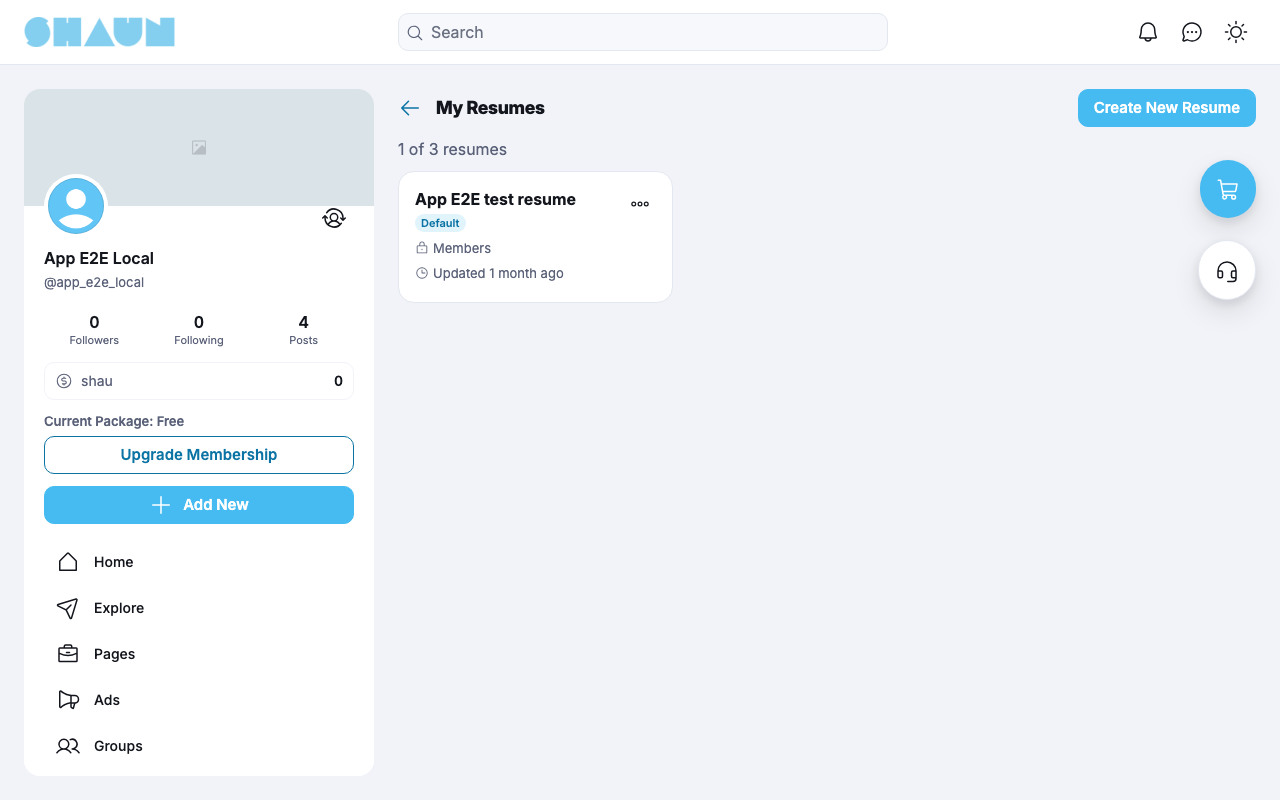
Click Resumes in the main menu, then My Resumes. The page counts your resumes against your limit (for example "1 of 3 resumes") and shows a card for each with its name, Draft, Default or Featured, its privacy level and when it was last updated.
- Click Create New Resume (or Resume in the Add New menu).
- Give it a Resume name that only you see, for example "Product Designer CV", and click Create.
If the AI tools are offered, you can choose Build with AI or Import existing resume instead (see
Write with AI).
What you should see: the resume editor, with the new resume as a draft.
A new resume starts with the privacy level the site chose. Your first resume becomes your Default one, the one picked first when you apply to a job. At your limit you see "You have reached the maximum number of resumes" and "Delete one to create another."
The … menu of a card offers Edit, View Public Page, View Analytics, Set as
Default, Duplicate, Feature This Resume or Extend Featured, and Delete:
- Duplicate copies every part, the pictures and the privacy level into a new draft; the copy is not the default and not featured.
- Delete asks for confirmation ("This action cannot be undone."). If you used the resume for a job application, you first tick "I understand this resume will no longer be viewable by employers who received my application." A featured resume loses its remaining Featured days. If it was your default, your most recently edited resume becomes the default.
Fill in your resume#
Last updated: 2026-11-19 · v1.1.0
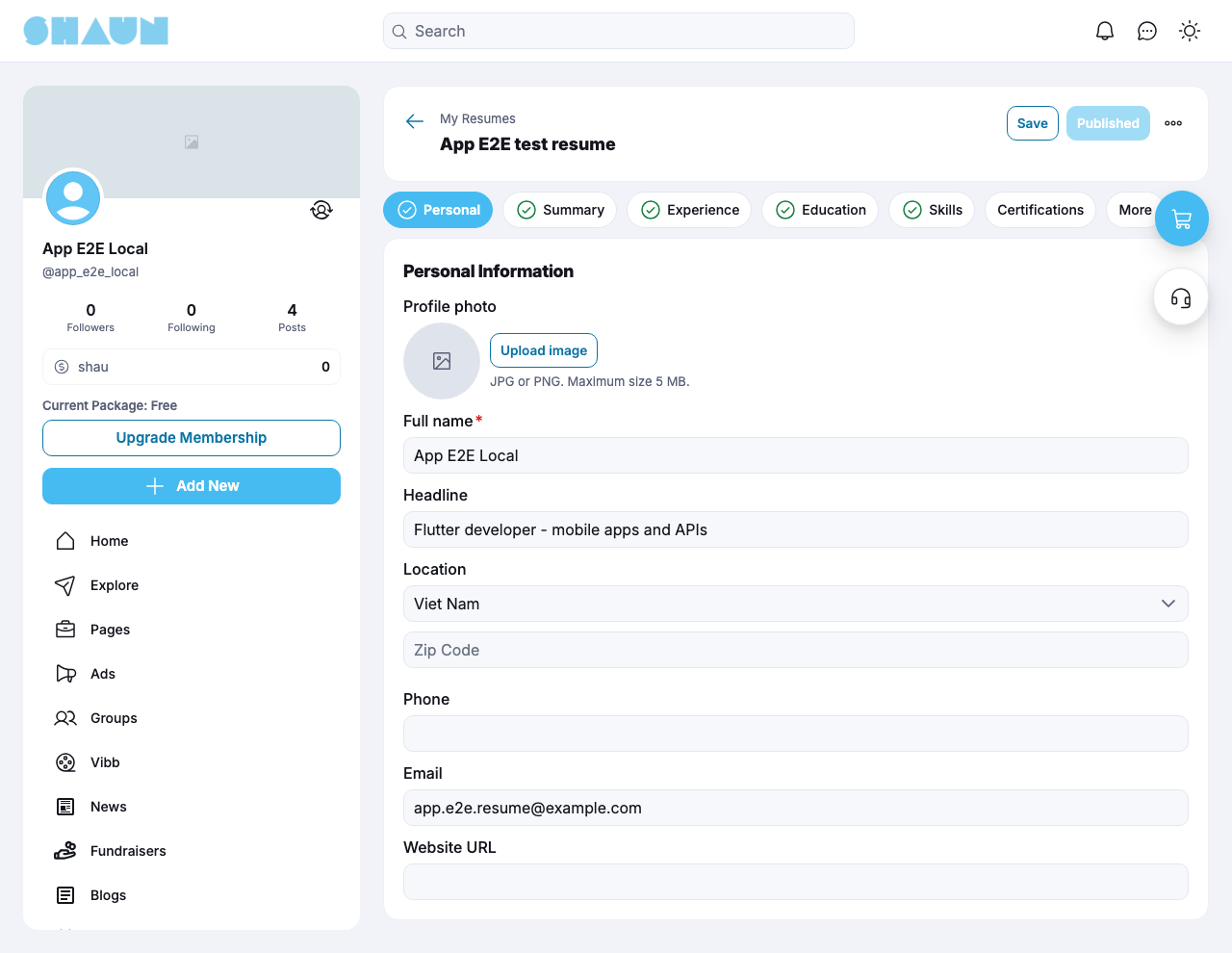
The editor has a tab for each part: Personal, Summary, Experience, Education, Skills, Certifications, and under More Projects, Portfolio, Languages and References. Every change saves itself; the page shows "Saved" and the time it was last saved, and Save saves at once. If the connection drops you see "Could not save. Check your connection."
| Part | What goes in it |
|---|---|
| Personal Information | a profile photo (JPG or PNG, up to 5 MB), the Full name (required to publish), a headline, the location, phone, e-mail and website |
| Summary | a short text about you, up to 1000 characters |
| Experience, Education, Certifications, Projects | entries with dates and descriptions. Add them with the + Add button and drag them to reorder |
| Skills | your skills: up to 20, or the Job plugin's limit when it is installed |
| Portfolio | entries with a picture, a title and a link |
| Languages | languages from the site's list, each with a level: Beginner, Intermediate, Advanced, Fluent or Native. Choose Other to type a language that is not listed |
| References | up to 5 people. Switch off "Show references on my public resume" to keep them off your resume page and the printed copy |
Publish#
A new resume is a draft: nobody but you can see it, whatever its privacy level. Click Publish when it is ready: you need your full name and at least one of Summary, Experience or Education, otherwise you see "Add your name and at least one of Summary, Experience or Education before publishing." After "Your resume is now published." the button reads Published. A published resume cannot go back to draft; to hide it, set it to Private (see Who can see your resume).
The … menu of the editor offers Preview, Copy Link, Download PDF,
Change Template (the design of your resume page; the site starts with one template, Classic),
Privacy Settings and, when offered, the AI tools.
Who can see your resume#
Last updated: 2026-11-19 · v1.1.0
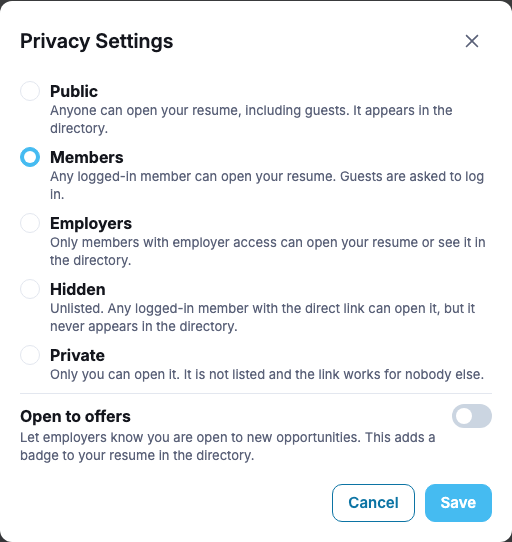
Open Privacy Settings from the editor's menu, or click the privacy level on a card in My Resumes. Choose a level and click Save; it applies at once.
| Level | Who can open it | In the directory |
|---|---|---|
| Public | "Anyone can open your resume, including guests." | yes, also for guests |
| Members | "Any logged-in member can open your resume. Guests are asked to log in." | for signed-in members |
| Employers | "Only members with employer access can open your resume or see it in the directory." The site decides which memberships give employer access | for employers only |
| Hidden | "Unlisted. Any logged-in member with the direct link can open it, but it never appears in the directory." | no |
| Private | "Only you can open it. It is not listed and the link works for nobody else." | no |
- Open to offers: "Let employers know you are open to new opportunities. This adds a badge to your resume in the directory." It cannot be on for a Private resume, and it switches off when you leave Public.
- Allow search engines to index this resume (Public only): "When enabled, your resume name, headline, and summary may appear in Google search results." Leaving Public switches it off.
- Your resume also shows on the Resumes tab of your profile, for the people your level allows. Someone who may not open it sees "This resume does not exist."
Your resume page: share and print#
Last updated: 2026-11-19 · v1.1.0
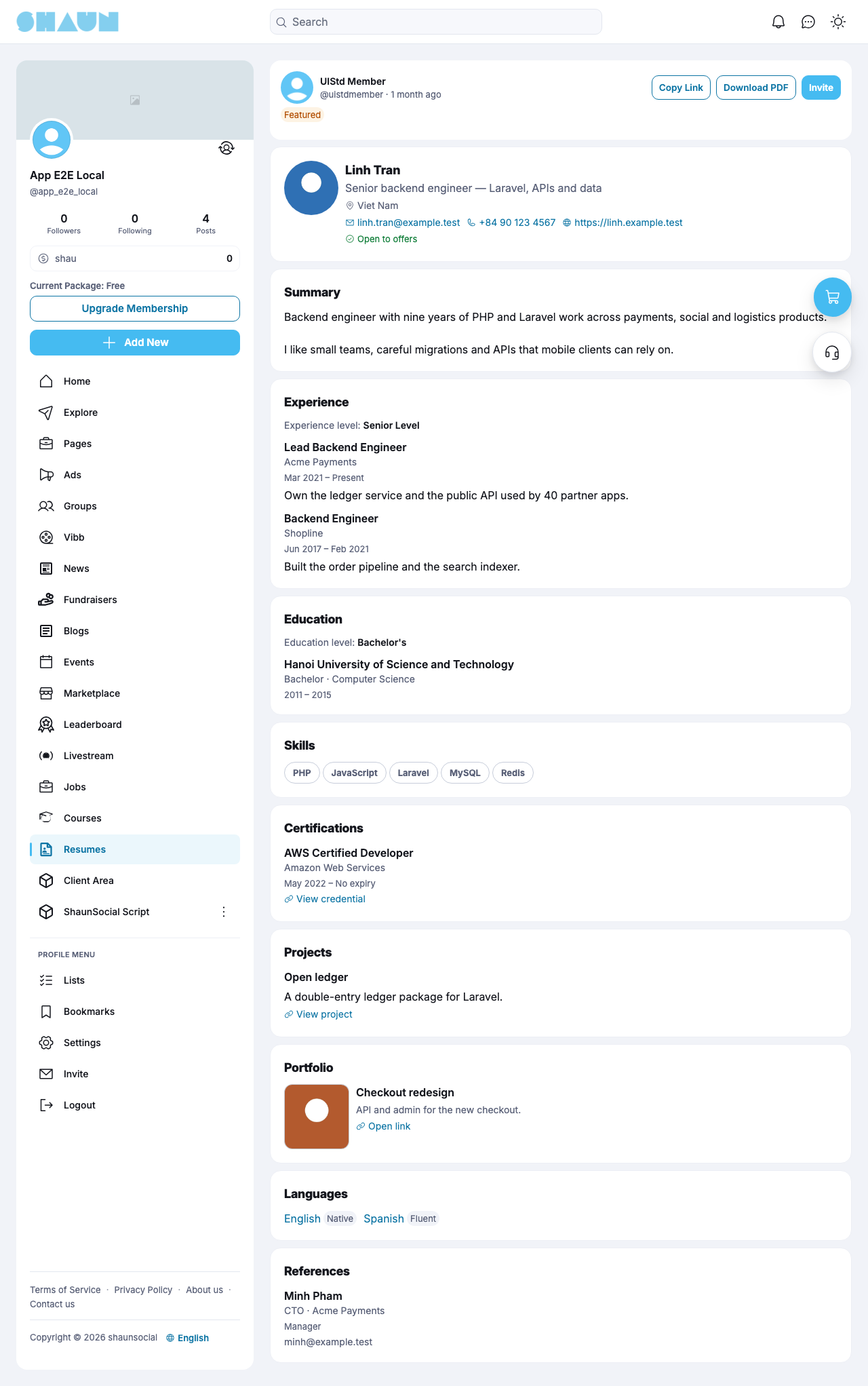
Every published resume has its own page with your name, photo, headline, contact details and every part you filled in. At the top:
- Copy Link copies the page's address ("Link copied."), to send by e-mail or message;
- Download PDF opens your browser's print window; choose "Save as PDF" there to get a file;
- for you: Edit, and Feature This Resume or Extend Featured;
- for employers, with the Job plugin: Invite (see With the Job plugin).
A guest who opens a resume reserved for members sees "Sign in to view this resume." with Sign in.
Feature your resume#
Last updated: 2026-11-19 · v1.1.0
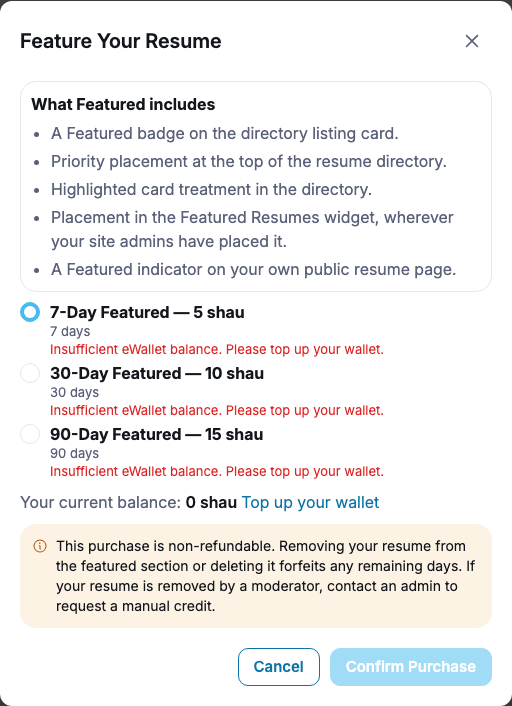
Featuring puts a published resume in front of employers for a number of days: "A Featured badge on the directory listing card.", "Priority placement at the top of the resume directory.", "Highlighted card treatment in the directory.", a place in the "Featured Resumes" box, and "A Featured indicator on your own public resume page."
- Choose Feature This Resume in the menu of the resume's card or on its page.
What you should see: the window "Feature Your Resume" with the packages, their days and prices, and your current balance.
- Pick a package. If your balance is too low, it says "Insufficient eWallet balance. Please top up your wallet."; Top up your wallet opens your eWallet (see Add funds).
- Click Confirm Purchase and enter your password.
What you should see: "Your resume is now featured for [n] days." The price is taken from your eWallet and goes to the site.
- A featured resume shows "Featured — [n] days remaining" on its card. Extend Featured adds the new days at the end: "The package you choose will be added on top of your current window."
- "This purchase is non-refundable." Deleting the resume forfeits the remaining days.
- If the window offers nothing, the site has no package on sale or your membership does not include featuring.
The money rules for the site are in Who pays and who receives.
Who viewed your resume#
Last updated: 2026-11-19 · v1.1.0
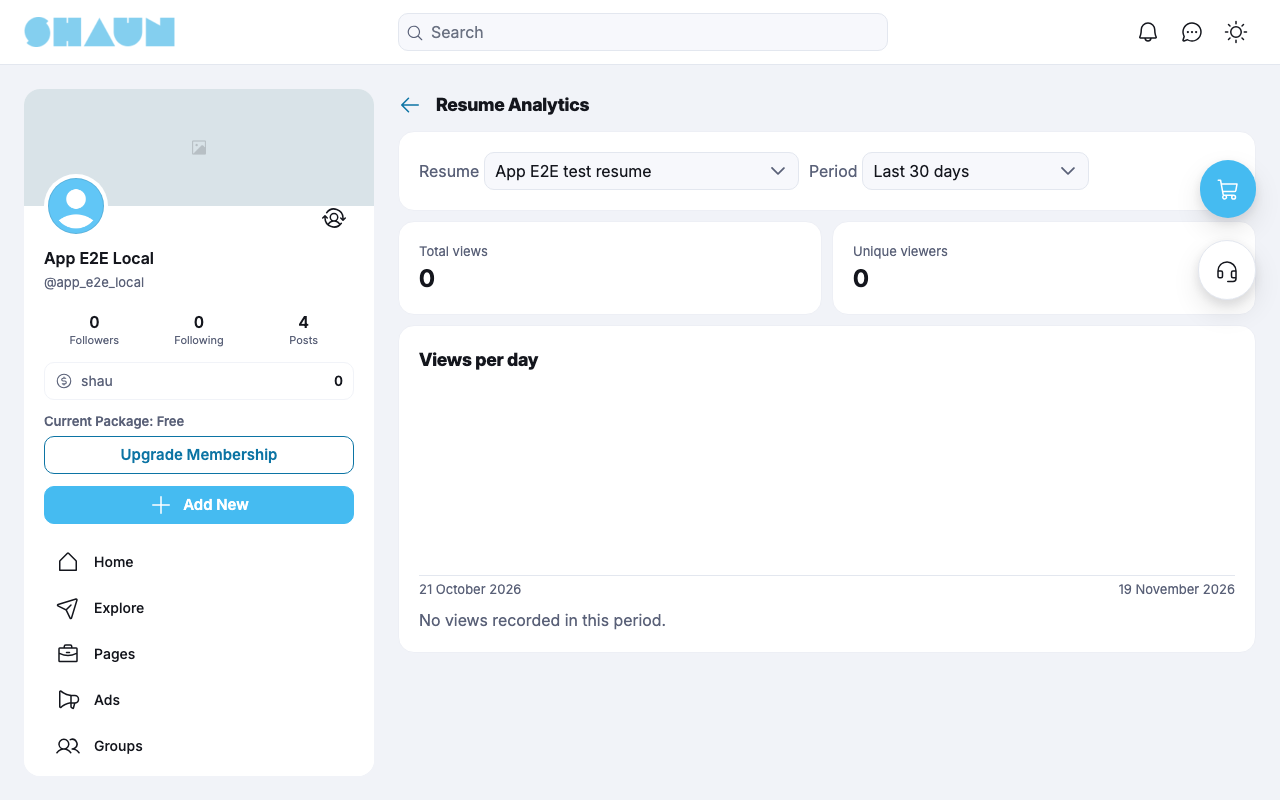
My Resumes shows your views of the last 30 days across all your resumes. View Analytics opens Resume Analytics: pick a Resume (or All my resumes) and a Period (Last 7 days, Last 30 days, Last 90 days) to see Total views, Unique viewers and Views per day.
- Your own visits and visits by the site's resume managers are not counted.
- Each visitor counts once per day as a unique viewer; guests are counted too, without the site keeping who they are.
- The statistics go back 90 days.
Write with AI#
Last updated: 2026-11-19 · v1.1.0
The site can offer five AI tools. Which ones you see, and how many times a day you can use them, depends on the site and your membership; without access you see "AI Resume Builder is available with a Premium membership. Upgrade now." Nothing the AI writes is saved until you accept it.
| Tool | How it works |
|---|---|
| Build with AI | when creating a resume: fill in Target job title, Years of total experience, Highest education level and Up to 5 key skills. Review the draft of Summary, Experience, Education, Skills and Languages, then Save and continue. Start blank instead skips it |
| Import existing resume | paste plain text of a resume (about one page). Review what was found part by part, then Import to resume. "Importing replaces everything currently in this resume." Pictures cannot be imported |
| Improve with AI | on a Summary, Experience or Project description: pick a Tone (Professional, Concise, Detailed), compare the Original with the AI suggestion, then Use this, Keep original or Try again |
| Generate summary | proposes a summary from the rest of your resume |
| Cover Letter | enter a Target job title and Company and click Generate with AI; then Copy it. "Only you can see this. It is never shown on your public resume." |
Only answers that worked count against your daily limit; when it is reached you see "You have reached your daily AI resume builder limit ([x] per day). Try again tomorrow or upgrade your membership."
The resume directory#
Last updated: 2026-11-19 · v1.1.0
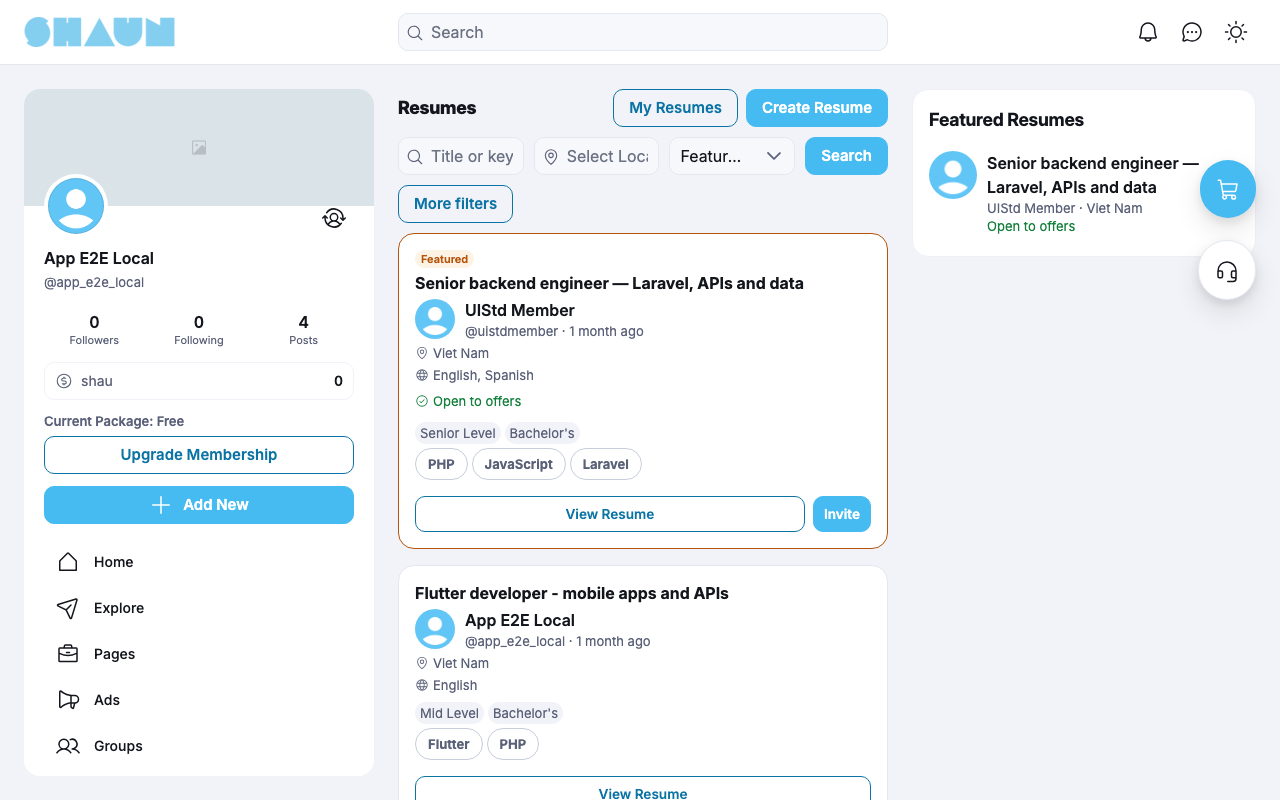
Click Resumes in the main menu. The directory lists the published resumes you are allowed to see (see Who can see your resume); guests see only Public ones.
- Search with Title or keyword and a Location, and sort by Featured first, Newest or Most viewed.
- More filters adds Skills, Experience level, Education level, Languages and Open to offers only. Within one filter any choice matches; across filters all must match. The search is kept in the page address, so you can bookmark or share it.
- Each card shows the headline, the member, location, languages, "Open to offers", the experience and education level and the top skills; a click on a skill filters by it. View Resume opens it.
- Featured resumes come first with a Featured label, and the "Featured Resumes" box beside the list shows them too.
You also find a member's resumes on the Resumes tab of their profile, and your own under Lists → Resumes, with a status filter.
With the Job plugin#
Last updated: 2026-11-19 · v1.1.0
When the Job plugin is installed too, the two work together:
- Apply with a saved resume. When applying to a job you can choose one of your resumes instead of uploading a file; your default resume is picked first. The employer sees a match band (high, medium or low) and can open the resume.
- Invite to apply. An employer sees Invite on directory cards and resume pages, picks one of their published jobs, adds an optional Message and clicks Send invite. The member gets a notification.
- Recommendations. Your resume page shows Recommended Jobs; an employer's job shows recommended candidates (as many as the site set).
- Levels and skills. The experience levels, education levels and skill list come from the Job plugin. Without it, the directory filters by typed skills only.
Notifications#
Last updated: 2026-11-19 · v1.1.0
| Notification | When |
|---|---|
| "Someone viewed your resume '[name]'." | a signed-in member opens your resume; it does not say who. At most once per viewer and resume per day; never for a Private resume or a guest's visit. Opens your statistics |
| "'[job]' matches your resume '[name]'. Check it out." | with the Job plugin: a newly published job fits a published resume of yours that is Public, Members or Employers. At most one a day, for the best match |
| "[employer] has invited you to apply for '[job]' at [company]." | with the Job plugin: an employer invites you. Opens the job |
Change log#
Last updated: 2026-11-19 · v1.1.0
| Date (GMT+7) | Section | What changed |
|---|---|---|
| 2026-11-19 | all | First version for Resume 1.1.0, written from the 1.1.0 code. No purchase was made, no AI tool was run and no job application was sent while writing: those steps and their messages were read from the code, not run. Screenshots from a demo site running Resume 1.1.0 with the Job plugin installed. |
| 2026-11-19 | all | Pages reorganised: AdminCP content now has its own pages. |