Market Place Commerce plugin 1.1.0 / Using Market Place Commerce
Buy and sell
This page is for members: how to sell a listing online with Buy Now or as a digital download, how to buy and pay, how to follow your orders, and how to handle the orders of your own listings in the Seller Dashboard. The steps describe the website; the mobile apps offer the same, but pay orders from the eWallet only.
Sell a listing online#
Last updated: 2026-11-19 · v1.1.0
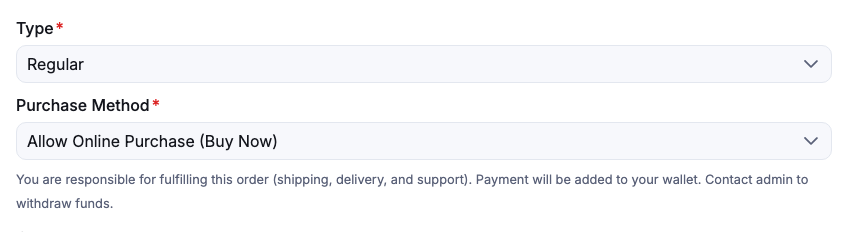
You add or edit a listing as usual (see Create a listing in the ShaunSocial guide). Market Place Commerce adds two things to the form:
- Purchase Method, for the types Regular and Digital Product, required:
- Contact Seller (Chat Only): buyers get the Chat button and you agree on the sale in chat, as before.
- Allow Online Purchase (Buy Now): buyers get a Buy Now button and pay on the site. The form reminds you: "You are responsible for fulfilling this order (shipping, delivery, and support). Payment will be added to your wallet. Contact admin to withdraw funds."
- The type Digital Product, with a Digital File to upload (one file). The allowed file types are listed under the field. Buyers download the file after paying.
Listings you created before the plugin was installed stay Chat Only until you edit them and choose a purchase method.
- Stock: if you fill in Available unit, each order takes its units at once. When none are left, the button shows Out of Stock and you get "Your listing '…' is out of stock." Units of an order that is cancelled before payment come back. Leave it empty for unlimited stock.
- Price: buyers pay your listing's price, after its discount if it has one, times the quantity.
- What you receive: the order total minus the site's fee, in your eWallet, as soon as the buyer pays (see The Seller Dashboard). You withdraw it from your eWallet (see Withdraw).
- A listing that has orders cannot be deleted: "This listing has existing orders and cannot be deleted."
Buy a listing#
Last updated: 2026-11-19 · v1.1.0
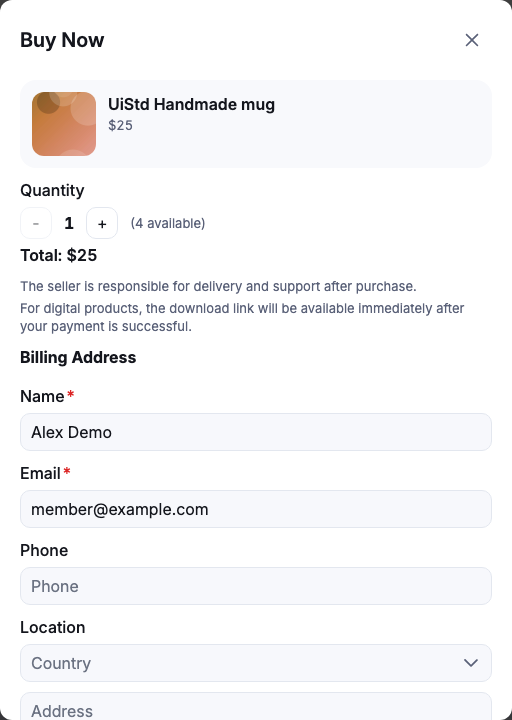
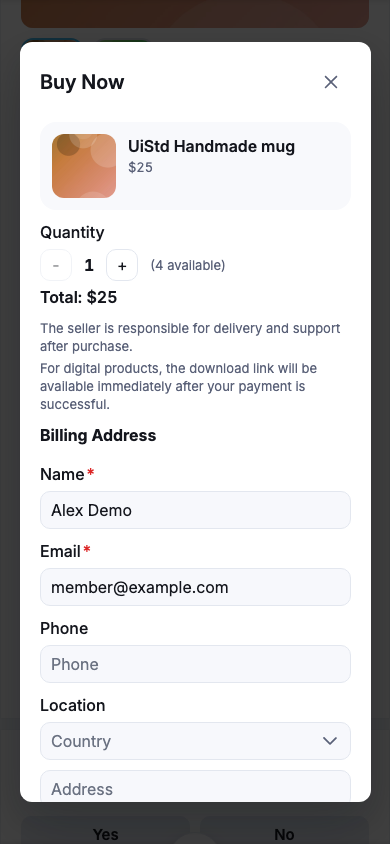
- On a listing with online purchase, click Buy Now (on the listing page or on the listing in the feed).
What you should see: the Buy Now window with the listing, the quantity and your address.
- Choose the Quantity; when stock is limited it shows how many are available.
- Fill in the Billing Address: Name and Email are required, Phone and Location (country, region, city, address and zip code) are optional. The site remembers it for your next order.
- Leave Shipping same as billing ticked, or untick it and enter the Shipping Address (name and email required).
- Optionally write a Note to Seller, check the Total and click Buy Now.
What you should see: the payment window (see Pay for an order). Your order now exists with the status Pending (awaiting payment) and the seller is told.
- "For digital products, the download link will be available immediately after your payment is successful."
- "The seller is responsible for delivery and support after purchase." Contact the seller about delivery.
- "Insufficient stock. Only … units remaining.": choose a smaller quantity.
- "This listing is not available.": the listing is not active, or the seller may not sell at the moment.
Pay for an order#
Last updated: 2026-11-19 · v1.1.0
The payment window shows the product, the quantity, the shipping information and the Order cost. Under Select a Payment Method, choose one and click Pay Now:
- eWallet: the window shows Your balance and the Balance after payment. Enter your password in Enter Password to confirm. If your balance is too low ("Insufficient balance. Please reload your wallet."), use Reload your balance to add funds first (see Add funds).
- PayPal or Stripe: you are taken to the payment page and come back to the site afterwards.
What you should see: after paying by card or PayPal, the page "Payment Successfully!" with View Order and Message Seller. The order's status becomes Processing (payment received), or Completed (order fulfilled) for a digital product, and the seller is told. If the payment did not go through, the page "Payment Failed" offers Go to My Orders, where you can try again.
You do not have to pay at once: the order waits in My Orders with Pay Now. An unpaid order is cancelled automatically after the number of days the site set.
There is no cancel or refund on the site once an order is paid. Talk to the seller about any problem with the delivery.
Your orders#
Last updated: 2026-11-19 · v1.1.0
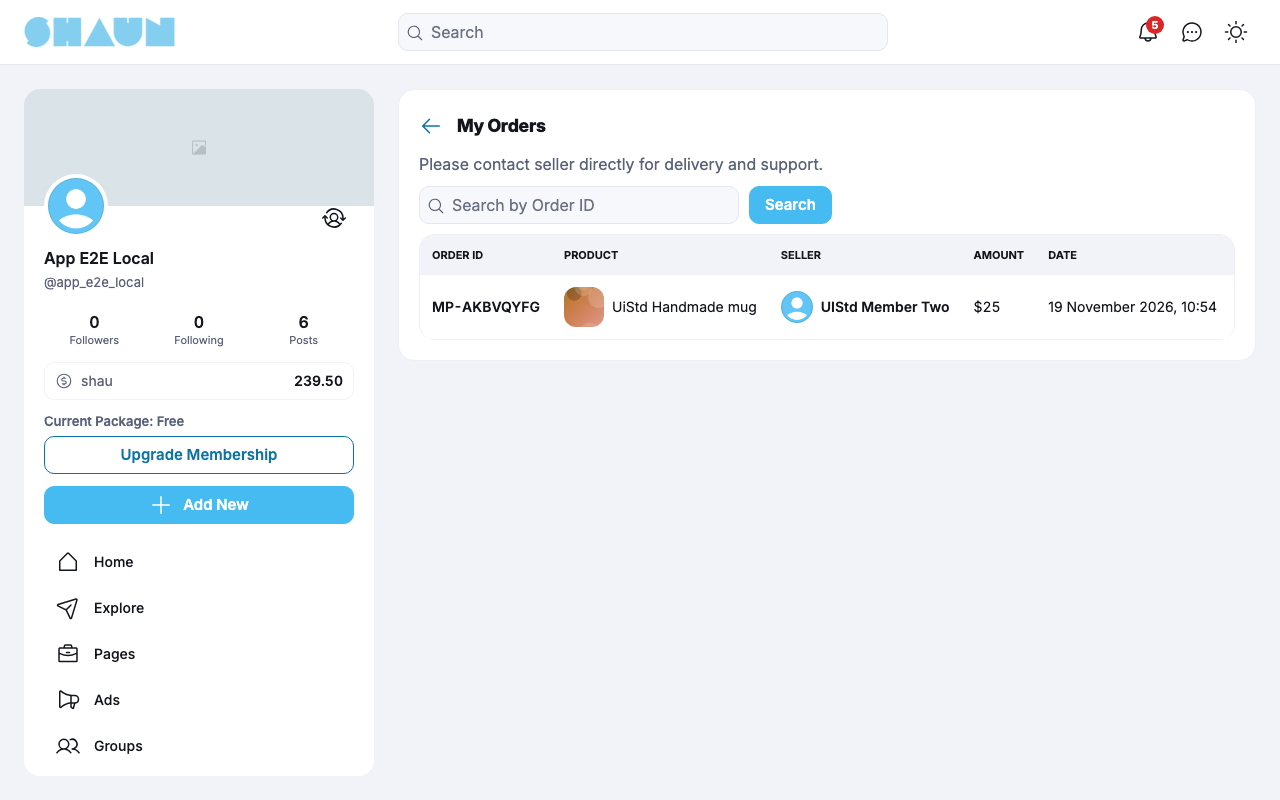
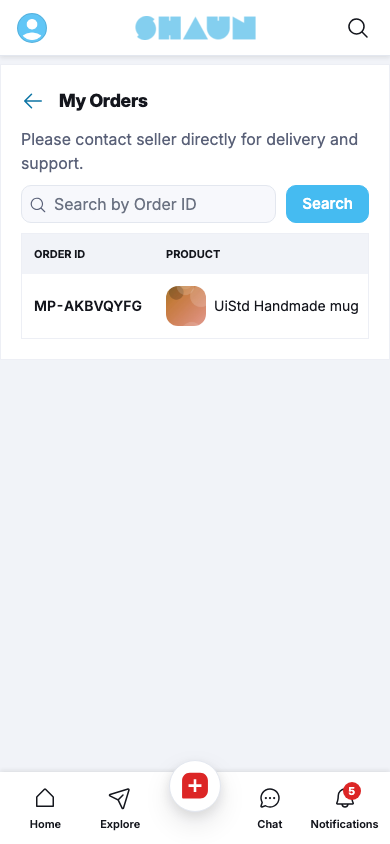
On the marketplace page, click the options button (…) next to Add new and choose Buyer
Dashboard. The page My Orders lists your purchases, newest first, with Order ID,
Product, Seller, Amount, Status and Date. Search by Order ID
finds one order.
- View opens the order: the product, price, quantity and total, the billing and shipping addresses, your note, the Status History, and Message Seller.
- For a digital product you have paid for, Download gets the file, as often as you need.
- While the order is pending or processing, Edit next to the addresses lets you correct them and click Save.
- On an unpaid order, Pay Now opens the payment window and Cancel cancels the order after "Are you sure you want to cancel this order?" ("Order cancelled successfully.").
You get a notification each time the seller changes the status ("… updated the status of your order MP-…"), and when the site cancels an unpaid order.
The Seller Dashboard#
Last updated: 2026-11-19 · v1.1.0
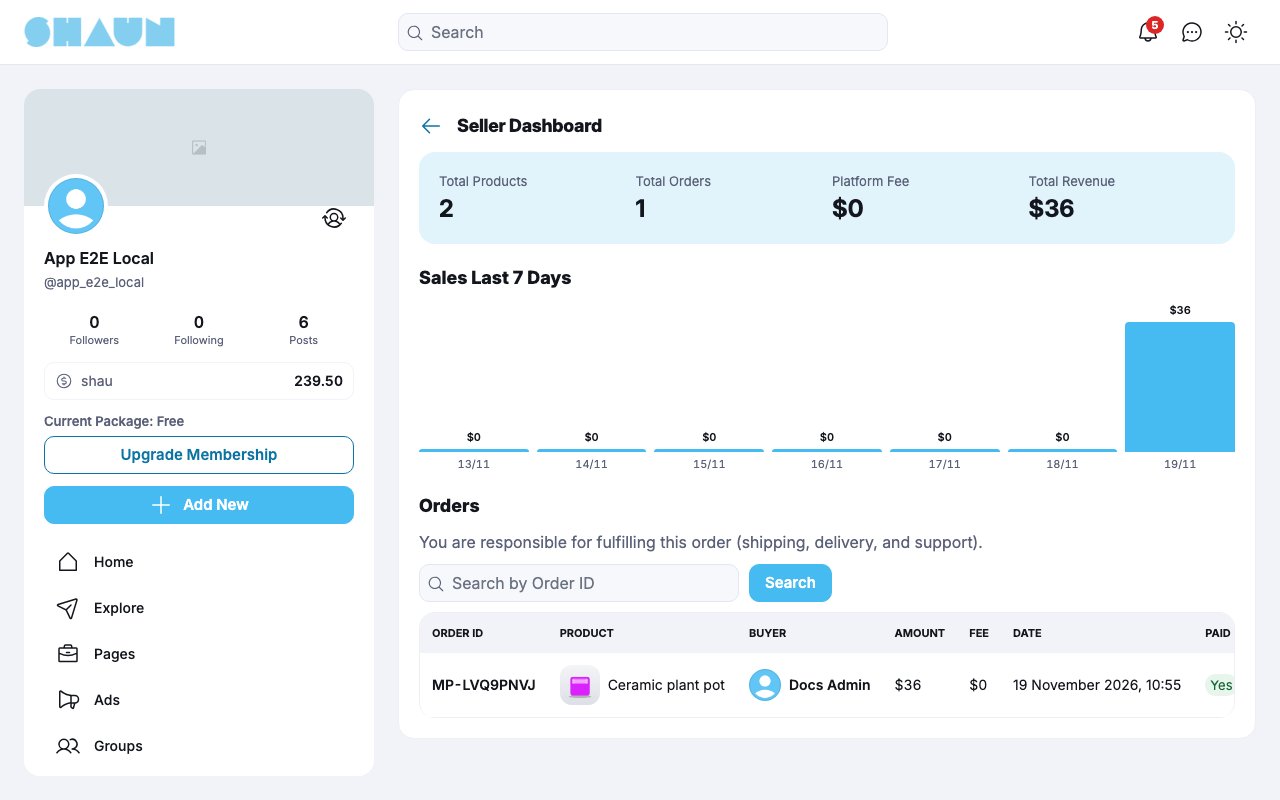
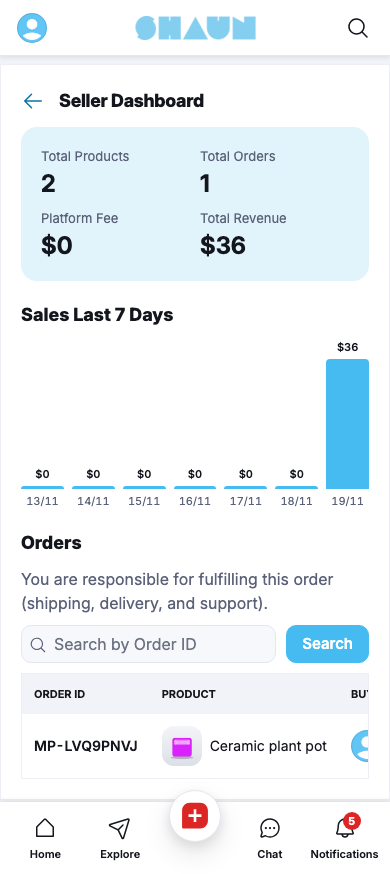
Once you have a listing, the options button (…) on the marketplace page also shows Seller
Dashboard. At the top: Total Products, Total Orders, Platform Fee (the fees of your
paid orders) and Total Revenue (what you received for your paid orders), with a chart of your Sales Last 7
Days.
Below is the list of orders on your listings: Order ID, Product, Buyer, Amount, Fee, Date, Paid (Yes / No) and Status. You are notified when a buyer places an order ("… placed a new order on your listing."), pays it ("… paid for order MP-…") or cancels it ("… cancelled order MP-…").
- Click View to see the order, the buyer's addresses and note, and Message Buyer.
- After the buyer has paid, click Change Status, choose the new status, for example Shipped, and
click Save.
What you should see: "Order status updated successfully." The buyer is notified.
- When the order is done, choose Completed (order fulfilled). The window warns that this cannot be undone; afterwards the status can no longer be changed.
An unpaid order cannot be changed: wait for the payment, or for the buyer or the site to cancel it. A paid order cannot be moved back to Pending or Cancelled.
Change log#
Last updated: 2026-11-19 · v1.1.0
| Date (GMT+7) | Section | What changed |
|---|---|---|
| 2026-11-19 | all | First version for Market Place Commerce 1.1.0, written from the 1.1.0 code. No order was placed or paid while writing: the steps and messages were read from the code, not run. |
| 2026-11-19 | screenshots | Screenshots from a demo site running Market Place Commerce 1.1.0. The Buy Now window was opened but no order was placed; My Orders and the Seller Dashboard were not captured because the demo member has no orders or listings. |
| 2026-11-19 | buy, my-orders, seller-dashboard | Screenshots of My Orders and the Seller Dashboard added, from demo orders paid with test eWallet credits on a demo site; phone screenshots added. |
| 2026-11-19 | all | Pages reorganised: AdminCP content now has its own pages. |