Fundraising plugin 1.1.0 / Using Fundraising
Start and support fundraisers
This page is for members: how to find fundraisers, start one and change it, donate with the eWallet, PayPal or Stripe, and what happens when a fundraiser reaches its end date. The steps describe the website; the mobile apps offer the same, but donate from the eWallet only.
Find fundraisers#
Last updated: 2026-11-19 · v1.1.0
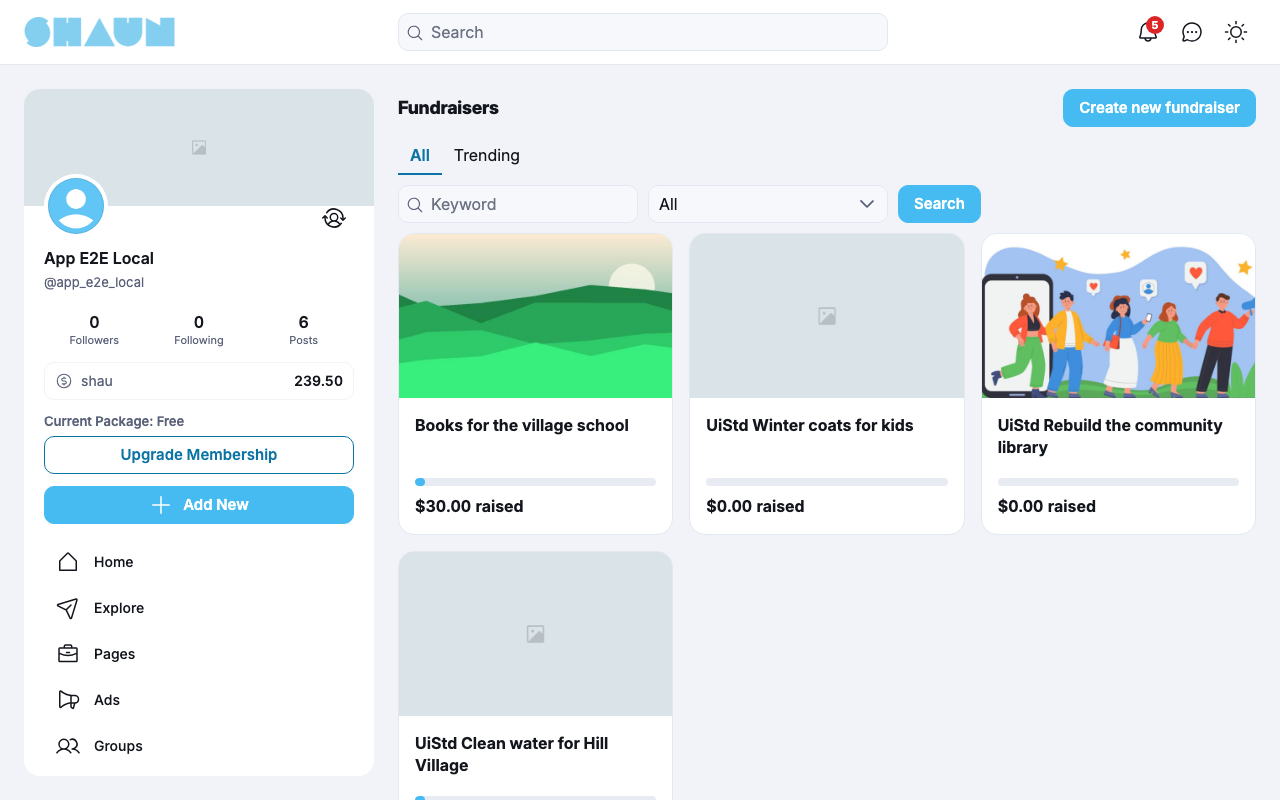
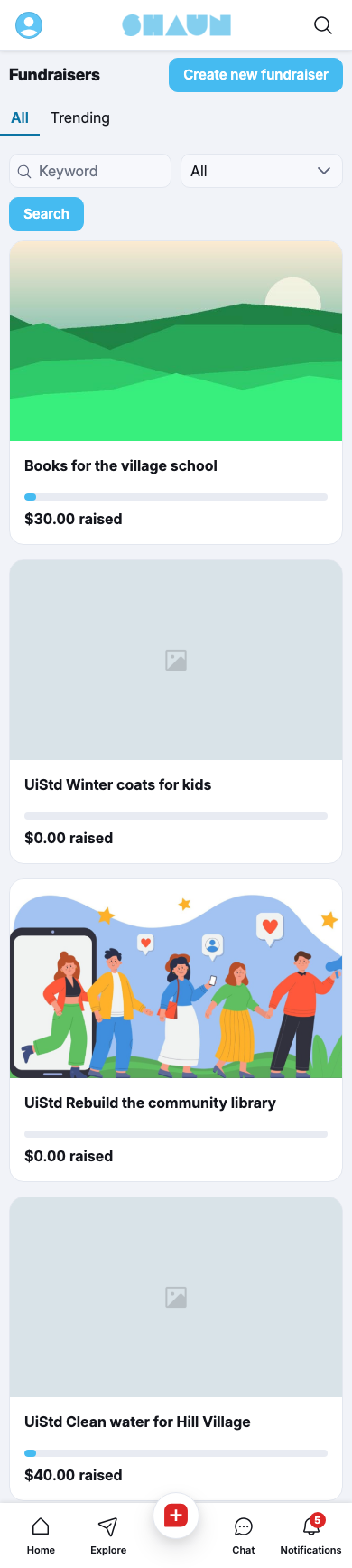
Click Fundraisers in the site menu. Featured fundraisers are at the top; below are two tabs:
- All: every open fundraiser, newest first. Search by Keyword in the title and by Status (All, Active or Close), then click Search; Clear filters resets them.
- Trending: open fundraisers that received donations in the last 60 days, the ones that raised most first.
Each card shows the cover, the title and the amount raised. Fundraisers also have a Fundraisers tab in the site search, and your own fundraisers are under Fundraisers in your Lists (see Lists in the ShaunSocial guide). You do not see fundraisers of members you blocked or who blocked you.
Start a fundraiser#
Last updated: 2026-11-19 · v1.1.0
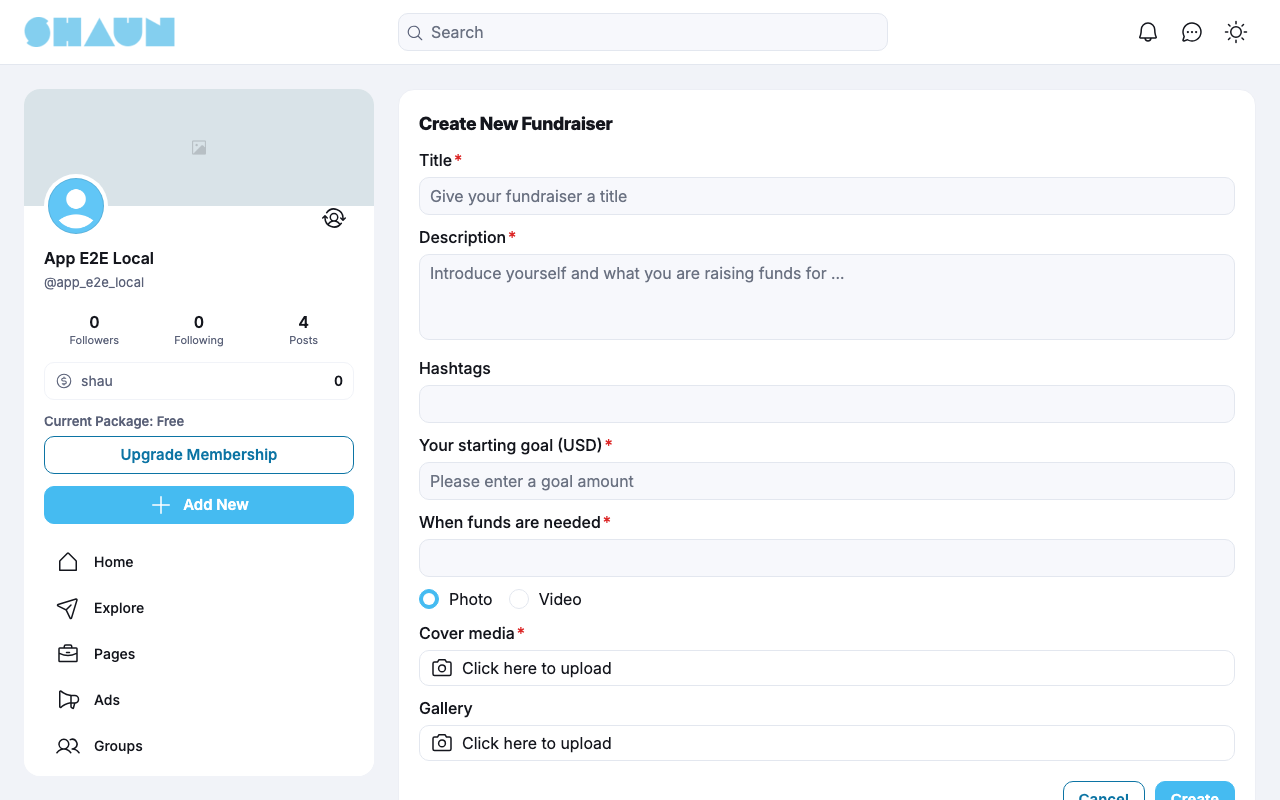
- On the Fundraisers page, click Create new fundraiser.
What you should see: the form Create New Fundraiser. If your member level may not start fundraisers, you see "You don't have fundraiser creation permission." instead.
- Fill in the form:
Field What to enter Title required, up to 255 characters Your starting goal the amount you want to raise, in the site's currency, more than 0 When funds are needed the last day donations are accepted: today or later Description required: introduce yourself and what you are raising funds for Cover media Photo (upload one, required) or Video (a Youtube Link, such as https://www.youtube.com/watch?v=…)Gallery optional photos, up to the number the site allows (10 after installing) Hashtags optional - Click Create.
What you should see: "Your fundraiser has been created." and the fundraiser's page. A post about it appears in the feed, and your followers are told "… created a new fundraiser." if you let them be notified of your posts.
Change or delete your fundraiser#
On your fundraiser's page, click the pencil button (Edit Fundraiser), change the form and click Update ("Your fundraiser has been updated."). Once the fundraiser has received a donation, the goal and the end date can no longer be changed.
The Delete button on the edit form appears only while the fundraiser has no donations. After a donation, a fundraiser cannot be deleted.
Donate#
Last updated: 2026-11-19 · v1.1.0
A fundraiser's page shows its cover, description and gallery, and who is organising it. Beside it (below it on a phone) is the donation box: the amount raised, the goal, the number of donations and the Time left. Click the number of donations to see the Donations: each donor's name, amount and when they gave; anonymous donors show as "Anonymous".
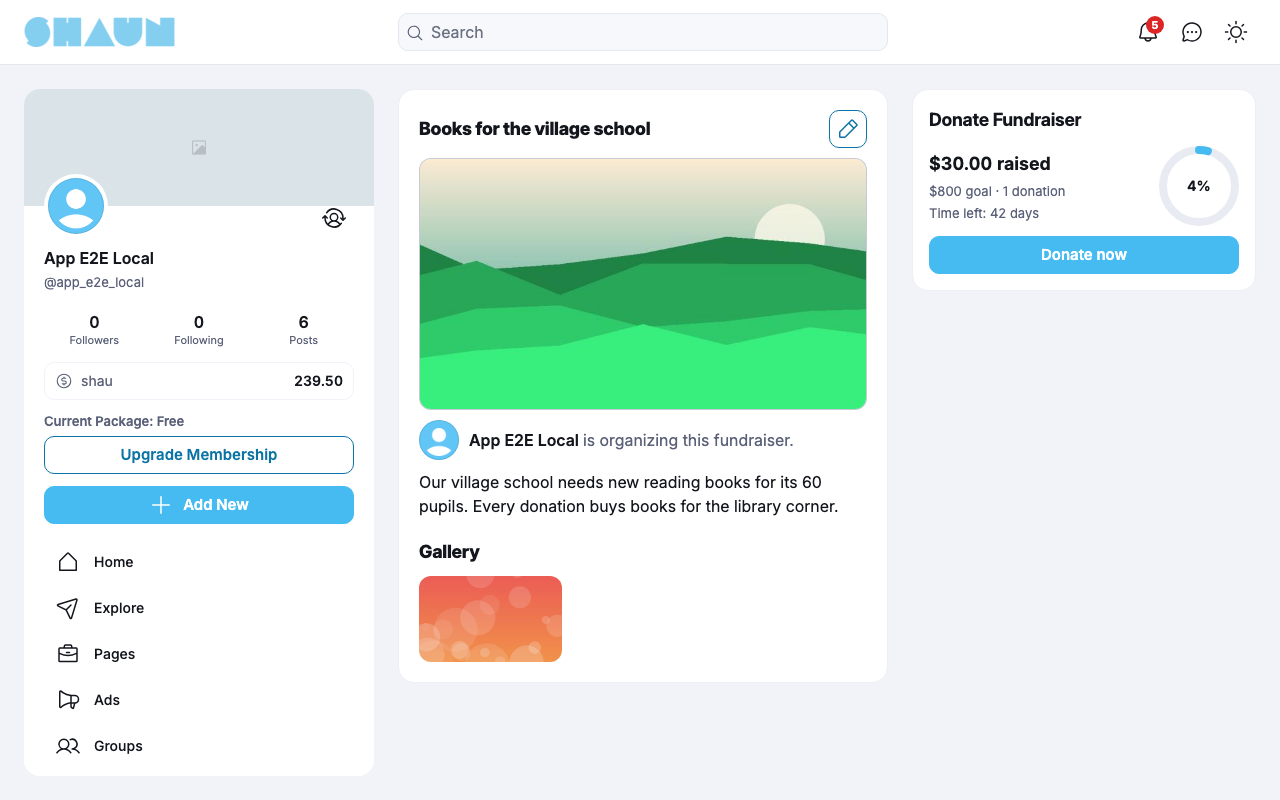
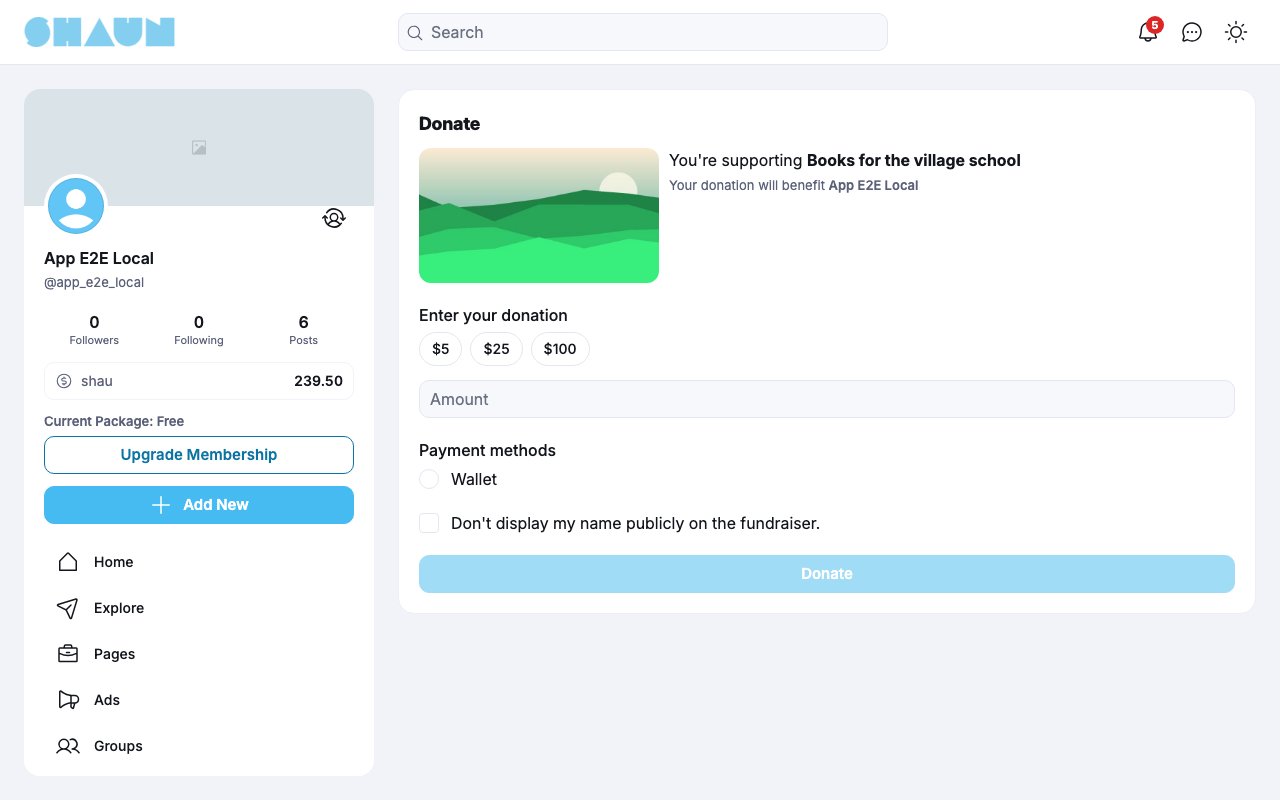
- Click Donate now.
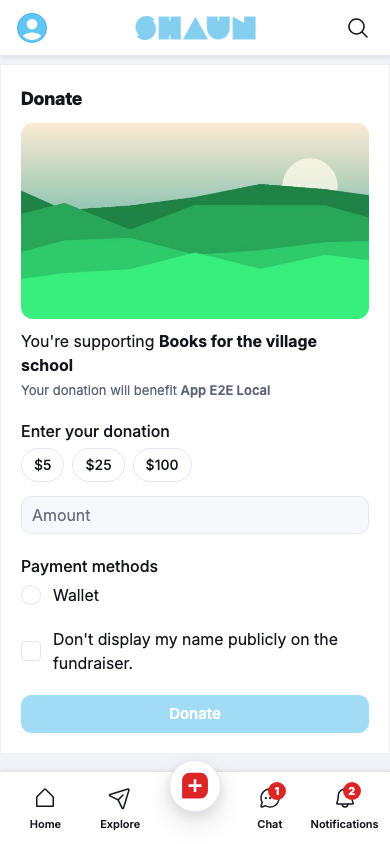
What you should see: the Donate page: "You're supporting …" and "Your donation will benefit …" with the organiser's name.
- Under Enter your donation, click one of the suggested amounts or type an amount, in the site's currency.
- If you are not signed in, enter Your name; it is shown with your donation.
- Choose one of the Payment methods: the eWallet (members only), PayPal or Stripe.
- Members can tick "Don't display my name publicly on the fundraiser." to appear as "Anonymous" to everyone else, including the organiser.
- Click Donate.
What you should see: with the eWallet, a window Enter Password: enter your account password and confirm; "Successfully donated" and the fundraiser's page follow. With PayPal or Stripe you are taken to the payment page and come back to the fundraiser afterwards.
- The whole amount is taken from you. The organiser receives it in their eWallet, minus a fee if the site set one for the payment method you chose.
- A donation cannot be cancelled or refunded.
- "You don't have enough balance.": add funds to your eWallet first (see Add funds), or choose PayPal or Stripe.
- "Please login to continue": the eWallet is for signed-in members; sign in, or choose PayPal or Stripe.
- "You cannot donate to your own fundraiser." and "Fundraising has expired for donations." are shown when they apply. One donation can be at most 999999.
When a fundraiser ends#
Last updated: 2026-11-19 · v1.1.0
A fundraiser takes donations until the end of the day chosen in When funds are needed, whether or not the goal is reached; reaching the goal does not stop donations.
After that day the site closes the fundraiser by itself, within a few minutes: the donation box shows Closed, and then the fundraiser leaves the Fundraisers page, the search and your Lists, its page can no longer be opened and its post leaves the feed. The donations stay in the organiser's eWallet, and each donor keeps the line in their eWallet history.
If you want to keep the story of your fundraiser or thank your donors publicly, do it before the end date, for example with a post on your profile.
Change log#
Last updated: 2026-11-19 · v1.1.0
| Date (GMT+7) | Section | What changed |
|---|---|---|
| 2026-11-19 | all | First version for Fundraising 1.1.0, written from the 1.1.0 code. No donation was made and no fundraiser was closed while writing: the steps, the closing and the messages were read from the code, not run. |
| 2026-11-19 | screenshots | Screenshots from a demo site running Fundraising 1.1.0, where a 5% fee was set for the eWallet and the demo fundraisers had passed their end date; the Donate page was not captured because no open fundraiser exists there. |
| 2026-11-19 | find, donate | Screenshots of the Donate page and of an open fundraiser added, from a demo fundraiser with one test eWallet donation on a demo site; phone screenshots added. |
| 2026-11-19 | all | Pages reorganised: AdminCP content now has its own pages. |