Calling plugin 1.1.0 / Using Calling
Make and answer calls
This page is for members: how to call someone from a chat, answer or reject a call, what you see during a call, including its cost when you pay for it, and what a call leaves in your chat.
Call a member#
Last updated: 2026-11-19 · v1.1.0
You can call a member you already chat with, once both of you have accepted the conversation. Calls are between two people; there are no calls in group chats.
- Open your chat with the member.
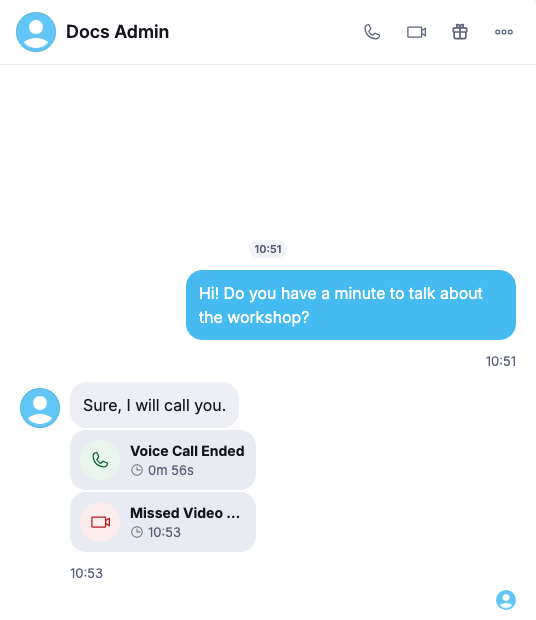
- Click the phone button for a voice call, or the camera button for a video call, at the top of the conversation.
What you should see: the first time, your browser asks to use your microphone (and your camera for a video call): allow it. Then the call screen shows "Calling …" with the member's name while their device rings.
- Wait for an answer. Click Cancel to hang up before they answer. If nobody answers in time, the call stops and the member gets a missed call notification.
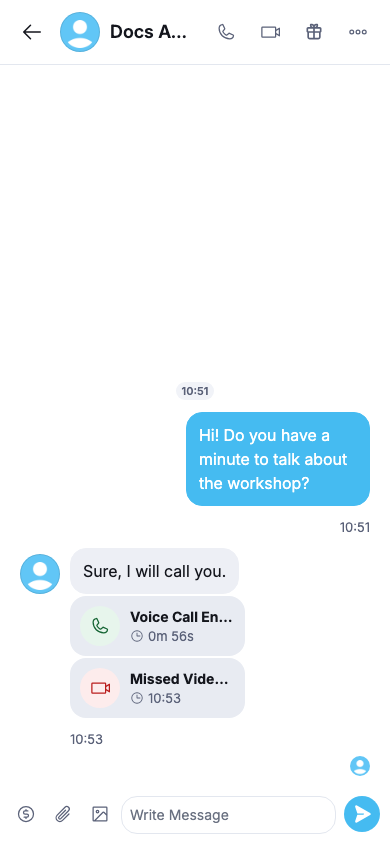
In the mobile apps the buttons are at the top of the chat too.
| If you see | What to do |
|---|---|
| "You need to message this member before starting a call." | send them a message first |
| "This member has not accepted your conversation request yet. You cannot start a call until they do." | wait until they accept your chat request (or accept theirs) |
| "Your membership plan does not include voice calls. …" (or video calls) | your member level may not start this kind of call; a higher membership may include it (see Subscribing as a member) |
| "Insufficient credits or free minutes to start a call." | the call costs money and your eWallet does not hold one minute's price: add funds first (see Add funds) |
| "This member is currently on another call." / "You are already on a call." | try again later, or end your other call |
| "Microphone permission was denied. Please allow access to start the call." | allow the microphone (and camera) for this site in your browser's settings, then call again |
| "Calling is currently disabled." / "This call type is currently disabled." | the site has switched calls, or this kind of call, off |

Answer or reject a call#
Last updated: 2026-11-19 · v1.1.0
When someone calls you while the site is open, a window rings with their picture, their name and "Incoming voice call" or "Incoming video call".
- Click Accept to answer. The first time, allow your browser to use the microphone (and camera). If you refused it, the window says to open your browser's site settings (the lock icon in the address bar) to allow it, and to ask the caller to call again.
- Click Reject to decline. The caller sees that the call was declined.
- If you are signed in on several devices, the call rings on each; answering on one stops the others.
In the mobile apps the call rings with the phone's incoming-call screen, also when the app is in the background. Calls you do not answer show up as a missed call notification, "… tried to call you." or "… tried to call you on video.", which opens Chat.
On some sites the person called pays. Then Accept needs a free minute left in your membership, or one minute's price in your eWallet; otherwise you see "Insufficient credits or free minutes to start a call." and the call does not connect.
During a call#
Last updated: 2026-11-19 · v1.1.0
The call screen shows the time and these buttons:
- Mute / Unmute your microphone, and End Call.
- In a video call: turn your camera off or on, and Switch camera when your device has more than one.
- The arrow at the top shrinks the call into a small floating window, so you can keep using the site. It has Mute, End Call and Expand.
Leaving the site or reloading the page ends the call; the browser asks "Leaving this page will end your call. Continue?" first.
When you pay for the call#
If the call costs money and you are the one who pays, the call screen also shows your Free minutes left, the Credits spent so far, the Cost per minute and your Balance. Each minute is charged as it starts, free minutes first. The other person does not see these figures.
- "Your balance is running low. Please top up to avoid call interruption." appears when your balance reaches the amount the site set. Click Top Up to add funds without leaving the call.
- "Remaining balance allows approximately 2 more minutes." and "Free minutes exhausted. Call will end soon unless credits are available." warn you shortly before the call would end.
- When your balance cannot pay the next minute, the call ends by itself: "Call ended due to insufficient balance."
Top up during a call: the window Top Up Your Wallet lists the amounts you can buy and the payment methods (such as PayPal or Stripe). Choose an amount and a method and click Proceed to add. The payment opens in a new tab; when it is confirmed the window says "Payment received" and "Your call will continue with the updated balance."
After a call#
Last updated: 2026-11-19 · v1.1.0
When an answered call ends, a summary shows "Voice Call Ended" or "Video Call Ended" with the Duration, and, for the member who paid, the Credits charged. If the call ended because the balance ran out or the connection was lost, it says so. Click Done to close it.
Every call also leaves a card in your chat with that member:
- "Voice Call Ended" / "Video Call Ended" with the length of the call; the member who paid also sees the Charge.
- "Missed Voice Call" / "Missed Video Call" with the time, for a call that was not answered, rejected or cancelled.
- Click a card (Tap to call back) to call the member again with the same kind of call.
What you paid for a call is one line in your eWallet history, "Voice call charge" or "Video call charge" (see Using your eWallet).
Change log#
Last updated: 2026-11-19 · v1.1.0
| Date (GMT+7) | Section | What changed |
|---|---|---|
| 2026-11-19 | all | First version for Calling 1.1.0, written from the 1.1.0 code. No call was made while writing: the screens and messages were read from the code, not run. |
| 2026-11-19 | start-call, after-call | Screenshots of the call buttons and the call cards added, from demo calls between two test accounts of a demo site (an answered voice call and a cancelled video call, both free); a phone screenshot added. |
| 2026-11-19 | all | Pages reorganised: AdminCP content now has its own pages. |