Elearning plugin 1.1.0 / Using Elearning
Find and take courses
This page is for members who take courses: how to find a course, take a free one or pay for one from your eWallet, follow the lessons and quizzes, see your progress, take part in the course feed and write a review. The steps describe the website; the mobile apps offer the same.
Find courses#
Last updated: 2026-11-19 · v1.1.0
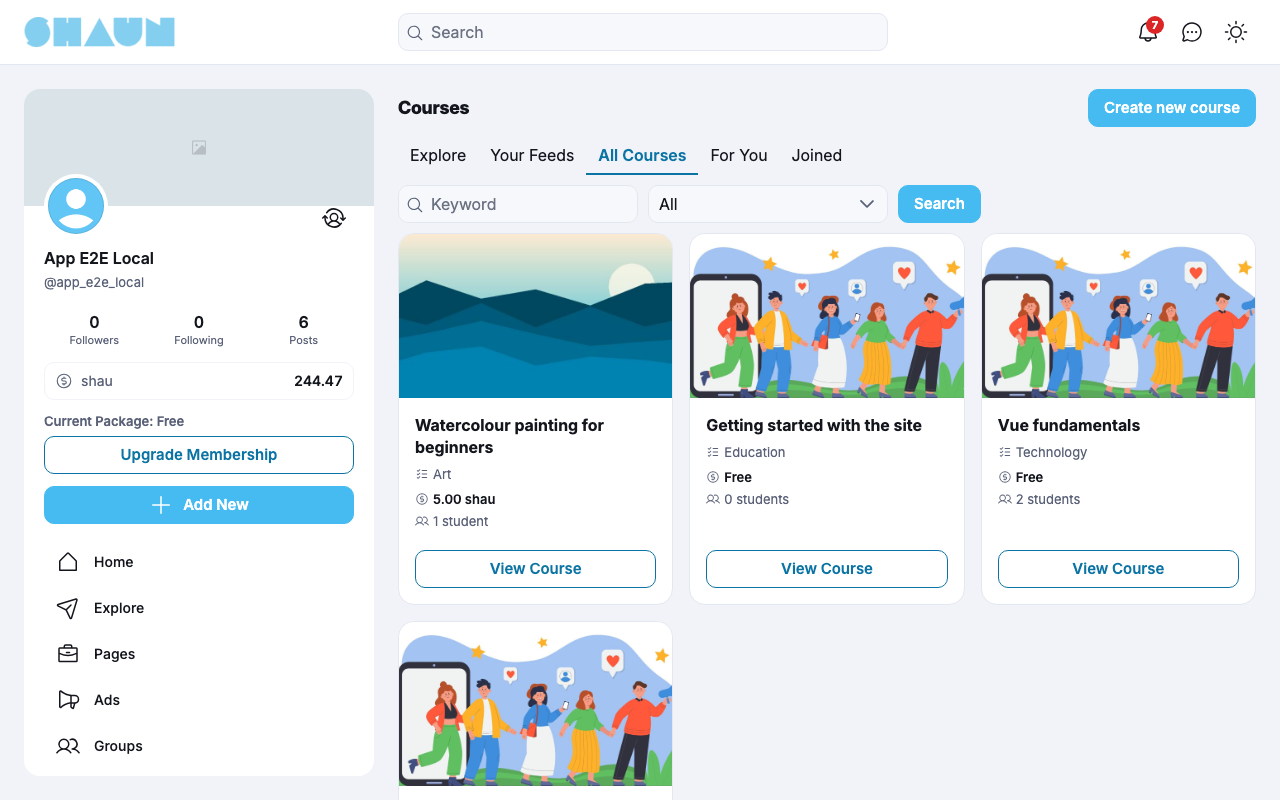
Click Courses in the site menu. The page has five tabs; Your Feeds, For You and Joined appear when you are signed in:
- Explore: the latest posts and reviews from the feeds of all published courses.
- Your Feeds: the latest posts from the courses you take or teach.
- All Courses: every published course, newest first. Search by Keyword in the name and by Category, then click Search.
- For You: published courses tagged with hashtags you follow, those with the most students first. Courses you already take or teach are left out. If you follow no hashtags, the tab stays empty; a keyword or a category searches all courses instead.
- Joined: the courses you take or teach.
Each card shows the cover, the name, the categories, the price (Free or the price in the site's token) and the number of students, with Take This Course or, for a course you are in, View Course. On a large screen the Popular Courses block on the right shows courses chosen by the site.
Courses also have a Courses tab in the site search, on every profile (the courses that member created, teaches or takes) and in your Lists (the courses you created).

A course page#
Last updated: 2026-11-19 · v1.1.0
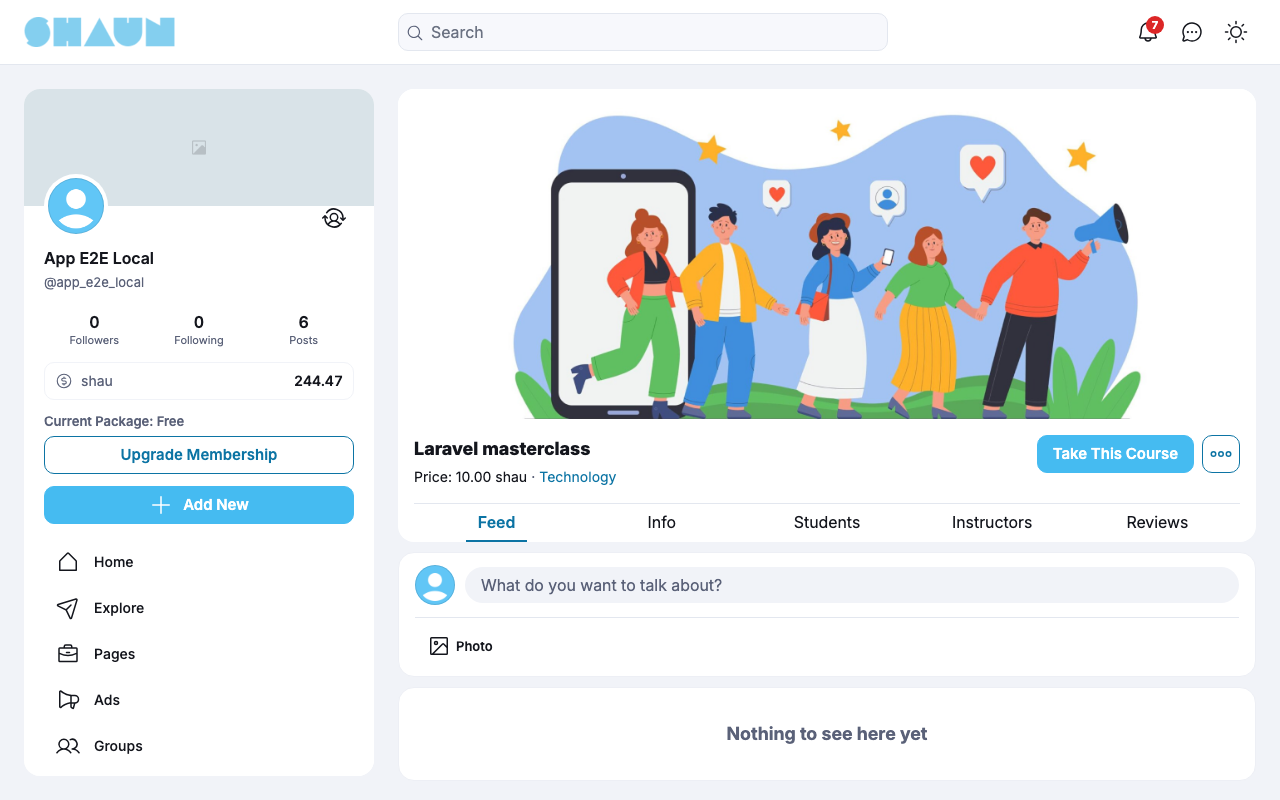
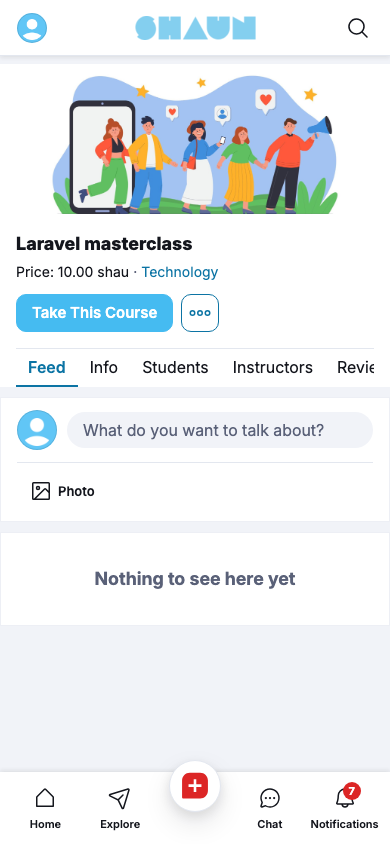
A course page shows the cover, the name, the price and the categories, and these tabs:
| Tab | What it shows |
|---|---|
| Feed | the posts of the course (see The course feed and notifications) |
| Course Content | the sections, lessons and quizzes, and your progress; only once you take the course (see Course content and your progress) |
| Info | the description, categories, hashtags, price, student limit (Unlimited or a number) and progression, a summary of activity, and the first students, instructors and reviews |
| Students | everyone who took the course, with their progress and joining date. Anyone who can see the course sees this list |
| Instructors | the course creator (Owner) and the instructors |
| Reviews | the reviews, while the course creator allows them (see Reviews) |
The button with three dots offers Report and Share. Once you take the course, a bell button opens your notification settings for it and a magnifier searches its feed.
Take a course#
Last updated: 2026-11-19 · v1.1.0
You must be signed in to take a course.
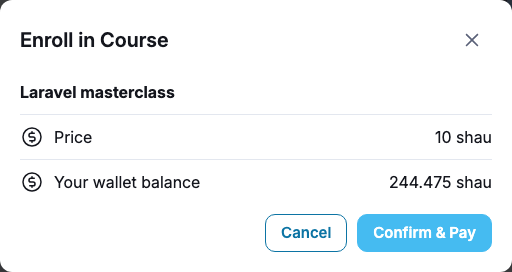
- A free course: click Take This Course. You are in at once: "You have enrolled in the course."
- A paid course: click Take This Course. The window Enroll in Course shows the Price and Your wallet balance. Click Confirm & Pay: the price is taken from your eWallet at once, no password is asked, and you see "You have enrolled in the course." If your balance is too low, the window says "Insufficient balance."; click Top up your wallet to add funds first, for example with PayPal or Stripe (see Add funds).
What you should see: the course page with Enrolled instead of the button, and the Course Content tab. The course creator and the instructors are told "… took your course."
- A paid course cannot be cancelled or refunded, and you cannot leave a course. You keep it even if the creator unpublishes it later.
- Your eWallet shows "Buy course … of …" with the course and the creator's name.
When a course cannot be taken you see one of these messages:
| Message | Why |
|---|---|
| Enrollment for this course is currently paused. Please come back later to enroll. | the creator has turned off new enrollments |
| This course has reached the maximum number of students. | the student limit is reached |
| You don't have enough balance. | your eWallet balance is lower than the price when you click Confirm & Pay (for example, it changed after the window opened; a balance that is already too low shows "Insufficient balance." in the window instead) |
| You can't enroll in your own course. | you created or teach the course |
| You have already enrolled in this course. | you already take it |
| This course is not available. | the course is not published |
| Payment processing failed. Please try again. | the payment could not be completed at that moment; nothing was taken. Try again |
Course content and your progress#
Last updated: 2026-11-19 · v1.1.0
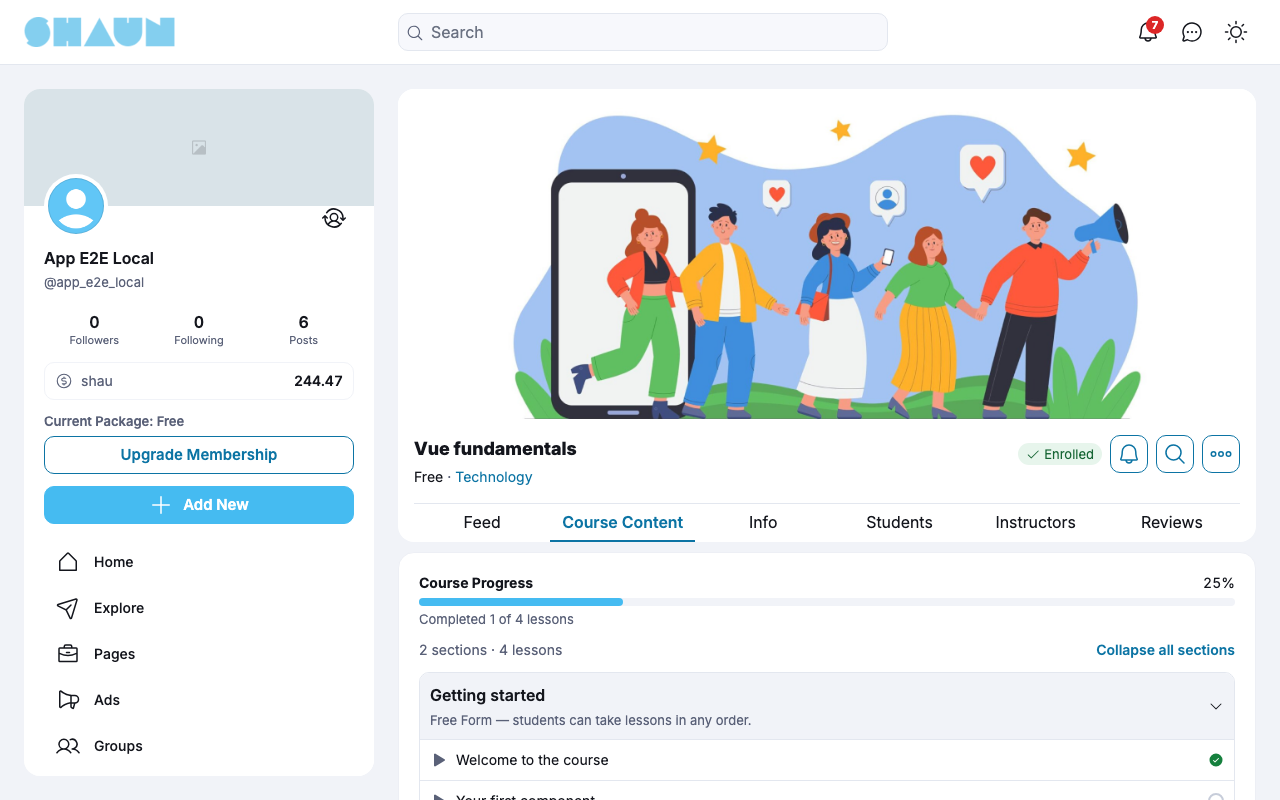
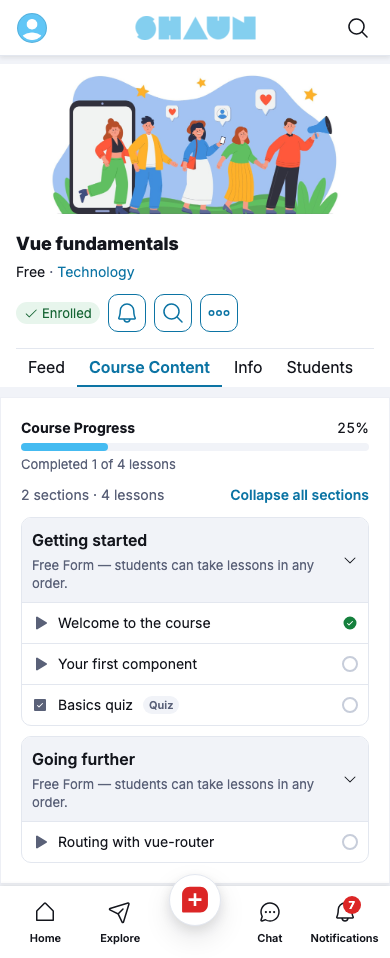
Open the Course Content tab of a course you take. At the top, Course Progress shows the share you have completed, for example "Completed 1 of 4 lessons". Quizzes count as items too.
- A lesson counts as completed when you click Mark it as complete on it; a quiz when you pass it.
- Each section lists its lessons and quizzes. A green tick marks what you completed.
- Under each section name you see how the course is taken. Free Form: take the items in any order. Linear: the items open one after the other, across all sections; a later item shows Locked until you have completed every item before it.
- When the creator adds, removes or unpublishes items, your progress is worked out again from what is published.
Lessons#
Last updated: 2026-11-19 · v1.1.0
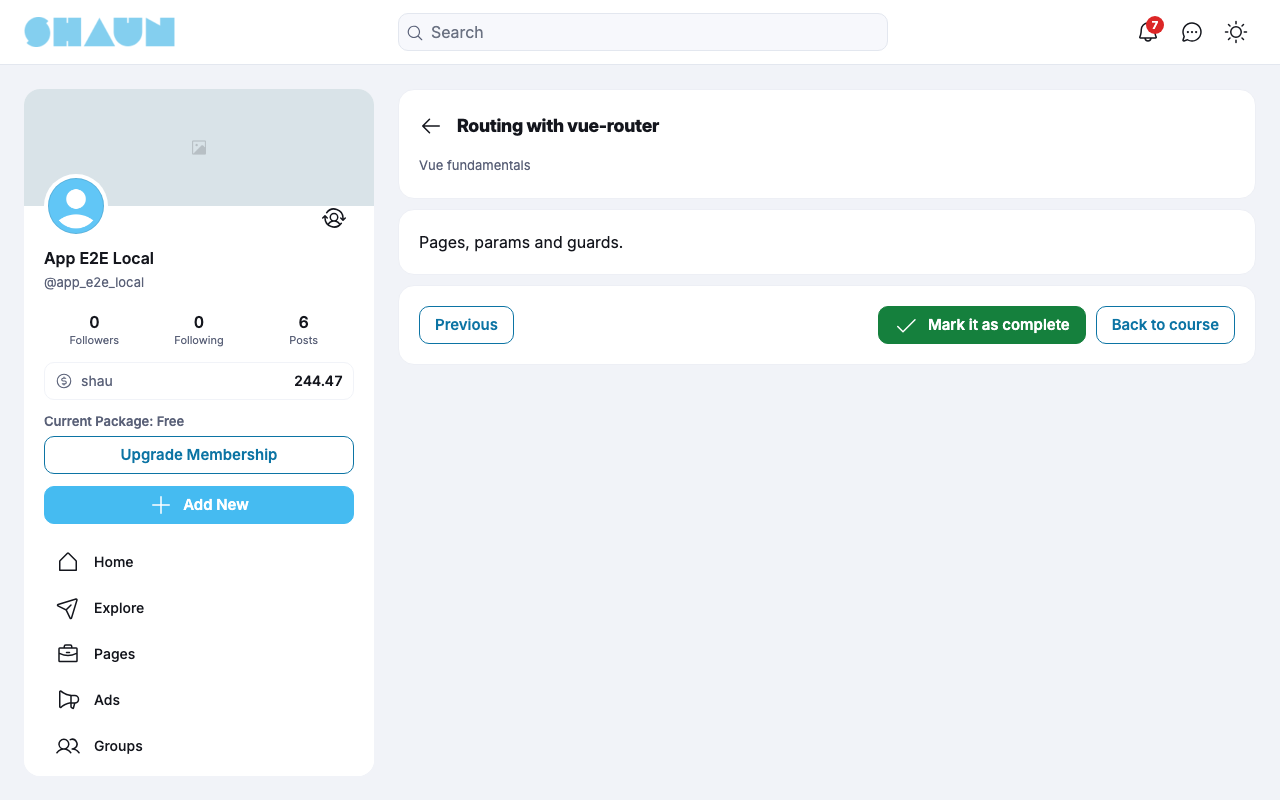
Click a lesson on the Course Content tab. The lesson page shows its video or image, its text and its Attachments: click Download to save a file.
- Click Mark it as complete when you have finished the lesson. It then shows Completed.
- Previous and Next move through the course in order; Back to course follows the last item. In a Linear course, Next stays greyed out with "Complete this item to unlock the next one." until you have completed the item.
- A locked lesson shows "Locked — Unlock this item by completing all previous items."
- The lessons of a paid course are only for its students: other members see "You must be enrolled in this course." and a View Course button.
Quizzes#
Last updated: 2026-11-19 · v1.1.0
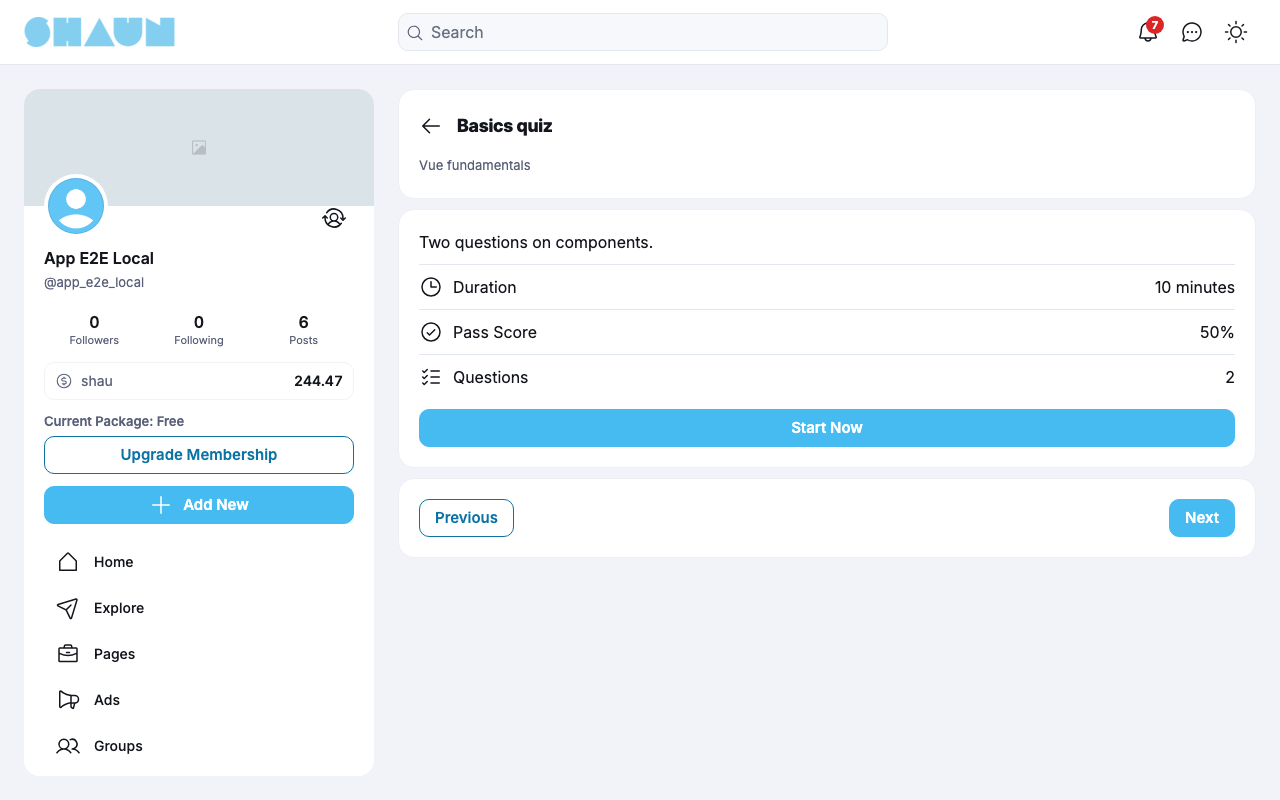
- Click a quiz on the Course Content tab.
What you should see: the quiz description, the Duration (if the creator set one), the Pass Score and the number of Questions, and Start Now.
- Click Start Now and answer the questions: one answer for a single-choice question, every correct answer for a multiple-choice question. The duration is a guide: the quiz has no timer.
- Click Submit Your Answers.
What you should see: your score in percent, how many answers were correct, Pass or Fail, and each question with your answers and the correct ones.
- Your score is the share of questions you answered fully right. A multiple-choice question counts only when you chose exactly all its correct answers; a question left unanswered counts as wrong.
- You pass when your score reaches the Pass Score. Passing completes the quiz in your progress and, in a Linear course, opens the next item.
- You can take a quiz again as often as you like. The course creator and the instructors see every attempt.
The course feed and notifications#
Last updated: 2026-11-19 · v1.1.0
The Feed tab is a place to talk about the course. Anyone who can see the course can read it; the course creator chooses who may post (all students, or only the creator and instructors). Only the creator, the instructors and the students can comment. Pinned posts stay at the top. The creator and the instructors can pin and remove any post in the feed; you can edit and remove your own.
The magnifier button (Search Course) searches the feed by words or a hashtag.
Notifications#
| You are told | When |
|---|---|
| "… published a new course." | a member you follow publishes a course |
| "… published a new lesson in course." (or quiz) | a course you take gets a new lesson or quiz |
| "… updated a course lesson." | the text or media of a lesson in a course you take changes |
| "… created a post in course." | someone posts in a course you take or teach |
| "… pinned a post in course." | a post is pinned in a course you take or teach |
The bell button on the course page (Notification Settings) turns these on or off for that course: A post is created and A post is pinned for everyone, and Take the course ("Receive a notification when someone joins your course.") for the creator and the instructors. Click Save ("Notification settings saved.").
Reviews#
Last updated: 2026-11-19 · v1.1.0
Students can review a course once, while the course creator allows reviews.
- On the course's Reviews tab, answer "Do you recommend …?" with Yes or No.
- Write what you recommend, or how the course can improve, and click Send.
What you should see: "Your review has been sent." The review appears as a post on the Reviews tab, in the course feed and in the site feed, and the course creator is told "… wrote a recommendation."
- The score next to Reviews goes from 0 to 5: 5 when every reviewer recommends the course, 0 when none does.
- The course creator and the instructors cannot review their own course.
- To review again, delete your review post first.
Change log#
Last updated: 2026-11-19 · v1.1.0
| Date (GMT+7) | Section | What changed |
|---|---|---|
| 2026-11-19 | all | First version for Elearning 1.1.0, written from the 1.1.0 code. Taking a paid course was checked once on a demo site; the refusal messages were read from the code, not shown. |
| 2026-11-19 | screenshots | Screenshots from a demo site running Elearning 1.1.0, with demo courses; the paid course window was opened but not confirmed. |
| 2026-11-19 | all | Pages reorganised: AdminCP content now has its own pages. |