
Our marketplace plugin comes with a powerful and flexible category system designed to help you build virtually any type of marketplace—from car listings, property rentals, and real estate to job boards, service directories, and more.
With support for up to 3 category levels, you can organize your marketplace in a structured and scalable way. Each level can be customized to match your specific business needs, giving you full control over how listings are created and displayed.
At the second category level, admins can configure important listing options such as:
- Condition (New or Used)
- Price field
- Discount field
- Free delivery option
- Available quantity
You can also define custom attributes for both level 2 and level 3 categories. These attributes can be set as single choice or multiple choice, allowing you to capture detailed and relevant information for each listing type. To save time, you can even bulk import attribute data from existing configurations.
For pricing flexibility, the system supports multiple pricing models, including:
- Fixed price
- Monthly pricing (ideal for rentals or services)
- Salary (for job listings)
Each category level can also have its own icon, helping create a more engaging and visually appealing browsing experience on the frontend.
All configured attributes are fully integrated into the search system, enabling users to filter and narrow down listings based on specific criteria—making it easier for buyers to find exactly what they need
Follow below steps to setup:
Go to admincp -> Marketplace -> Manage categories
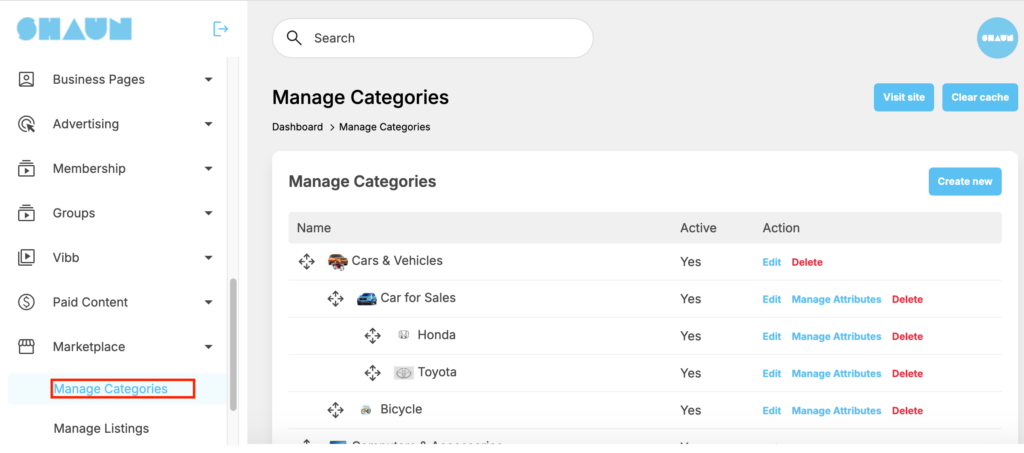
Hit on “Create New” to start adding a new category
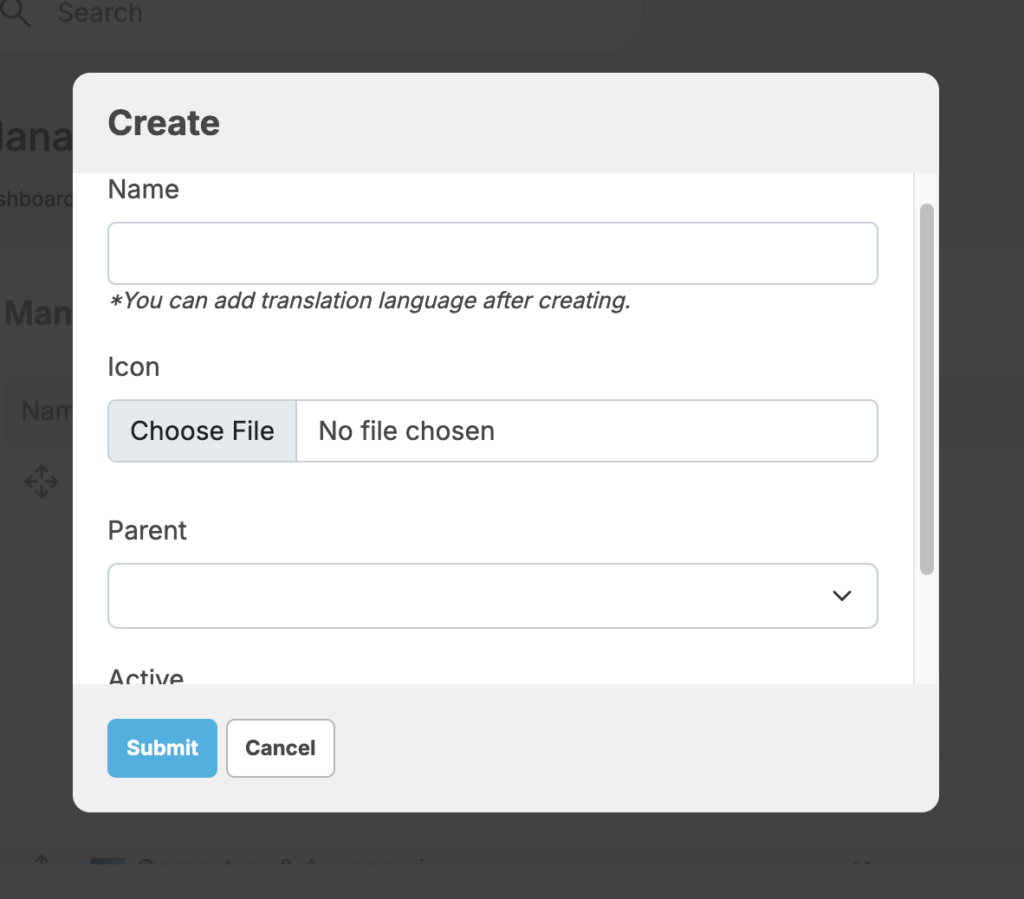
You need to enter category, upload icon and select parent category. The category that does not has parent will consider as top category.
If the category is 2nd level, you can configure to on/off the following fields
- Condition (New or Used)
- Price field
- Discount field
- Free delivery option
- Available quantity
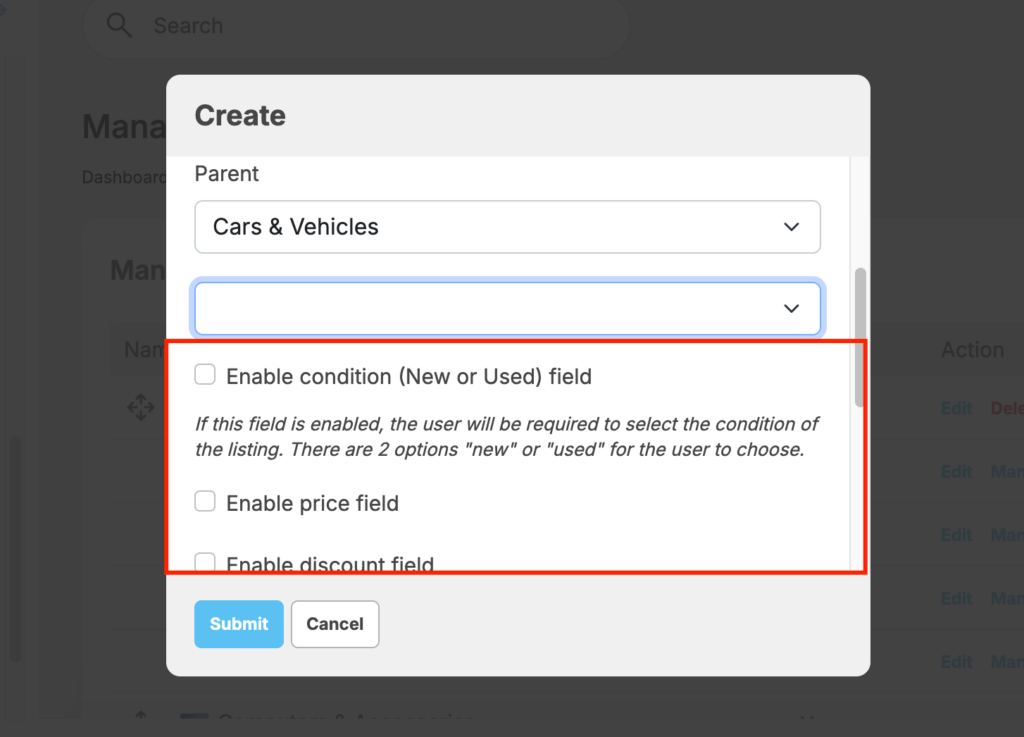
Ex: if the category is “Car for sale”, you should enable all of the fields in the popup but if the category is “Job posting -> IT software”, you will not need the condition (new/used), the discount…or free shipping. But for the price, you should select “Salary” instead of other options.
After the category is added, you then can add attribute for it. Only can add attribute for category level 3 and level 2
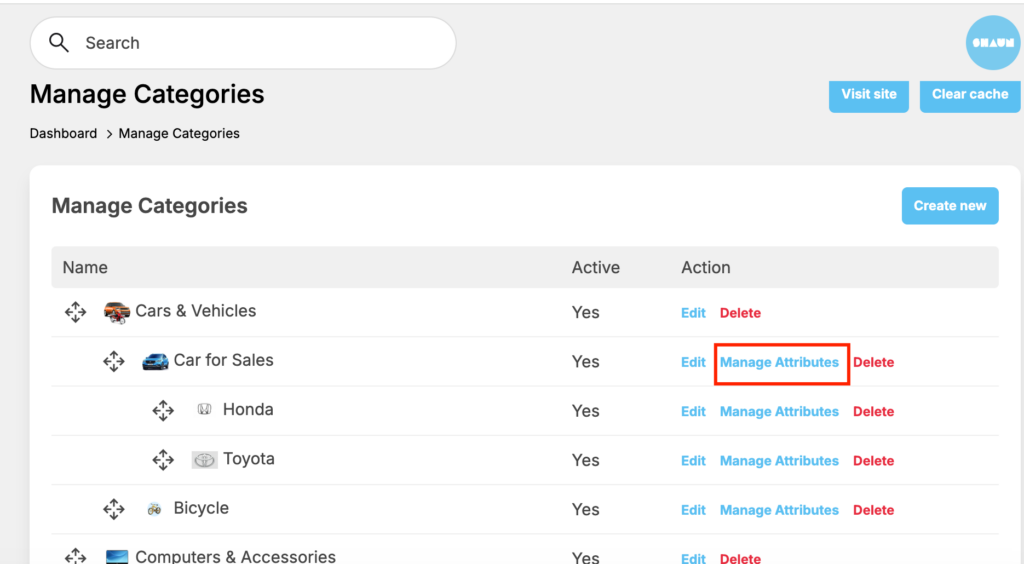
Click on “Manage attributes”, you can see page to start adding attributes for the selected category. Click on “Create new ” to add new one
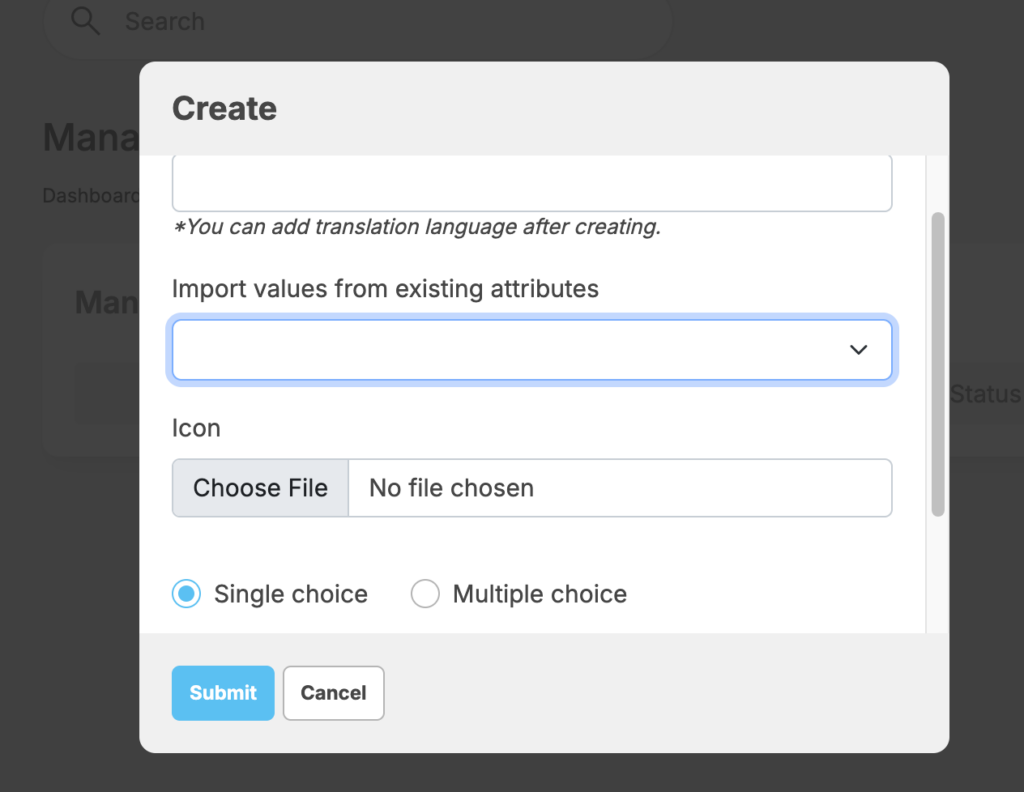
You need to enter name of attribute ex “Engine type”, can import data of from existing “Engine type” attribute to save time to re-add values of the new “Engine type” if you already have added same one before for other category. You can then upload Icon, select type (single or multiple choice) then click on Submit to finish
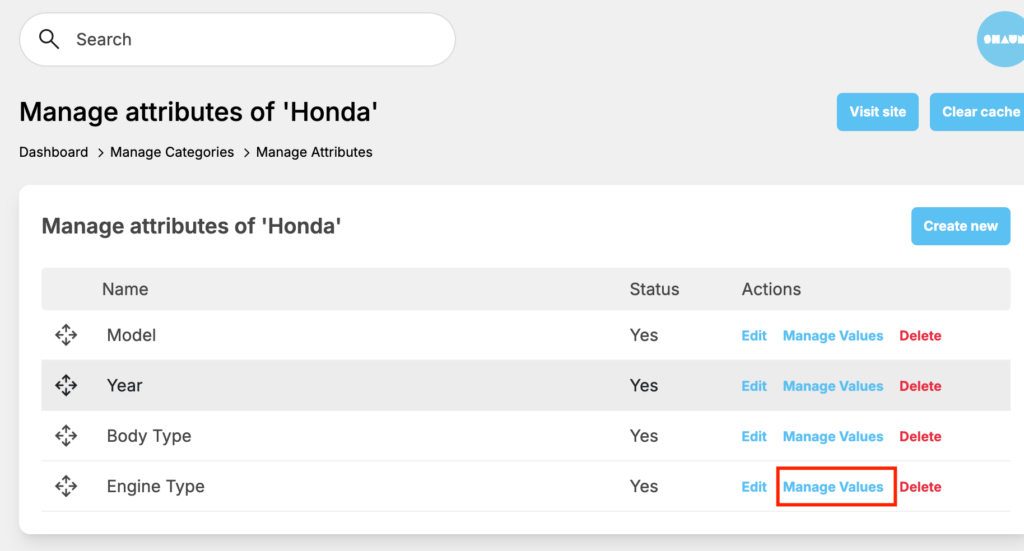
Click on the “Manage values” of the attributes you added to start adding value for it
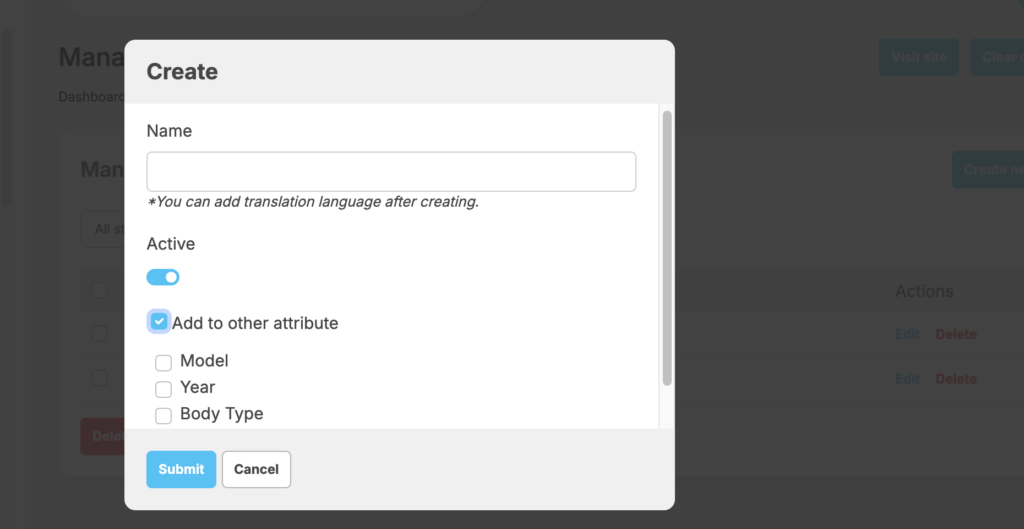
When adding a new value, you can add it into other attribute also to save time.
Importance: you can’t delete a category or attributes if they’re in used by an existing listing.


