
Step 1: Decide which site is the Provider and which is the Client
– Provider is the site where users already have their accounts. Users sign in with these accounts.
– Client is the site that shows a “Login with [Provider]” button.
In this guide, Site A is the Provider and Site B is the Client. Users of Site A will be able to log in to Site B with their Site A account.
—
Step 2: Choose an App Name
Pick a short name with no spaces, for example SiteA. You will enter it on both sites, and it must be exactly the same on both, including uppercase and lowercase letters.
—
Step 3: On Site A, create an OpenID Client
1. Log in to Site A’s Admin panel.
2. Go to Manage OpenID Clients and click Create.
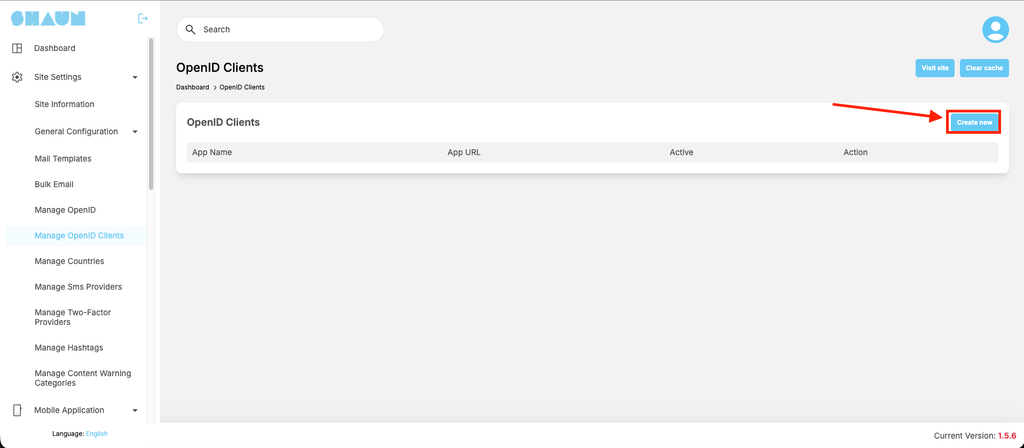
3. Fill in the form:
– Name: Site B
– App URL: https://site-b.com
– Redirect URI: https://site-b.com/openid/auth/SiteA
– App Redirect URI: https://site-b.com/openid/auth/SiteA/1
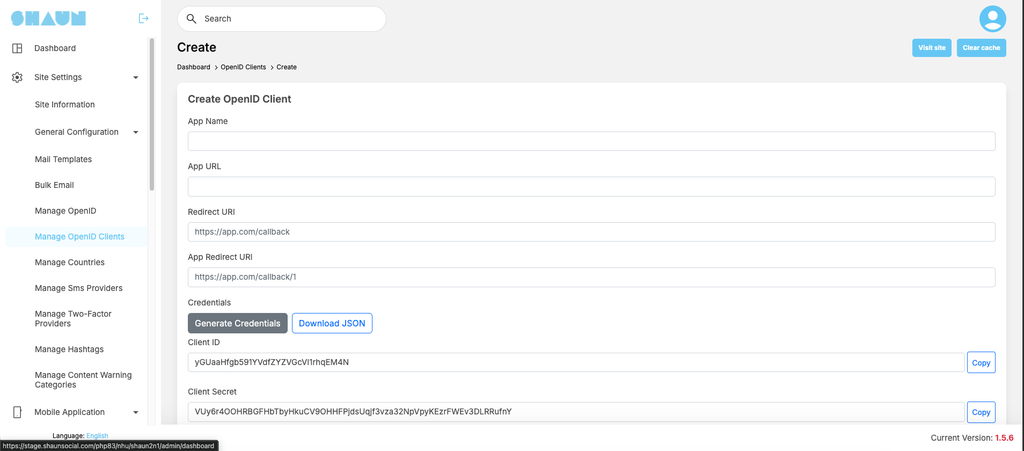
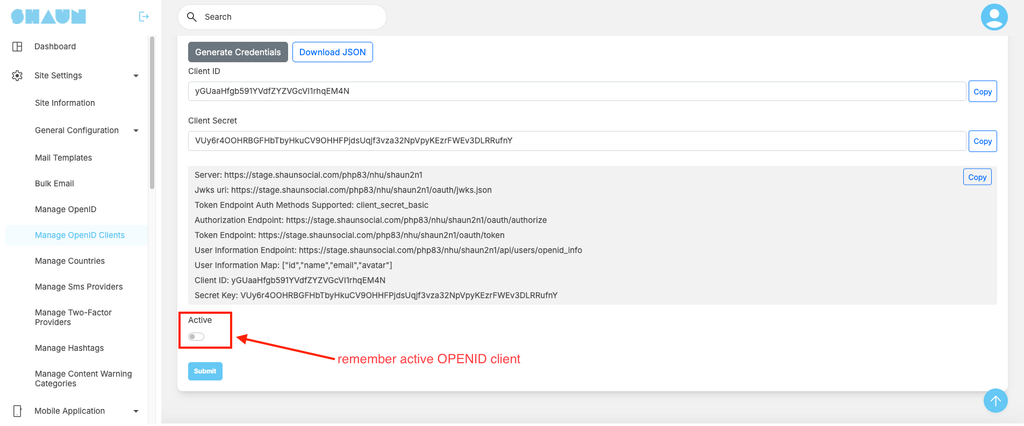
4. Copy both ClientID, Client Secret and keep them safe. You need them for the next Step.
5. Tick Active and click Save.
—
Step 4: On Site B, add Site A as an OpenID provider
1. Log in to Site B’s Admin panel.
2. Go to Manage OpenID and click Create.
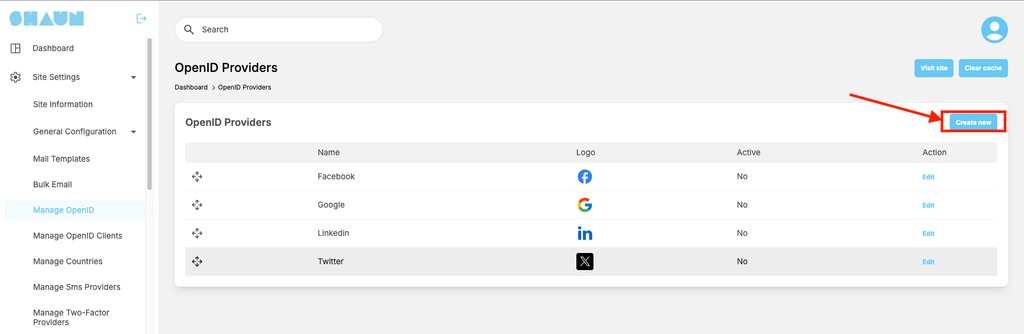
3. Fill in the form:
– Name: Site A (this text appears on the login button)
– App Name: SiteA (the same name as in Step 2)
– Photo: Site A’s logo (optional)
– Server: https://site-a.com (no / at the end)
– Client ID: paste the value from Step 3
– Client Secret: paste the value from Step 3
– Scope: (blank)
– Authorize Endpoint: https://site-a.com/oauth/authorize
– Access Token Endpoint: https://site-a.com/oauth/token
– Get User Info Endpoint: https://site-a.com/api/users/openid_info
– User ID Map: id
– Email Map: email
– Name Map: name
– Avatar Map: avatar
4. Tick Active and click Save.
—
Step 5: Allow sign-up on Site B
In Site B’s Admin settings, make sure sign-up is enabled. Without it, Site A users who don’t have an account on Site B yet cannot log in.
—
Step 6: Test it
1. Open Site B in a private/incognito browser window.
2. On the login page, click “Login with Site A”.
3. Log in with a Site A account.
4. You should come back to Site B, already logged in.


